Manage Startup Process and Services In Services Configuration
This article explains managing startup processes and services in Linux using the init system and systemd units for efficient system operation.
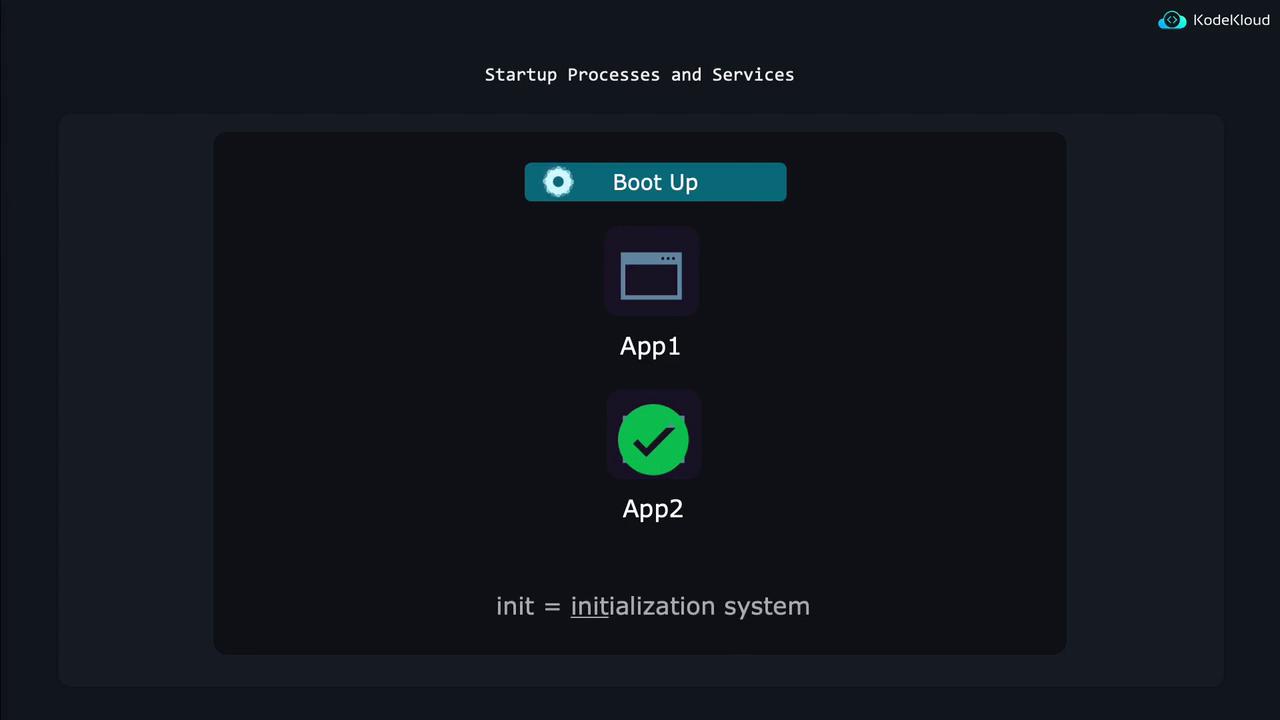
This article explains how to manage startup processes and services in Linux. During the boot sequence, Linux automatically launches several critical applications in a defined order. For example, if Application 2 depends on Application 1, Application 1 will load first. Additionally, if a critical application crashes, the system is configured to automatically restart it to ensure uninterrupted operation.
The startup and management of services in Linux are controlled by the init system. This system uses configuration files called systemd units to determine how applications should be started, what actions to take when an application fails, and other necessary operations. The term systemd refers both to the suite of tools that manage Linux systems and the primary program that acts as the init system.

Systemd ensures smooth system operation by initializing and monitoring various system components. There are several types of systemd units such as service, socket, device, and timer units. For example, timer units can schedule tasks like weekly file cleanups or database verifications. In this guide, the focus is on service units.A service unit provides systemd with all the details required to manage an application’s lifecycle. This includes the command to start the application, what to do if it crashes, how to reload configurations, and more. To explore the various options available in a service unit file, run:
Many Linux servers run an SSH daemon to enable remote connections. Systemd manages this daemon using a specific service unit. You can display the SSH service unit file by executing:
● ssh.service - OpenBSD Secure Shell server Loaded: loaded (/etc/systemd/system/ssh.service; enabled; vendor preset: enabled) Active: active (running) since Wed 2024-02-28 18:32:18 UTC; 2h 29min ago Docs: man:sshd(8) man:sshd_config(5) Main PID: 688 (sshd) Tasks: 1 (limit: 4558) Memory: 7.6M CPU: 88ms CGroup: /system.slice/ssh.service └─688 "sshd: /usr/sbin/sshd -D [listener] 0 of 10-100 startups"Feb 28 18:32:18 kodekloud systemd[1]: Starting OpenBSD Secure Shell server...Feb 28 18:32:18 kodekloud sshd[688]: Server listening on 0.0.0.0 port 22.Feb 28 18:32:18 kodekloud sshd[688]: Server listening on :: port 22.Feb 28 18:32:18 kodekloud systemd[1]: Started OpenBSD Secure Shell server.
The output indicates whether the service is enabled to start at boot, confirms that the process is running, and displays the process identifier (PID) along with log messages for troubleshooting.
Starting, Stopping, Restarting, and Reloading Services
You can manually manage services using various systemctl commands:
Stop a service:
Copy
Ask AI
$ sudo systemctl stop ssh.service
Start a service:
Copy
Ask AI
$ sudo systemctl start ssh.service
Restart a service:
This command stops and then starts the service to apply new configurations.
Copy
Ask AI
$ sudo systemctl restart ssh.service
Reload a service:
This command reloads the service’s configuration without interrupting active sessions, which is particularly useful when users are connected.
Copy
Ask AI
$ sudo systemctl reload ssh.service
After modifying the SSH configuration file located at /etc/ssh/sshd_config, you can enforce the new settings with either of the following commands:
Copy
Ask AI
$ sudo systemctl restart ssh.service # Fully stops and starts the service.$ sudo systemctl reload ssh.service # Gracefully reloads the configuration.
You can review the status again to confirm the service behavior:
Not all applications support configuration reloads. When in doubt, systemd will first attempt a graceful reload and then perform a full restart if necessary.
Some services might restart automatically even after being stopped or disabled because other services trigger them. In such cases, you can mask the service to completely prevent it from starting. For example, to prevent the at daemon from being activated:
Copy
Ask AI
$ sudo systemctl mask atd.service
A masked service cannot be enabled or started. Any attempt to do so will generate an error:
Copy
Ask AI
Failed to enable unit: Unit file /etc/systemd/system/atd.service is masked.Failed to start atd.service: Unit atd.service is masked.
To reverse the masking and allow the service to operate normally, run:
Sometimes the service name for an installed application may not be obvious (for instance, Apache might be listed as apache.service or httpd.service depending on your distribution). To display all service units regardless of their state, use:
Copy
Ask AI
$ sudo systemctl list-units --type service --all
This command lists service units in various states—active, inactive, enabled, or disabled—ensuring you have a complete overview. An example output may look like:
UNIT
LOAD
ACTIVE
SUB
DESCRIPTION
accounts-daemon.service
loaded
active
running
Accounts Service
alsa-restore.service
loaded
inactive
dead
Save/Restore Sound Card
alsa-state.service
loaded
active
running
Manage Sound Card State
apparmor.service
not-found
inactive
dead
apparmor.service
atd.service
loaded
active
running
Job spooling tools
auditd.service
loaded
active
running
Security Auditing Service
auth-rpcgss-module.service
loaded
inactive
dead
Kernel Module support
In addition to service units, systemd also manages other types of units such as sockets and timers.In summary, this article demonstrated how systemd manages Linux services through service units—from starting and stopping to restarting and reloading configurations. Mastering these commands is essential for efficient system management and ensuring continuous system reliability.