

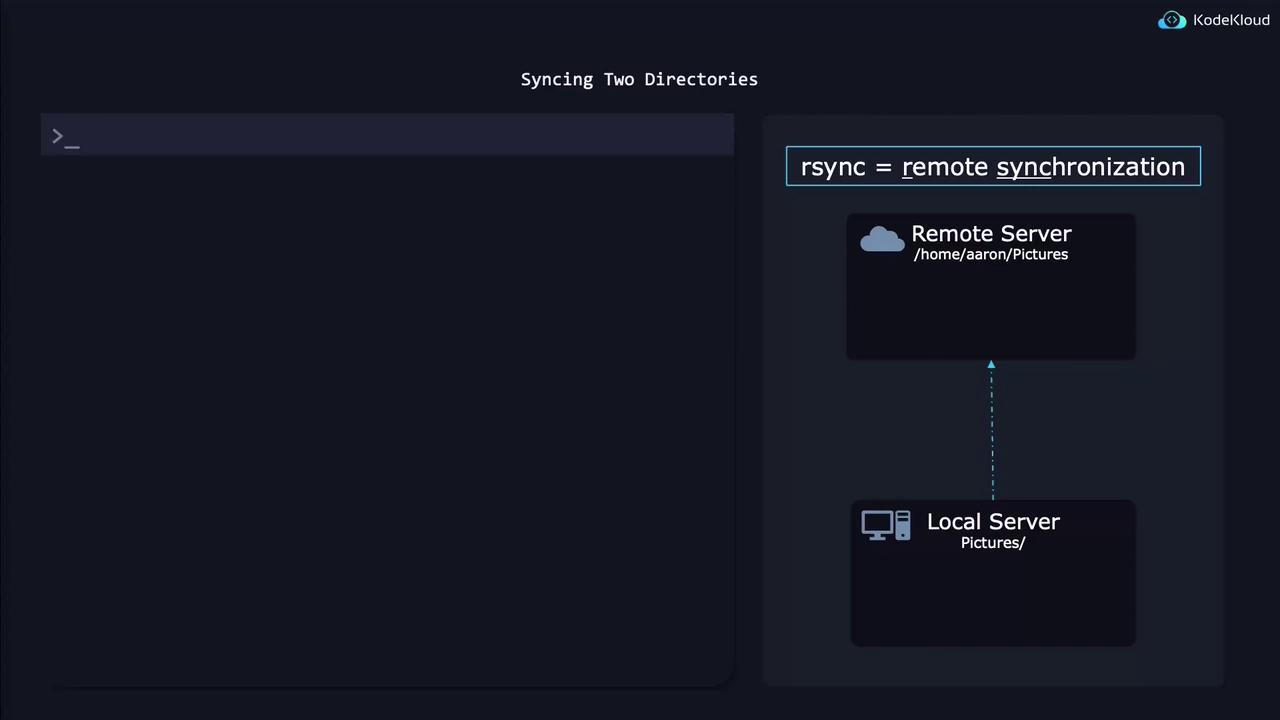
- The
-a(archive) option ensures that subdirectories, file permissions, modification times, and other attributes are synchronized. - Always add a trailing forward slash (”/”) at the end of directory paths to explicitly indicate that you are syncing the contents of the directory rather than the directory itself.
• “9.9.9.9” is the IP address of the remote server.
• The directory after the colon specifies the destination directory on the remote system. An advantage of using rsync is that on subsequent runs, it only transfers changed data. This incremental approach can significantly speed up future backups by skipping files that haven’t been modified. You can also reverse the source and destination to copy data from a remote directory back to a local directory. Additionally, rsync works for synchronizing between two local directories.
If you’re looking to create a bit-for-bit copy of an entire disk or partition, consider using the dd utility instead of rsync.
if=/dev/vda specifies the input file (i.e., the source disk or partition).•
of=diskimage.raw specifies the output file where the disk image is saved.•
bs=1M sets the block size to 1 megabyte, which can improve read-write speeds compared to default, smaller sizes.•
status=progress displays real-time progress information during the operation.
To restore a disk image from a file back to a disk, simply reverse the input and output options as shown below:
Avoid running these dd commands on a virtual machine unless you are absolutely sure you want to overwrite the virtual disk, as this operation can result in data loss.
Related Resources
For further reading, consider visiting Linux Backup Strategies and dd Command Tutorial.