

Clone the Repository
Before getting started, ensure that Git is installed on your system. Most modern versions of Ubuntu and Linux come with Git pre-installed. In this example, we will clone the Git repository for an application called htop. Run the command below to clone the repository: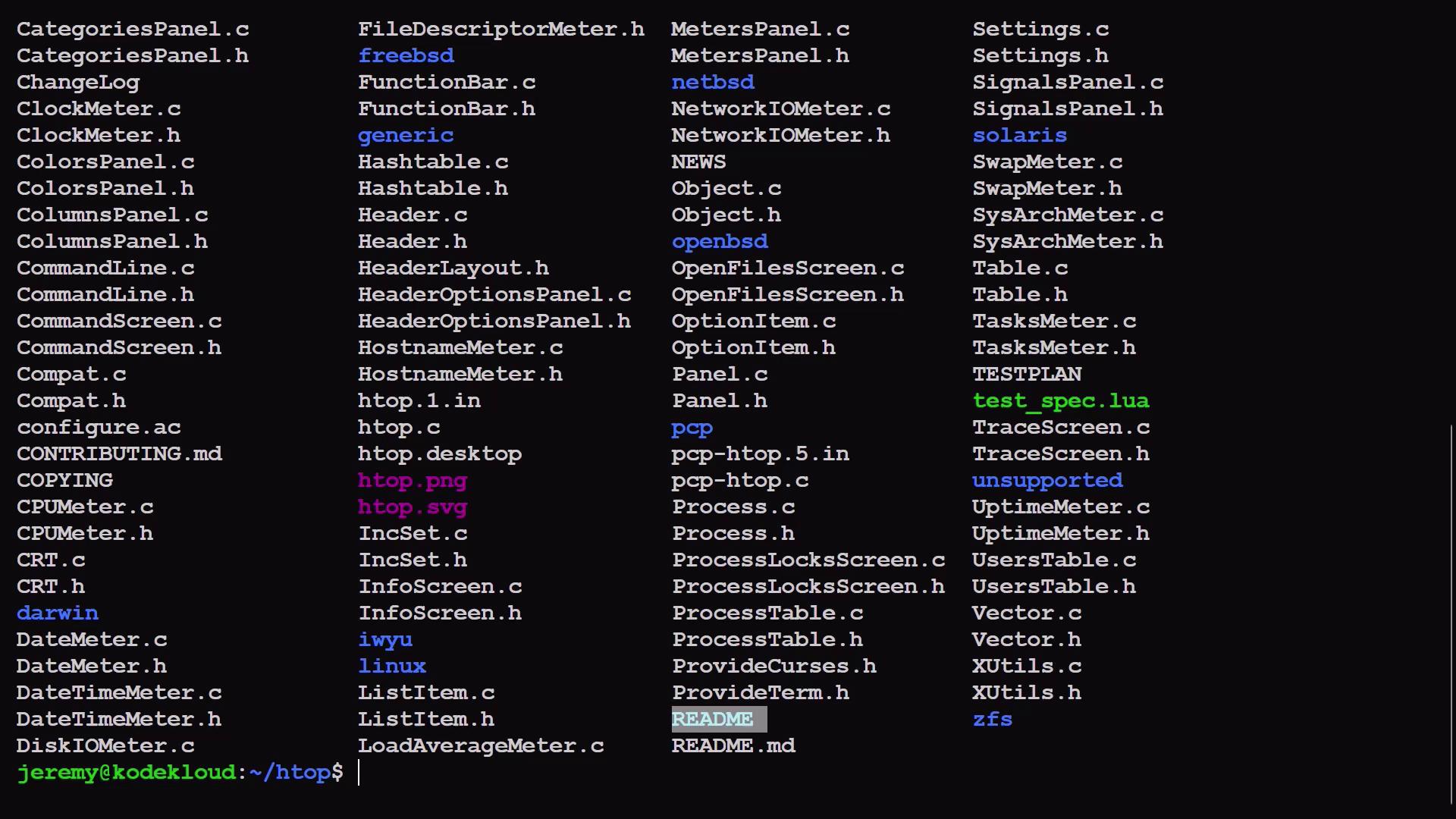
Install Dependencies
According to the README file, several libraries and compilation tools are required. One essential package islibncursesw5-dev, which is a development library, indicated by the -dev suffix. Additionally, the build-essential package installs the necessary compilation tools.
Install the required packages by running:
If you encounter dependency errors, verify that your software repositories are updated and consider running
sudo apt update before installing.Run the Autogen Script
After installing the dependencies, locate the executable script namedautogen.sh (often highlighted in green). This script generates the configure file, which prepares the build configuration options for your project.
To run the autogen script, execute:
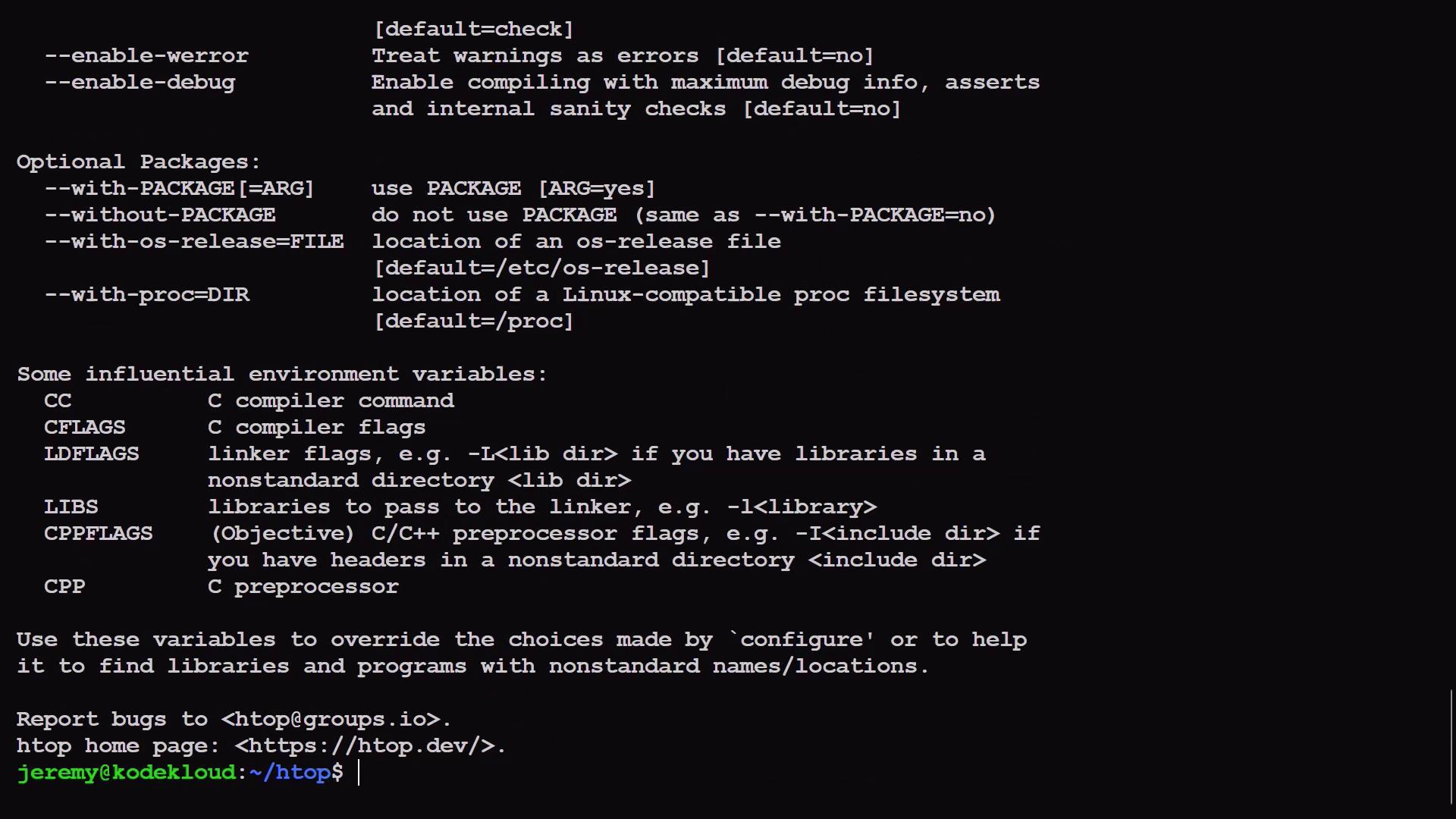
configure script allows you to set various build options. To view all available configuration options, run:
./configure without arguments will configure the project using default settings.
Verify Configuration Requirements
Before building the project, the configuration script checks for the presence of necessary libraries and compiler support. Below is an example snippet of these checks:make.
Compile the Application
Themake command compiles the source code into an executable binary. To start the compilation process, run:
clean, install, and uninstall), type make followed by a space and press the Tab key twice. These common targets help in managing build artifacts and installation processes.
For example, if the build process fails or you need to start from a clean state, you can run:
make, the htop binary is compiled in the current directory.
Run the Compiled Application
After compilation, you can run the newly createdhtop executable directly from the current directory:
htop, you should see an interface similar to the following:
Install the Binary System-wide
Typing the full path to run the executable each time can be cumbersome. To streamline the process, you can install the application system-wide. This action moves thehtop binary into a directory included in your system’s PATH (typically /usr/local/bin), allowing you to run it from any location.
Install htop system-wide by executing:
/usr/local/bin is in the default PATH for Ubuntu, you no longer need to specify the full path to launch the application.
Compiling software from source can provide enhanced performance and access to the latest features. Always refer to the project’s README for specific build instructions and troubleshooting tips.
Conclusion
In this lesson, we covered the process of compiling and installing software from source code. The steps included:- Cloning the repository
- Installing necessary dependencies
- Generating configuration scripts via
autogen.sh - Verifying configuration requirements
- Compiling the project using
make - Running and installing the binary system-wide