This article explores scheduling tasks on Linux systems using Cron, Anacron, and At utilities for automation and system maintenance.
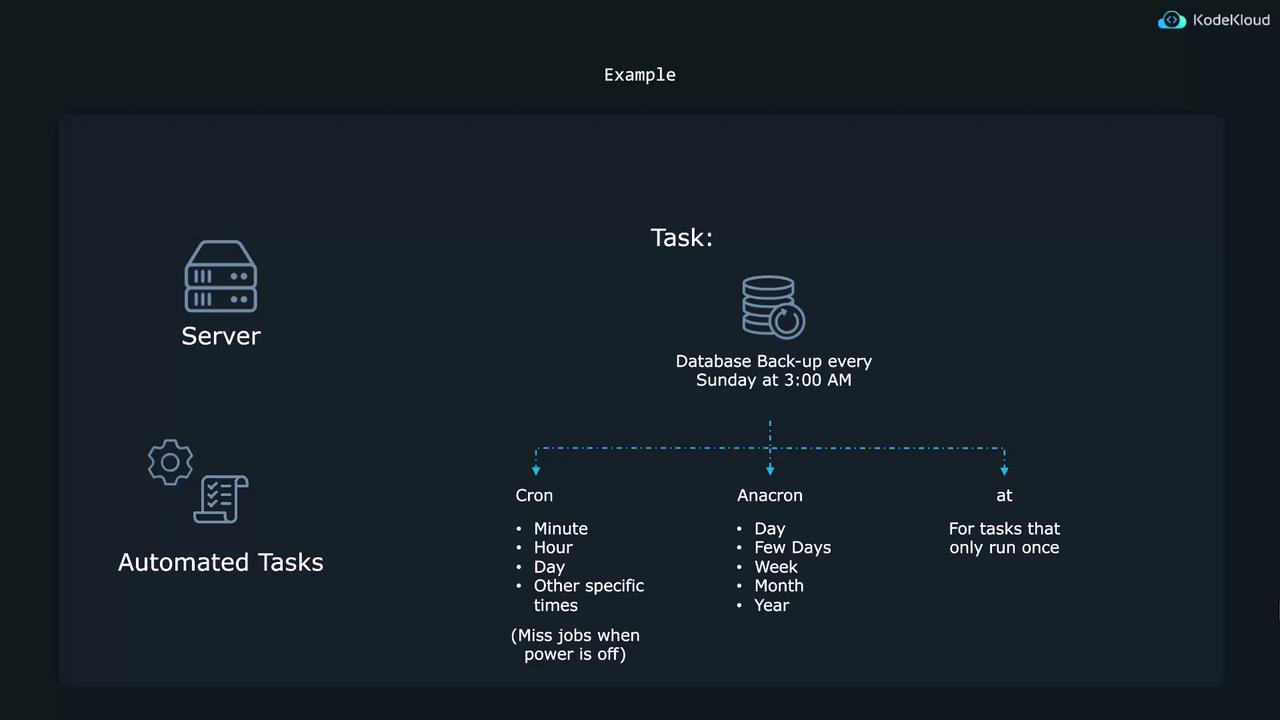
In this article, we explore how to schedule tasks to run at specified times on Linux systems. Automating tasks such as database backups every Sunday at 3:00 AM is crucial for consistent system maintenance. There are three primary tools available for task scheduling:
Cron Utility
Anacron
At Utility
Below, we detail how each tool works and how to configure them for your needs.
Cron is best suited for repetitive tasks that run at regular intervals—whether every few minutes, specific hours, days, or even months.The basic syntax for a cron job consists of five time-and-date fields followed by the command to be executed. When editing the system-wide cron table (found at /etc/crontab), a username field is included. The time fields are as follows:
Minute (0–59)
Hour (0–23)
Day of the month (1–31)
Month (1–12)
Day of the week (0–6, where 0 or 7 denotes Sunday)
You can use special characters in these fields:
Asterisk (*) denotes every possible value.
Comma (,) separates multiple values. For example, “15,45” in the minute field runs the job at minute 15 and 45.
Dash (-) specifies a range (e.g., “2-4” in the hour field).
Slash (/) defines steps. For example, ”*/4” in the hour field indicates every 4 hours, and “0-8/4” represents 0 AM, 4 AM, and 8 AM.
The default system-wide cron table, located at /etc/crontab, usually includes explanatory comments. Below is a sample excerpt:
Copy
Ask AI
$ cat /etc/crontabSHELL=/bin/sh# You can also override PATH; by default, newer versions inherit it.# Example of job definition:# ----------- minute (0 - 59)# ----------- hour (0 - 23)# ----------- day of month (1 - 31)# ----------- month (1 - 12) OR jan,feb,mar,apr ...# ----------- day of week (0 - 6) (Sunday=0 or 7) OR# sun,mon,tue,wed,thu,fri,sat# * * * * * user-name command to be executed35 6 * * * root /bin/some_command --some_options
When modifying the system-wide cron file, be aware that package updates may overwrite your changes. It is generally safer to add cron jobs using the user’s personal cron table.
To edit your personal cron table, run:
Copy
Ask AI
$ crontab -e
In your personal cron table, the username is not required because the job inherits your current privileges. For example, if you want to create a file named test_path every day at 6:35 AM using the touch command, first determine its full path:
Copy
Ask AI
$ which touch/usr/bin/touch
Then, add the following line using crontab -e:
Copy
Ask AI
35 6 * * * /usr/bin/touch test_path
Save and exit the editor to schedule the job.Below are additional examples for scheduling tasks:
Copy
Ask AI
$ which touch/usr/bin/touch$ crontab -e35 6 * * * /usr/bin/touch test_passed # Every day at 6:35 AM0 3 * * 0 /usr/bin/touch test_passed # Every Sunday at 3:00 AM0 3 * * 7 /usr/bin/touch test_passed # Alternative notation for Sunday0 3 15 * * /usr/bin/touch test_passed # On the 15th of every month at 3:00 AM
To run a command every day at 3:00 AM or at the top of every hour (when the minute is 00), adjust the timing fields as needed.For further testing of your cron expressions, visit crontab.guru.To list your current cron jobs, use:
Copy
Ask AI
$ crontab -l35 6 * * * /usr/bin/touch aaron_test
To view or edit other users’ cron jobs (e.g., root or another user), use sudo:
If you need to remove a user’s cron jobs entirely, use the -r option:
Copy
Ask AI
$ crontab -r$ sudo crontab -r -u jane
An alternative to adding jobs to the cron table directly is by placing scripts into specific directories, such as /etc/cron.daily, /etc/cron.hourly, /etc/cron.weekly, or /etc/cron.monthly. For instance, to schedule a shell script named shellscript to run hourly:
Anacron is designed for tasks that need to run periodically (daily, weekly, monthly) on systems that are not continuously powered on. If a scheduled cron task is missed because the system is off, anacron will run the task once the system is available.On many systems, anacron is pre-installed. If not, install it with:
Copy
Ask AI
$ sudo apt install anacron
Anacron’s configuration is in the /etc/anacrontab file, which includes helpful comments and examples. Here’s an excerpt:
Copy
Ask AI
$ sudo vim /etc/anacrontab# See anacron(8) and anacrontab(5) for details.# These entries replace cron's job entries.1 5 cron.daily run-parts --report /etc/cron.daily7 10 cron.weekly run-parts --report /etc/cron.weekly@monthly 15 cron.monthly run-parts --report /etc/cron.monthly
The syntax in the anacrontab file consists of four fields:
The period in days (e.g., 1 for daily, 7 for weekly).
A delay (in minutes) after system startup.
A unique job identifier.
The command to execute.
For example, to run a job every three days with a 10-minute delay:
The at utility is ideal for one-time task scheduling, rather than recurring jobs. If at is not already installed on your Ubuntu system, install it with:
Copy
Ask AI
$ sudo apt install at
To schedule a job with at, specify the desired run time. For example, to run a job at 3:00 PM:
Copy
Ask AI
$ at '15:00'warning: commands will be executed using /bin/shat> /usr/bin/touch file_created_by_atat> <CTRL-D>
You can also schedule jobs for specific dates or relative times. Some examples include:
Copy
Ask AI
$ at 'August 20 2024'$ at '2:30 August 20 2024'$ at 'now + 30 minutes'$ at 'now + 3 hours'$ at 'now + 3 days'$ at 'now + 3 weeks'$ at 'now + 3 months'
To view scheduled at jobs, use:
Copy
Ask AI
$ atq1 Wed Mar 6 15:00:00 2024 a aaron
Here, the first number is the job ID. To inspect a job’s details, use the -c option, similar to using cat. To remove a job, execute:
Copy
Ask AI
$ atrm 1
For more information on the at utility, refer to the at documentation.
Each of these tools—cron, anacron, and at—has its unique strengths. Cron excels for regular, recurring tasks; anacron ensures tasks are completed even if scheduled times are missed due to system downtime; and at is perfect for one-off commands.By mastering these scheduling utilities, you can automate and manage tasks efficiently on your Linux system, ensuring a more resilient and well-maintained environment.