This guide shows you how to update a Flask-based AI app to use the OpenAI API in production while still developing locally with Ollama. By changing only a few environment variables, you can switch between free local development and cost-effective cloud inference.
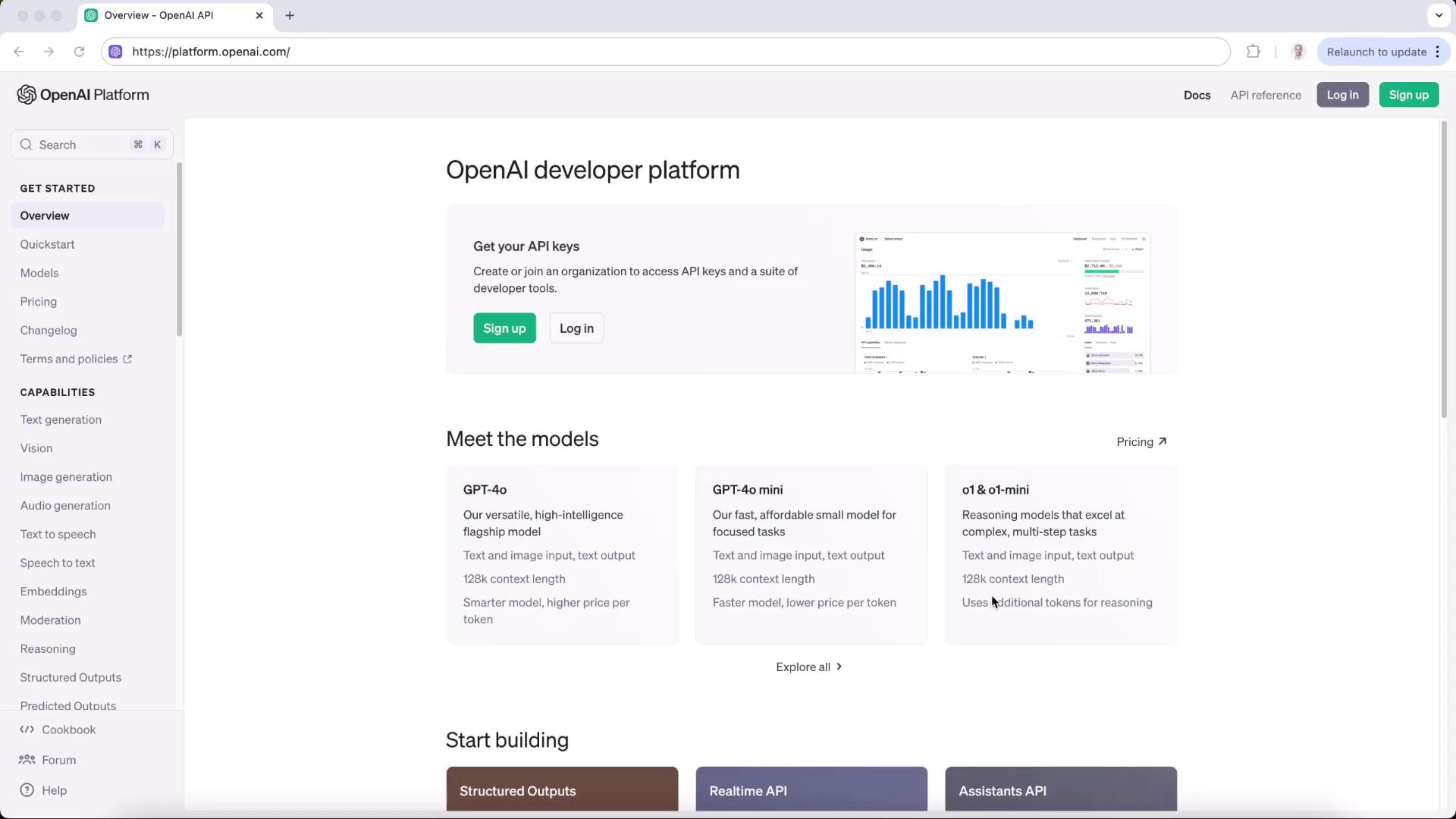
The image shows the OpenAI developer platform webpage, featuring options to sign up or log in, and information about different AI models like GPT-4o and o1-mini. The sidebar includes links to various capabilities and resources.

1. Create an OpenAI API Key

  1. Sign in or sign up at platform.openai.com.
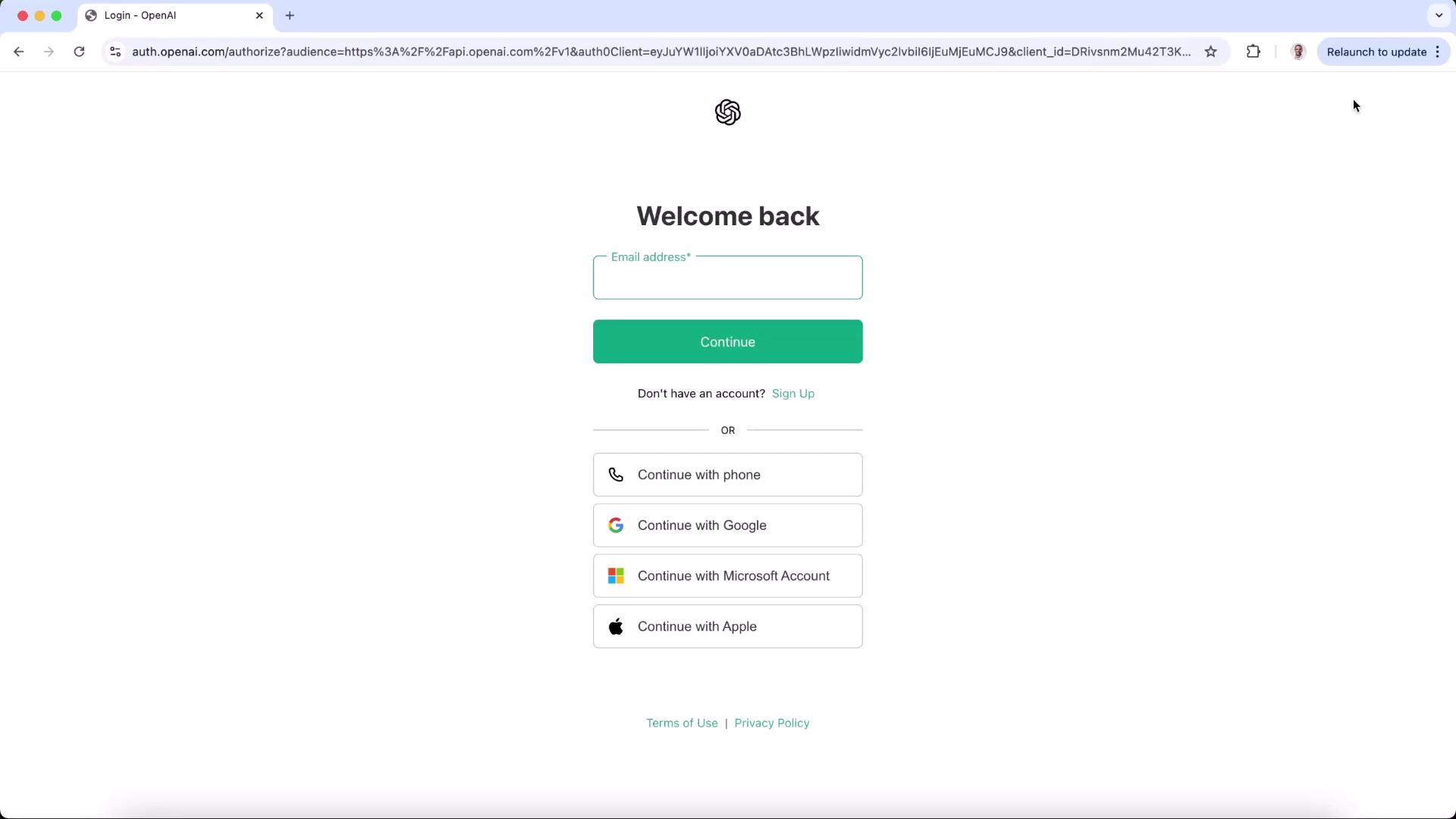
The image shows a login page for OpenAI, offering options to sign in with an email address, phone, Google, Microsoft, or Apple accounts.
  1. Navigate to Settings → API keys, then click Create new secret key.
  2. Provide a name (e.g., “Ollama app”), assign it to your default project, set permissions, and copy the secret key.
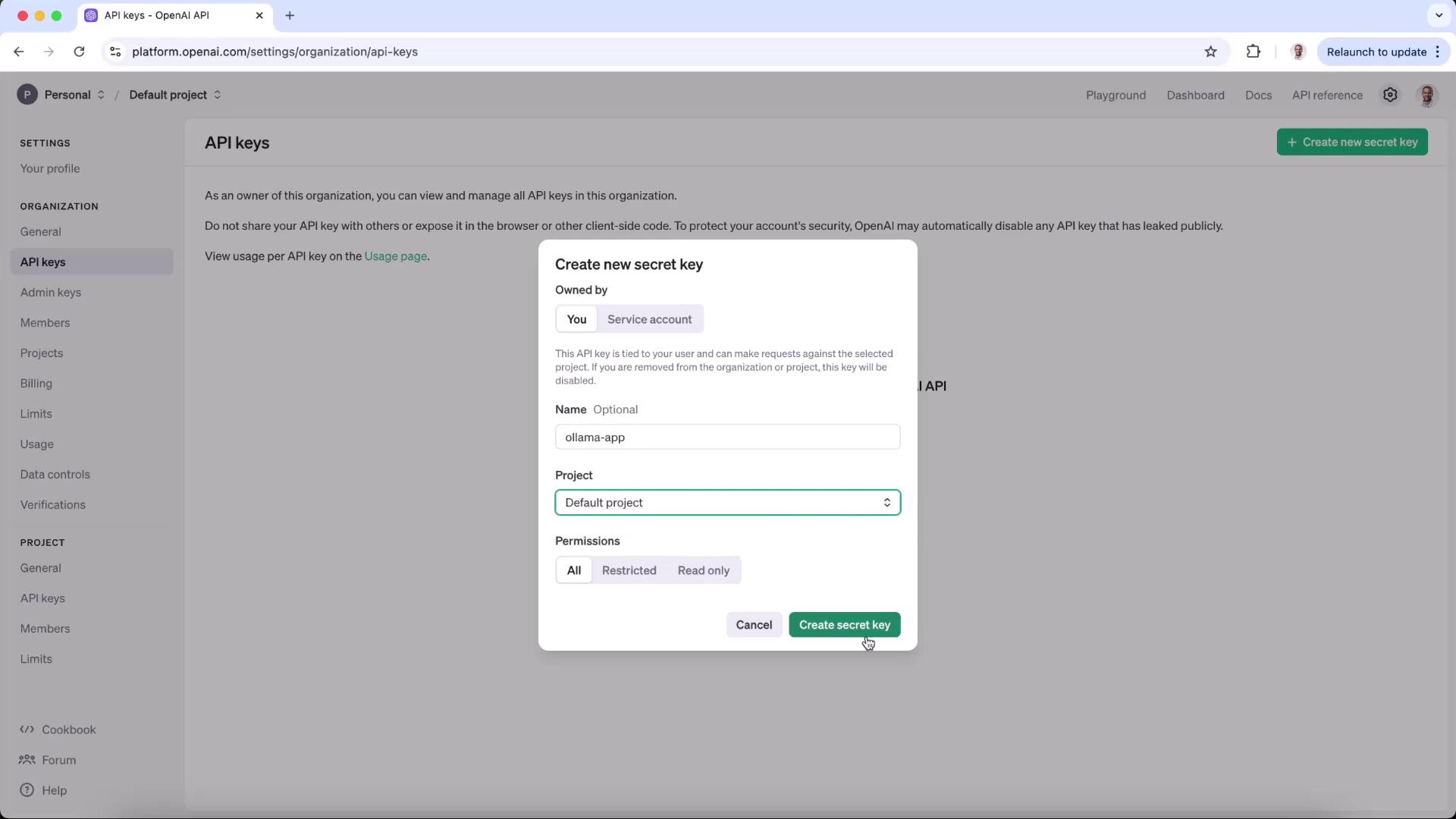
The image shows a webpage for creating a new secret API key on the OpenAI platform, with a form to input details like name, project, and permissions.
  1. Confirm that your new key appears under API keys.
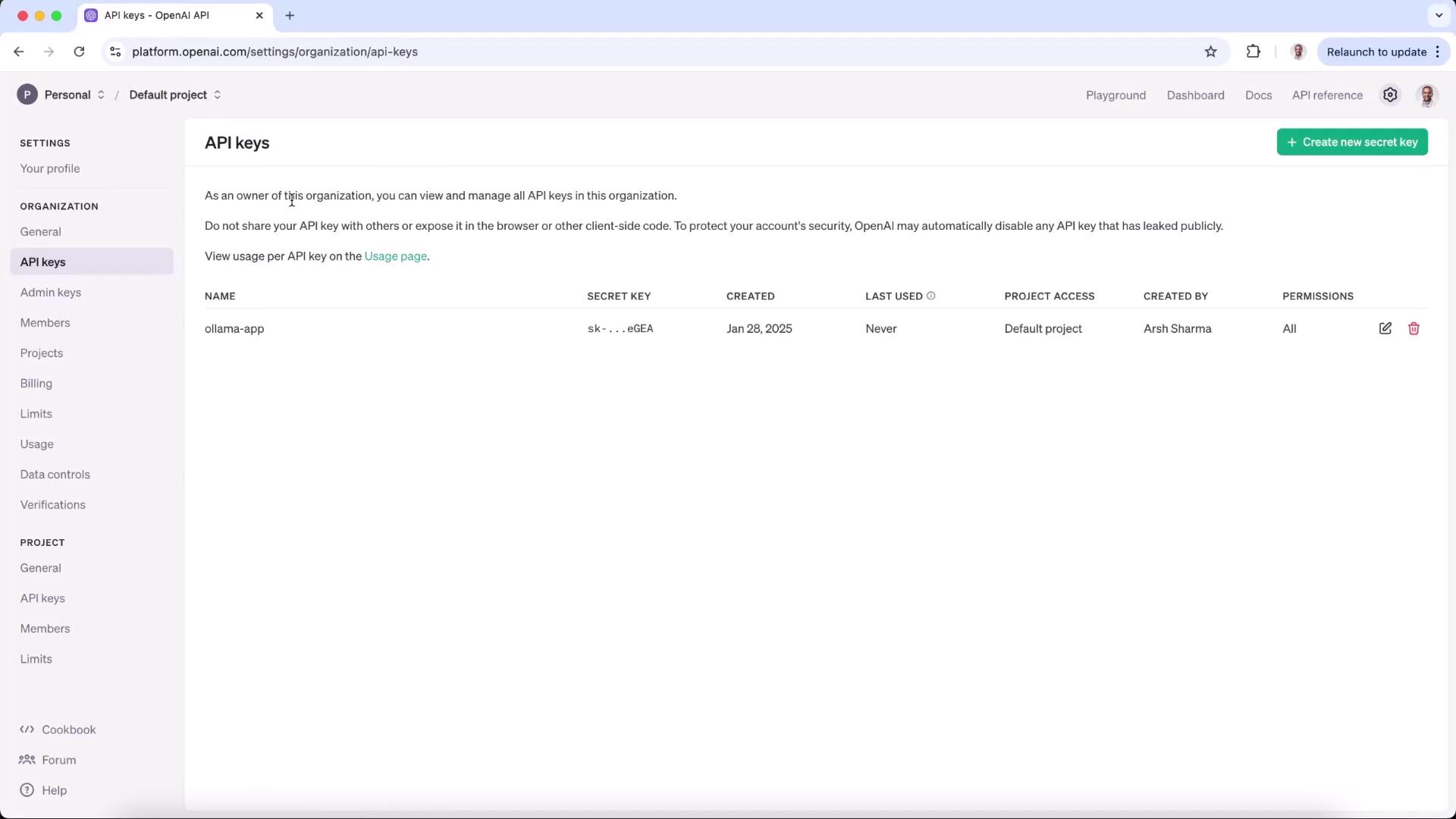
The image shows a webpage from the OpenAI platform displaying API key management, with details of an API key named "ollama-app" including its secret key, creation date, and permissions.
::: note Keep your secret key safe. Do not commit it to version control. :::

2. Choose a Model

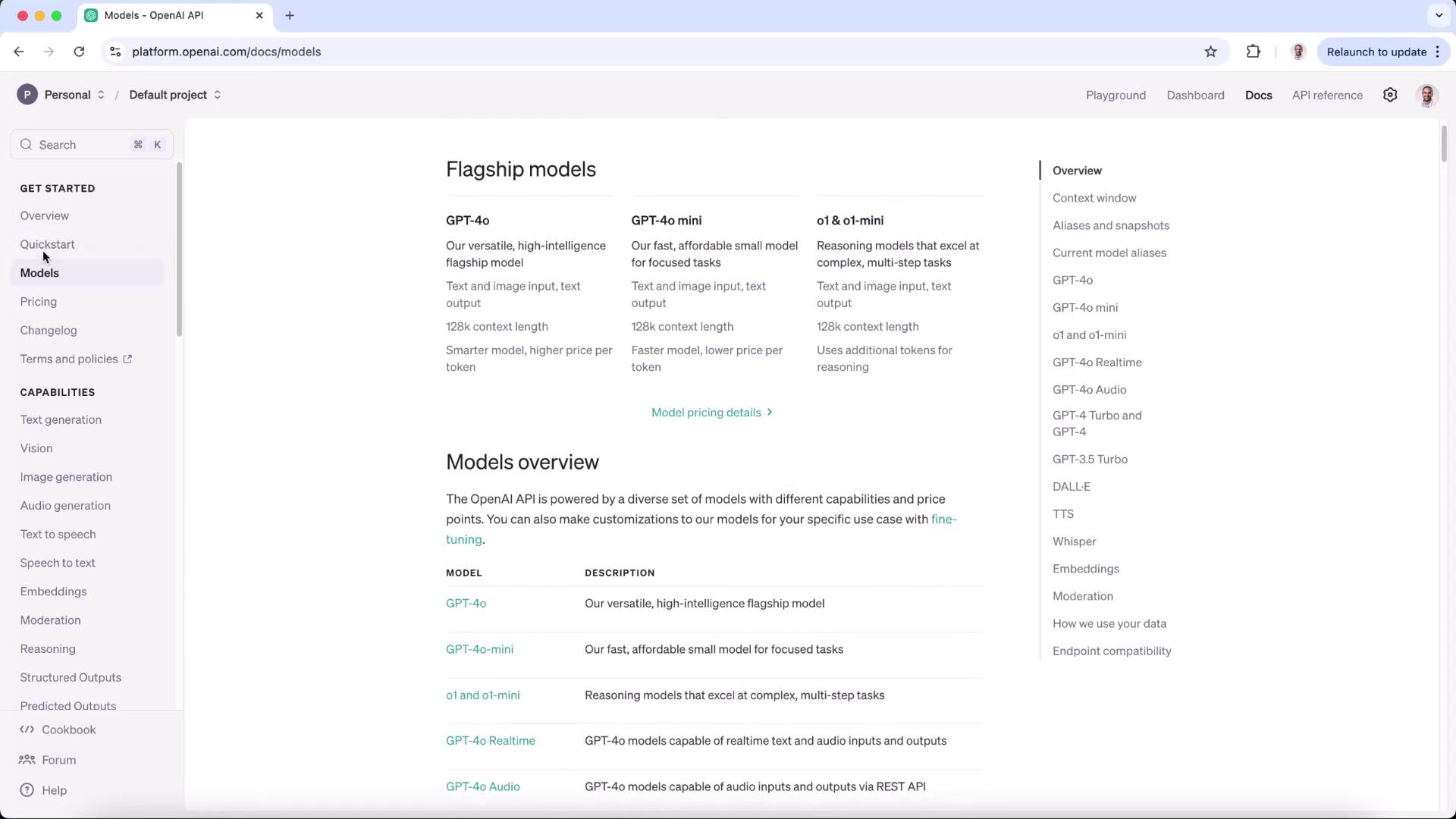
Open the Quickstart Guide or the Models Reference to compare models. In this demo, we’ll use gpt-4o-mini.
EnvironmentEndpointModelAuthentication
Local (Ollama)http://localhost:11434o1-mininone
Production (OpenAI)https://api.openai.com/v1gpt-4o-miniBearer API Key
The image shows a webpage from the OpenAI API documentation, detailing flagship models like GPT-4o and their capabilities, along with a sidebar menu for navigation.

3. Update Your Environment Variables

In your project’s .env file, replace the Ollama endpoint with OpenAI’s and add your secret key:
OPENAI_API_KEY=your_openai_api_key_here
LLM_ENDPOINT="https://api.openai.com/v1"
MODEL=gpt-4o-mini

4. Update the Flask Server

Install the OpenAI Python client and python-dotenv if you haven’t already:
pip install openai python-dotenv Flask
import os
from flask import Flask, request, render_template_string
from openai import OpenAI
from dotenv import load_dotenv

load_dotenv()

app = Flask(__name__)

client = OpenAI(
    api_key=os.getenv("OPENAI_API_KEY"),
    base_url=os.getenv("LLM_ENDPOINT")
)

HTML_TEMPLATE = """
<!DOCTYPE html>
<html lang="en">
<head>
  <meta charset="UTF-8">
  <meta name="viewport" content="width=device-width, initial-scale=1.0">
  <title>AI-Generated Poem</title>
  <style>
    body { font-family: Arial, sans-serif; margin: 20px; background-color: #f8f9fa; }
    .container { max-width: 600px; margin: auto; }
  </style>
</head>
<body>
  <div class="container">
    <h1>AI Poem Generator</h1>
    <form method="post">
      <label for="prompt">Enter a prompt:</label><br>
      <input id="prompt" name="prompt" type="text" required style="width: 100%;"><br><br>
      <button type="submit">Generate Poem</button>
    </form>
    
      <h2>Generated Poem:</h2>
      <pre>{{ poem }}</pre>
    
  </div>
</body>
</html>
"""

@app.route("/", methods=["GET", "POST"])
def index():
    poem = None
    if request.method == "POST":
        prompt = request.form["prompt"]
        response = client.chat.completions.create(
            model=os.getenv("MODEL"),
            messages=[
                {"role": "system", "content": "You are a helpful assistant."},
                {"role": "user",   "content": prompt}
            ],
            store=True
        )
        poem = response.choices[0].message.content
    return render_template_string(HTML_TEMPLATE, poem=poem)

if __name__ == '__main__':
    app.run(port=3000)
::: warning Always use https://api.openai.com/v1. Requests over HTTP will be rejected with a 403 error. :::

5. Run and Test

  1. Activate your virtual environment:
    source ollama-app/bin/activate
    
  2. Start the Flask server:
    python server.py
    
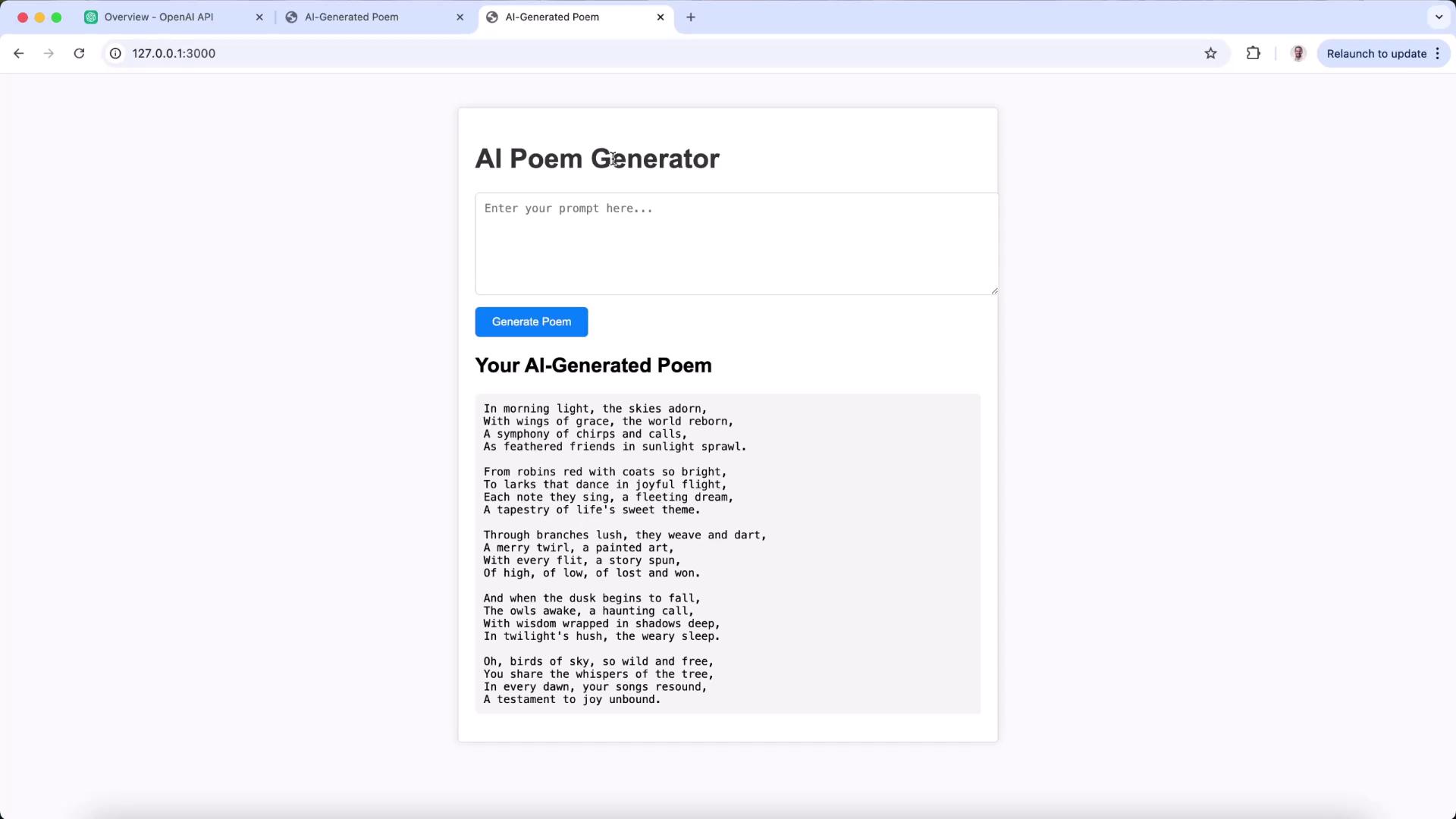
  3. In your browser, go to http://127.0.0.1:3000, enter a prompt (e.g., “a poem on birds”) and click Generate Poem.
If you accidentally point to http://api.openai.com, you’ll see:
Error code: 403 - {
  "error": {
    "code": "http_unsupported",
    "message": "The OpenAI API is only accessible over HTTPS. Ensure the URL starts with 'https://'."
  }
}
Switching to the https:// endpoint resolves this.
The image shows an AI Poem Generator interface with a text box for input and a button labeled "Generate Poem." Below, there's a section displaying an AI-generated poem.

With just an environment-variable tweak, your app seamlessly transitions from local Ollama LLMs to production-ready OpenAI models.

References