

1. Explore the Ollama Repository
Start by visiting the Ollama GitHub repository for code, documentation, and community links: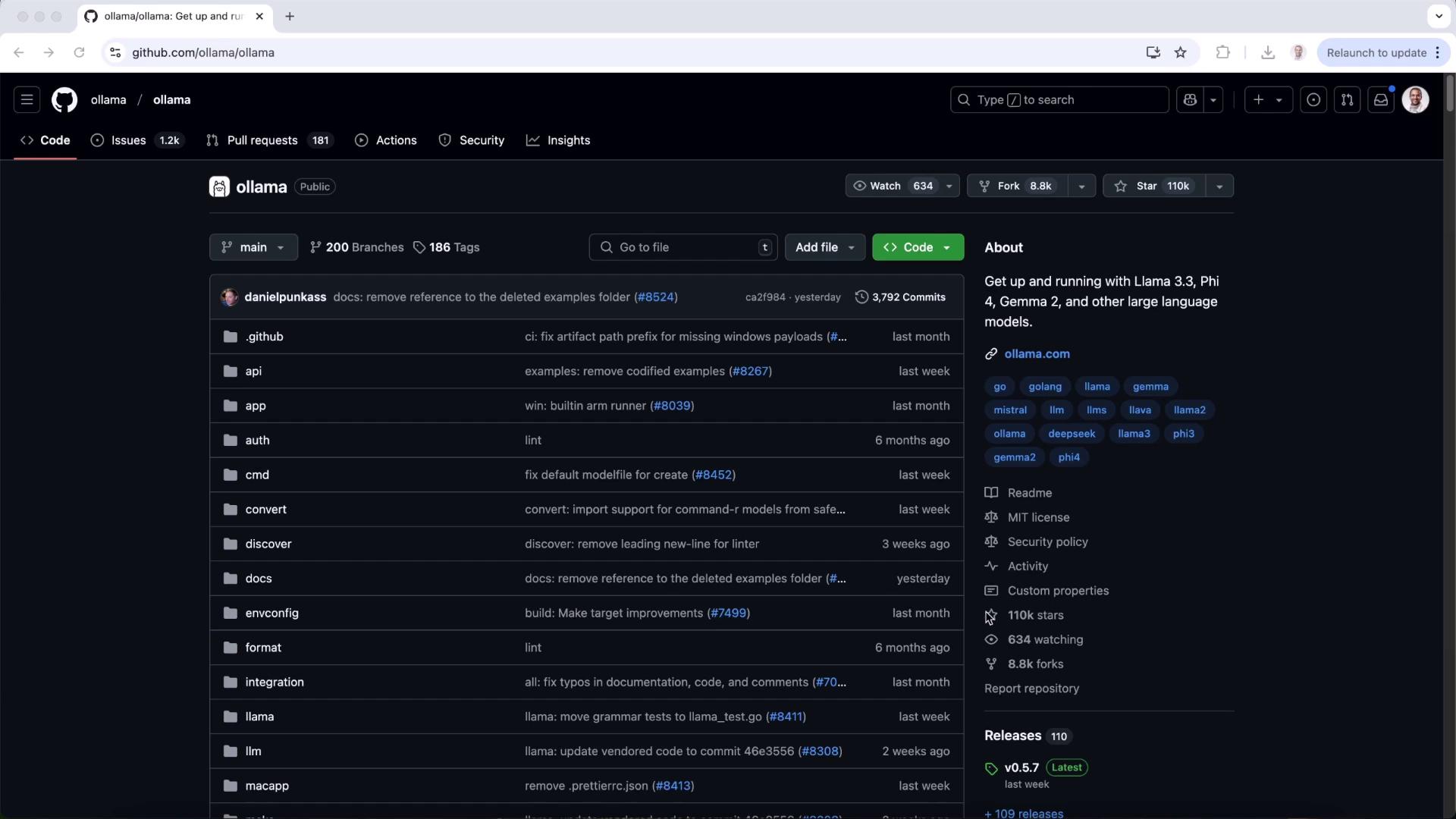
Run Models from the Terminal
Use theollama run command to launch models locally:
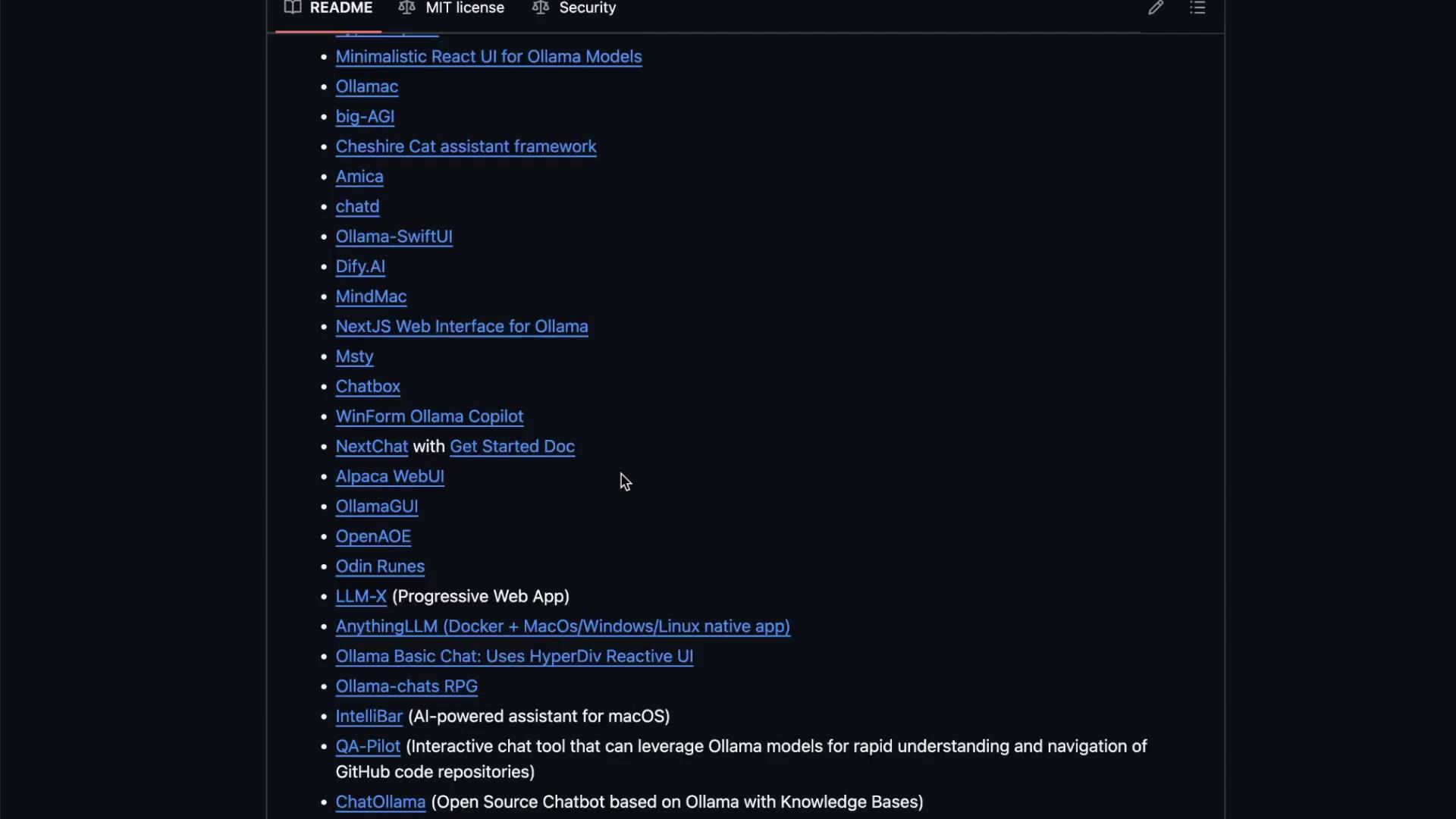
2. Integrate with Open Web UI
Open Web UI provides a browser-based chat interface for your local Ollama models. Instead of command-line prompts, you get a sleek web app similar to ChatGPT.2.1 Test the Chat API
Before installing the UI, verify the REST endpoint:2.2 Install Open Web UI
You can choose between a Python package or Docker container.If you plan to share the UI across a team or deploy in production, Docker ensures consistent environments and easy upgrades.
2.3 Sign In and Model Discovery
On first access, create an admin user and sign in. The layout will resemble popular chat apps. If no models appear, the Ollama service is inactive.3. Start and Connect Ollama
Activate the Ollama background service so Open Web UI can list and query models:llama3.2 available in the dropdown.
3.1 Chat with Your Model
- Select llama3.2 from the model list.
- Type a prompt, e.g., “Compose a poem on Kubernetes.”
- Hit Send and watch your local LLM respond in real time.
3.2 Switch and Compare Models
Pull a different model:4. Admin Features
For team deployments, Open Web UI includes an Admin Panel to manage users, roles, and permissions—all within your on-prem infrastructure.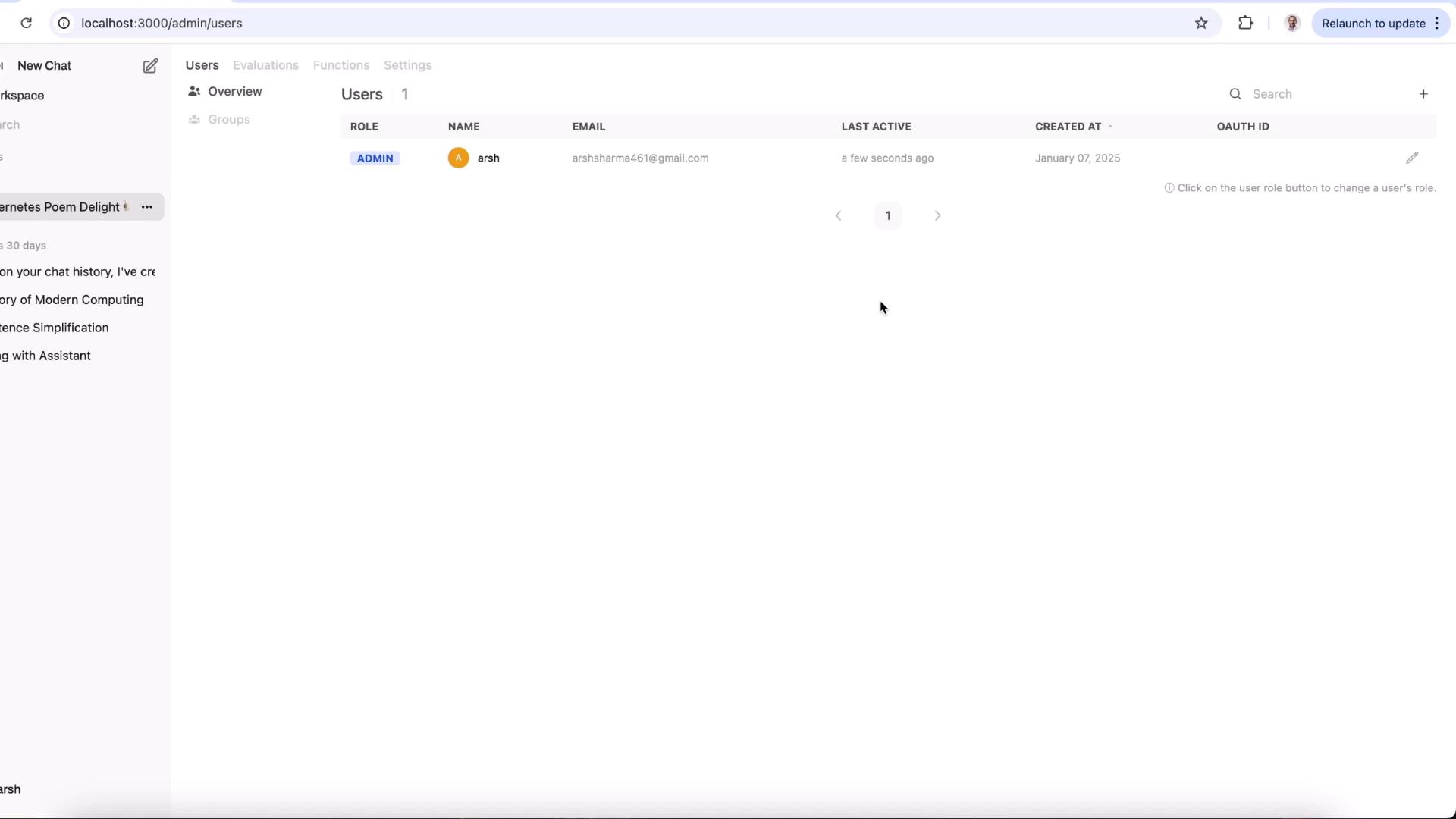
- Add or remove users
- Assign roles (admin, member)
- Monitor last active times and creation dates
Always ensure your admin account has a strong, unique password to protect your on-premises data.