

- Running the API server locally
- Sending requests via HTTP
- Interpreting responses for seamless integration into your applications
Why Use the Ollama REST API?
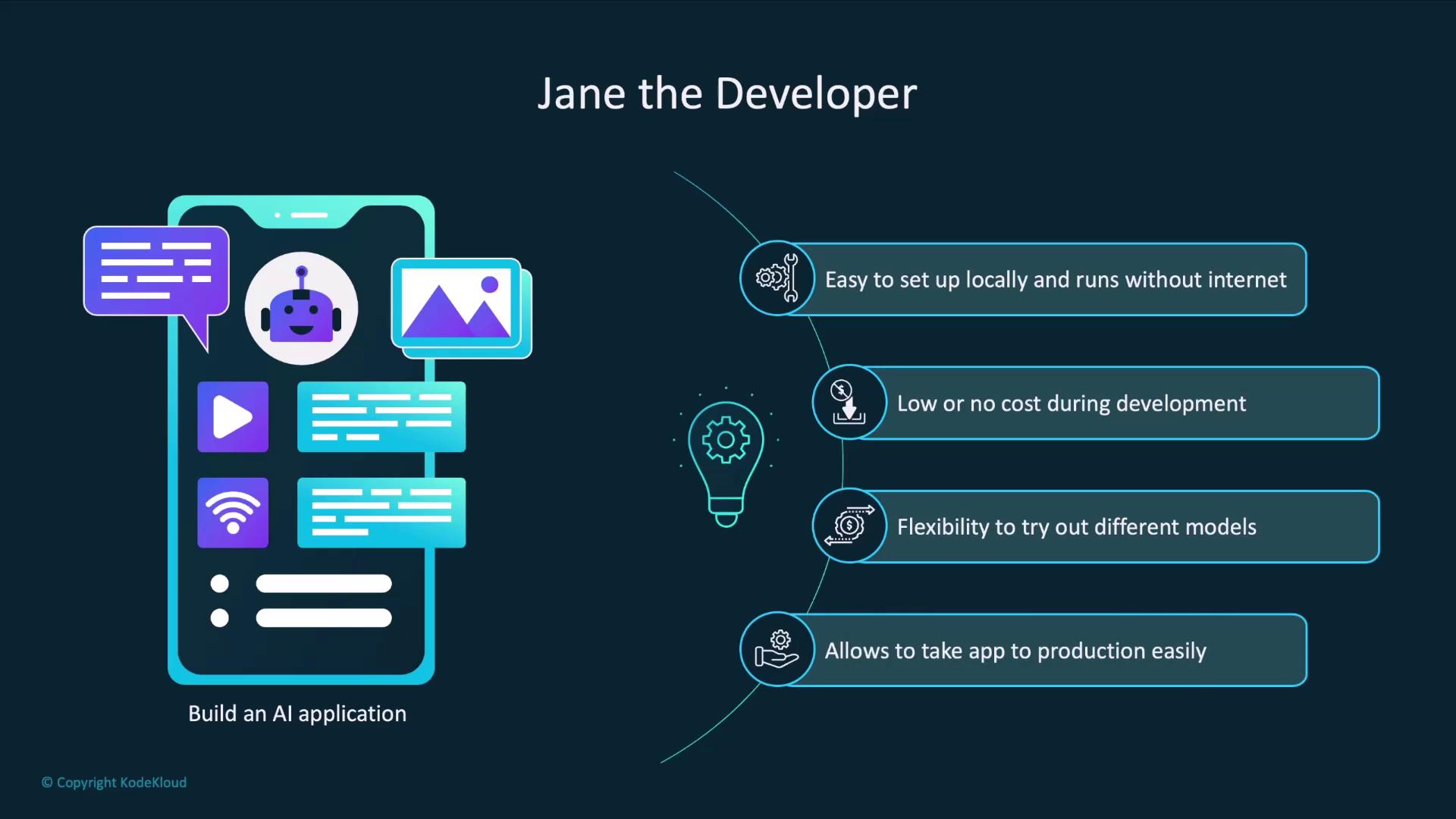
Imagine you’re Jane, a developer building an AI-powered app. Your goals include:- Quick local setup without internet access
- Zero costs during experimentation
- Easy swapping of LLM models
- A simple transition to production with hosted APIs
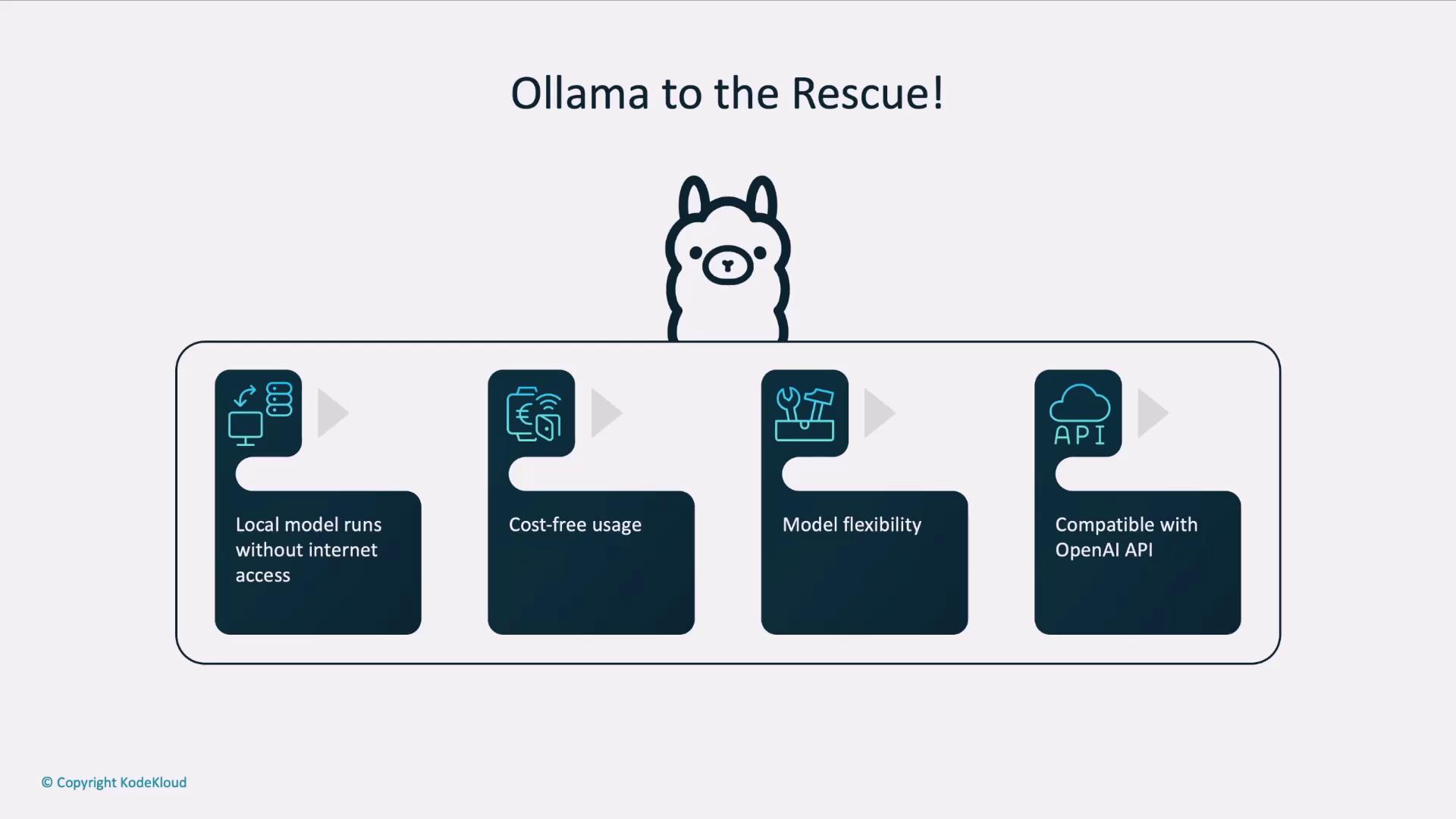
When it’s time for production, simply update your API base URL and credentials to point at OpenAI’s API—your code stays the same.
How an AI Application Interacts with an LLM
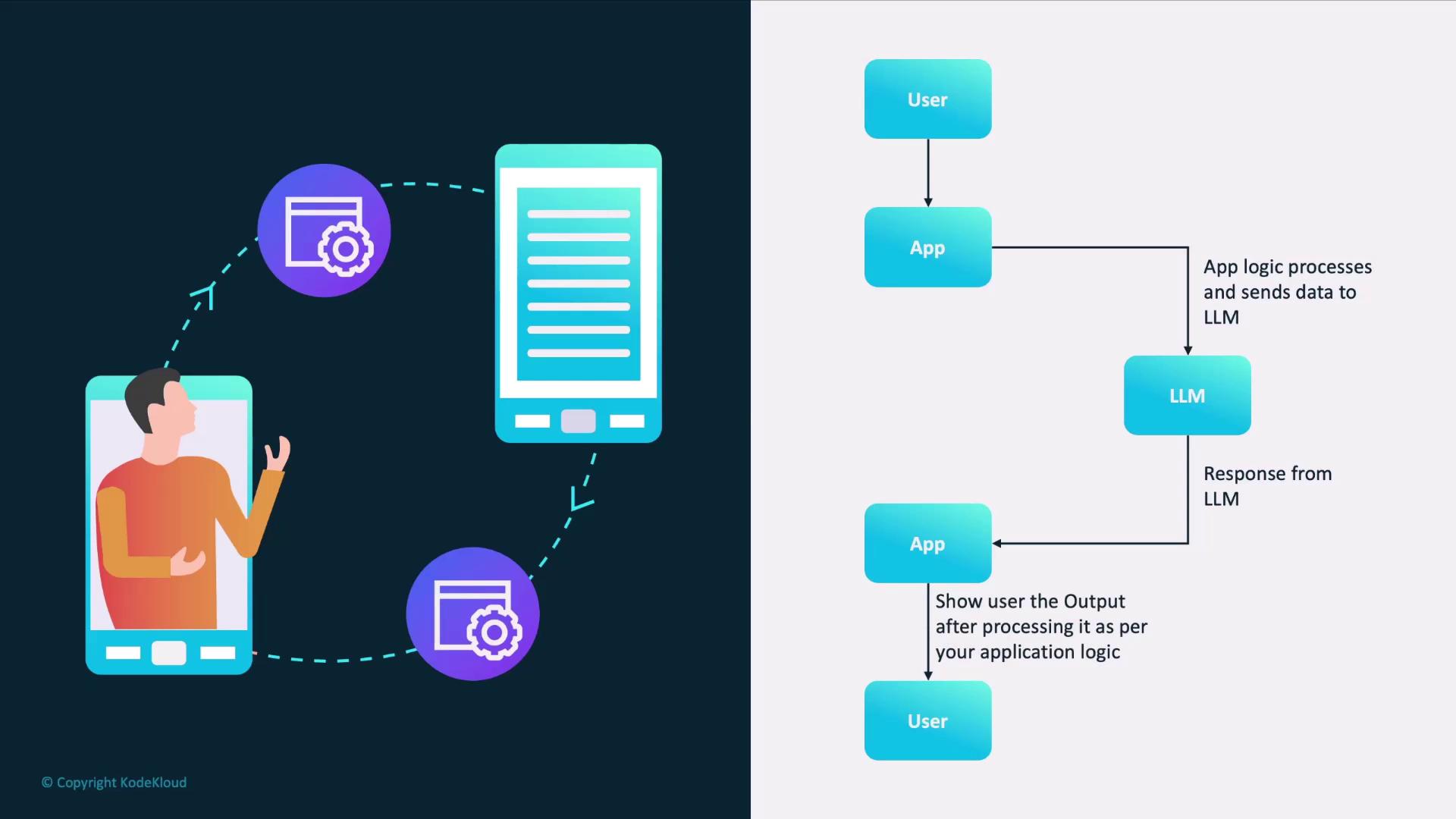
A typical AI workflow involves:- User submits input to your app.
- App pre-processes the text (e.g., tokenization).
- App sends a request to the LLM endpoint.
- LLM generates and returns a response.
- App post-processes the output (e.g., formatting).
- App displays results to the user.
ollama serve provides.
Getting Started: Launching the Ollama Server
By default, Ollama’s REST API runs on port11434. Start the server with:
http://localhost:11434/api.
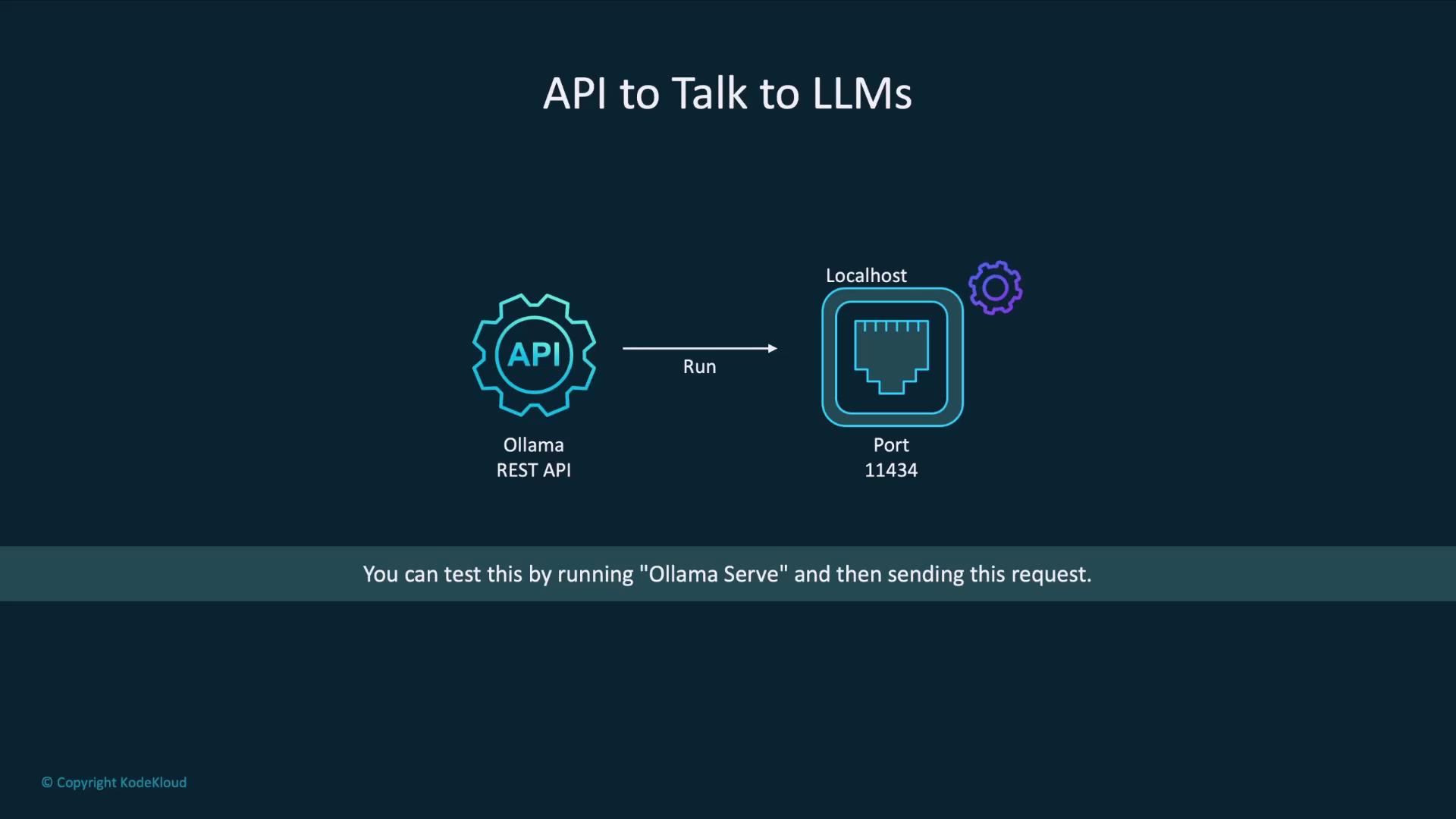
Ensure port
11434 is not used by other services. If it is, stop those processes or choose a different port using --port <PORT>.Example: Generating a Poem with curl
Here’s how to call the llama3.2 model to compose a poem:
Response Fields
Additional diagnostic fields (token counts, timing metrics) appear in the payload for performance tuning but are optional for most production use cases.
Next Steps
You’ve now set up the Ollama REST API and tested a simplegenerate endpoint. In the following lessons, we’ll explore:
- Streaming responses for real-time applications
- Custom prompts and system messages
- Advanced endpoints for embeddings, classifications, and more