

- Create a resource group.
- Create an AKS cluster via the Azure portal.
- Configure node pools, networking, integrations (ACR, monitoring), and advanced settings.
- Review and create the cluster; Azure validates and deploys the resources.
- An active Azure subscription.
- Appropriate permissions to create resource groups, AKS clusters, and associated networking and compute resources.
- Start the AKS creation workflow
- Open the Azure portal: https://portal.azure.com
- Click Create a resource → Containers → Azure Kubernetes Service → Create.
- The wizard walks you through Project + cluster, Node pools, Authentication, Networking, Integrations, Advanced, and Review + create.
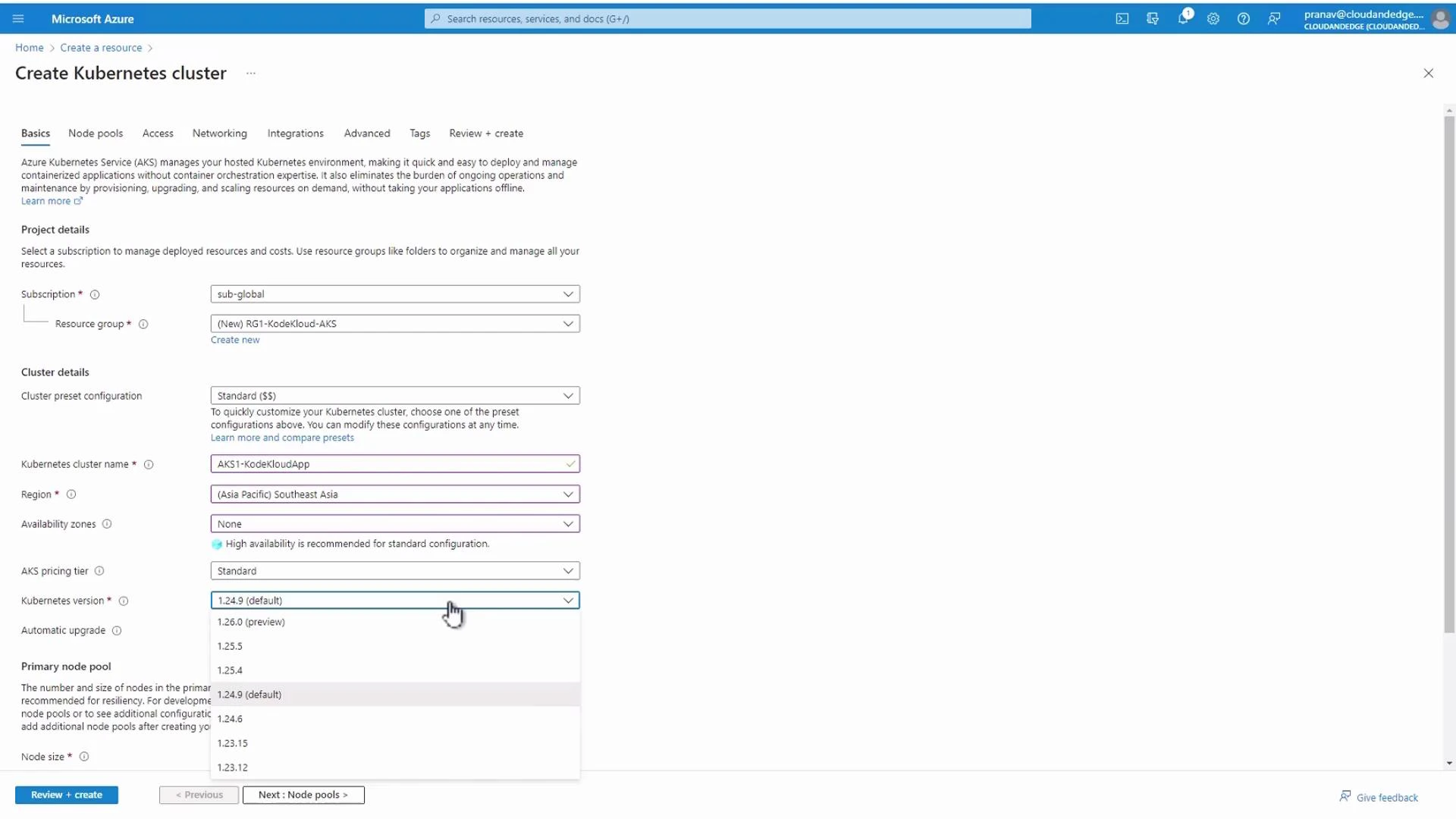
- Resource group: Create a new resource group (for example, rg1-kodekloud-aks) or select an existing one.
- Cluster name: Choose a unique name within the resource group (for example, aks1-KodeKloud-app).
- Region: Select the region closest to your users (e.g., Southeast Asia — Singapore).
- Kubernetes version: It’s safe to use the portal default. AKS supports generally available Kubernetes versions and provides upgrade paths.
Availability zones provide improved resiliency by distributing nodes across physically separate zones. Not all Azure regions support Availability Zones — check your chosen region’s capabilities before enabling them.
- Configure the Node pool
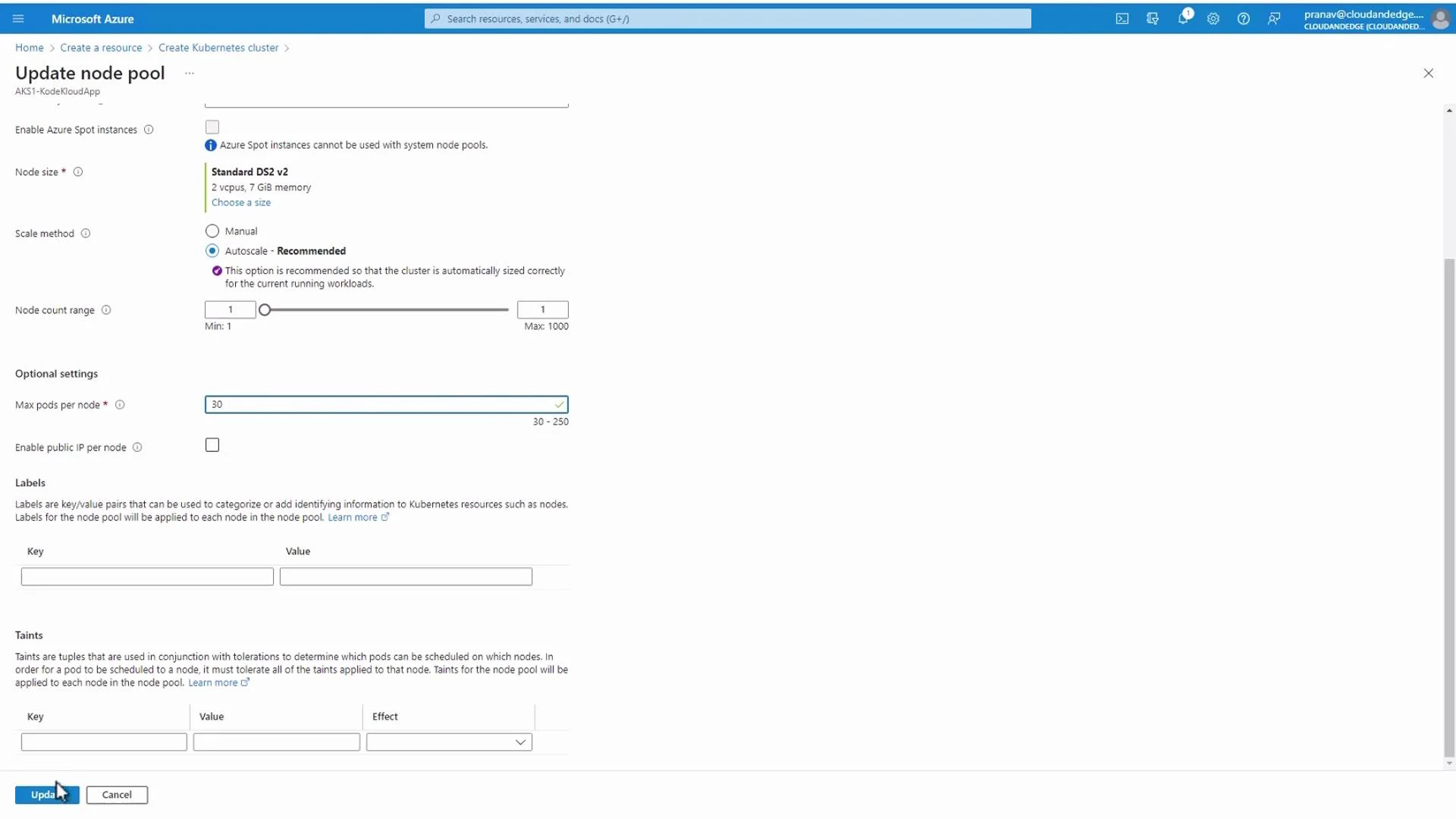
- VM size: Use the default or select a size that matches your workload. The DS2_v2 example (2 vCPU, 7 GB) is common for demos.
- Initial node count: Set to 1 for demos; increase for production workloads.
- Scaling: You can enable autoscale or configure manual min/max node counts.
- Max pods per node: Default commonly appears as 110; you can change this per agent pool depending on your network/profile.
- Authentication + authorization
- The portal shows options for enabling Kubernetes RBAC and Azure AD integration.
- For production clusters, plan your identity and authorization model carefully.
Leaving authentication and authorization at default settings can be fine for demos, but for production you should enable RBAC and integrate with Azure AD or other identity providers to control access securely.
- Networking
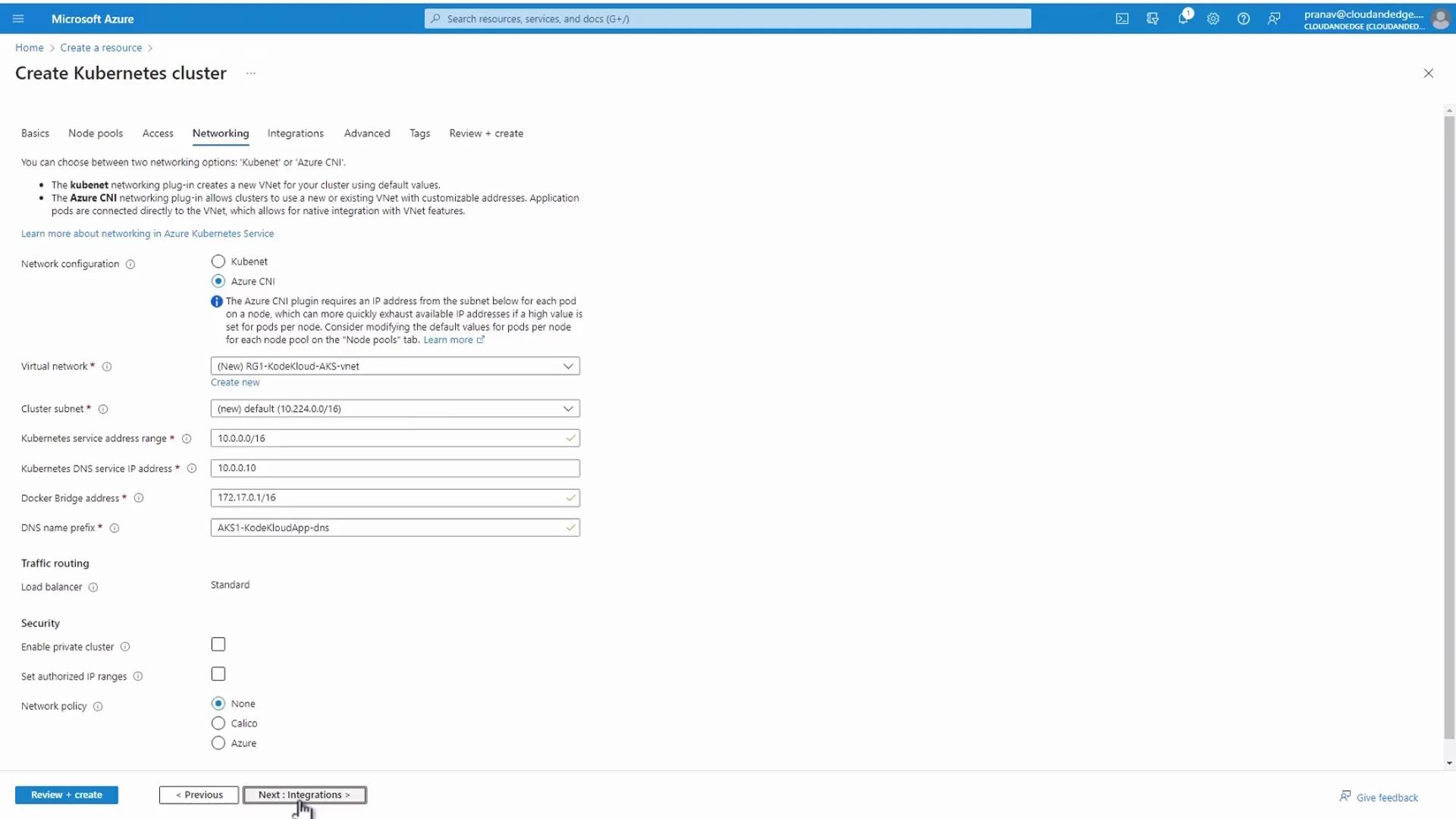
- Choose a network plugin:
- Azure CNI (recommended when you need each pod to get an IP address from the VNet).
- Kubenet (simpler IP management; uses NAT for outbound traffic).
- You can let Azure create a new virtual network or attach AKS to an existing VNet/subnet.
- Network policies and service IP ranges affect pod addressing and routing.
- Integrations (optional)
- Azure Container Registry (ACR): Create an ACR to store container images. Place it in the same resource group/region for convenience and network proximity.
- Monitoring: Enable Container insights and send logs to a Log Analytics workspace for integrated monitoring.
- Advanced settings
- Infrastructure resource group: AKS creates infrastructure resources (VMs, load balancers, NICs) in a separate resource group. Use the default name or customize it to match organizational naming conventions.
- Tags: Add tags for billing and management if required.
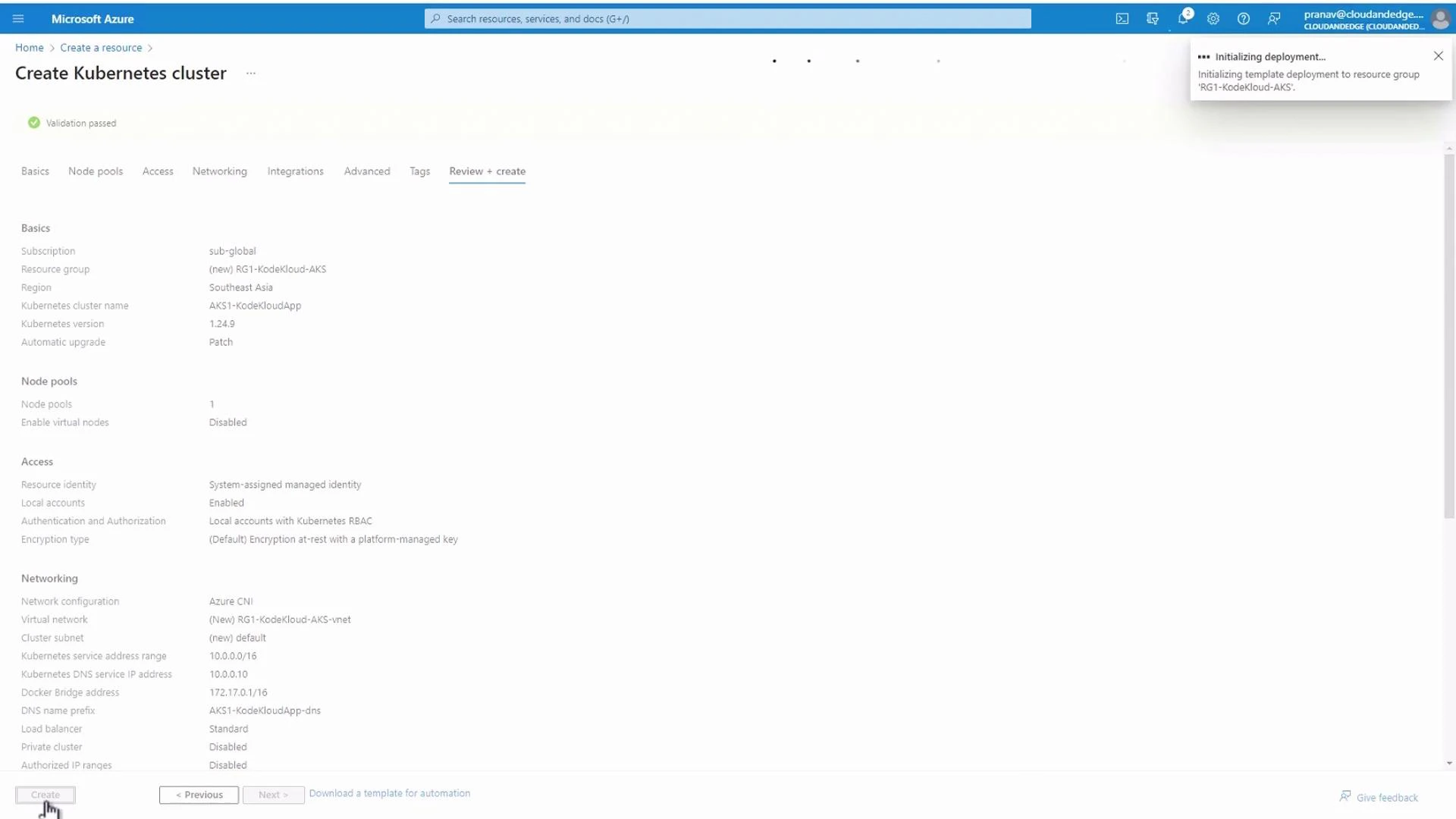
- The portal runs validation to ensure compatibility and required settings are present.
- If validation passes, click Create to start deployment. Azure provisions the cluster and associated resources.
CLI examples
- Create a resource group:
- Create an AKS cluster (Azure CNI, one node, DS2_v2):
- Scale a node pool (example, nodepool name “nodepool1”):
- Update max pods on an existing nodepool:
- Azure Kubernetes Service (AKS) overview
- Configure Azure CNI
- Azure Container Registry (ACR)
- Log Analytics overview
- az aks CLI reference