

main, publishes the new version on the EC2 host via SSH.
Overview
- Application: small Flask app that generates Wi‑Fi QR codes.
- Target host: Ubuntu EC2 instance.
- CI/CD: GitHub Actions to run tests and deploy via SSH.
- Deployment helper: a server-side
deploy.shprovisioning script and a systemd service for the Flask app.
WIFI:T:<AUTH>;S:<SSID>;P:<PASSWORD>;H:<true|false>;;. Input is escaped per the spec so special characters do not break the payload. The generator returns an inline image (data URI) for display.
Key parts of the application (consolidated, corrected)
- Use
FLASK_DEBUGenvironment variable to toggle debug mode at runtime (safe default: disabled in production). - Escape only the characters required by the Wi‑Fi QR spec (
\,;,,,:, and quotes) to ensure valid payloads. - Run the Flask app via a systemd service for simple process supervision and automatic restarts.
- Use GitHub Actions to run tests with pytest on pushes to
main. - On successful test runs, a deploy job SSHes into the EC2 host to pull the repository, install dependencies into a Python venv, and restart the systemd service and nginx.
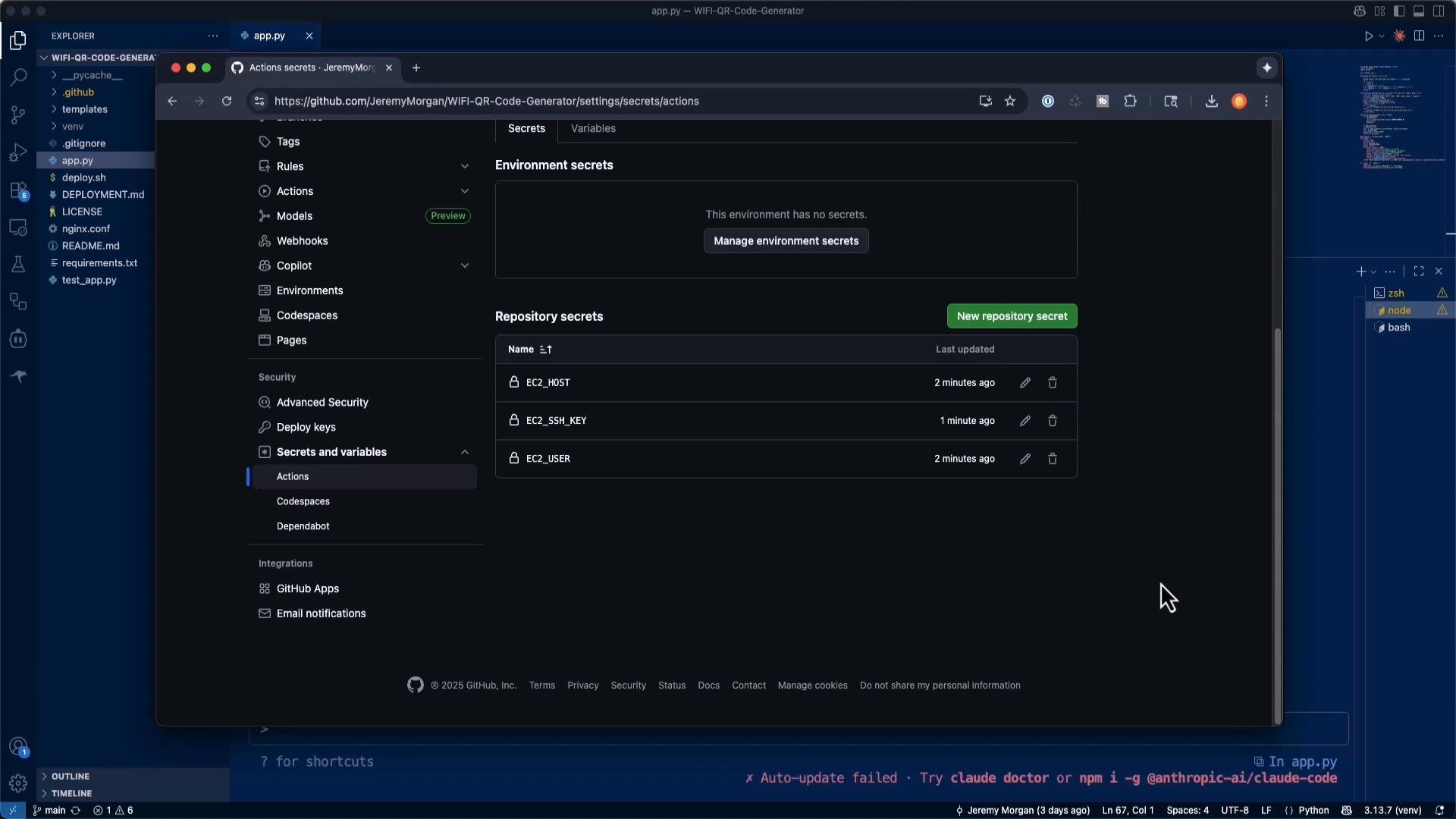
- Use repository secrets to store deployment values (
EC2_HOST,EC2_USER,EC2_SSH_KEY).
Example GitHub Actions workflow (consolidated and corrected)
- The deploy job expects these repository secrets:
EC2_HOST,EC2_USER, andEC2_SSH_KEY. - The “Test SSH connection” step gives immediate feedback when credentials or network access are misconfigured — this reduces debugging time when a deploy fails.
- The workflow assumes
/opt/wifi-qr-generatorexists (or you have permission to create it). For a reliable first-time setup, run a provisioning script (deploy.sh) on the EC2 host to install packages, create the app directory, clone the repo, create a virtualenv, create a systemd service, and configure nginx.
Use a dedicated deploy SSH key for CI/CD. CI runners typically require a non-interactive private key (no passphrase). Store the private key content as the
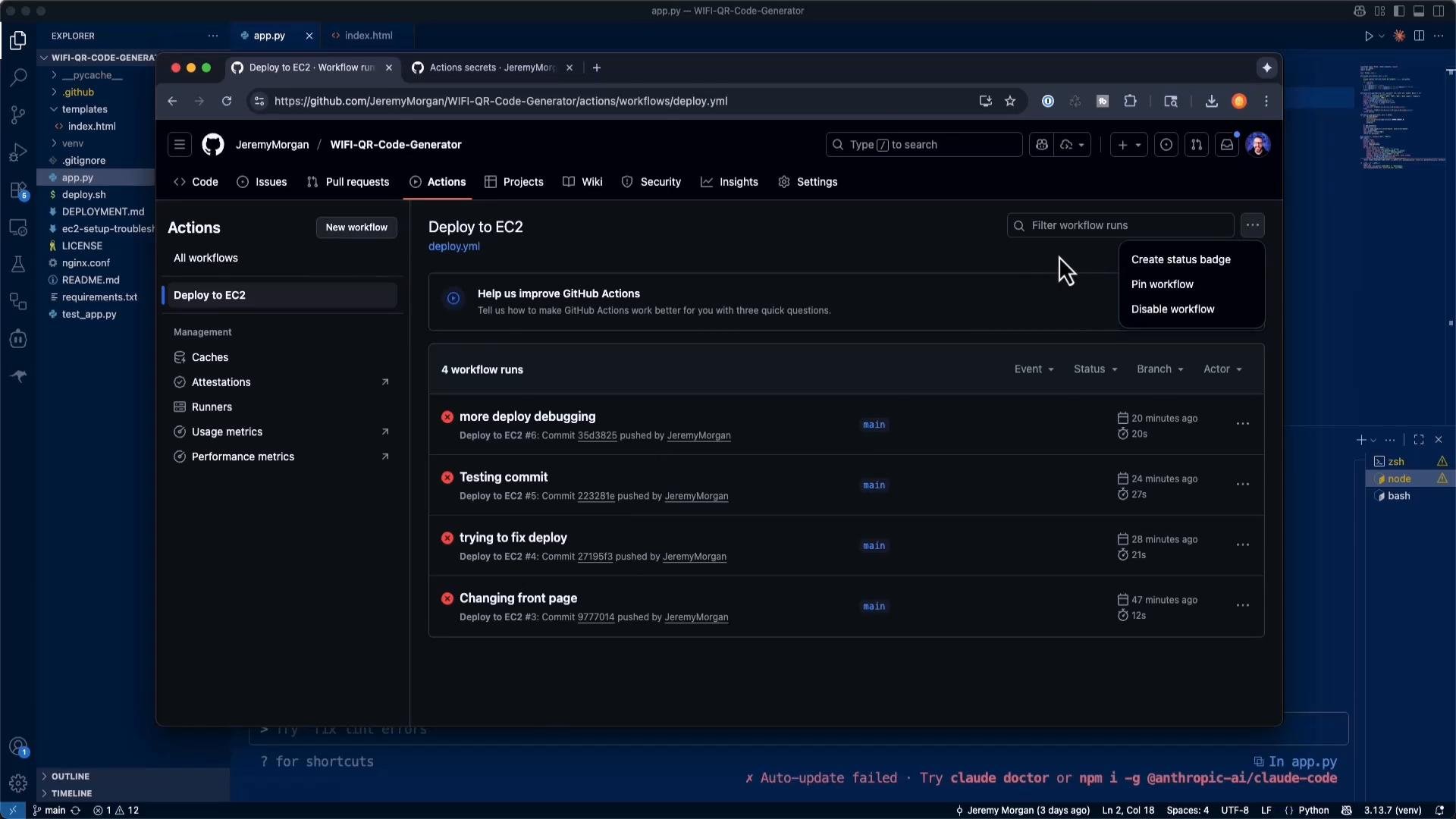
EC2_SSH_KEY GitHub secret and never commit it to the repo. For improved security, restrict the deploy user’s permissions, limit key access on the server, or use forced command restrictions in authorized_keys.- Example error seen in Actions:
Common causes and checks:
- The private key in
EC2_SSH_KEYmay be passphrase-protected — CI cannot interactively provide a passphrase. Use an unencrypted deploy key or configure an ssh-agent step (complex and rarely needed). - The public key may not have been added to the EC2 user’s
~/.ssh/authorized_keyscorrectly. - The private key may have been copied incorrectly (missing BEGIN/END lines or line breaks). On the server use
cat ~/.ssh/deploy-keyto verify and copy the full content into the GitHub secret. - EC2 security groups may block inbound SSH (port 22). Ensure the security group allows SSH from GitHub Actions runners or the IPs you expect.
- The private key in
Passphrase-protected private keys will fail in non-interactive CI unless you provide the passphrase via an ssh-agent or automation (not recommended). For CI deployments prefer a dedicated key without a passphrase, scoped to a deploy user with limited permissions.
- Confirm SSH access from your local machine using the same private key content you added to GitHub Secrets.
- Use the included “Test SSH connection” step in the workflow to confirm authentication from the runner environment:
This quickly indicates whether the problem is authentication, networking, or host key verification.
- GitHub secrets screenshot (shown when discussing adding secrets on the repository):
- GitHub Actions failed runs screenshot (shown when discussing failed deploy attempts and debugging):
- Prepare the server first: create
/opt/wifi-qr-generator, clone the repo, set up the systemd service and reverse proxy before relying on the automated workflow to finish provisioning. - Use a dedicated deploy SSH key for CI (un-encrypted), limit its scope, and store it in GitHub Secrets.
- Add a quick SSH test step to the Actions workflow to detect authentication problems early.
- Keep unit tests in the pipeline — failing tests should block production deploys.
- Use
systemctlchecks andjournalctloutput in the deploy script to provide clear failure context.
- Add your EC2 public IP to
EC2_HOST,ubuntutoEC2_USER, and the private key content toEC2_SSH_KEYin your repository (Settings → Secrets and variables → Actions). - Run the initial server setup (execute
deploy.shon the EC2 instance or follow the DEPLOYMENT.md steps). - Push a change and verify the workflow runs the test job and then the deploy job.
- Harden and monitor: restrict SSH key usage, add logging/monitoring, and configure TLS with Let’s Encrypt in nginx.