

npm install can fail with permission errors and shows a reliable workaround using Claude’s native installer that installs to a user-local directory.
Start from a typical Ubuntu shell prompt:
- Update and upgrade the system
- Why global npm install can fail (EACCES permissions)
/usr/local/lib/node_modules) is owned by root:
sudo npm install -g ... for their package. Instead, prefer one of the safer alternatives below.
Anthropic’s documentation warns against running
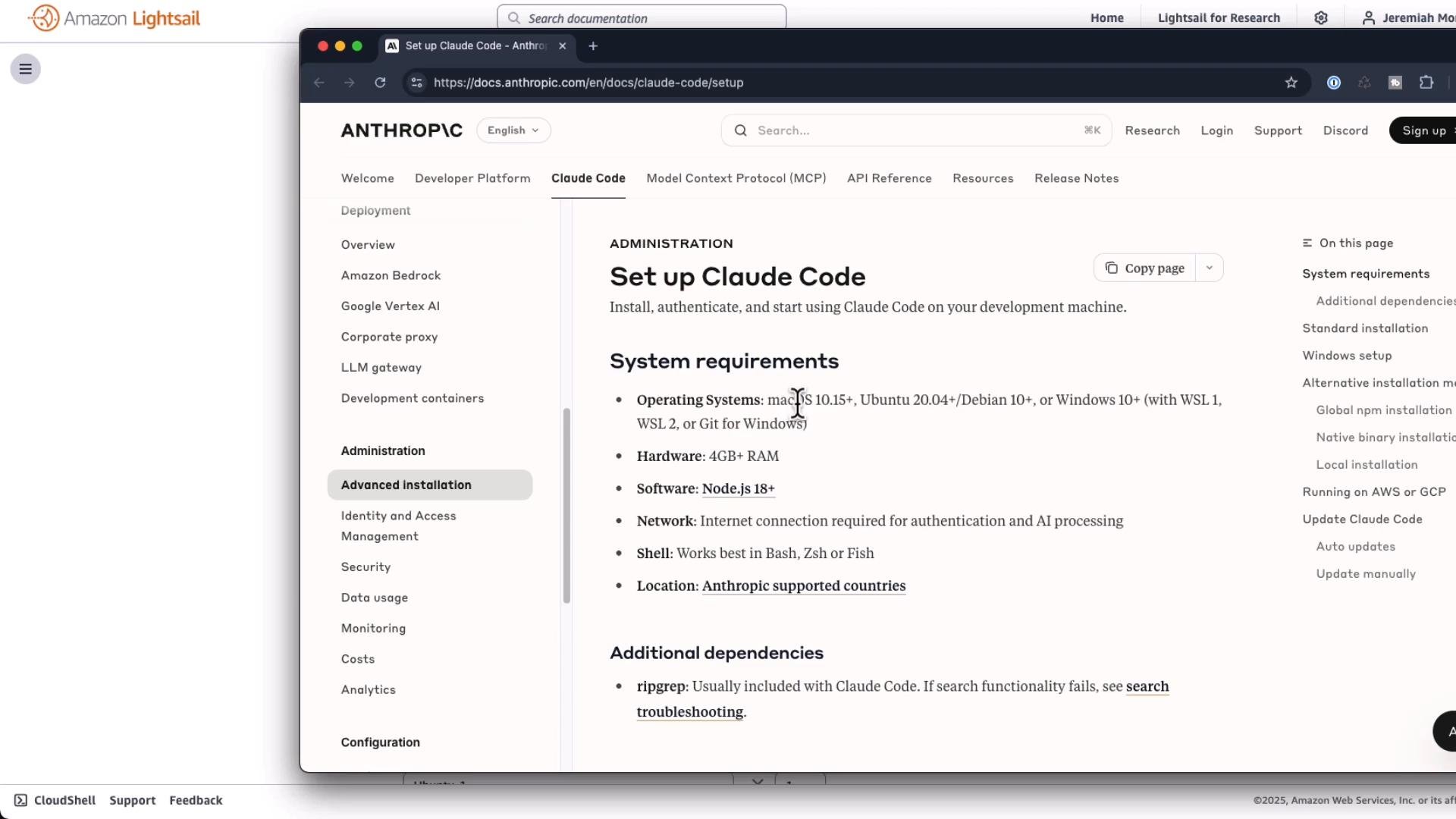
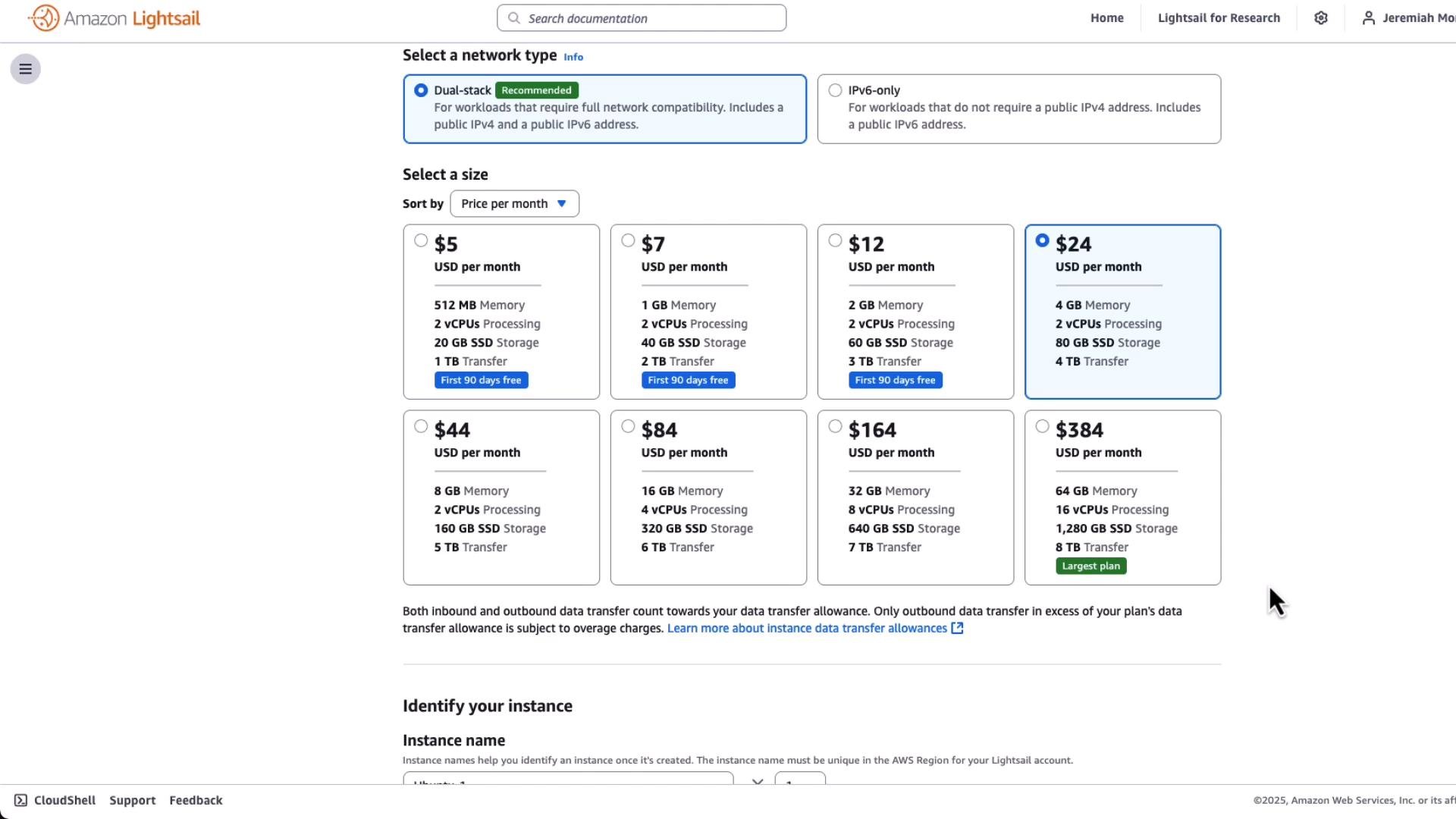
sudo npm install -g .... Use a user-local npm prefix, change ownership only if appropriate, or use the native installer that places the binary in ~/.local/bin.- System requirements — choose an instance with at least 4 GiB RAM
- Install the native Claude Code binary (recommended)
~/.local/bin is not in your PATH, add it and reload your shell (or log out and log back in):
claude --help:
Security tip: Always inspect a script before piping it into
bash, especially in production or sensitive environments. Review https://claude.ai/install.sh if you have concerns.- Notes, troubleshooting, and closing
- Root cause on many cloud images: the default global npm folder is owned by root, causing
EACCESwhen non-root users attempt a global install. Using a user-local npm prefix or the native installer avoids this. - If you previously attempted
sudo npm install -g @anthropic-ai/claude-code, you can use themigrate-installercommand after installing the native binary to cleanly transition: - If the
claudeexecutable still isn’t found after installing and adjusting PATH, confirm~/.local/bin/claudeexists and thatecho $PATHcontains~/.local/bin. - Package behavior on specific cloud images may change over time; the native installer is a robust alternative when global npm installs present permission problems.
- Claude Code docs: https://claude.ai/ (installer and usage)
- npm documentation: https://docs.npmjs.com/
- AWS Lightsail: https://aws.amazon.com/lightsail/
- AWS EC2: https://aws.amazon.com/ec2/