

@anthropic-ai/claude-code). If you already use npm, installation is straightforward; otherwise, you only need a recent Node.js runtime (Node 18+) and an active Claude or Anthropic Console account.
Ensure Node.js 18 or newer is installed and that you have an active Claude (or Anthropic Console) account before continuing.
What you’ll need
Install Node.js
On macOS (Homebrew):Install Claude Code (global)
Install the CLI globally so you can runclaude from any project folder:
-g flag installs the package globally. Without -g the package installs into the current project only. On some systems you may need sudo for global installs or to configure npm to use a user-writable global directory.
If you see permission errors installing globally, avoid using
sudo as a first choice — instead configure npm to use a user-owned global directory or use a version manager (nvm) to install Node and npm without elevated privileges.First run and authentication
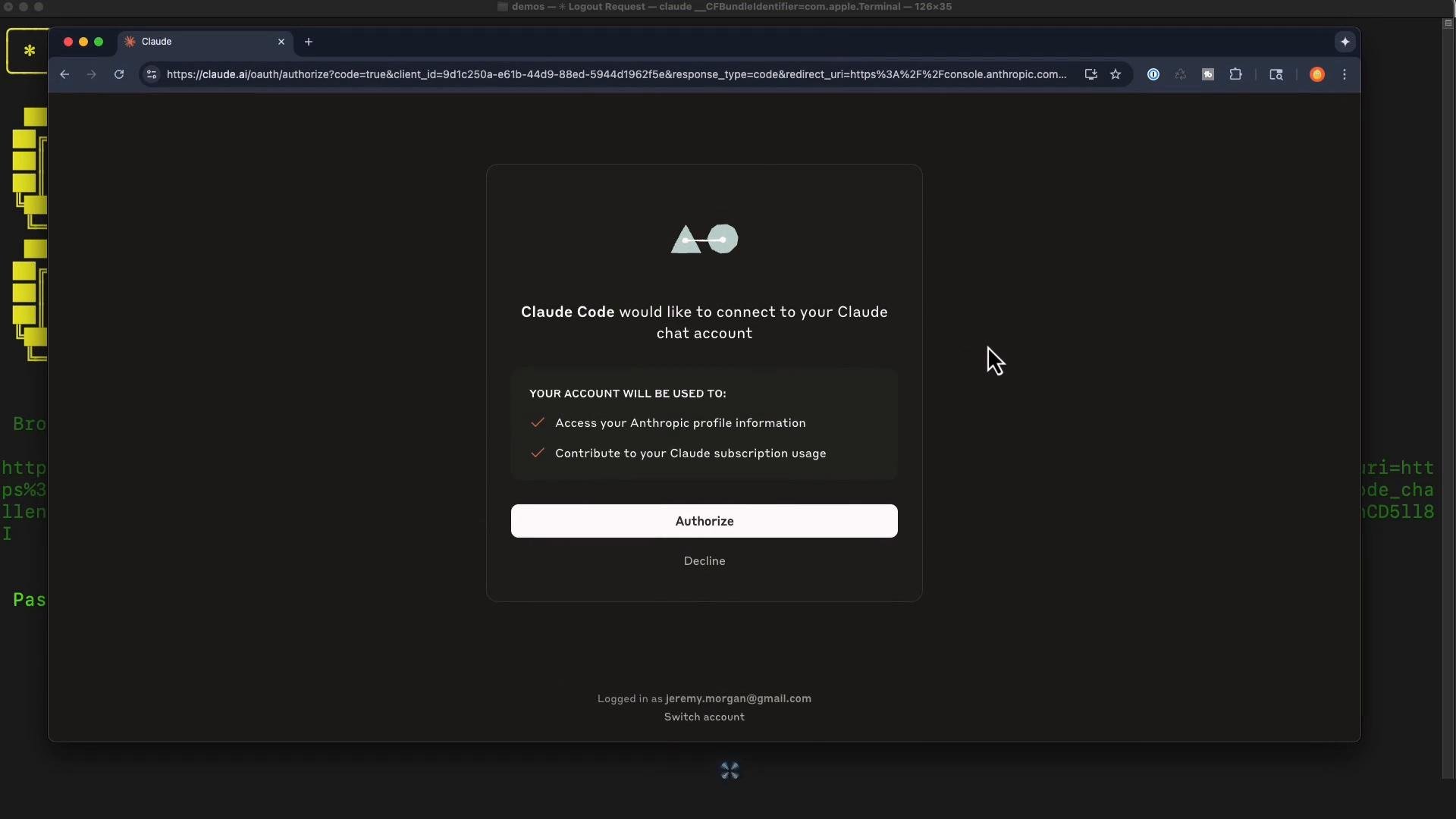
Start the CLI:- Sign in with your Claude subscription account (Pro, Max, etc.).
- Sign in via Anthropic Console (API / key-based billing).
Quick demo — generate a Python script that reads a CSV
This quick example shows Claude Code generating a small Python script to readmembers.csv and print first and last names.
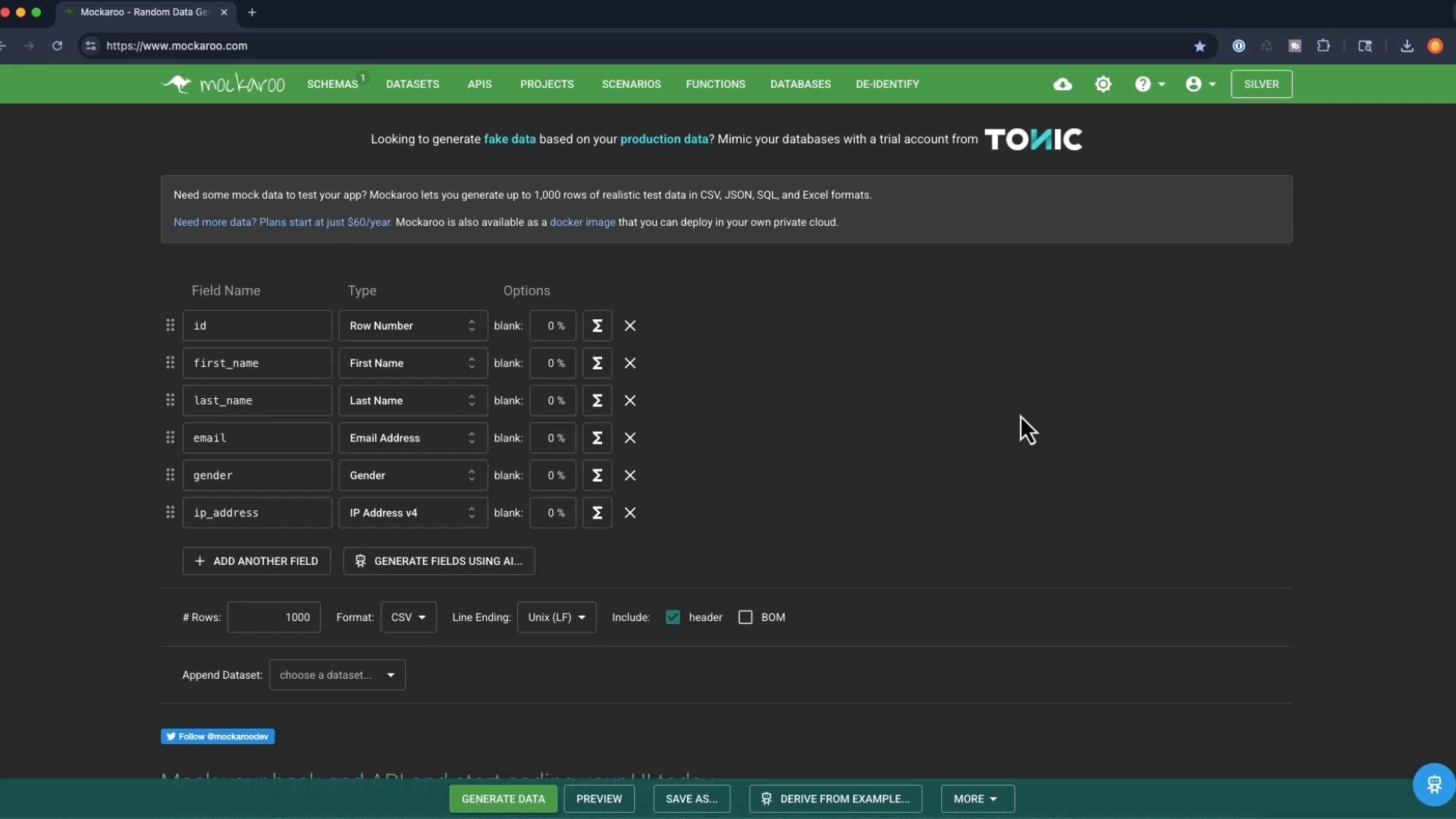
I created a members.csv file using Mockaroo and placed it into a project folder.
members.csv and displays first and last names. Claude Code inspected the current directory and generated this robust script using Python’s csv module.
Generated file: read_members.py
- Uses
csv.DictReaderto work with named columns. - Handles header capitalization differences (
first_namevsFirst Name). - Catches
FileNotFoundErrorand general exceptions for clearer error messages.
Run the generated script
From the same project folder you can run the script directly. Optionally create and activate a virtual environment first:Troubleshooting tips
- If
claudeis not found after global install, ensure your npm global binaries directory is on yourPATH. For many systems that directory is~/.npm-global/binor the location printed bynpm bin -g. - If OAuth browser flow doesn’t open, copy the printed URL into a browser and follow the instructions. Paste the verification code back into the CLI when prompted.
- Use
nvmto avoid permission issues and to switch Node versions without sudo.
Summary and next steps
- Install Node.js 18+ and verify
npmis available. - Install Claude Code globally:
npm install -g @anthropic-ai/claude-code. - Authenticate the CLI via browser OAuth or Anthropic Console.
- Use Claude Code to generate code (like a Python CSV reader), inspect, and run it — then iterate.
Links and references
- Claude Code npm package: https://www.npmjs.com/package/@anthropic-ai/claude-code
- Node.js: https://nodejs.org/
- Mockaroo (sample data generation): https://mockaroo.com/
- nvm (Node Version Manager): https://github.com/nvm-sh/nvm
- Visual Studio Code: https://code.visualstudio.com/