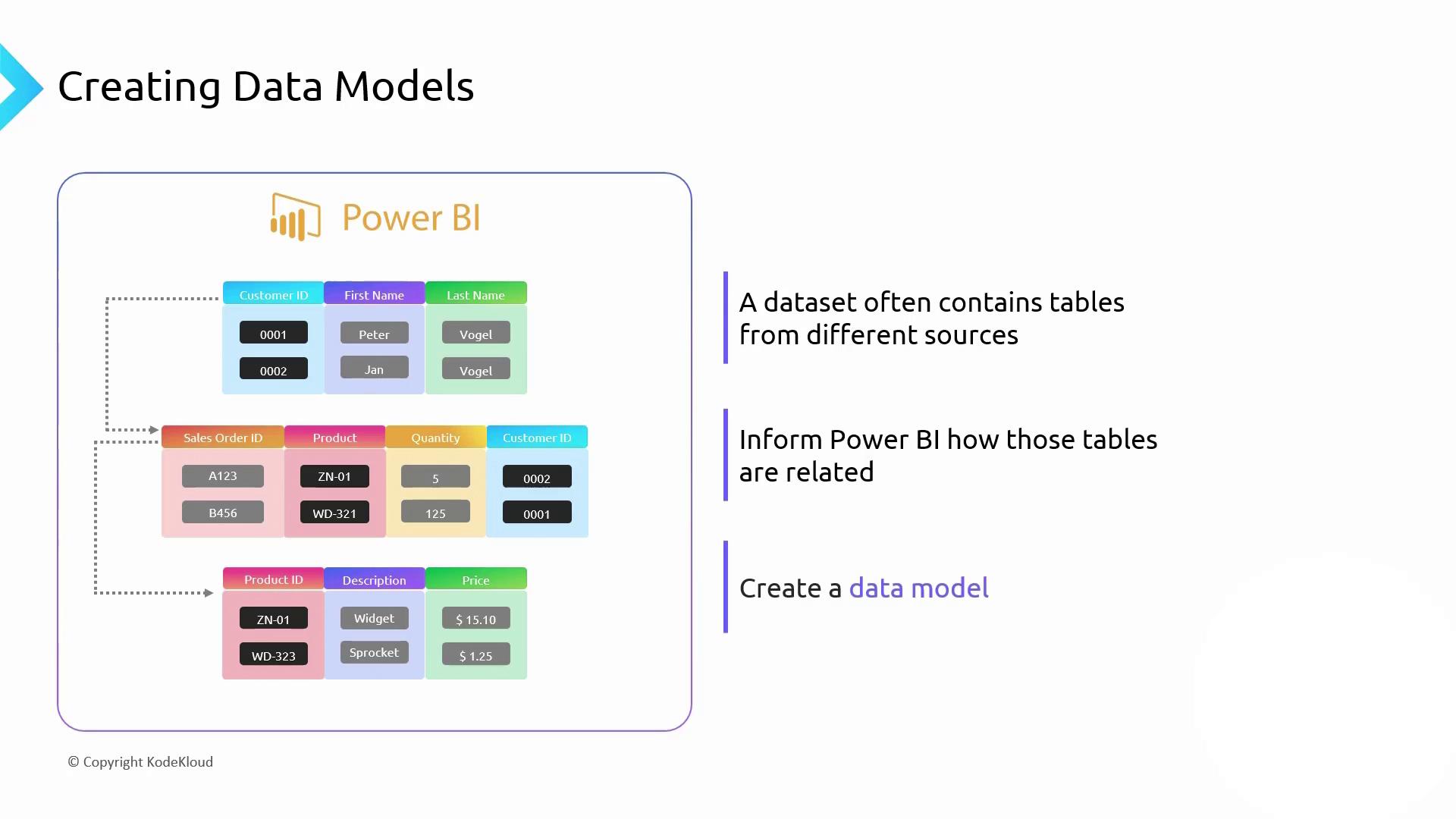
- Building interactive visualizations
- Distributing those reports to end users
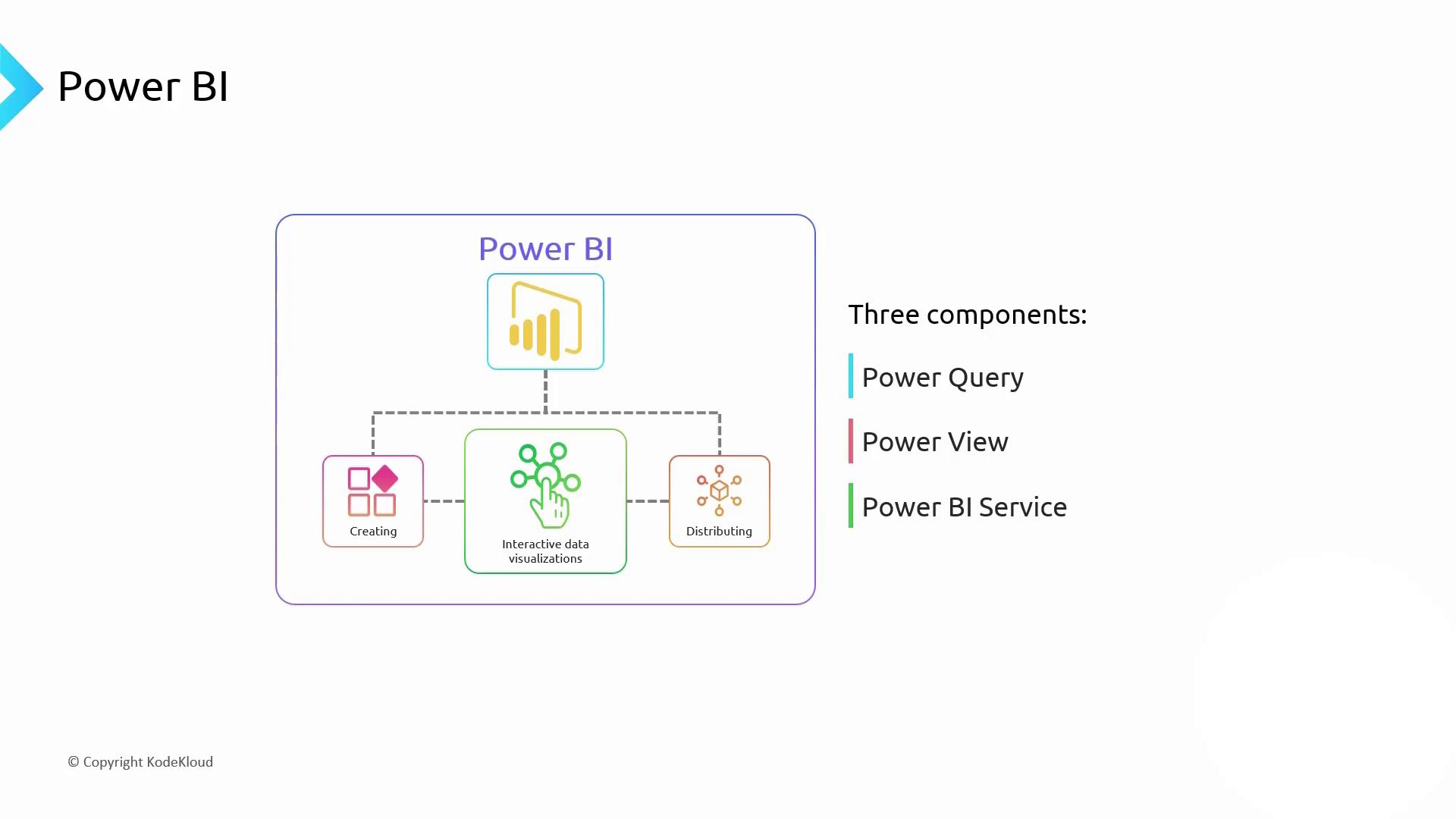
Power BI Desktop: Create and Design
Power BI Desktop (formerly Power BI Designer) is the free Windows client that combines Power Query and Power View into a single workspace. Both the free and Pro versions offer full design capabilities, with Pro removing dataset size limits and adding collaboration features.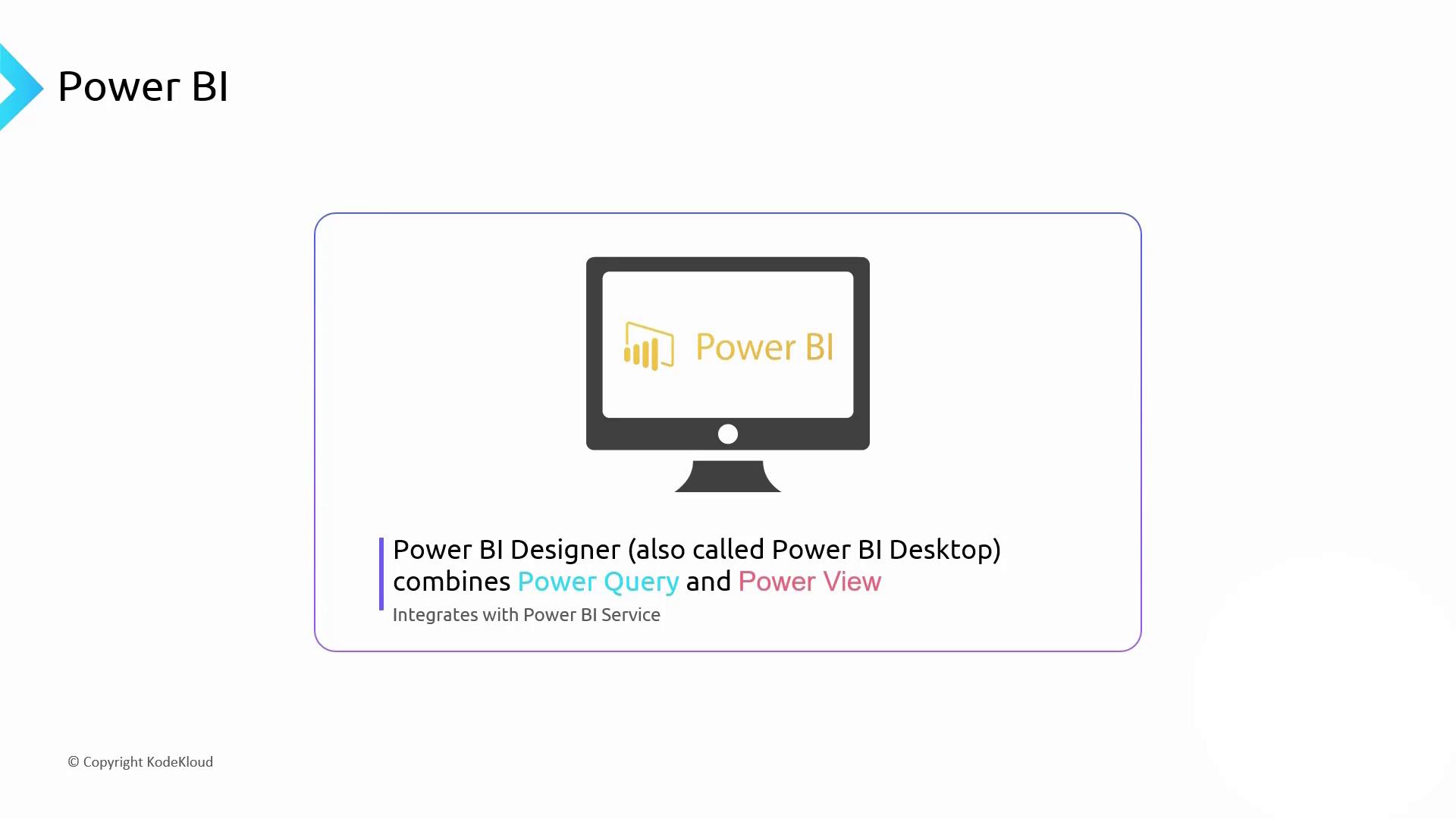
1. Power Query: Extract, Transform, Load (ETL)
Power Query is where you connect to sources, shape data, and load it into your Power BI dataset. Common transformations include:- Joining or splitting tables
- Cleaning invalid or null values
- Filtering out unneeded rows

Power Query’s step-by-step transformation ensures reproducibility. When you refresh, only the final query runs against the source.
Import vs. DirectQuery
DirectQuery can add query latency to visuals. Always test performance when using live connections.
2. Power View: Design Interactive Reports
Once data is loaded or connected, switch to Power View to craft visuals. Power BI Desktop offers over 40 built-in charts plus community-driven custom visuals. Visual interactions mean selecting one chart filters the rest, and date slicers dynamically slice time-series data.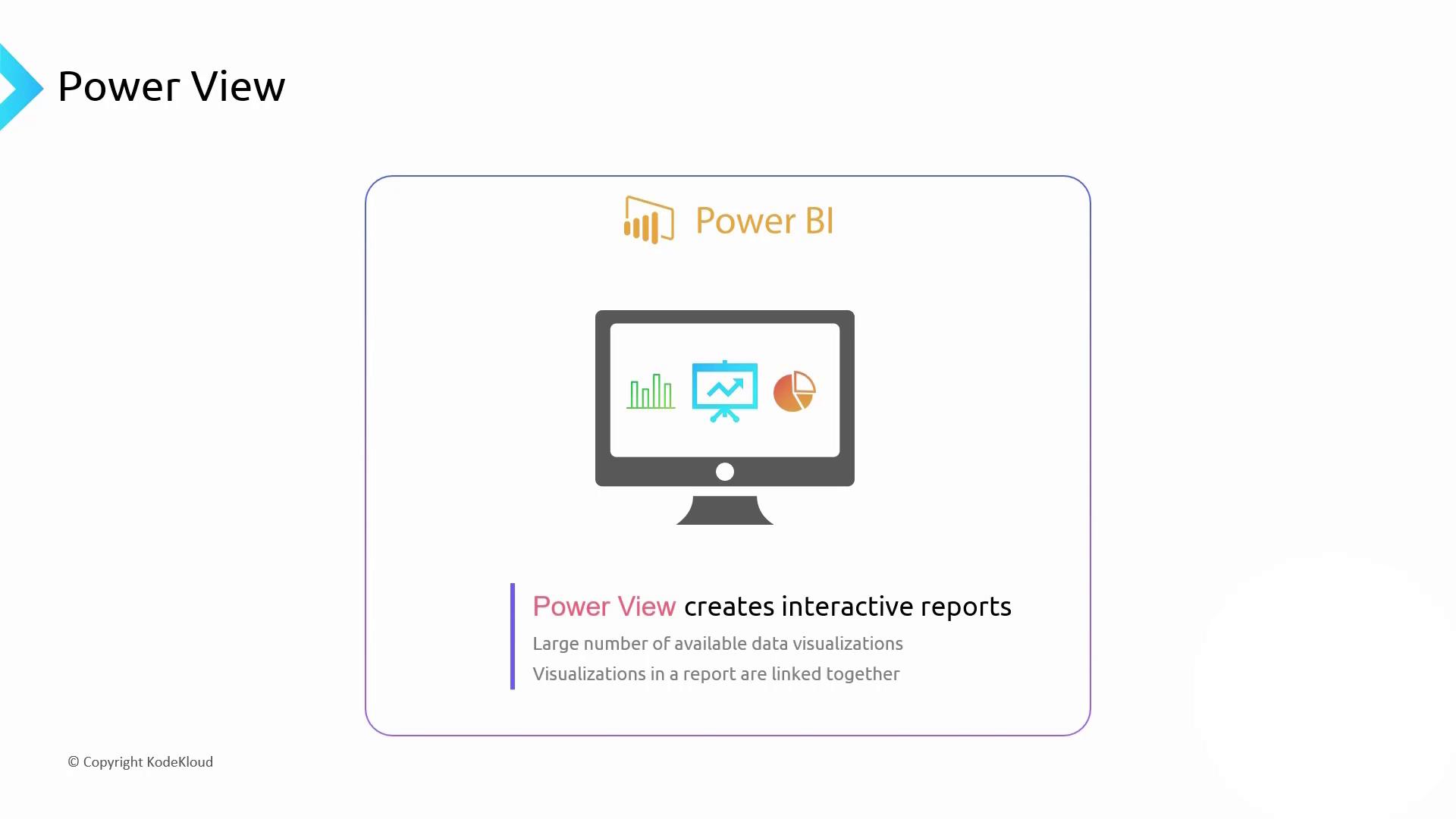
Filtering, Slicers & Hierarchies
- Slicers for on-canvas filtering
- Drill-down/up through hierarchies (Region → Country → City → Customer)
- Automatic date hierarchies (Year → Quarter → Month → Week)

Data Modeling in Power BI
Central to unified reporting is a robust data model. Power BI lets you:- Import tables from Excel, Azure SQL Database, Cosmos DB, and more
- Auto-detect relationships by column names or define them manually
- Build star or snowflake schemas with fact and dimension tables
In modeling view, drag to create relationships or adjust cardinality and cross-filter direction for accurate joins.