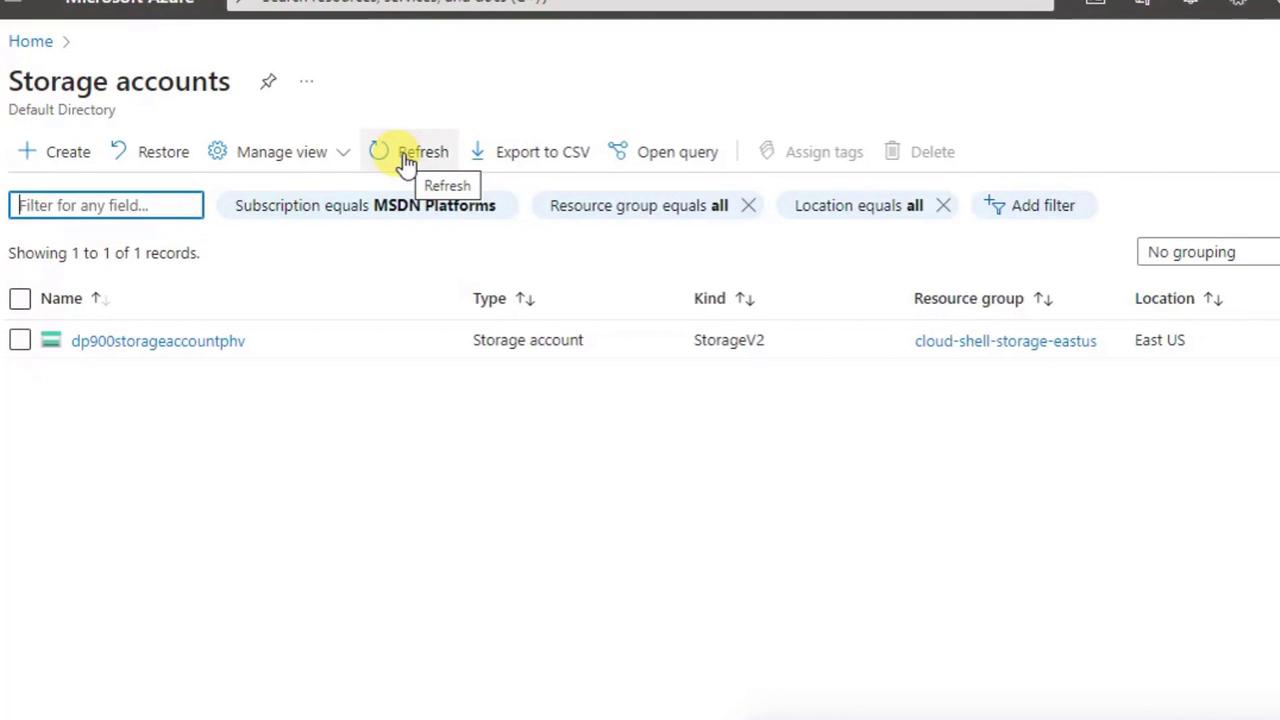
1. Navigate to Storage Accounts
- Sign in at portal.azure.com to reach the Azure dashboard.
- Use the Search bar at the top instead of scrolling through the left-hand menu.
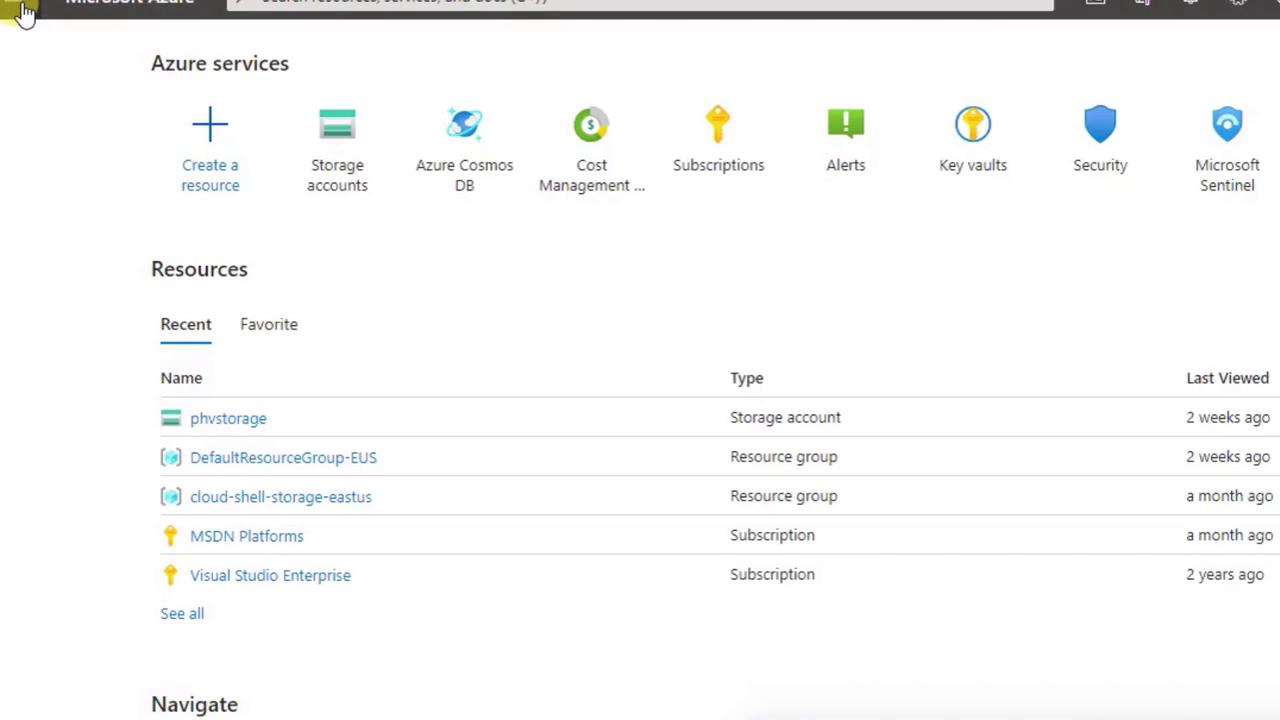
- Type Storage accounts and select it from the dropdown.
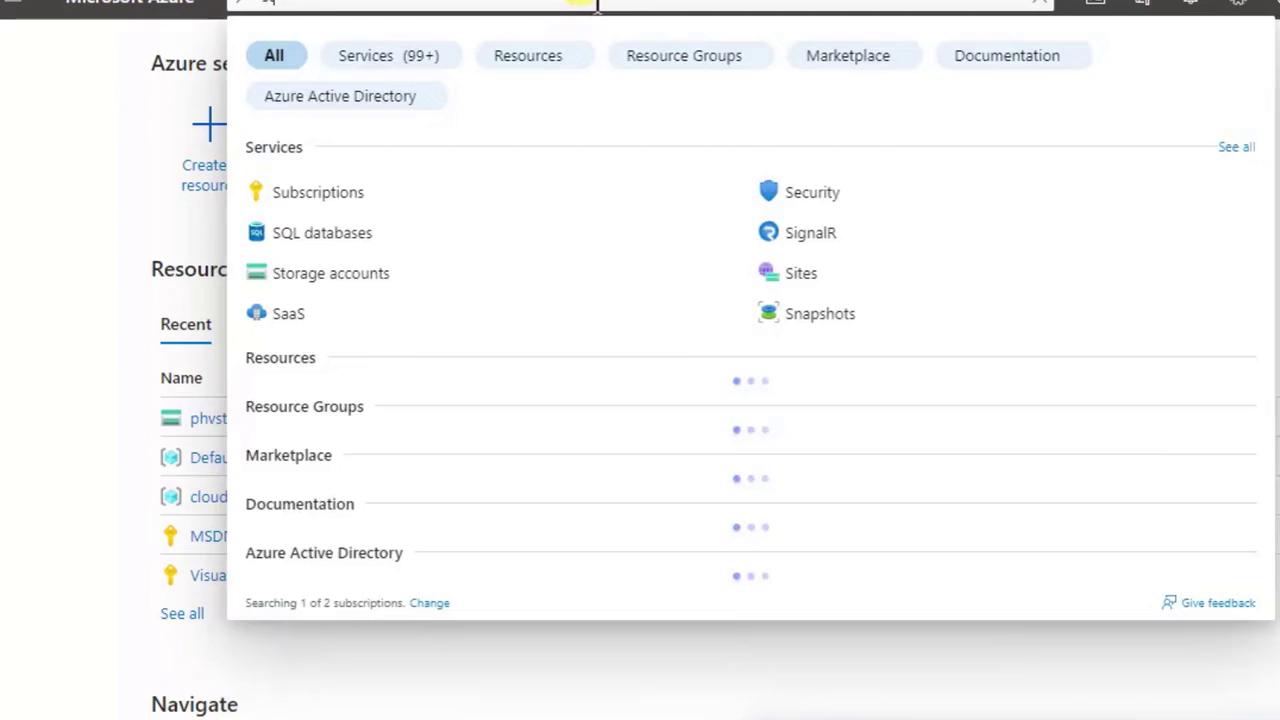
2. Launch the Creation Wizard
- In the Storage Accounts blade, click + Create (or New) to open the multi-step wizard.
- You’ll see tabs across the top (Basics, Networking, Data Protection, etc.) and a Review + create button at the bottom.
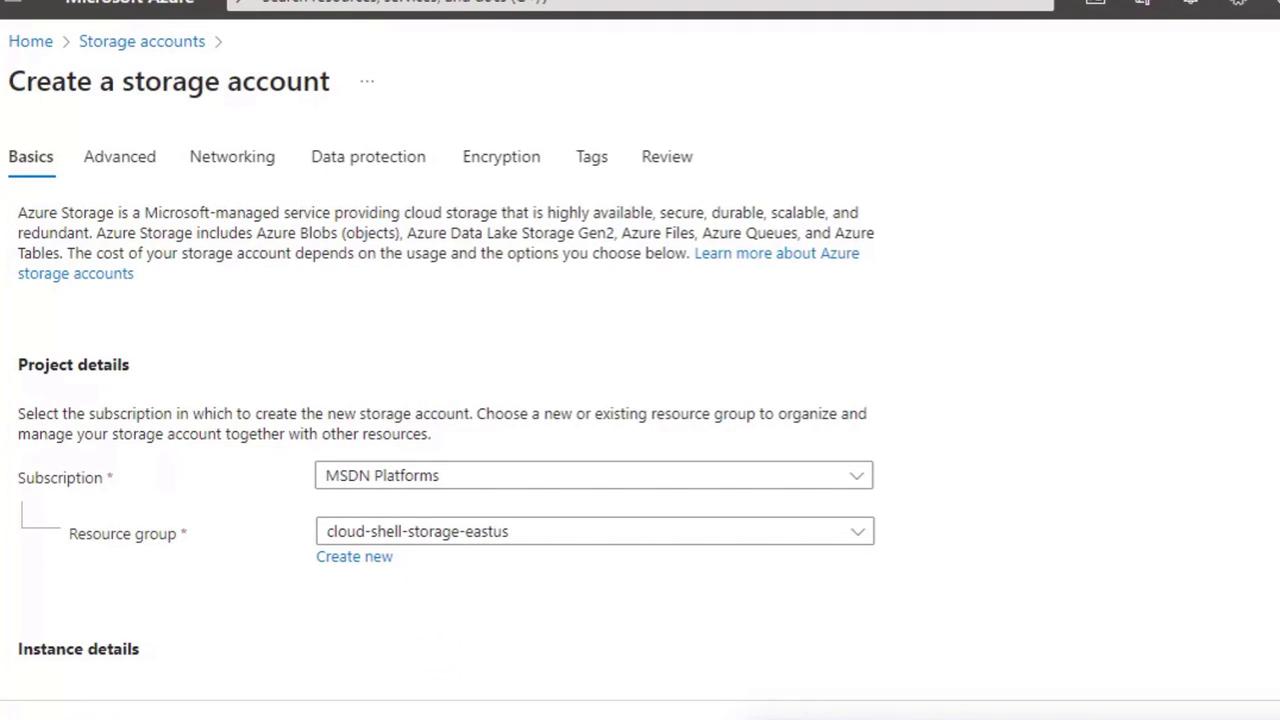
Most demos only require filling out the Basics tab—the other tabs use recommended defaults.
3. Complete the Basics Tab
Populate these four required fields:Your storage account name forms part of the service URL (
<name>.blob.core.windows.net). If the chosen name is taken, append a unique suffix (e.g., your initials or date).4. Select Performance and Redundancy Options
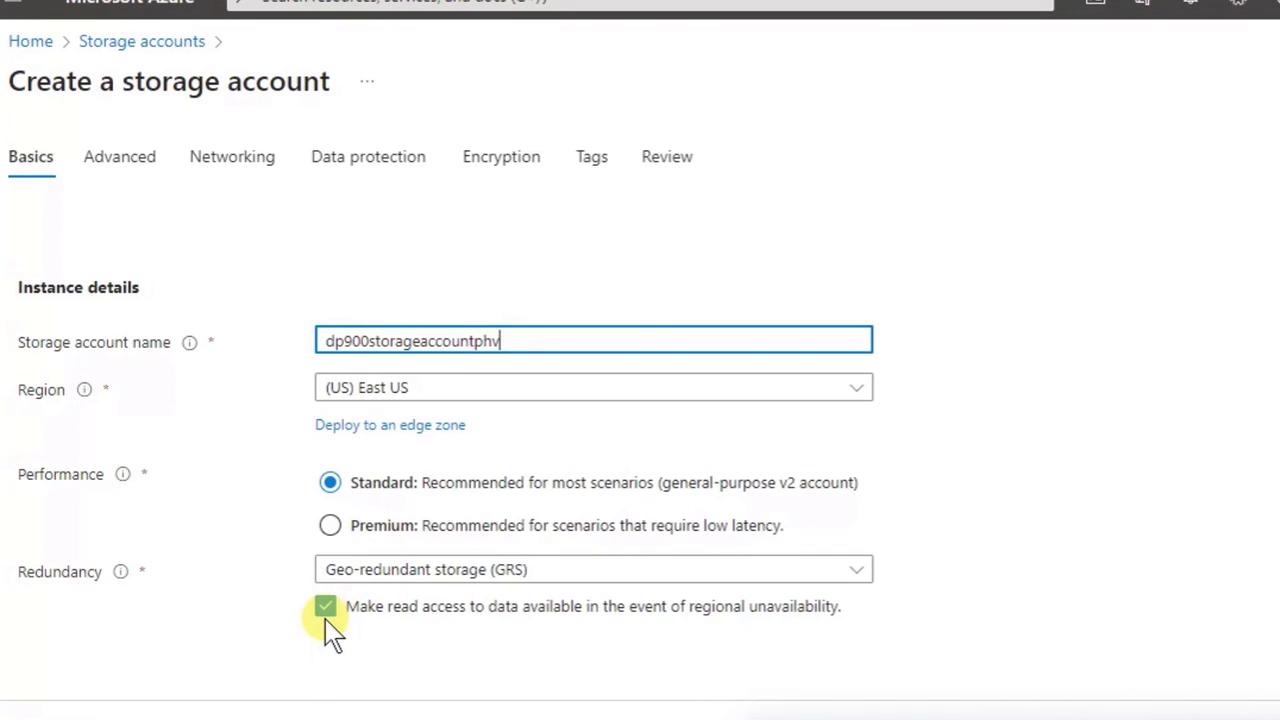
- Performance: Standard
- Redundancy: Geo-redundant storage (GRS)
5. Review + Create
- Click Review + create.
- The portal validates your configuration.
- Click Create to start deployment.
6. Explore Your New Storage Account
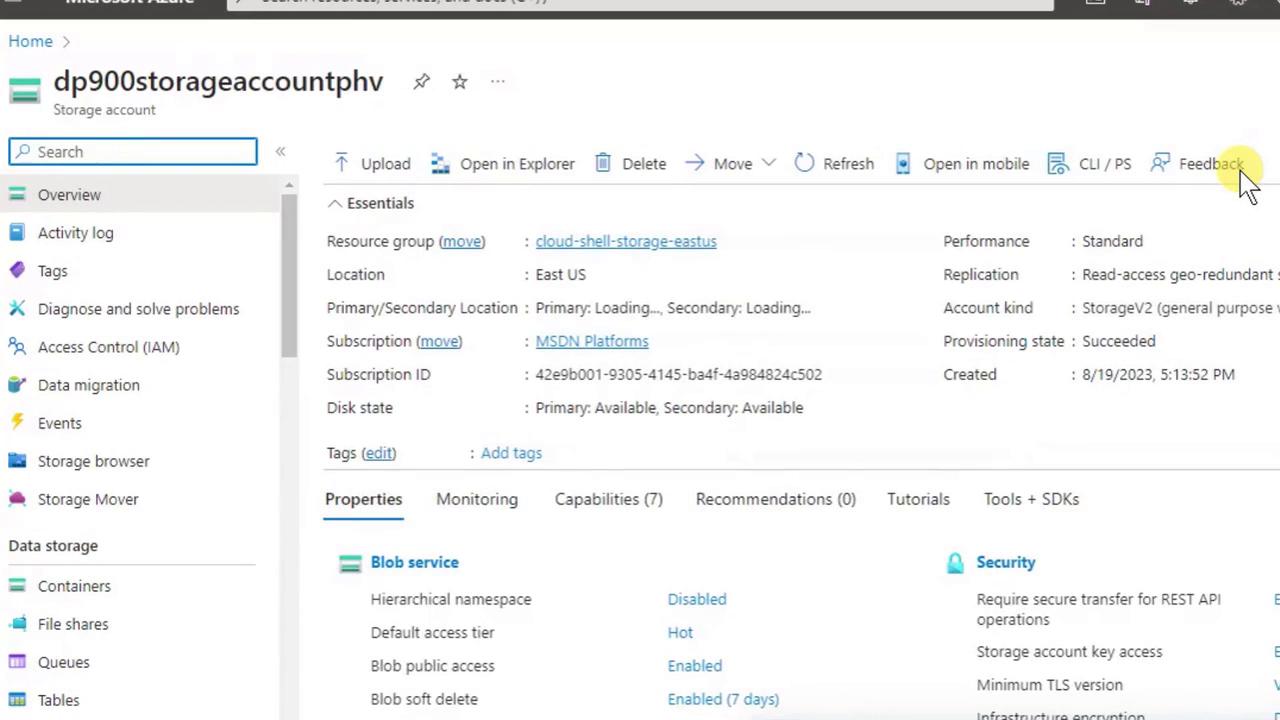
- View Containers (Blob storage) and File shares (SMB file storage)
- Check essentials like resource group, subscription, and region
- Upload data or delete the account
7. List All Storage Accounts
- Search again for Storage accounts.
- Confirm the correct Subscription filter is applied.
- Click Refresh if your new account isn’t visible immediately.