Documentation Index Fetch the complete documentation index at: https://notes.kodekloud.com/llms.txt
Use this file to discover all available pages before exploring further.
Many teams begin with Terraform Open Source (OSS) on their local machines before transitioning to Terraform Cloud for enhanced collaboration, state management, and run governance. This guide walks you through migrating your existing Terraform OSS setup to Terraform Cloud without destroying your current AWS infrastructure .
Table of Contents
Prerequisites
Clone and Apply Locally
Configure Terraform Cloud Backend
Initialize and Migrate State
Trigger Runs via CLI
Comparison: OSS vs. Cloud
References
Prerequisites
Terraform OSS installed (v1.0+).
AWS CLI configured or valid AWS credentials.
A Terraform Cloud account and organization.
Git installed.
Never commit your AWS credentials or Terraform Cloud API tokens to version control. Use environment variables or a secrets manager.
Clone and Apply Locally
First, clone the HashiCat AWS repository and navigate into it:
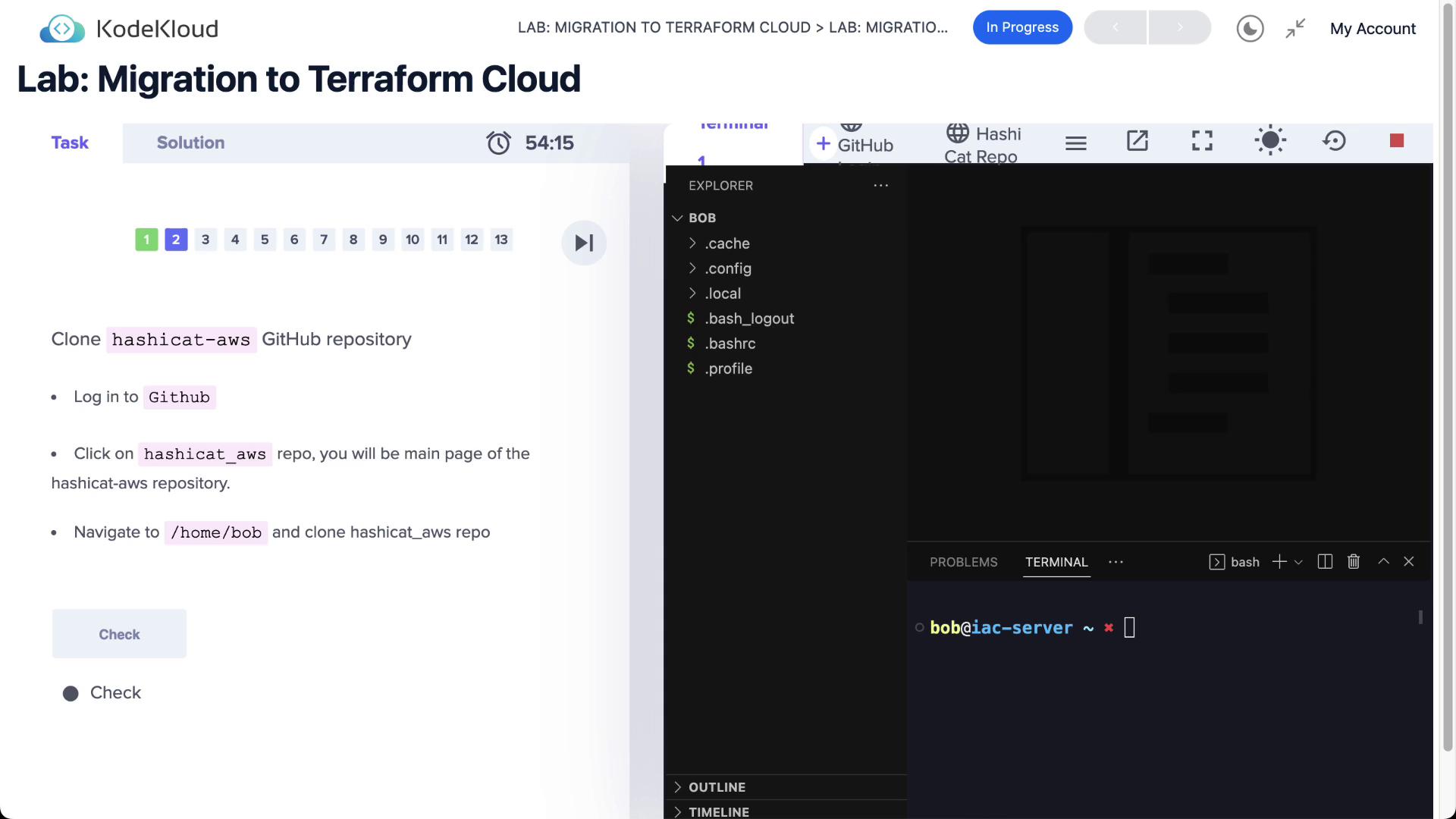
git clone https://github.com/hashicorp/hashicat-aws.git
cd hashicat-aws
Set your AWS credentials using environment variables:
export AWS_ACCESS_KEY_ID =< YOUR_ACCESS_KEY_ID >
export AWS_SECRET_ACCESS_KEY =< YOUR_SECRET_ACCESS_KEY >
Inspect the existing Terraform configuration in main.tf:
terraform {
required_providers {
aws = {
source = "hashicorp/aws"
version = "~> 3.42.0"
}
}
}
provider "aws" {}
Initialize the working directory and apply:
terraform init
terraform apply -auto-approve
You should see output similar to:
Plan: 12 to add, 0 to change, 0 to destroy.
Apply complete! Resources: 12 added, 0 changed, 0 destroyed.
Outputs:
catapp_ip = "http://3.236.1.255"
catapp_url = "http://ec2-3-236-1-255.compute-1.amazonaws.com"
Your AWS infrastructure is now managed locally by Terraform OSS.
To migrate state to Terraform Cloud, update main.tf with a cloud block:
terraform {
cloud {
organization = "YOUR_ORGANIZATION_NAME"
workspaces {
tags = [ "hashicat" , "apps" ]
}
}
required_providers {
aws = {
source = "hashicorp/aws"
version = "~> 3.42.0"
}
}
}
provider "aws" {}
Log in to Terraform Cloud via the CLI:
This command prompts you to authorize Terraform Cloud access and stores your API token in ~/.terraform.d/credentials.tfrc.json.
Initialize and Migrate State
Reinitialize your directory so Terraform switches the backend to Terraform Cloud:
On success, you’ll see:
Terraform has been successfully initialized with Terraform Cloud backend!
Now, run a plan and apply. Terraform will handle state migration automatically:
terraform plan
terraform apply -auto-approve
Once complete, your state is stored remotely in Terraform Cloud. You can manage runs, view logs, and set policies from the Terraform Cloud UI:
Trigger Runs via CLI
To explicitly specify a workspace name, update your cloud block:
terraform {
cloud {
organization = "YOUR_ORGANIZATION_NAME"
workspaces {
name = "devops-aws-hashicat-dev"
}
}
}
Commit and push these changes to your version control system (if connected). Or, trigger the run directly:
terraform apply -auto-approve
CLI output will indicate a remote run:
Running apply in Terraform Cloud. Output will stream here. Press Ctrl+C to cancel.
Preparing the remote apply...
To view this run in a browser, visit:
https://app.terraform.io/app/YOUR_ORGANIZATION_NAME/devops-aws-hashicat-dev/runs/ <RUN_ID>
Upon completion, your Terraform Cloud workspace will reflect the latest state, and your AWS infrastructure remains intact throughout the migration.
Feature Terraform OSS Terraform Cloud State Management Local file Remote, centralized Collaboration Manual sharing Teams & Policy Controls Run Execution Local CLI Remote plan & apply Drift Detection Manual Automated checks & notifications Cost Estimation Third-party tools Built-in preview in runs VCS Integration Plugins/scripts Native GitHub/Bitbucket/GitLab support
References