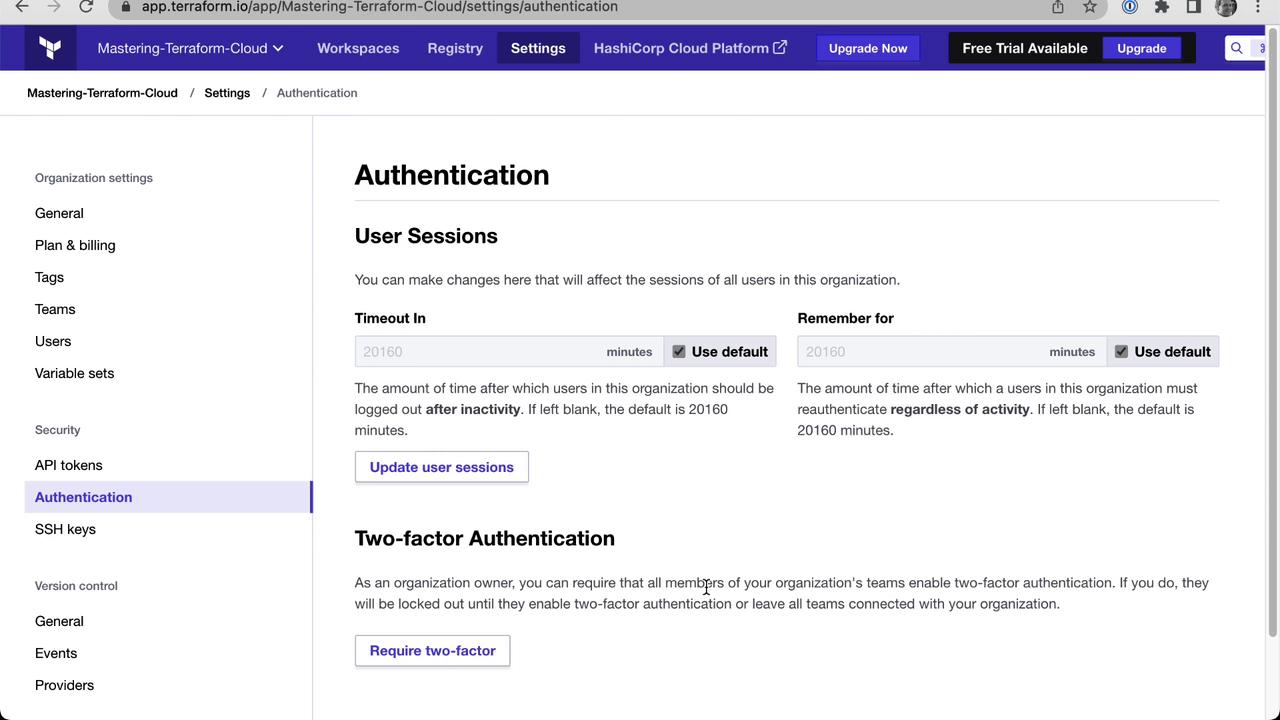
1. Logging into Terraform Cloud Web UI
- Navigate to the Terraform Cloud login page and enter your HCP account or username/email credentials.
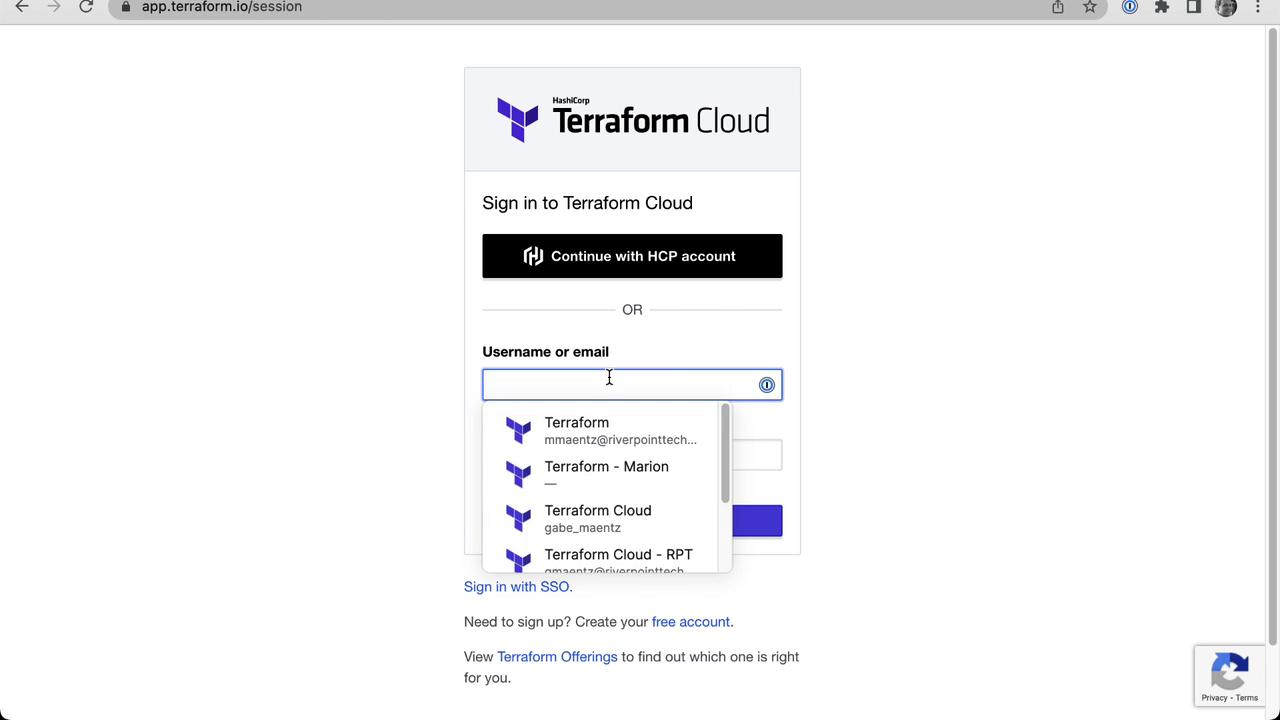
- If you belong to multiple organizations, select the one you want to access.

2. Configuring User-Level Authentication
- Click your user avatar and select User Settings → Account Settings.

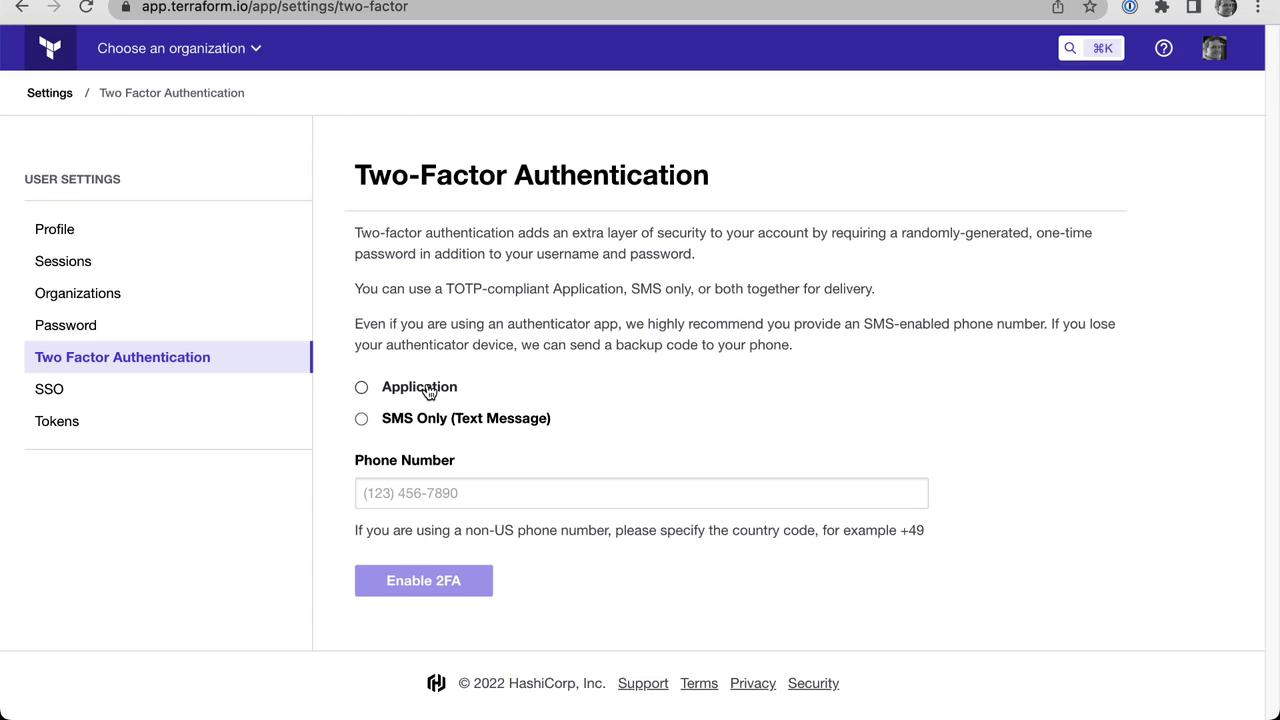
- Under Authentication, enable Two-Factor Authentication (2FA). You can choose an authentication app or SMS.
- For app-based 2FA, scan the QR code and enter the generated one-time password.
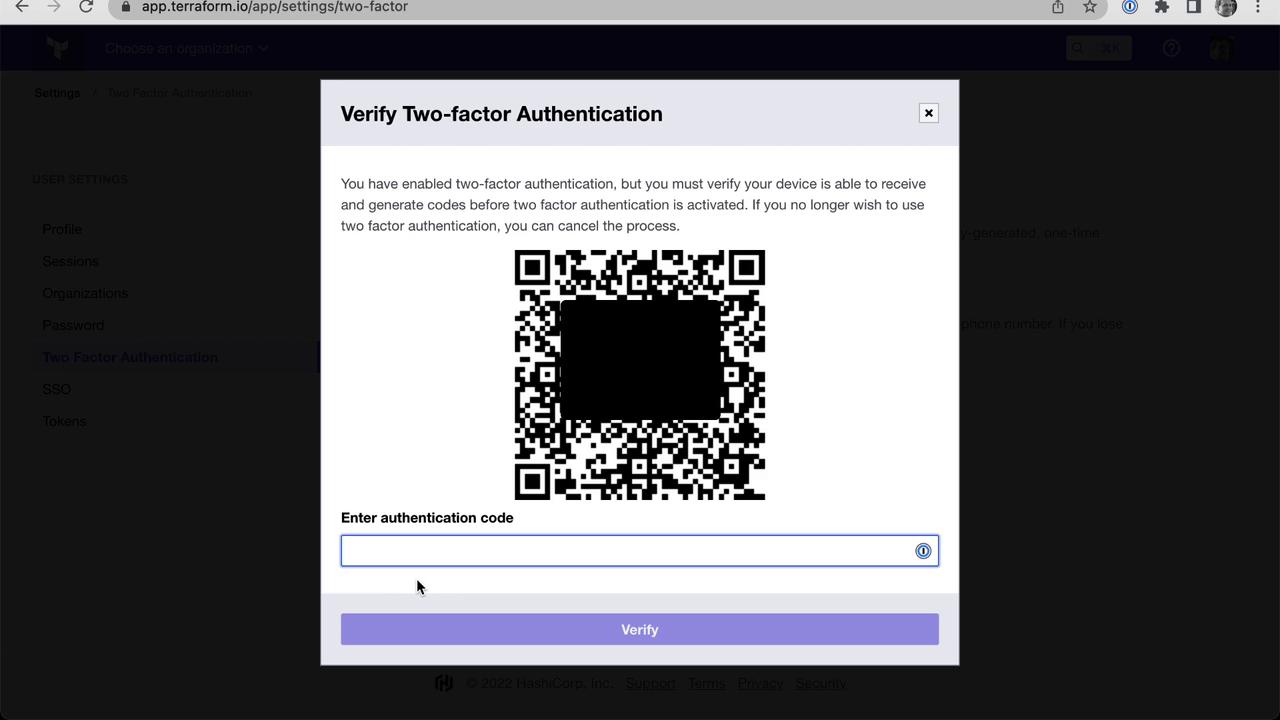
Always save your backup codes in a secure location. Losing access to your 2FA device can lock you out of Terraform Cloud.
3. Organization-Level Security Policies
Switch to your organization (e.g., Mastering Terraform Cloud), then go to Settings → Authentication. Here you can:- Require that all members enable 2FA
- Configure session inactivity timeouts
- Set reauthentication intervals

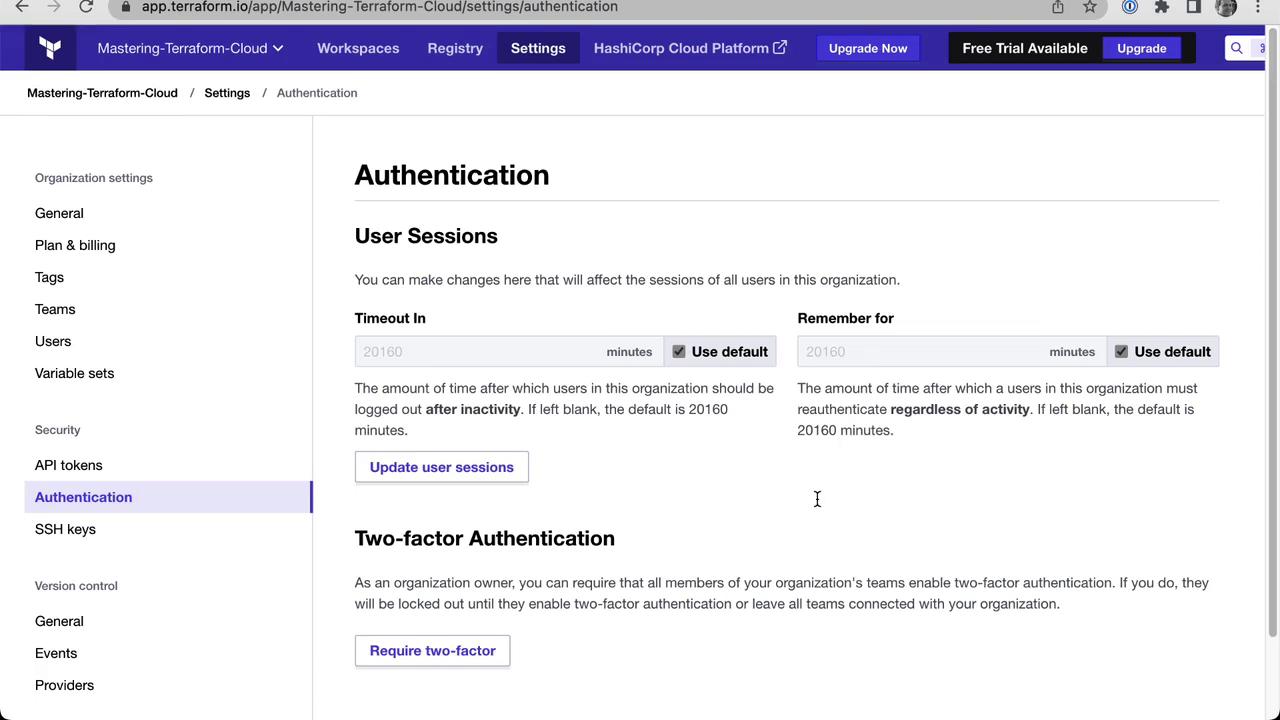
Customizing session timeouts helps balance security and usability across your organization.
4. Managing SSH Keys for Git Operations
At the organization level, upload SSH private keys to enable Git-based operations. To generate an RSA key in PEM format:5. Authenticating with Terraform CLI
On your local machine with Terraform installed, run: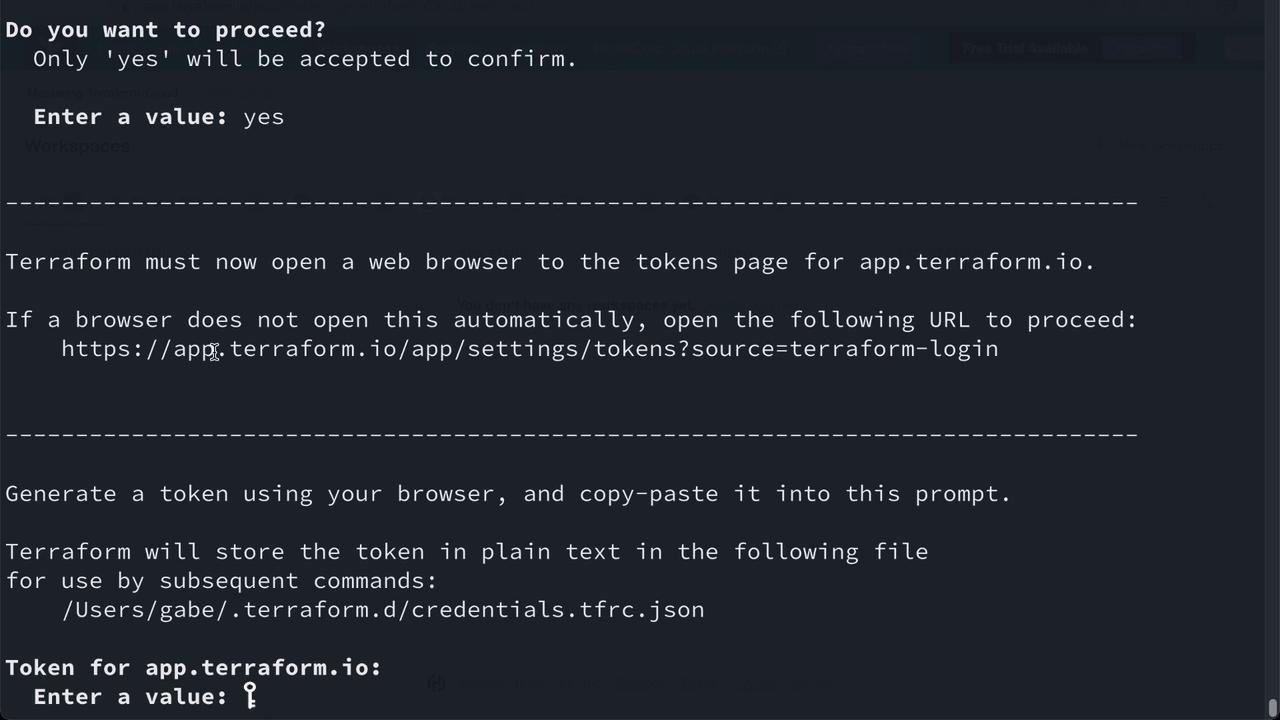
6. Interacting with Terraform Cloud via API
First, export your token as an environment variable:7. Terraform Cloud API Token Types
Terraform Cloud supports these token types: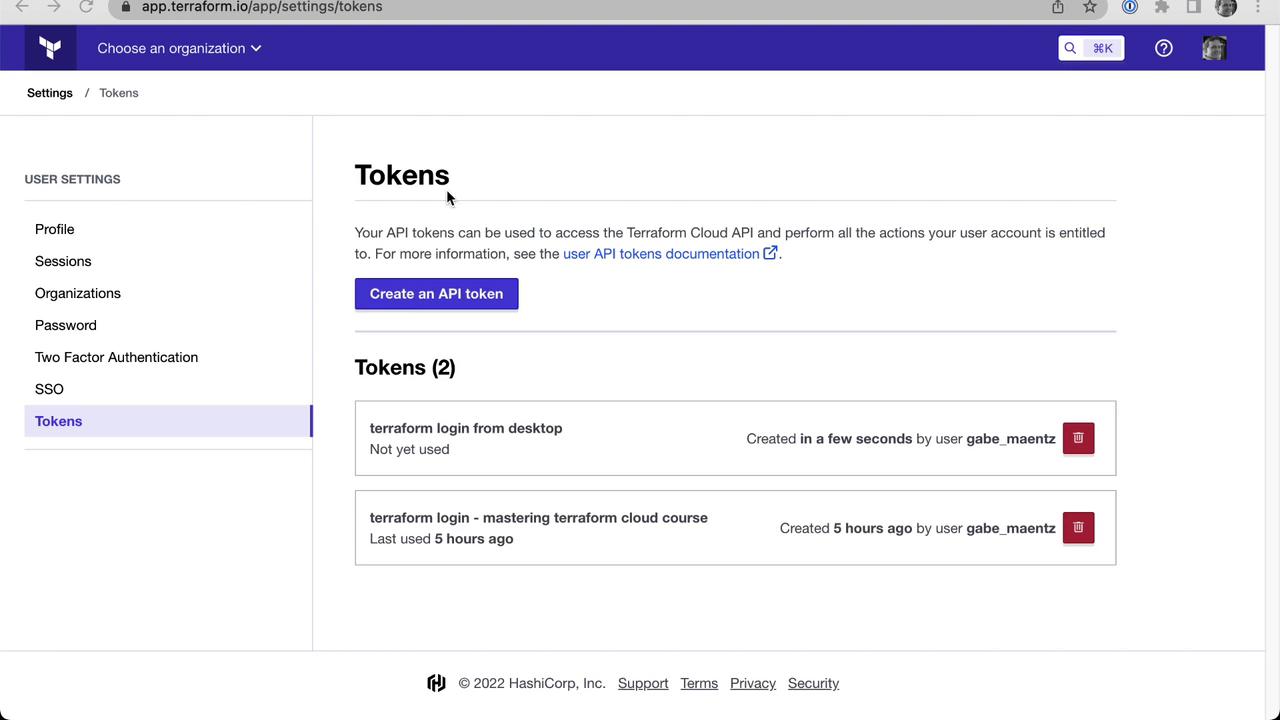
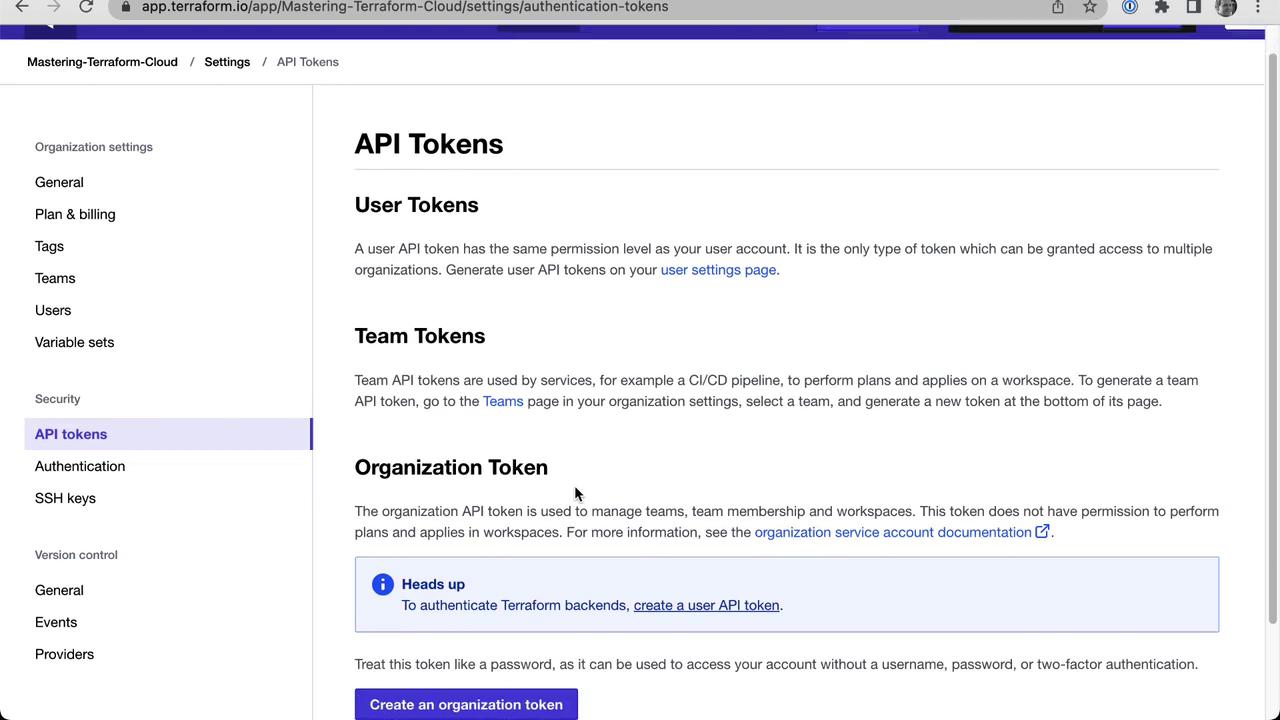
This concludes our demonstration of web UI, CLI, and API authentication with Terraform Cloud.