

- Create
developmentandstagingbranches in GitHub - Configure a shared Terraform Cloud variable set for AWS credentials
- Point the development workspace to the
developmentbranch - Provision a staging workspace on the
stagingbranch - Trigger and verify runs in each workspace
- Create a production workspace on the
mainbranch - Confirm all workspaces and their run statuses
- A Terraform Cloud organization and Terraform CLI installed.
- A GitHub repository (
clumsy_bird) containing your Terraform configurations.
1. Create Development and Staging Branches
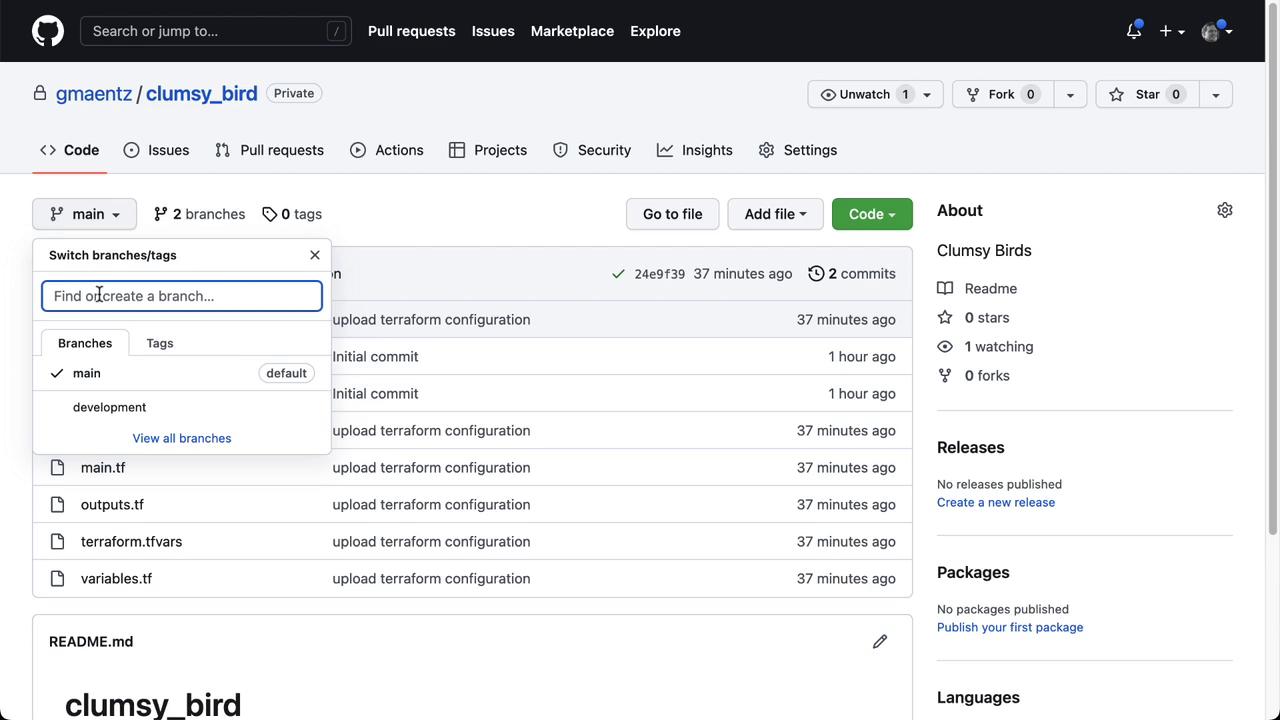
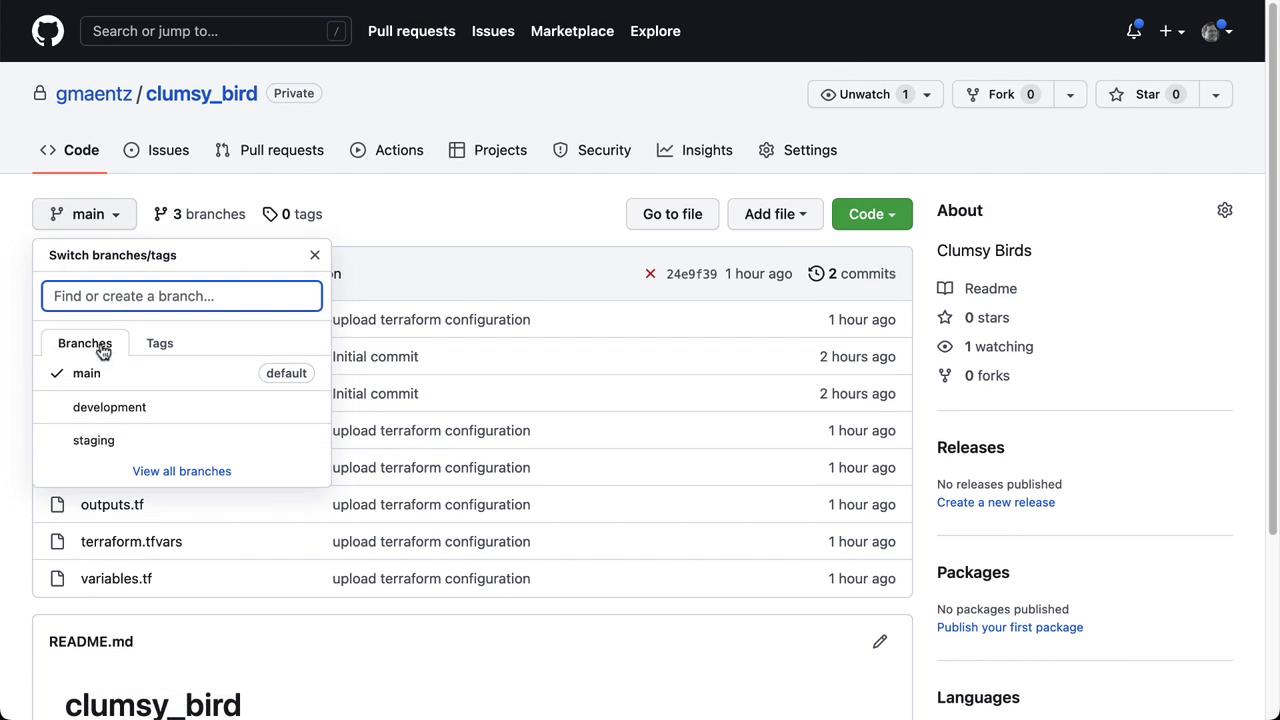
Clone your GitHub repository, then create and push the feature branches:development and staging branches.
2. Configure a Terraform Cloud Variable Set
In Terraform Cloud, navigate to Organization Settings → Variable Sets and create or verify a set containing:
This centralizes AWS credentials for all workspaces in your organization.
Never commit AWS credentials to Git. Always use Terraform Cloud variable sets or Vault for secret management.
3. Update the Development Workspace
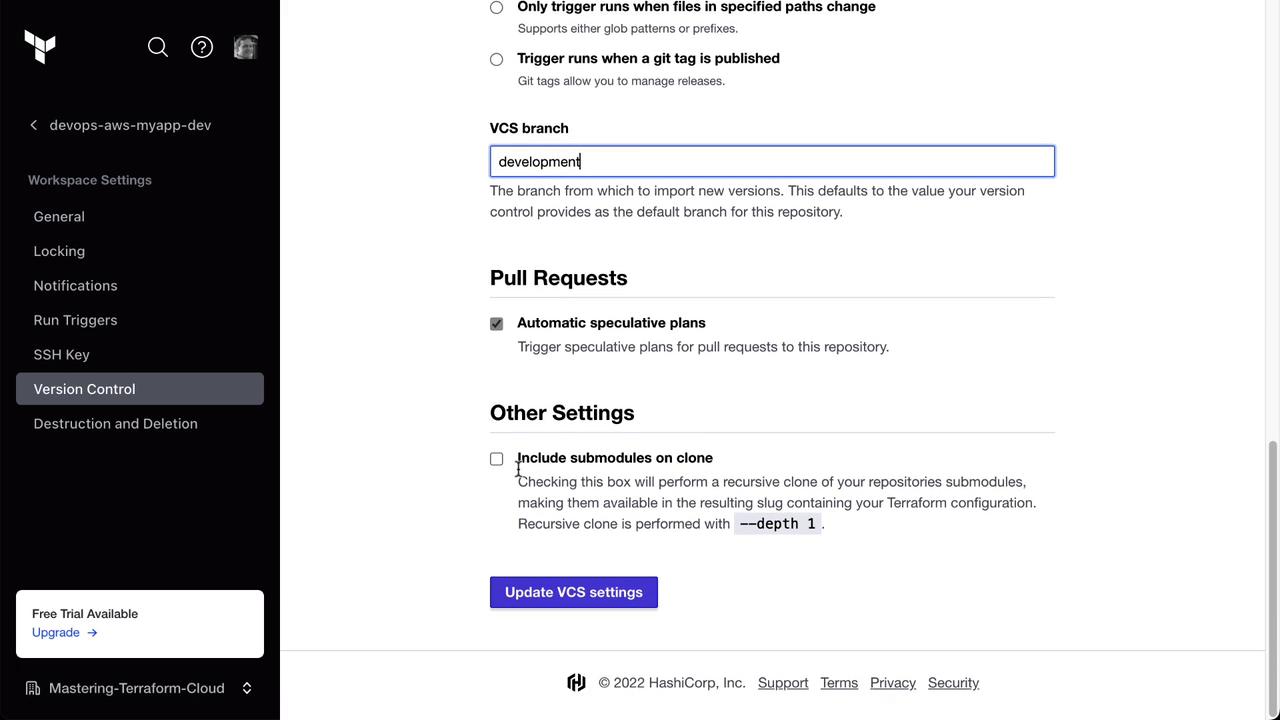
- Open the devops-aws-myapp-dev workspace in Terraform Cloud.
- Go to Settings → Version Control.
- Change VCS Branch to
developmentand Save.
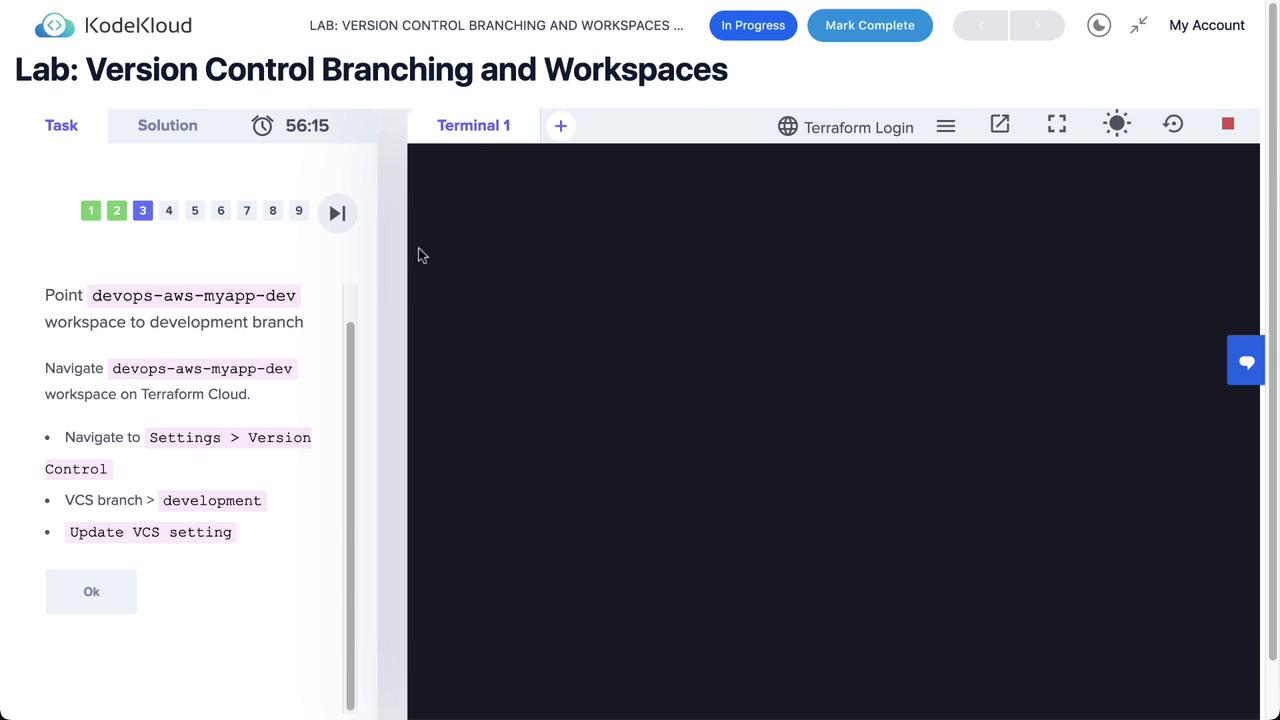
development branch:

4. Create the Staging Workspace
- In Terraform Cloud, select Workspaces → New Workspace.
- Choose Version Control Workflow and connect to
gmaentz/clumsy_bird. - Configure the workspace:
- (Optional) Add Terraform variables for environment context:


5. Trigger Manual Runs
To validate both environments:- Development: Open devops-aws-myapp-dev and click Start new run.
- Staging: Open devops-aws-myapp-staging and click Start new run.
Auto Apply simplifies continuous delivery, but manual runs offer more control for production-critical changes.
6. Create the Production Workspace
Repeat the workspace creation steps for production:- Workspaces → New Workspace → Version Control
- Select
gmaentz/clumsy_birdand set VCS Branch tomain. - Add the same Terraform variables (
prefix,project,environment = "production").
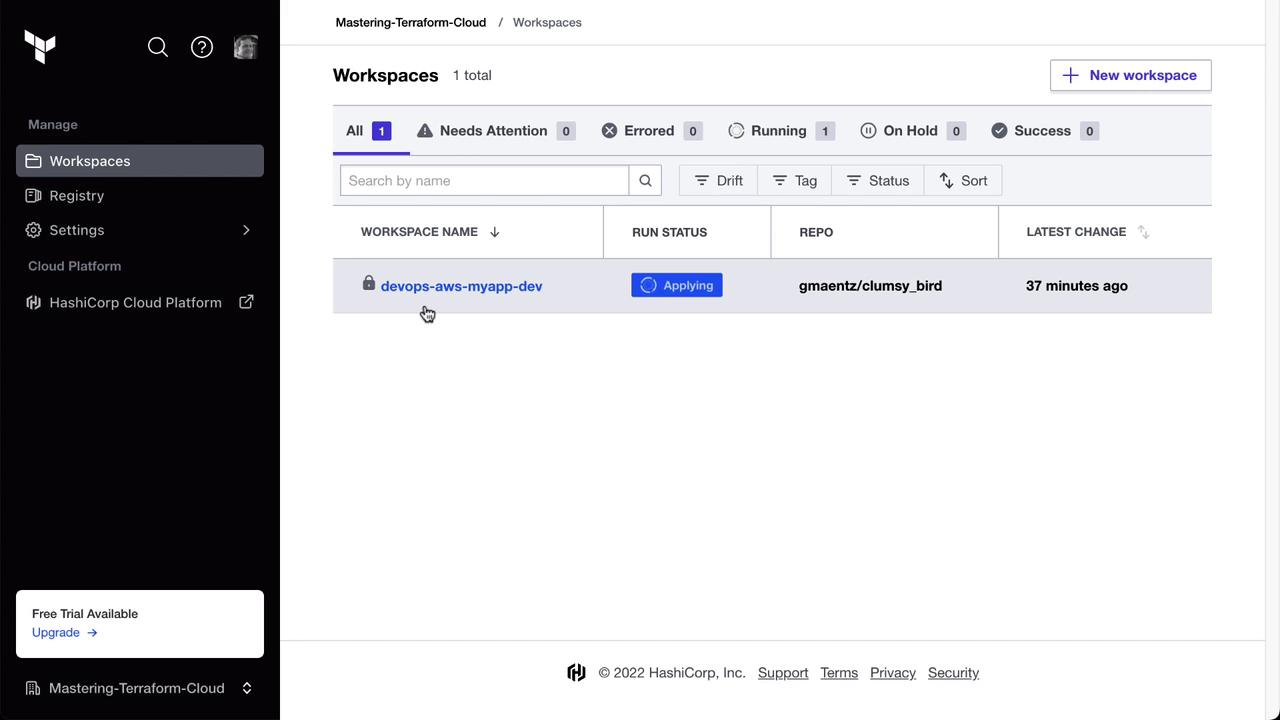
7. Verify All Workspaces
Head to Workspaces overview. You should see all three environments configured:
References
- Terraform Cloud Version Control Workflow
- Git Branching Strategies
- Managing Variables in Terraform Cloud