Table of Contents
- Authenticate the CLI with Terraform Cloud
- Configure AWS Credentials
- Create a Terraform Cloud Workspace
- Match Versions & Set Execution Mode
- Initialize, Plan, and Apply
- Verify in Terraform Cloud
- Tear Down Infrastructure
1. Authenticate the CLI with Terraform Cloud
First, log in to Terraform Cloud from your terminal: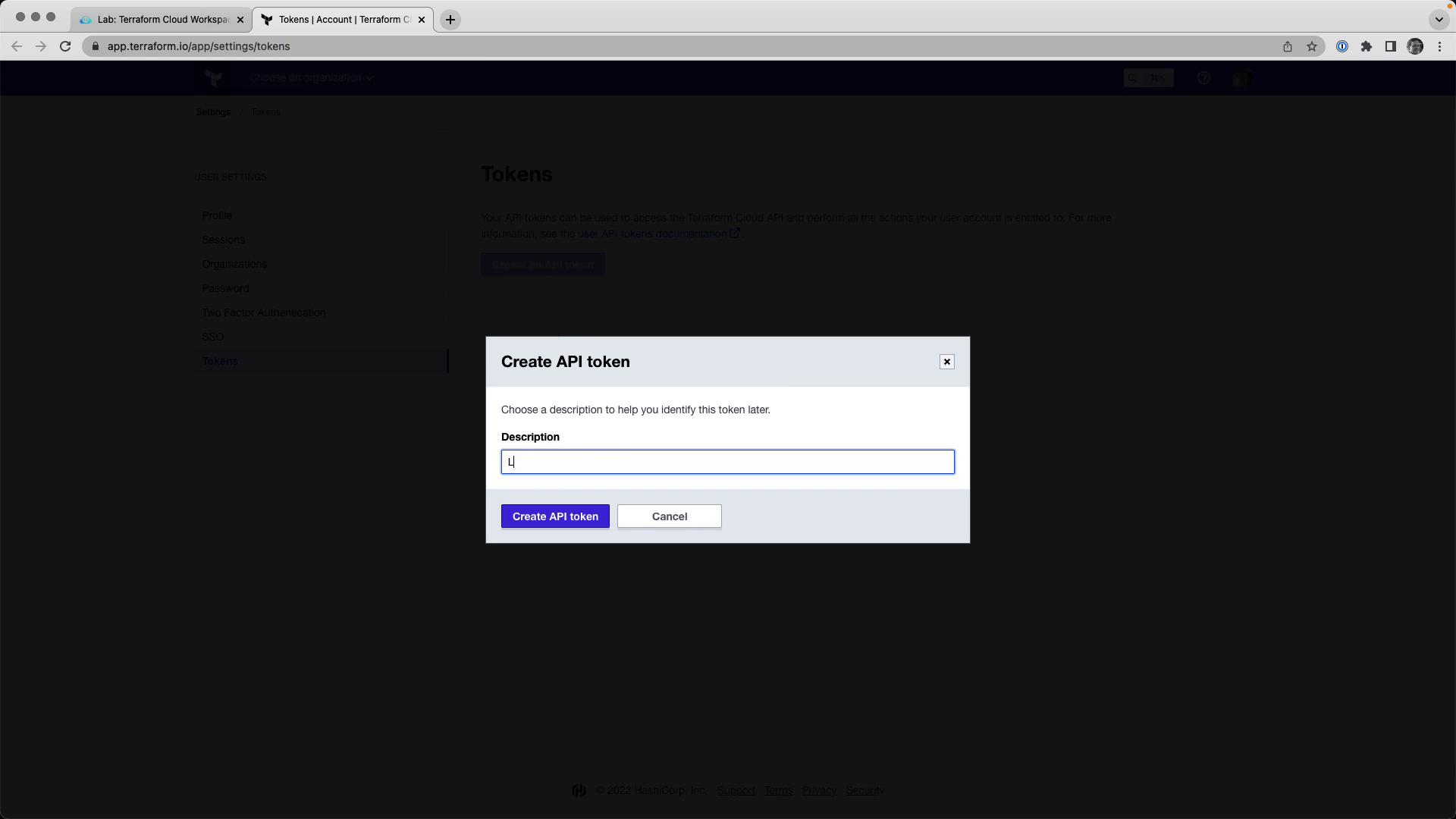
2. Configure AWS Credentials
Export your AWS credentials as environment variables:Never commit your AWS credentials or API tokens to version control. Use environment variables or a secrets manager.
These lab environments automatically tear down after one hour, so your temporary credentials remain safe.
3. Create a Terraform Cloud Workspace
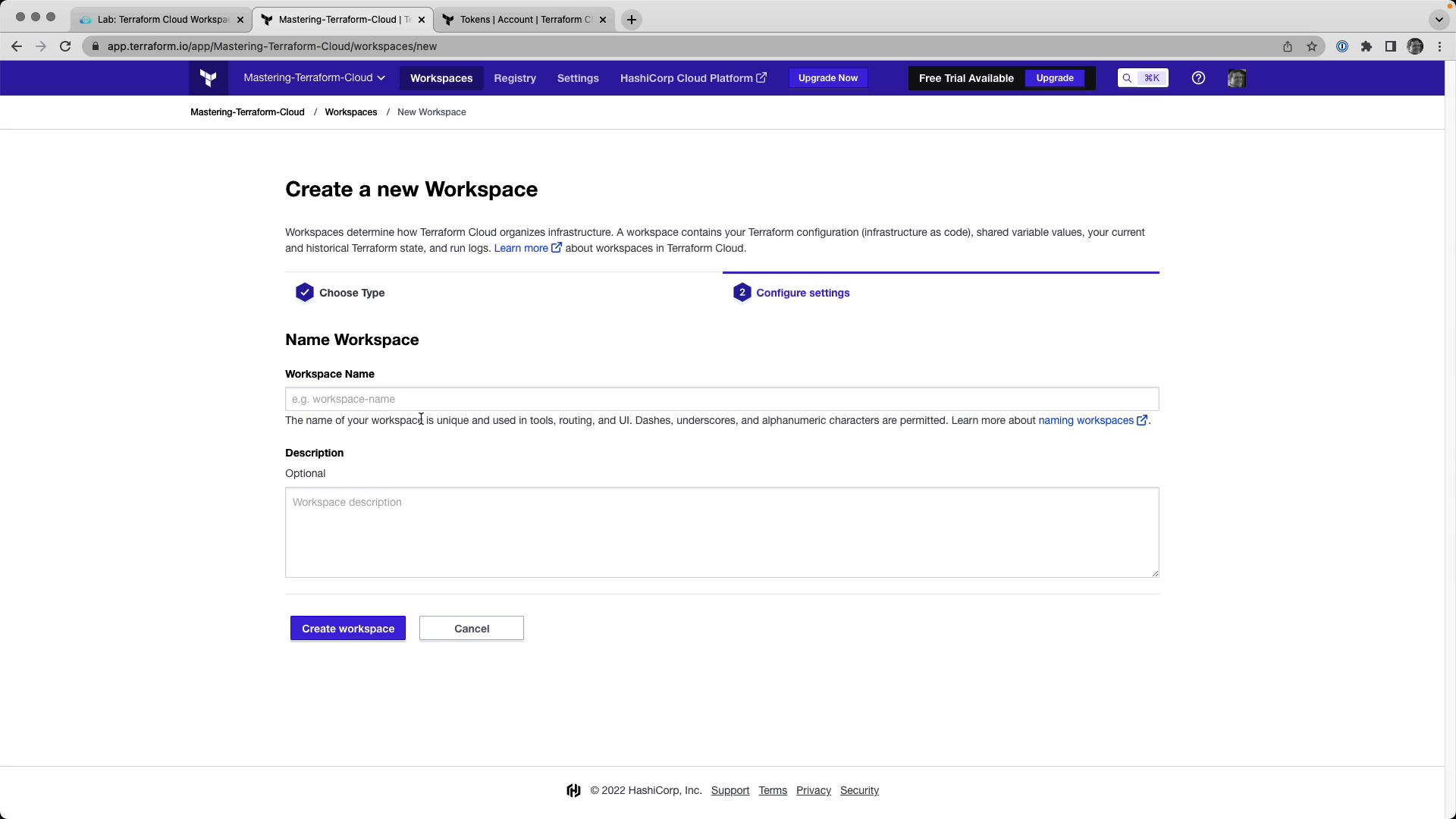
In Terraform Cloud’s web UI:- Select your organization.
- Click New Workspace → CLI-driven workflow.
- Enter:
- Name:
devops-aws-myapp-dev - Description: Development environment for MyApp on AWS.
- Name:
backend.tf (or your chosen .tf file):
4. Match Versions & Set Execution Mode
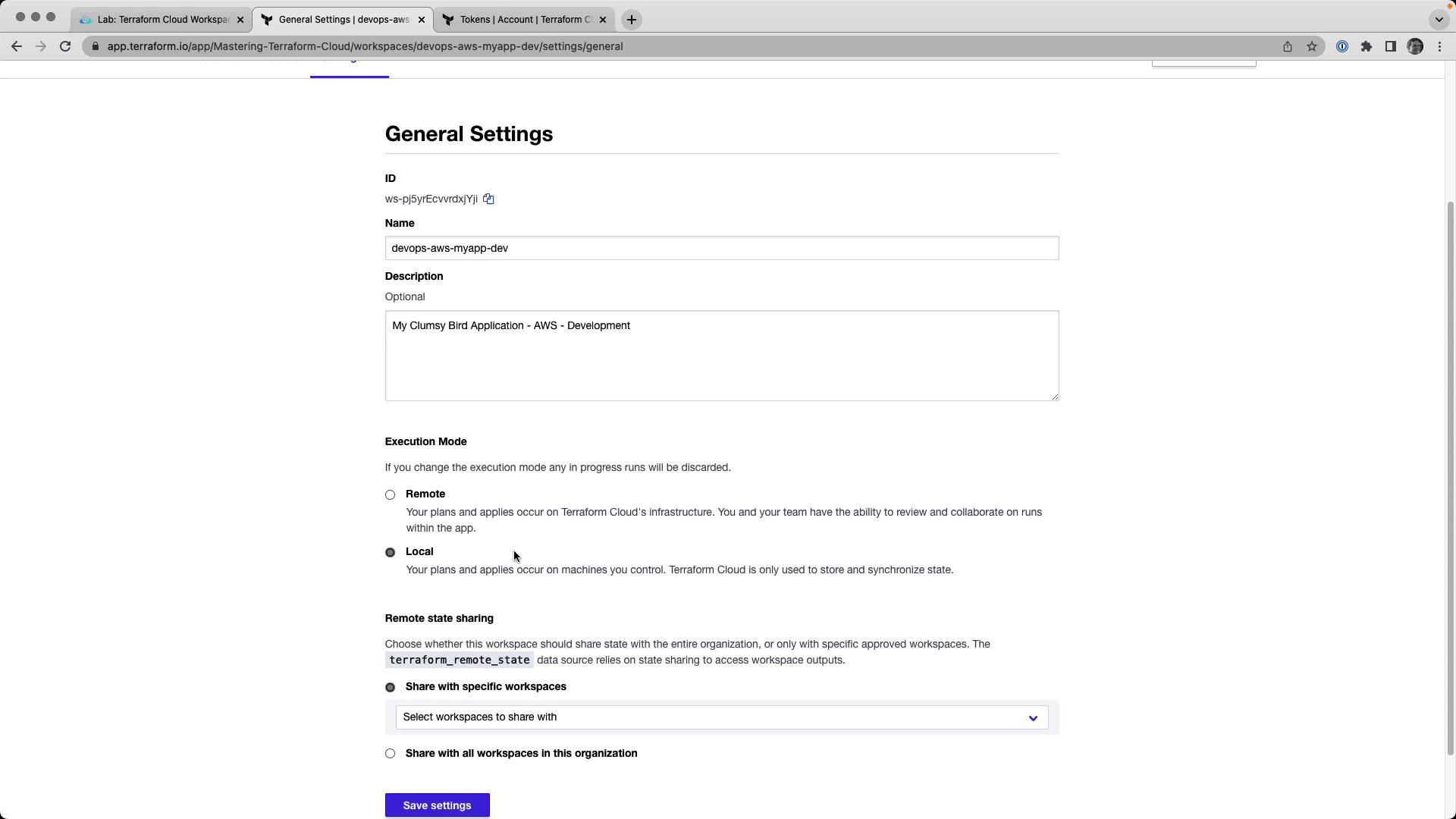
Ensure your local Terraform version matches the workspace setting:- Set Terraform Version to match your local client.
- Change Execution Mode to Local.
- Save your changes.