

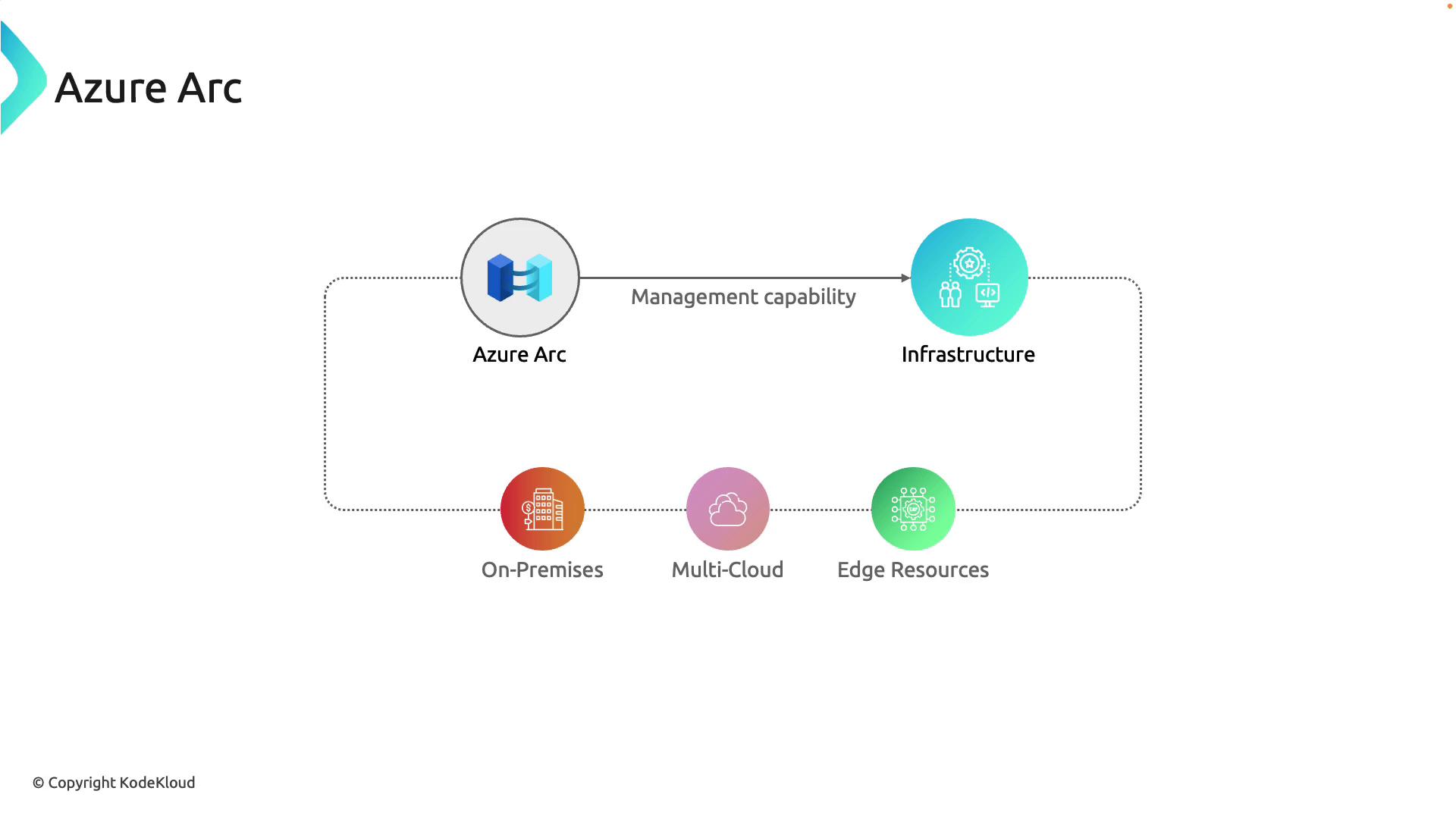
Key Features of Azure Arc
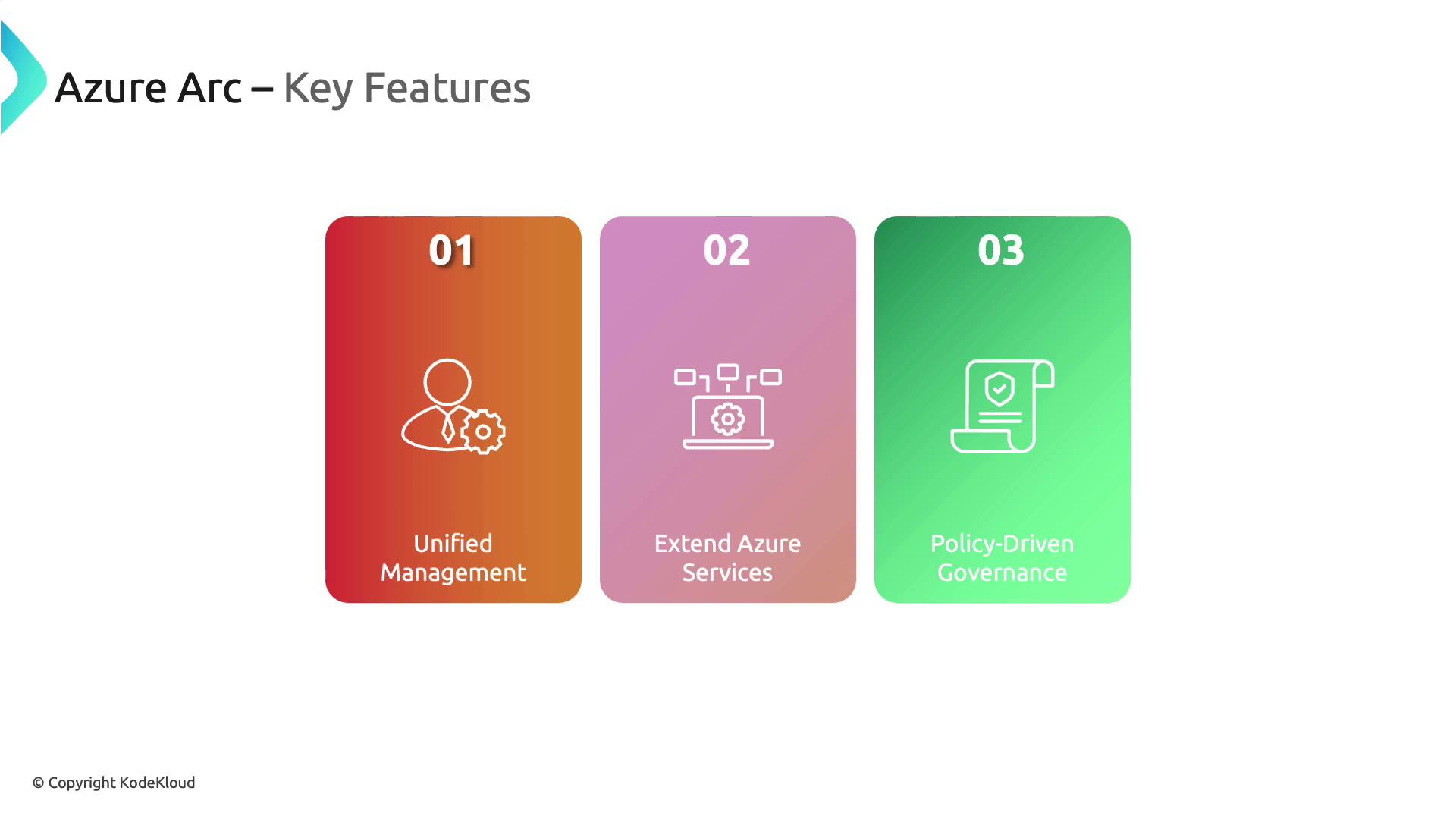
Azure Arc delivers a range of robust features that help streamline hybrid and multi-cloud management:- Unified Management: Centralize and manage resources across on-premises, multi-cloud, and edge environments using a single pane of glass.
- Extended Azure Services: Unlock the power of Azure services for your entire infrastructure, regardless of location.
- Policy-Driven Governance: Apply Azure policies to non-Azure resources to ensure consistent compliance, security, and operational practices.
Benefits and Use Cases
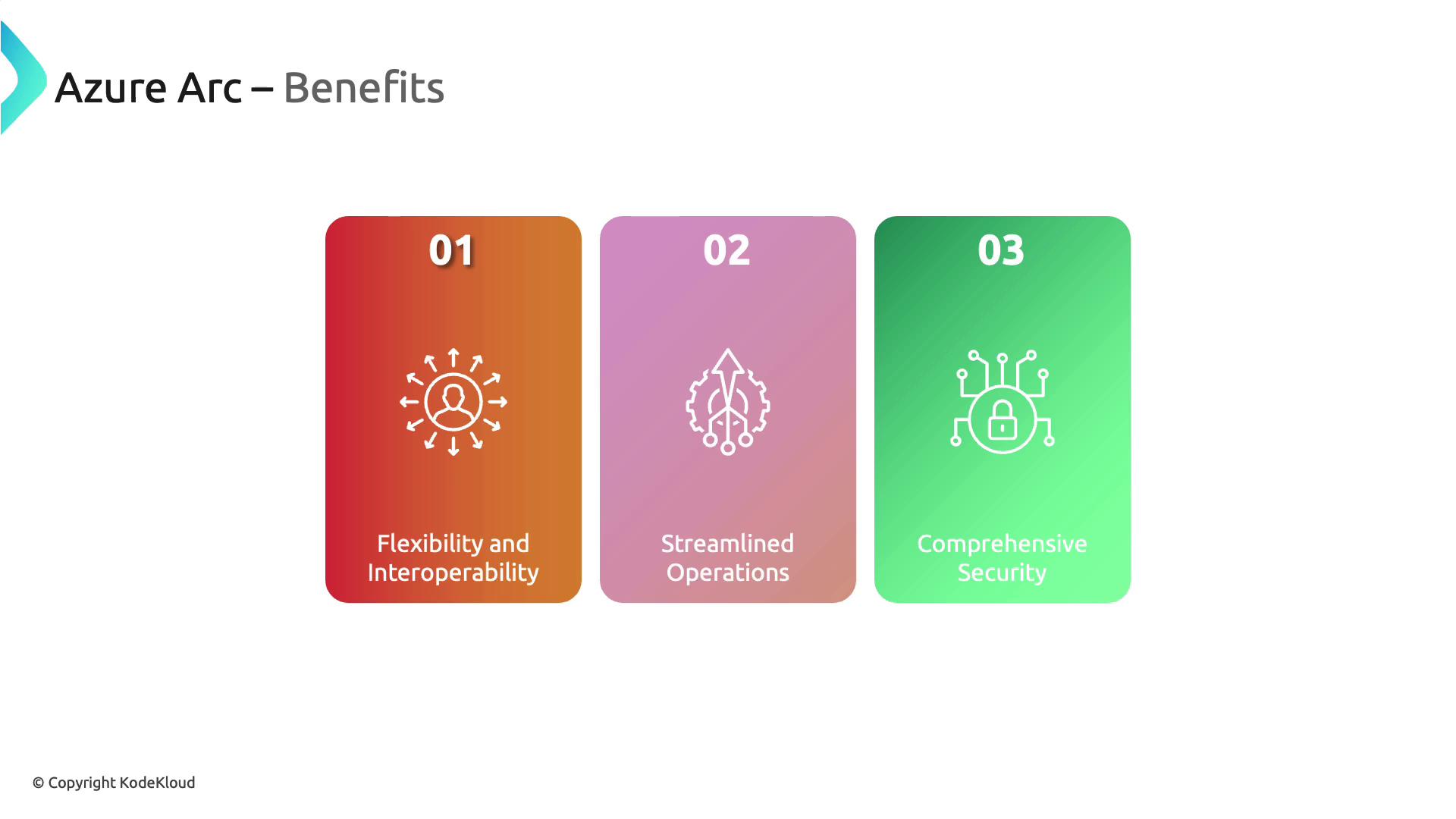
Azure Arc offers numerous benefits and is ideal for various use cases:- Flexibility and Interoperability: Manage resources seamlessly regardless of whether they are on-premises, at the edge, or across multiple clouds.
- Streamlined Operations: Utilize familiar Azure tools for a consistent operational experience across all environments.
- Enhanced Security: Extend Azure’s security and identity services to maintain monitoring and robust protection for all connected resources.
Demonstration: Onboarding a Windows Server
This section walks you through onboarding an on-premises Windows Server to Azure Arc.Ensure you have access to the Azure Portal, PowerShell, and appropriate administrative credentials before starting.
Step 1: Access the Azure Portal
Log in to the Azure Portal and navigate to the Azure Arc section. Azure Arc supports not only servers but also solutions such as Azure Stack HCI, Kubernetes clusters, VMware environments, and data services like SQL Server Managed Instances.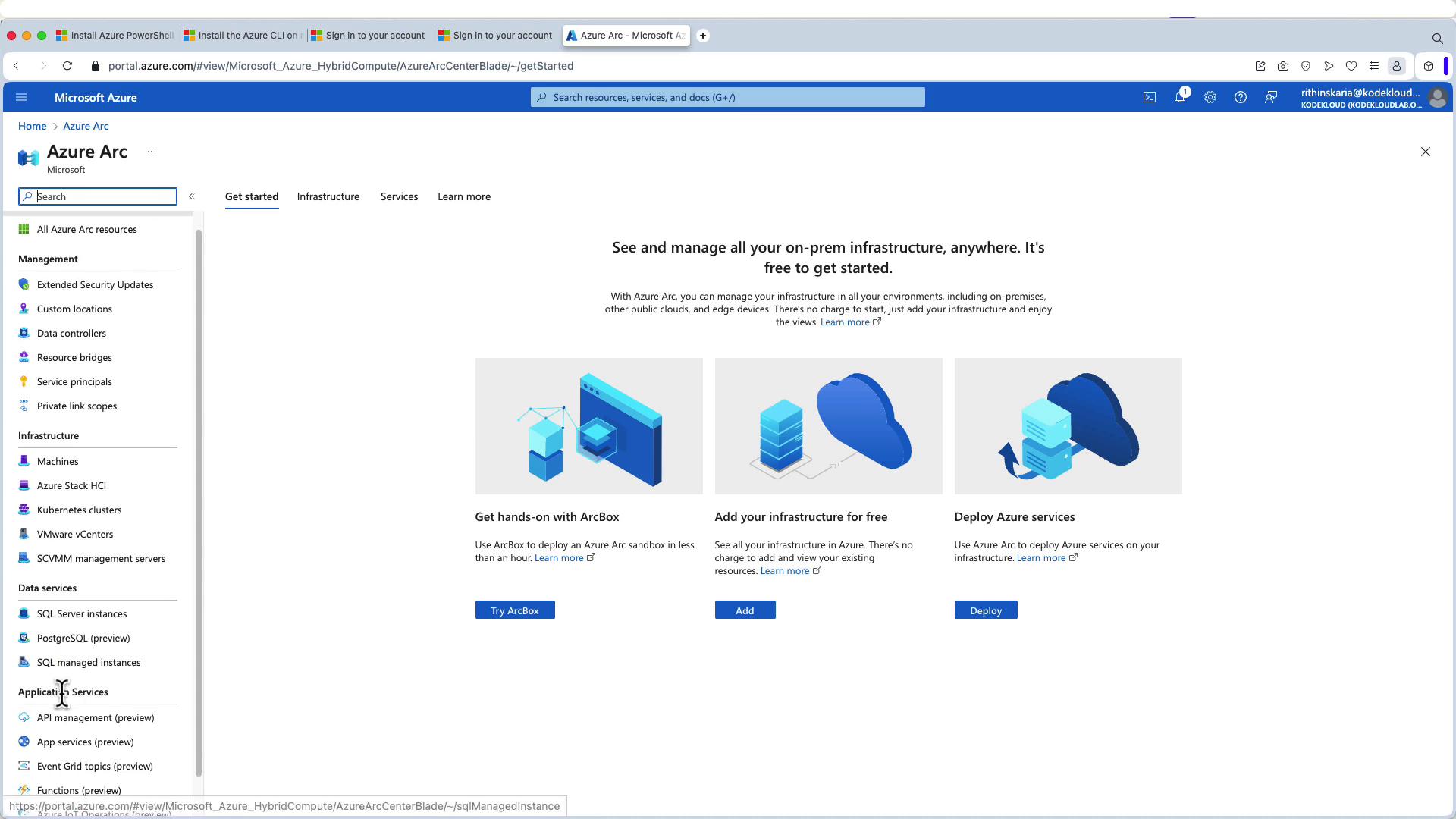
Step 2: Add a Machine
Click on “Add” or “Create” and select “Add a machine.” While you can onboard multiple servers at once, this demonstration focuses on a single Windows server.Step 3: Configure Server Details
Provide the necessary server details:- Resource Group: Create a new group or select an existing one.
- Region: Choose a region, such as East US.
- Operating System: Select Windows.
- Public Endpoint Details: Enter the required public endpoint information.
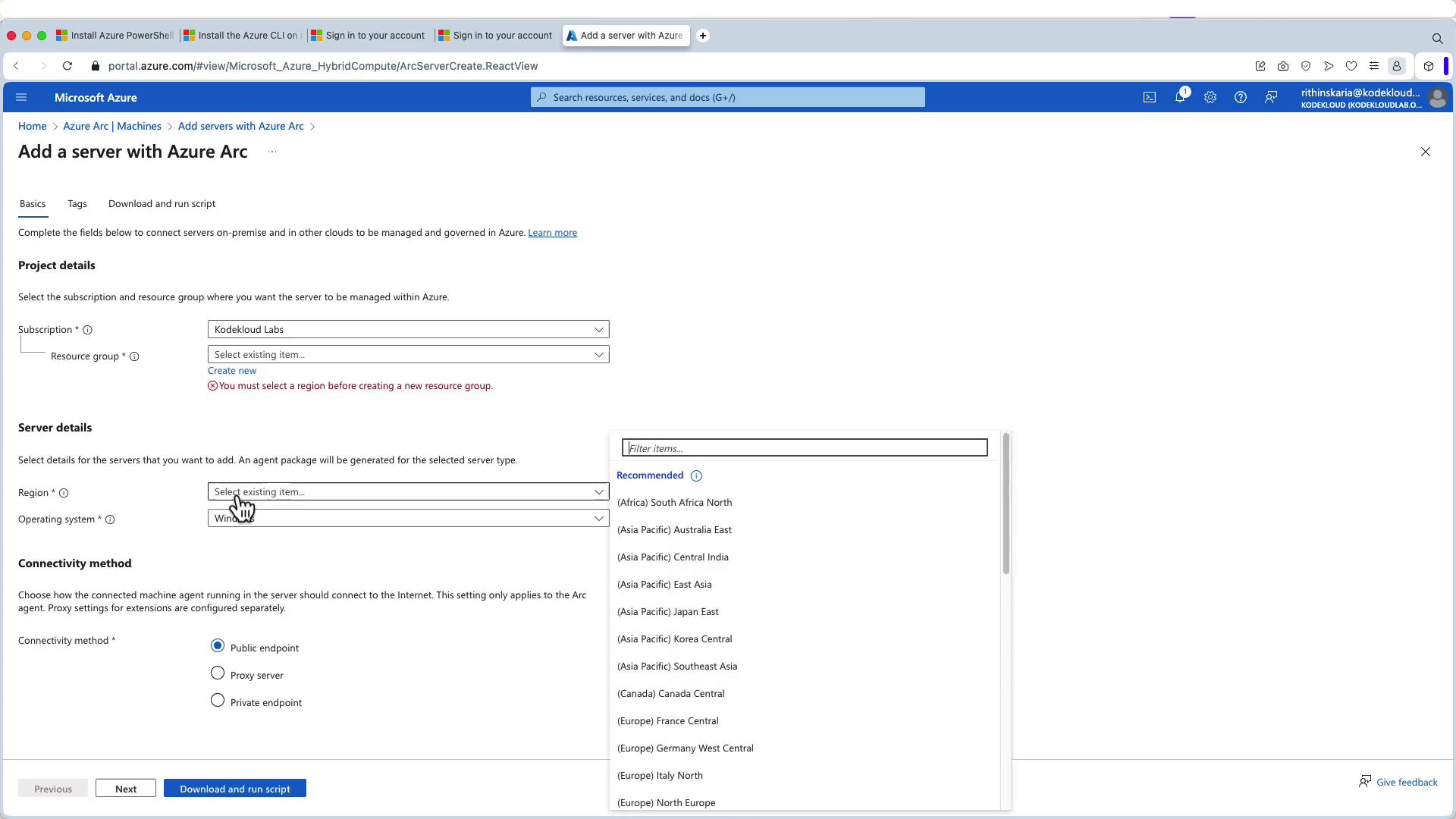
Step 4: Generate and Download the Onboarding Script
After configuring the server details, click to generate and download the PowerShell script. This script installs the Connected Machine Agent and connects the server to Azure Arc. Below is an example PowerShell script: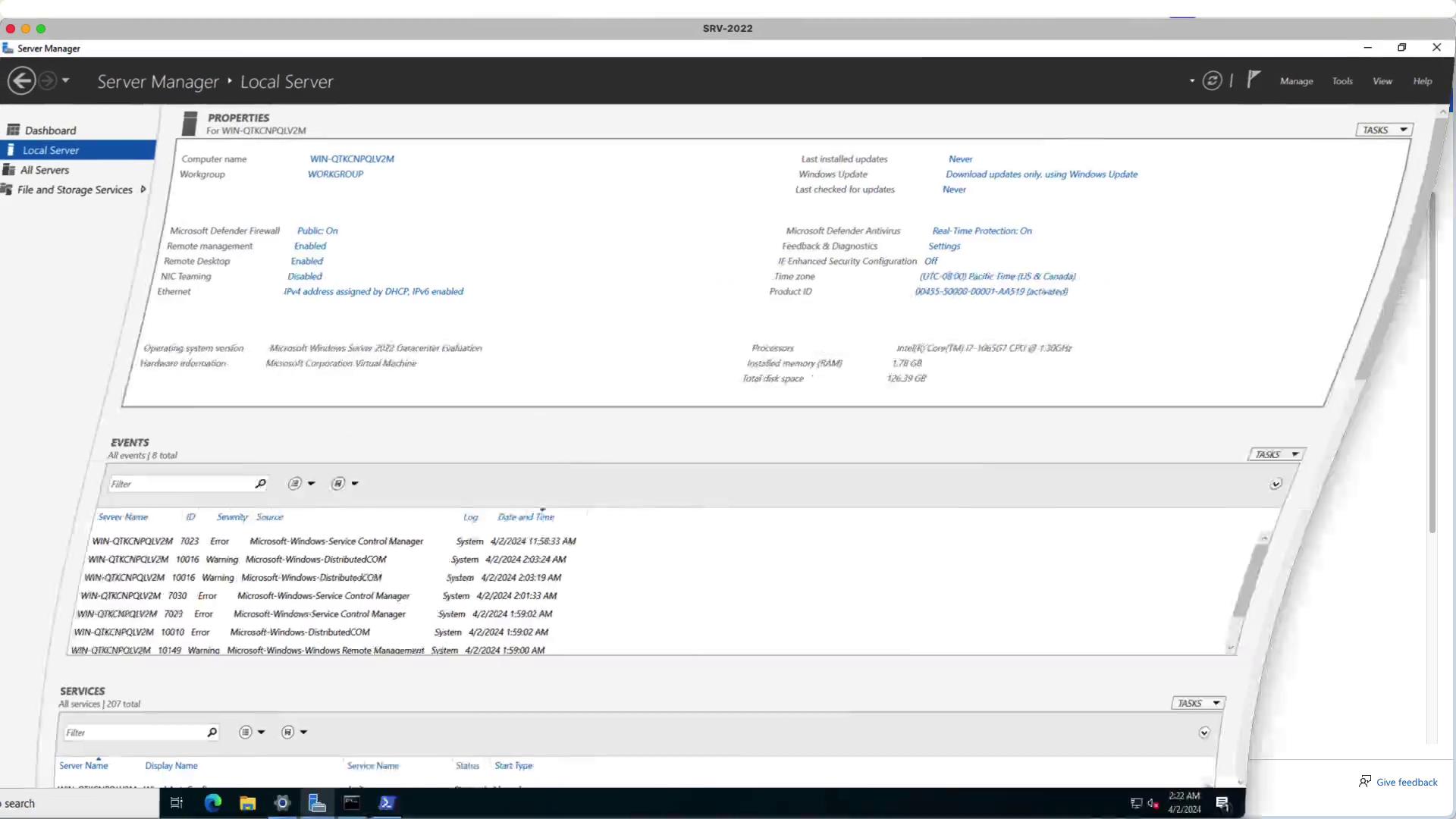
Step 5: Run the Onboarding Script
When you run the script, it will install the Azure Connected Machine Agent and prompt you to sign in via a pop-up browser:-
The script begins installation and provides verbose logs similar to:
-
Complete the sign-in when prompted. After authentication, the script continues:
Step 6: Verify Onboarding in the Azure Portal
Return to the Azure Portal and navigate back to the Azure Arc section. Confirm that your server appears with its hostname and details. You can now manage policies, run commands, and view logs just like any Azure resource—even if the server resides on-premises.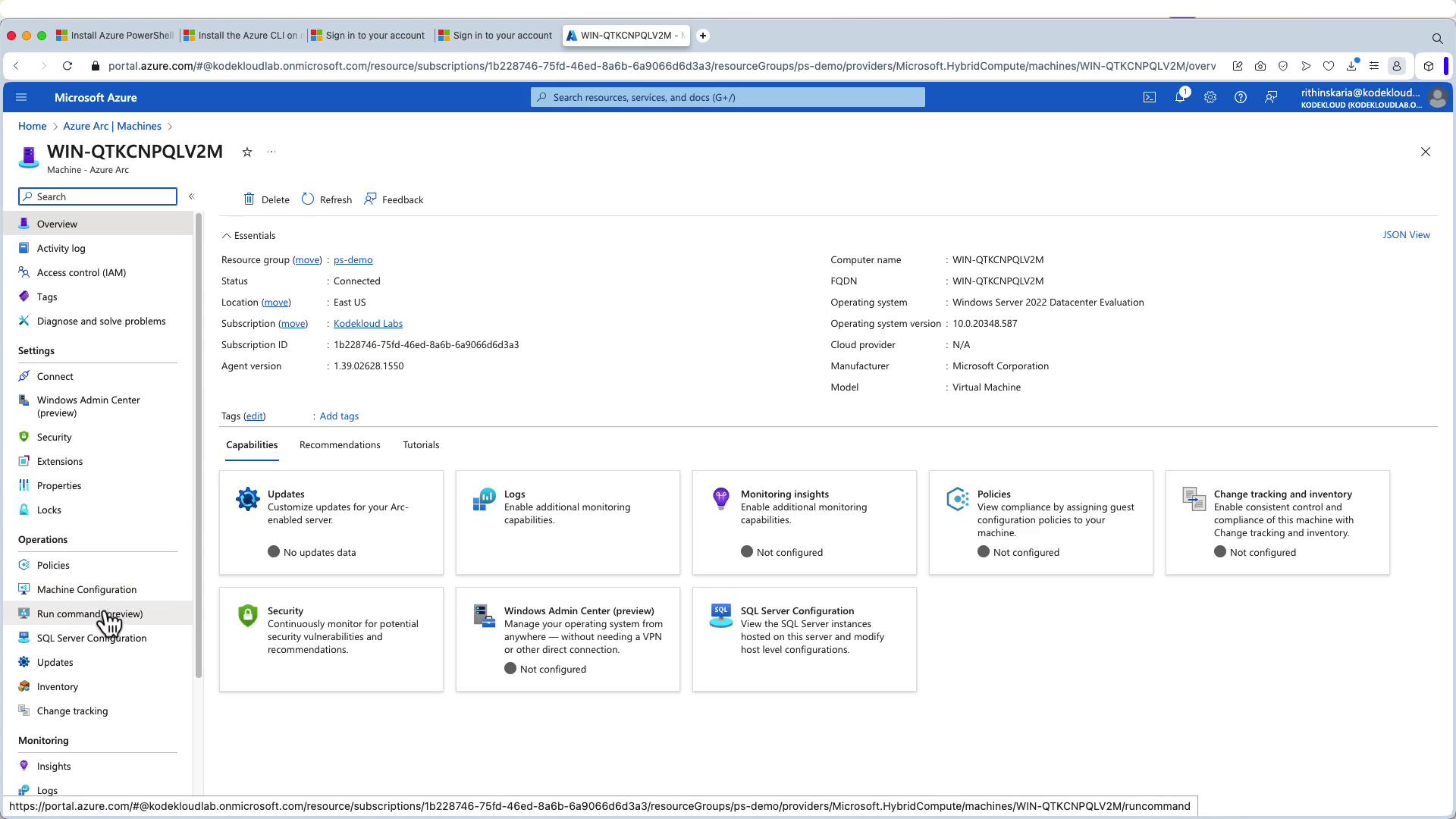
By onboarding your Windows Server to Azure Arc, you extend Azure’s robust management, security, and compliance capabilities to your on-premises resources, simplifying hybrid and multi-cloud operations.