

- Create an S3 bucket with secure default settings
- Upload and verify objects
- Generate pre-signed URLs via the AWS Management Console
- Demonstrate permission boundaries with a restricted IAM user
1. Create an S3 Bucket
Start by creating a new S3 bucket using default settings: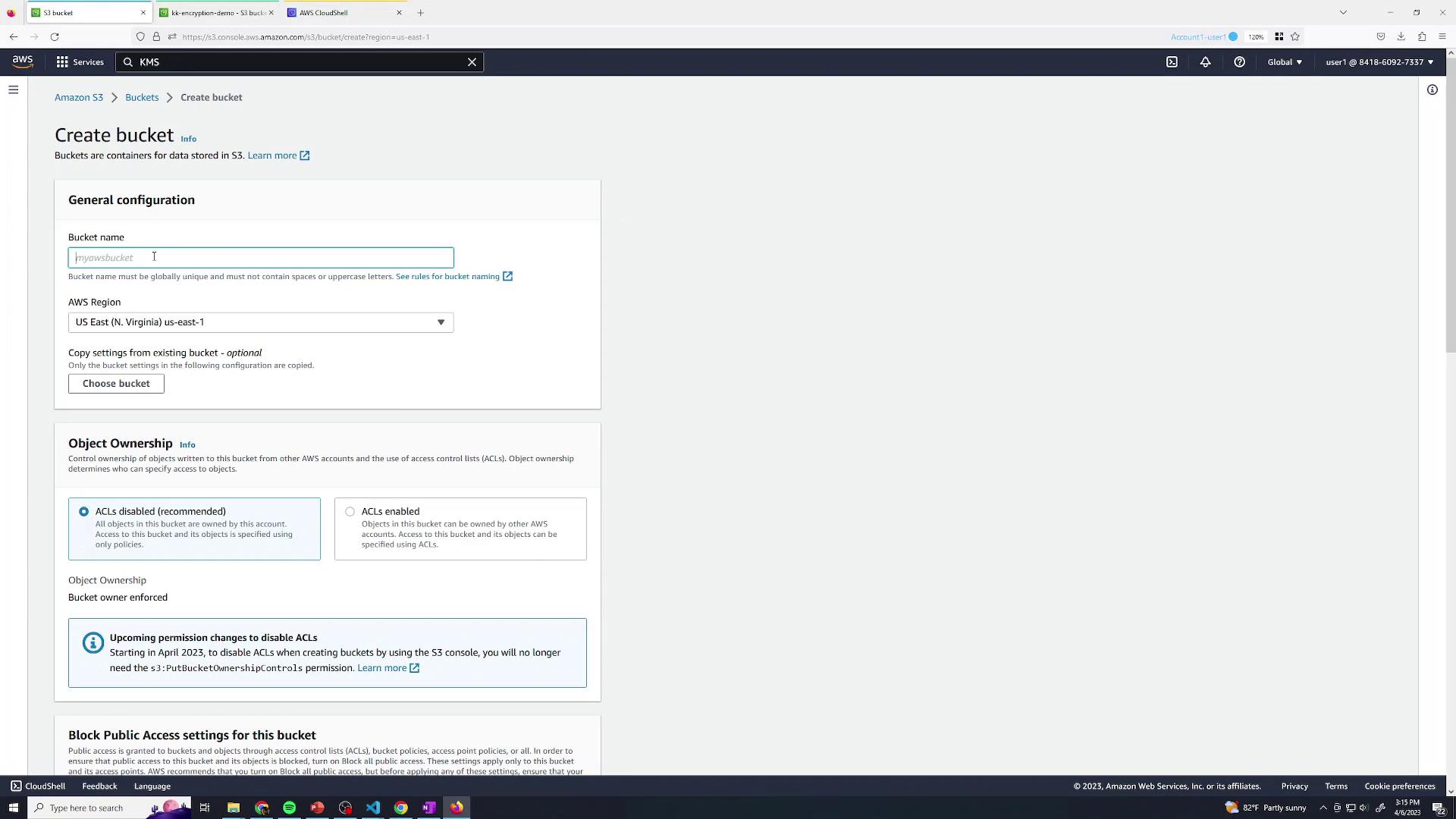
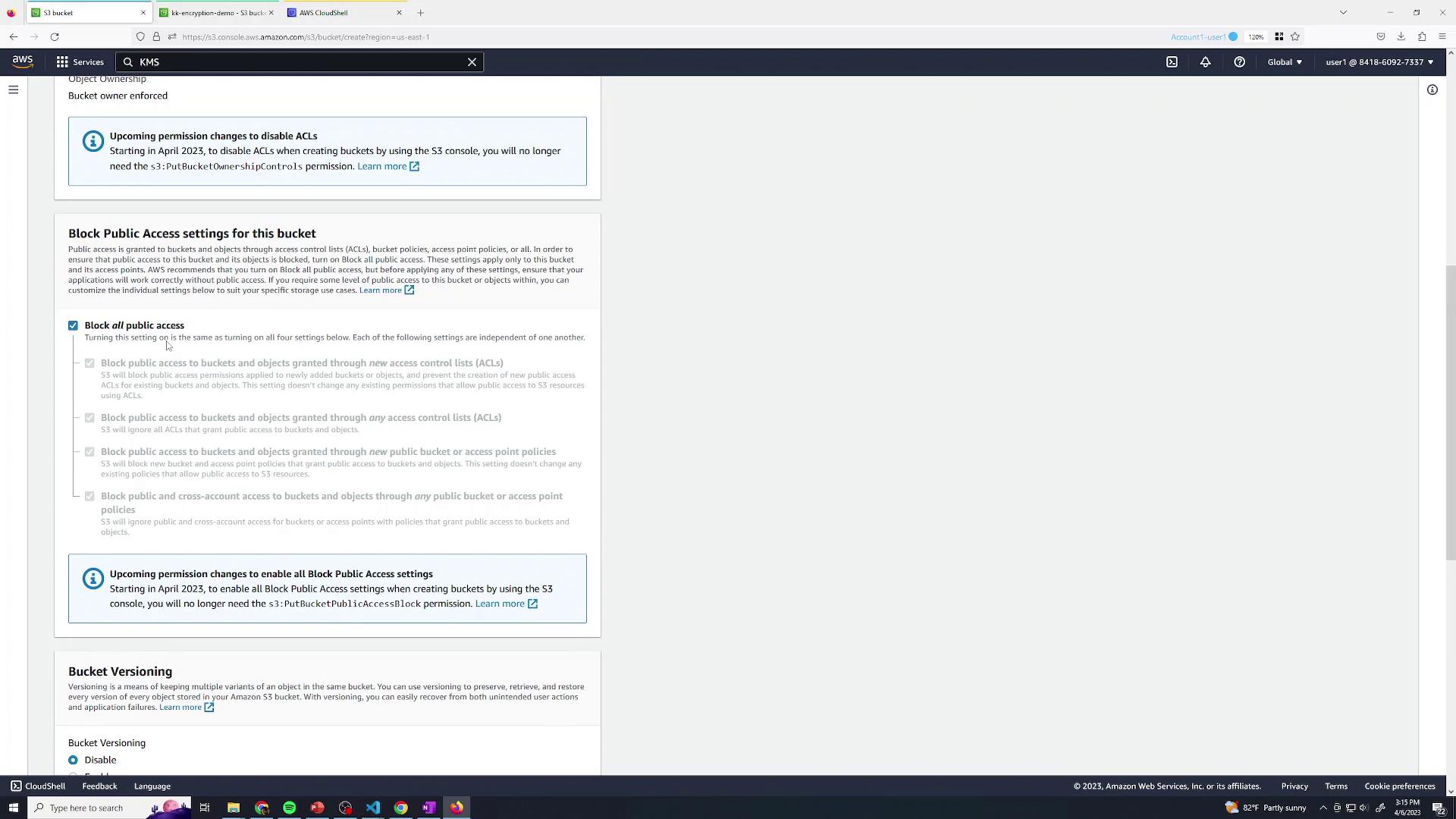
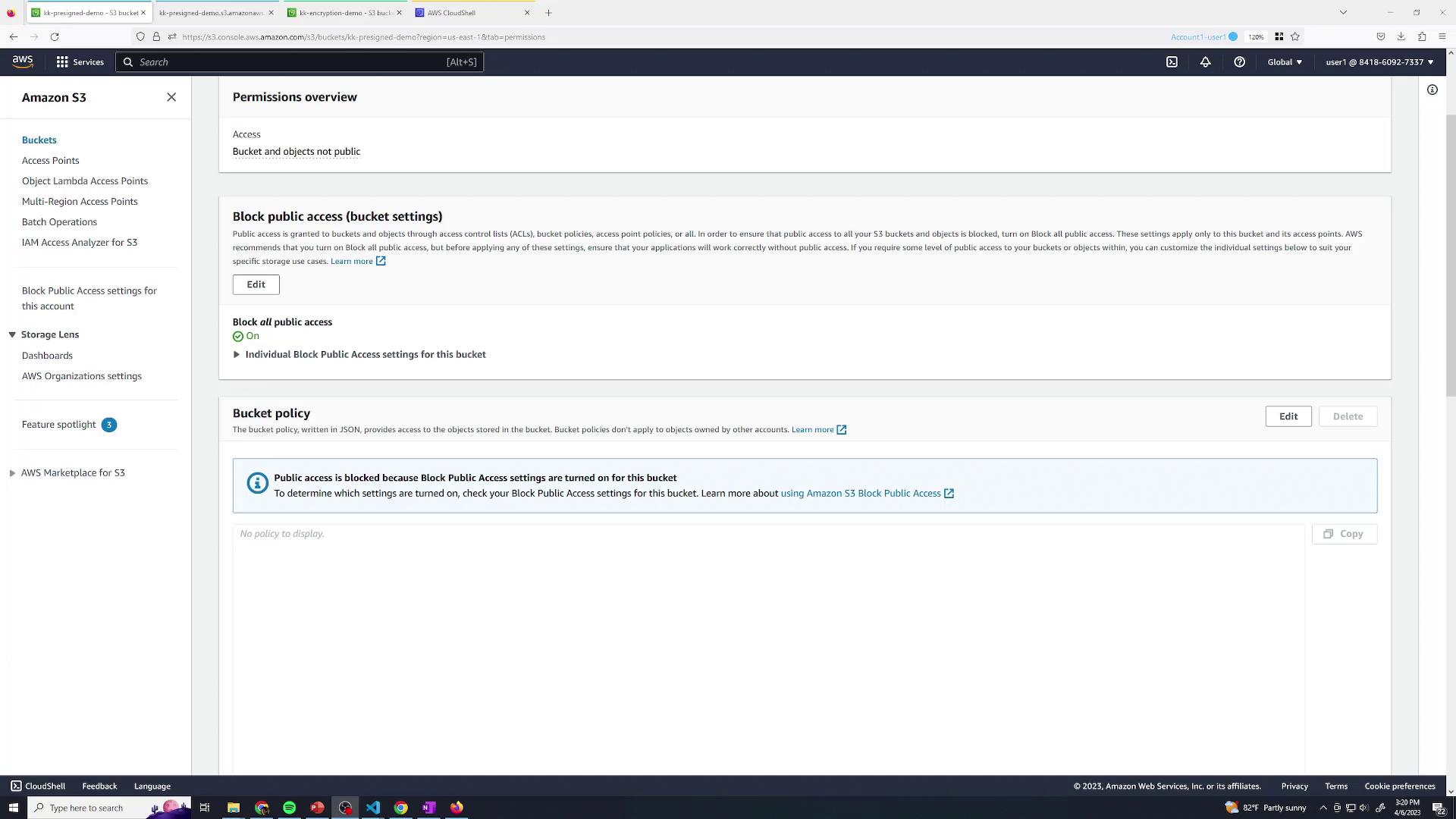
By blocking public access and relying on IAM, you safeguard your data against unintended exposure.
2. Upload an Object
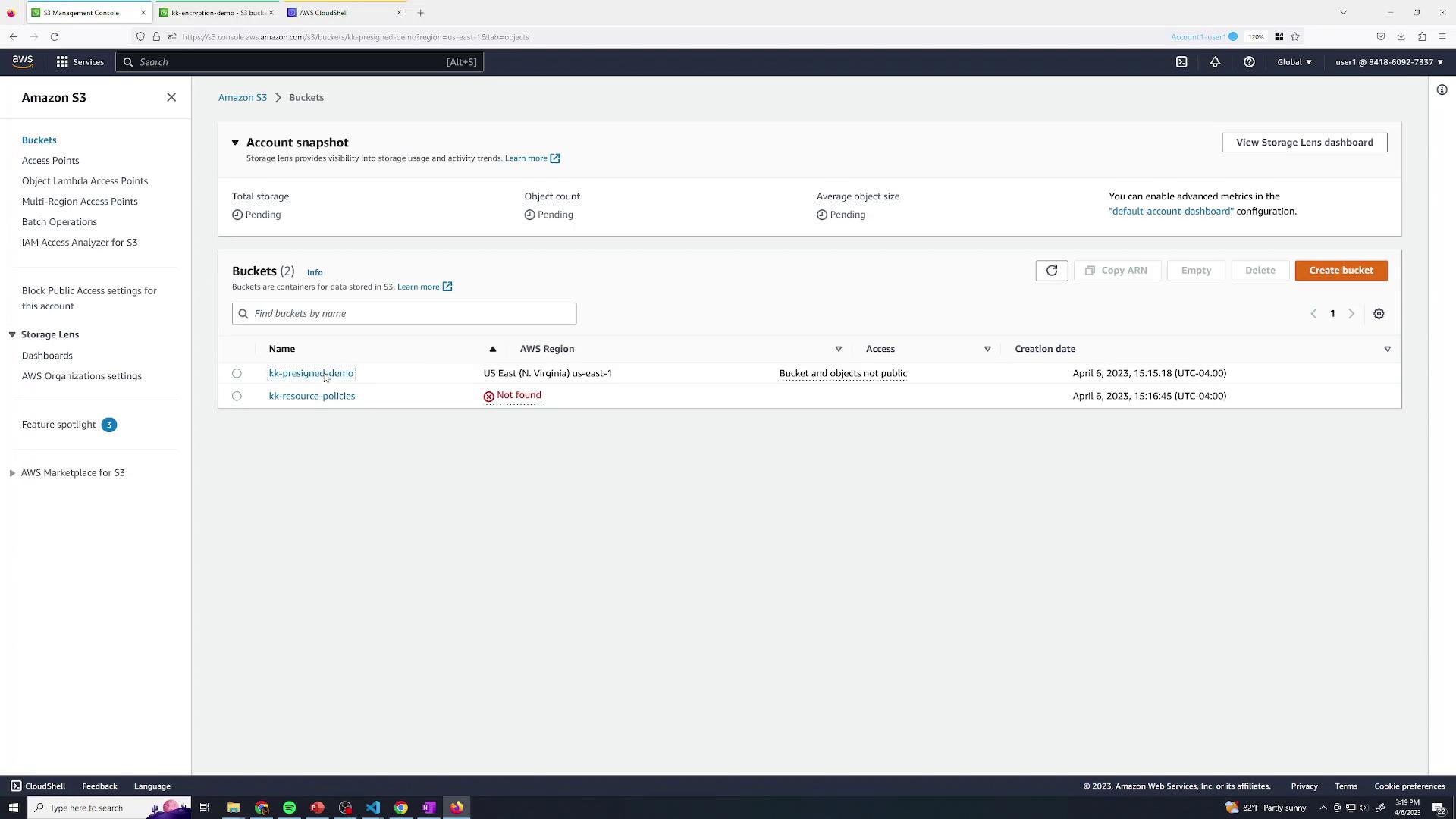
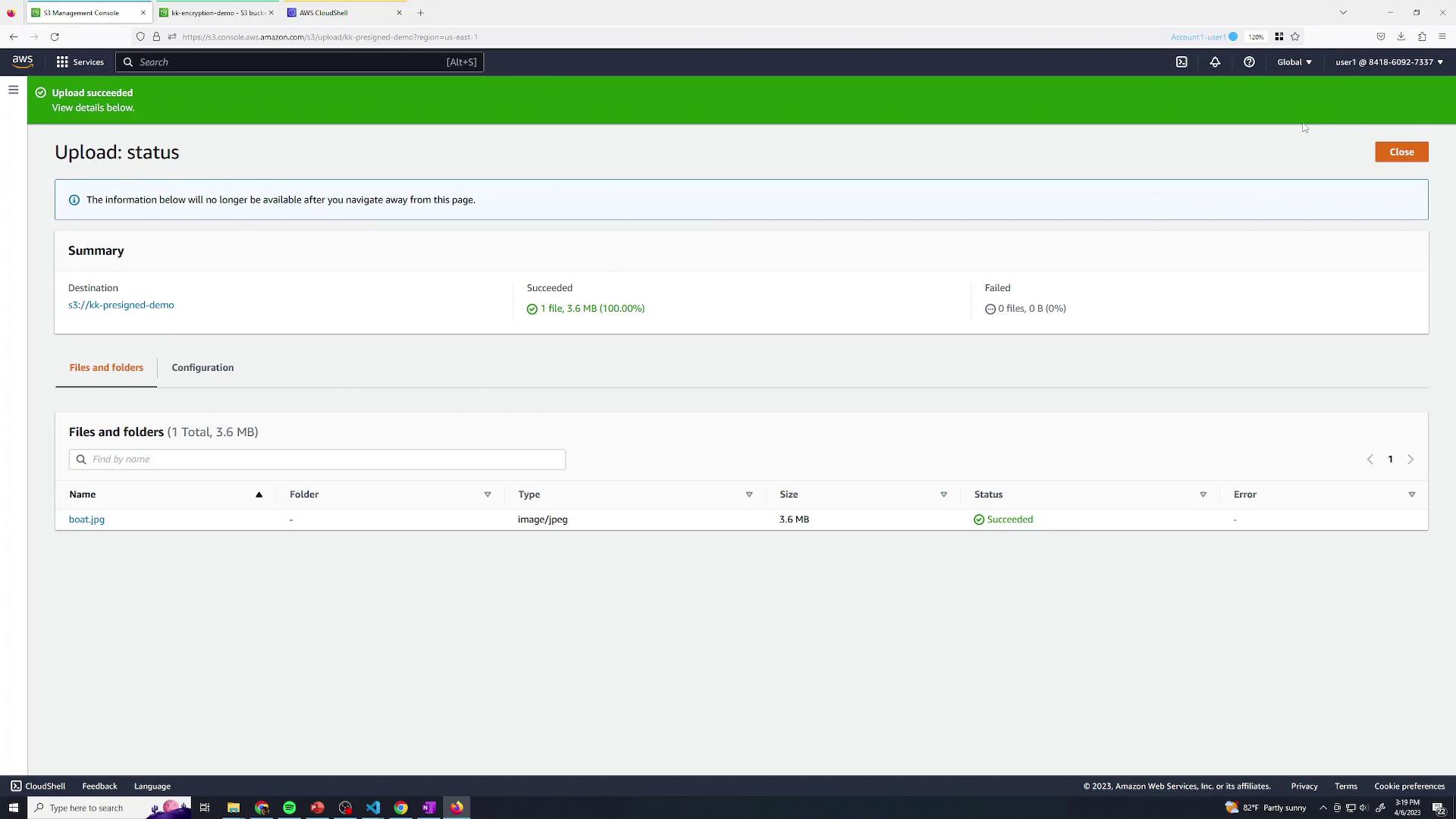
Next, upload a test file (e.g.,boat.jpg) to your bucket:
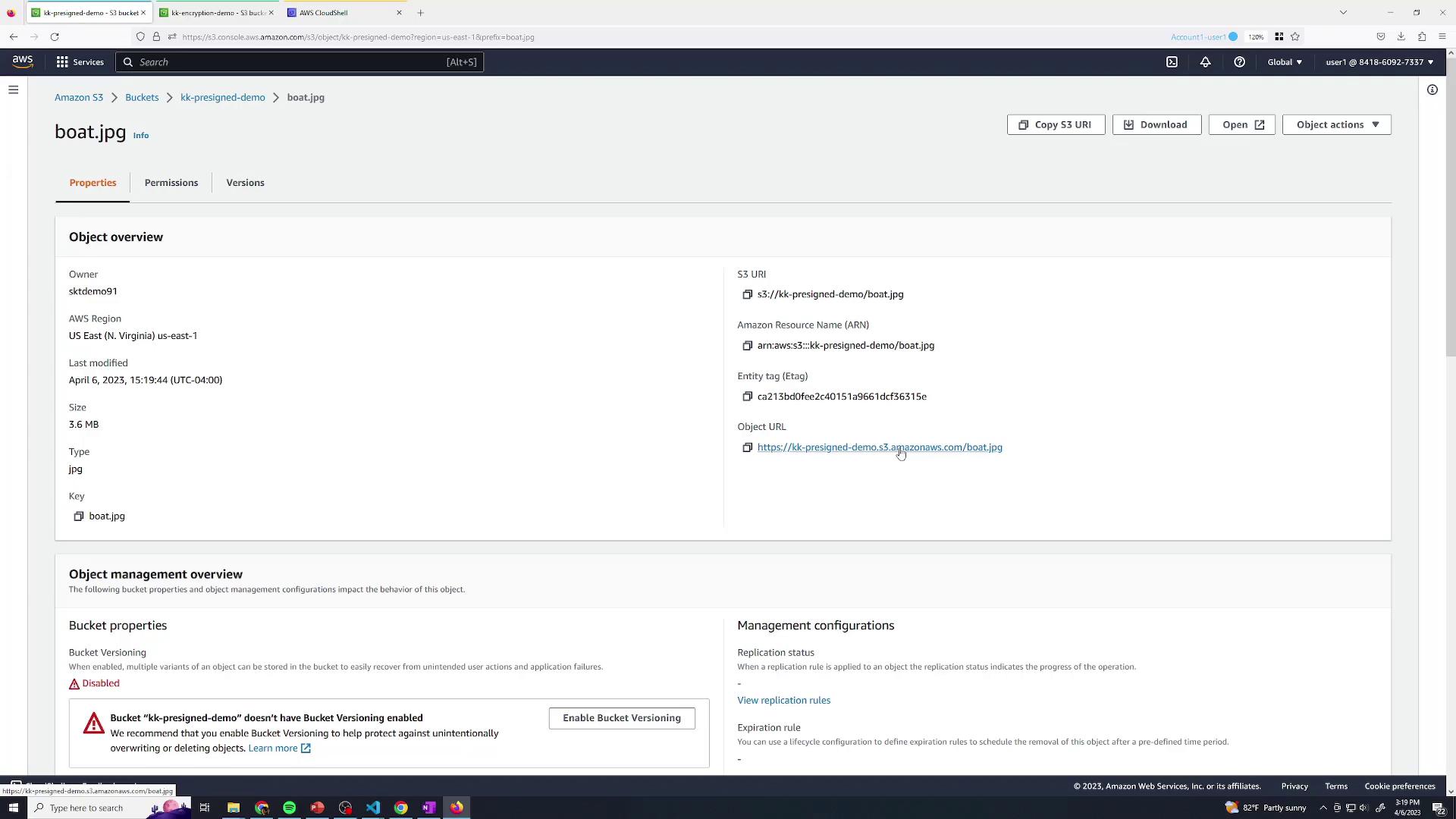
3. Generate a Pre-Signed URL via AWS Console
To share your object temporarily without altering bucket policies, generate a pre-signed URL:- Open the object’s detail page and click Share with a pre-signed URL:
- In the sharing dialog, set an expiration (e.g., 30 minutes) and click Create pre-signed URL:
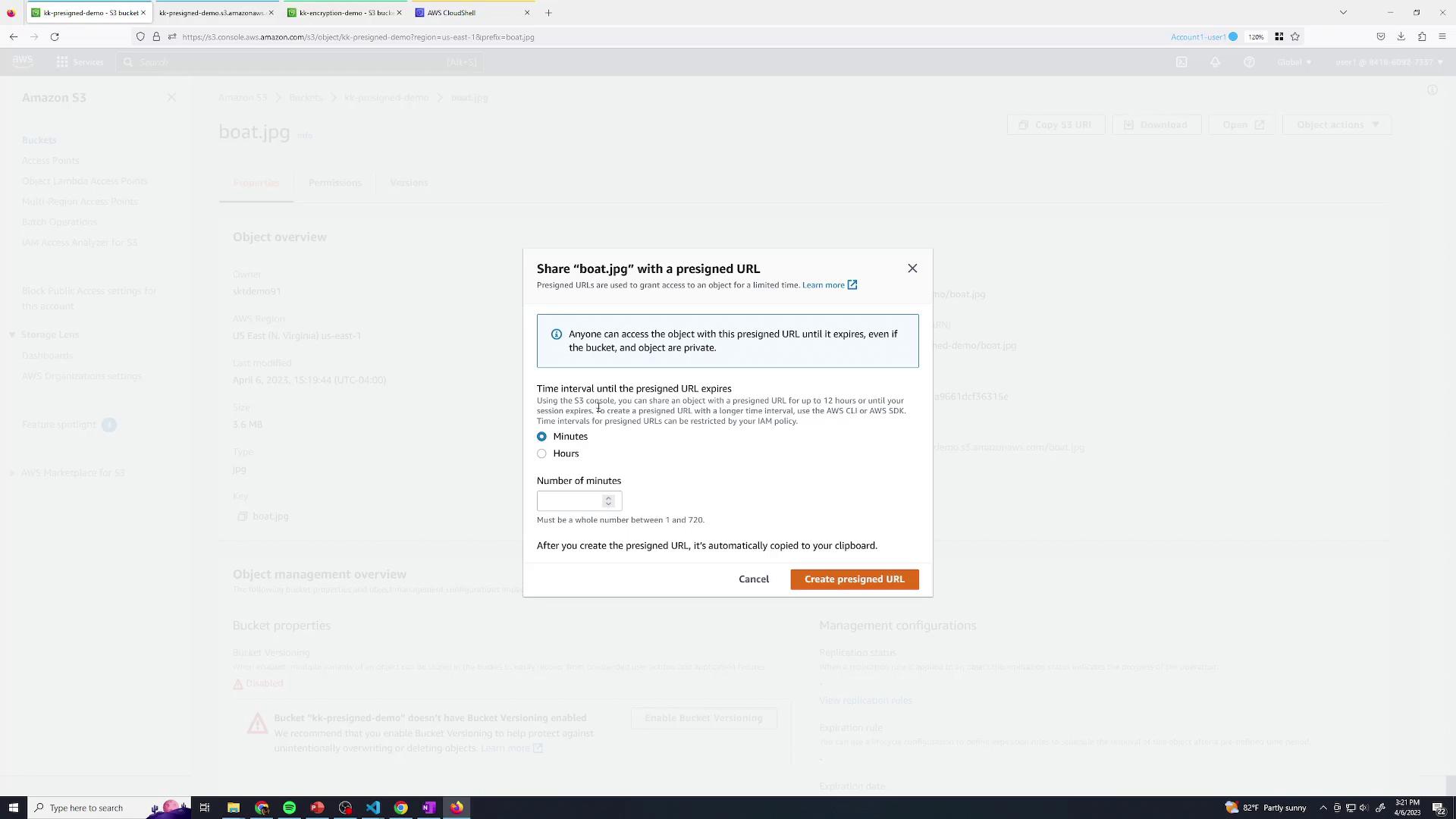
- The generated URL is automatically copied to your clipboard. Any user with this link can retrieve
boat.jpguntil it expires.
4. Permission Demo with a Restricted IAM User
Let’s illustrate how IAM policies affect pre-signed URLs. We have a user named user2 who only has permissions to list buckets: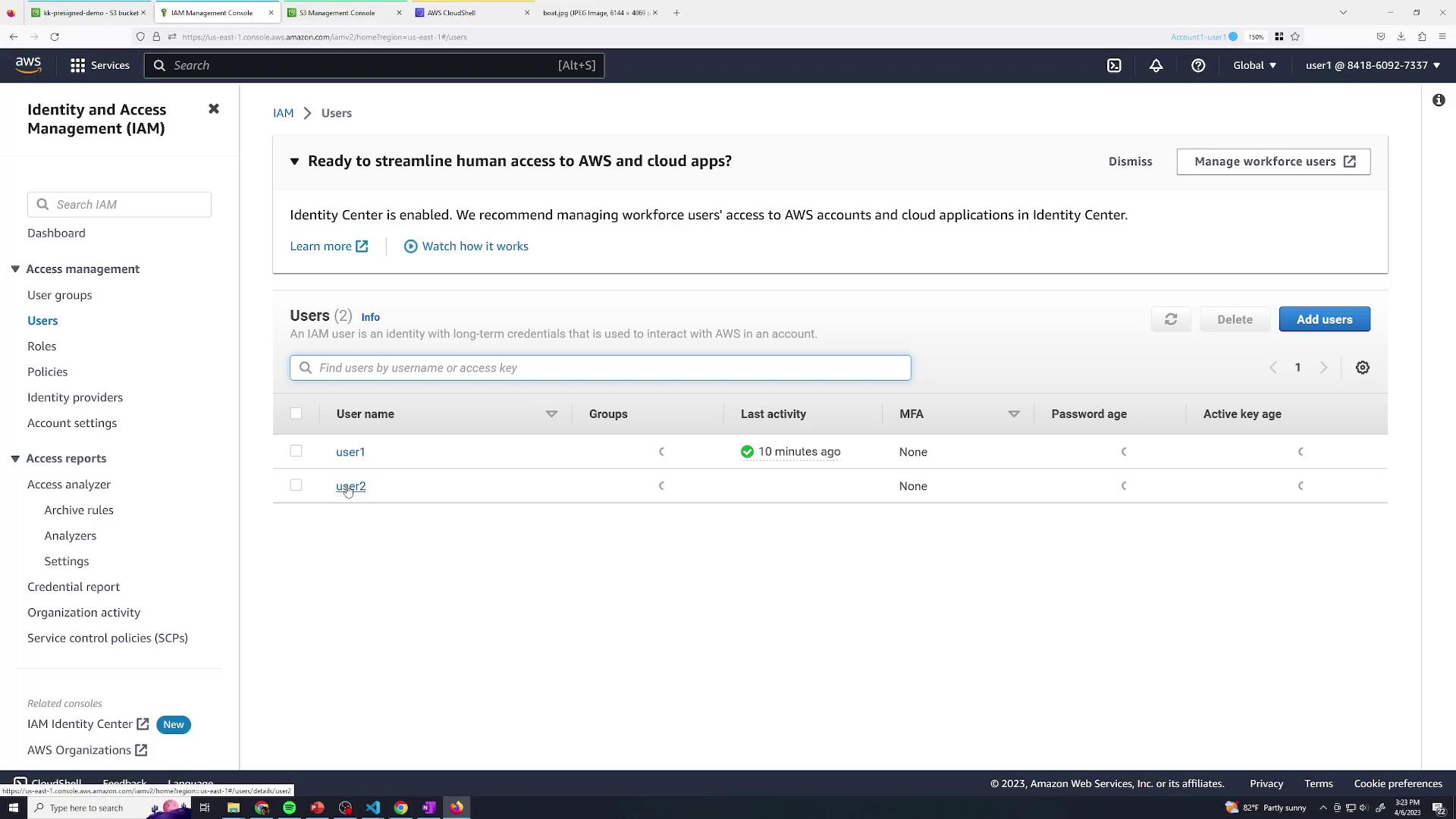
Since user2 lacks
s3:GetObject, they receive an Access Denied error when directly accessing boat.jpg:
Access Denied response:
A pre-signed URL inherits the creator’s IAM permissions. To allow download, the issuer must have
s3:GetObject.