Prerequisites
- An AWS account with S3 access.
- IAM user permissions:
s3:CreateBucket,s3:PutObject,s3:PutObjectStorageClass. - Familiarity with the Amazon S3 console.
Choosing the right storage class balances cost, durability, and retrieval time. Review S3 pricing before proceeding.
1. Create a New S3 Bucket
- Open the Amazon S3 console.
- Click Create bucket.
- Enter Bucket name:
kk-sc-demo. - Leave default settings and click Create bucket.
2. Upload an Object with a Custom Storage Class
- In the kk-sc-demo bucket, click Upload.
- Choose Add files and select your file.
- Under Properties, expand Storage class and select One Zone-IA (default is Standard).
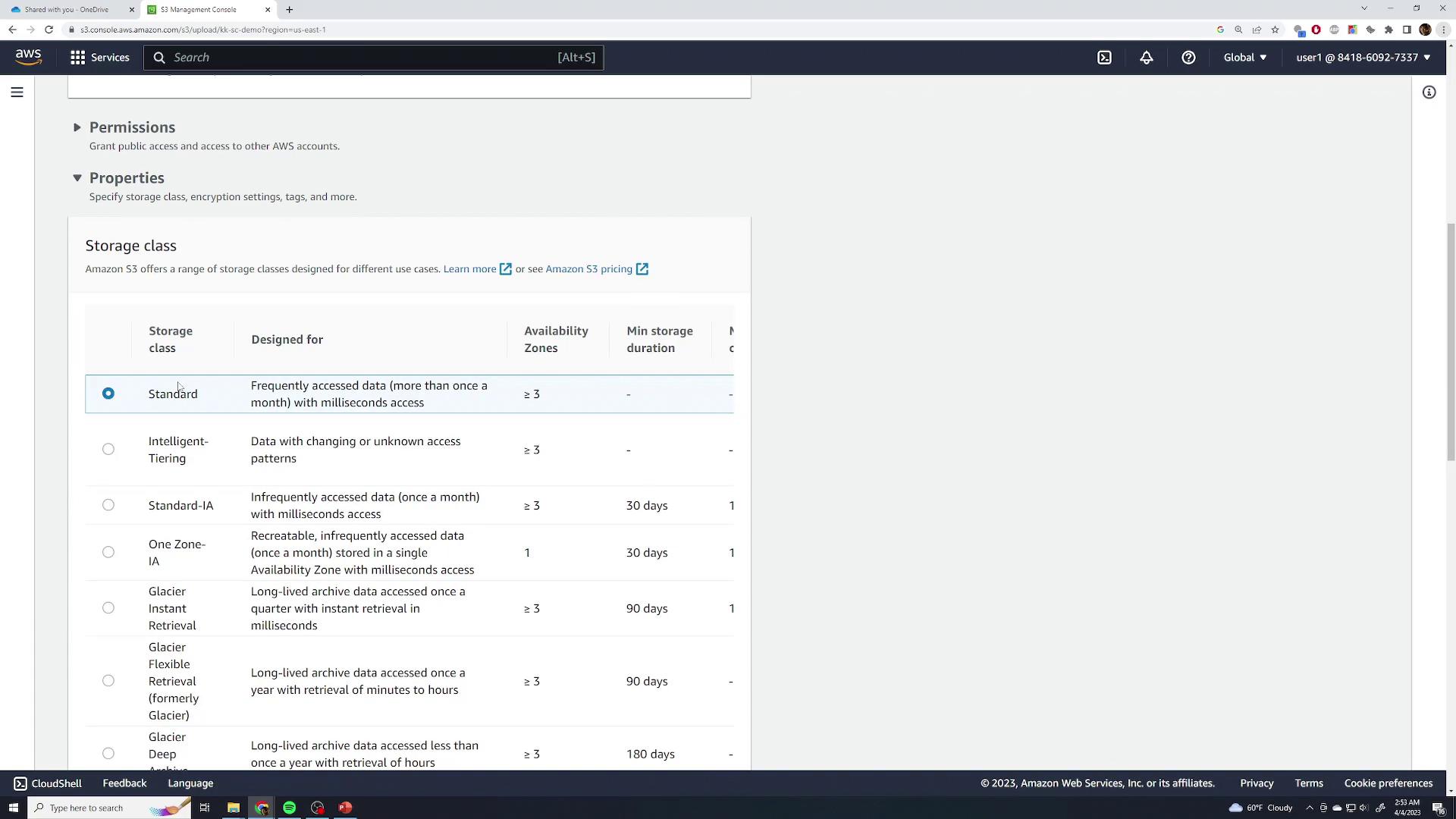
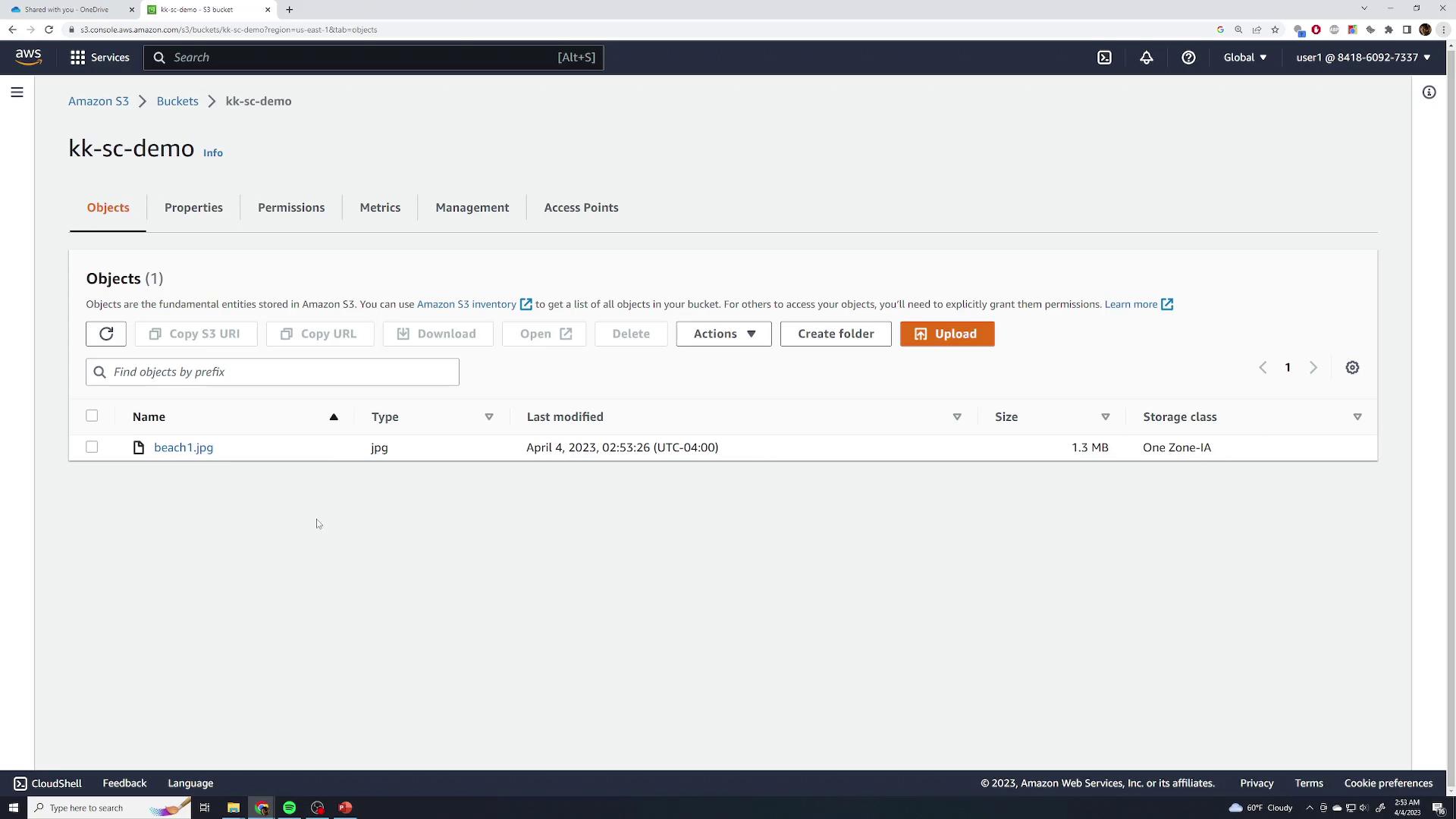
- Click Upload. The object now appears with the specified storage class.
Storage Class Comparison
Archival classes (Glacier) incur retrieval fees and can take from minutes to hours.
3. Change the Storage Class of an Existing Object
- In the kk-sc-demo bucket, select the object (e.g.,
beach1.jpg). - Choose Actions → Change storage class.
- Select Standard (or another class) and click Save.