

- SSE-S3 (default S3-managed keys)
- SSE-KMS (AWS-managed)
- SSE-KMS (customer-managed)
For more details, see the Amazon S3 Encryption Overview and the AWS KMS Documentation.
1. Default SSE-S3 Encryption
By default, any object uploaded to a new S3 bucket is encrypted at rest with SSE-S3. You don’t need to configure anything extra.If you haven’t changed bucket defaults, SSE-S3 is automatically applied to all uploads.
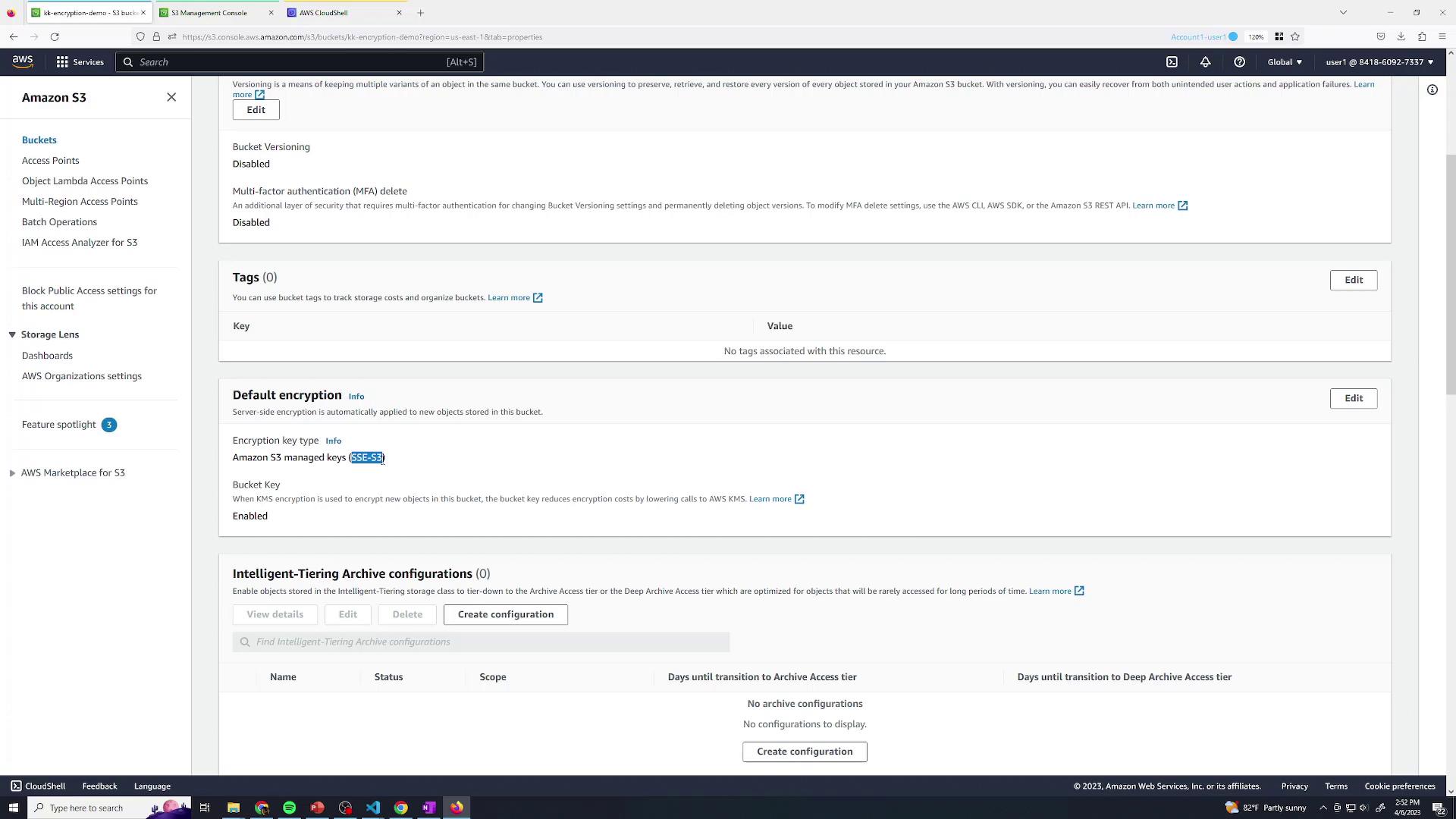
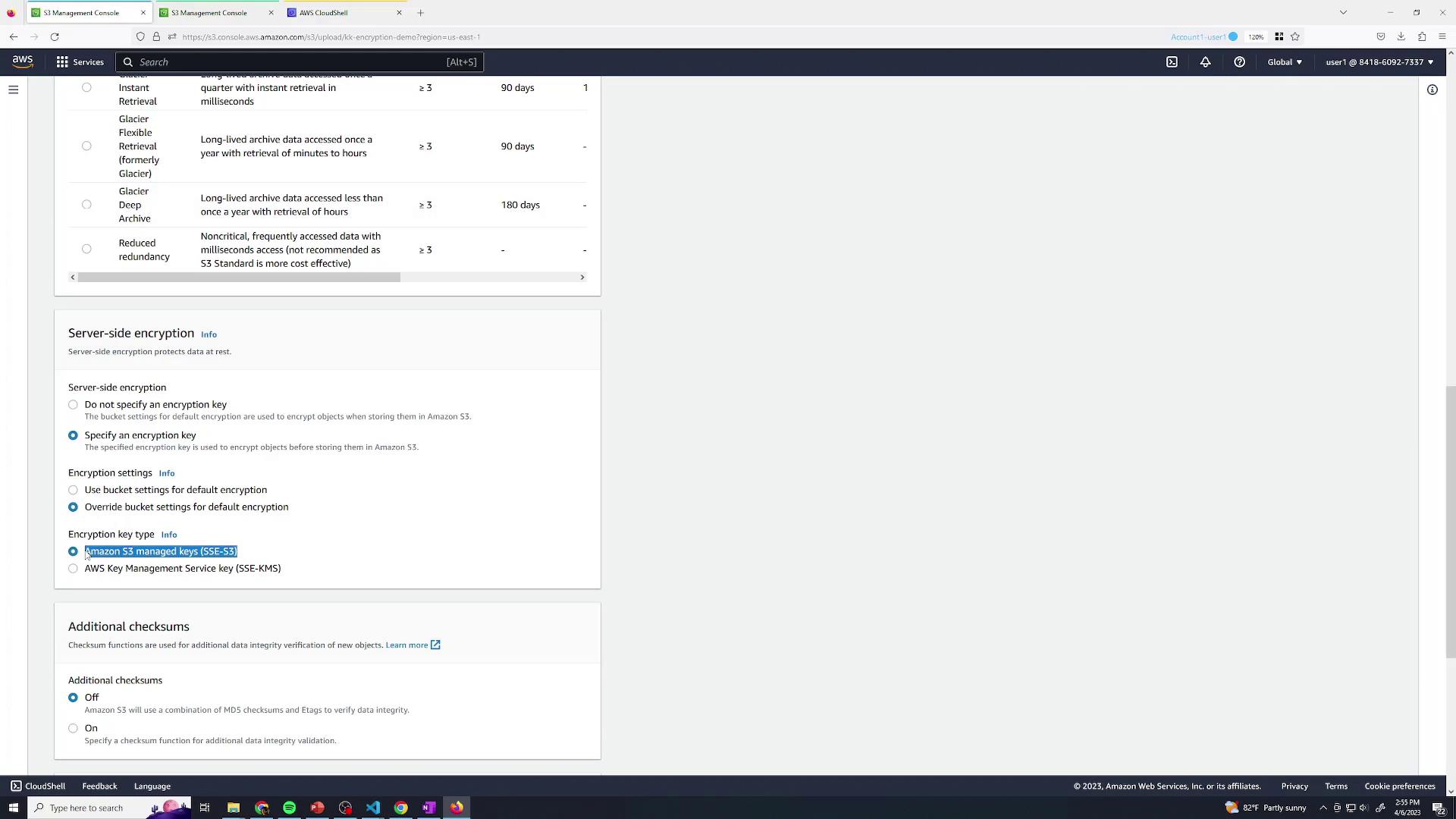
2. SSE-KMS with the AWS-Managed Key
To add KMS to the mix, override the bucket’s default encryption at upload time:- Start a new upload in the S3 console.
- In Properties, set Server-side encryption → AWS KMS key (SSE-KMS).
- Select the default AWS-managed CMK for S3.
- Complete your upload.
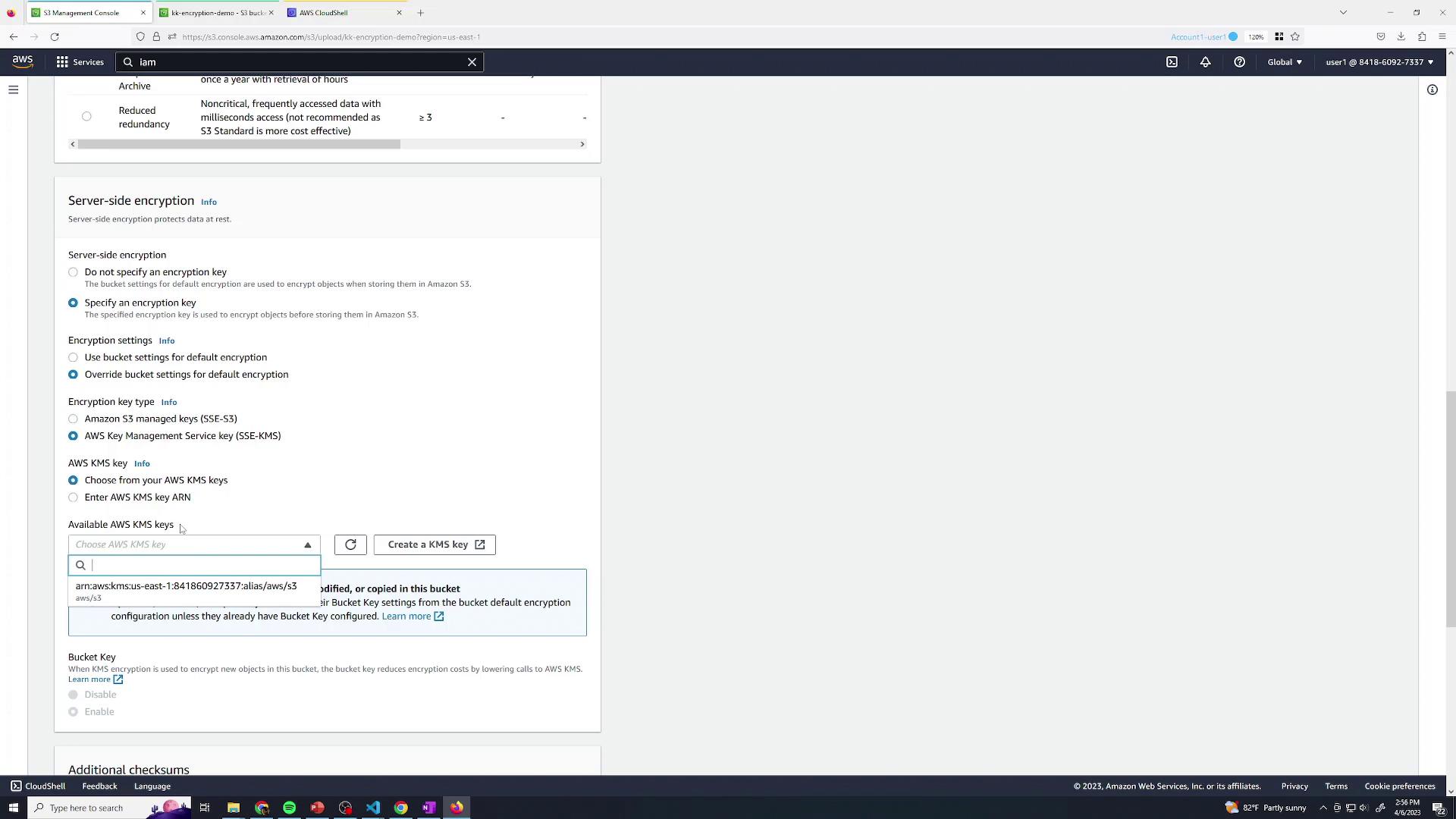
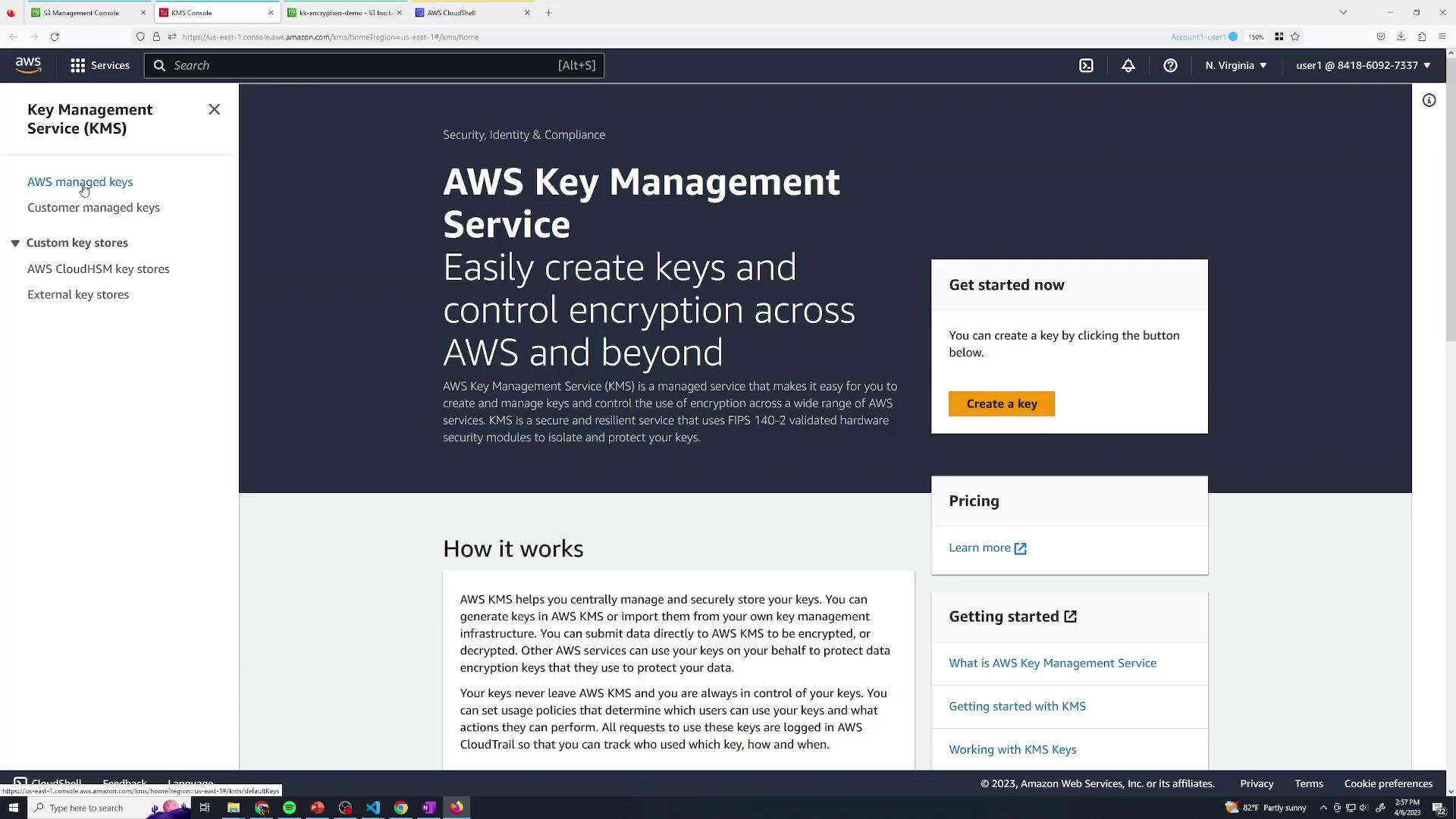
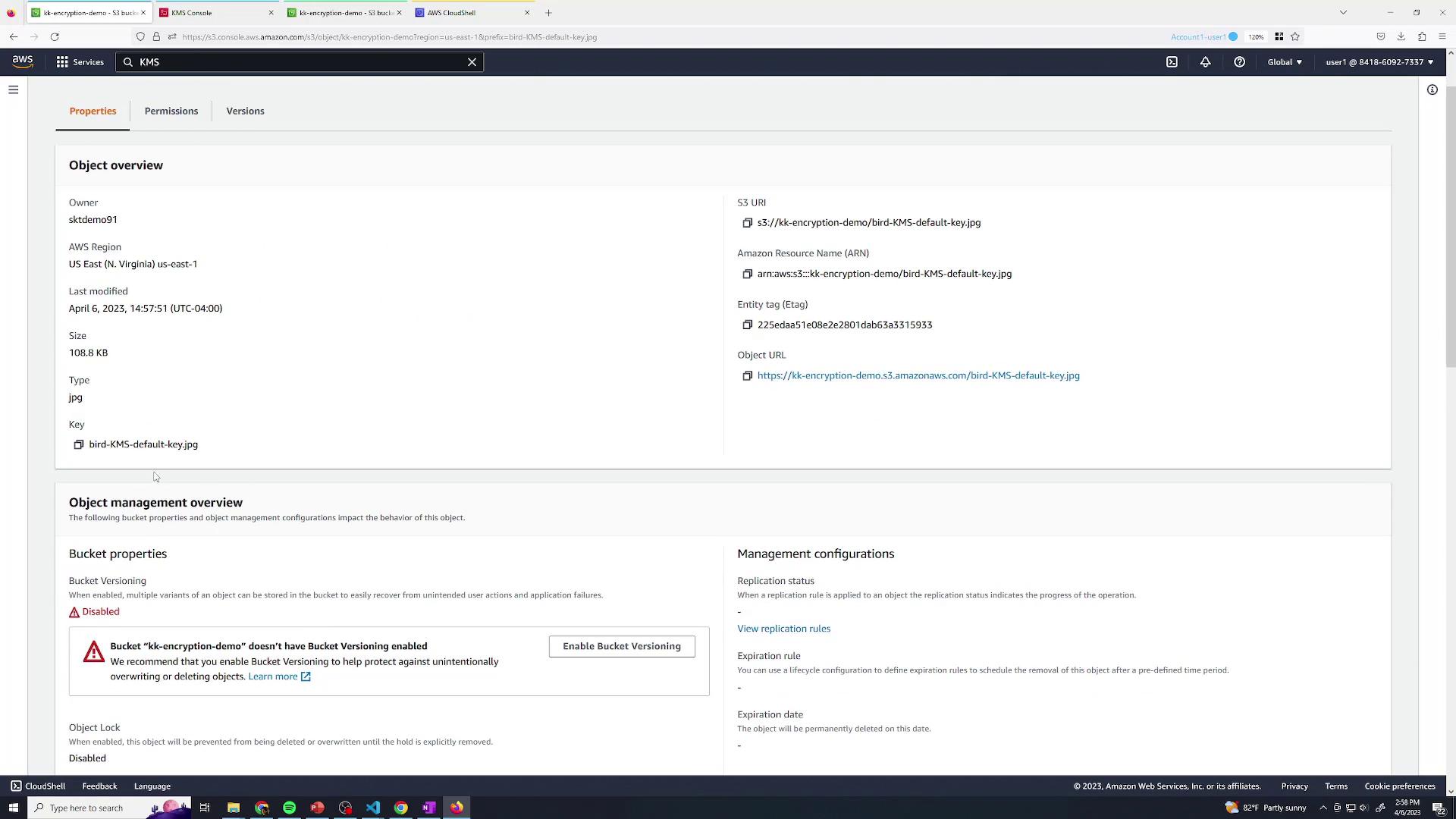
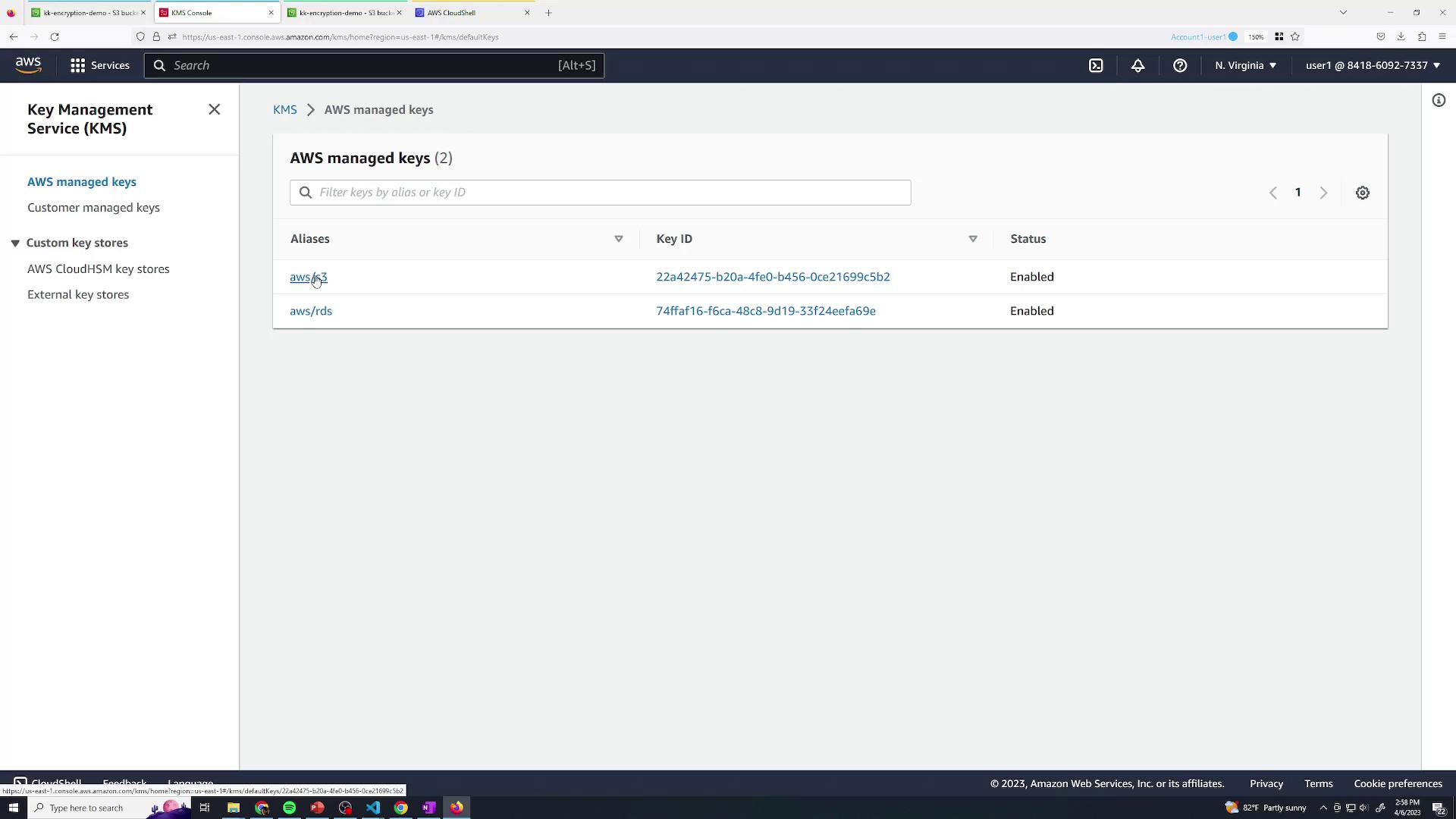

AWS-managed CMKs can’t restrict decryption separate from S3 access. Any user with S3 permissions can decrypt SSE-KMS objects.
3. Customer-Managed KMS Keys for Granular Control
To separate S3 permissions from decryption rights, create and use your own KMS CMK.3.1 Create a Customer-Managed CMK
- In the KMS console, go to Customer managed keys → Create key.
- Choose Symmetric and click Next.
- Add an alias, e.g.,
my-key.
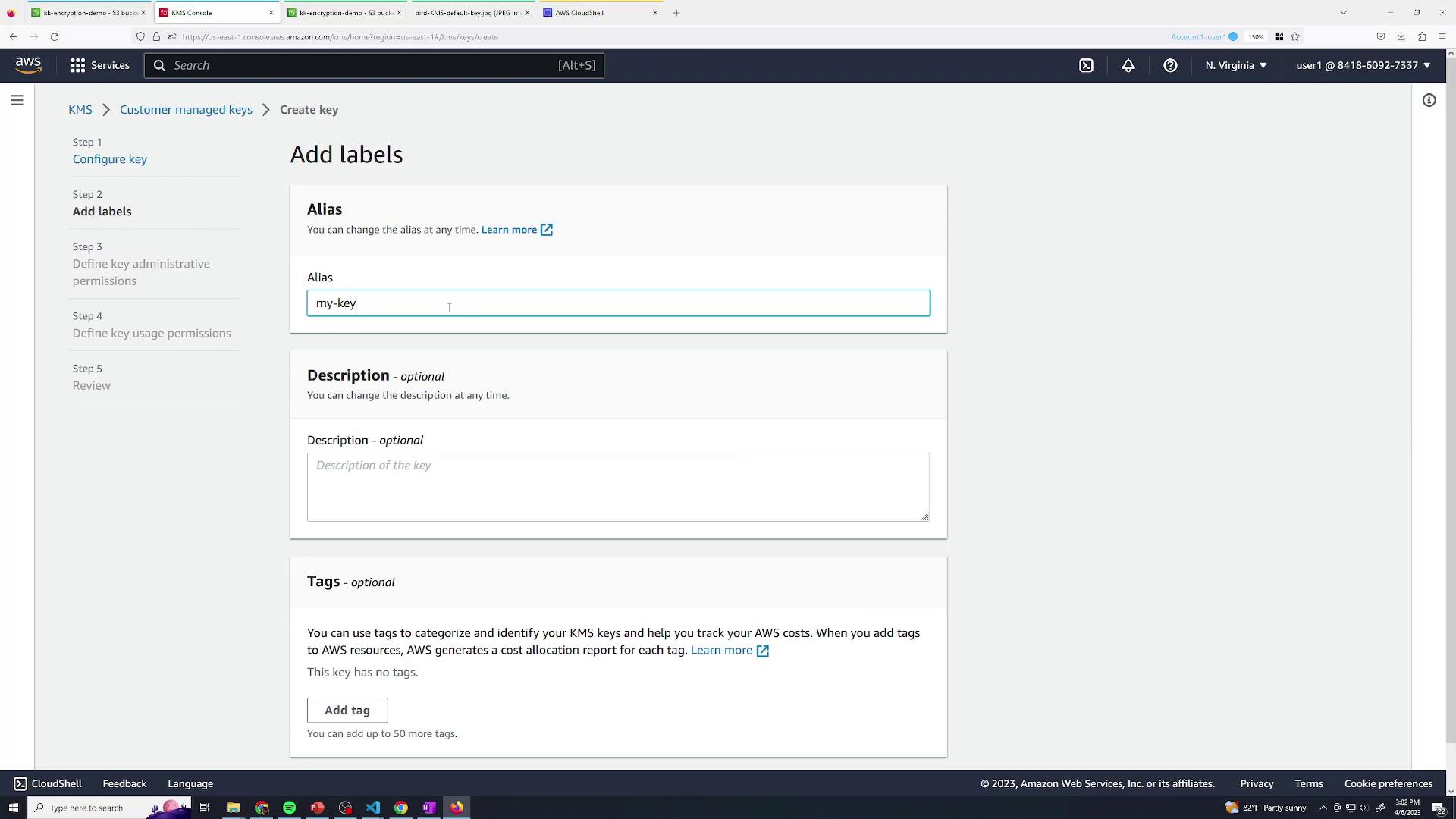
- Specify Key administrative permissions (who can manage the CMK).
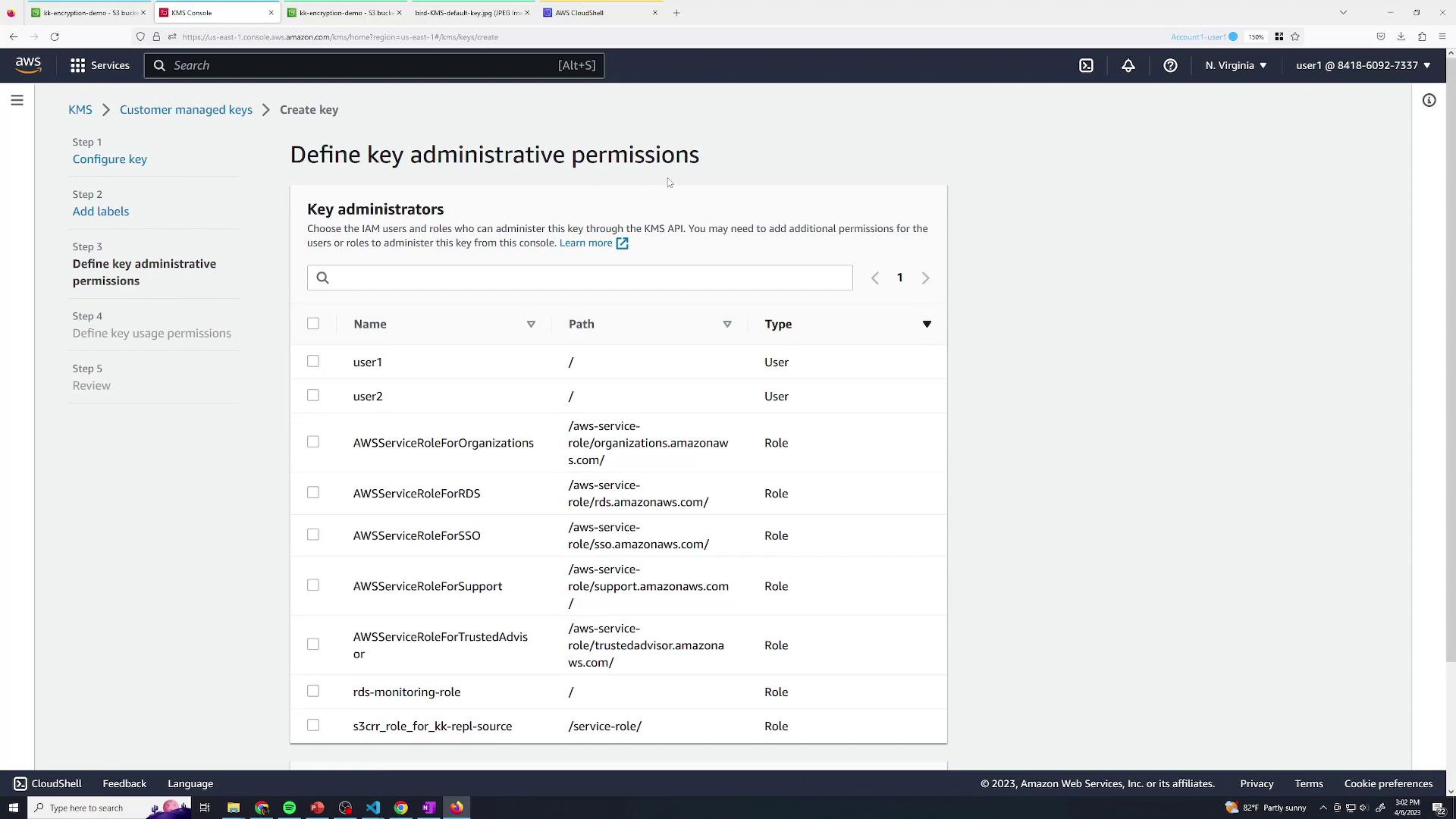
- Define Key usage permissions (who can encrypt/decrypt).
- Review and finish. The default key policy looks like:
3.2 Encrypt an Object with Your CMK
- Open your S3 bucket and start a new upload.
- Under Override default encryption, choose AWS KMS key → my-key.
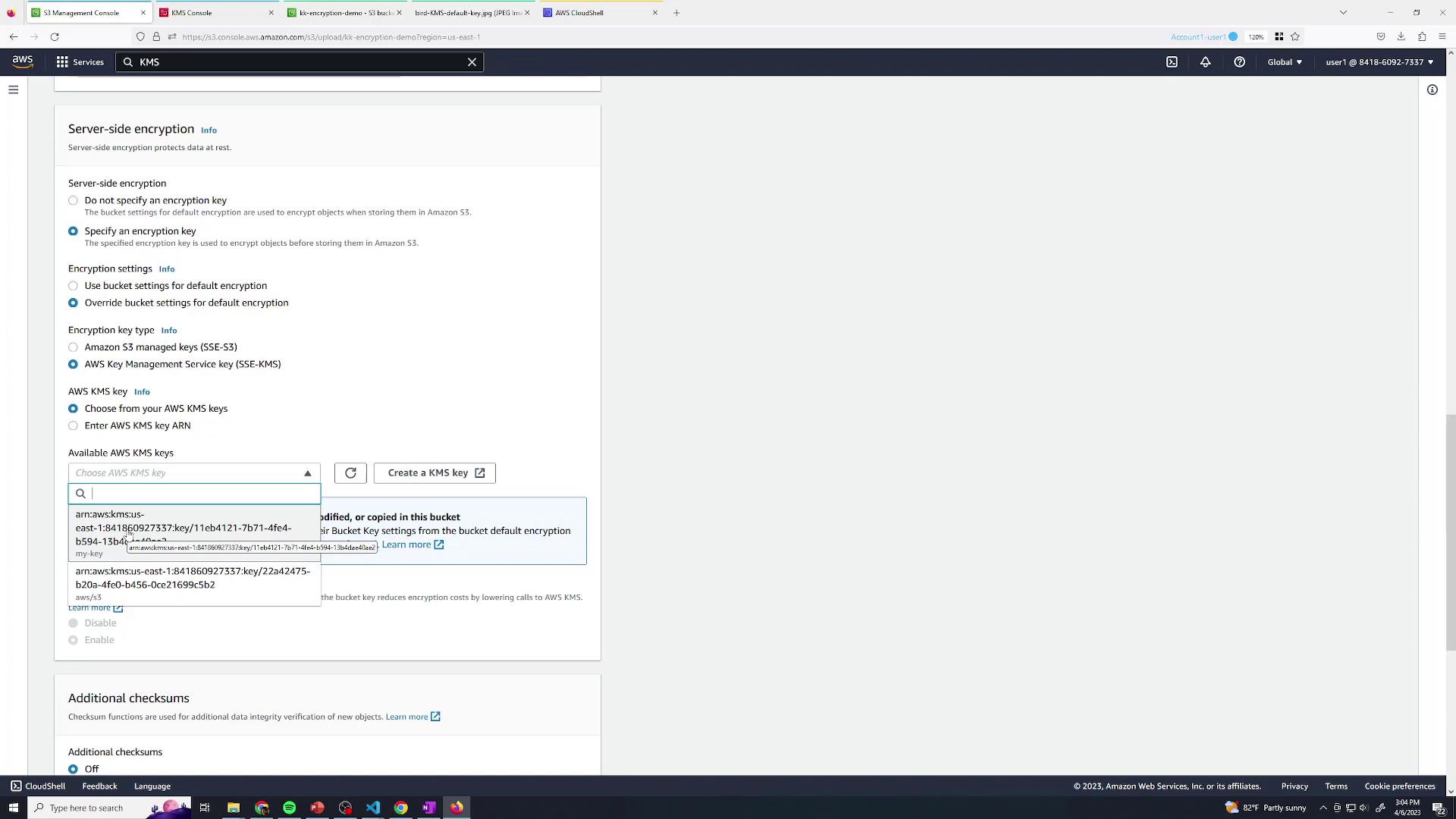
- Upload and view the object details:
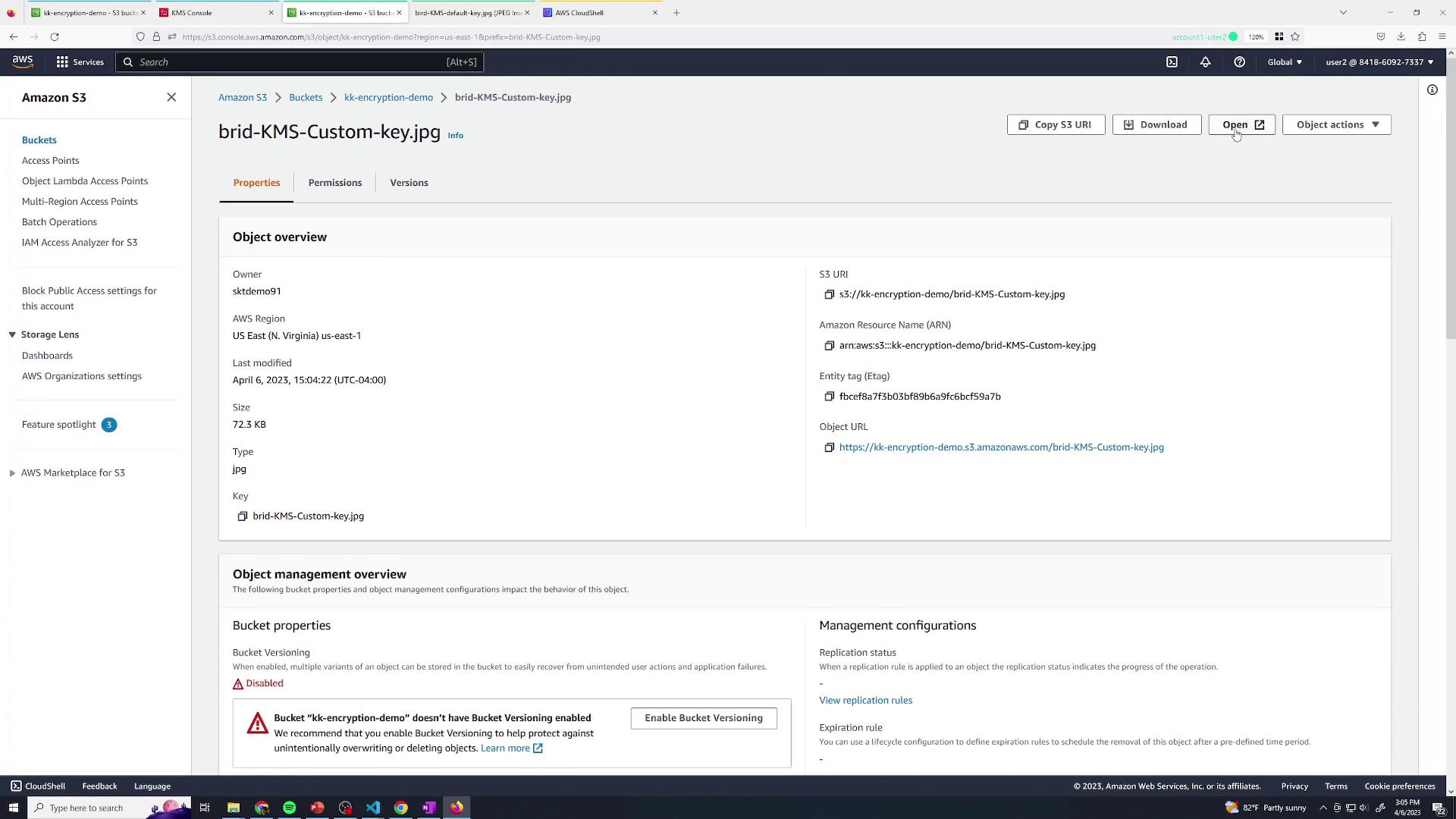
- Admin (with S3 + KMS rights) can download and decrypt.
- User2 (S3-only) can list and modify metadata but cannot decrypt:

3.3 Manage Your Customer-Managed CMK
Back in the KMS console, you can edit your CMK policy, enable key rotation, and adjust usage permissions—capabilities not available for AWS-managed CMKs:
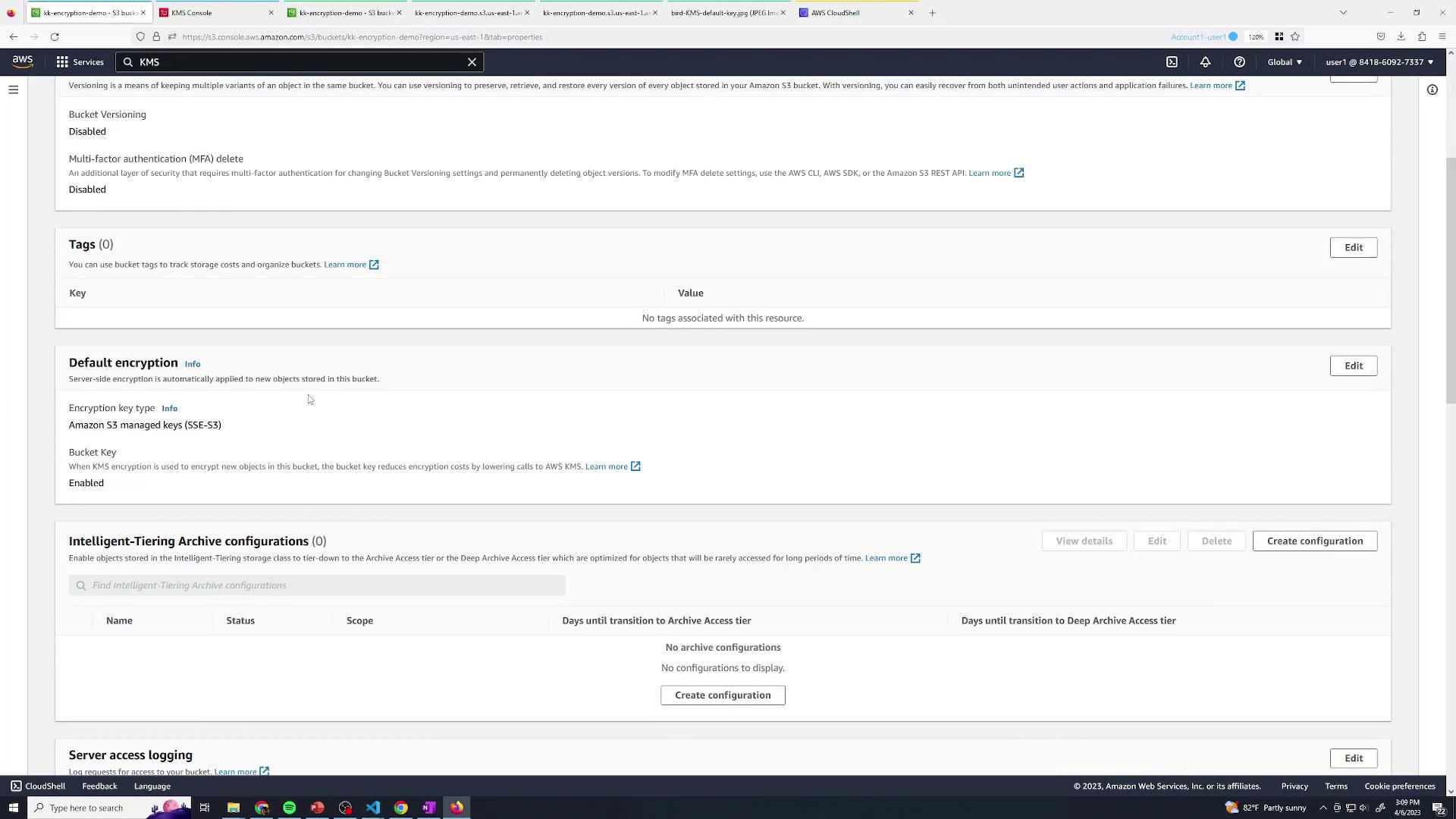
4. Make Your CMK the Bucket Default
To enforce your CMK on all future uploads:- In the S3 console, go to Bucket properties → Default encryption.
- Select AWS KMS key, choose my-key, and save.
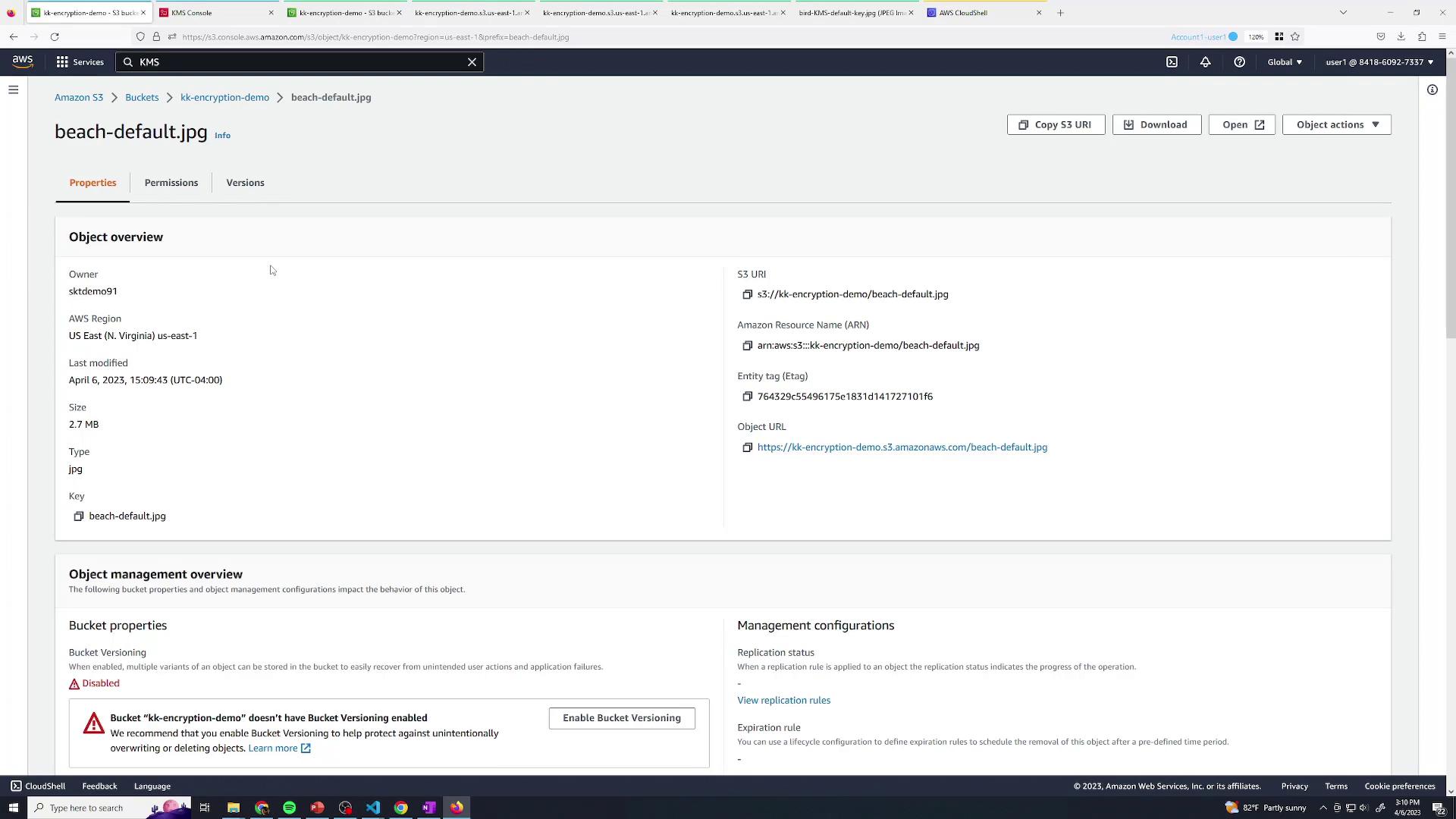
- Upload a file without specifying encryption; S3 defaults to
my-key. - User2 (S3-only) still cannot decrypt:
You’ve now mastered S3 encryption using SSE-S3, AWS-managed CMKs, and customer-managed CMKs for robust, granular access controls.