

Table of Contents
- Create a Demo Bucket
- Verify Default Access for Other Users
- Create Access Points
- Delegate Bucket Permissions to Access Points
- Define Access Point Policies
- Test Access via Access Points
- Final Permissions Overview
- Conclusion
- Links and References
1. Create a Demo Bucket
First, set up a new S3 bucket namedkk-accesspoint with the default settings. Then upload a sample file (beach.jpg) for testing.
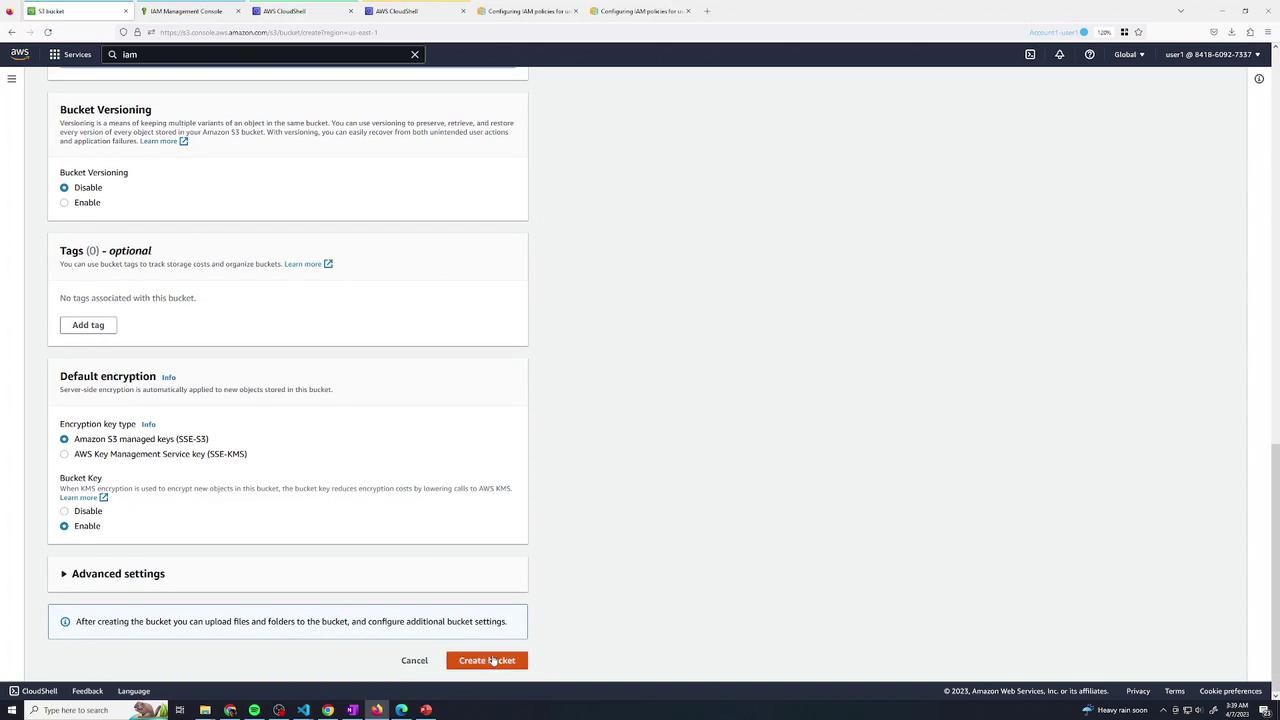
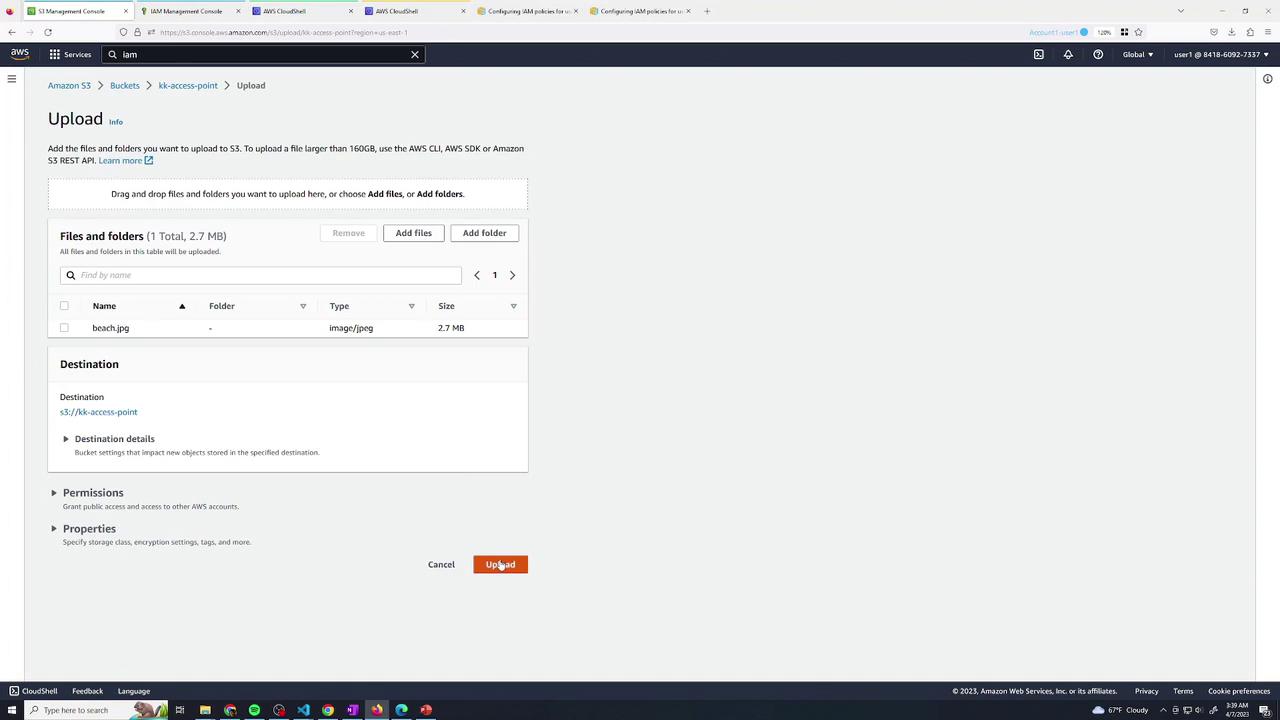
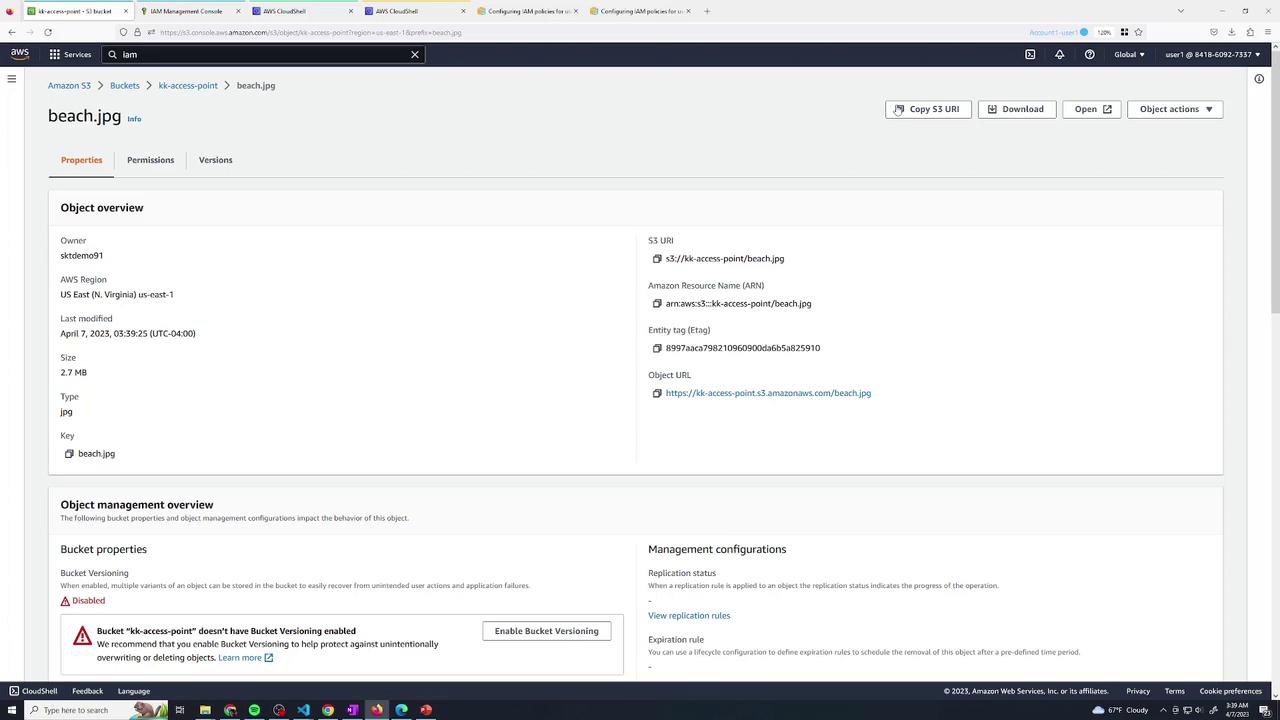
Consider enabling versioning and default encryption on production buckets to protect against accidental data loss or unauthorized access.
2. Verify Default Access for Other Users
Assume two IAM users—user2 and user3—each have only CloudShell access. By default, neither can list or retrieve objects from your new bucket.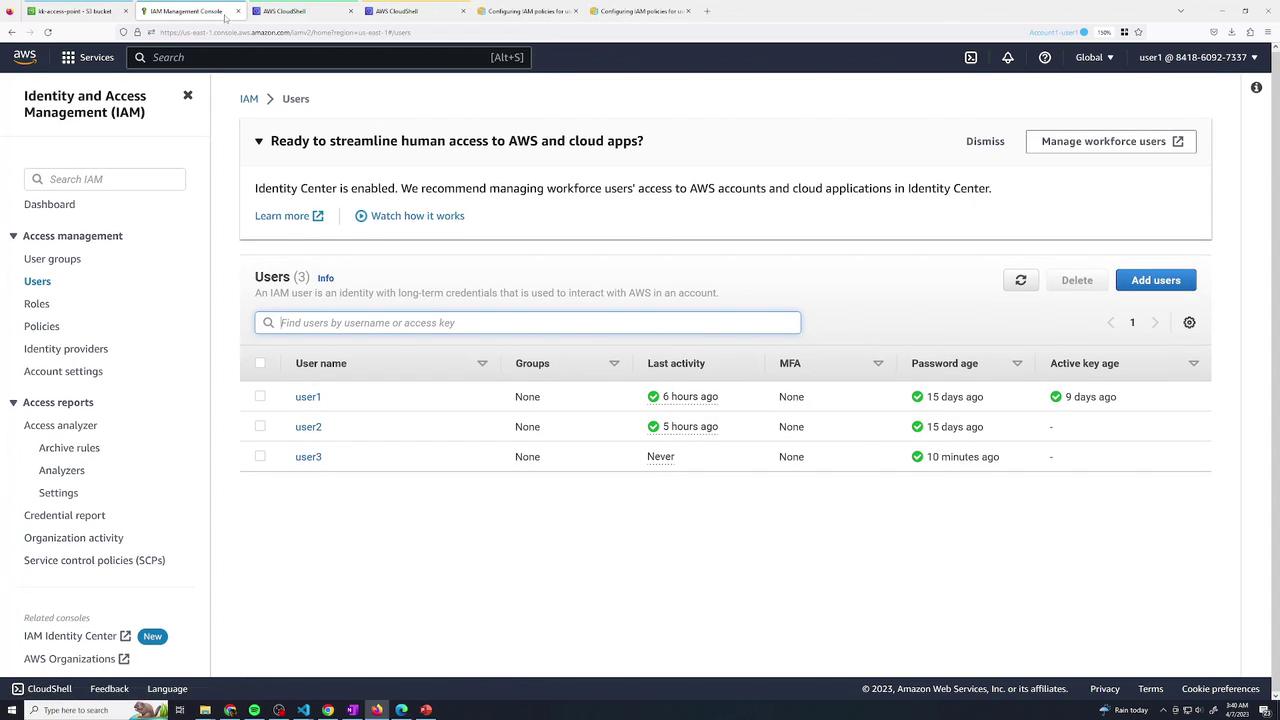
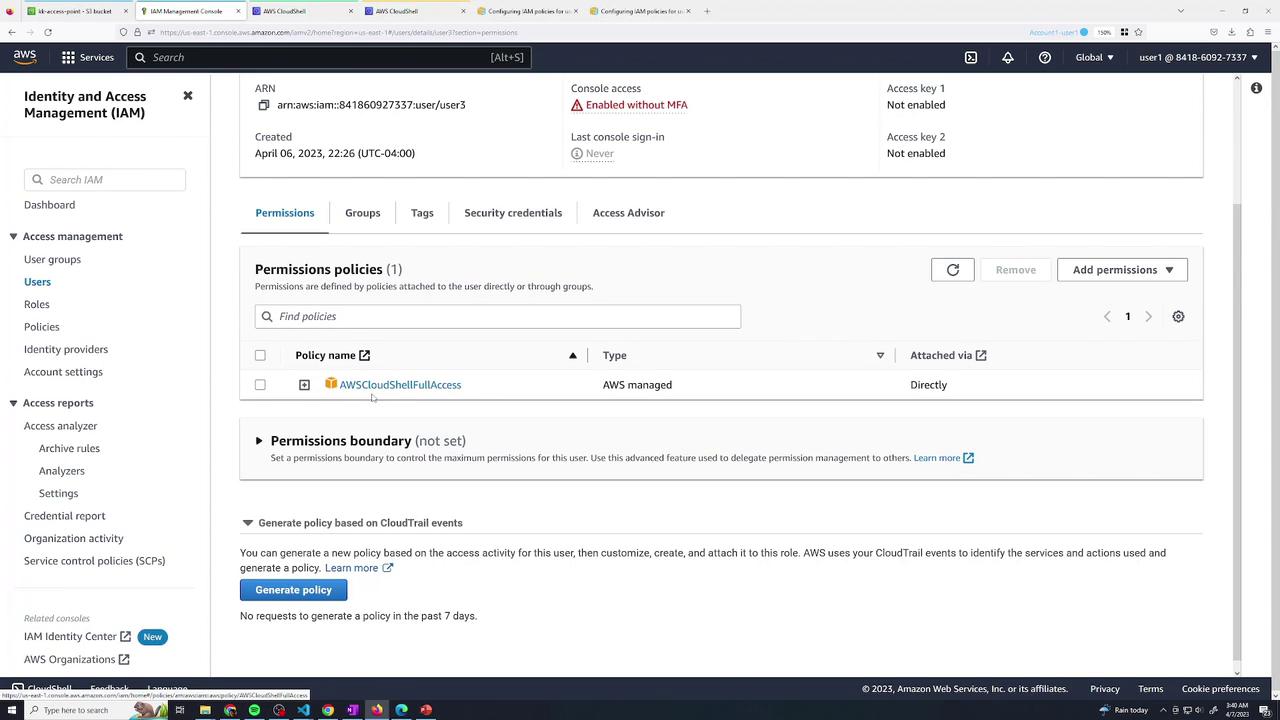
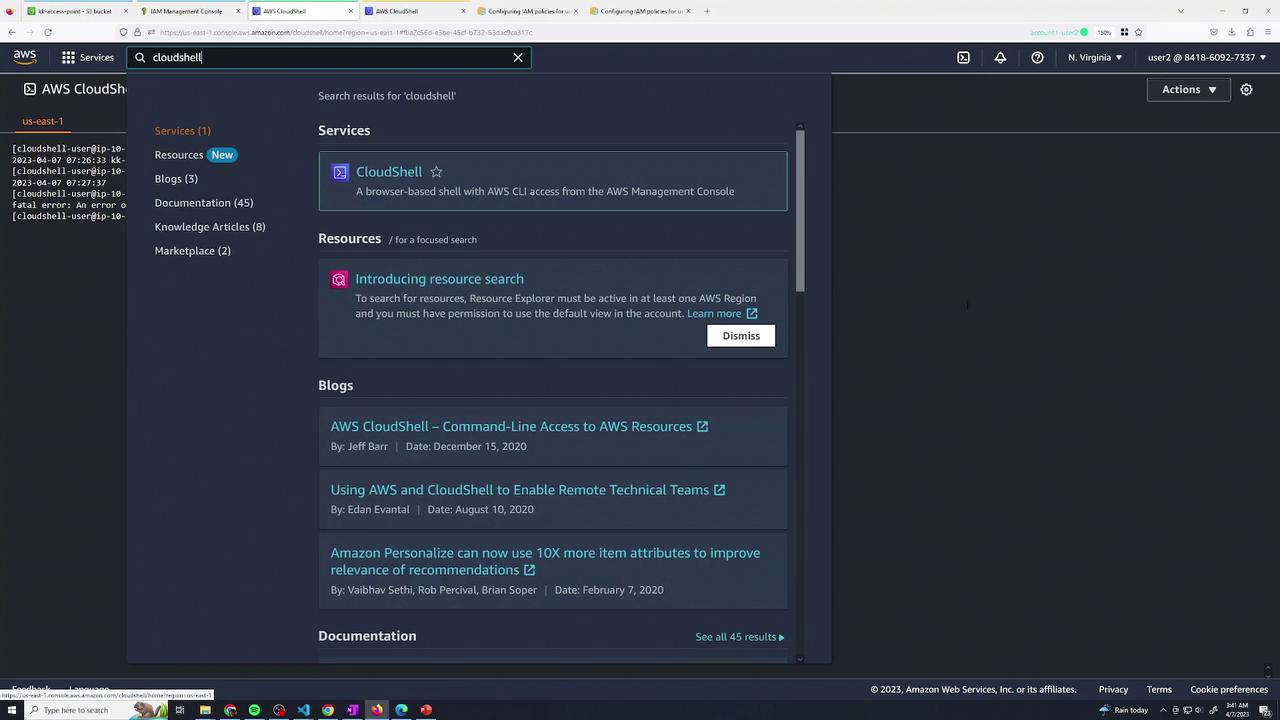
3. Create Access Points
Navigate to Amazon S3 → Access points and create two points:- developers (for user2)
- finance (for user3)
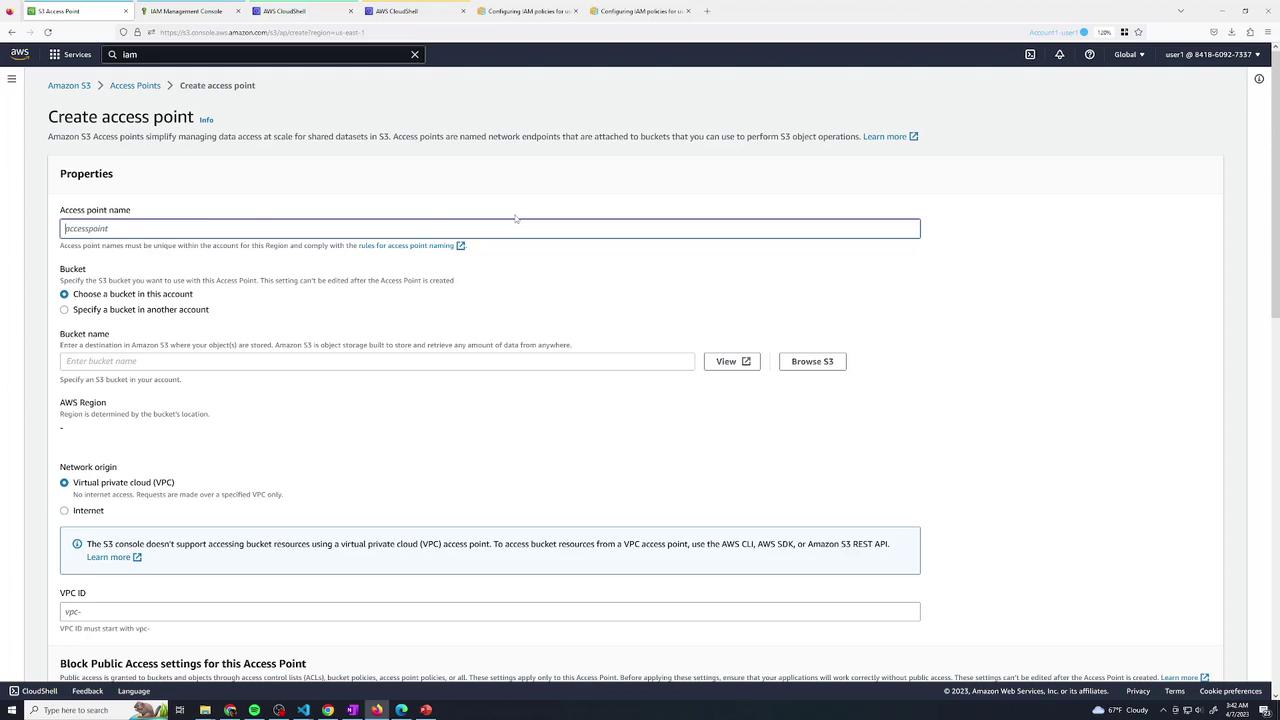
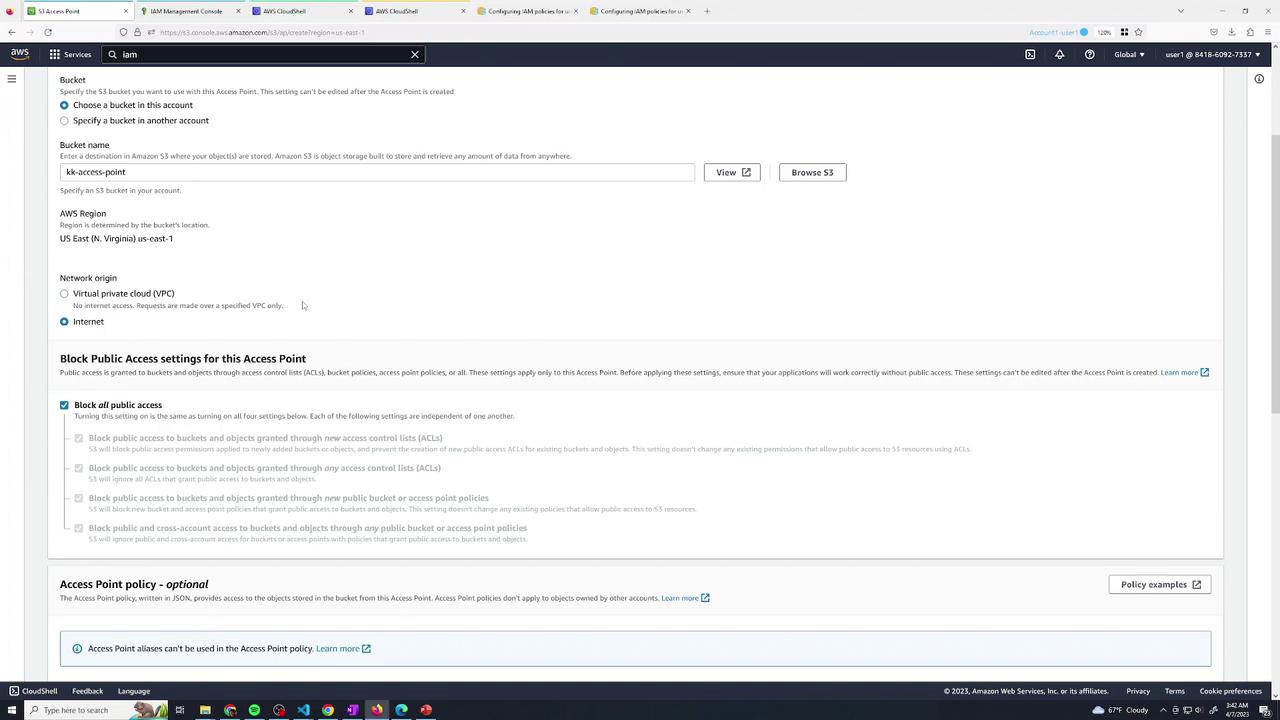
Always keep Block all public access enabled on buckets and access points to prevent accidental exposure.
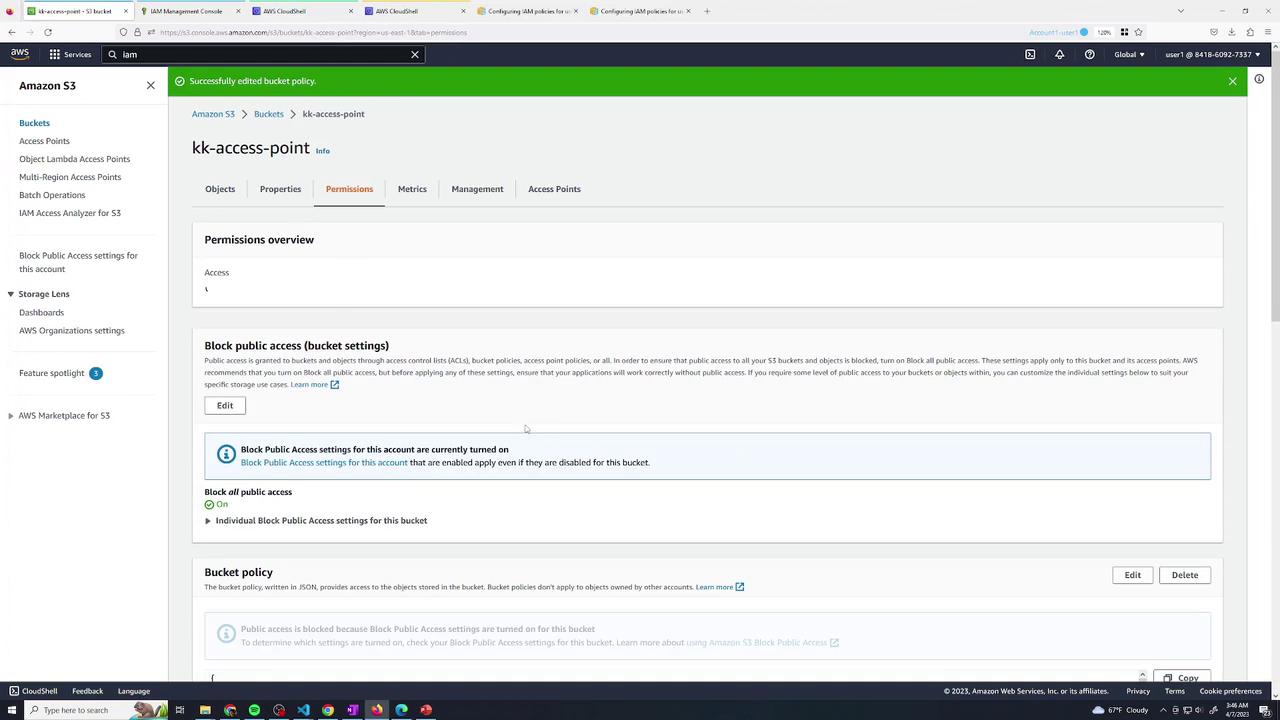
4. Delegate Bucket Permissions to Access Points
To let your access points list bucket contents, add this bucket policy. Replace123456789012 with your AWS account ID:
5. Define Access Point Policies
5.1 Developer Access Point Policy
Go to Access points → developers → Permissions → Edit and paste: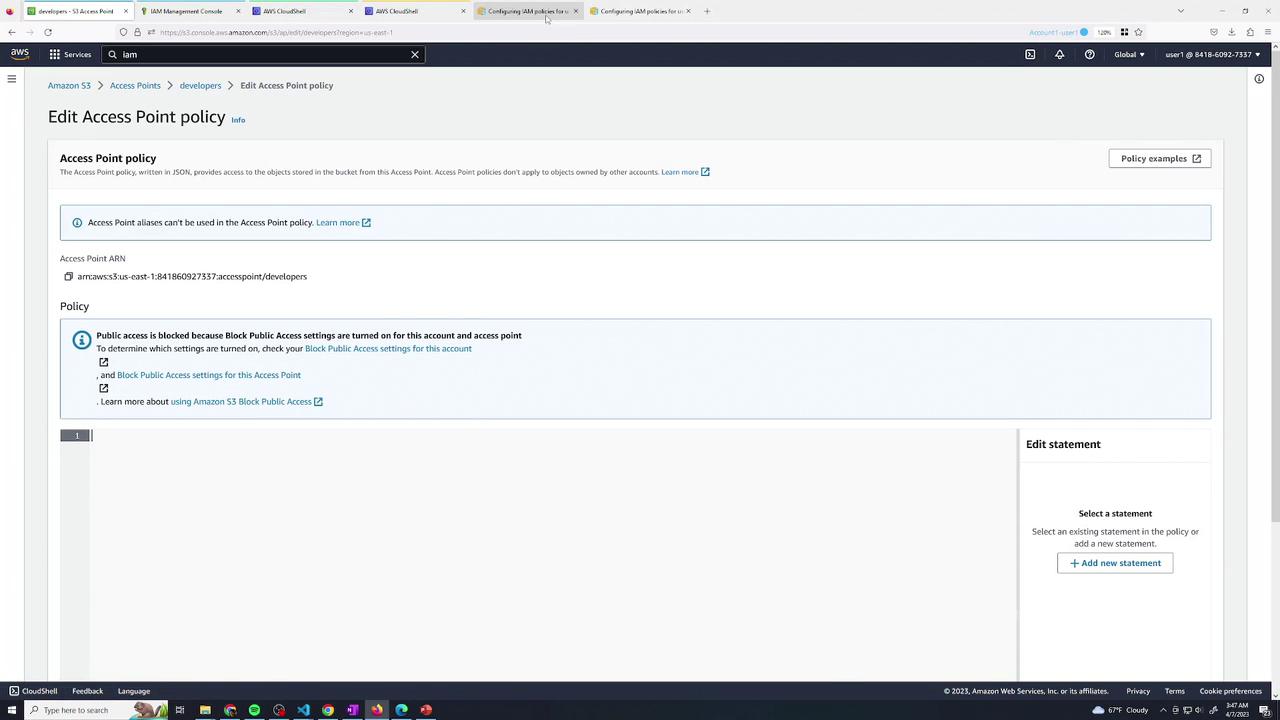
5.2 Finance Access Point Policy
For finance, allow user3: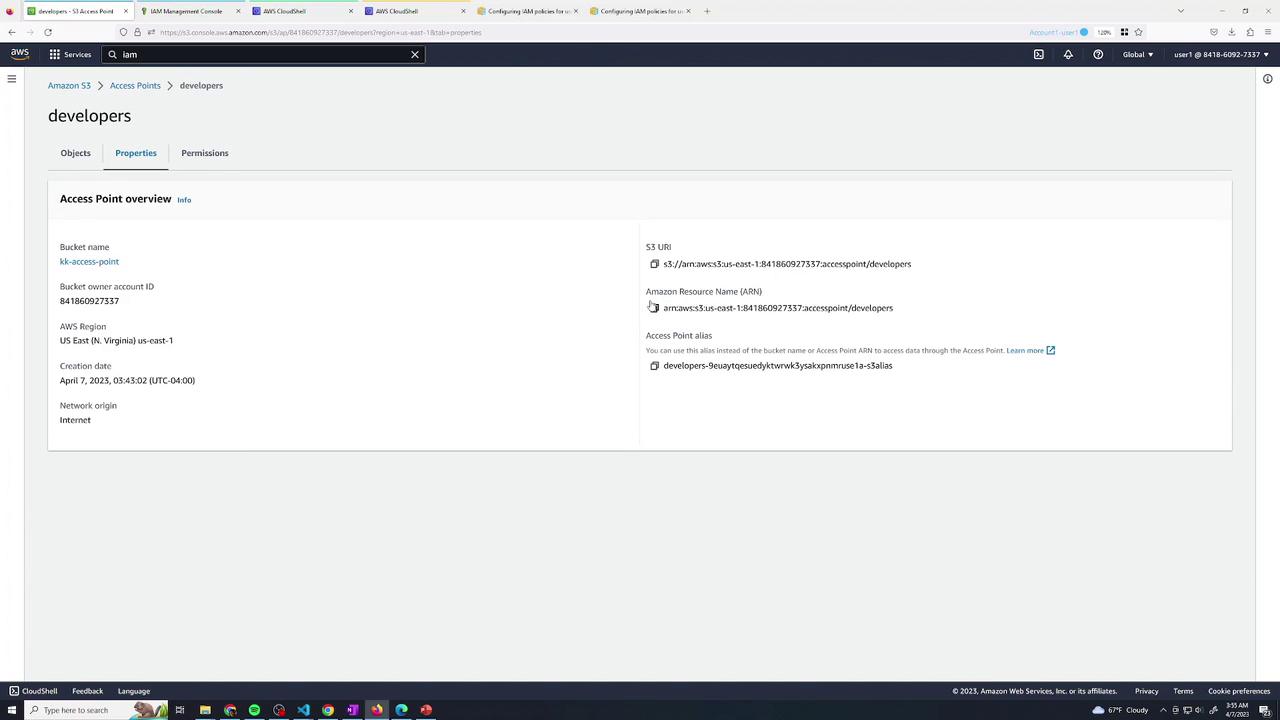
Access Point Summary
6. Test Access via Access Points
6.1 Developer (user2)
In AWS CloudShell as user2, list and copy via the developers access point ARN:6.2 Finance (user3)
As user3, perform the same steps and upload a new file:7. Final Permissions Overview
Inspect the finance access point’s permissions tab: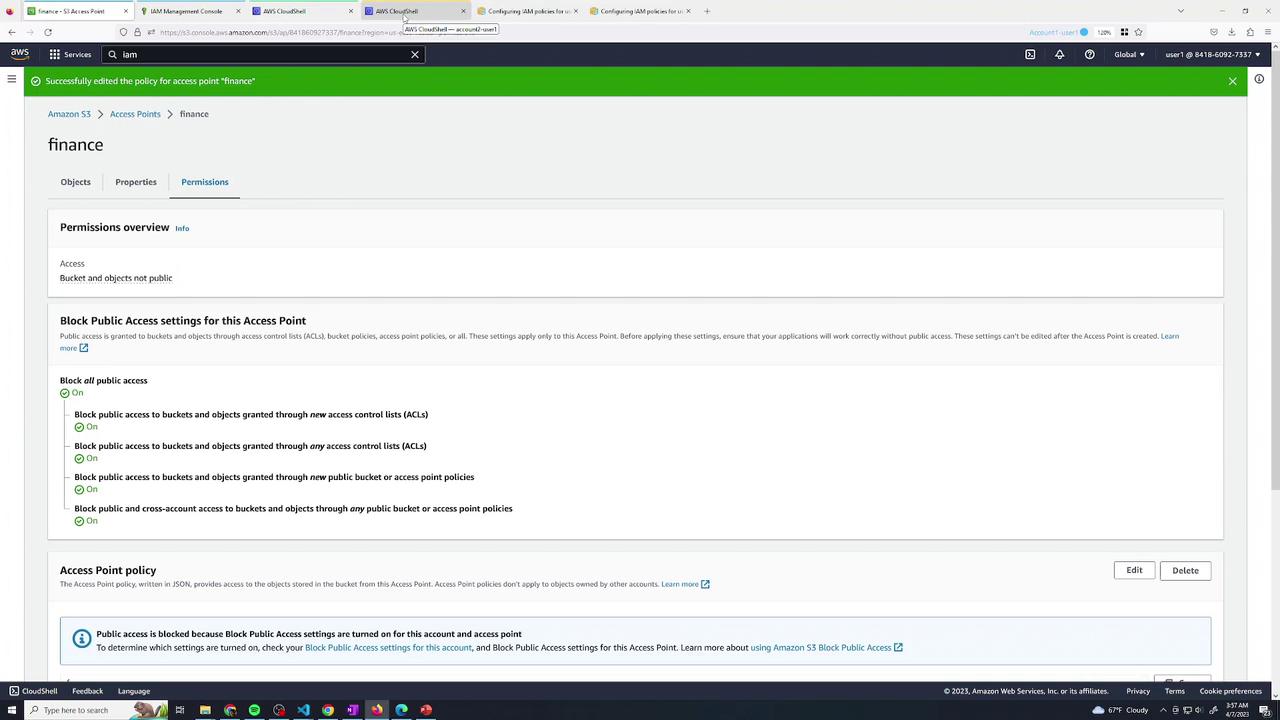
8. Conclusion
By leveraging S3 Access Points, you can:- Delegate access control to distinct teams without modifying the main bucket policy.
- Create isolated entry points with tailored permissions.
- Simplify management when multiple user groups share a bucket.