

- Windows 11 (used here), macOS, or Linux — steps are the same across OSes.
- Docker Desktop with Kubernetes enabled — download from Docker Desktop.
- .NET 6 SDK — download from https://dotnet.microsoft.com/en-us/download/dotnet/6.0
- An IDE or editor such as JetBrains Rider, Visual Studio, or VS Code.
For local Kubernetes testing, enable Kubernetes in Docker Desktop Settings. That boots a single-node cluster suitable for development and learning.
Docker Desktop has licensing terms. Using it for local learning and development is typically allowed, but review the license if you plan production or commercial use.
- Open your IDE.
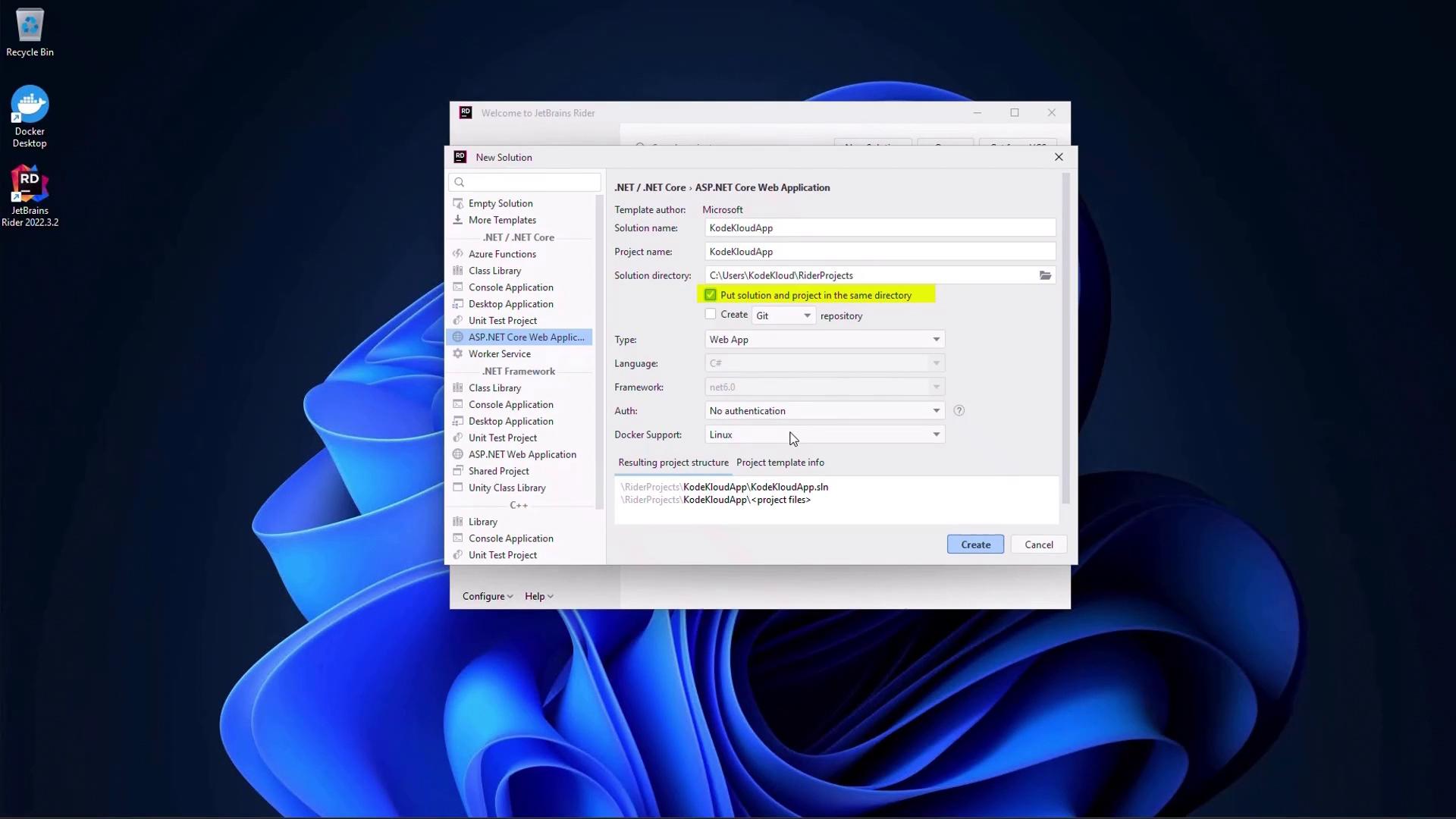
- Create a new solution using the “ASP.NET Core Web Application” template.
- Give the solution a name (for example,
KodeKloudApp) and choose the option to put the solution and project in the same directory so the solution contains a single project. - When creating the project, let the IDE generate a Dockerfile. We’ll use Linux containers for the runtime.
Message value from configuration sources (appsettings.json or environment variables). This keeps configuration flexible when running locally or in containers.
Update Pages/Index.cshtml.cs:
Message key to appsettings.json
A minimal appsettings.json with the Message key:
@Model.Message:
- Start the app from your IDE (or
dotnet runfrom the project folder). - The page should show the
Messagefromappsettings.json. - Change the value in
appsettings.json(for example, to"Hello World changed") and restart the app to see the new text.
- Build stage uses the .NET SDK to compile and publish.
- Final stage uses a smaller ASP.NET runtime image to reduce final image size.
Links and references
- Docker Desktop: https://www.docker.com/products/docker-desktop
- .NET 6 SDK downloads: https://dotnet.microsoft.com/en-us/download/dotnet/6.0
- JetBrains Rider: https://www.jetbrains.com/rider/
- Learn about AKS: https://learn.kodekloud.com/user/courses/azure-kubernetes-service
- ASP.NET Core documentation: https://docs.microsoft.com/aspnet/core