

Overview
The ArgoCD Vault Plugin is a Git repository tool that retrieves secrets from various secret management systems, including HashiCorp Vault, IBM Cloud Secret Manager, and AWS Secret Manager. In this demo, we will focus on integrating with HashiCorp Vault.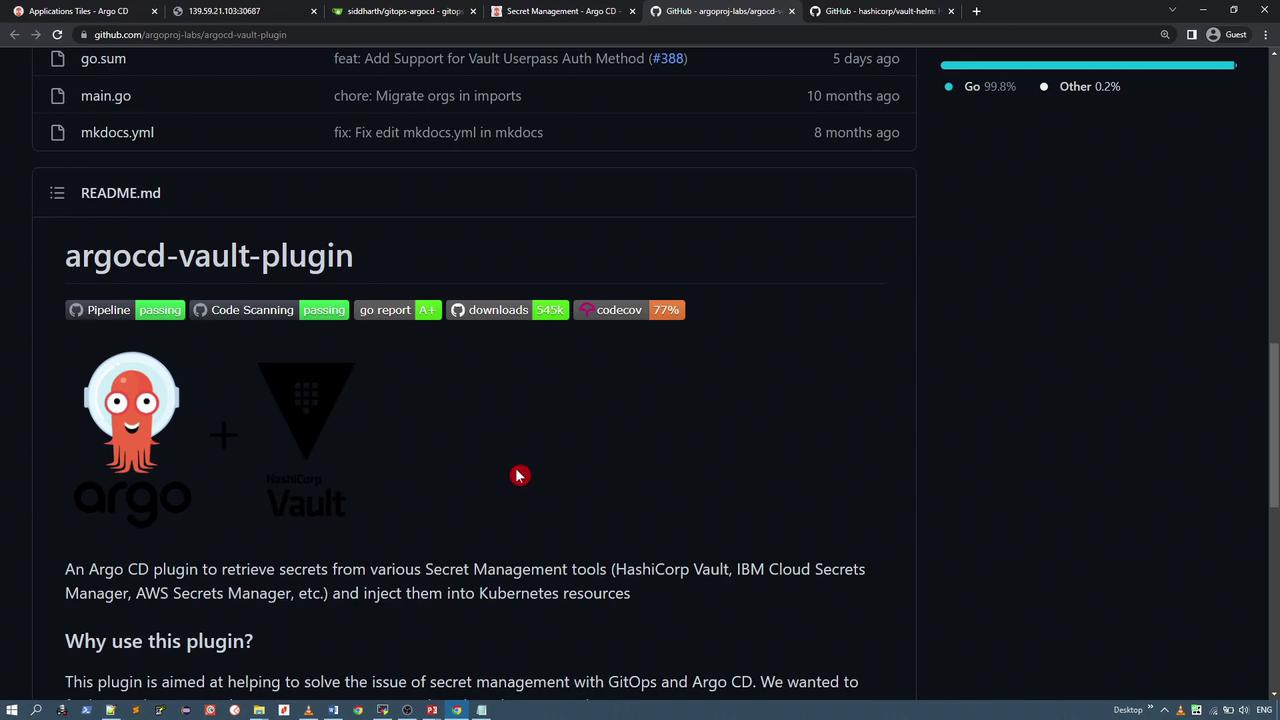
Setting Up HashiCorp Vault
To get started, you need to deploy a Vault instance where you can add and later retrieve secrets. For this demo, we will deploy Vault using the HashiCorp Vault Helm chart and manage the deployment via ArgoCD.Installing Vault via Helm
Follow these steps to install Vault with Helm:-
Add the HashiCorp Helm repository:
-
Install Vault:
-
Create an ArgoCD application for the Vault Helm chart. For this example, we deploy version 0.16.0 into the namespace “vault-demo.” Modify the Vault configuration to disable data storage by setting
server.datastore.enabledto false and change the UI service type to NodePort to access the Vault UI through a browser. For instance, your Vault configuration snippet might resemble:And update the service configuration with:After synchronizing the application, multiple resources will be created. The Vault pod may be in a progressing state until Vault is fully initialized.

Accessing and Initializing Vault
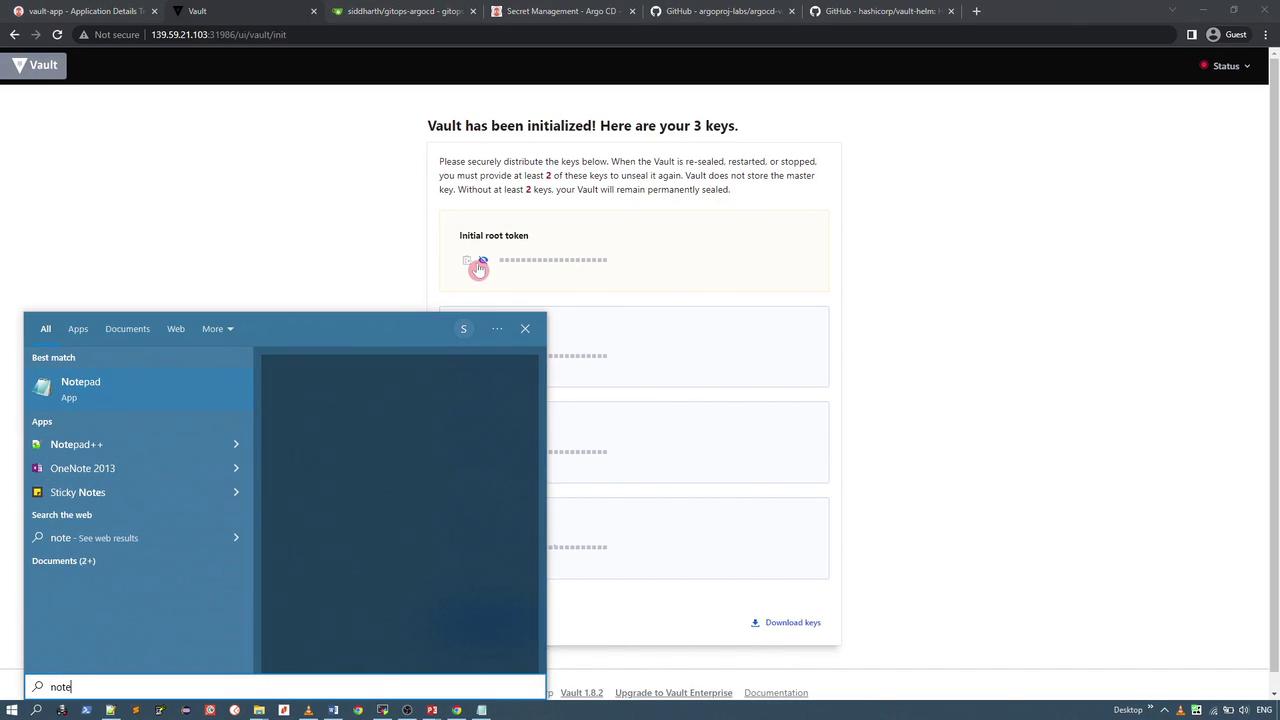
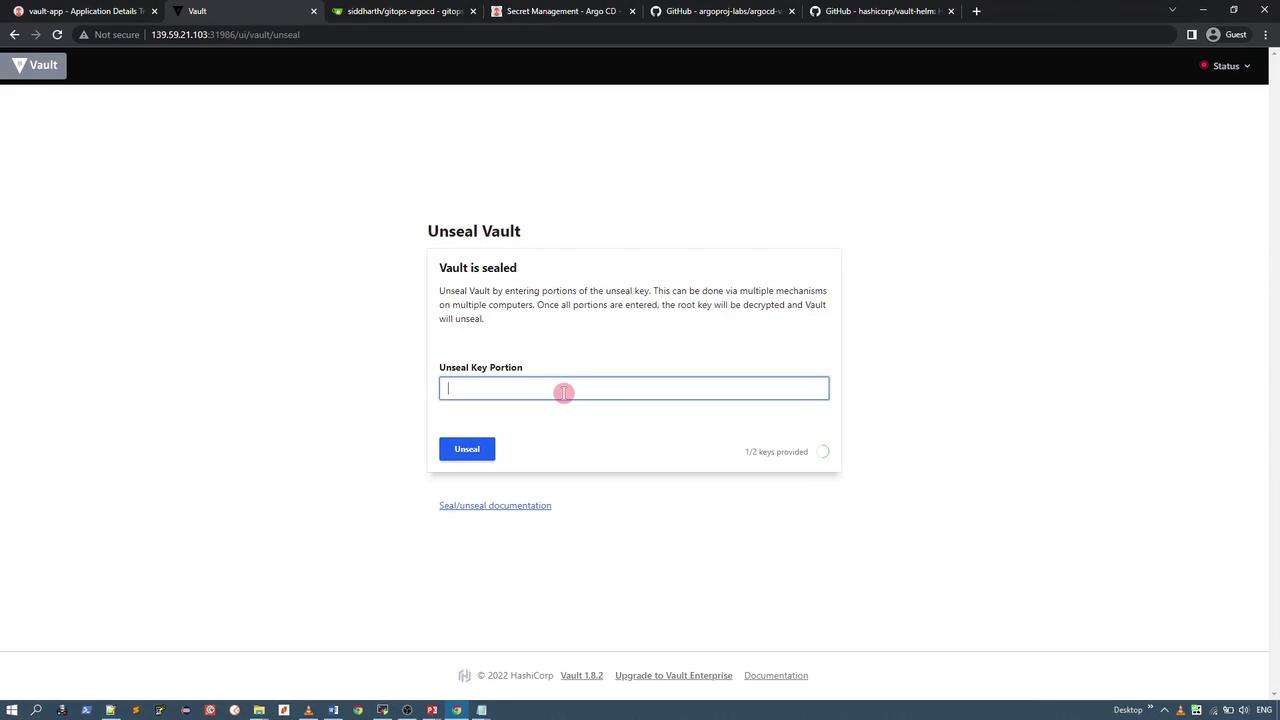
After the Vault application is deployed, check the “vault-demo” namespace to verify the running resources:If the Vault service does not reflect the NodePort settings, update the service manifest manually as described above. Once updated, you can access the Vault UI using the assigned NodePort (e.g., port 31986).
Enabling a Key-Value Secret Engine and Creating Secrets
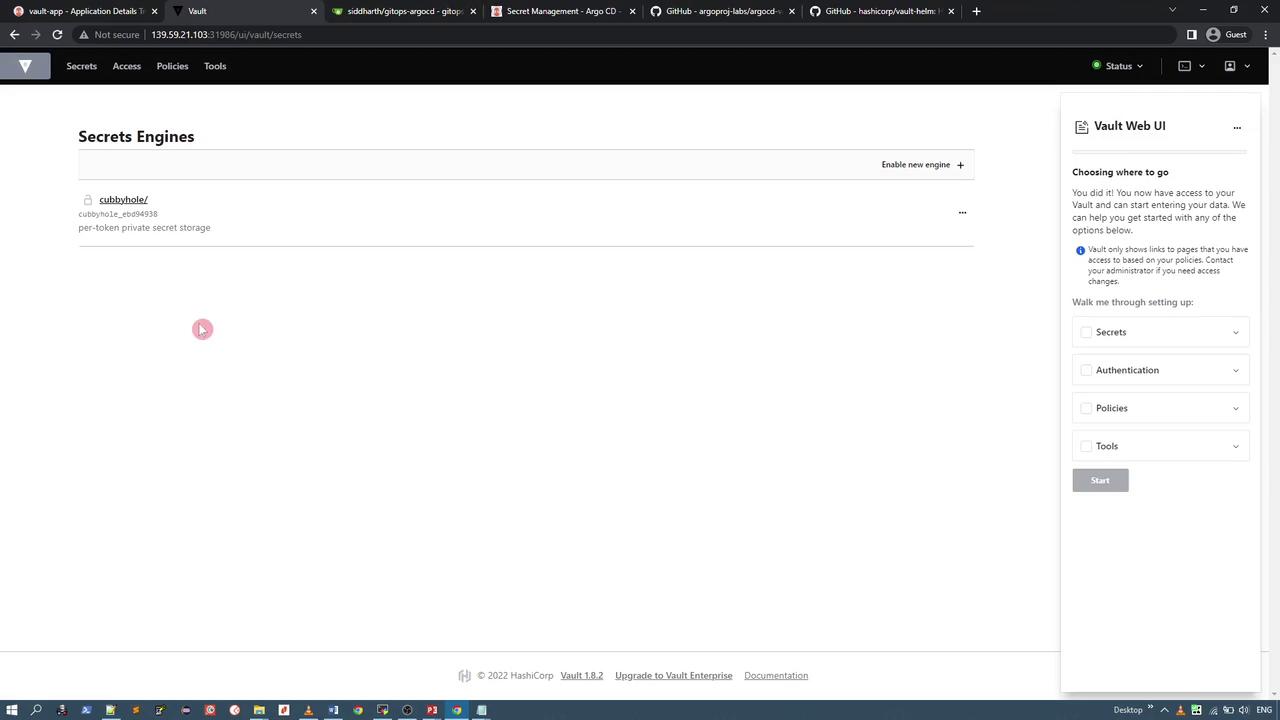
To store application credentials, enable the KV (key-value) secret engine and create a secret:- In the Vault UI, enable a new secret engine.
- Choose the key-value secret engine (version 2).
- Set the engine path to
credentialsusing default configurations.
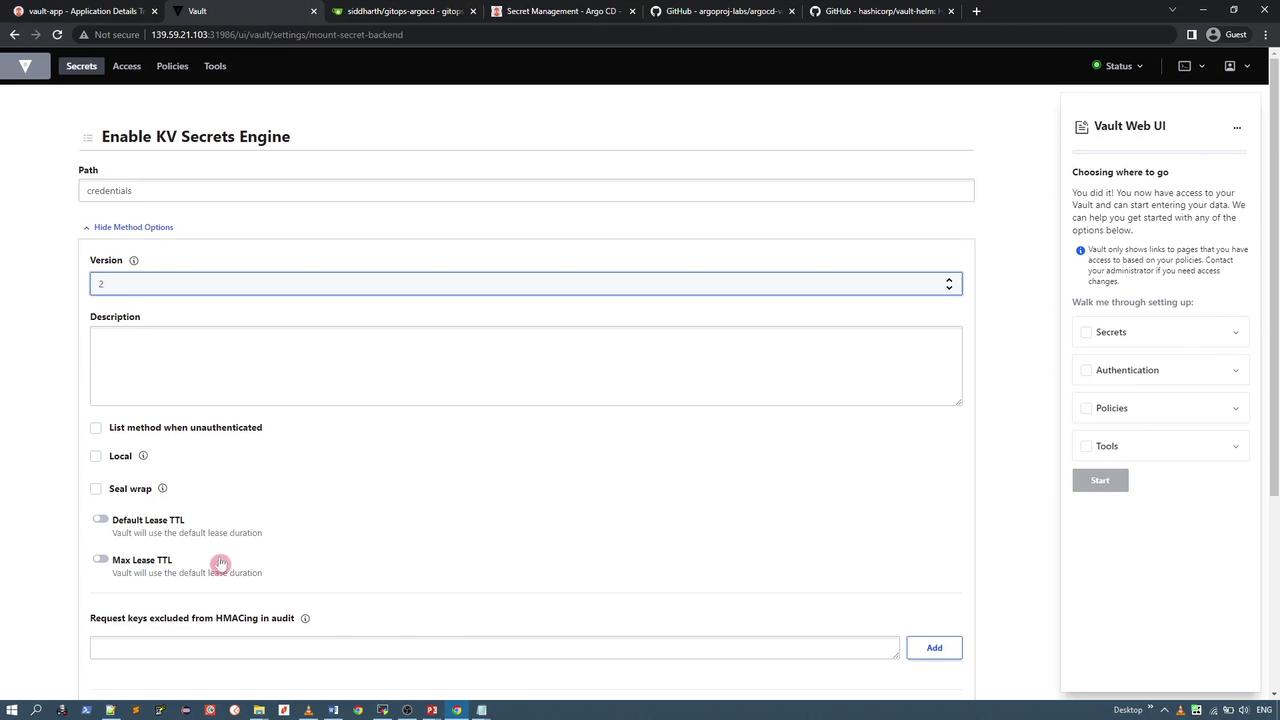
credentials secret engine, add a new secret under a specific path (for example, app) with the following fields:
- username (e.g., your name suffixed with
-vaultfor demo purposes) - password (e.g.,
secure-password-vault) - API key (a random string)

credentials/app path:

Using the ArgoCD Vault Plugin
Once Vault is running, initialized, unsealed, and holds your secret data, you can use the ArgoCD Vault Plugin to access these credentials.Defining a Kubernetes Secret Manifest
To automatically retrieve secrets, define a Kubernetes Secret manifest with an annotation that instructs the plugin where to fetch the Vault data. For example, if your secret is stored atcredentials/app, your manifest should be configured like this:
< and >) with the actual secret data from Vault and outputs a valid manifest, encoding values in Base64 if necessary.
Local Installation of the ArgoCD Vault Plugin
For local testing outside of ArgoCD, follow these steps to install the ArgoCD Vault Plugin:-
Install via Homebrew:
-
Alternatively, download the Linux binary from GitHub:
-
Verify the installation:
generate, completion, and help. The generate command is used to replace placeholder values in your secret manifest with actual data from Vault.
Creating the Secret Manifest
Store your Kubernetes Secret manifest into a file, for example,secret.yaml:
Using
stringData here allows plain text entries, which are then encoded as needed, avoiding manual Base64 encoding.Configuring Vault Connection
Create an environment file (e.g.,vault.env) that contains the necessary Vault configuration parameters:
VAULT_ADDR and VAULT_TOKEN to match your Vault instance. The AVP_TYPE should be set to vault and AVP_AUTH_TYPE to token for this demo setup.