

- Create users and group(s) in Okta.
- Create a SAML application in Okta and capture the SSO URL and X.509 certificate.
- Add a Dex SAML connector configuration into the Argo CD ConfigMap (
argocd-cm). - Map Okta group(s) to Argo CD RBAC roles in
argocd-rbac-cm.
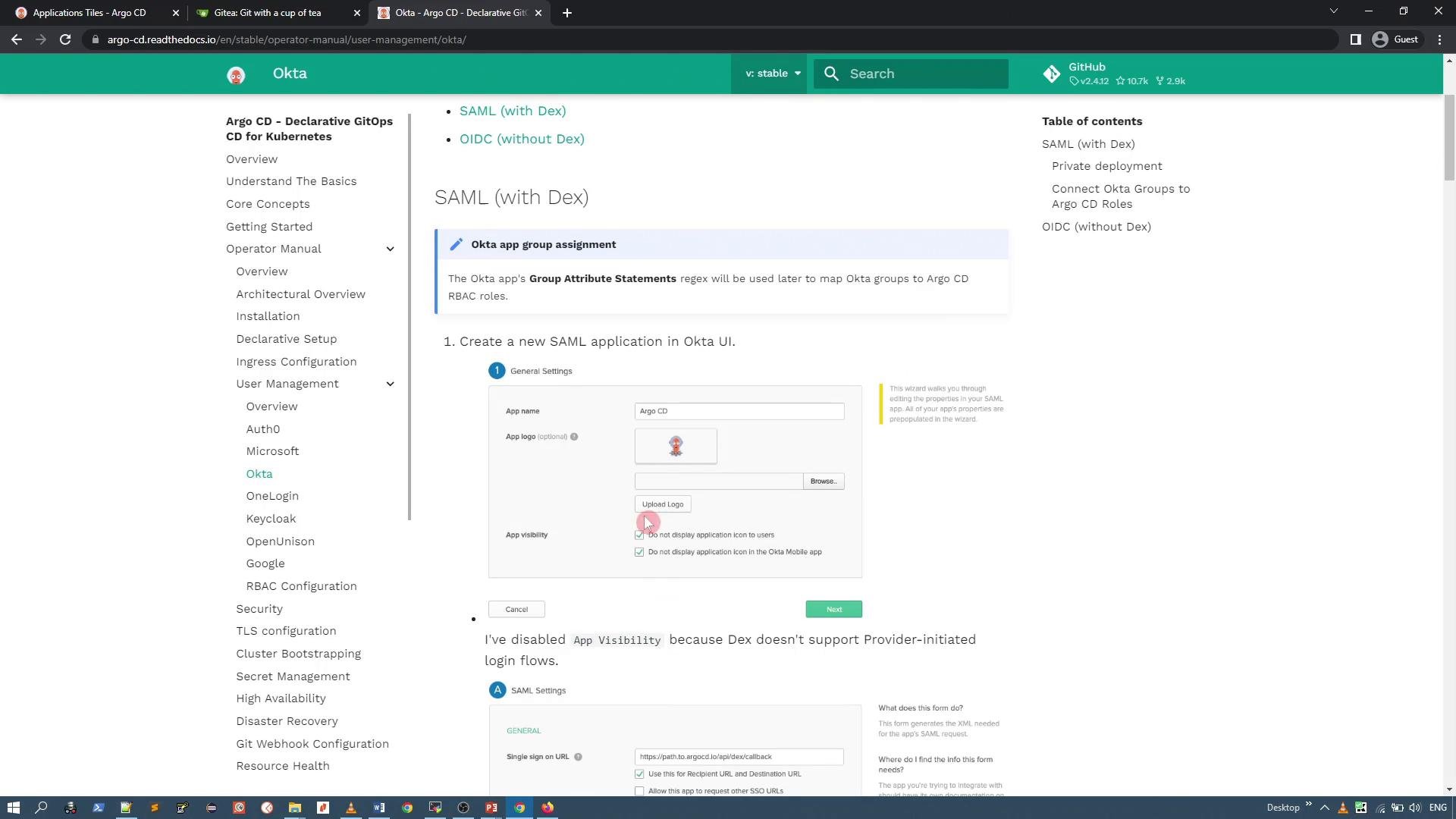
Creating an Okta org and users
- Use an Okta trial org for evaluation if needed. Sign in to the Okta Admin dashboard.
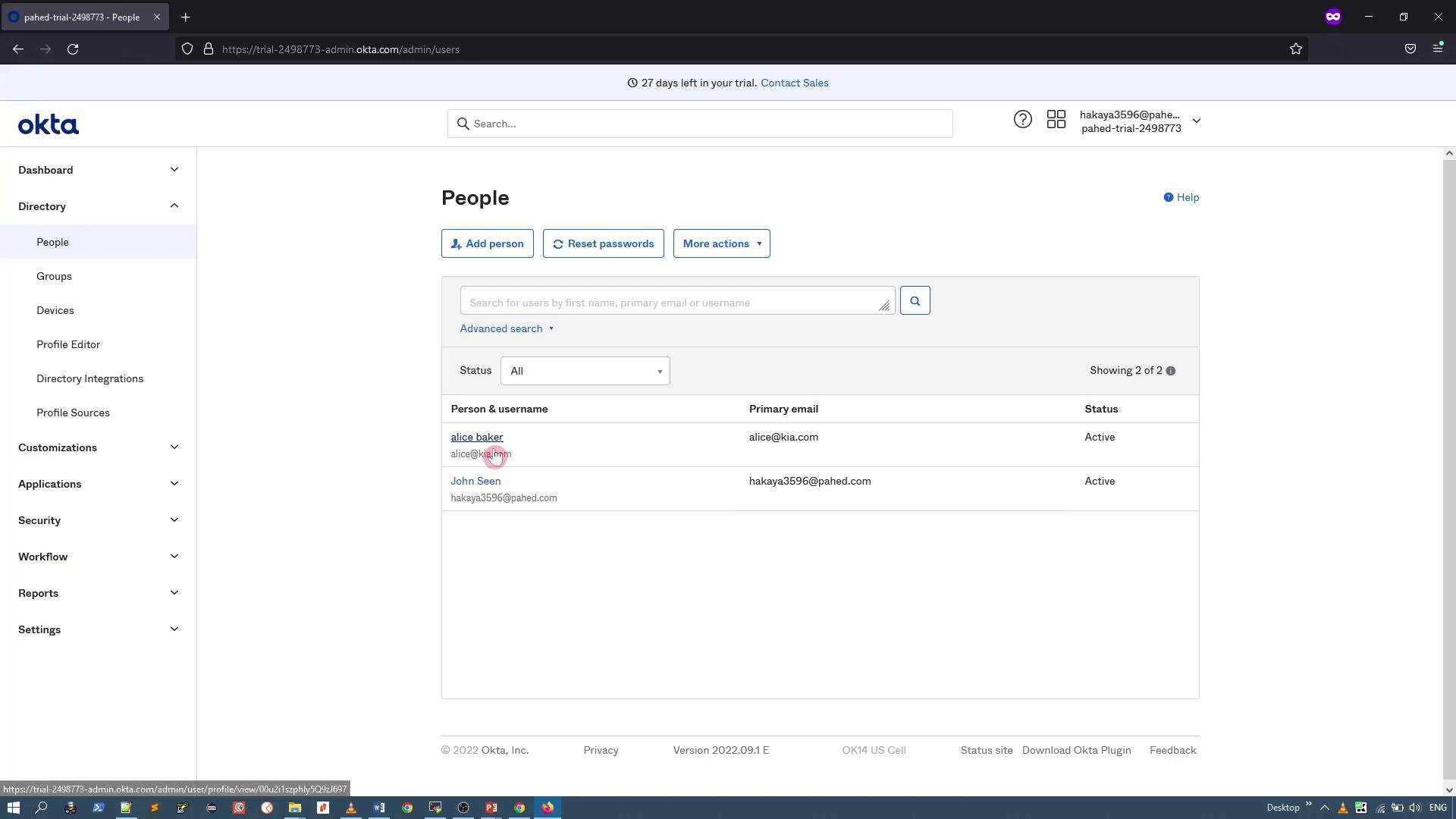
- Create the users who will access Argo CD (e.g., Alice, John).
- Create a group (e.g.,
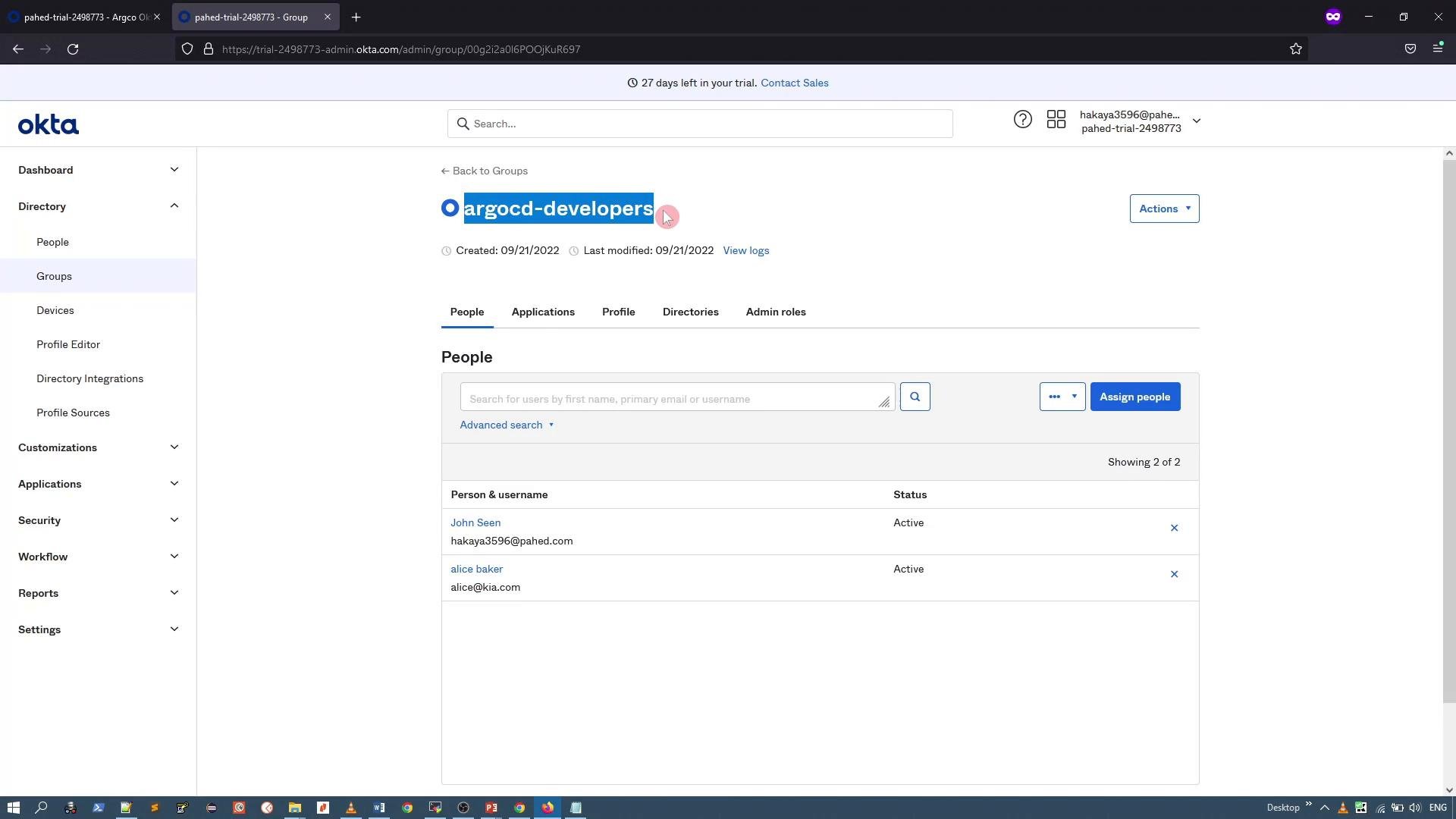
argocd-developers) and add the users to that group. This group will be mapped to an Argo CD role.
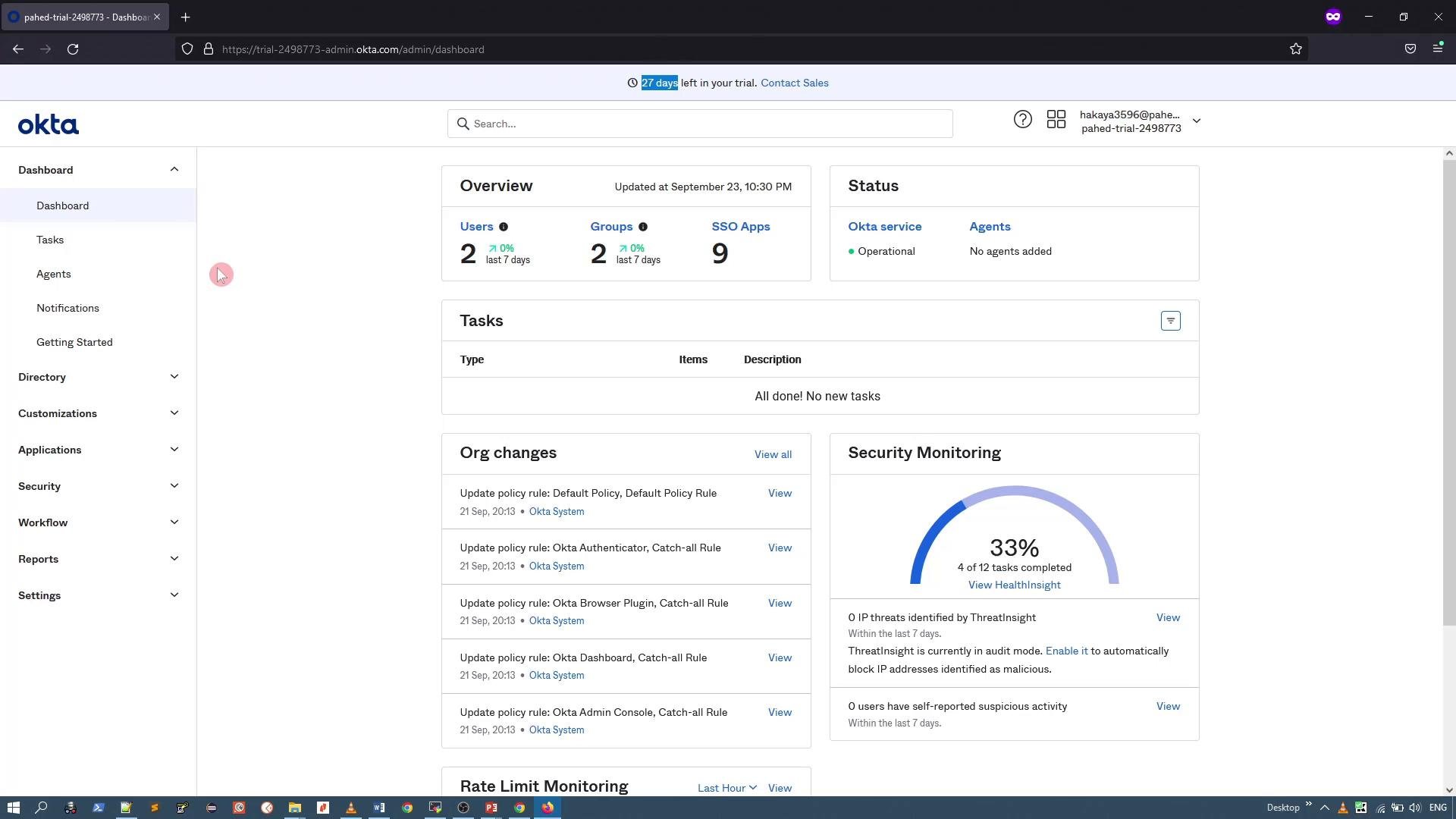
- In Okta Admin → Directory → People, create user accounts for each person who needs Argo CD access (e.g., Alice and John).
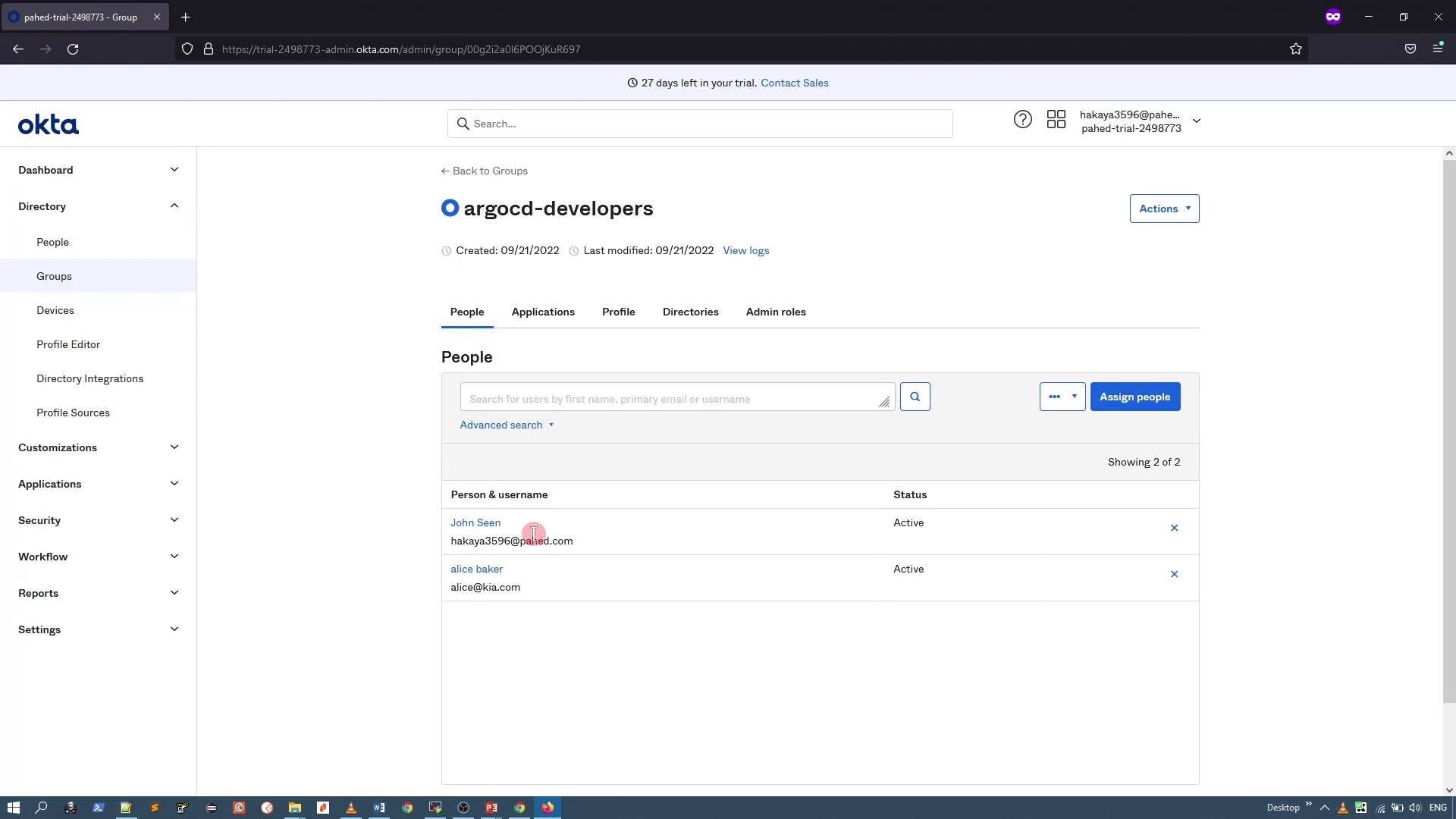
- Create a group such as
argocd-developersand add the demo users. This group name will be used in RBAC mapping within Argo CD.
- In Okta Admin → Applications → Create App Integration → SAML 2.0.
- Name the app (e.g., “ArgoCD Okta App”). Optionally hide the icon from users.
- In SAML settings set:
- Assertion Consumer Service (ACS) / Single sign-on URL
- Audience URI (SP Entity ID) These values are derived from Argo CD’s Dex endpoint (your Argo CD server URL + Dex callback).
- Add Attribute Statements (claims) and Group Attribute Statements so Dex can read attributes such as
emailand group membership.
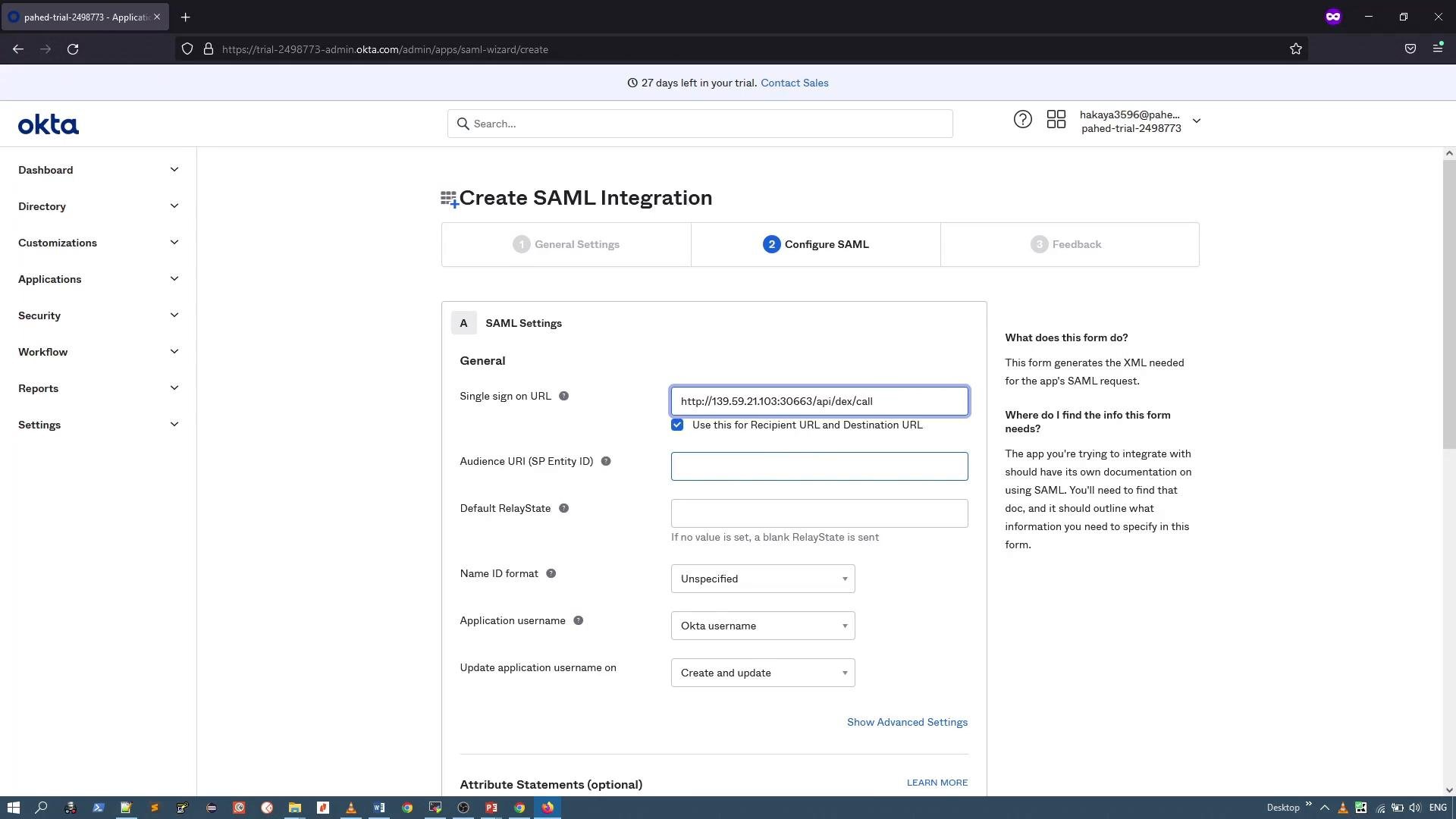
Use Attribute Statements in the SAML app like:
- Name:
email→ Value:user.email - Name:
groups→ Value:groups(or a filtered expression to only sendargocd-*groups)
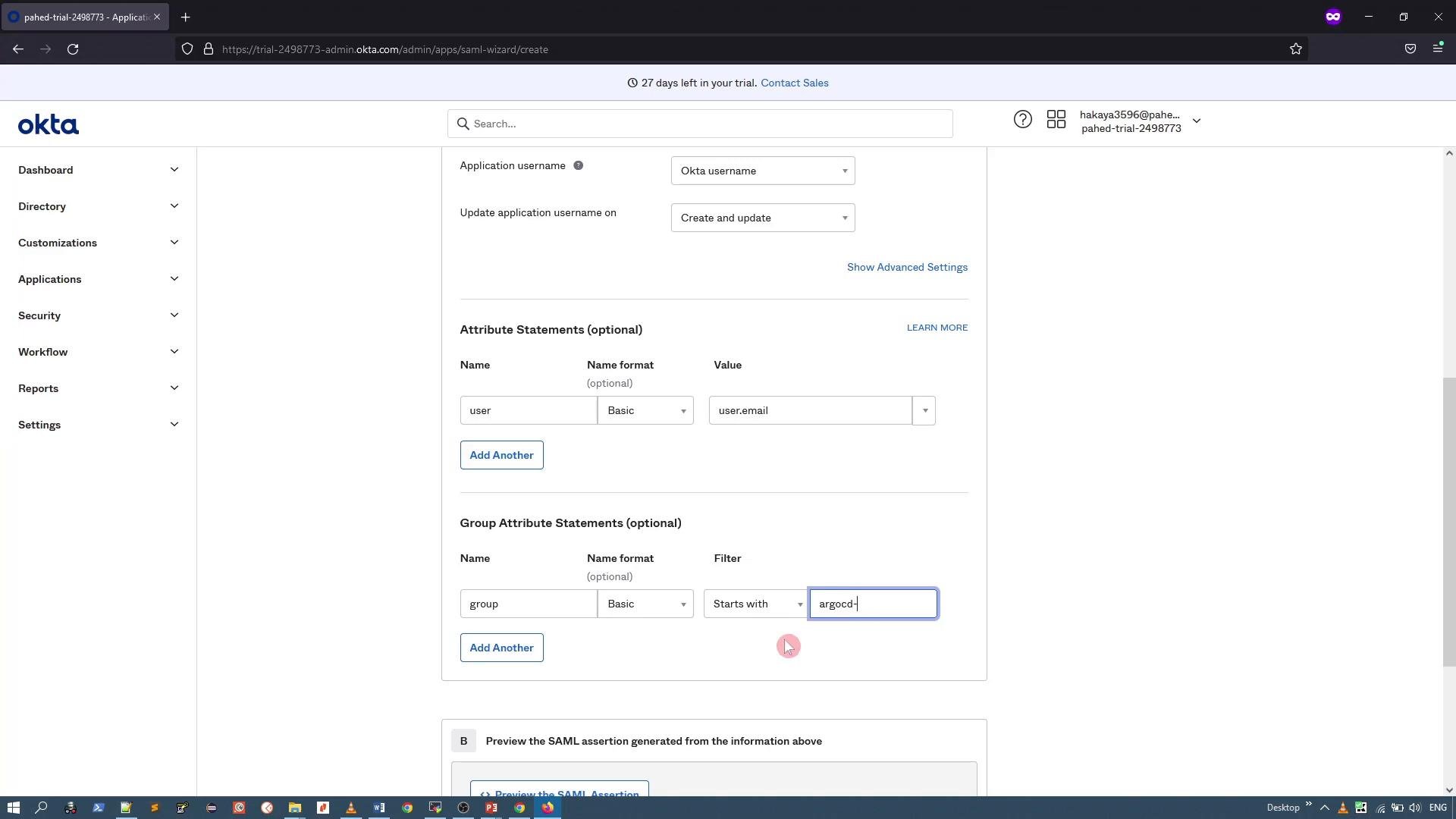
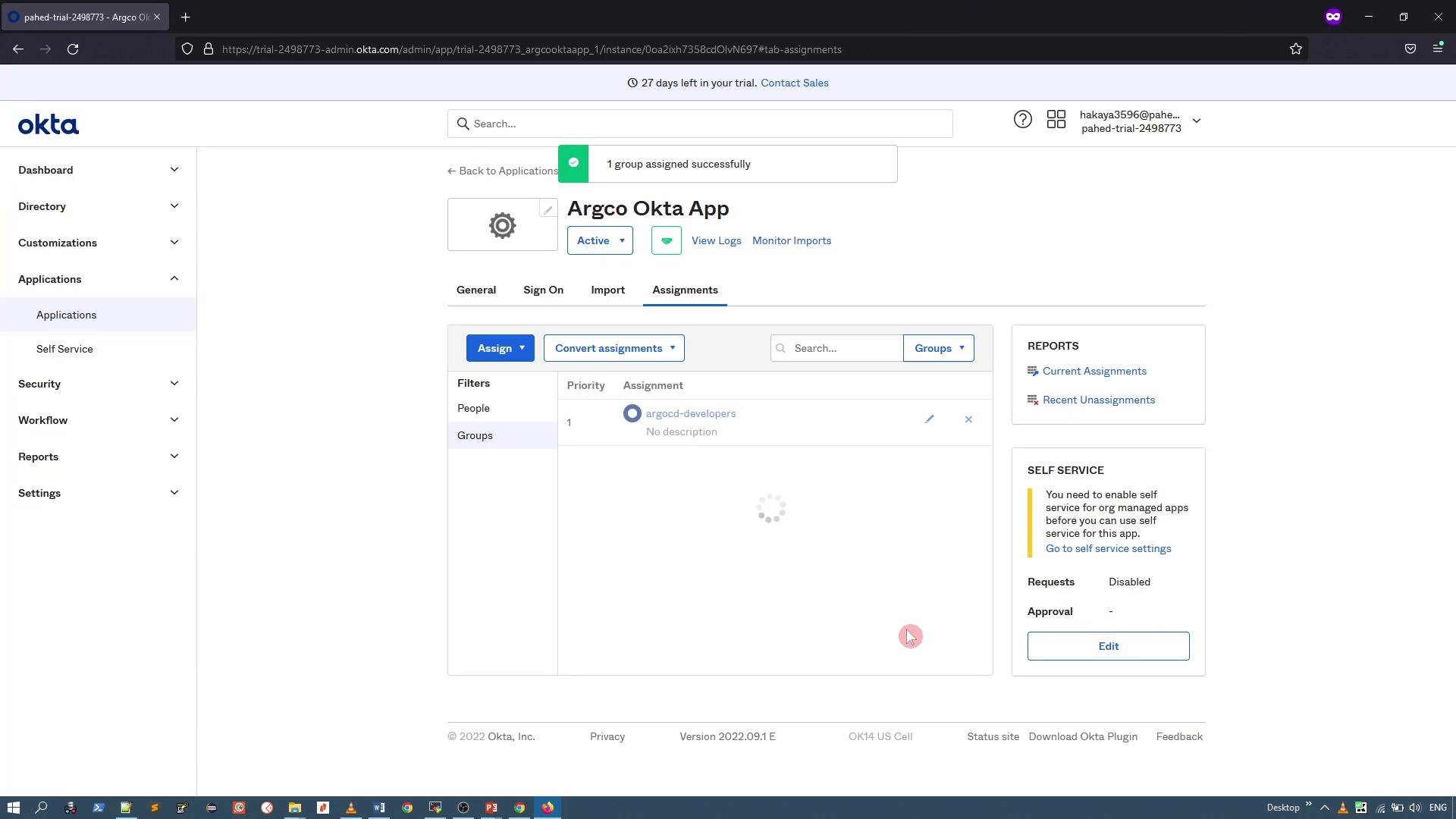
- Assign the SAML application to the
argocd-developersgroup (or specific users) so they can authenticate via this app.
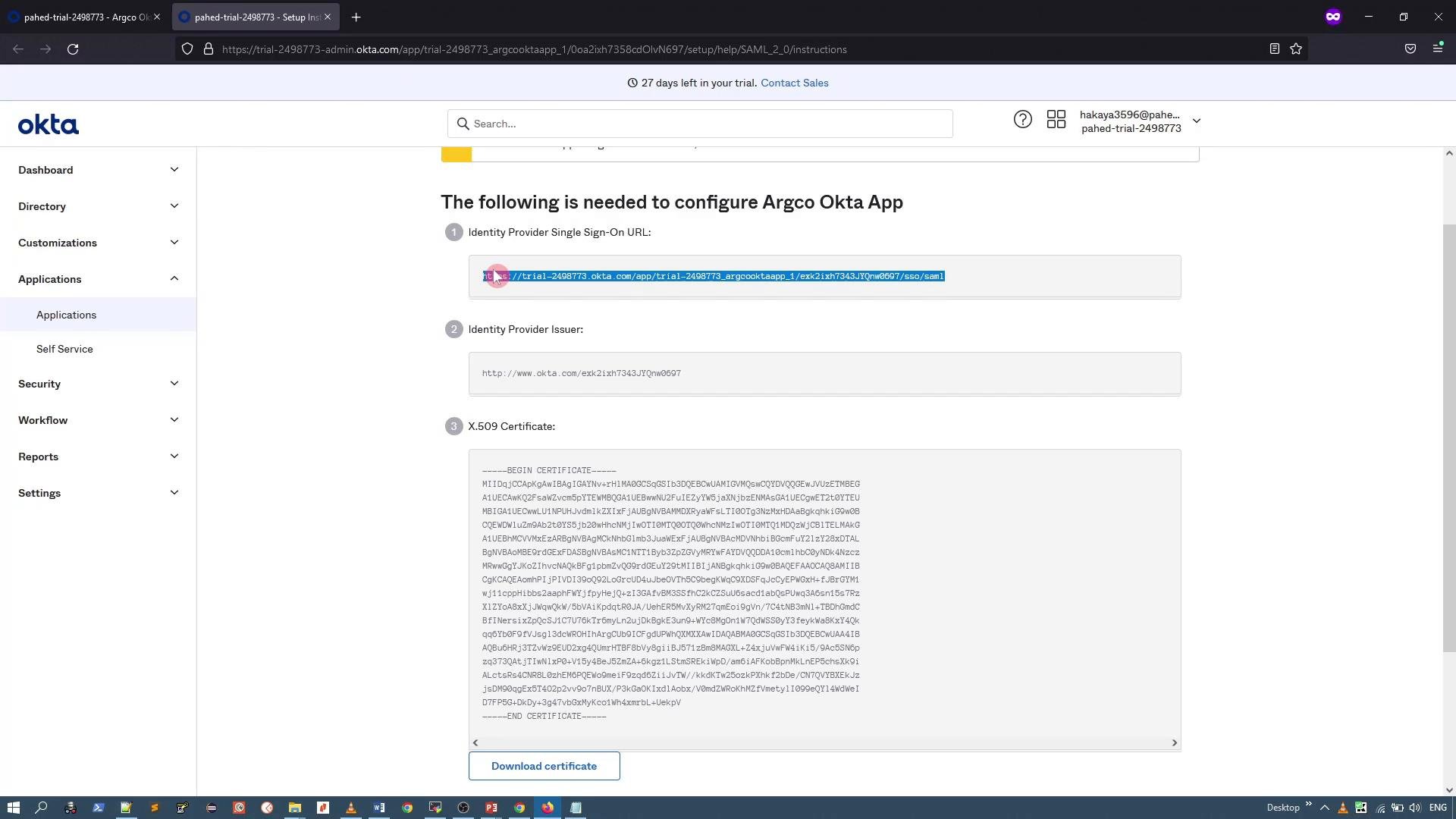
- In the app’s Sign On tab choose “View SAML setup instructions.” Copy the Identity Provider Single Sign-On URL and download (or copy) the X.509 certificate. You will use these values in the Dex connector configuration in Argo CD.
argocd-cm)
You must add two keys under data: in argocd-cm:
url:— the Argo CD server URL as visible to browser users (include scheme, e.g.,https://ui.argocd.example.com).dex.config:— the Dex YAML configuration containing a SAML connector for Okta.
data: in the existing argocd-cm:
caData vs ca:
- Use
caDatato paste the PEM certificate directly into the Dex config (recommended for simplicity). - Alternatively, mount a certificate file into the Dex container and set
cato the file path inside the container. - Use either
caDataorca, not both.
When pasting the certificate into
caData, keep it as PEM (including the -----BEGIN CERTIFICATE----- and -----END CERTIFICATE----- lines). Avoid convenience tools that may modify the content — paste the raw PEM block.caData:
caData: YAML literal block above.
Apply / edit the ConfigMap in-cluster:
dex.config: | literal block and validate YAML before saving.
Reload/apply behavior
- Argo CD watches its ConfigMap and will reconfigure Dex when
argocd-cmchanges. If the new login option doesn’t appear, restart the Argo CD server:
- After updating
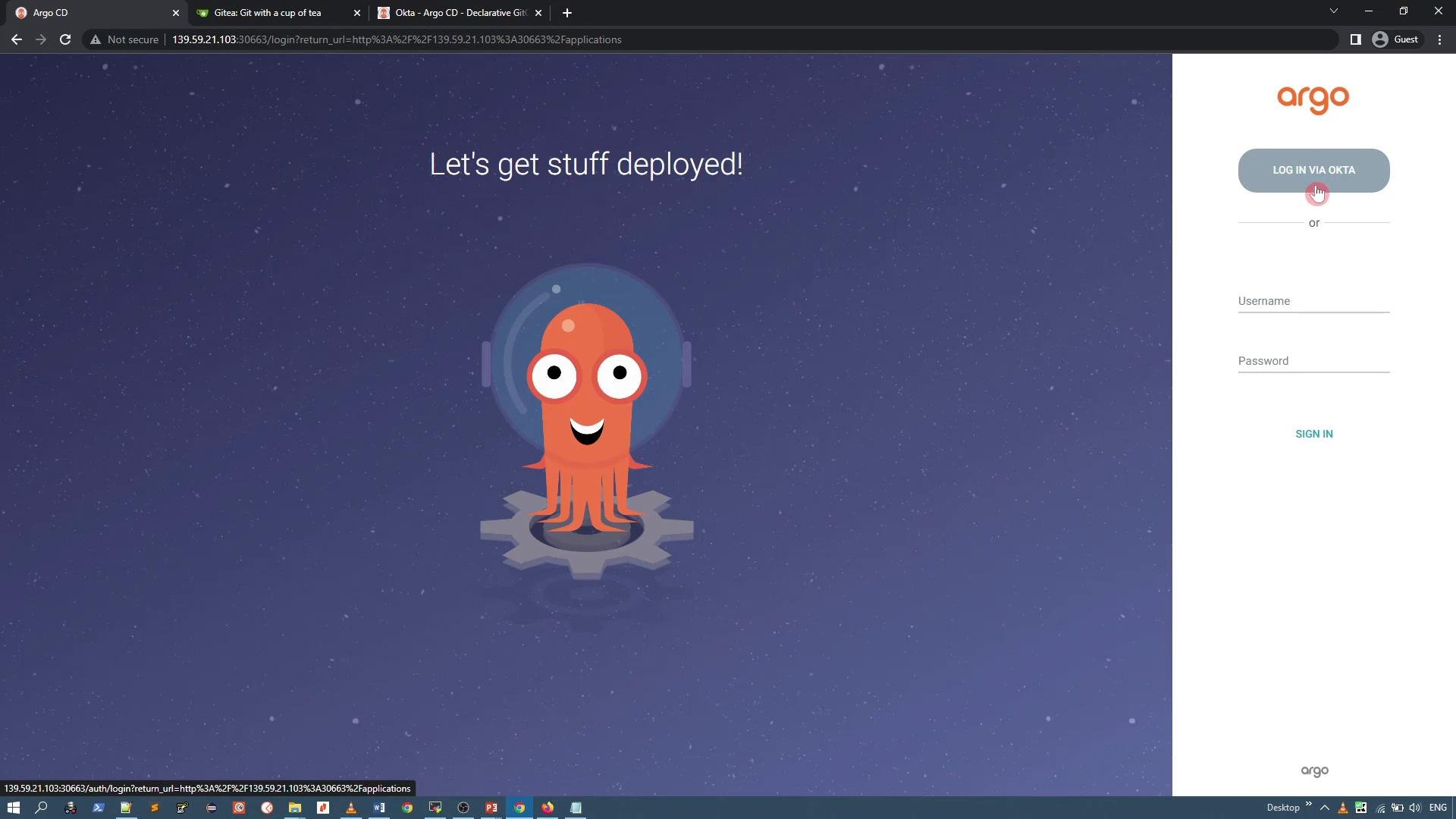
argocd-cmand reloading Dex, the Argo CD login screen will show a SSO button such as “Login with Okta.” Clicking it redirects users to Okta for authentication.
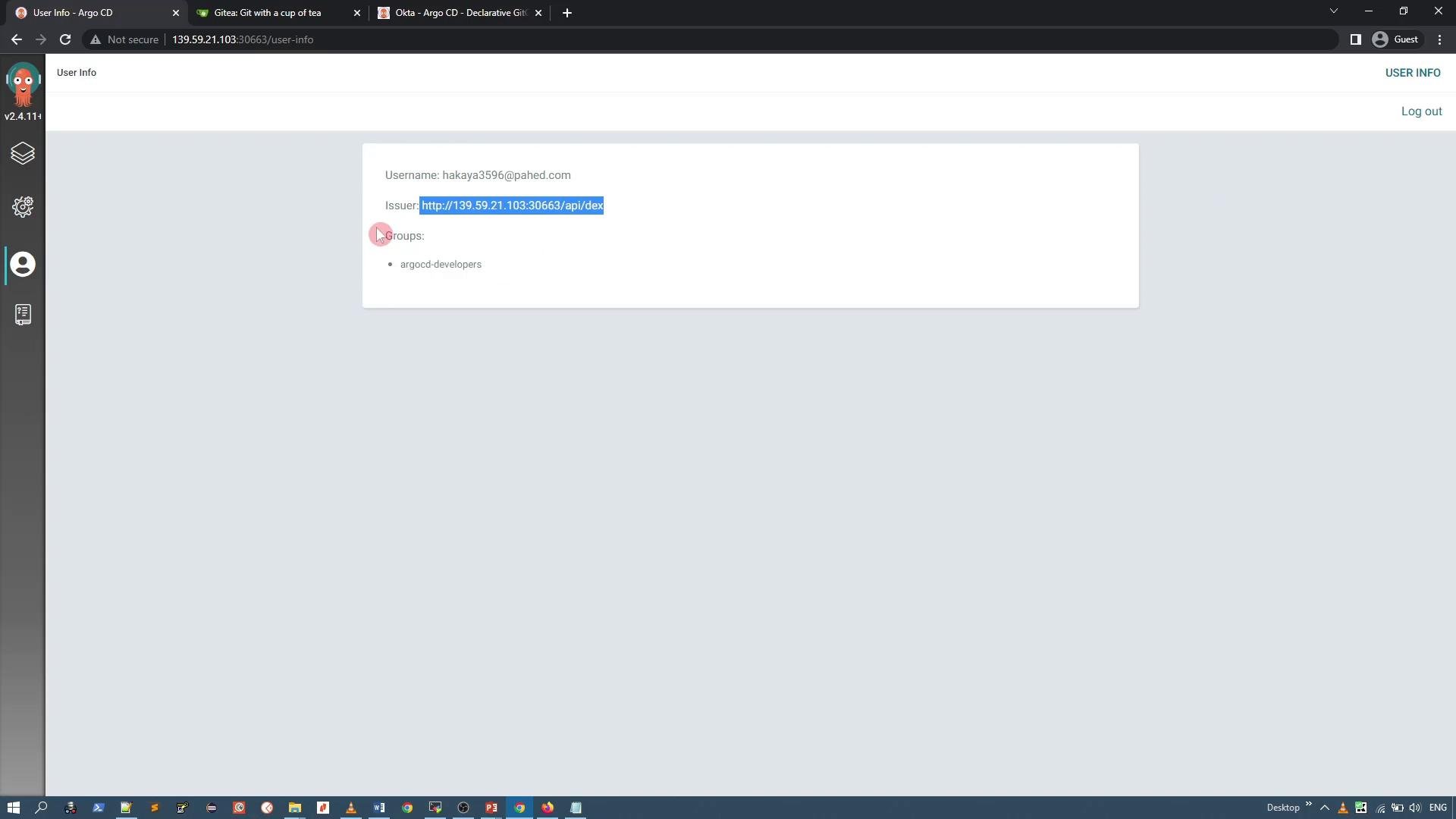
/api/dex) instead of the local “argocd” issuer.
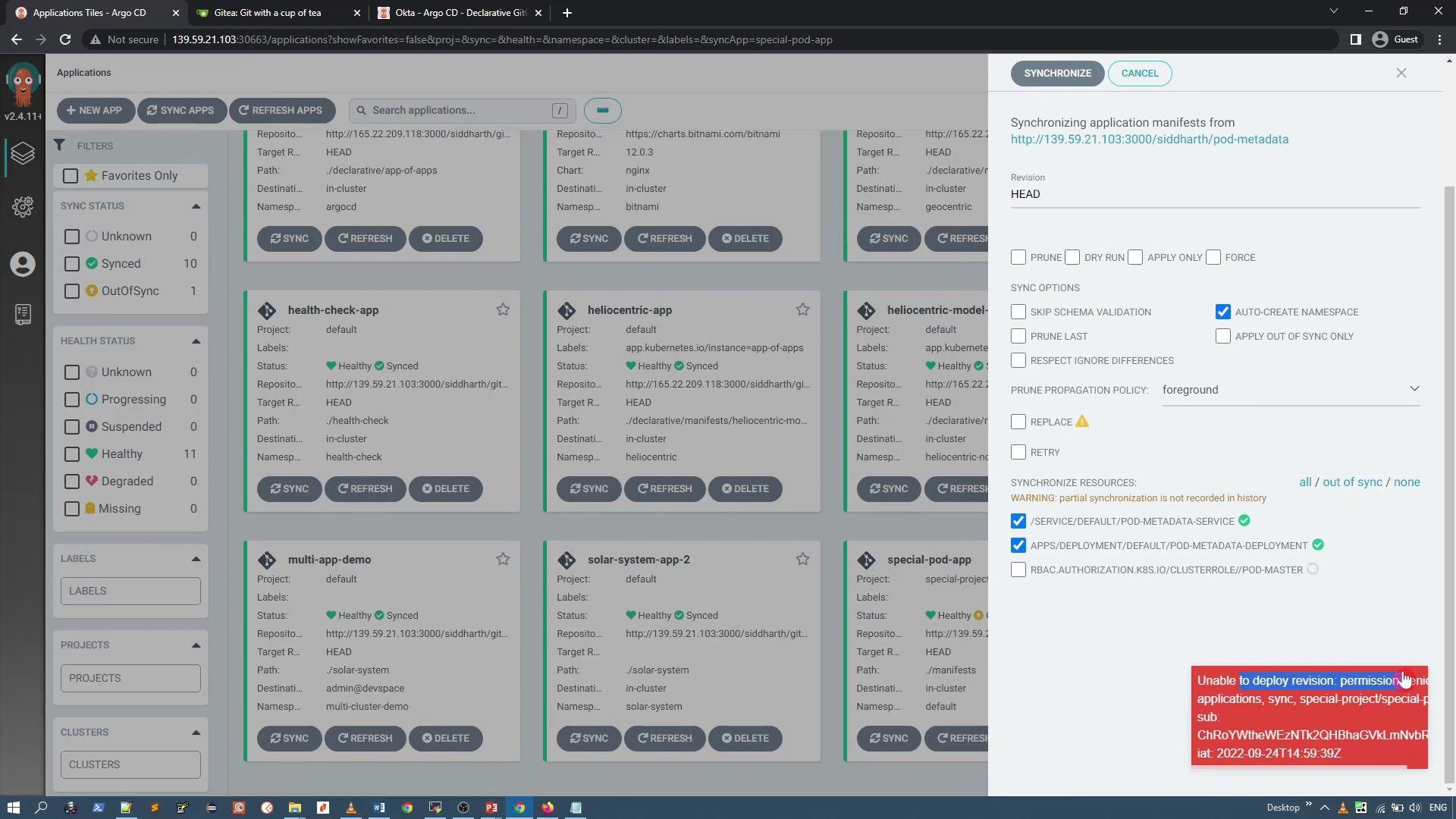
- Many Argo CD installs include
policy.default: role:readonlyinargocd-rbac-cm. New users who authenticate via SAML without explicit RBAC mapping will often be able to log in but lack permission to perform write/sync actions.
argocd-rbac-cm)
Edit the RBAC ConfigMap and add policy.csv entries that map Okta group names (as received in SAML attributes) to Argo CD roles.
Example argocd-rbac-cm excerpt:
g, <group-name>, <role>associates the external Okta group with an Argo CD role.- The group name must exactly match the value sent by Okta (case-sensitive).
- Verify
url:inargocd-cmmatches the exact URL users use to access Argo CD (includehttps://if applicable). - Ensure the Okta SAML application is assigned to the correct users/groups.
- Confirm attribute names in the Okta SAML app match the
usernameAttr,emailAttr, andgroupsAttrvalues index.config. - Check
argocd-serverlogs for Dex errors if authentication fails:
- If the login button does not appear after edits to
argocd-cm, restart the server:
When editing
dex.config or pasting certificates, ensure YAML indentation and line breaks are exact. A malformed YAML block will cause Dex startup/configuration errors — validate YAML or check server logs immediately after applying changes.- Create the Okta app and groups, capture SSO URL and IdP certificate, configure Dex in
argocd-cm, and map Okta group(s) to Argo CD roles inargocd-rbac-cm. - After configuration, Okta users can sign in to Argo CD via SSO and receive permissions mapped from Okta groups.