

What ADK expects: the three files
agent.py — the heart of your agent
ADK expects a variable namedroot_agent in agent.py. The loader imports your package and looks specifically for that exact variable name. Do not rename it.
Minimal example:
Always keep the variable named
root_agent. If you rename it, ADK will not find your agent.init.py — make the folder importable
__init__.py contains a single import so ADK can import the package by folder name. You will rarely need to edit this file.
.env — store your API key locally
Put yourGOOGLE_API_KEY in the .env file so you don’t have to re-export it every time:
Never commit
.env to version control. It contains your API key and must remain secret..env, pass it inline:
Running the agent locally
Start an interactive chat session with:Inspecting what the agent does: ADK Web
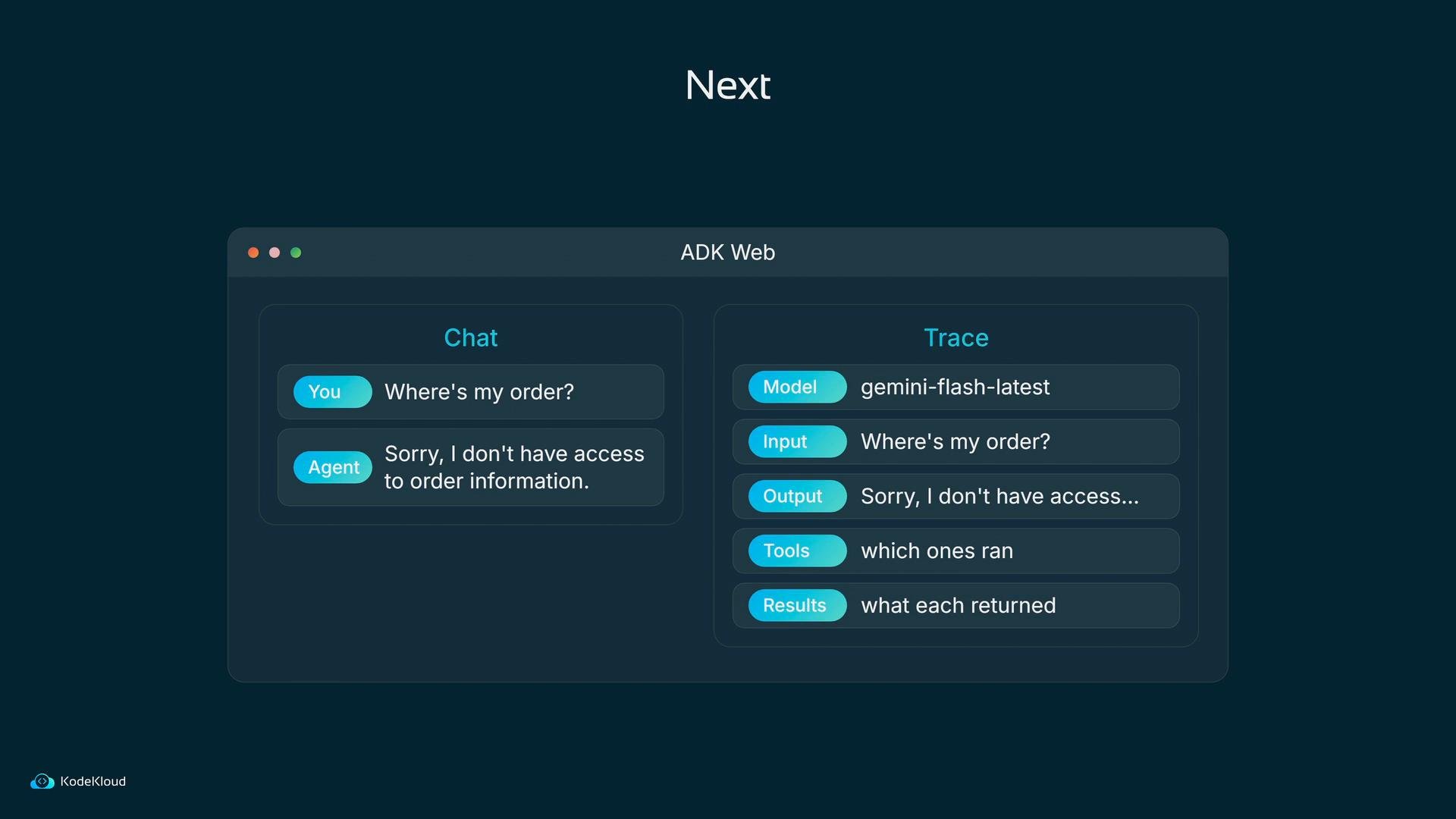
When you want visibility into the agent’s internal behavior (useful for debugging why it suggested a refund, which model was called, or which tools ran), run:- Chat: interact with the agent like the terminal session.
- Trace: a detailed execution trace showing which model was invoked, inputs and outputs, and — once you add tools — which tools ran and their results.
Next steps
Now that you can create, run, and inspect a minimal agent, the next step is to expandagent.py field-by-field: add domain context, integrate tools or data sources, and configure the model behavior so the agent can act on real information.