Defining your pipeline script in SCM allows you to maintain version control over your build configuration, making it easier to track changes over time.
Creating a Jenkinsfile
Instead of embedding the pipeline script in Jenkins, you can add it to your GitHub (or Git repository) to keep it version-controlled. In your repository, create a new file (typically named Jenkinsfile) at the root level and paste the pipeline script. Note that Jenkins automatically looks for a file named “Jenkinsfile” unless you specify a different script path. Below is an updated example of a Jenkinsfile saved in the repository. Notice that the Maven tool is now referenced as “M3”:Pipeline Script from SCM Configuration
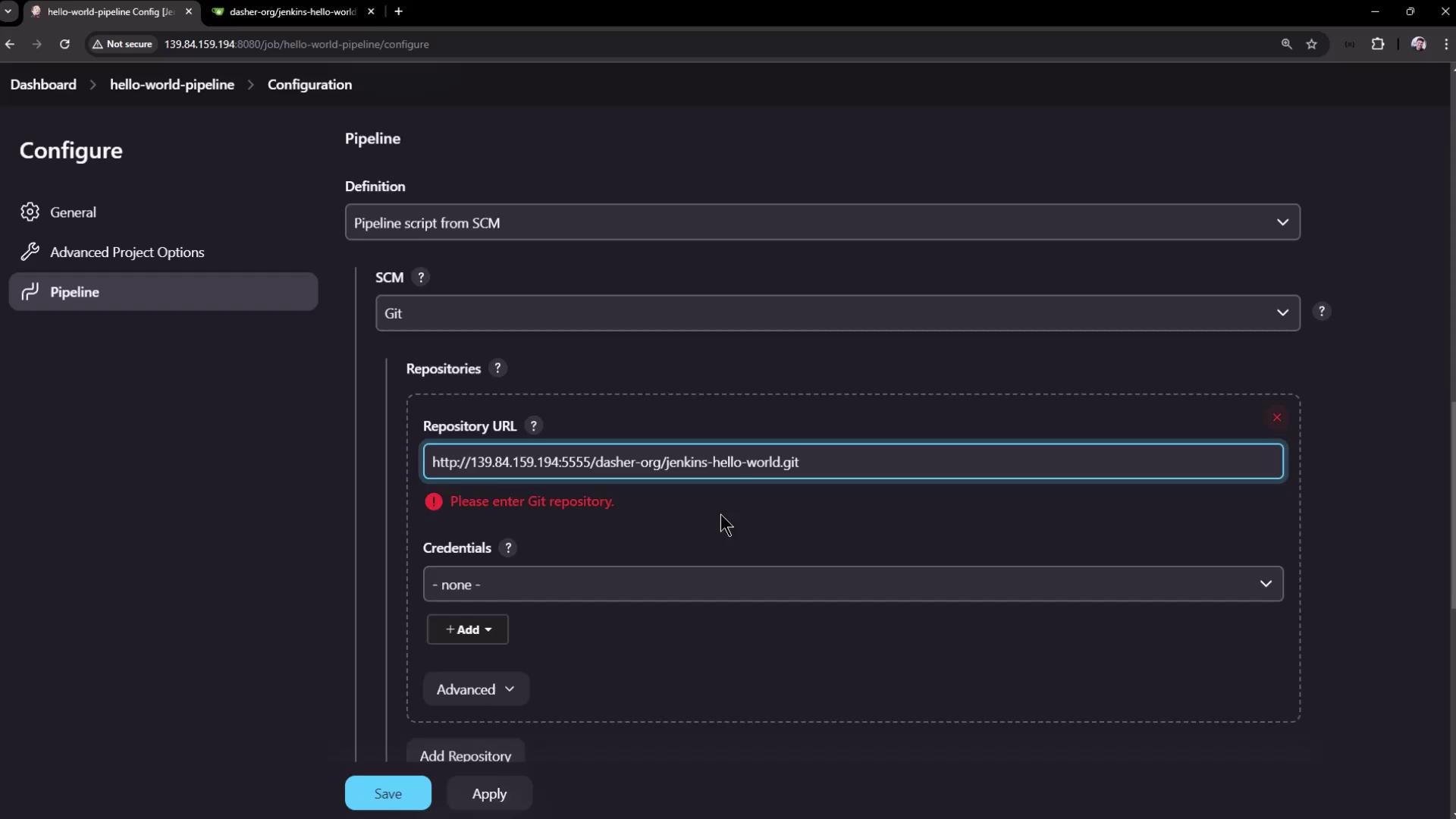
When you configure your Jenkins pipeline job with the Pipeline Script from SCM option, Jenkins automatically checks out your repository. This means you can remove or comment out explicit Git commands in your pipeline. For example, the modified Jenkinsfile using SCM looks like this:- Select the SCM Option: Choose “Pipeline Script from SCM” as the definition.
- Choose Your SCM: Select Git as the SCM provider.
- Provide Details: Enter the repository URL, specify the branch (e.g., ‘main’), and if needed, set the script path if your Jenkinsfile resides in a subdirectory.
If you receive an error message indicating that the repository URL is not valid, double-check that the URL is correct and that no credentials are needed for a public repository.
Understanding the Build Process
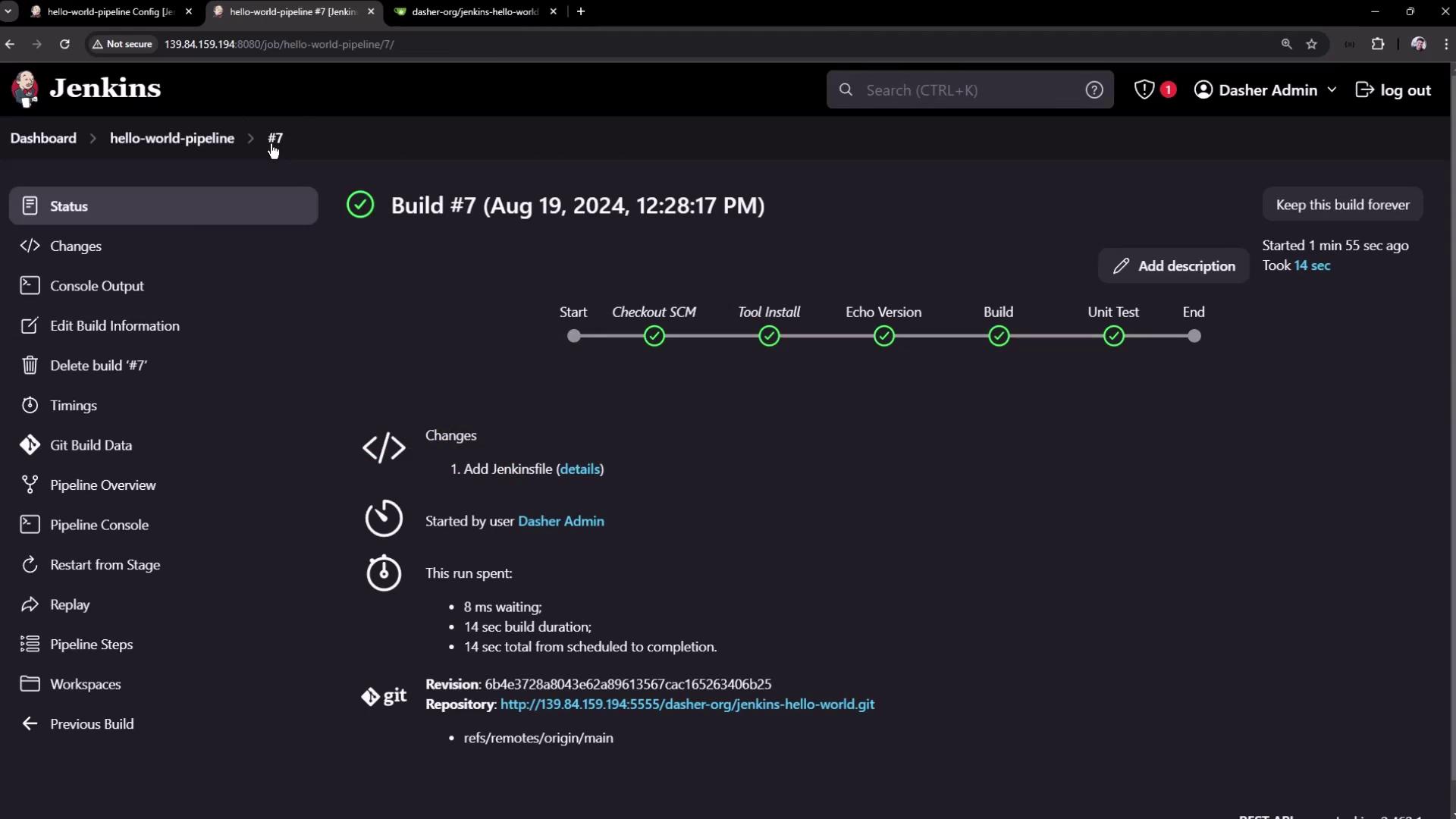
After the configuration is complete, Jenkins checks out your repository and executes the defined stages. The build log will include details like fetching the repository, commit messages, and more. An excerpt from a typical build log might look like this:Exploring the Jenkins Workspace
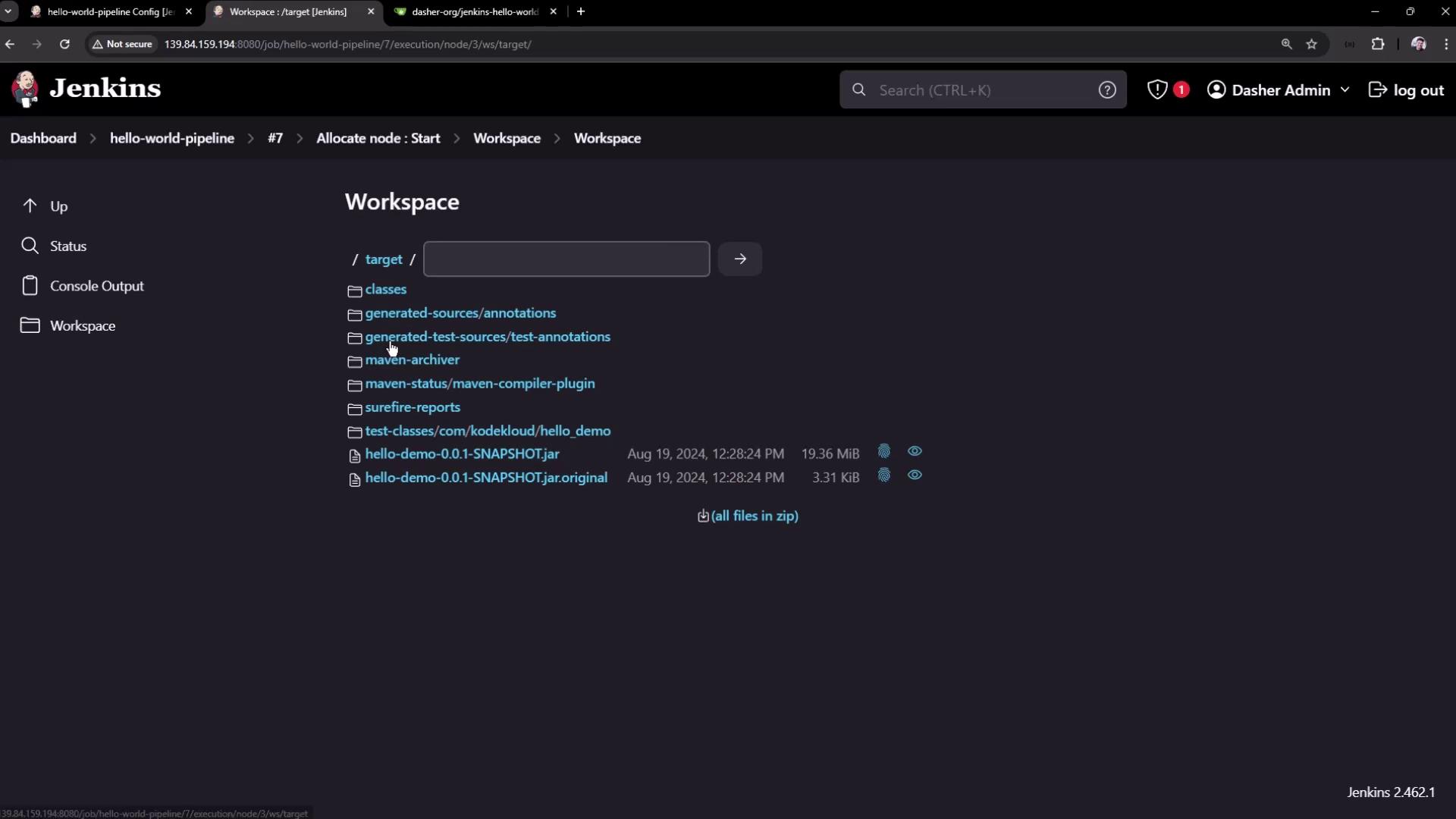
After a successful build, you can review the workspace files via the Jenkins UI. The workspace includes both the repository files and the build outputs (such as the generated Maven target folder, test reports, and packaged application files). For example, here is an interface displaying the workspace files for the project: