

Logging in as the Admin User
Start by logging in as the admin user (Barahalikar Siddharth). In this setup, the username and password are identical. Once logged in, navigate to Manage Jenkins and then to Security. By default, Jenkins grants all actions to any logged-in user; this guide explains how to change that behavior for tighter security.Installing the Matrix Authorization Strategy Plugin
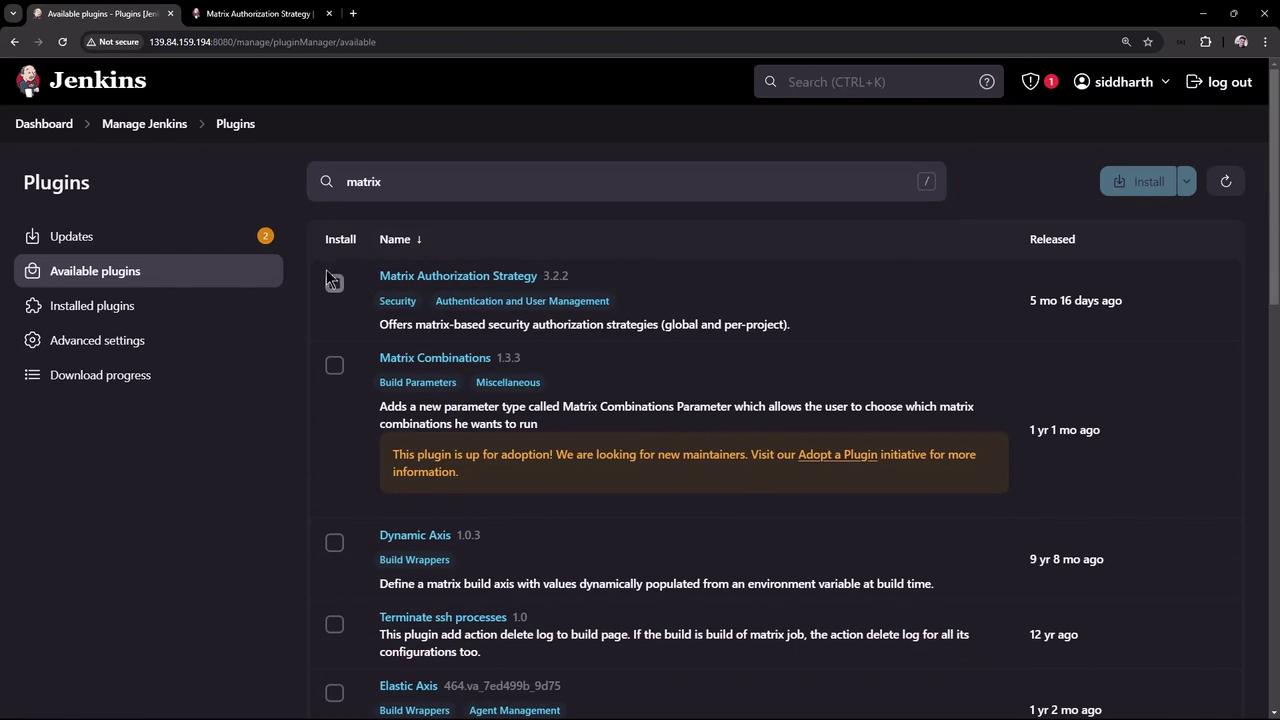
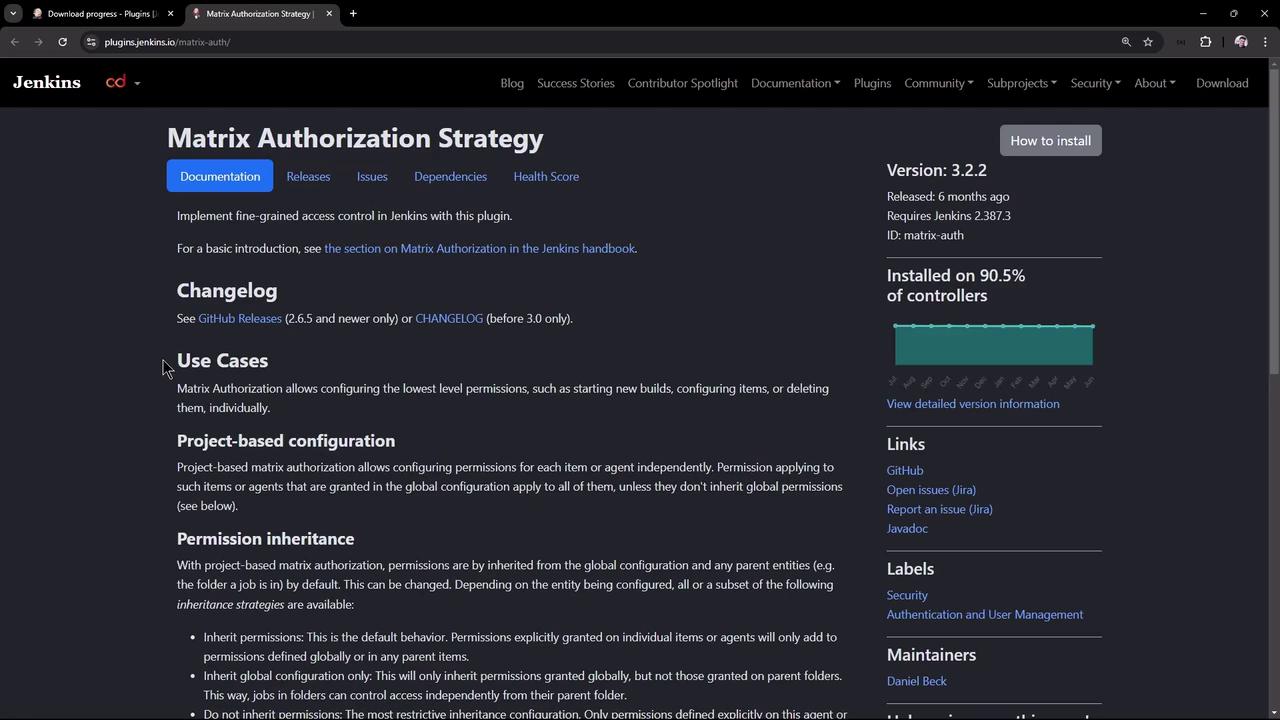
To enable more granular control, install the “Matrix Authorization Strategy” plugin:- Go to the plugin management section.
- Search for “Matrix Authorization Strategy.”
- Click Install to proceed with the installation.
Configuring Authorization Settings
After installing the plugin, return to the Jenkins security section. You will notice two new options:- Matrix-based security (global)
- Project-based Matrix Authorization Strategy
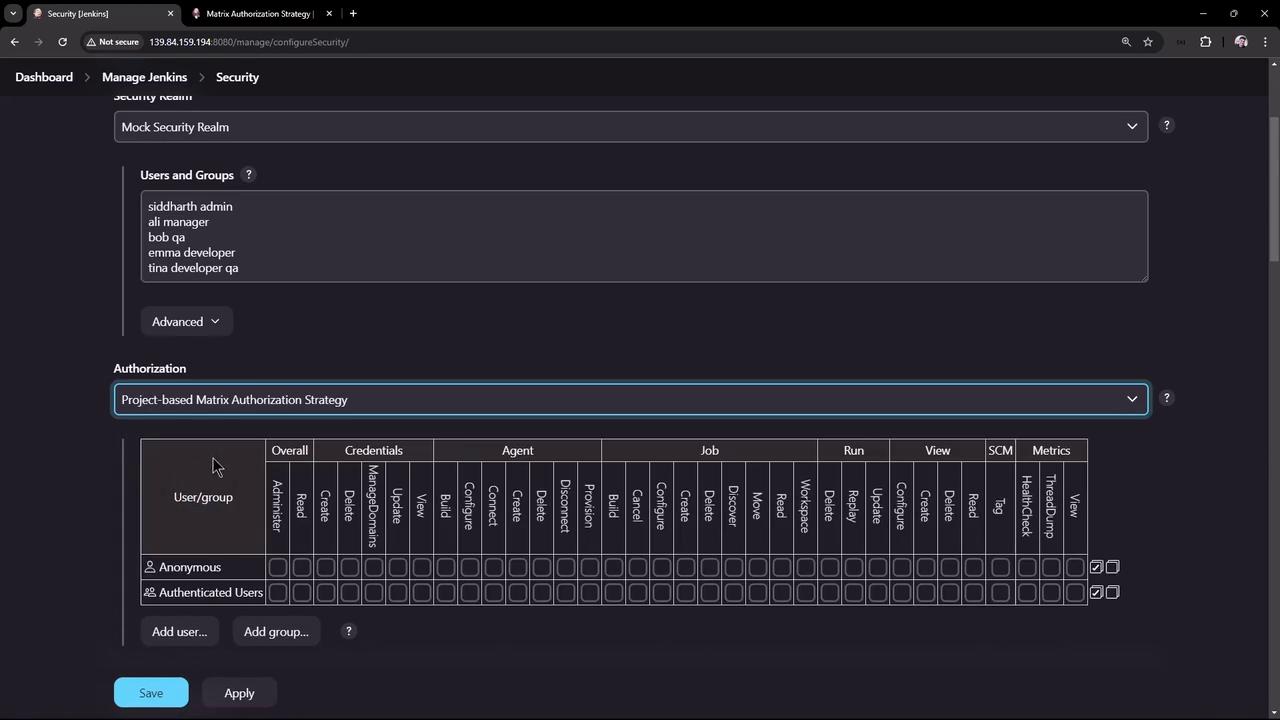
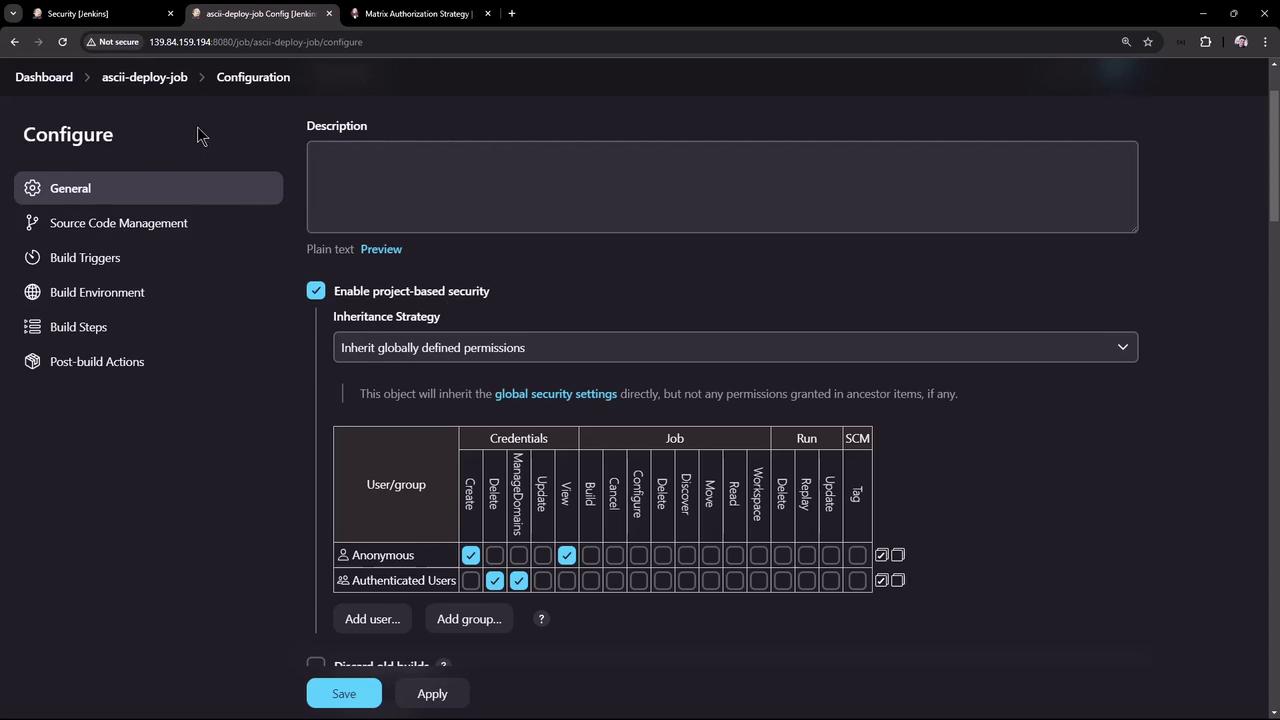
It is recommended not to grant any permissions to anonymous users. Even for authenticated users, consider limiting initial permissions to read-only until further access adjustments are made.
Defining User Groups and Permissions
Define user groups and assign permissions according to your project needs. Below is a summary table of recommended configurations:Admin Group
Create the admin group and assign all administrative permissions. Hover over any permission in the matrix to see a brief description that clarifies its purpose.Manager Group
Add the manager group with overall read access. This group should also have permissions to read jobs, views, and metrics. Managers are restricted from performing build, delete, or configuration actions.QA Group
For the QA group, grant only the minimum necessary permissions. Users in this group typically need only to read and build jobs. Ensure that they are not allowed to create or delete jobs.Developer Group
Create a developer group with broad access to support pipeline and agent management. Grant them read access, credentials management (create, update, and view), and most job-related permissions except job deletion. Developers can also create and view new views and use SCM options.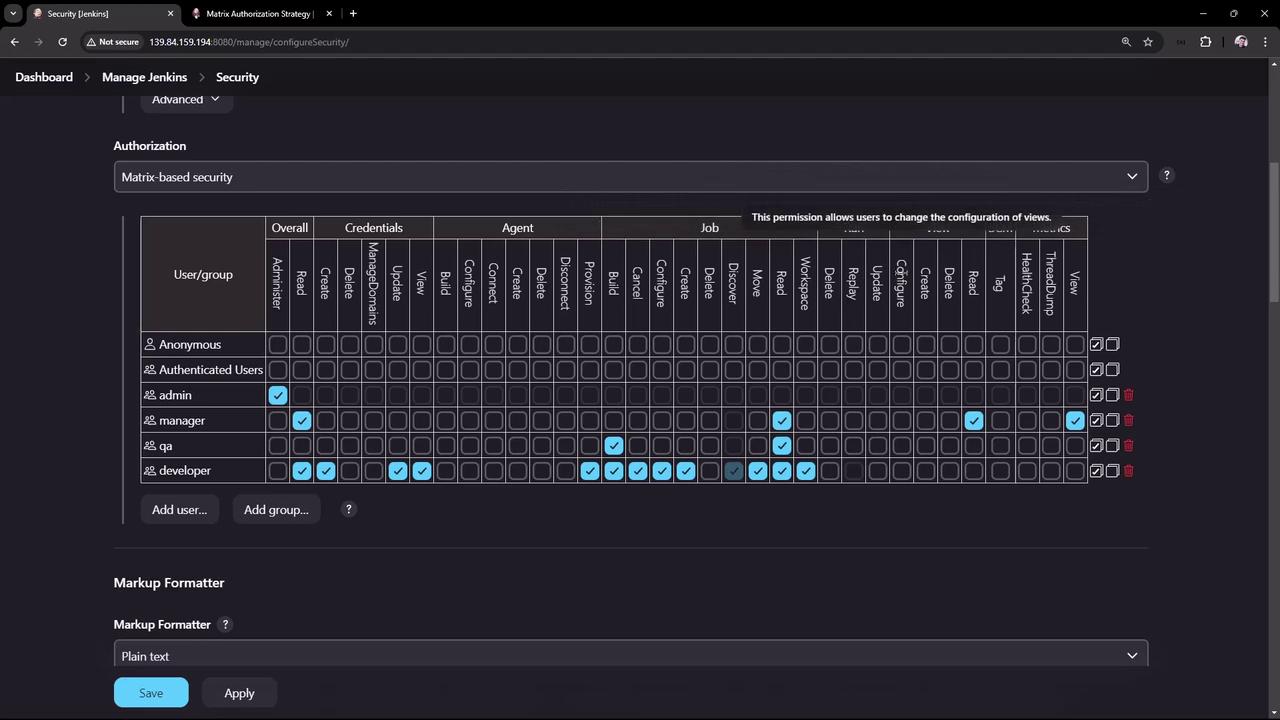
Verifying the Configuration with Different Users
Admin User Verification
Log in as the admin user to verify full access, including deletion privileges for any project. Keep the admin session open for testing.
Testing with Tina
Log out and log in as Tina, who belongs to both the QA and developer groups. Notice that the delete option is disabled because neither group is granted deletion permissions. However, as a developer, Tina can create, view, and update credentials from the dashboard.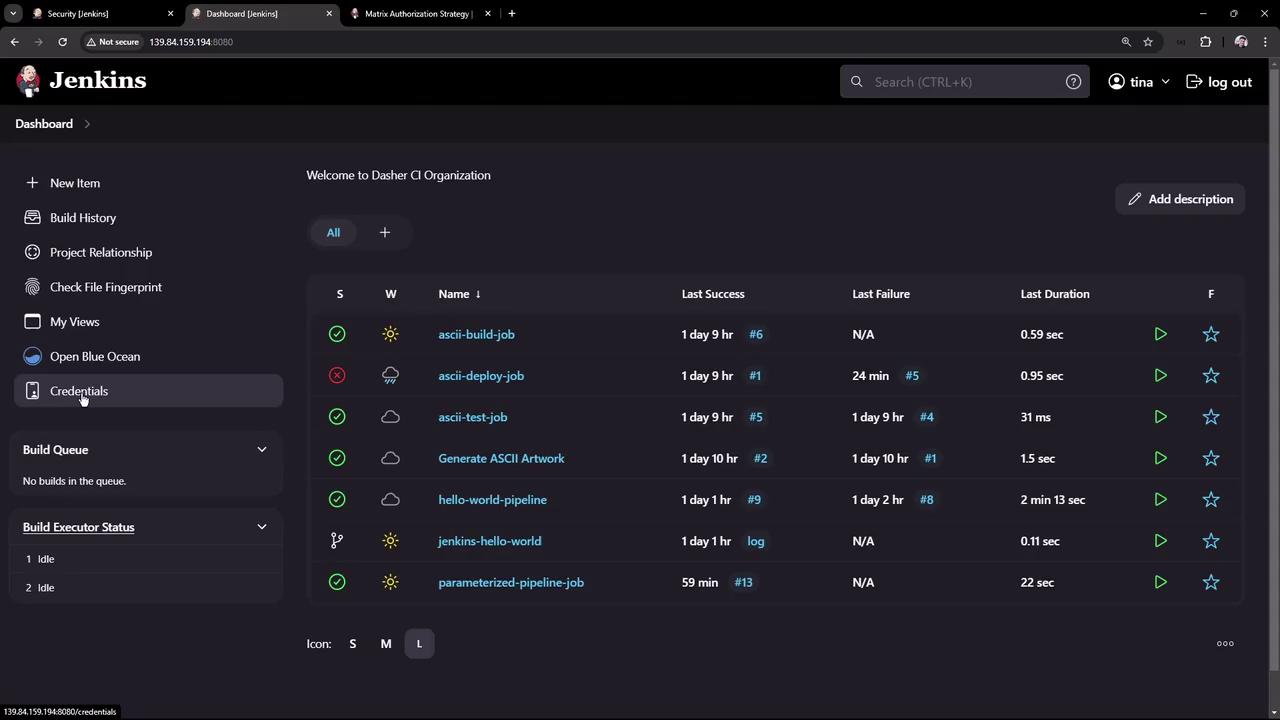
Testing with Bob
Next, test the settings with Bob, a user only in the QA group. Initially, Bob may encounter an “Access Denied” error due to the missing overall read permission. Update the QA group settings to include this access, then have Bob log out and log back in. Once updated, Bob can view jobs but cannot access credentials or delete jobs.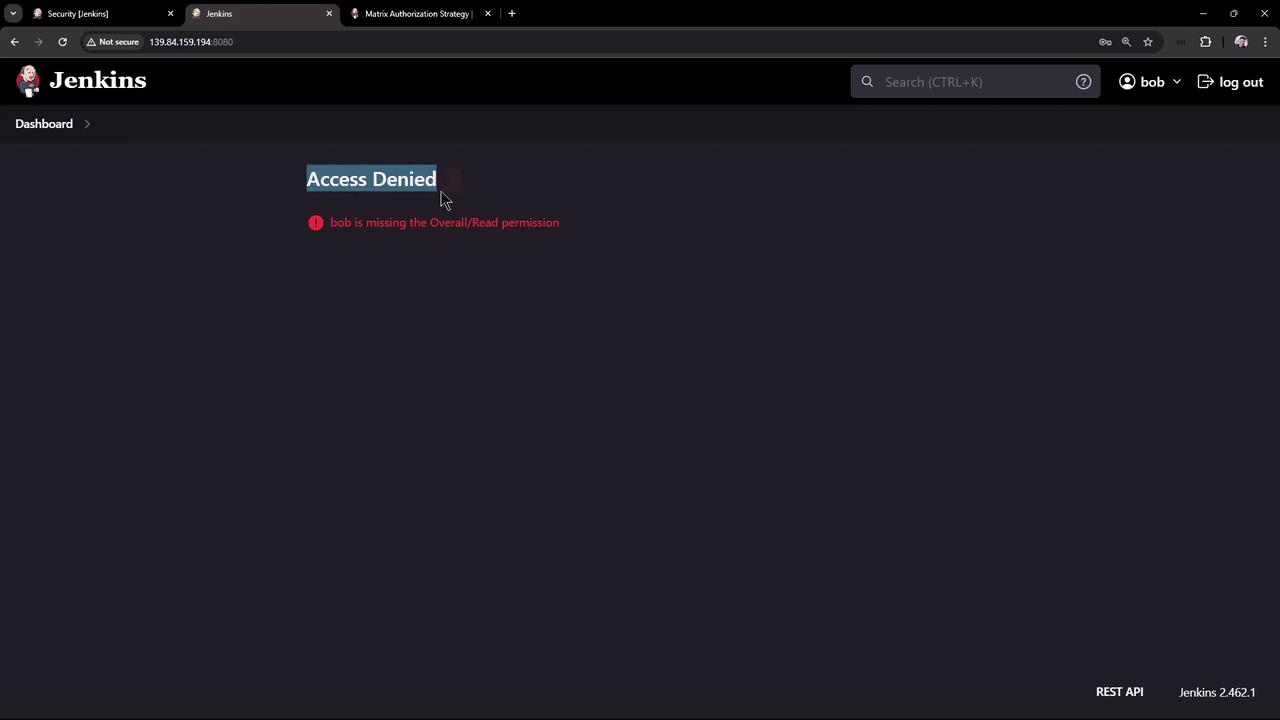
Testing with Ali
Finally, log in as Ali from the manager group. Confirm that Ali can view the dashboard and job information due to overall read and job read permissions. Managers, however, are restricted to viewing logs and metrics without the ability to build or configure jobs.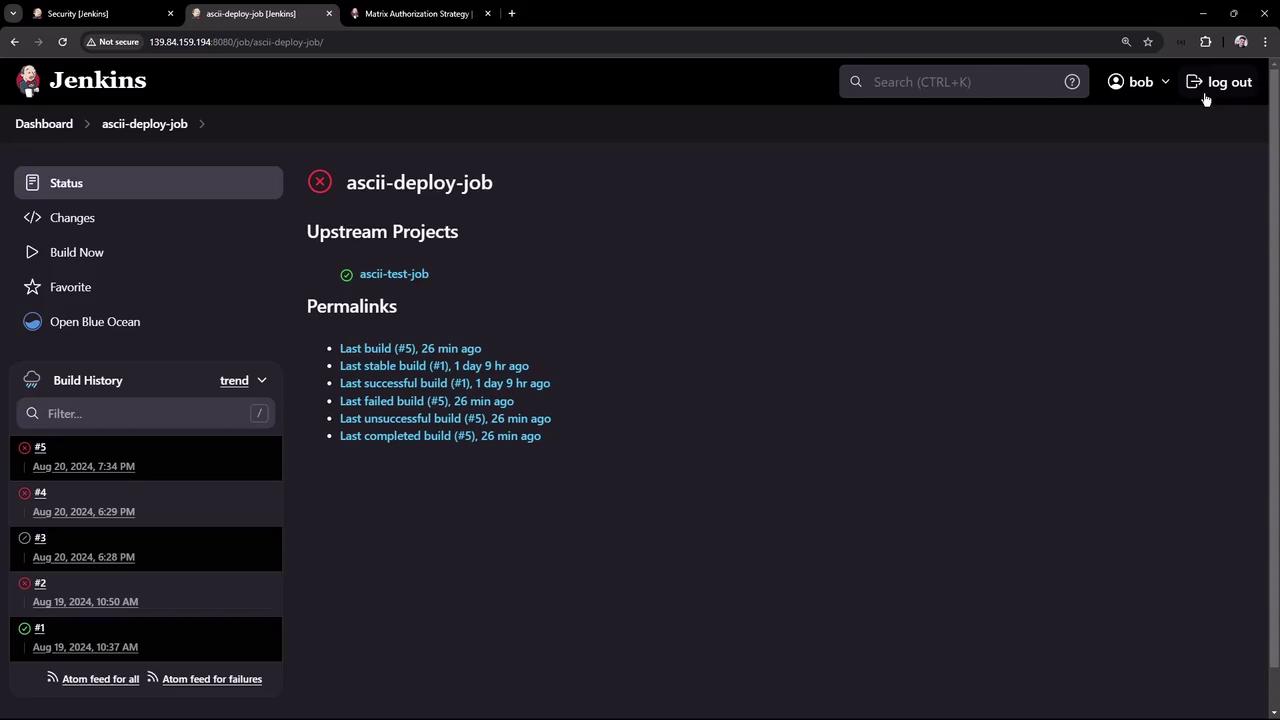
Always verify your configuration with multiple user accounts to ensure that permissions are correctly applied and that sensitive actions remain restricted.