Jenkins’ Built-In Authentication
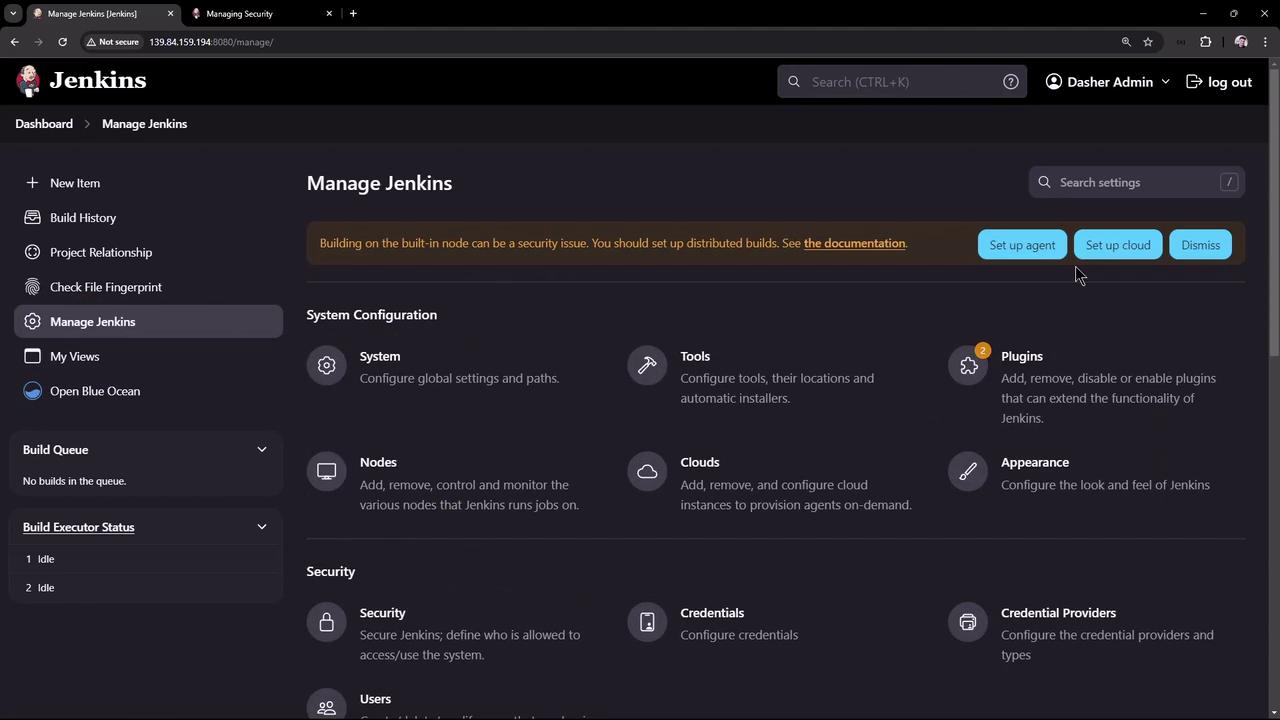
After the initial Jenkins setup, only a single admin account is created. Notice that when a team member tries to create an account via the Jenkins UI, there is no registration option by default. In many environments, you might want to integrate with your company’s LDAP server or Active Directory. However, we will first review Jenkins’ built-in user database authentication. To begin, navigate to Manage Jenkins and then click on Security. Here you will see that Jenkins uses its own user database for authentication rather than delegating to an external system. As described in the documentation: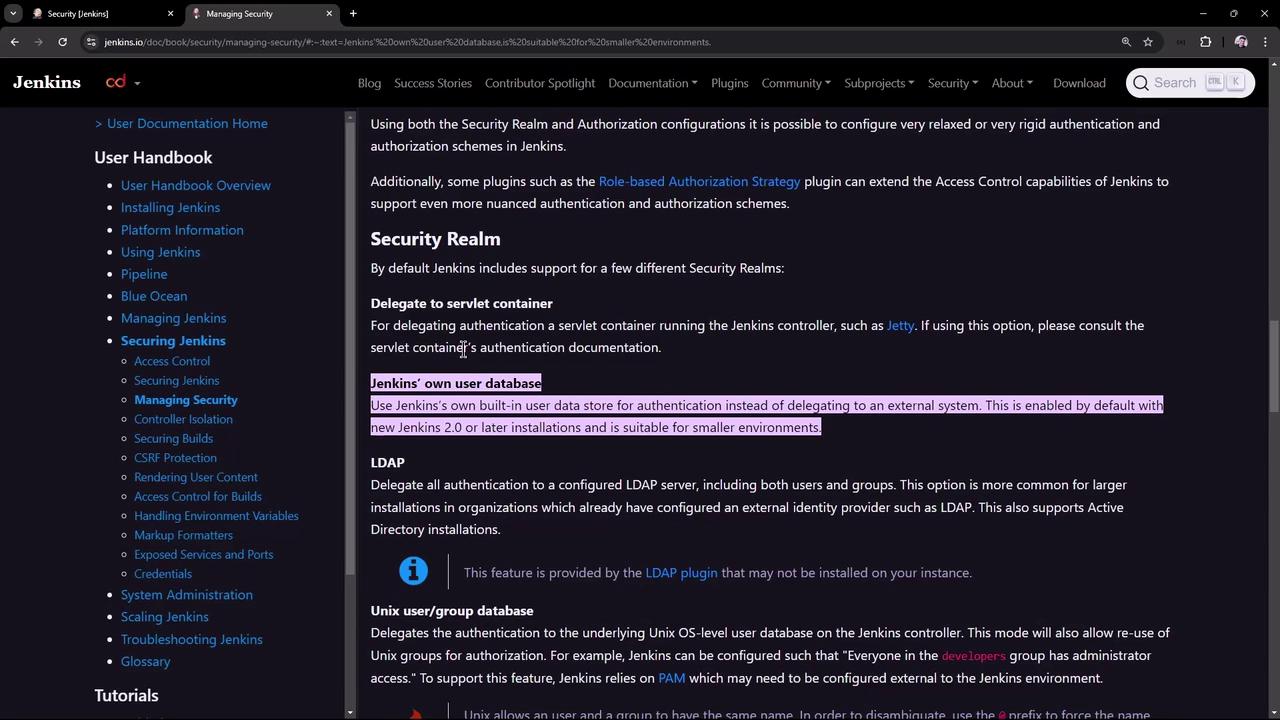
Managing Users and Registration
Return to the Security page. You will notice settings such as “Keep me signed in” on the login page. For this demonstration, disable the “Keep me signed in” option and enable user sign-up. Once these changes are applied and you log out, the login page will no longer display the “remember me” option, and a registration option will be available: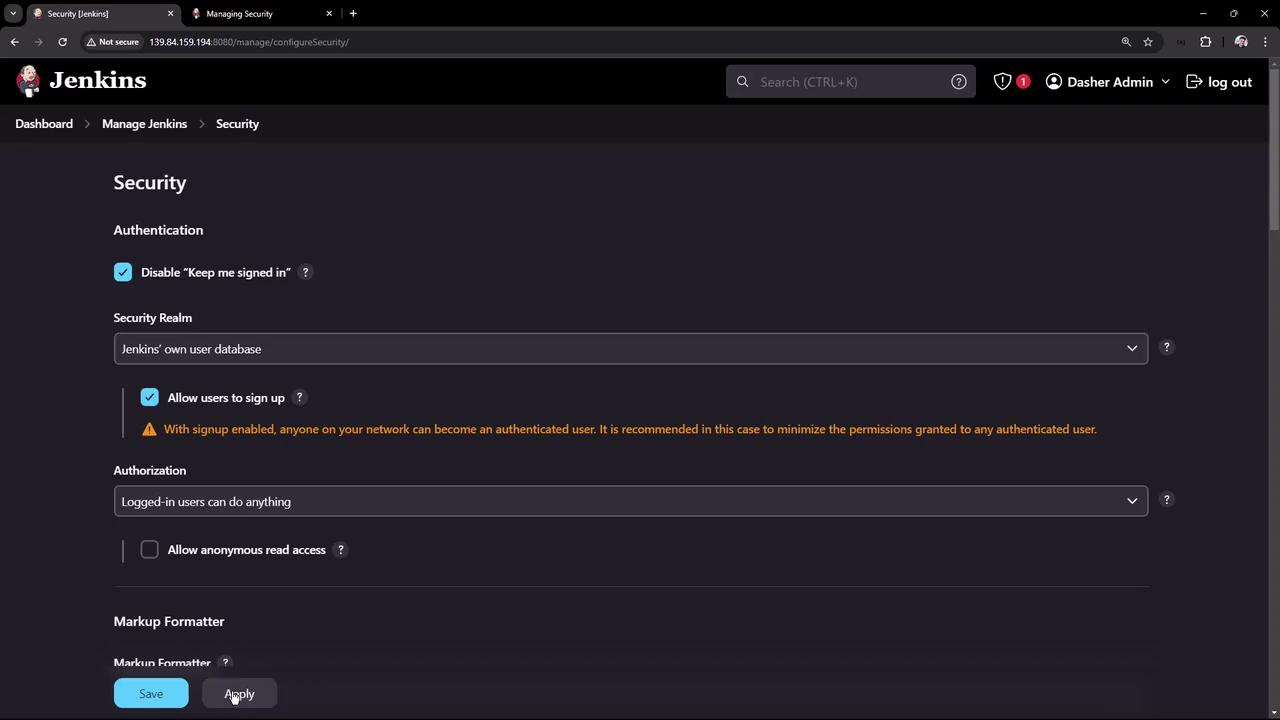
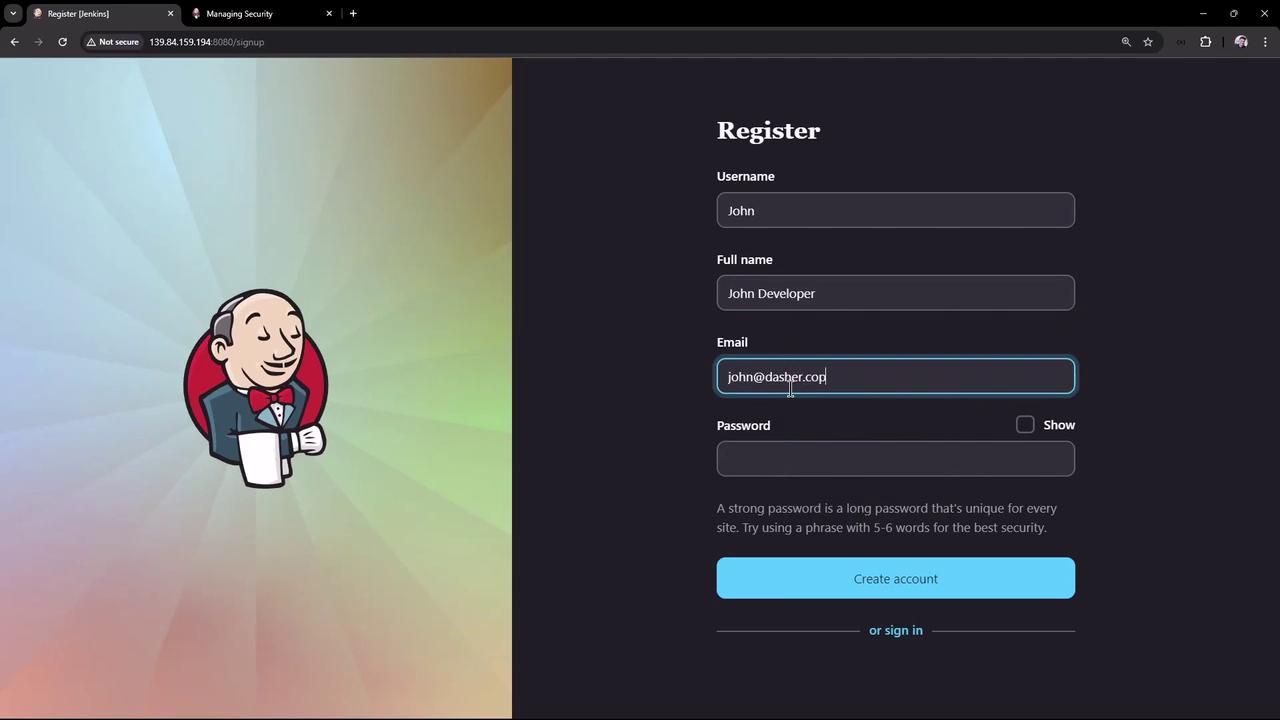
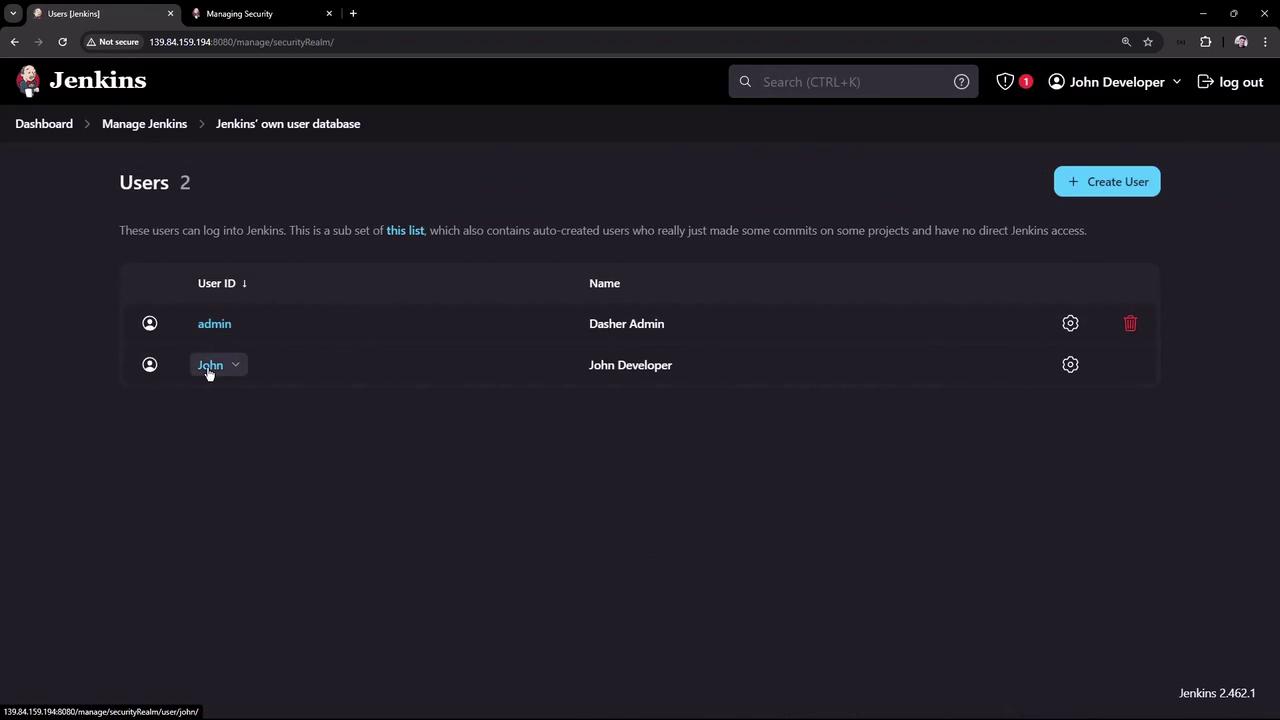
Exploring Authorization Options
Next, let’s shift our focus to authorization. By default, Jenkins is set so that logged-in users can perform any action. It is also possible to configure Jenkins to grant anonymous users full access. For demonstration purposes, change the authorization option to “Anyone can do anything” and save the configuration. Then, log out. Now, even when not logged in, you can view jobs on the Jenkins dashboard—although options for creating new items or managing Jenkins remain disabled. For example, when an anonymous user triggers a build, the dashboard displays that the build was initiated by an unknown user: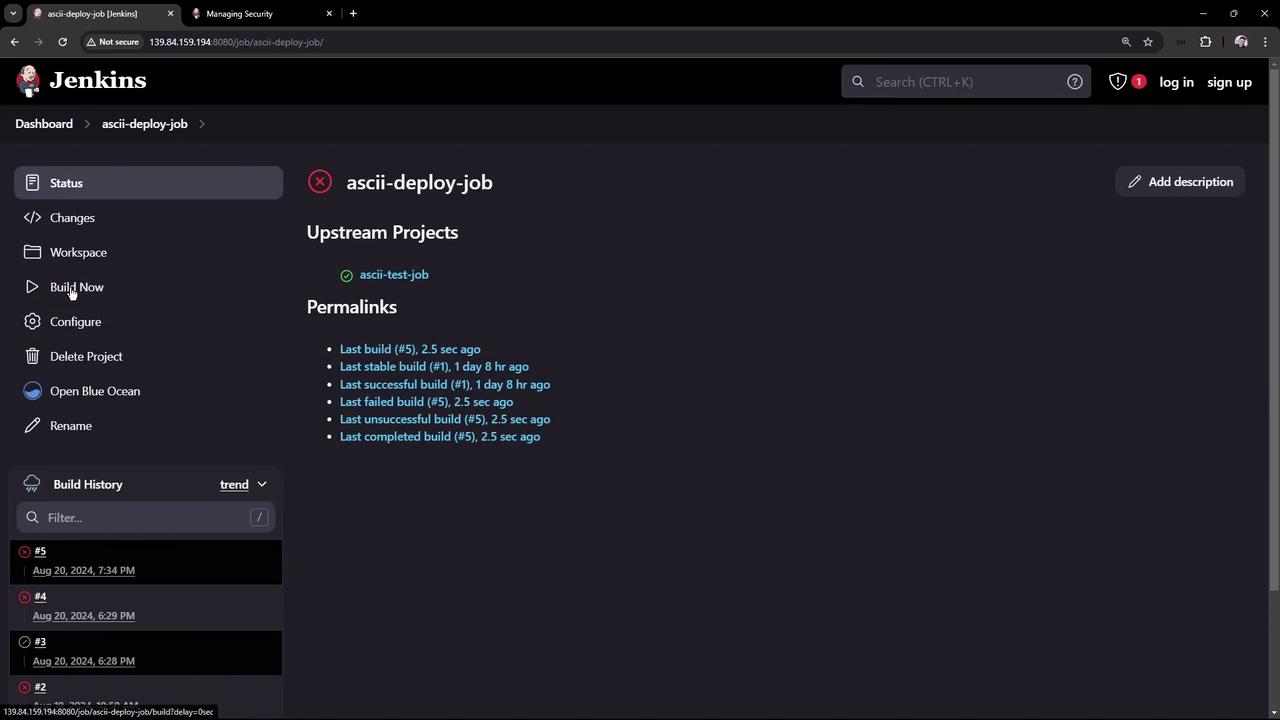
Allowing anonymous users full access poses a significant security risk. Log back in as admin and change the authorization settings to “Logged-in users can do anything” or consider enabling “Anonymous users read-only” to restrict actions.
Integrating External Security Realms
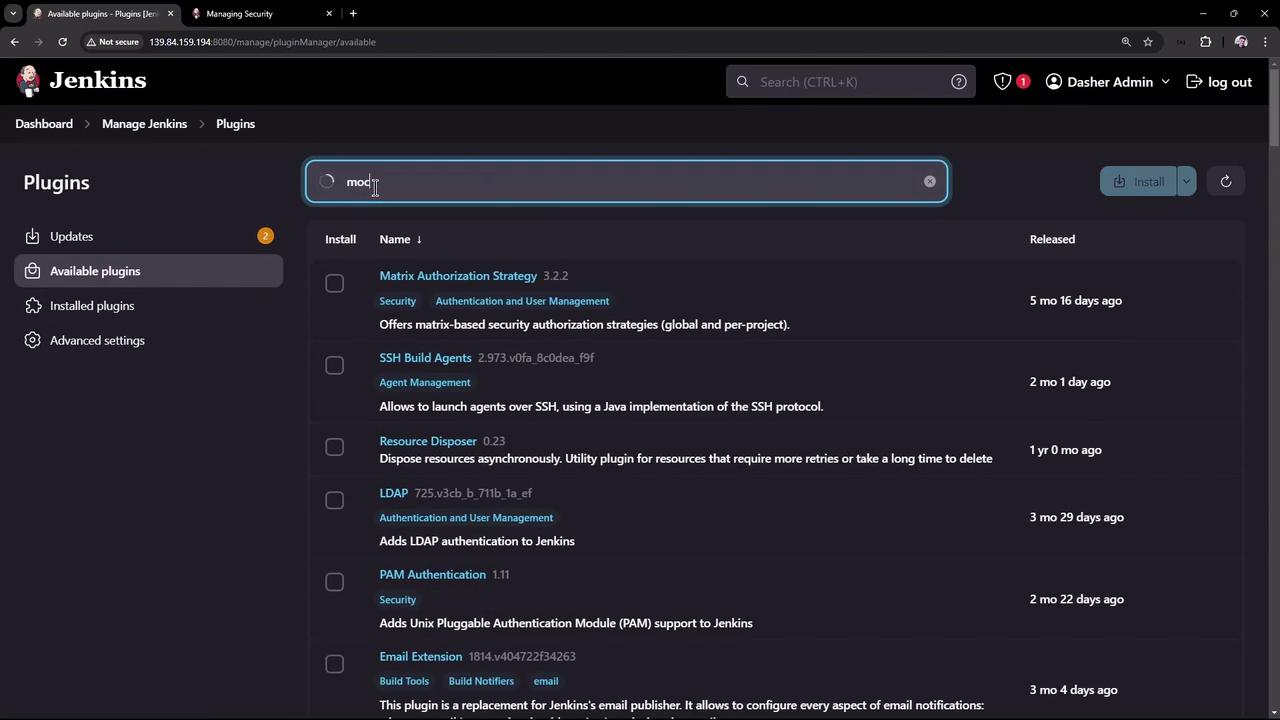
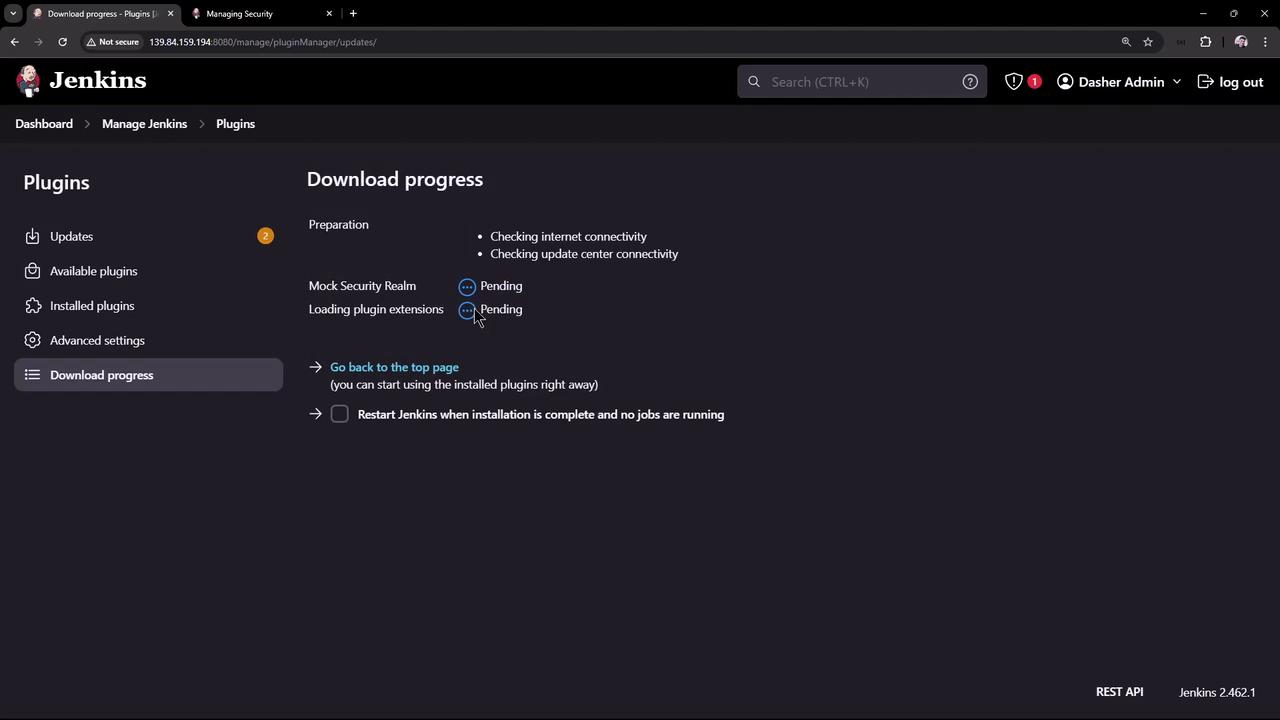
To simulate integration with an external LDAP server or Active Directory, Jenkins offers a feature to install and configure a mock security realm. This dummy security realm mimics external authentication systems but is intended only for evaluation purposes and should not be used in production. Follow these steps:- Navigate to Manage Jenkins → Manage Plugins.
- Update the required plugins.
- Search for and install the “Mock Security Realm” plugin.
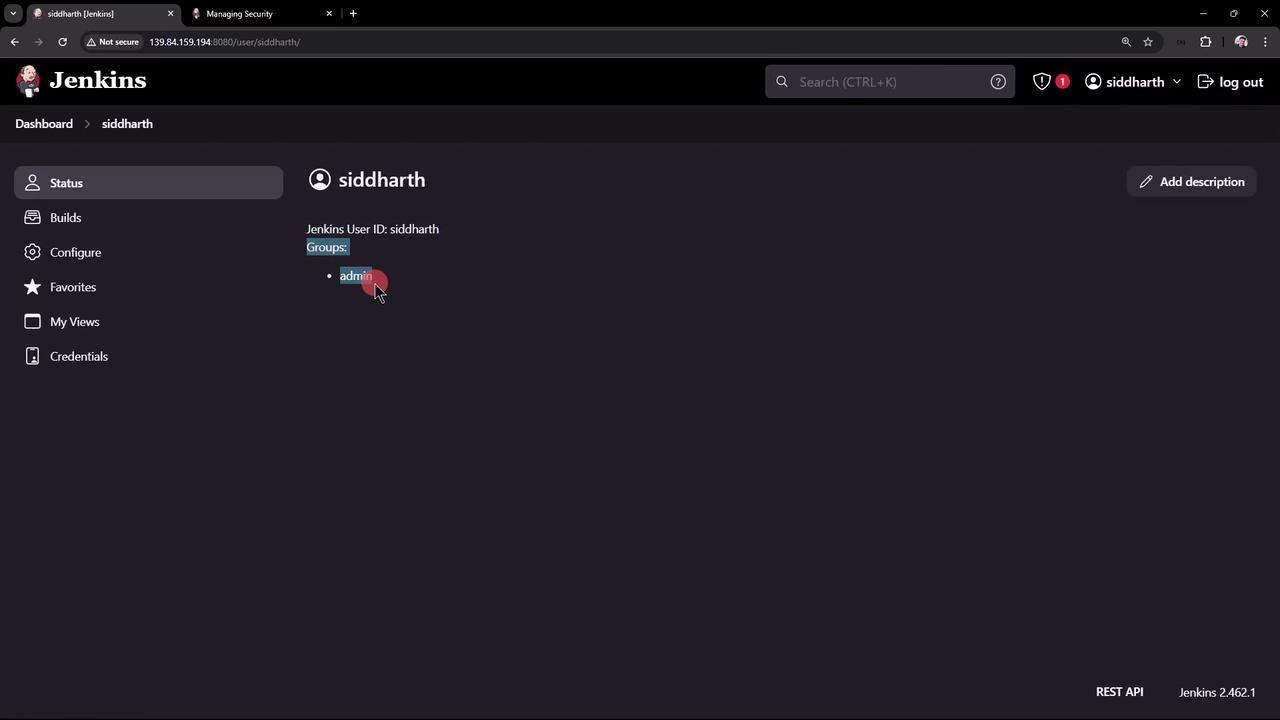
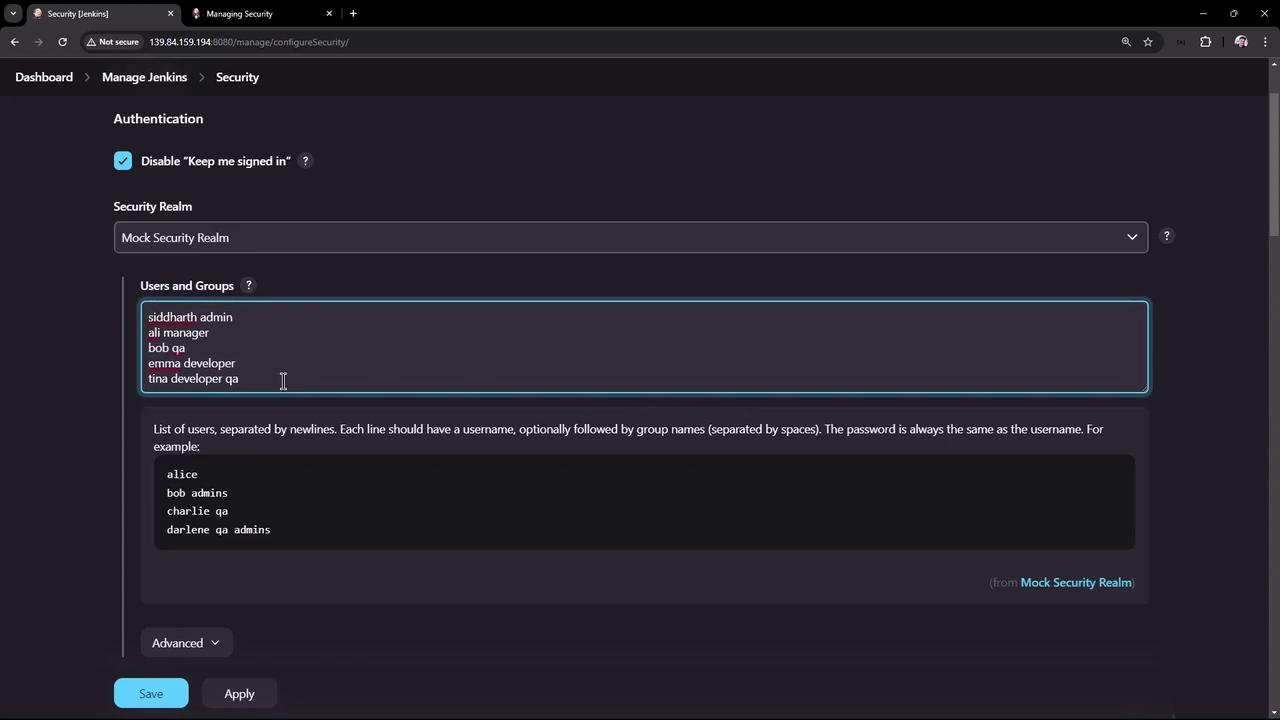
- Return to the Security page. You will notice that the security realm now expects a list of users and groups instead of using the Jenkins user database.
- Siddharth belongs to the admin group.
- Ali is assigned to the manager group.
- Bob is part of the QA team.
- Ema belongs to the developer group.
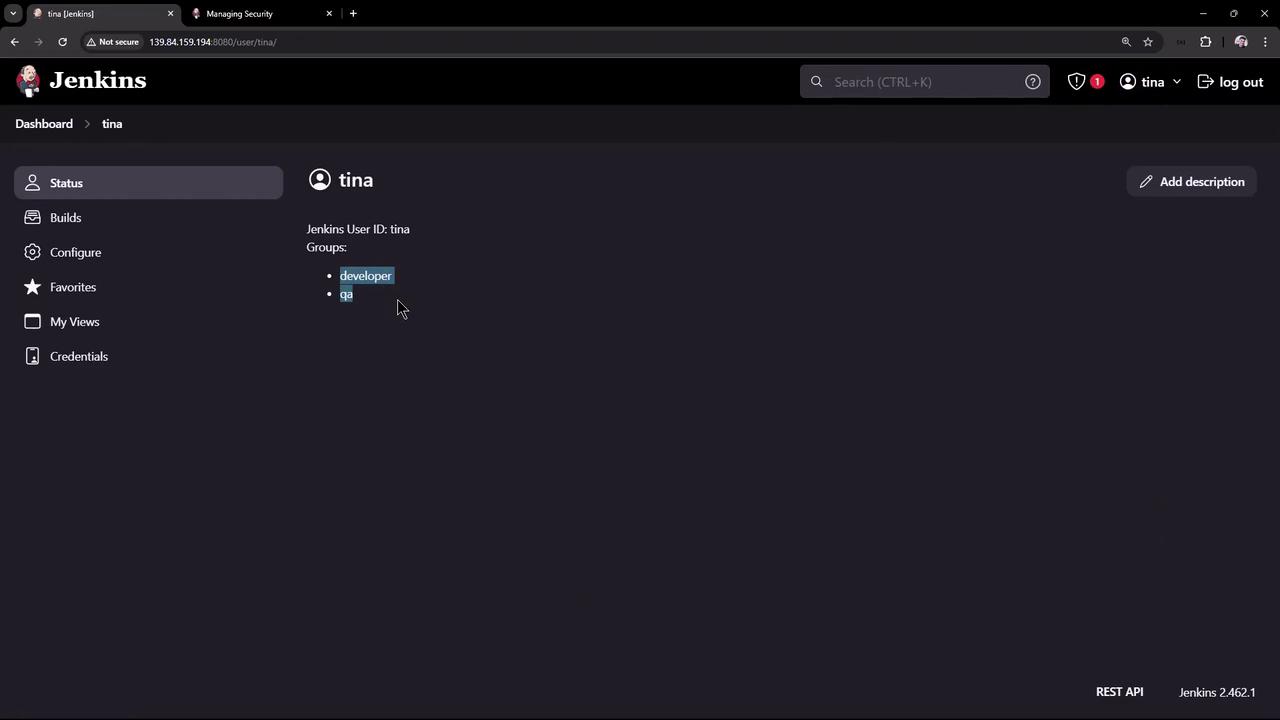
- Tina is in both the developer and QA groups.
Summary
In this lesson, we covered:- How Jenkins’ built-in user database works and managing users.
- How to enable user sign-up and configure basic authentication.
- The risks associated with full anonymous access and how authorization rules affect user capabilities.
- How to simulate an external security realm using the mock security realm plugin and define users with their associated groups.
In practice, always tailor your authentication and authorization settings to meet your organization’s security requirements. For more detailed guidance, refer to the Jenkins Documentation.