

1. Downloading Jenkins
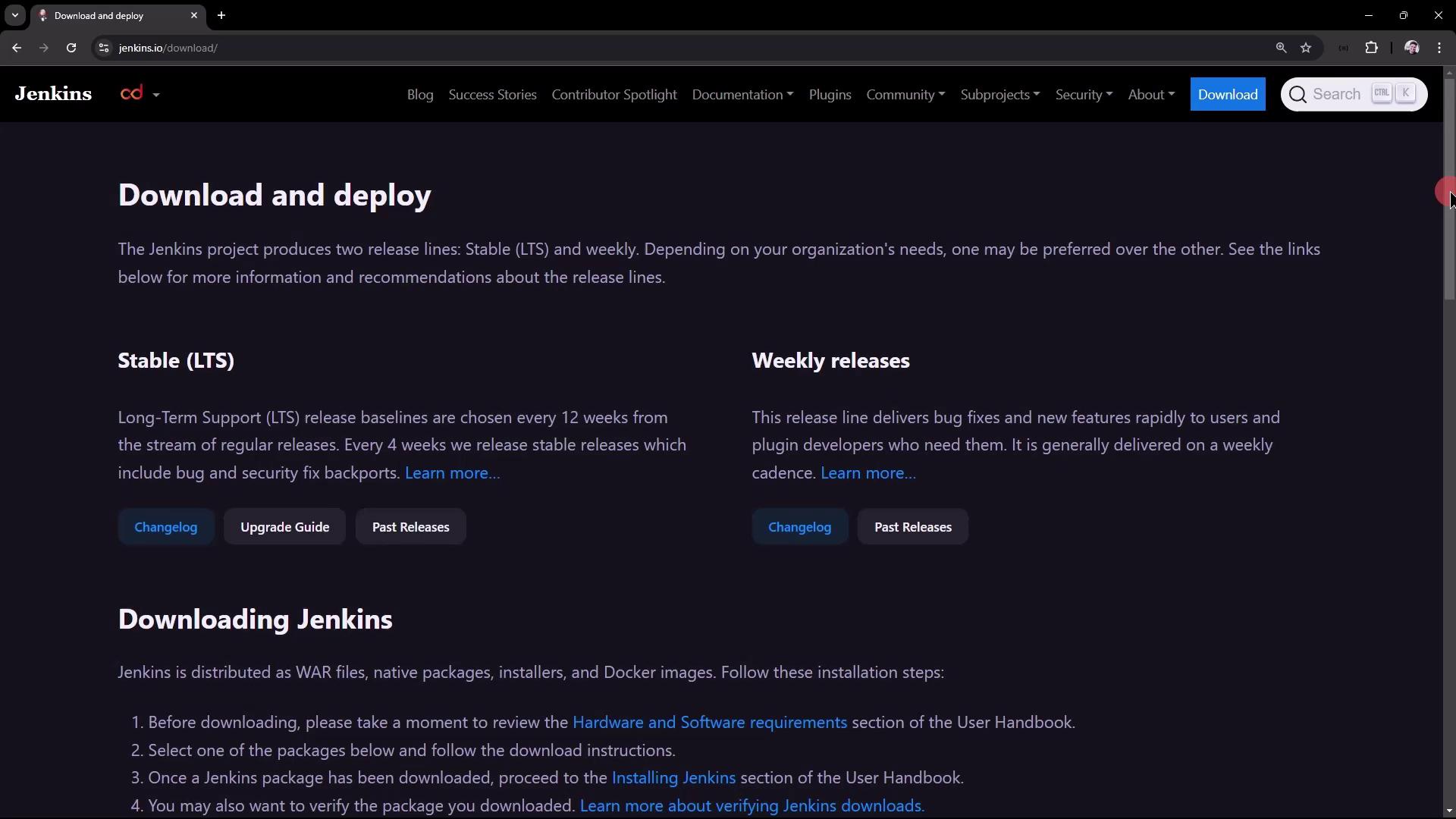
Begin by searching for “Jenkins download” in your browser. On the Jenkins website, you will encounter two main release types:- Stable LTS (Long-Term Support): Prioritizes stability and security by offering extended support with bug fixes and security updates.
- Weekly Releases: Provides the latest features and fixes, although they might be less stable.
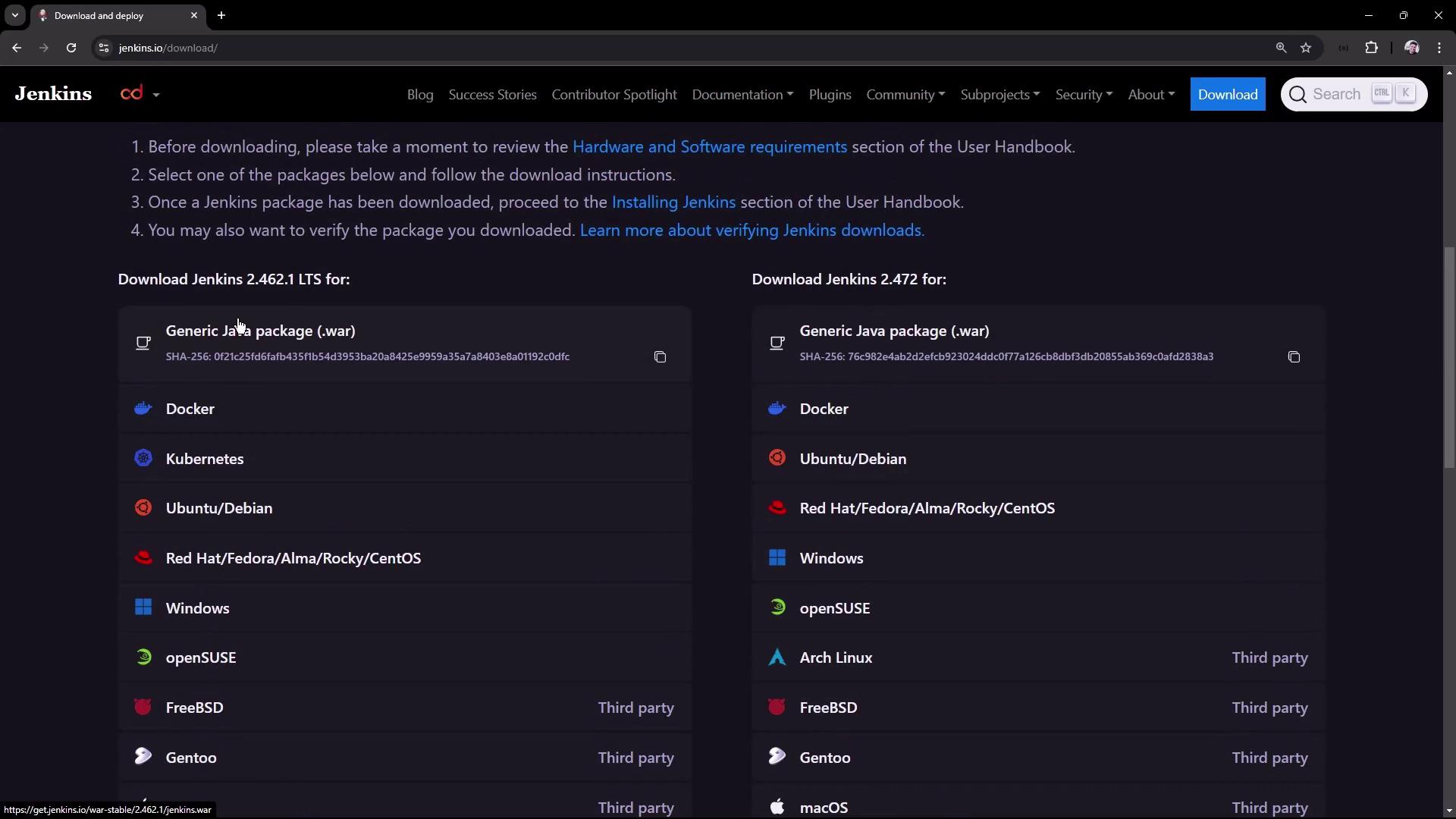
2. Installing Jenkins on Ubuntu
In this section, we install the LTS version of Jenkins on an Ubuntu virtual machine. Before you begin, ensure that your machine meets the basic hardware requirements. For training and testing purposes, 4 GB of RAM with two CPU cores is sufficient.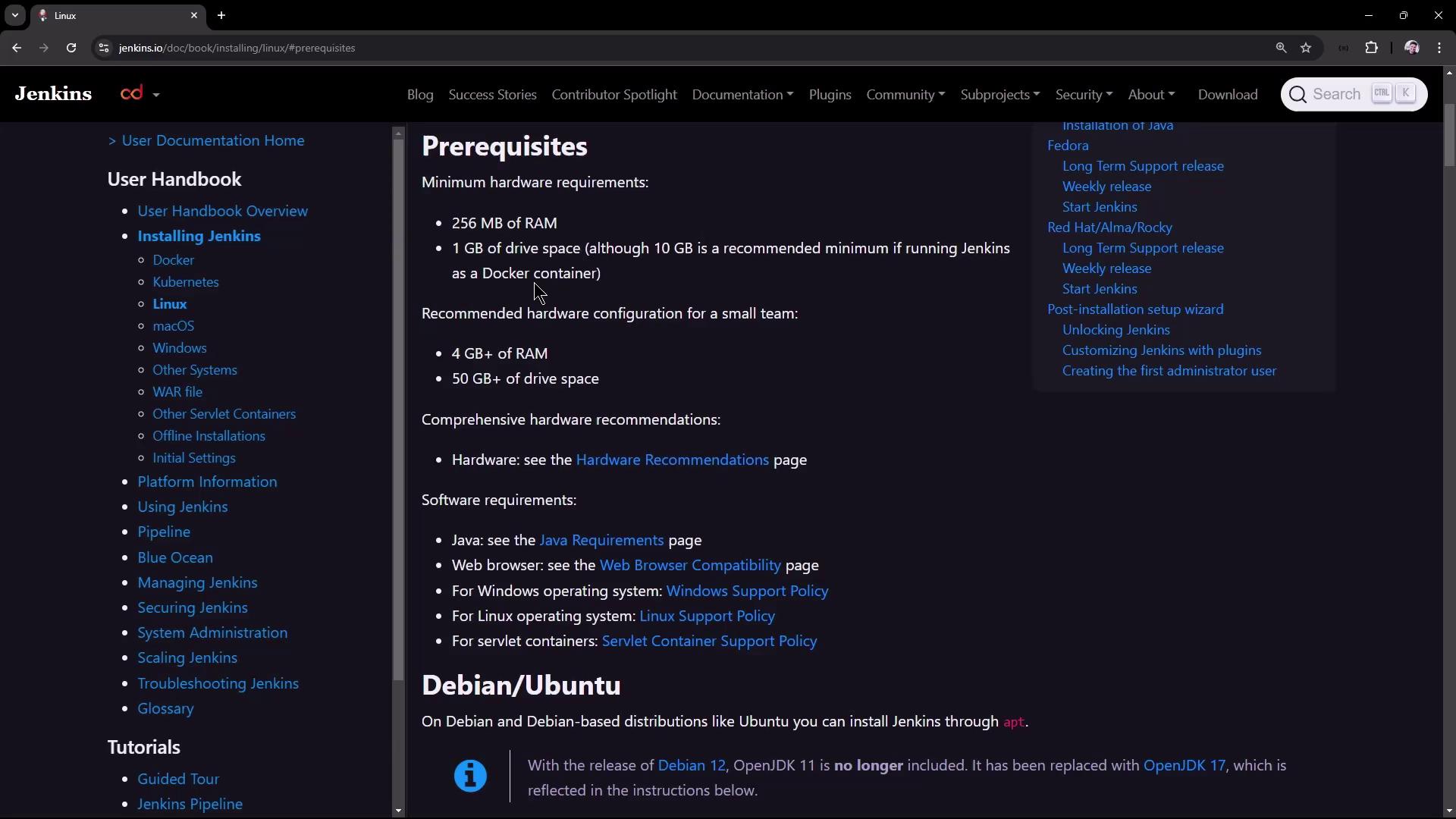
2.1 Adding the Jenkins Repository and Installing Jenkins
Execute the following commands to add the Jenkins repository key, configure your repository, update your package list, and install Jenkins:- Download the Jenkins public key.
- Verify and add the repository key.
- Update your system’s package lists.
- Install Jenkins.
The installation process typically takes around 20 seconds.
3. Verifying the Jenkins Service Status
After the installation completes, check that the Jenkins service is running by executing:4. Installing Java
Jenkins requires Java to operate correctly. Begin by checking your current Java version:5. Restarting the Jenkins Service
With Java installed, restart the Jenkins service using:6. Completing the Jenkins Initial Setup
6.1 Accessing the Jenkins UI
Jenkins runs on port 8080 by default. Open your browser and navigate to:6.2 Retrieving the Initial Admin Password
To retrieve the admin password, run the following command on your virtual machine:config.xml, jobs, plugins, secrets, and updates.
6.3 Installing Plugins and Creating an Admin User
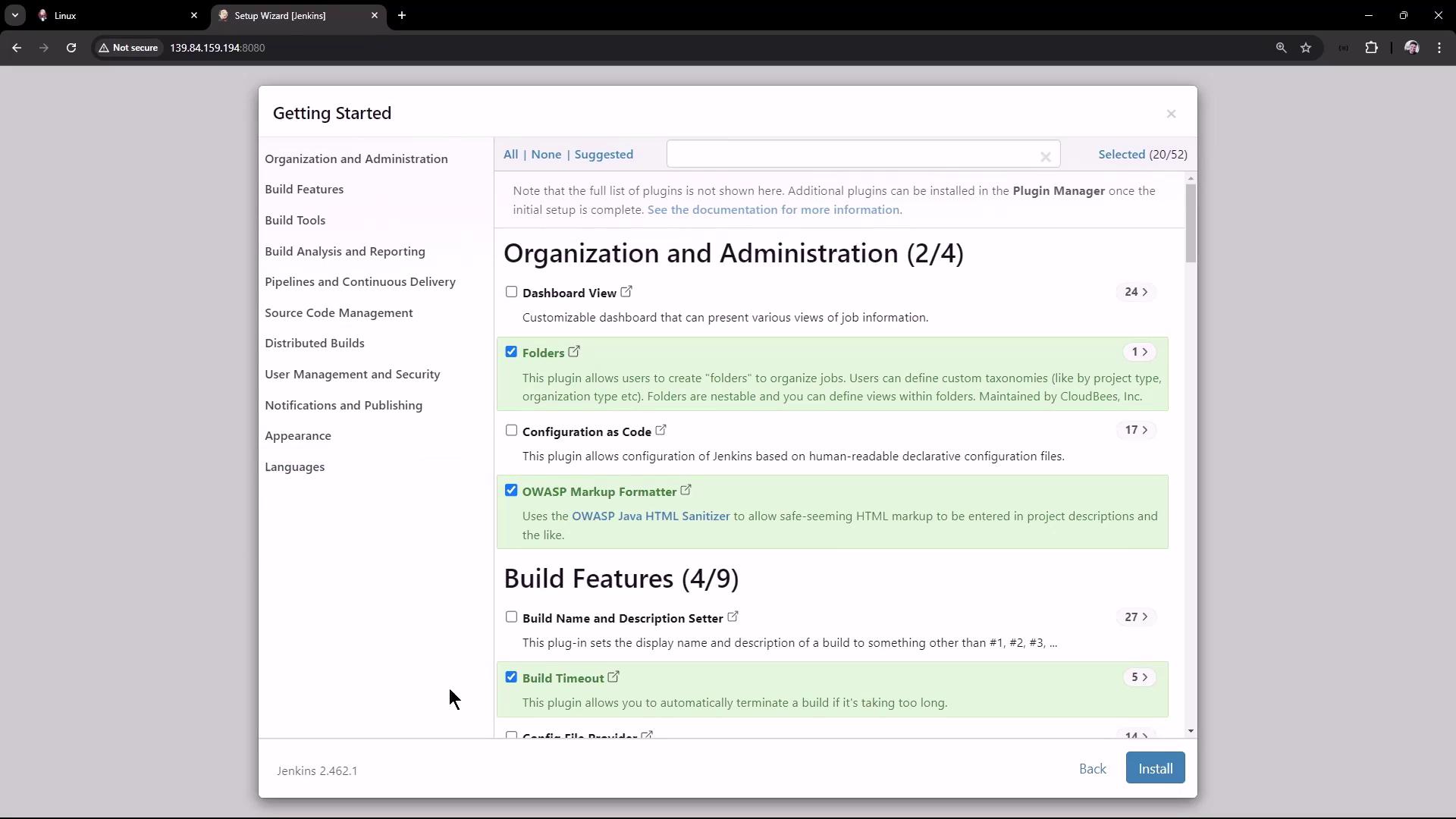
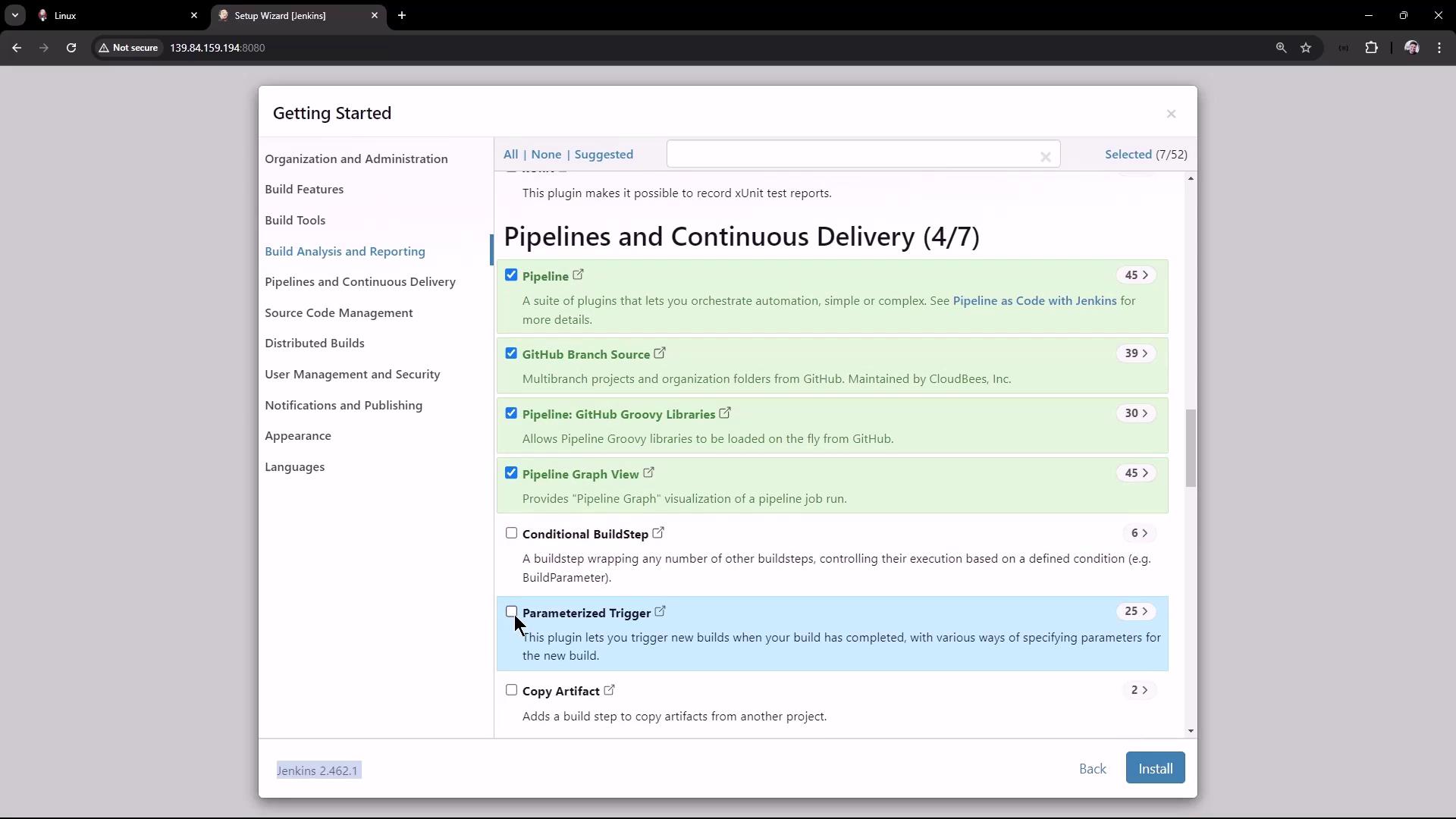
After unlocking Jenkins with the initial admin password, the setup wizard appears. You can choose to install the suggested plugins or select the ones you need. For this demonstration, consider installing these key plugins:- Credential Binding
- Timestamper
- Various Pipeline plugins (e.g., pipeline graph view, GitHub branch source, pipeline Groovy libraries)
- Git (for Source Control Management)
- Docker Theme (for enhanced UI appearance)
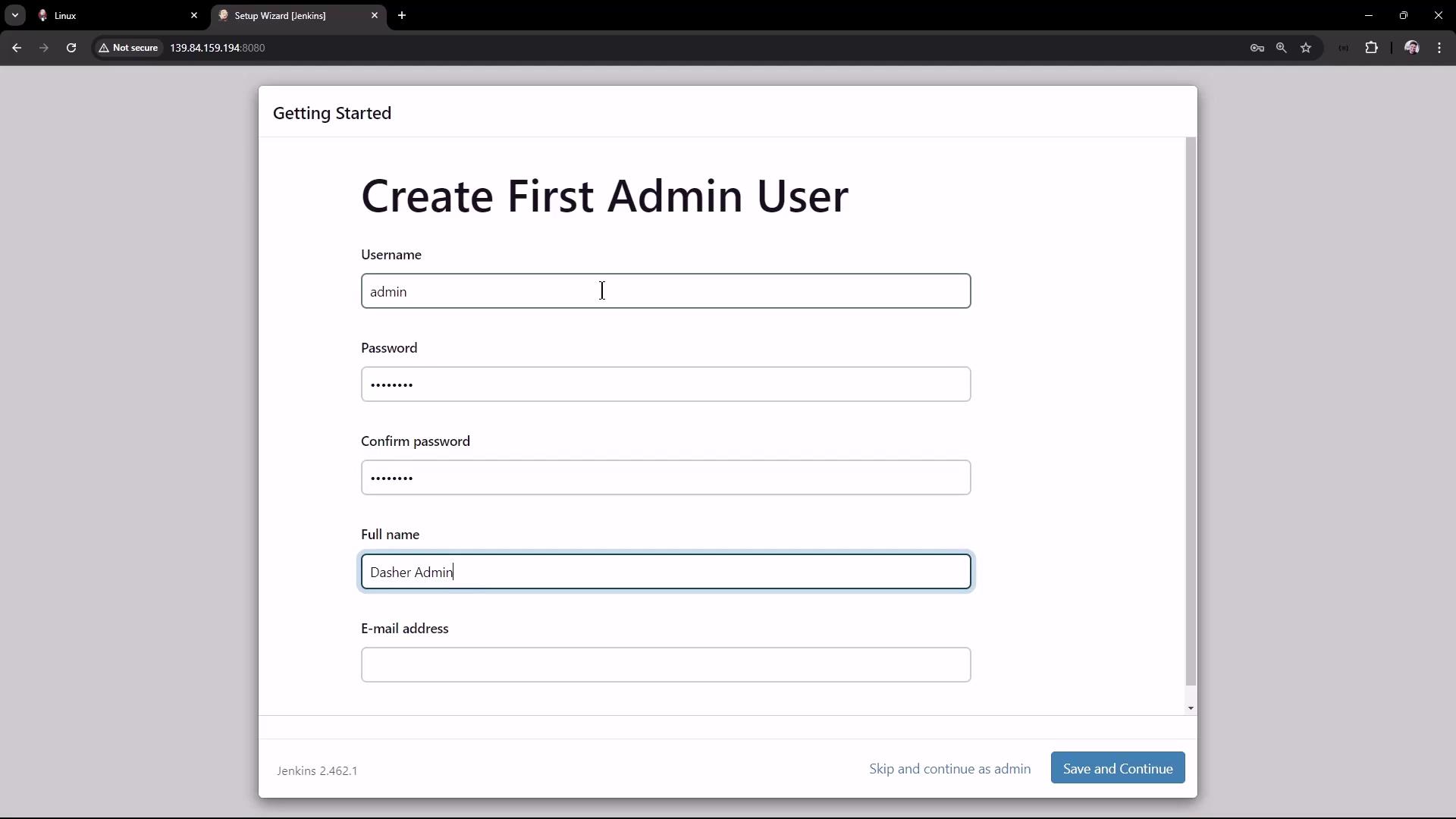
- Username: admin
- Password: (choose a secure password)
- Full Name: Dasher Admin
- Email: admin@dasher.com
7. Next Steps
In future guides, we will explore the Jenkins user interface in more detail, configure jobs and pipelines, and learn how to manage builds and continuous integration processes. Thank you for following this guide. Enjoy building your CI/CD pipeline with Jenkins!For more information on Jenkins, visit the Jenkins Documentation and explore related topics such as CI/CD best practices.