This guide explains how to use the Jenkins REST API for tasks like installing plugins and triggering builds with parameters.
This guide provides detailed instructions on how to leverage the Jenkins REST API for various tasks, including installing a plugin. Jenkins offers a machine-consumable API in multiple formats such as XML, JSON, and even Python, allowing you to retrieve information, trigger builds with parameters, create jobs, and more.Before diving into plugin installation, let’s explore some common API use cases.
To trigger a build with parameters, you can use the curl command. When you build with parameters, ensure you use the buildWithParameters endpoint. The following example shows how to initiate a build with specific parameters using authentication via a token or a password:
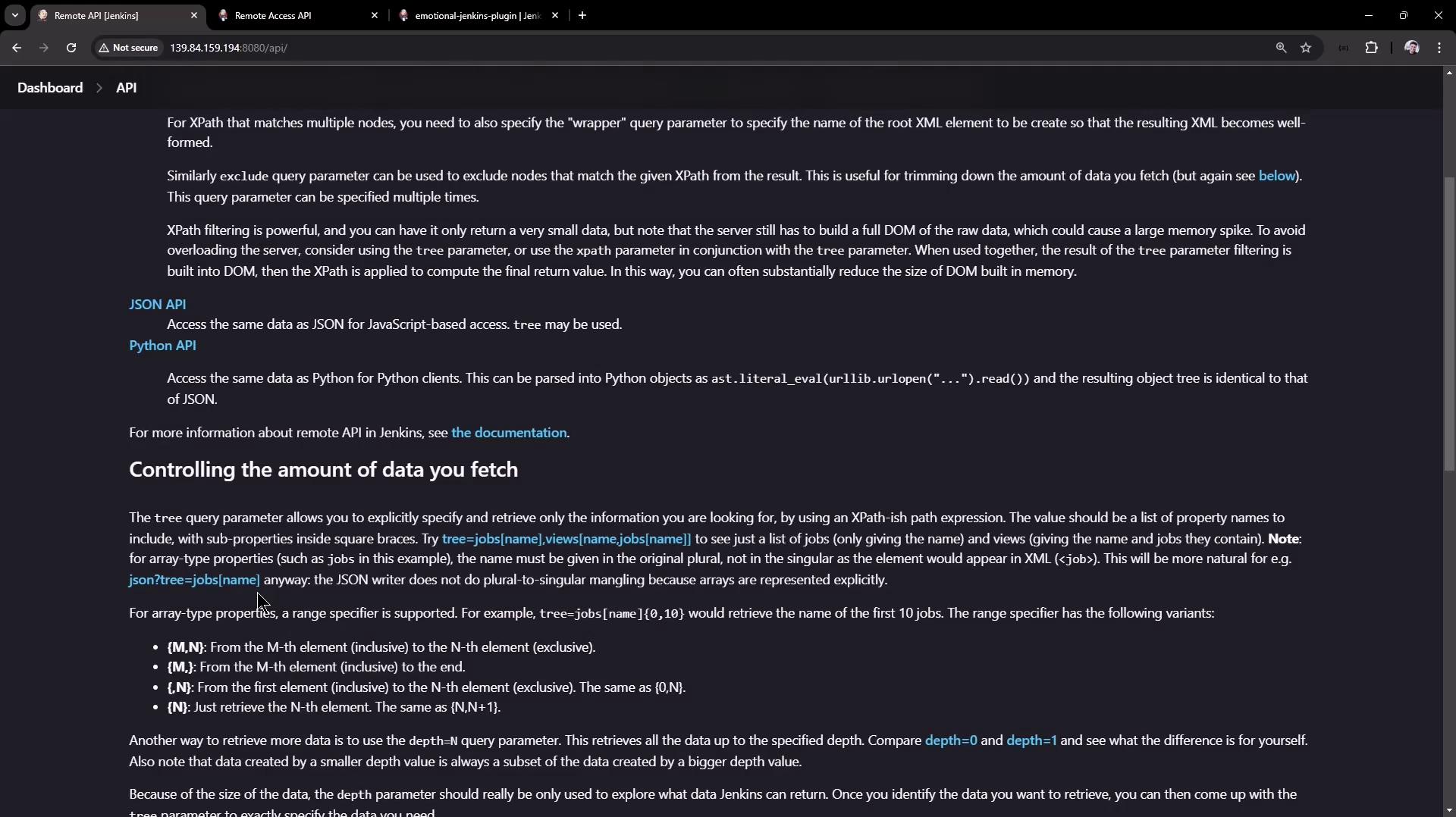
For additional API details, visit your Jenkins dashboard and refer to the REST API documentation. You can control the amount of data returned by using query parameters. For instance, accessing the /api/json endpoint returns data in JSON format.
Accessing the JSON API endpoint (e.g., JENKINS_URL/api/json?tree=jobs[name]) returns details about all jobs. Below is a sample JSON response displaying various project types:
By default, curl uses the GET method. In this case, you need to explicitly use the POST method with the -X POST flag:
curl -u admin:password -X POST http://139.84.159.194:8080/job/parameterized-pipeline-job/buildWithParameters -d BRANCH_NAME=test -d APP_PORT=6767
If you are not logged into Jenkins via your browser, you may receive authentication errors. Ensure you provide valid credentials or use an API token to avoid such issues.
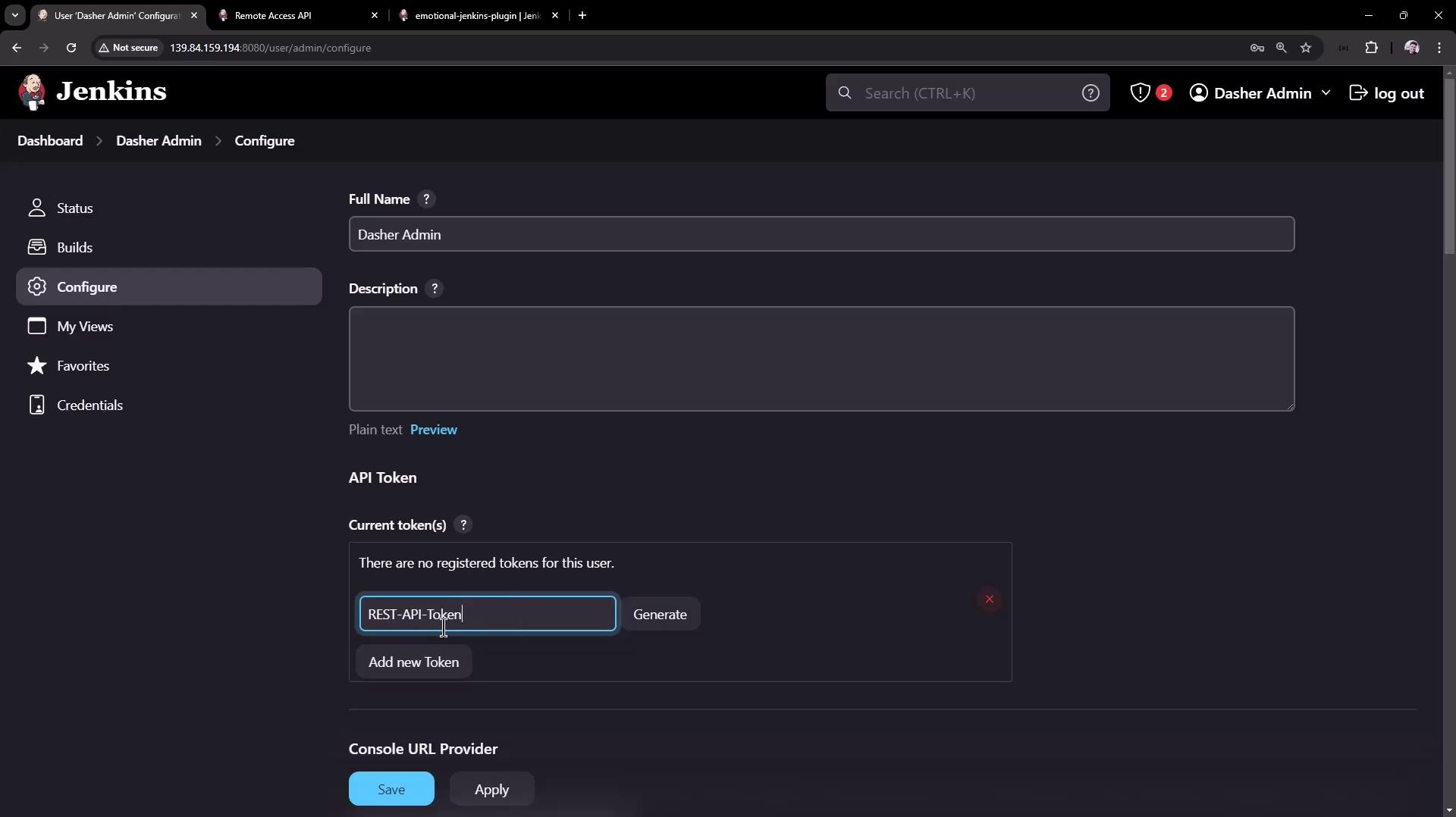
Some builds might require a valid Jenkins crumb (a security token to prevent CSRF attacks) unless you opt to use an API token. To generate or fetch an API token, navigate to your Jenkins user configuration page.
Once you have your API token, update your curl command as follows:
curl -u admin:110116b9f4f3f2698451306fd8fa7f26d6 -X POST http://139.84.159.194:8080/job/parameterized-pipeline-job/buildWithParameters -d BRANCH_NAME=test -d APP_PORT=6767
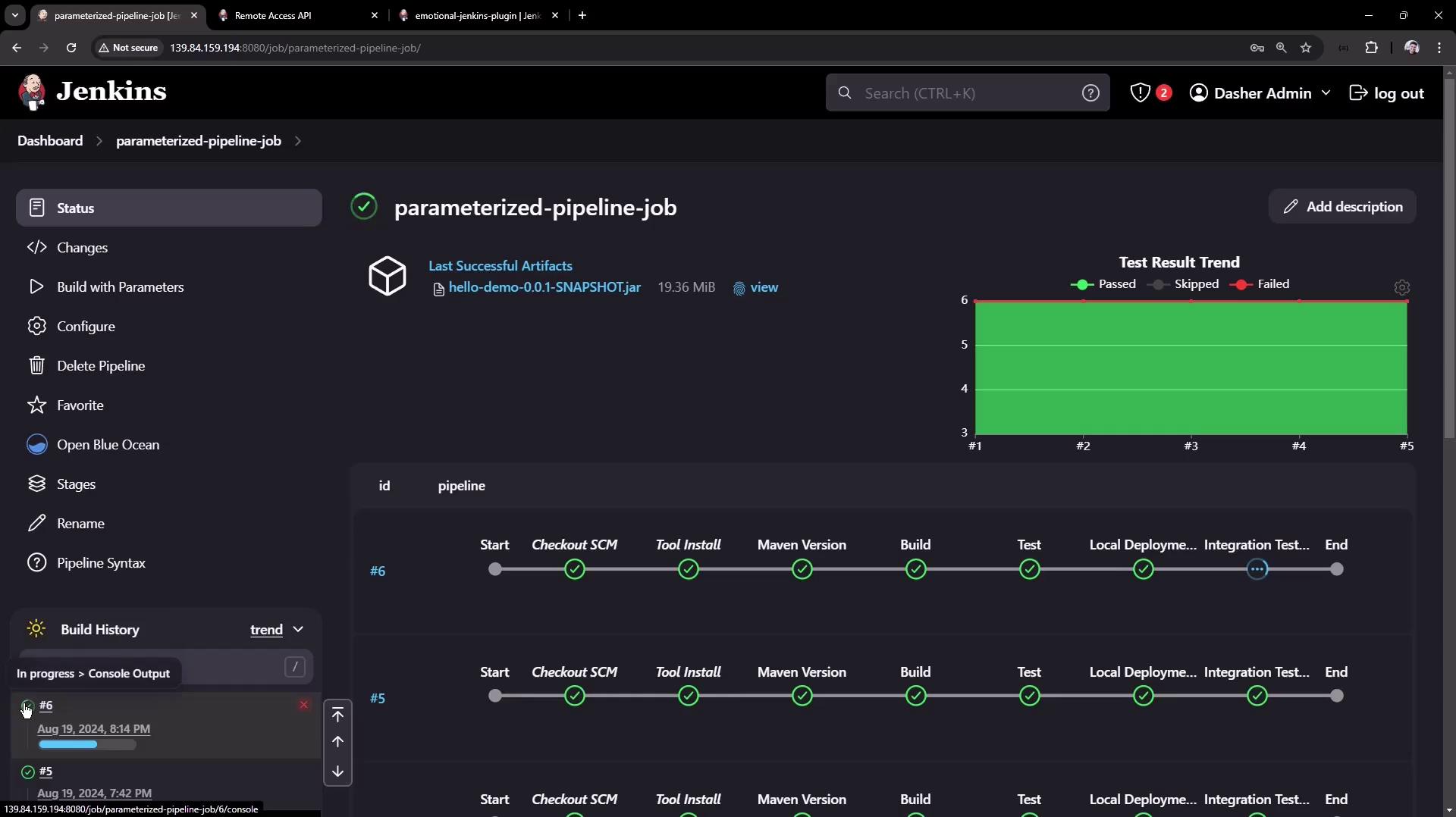
When you trigger the build successfully, you will observe a new build initiated on the Jenkins dashboard. For example, build number six might now be in progress.
A build triggered via the Jenkins CLI might include additional log details (such as fetching Git information) that may not appear when using the REST API.
One of the powerful features of the Jenkins REST API is the ability to install plugins automatically. Similar to triggering a build, this action requires authentication and uses the POST method. The endpoint for installing necessary plugins is:
/pluginManager/installNecessaryPlugins
When calling this endpoint, provide an XML payload and set the proper content type. The following example demonstrates how to install a plugin named “emotional-jenkins-plugin” with version 1.2. Note that the IP address has been replaced with localhost because the command runs on the Jenkins server:
To automate the installation of multiple plugins, list them within the XML payload. After execution, verify the installation by reviewing the “Manage Jenkins Plugins” section within the Jenkins UI.This article demonstrated how to interact with the Jenkins REST API to:
Retrieve job details
Trigger builds with parameters
Install plugins
Utilizing API tokens, the correct HTTP methods, and proper payload formats (JSON or XML) ensures your API calls are secure and effective.For further information on Jenkins API usage: