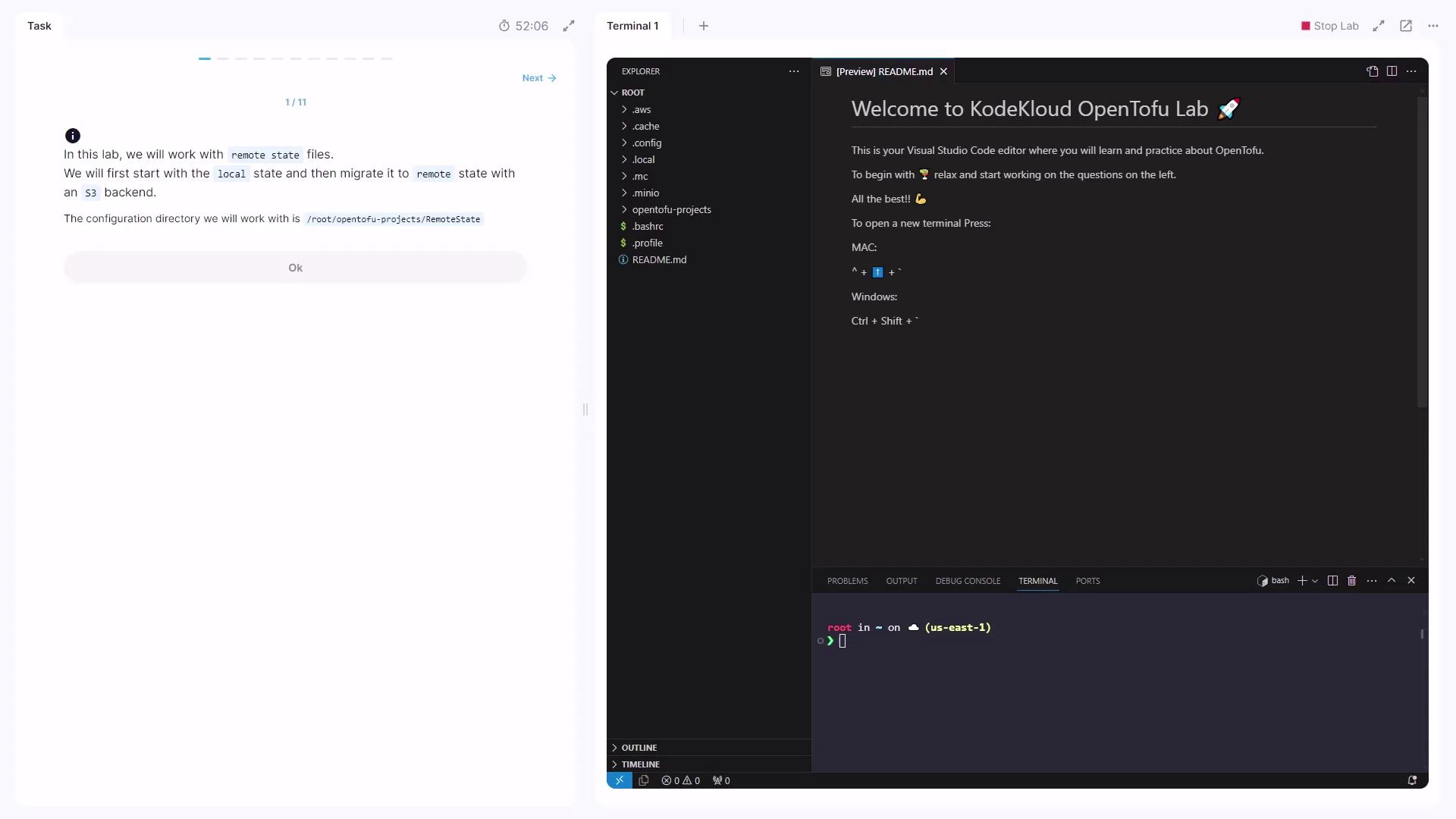
Welcome to the OpenTofu Remote State lab! In this tutorial, you’ll learn how to manage Terraform state locally and then migrate it to a remote S3-compatible backend using MinIO. We’ll walk through creating local state, switching variables, configuring S3 backend, and migrating your state seamlessly.
The image shows a KodeKloud OpenTofu Lab interface with instructions on working with remote state files and a Visual Studio Code editor setup. The editor displays a welcome message and a terminal window.
Your working directory is:
/root/OpenTofu/projects/remote_state
Open it in Visual Studio Code.

1. Define a Local File Resource

Create main.tf with a local_file resource that writes to a file based on a variable:
resource "local_file" "state" {
  filename = "/root/${var.local_state}"
  content  = "This configuration uses ${var.local_state} state"
}
Declare the variables in variables.tf:
VariableTypeDefaultDescription
var.local_statestringlocalFilename when using local state
var.remote_statestringremoteFilename when using remote state
Initialize and review:
cd /root/OpenTofu/projects/remote_state
tofu init
tofu plan
Apply the configuration:
tofu apply
# Type "yes" at the prompt
Confirm the state file:
ls -l
# terraform.tfstate  main.tf  variables.tf

2. Inspect the Local State Output

After apply, view the generated file:
cat /root/local
# This configuration uses local state

3. Set Up MinIO and Identify the Bucket

We’ll use MinIO as our S3-compatible object store. In your browser’s MinIO console, log in with:
  • Access Key: foo
  • Secret Key: barbarbar
Locate the remote-state bucket under Object Browser.

4. Switch to the Remote State Variable

Edit main.tf to use var.remote_state:
resource "local_file" "state" {
  filename = "/root/${var.remote_state}"
  content  = "This configuration uses ${var.remote_state} state"
}
Re-plan and apply:
tofu plan
tofu apply
# confirm with "yes"
This destroys /root/local and creates /root/remote.

5. Configure the S3 Backend

Create terraform.tf with the S3 backend block:
terraform {
  backend "s3" {
    bucket = "remote-state"
    key    = "terraform.tfstate"
    region = "us-east-1"
  }
}
When using MinIO, add these settings under the s3 backend:
endpoint   = "http://<MINIO_HOST>:<PORT>"
access_key = "foo"
secret_key = "barbarbar"
Do not run tofu init yet.

6. Initialize the Backend and Migrate State

If you try to apply, you’ll see:
Error: Backend initialization required, please run "tofu init"
Run:
tofu init
You’ll be prompted:
Pre-existing state was found while migrating the previous "local" backend
to the newly configured "s3" backend.
Do you want to copy this state to the new "s3" backend? Enter "yes" to copy...
Enter a value: yes
After migration, remove the local state:
rm terraform.tfstate
Deleting the local terraform.tfstate is irreversible. Ensure the remote copy is present before removal.

7. Verify Remote State in MinIO

Go back to the MinIO console and open the remote-state bucket. You should see terraform.tfstate uploaded—confirming your remote backend is working.
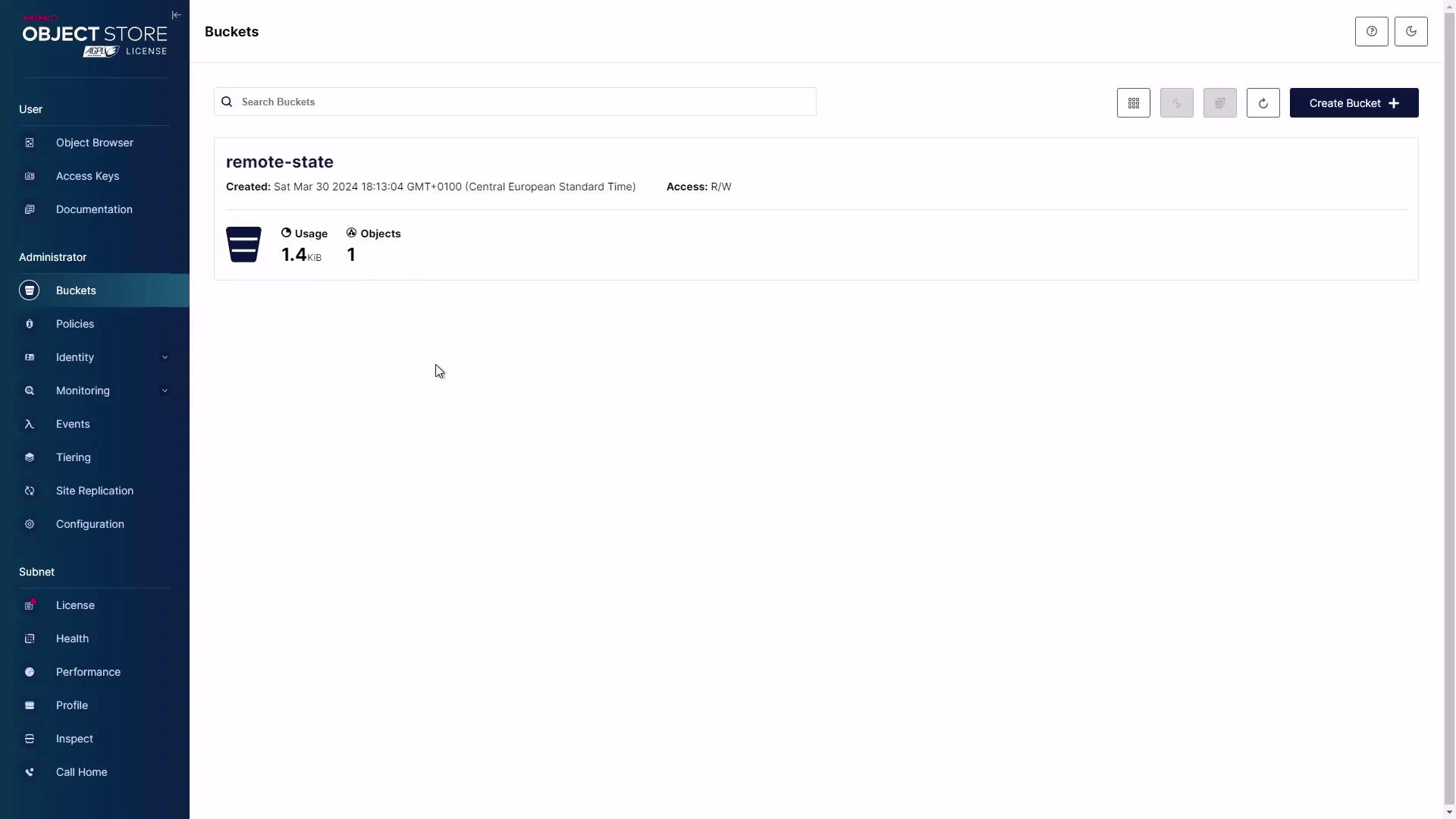
The image shows a user interface of an object storage system with a bucket named "remote-state," displaying its creation date, usage, and access permissions. The sidebar includes options like Object Browser, Access Keys, and various administrative tools.