Prerequisites
Ensure you define the LatestAmiId parameter before deploying the stack. For example: Parameters :
LatestAmiId :
Type : AWS::SSM::Parameter::Value<AWS::EC2::Image::Id>
Default : /aws/service/ami-amazon-linux-latest/amzn2-ami-hvm-x86_64-gp2
This CloudFormation template provisions the following AWS resources:
Resource Description CloudFormation Type Security Group SSH access for EC2 instances AWS::EC2::SecurityGroup Launch Configuration Launches t2.micro instances with latest AMI AWS::AutoScaling::LaunchConfiguration Auto Scaling Group (ASG) Scales between 2 and 20 instances, 1-minute metrics AWS::AutoScaling::AutoScalingGroup Scale-Up Policy Increases ASG capacity by 1 instance AWS::AutoScaling::ScalingPolicy CloudWatch Alarm: HighCPU Triggers when CPU > 80% AWS::CloudWatch::Alarm CloudWatch Alarm: VeryHighCPU Triggers when CPU > 90% AWS::CloudWatch::Alarm CloudWatch Alarm: HighASGSize Triggers when ASG size > 10 AWS::CloudWatch::Alarm
Core Resources
Resources :
MyEC2SecurityGroup :
Type : 'AWS::EC2::SecurityGroup'
Properties :
GroupDescription : EC2 Security Group for the Auto Scaling Group instances
SecurityGroupIngress :
- IpProtocol : tcp
FromPort : '22'
ToPort : '22'
CidrIp : 0.0.0.0/0
LaunchConfiguration :
Type : 'AWS::AutoScaling::LaunchConfiguration'
Properties :
ImageId : !Ref LatestAmiId
InstanceType : t2.micro
SecurityGroups :
- Ref : MyEC2SecurityGroup
AutoScalingGroup :
Type : 'AWS::AutoScaling::AutoScalingGroup'
Properties :
AvailabilityZones : Fn::GetAZs : ''
LaunchConfigurationName : Ref : LaunchConfiguration
MinSize : '2'
MaxSize : '20'
DesiredCapacity : '2'
MetricsCollection :
- Granularity : 1Minute
ScaleUpPolicy :
Type : 'AWS::AutoScaling::ScalingPolicy'
Properties :
AutoScalingGroupName : Ref : AutoScalingGroup
AdjustmentType : ChangeInCapacity
ScalingAdjustment : '1'
Cooldown : '300'
CloudWatch Alarms Definition
Alarm Name Metric Threshold Period Namespace HighCPUUsage CPUUtilization 80% 300s AWS/EC2 VeryHighCPUUsage CPUUtilization 90% 300s AWS/EC2 HighASGSize GroupTotalInstances 10 300s AWS/AutoScaling
HighCPUAlarm :
Type : 'AWS::CloudWatch::Alarm'
Properties :
AlarmName : HighCPUUsage
AlarmDescription : Alarm when CPU exceeds 80 percent
Namespace : AWS/EC2
MetricName : CPUUtilization
Statistic : Average
Period : '300'
EvaluationPeriods : '1'
Threshold : '80'
ComparisonOperator : GreaterThanThreshold
Dimensions :
- Name : AutoScalingGroupName
Value : Ref : AutoScalingGroup
VeryHighCPUAlarm :
Type : 'AWS::CloudWatch::Alarm'
Properties :
AlarmName : VeryHighCPUUsage
AlarmDescription : Alarm when CPU exceeds 90 percent
Namespace : AWS/EC2
MetricName : CPUUtilization
Statistic : Average
Period : '300'
EvaluationPeriods : '1'
Threshold : '90'
ComparisonOperator : GreaterThanThreshold
Dimensions :
- Name : AutoScalingGroupName
Value : Ref : AutoScalingGroup
HighASGSizeAlarm :
Type : 'AWS::CloudWatch::Alarm'
Properties :
AlarmName : HighASGSize
AlarmDescription : Alarm when ASG size exceeds 10
Namespace : AWS/AutoScaling
MetricName : GroupTotalInstances
Statistic : Average
Period : '300'
EvaluationPeriods : '1'
Threshold : '10'
ComparisonOperator : GreaterThanThreshold
Dimensions :
- Name : AutoScalingGroupName
Value : Ref : AutoScalingGroup
Outputs
Outputs :
AutoScalingGroupName :
Description : The name of the Auto Scaling Group
Value : Ref : AutoScalingGroup
Although the ASG can scale up to 20 instances, our threshold is set at >10 for demonstration.
Open the AWS CloudFormation Console .
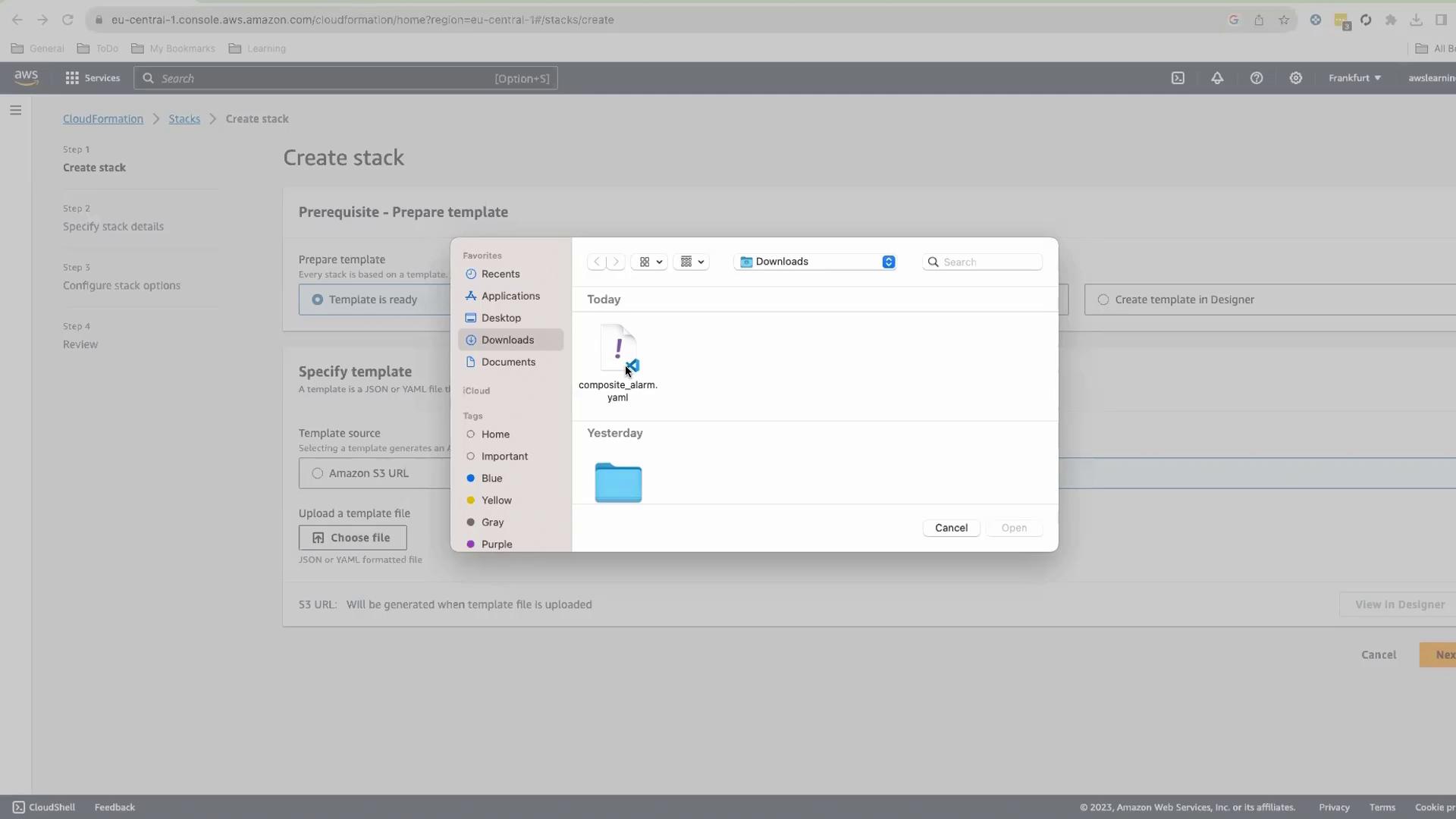
Choose Create stack > Upload a template file , and select your composite_alarm.yaml.
Click Next , set Stack name to CompositeAlarmInfra, and keep default parameters.
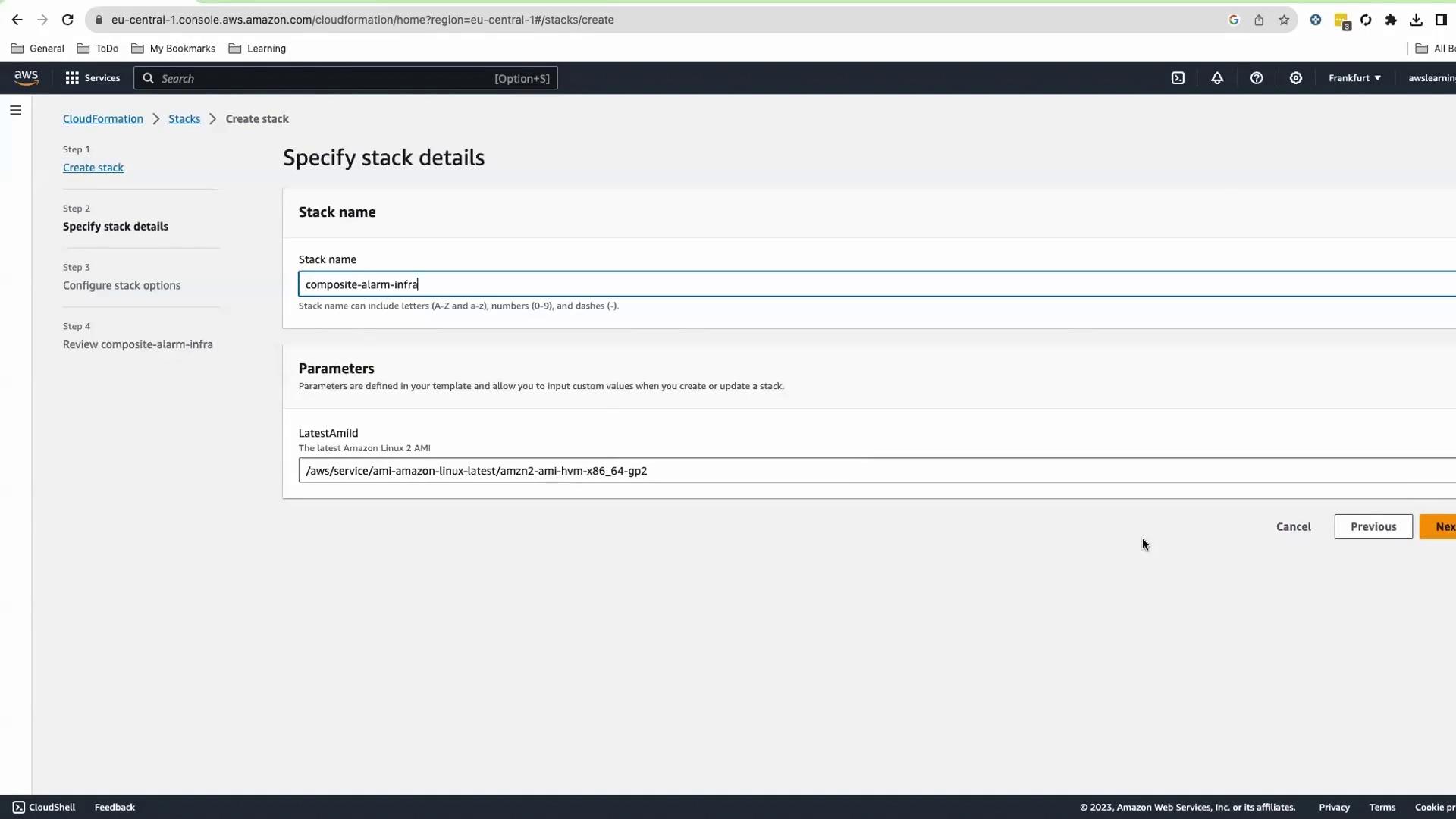
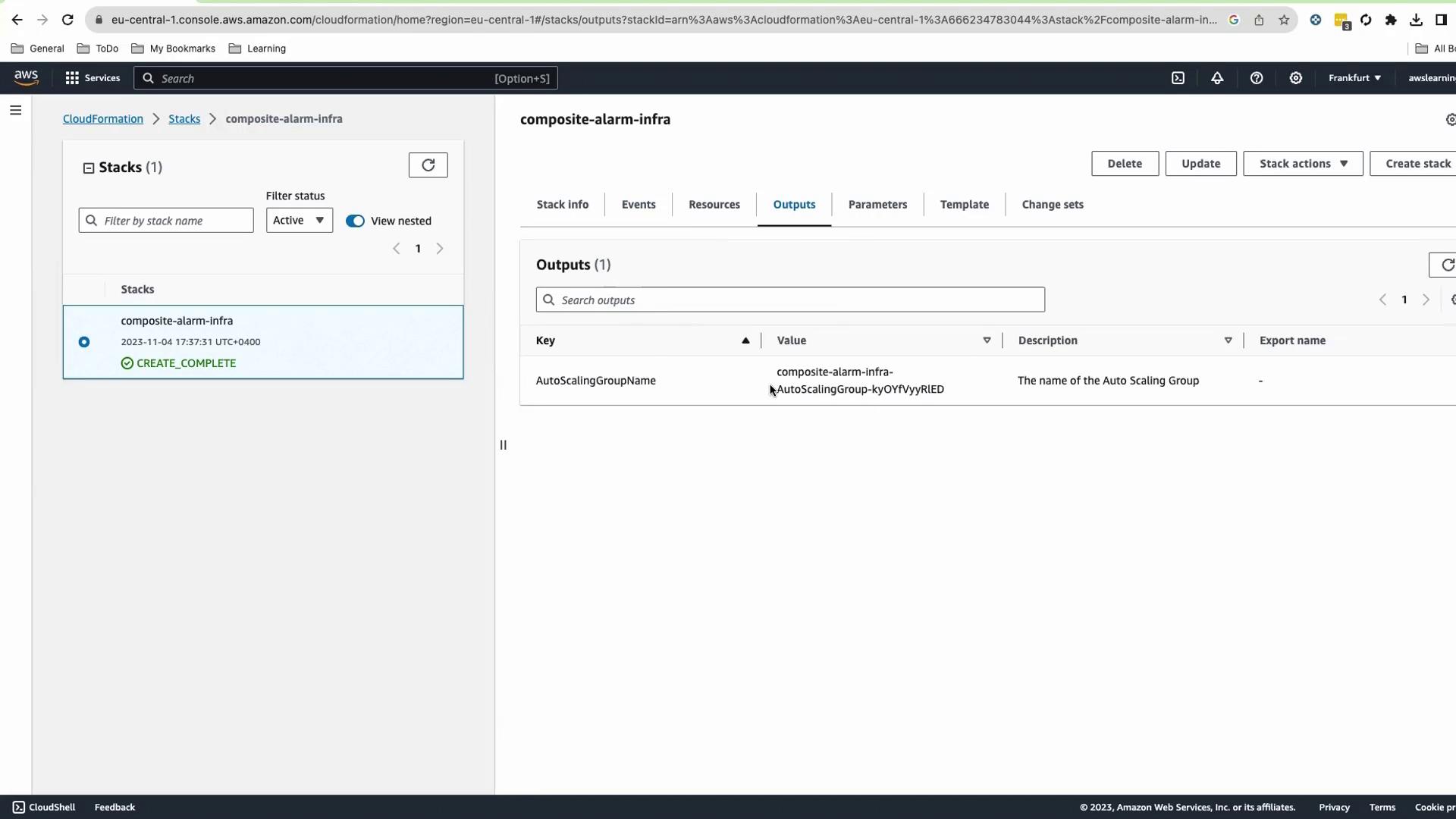
Submit and wait ~4–5 minutes until status is CREATE_COMPLETE.
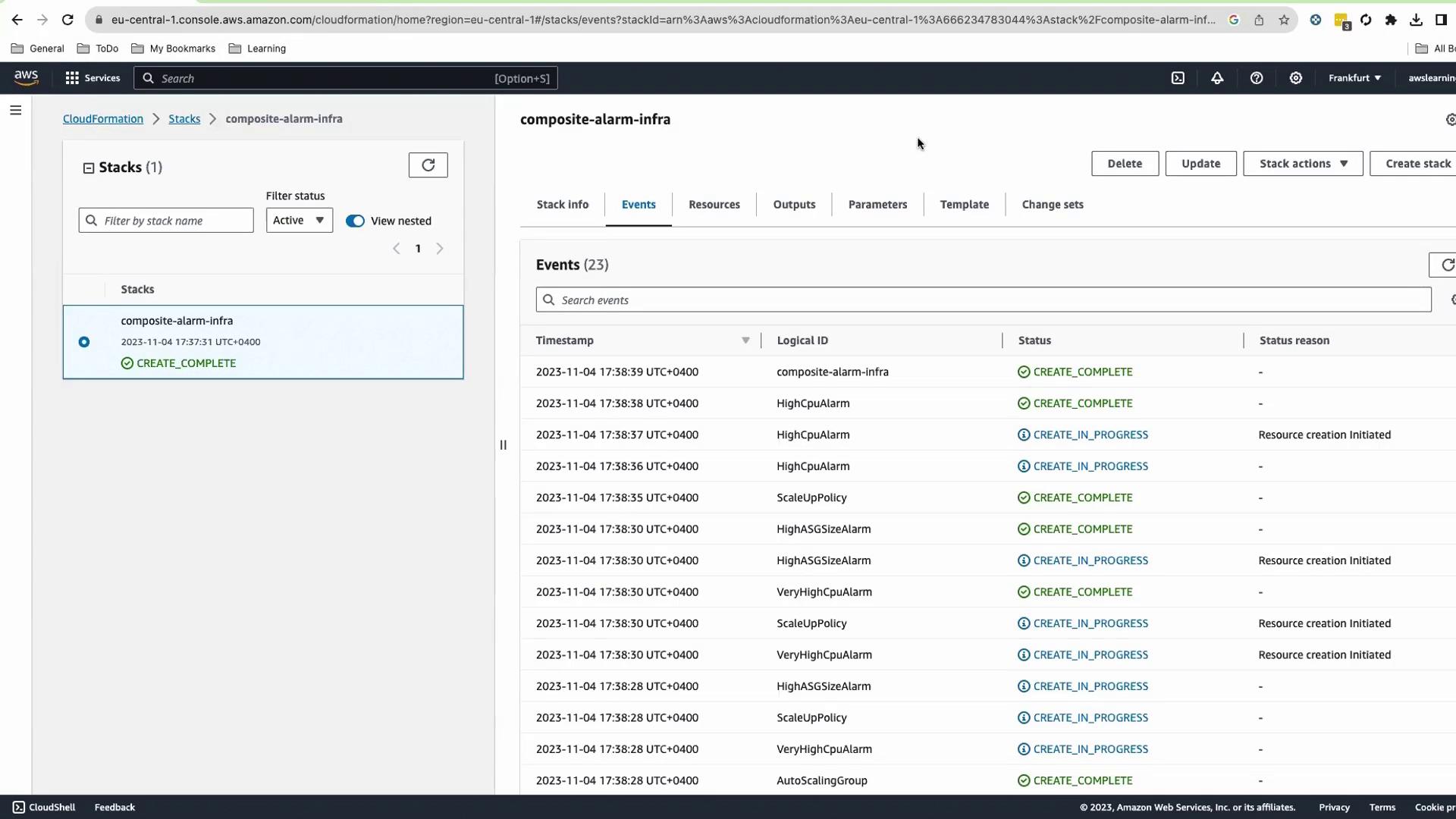
On Outputs , copy the AutoScalingGroupName .
Verify CloudWatch Alarms
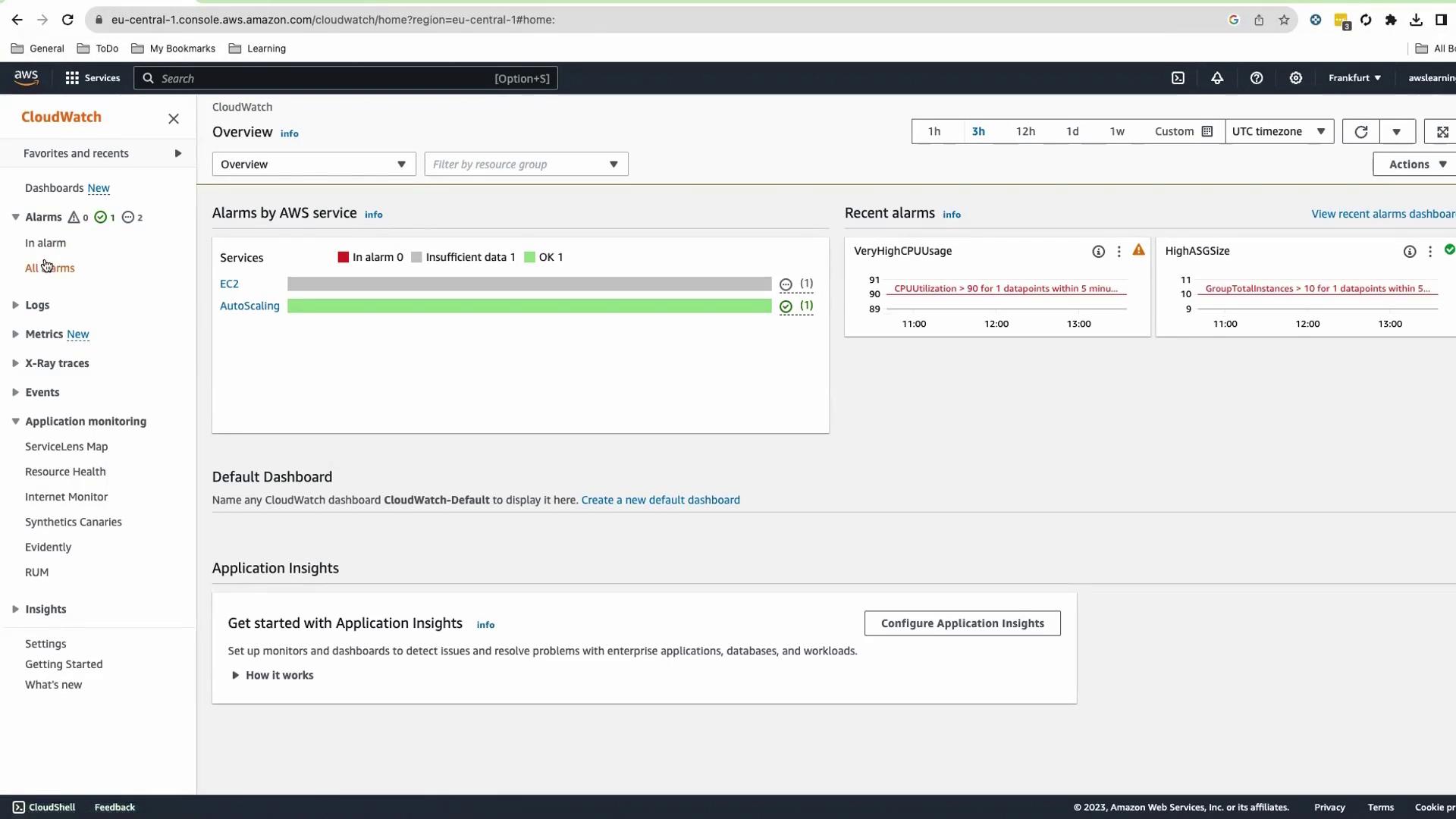
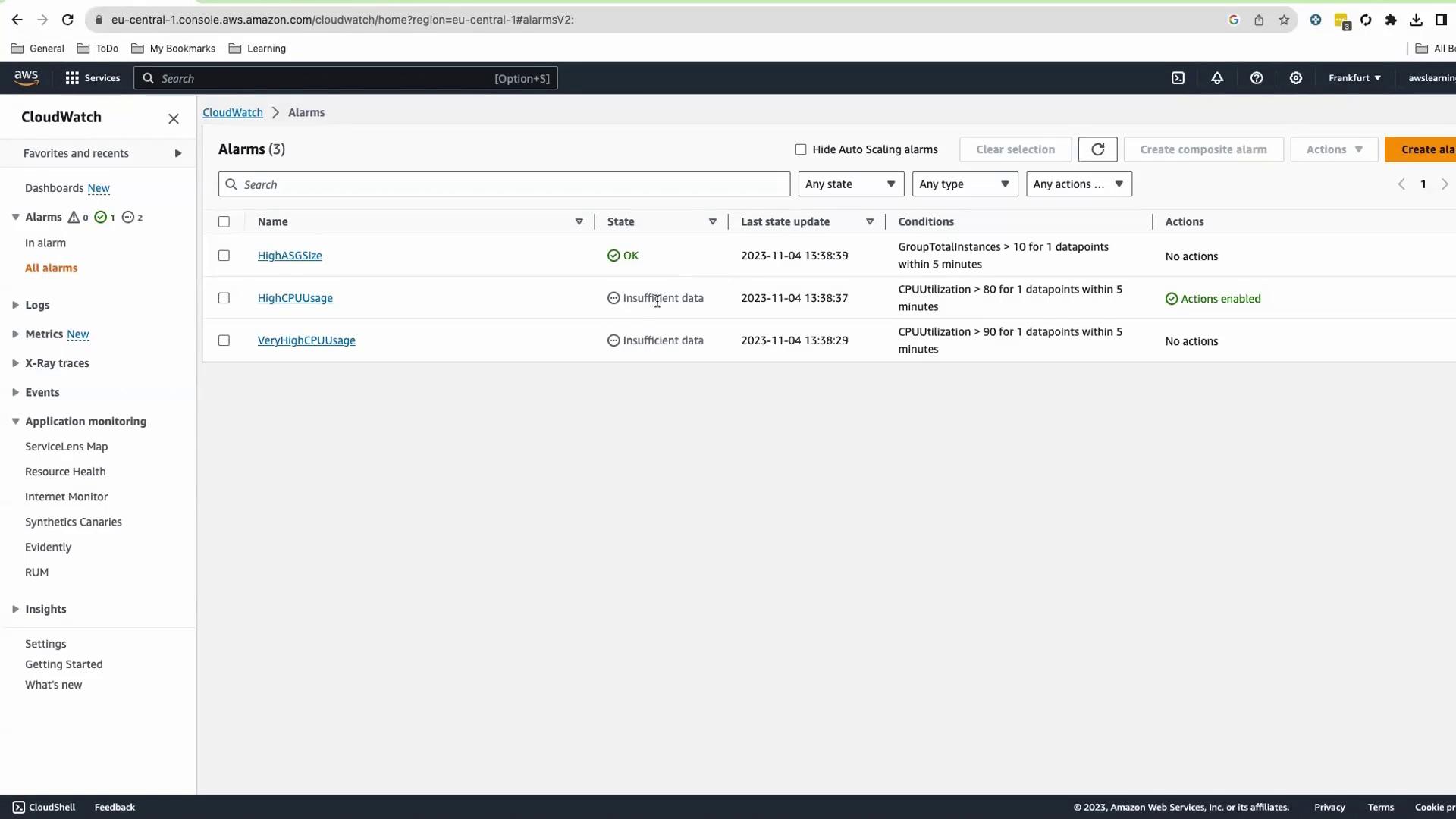
Navigate to CloudWatch > Alarms . You should see:
HighASGSize
HighCPUUsage
VeryHighCPUUsage
Initial states will be OK or Insufficient Data.
Create the Composite Alarm
Select the three child alarms.
Go to Actions > Create composite alarm .
Define the rule:
ALARM(HighCPUUsage) OR ALARM(VeryHighCPUUsage) OR ALARM(HighASGSize)
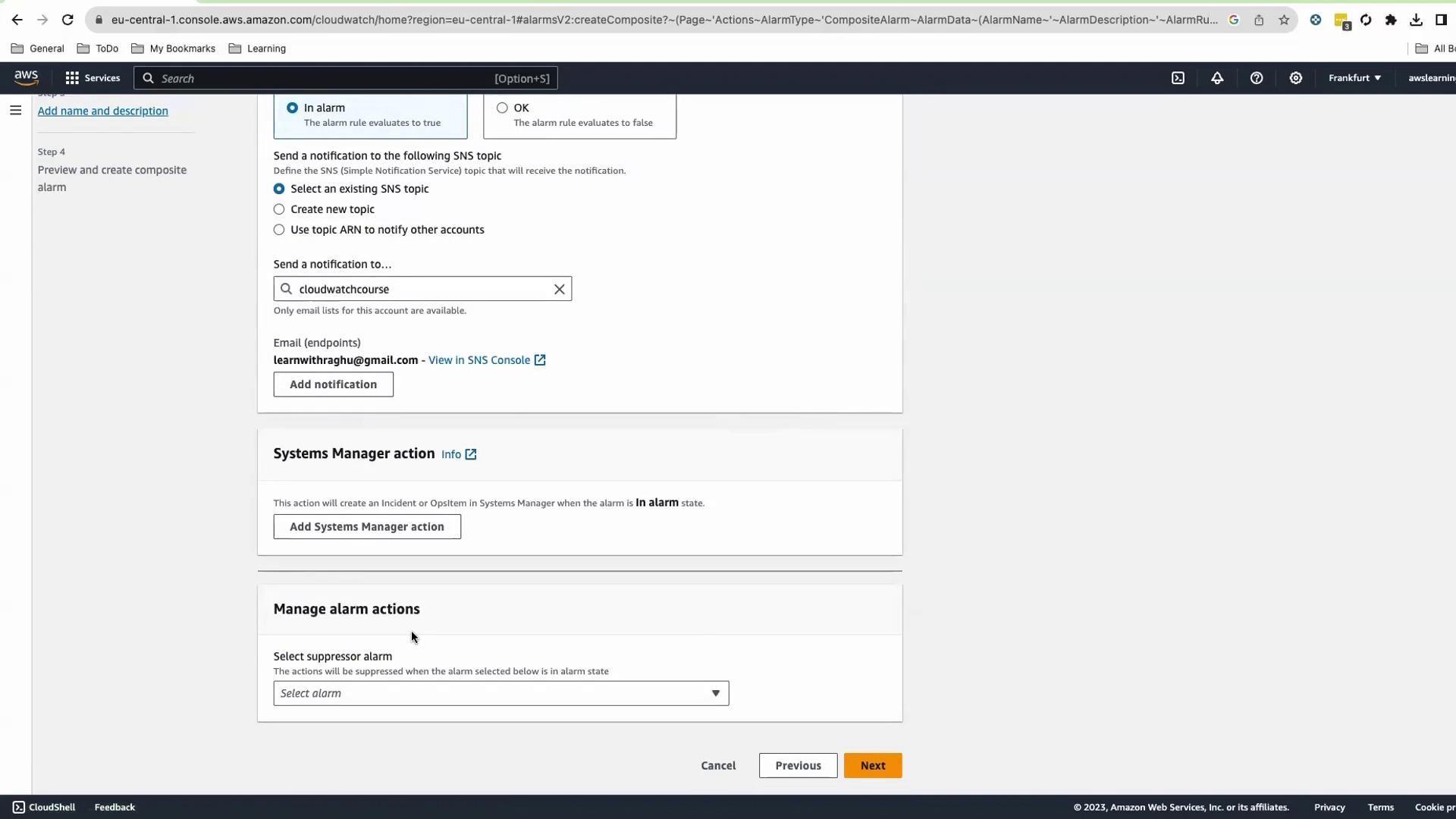
Configure notifications (e.g., an SNS topic) and an optional suppressor alarm.
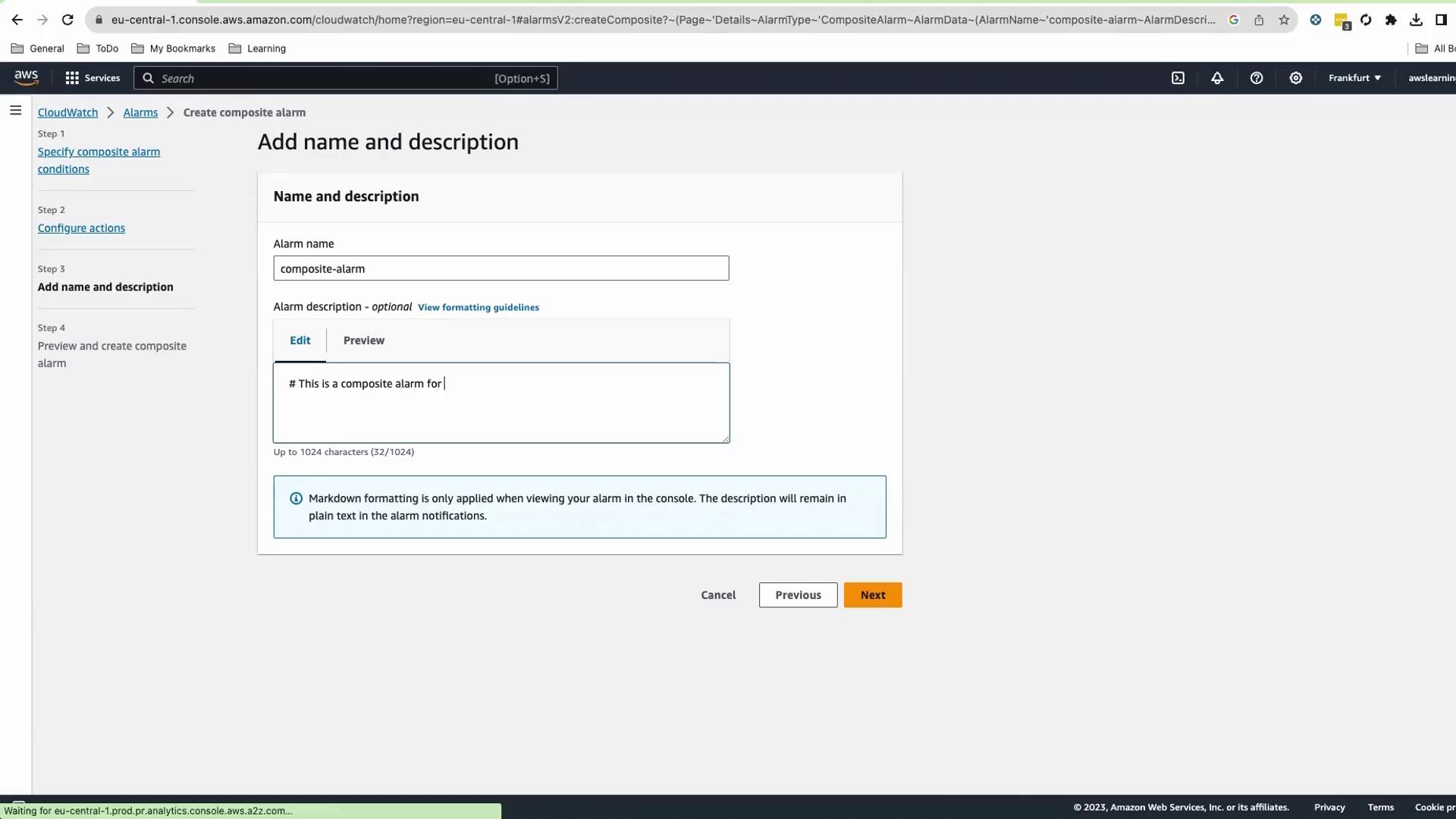
Enter Name and Description (Markdown supported).
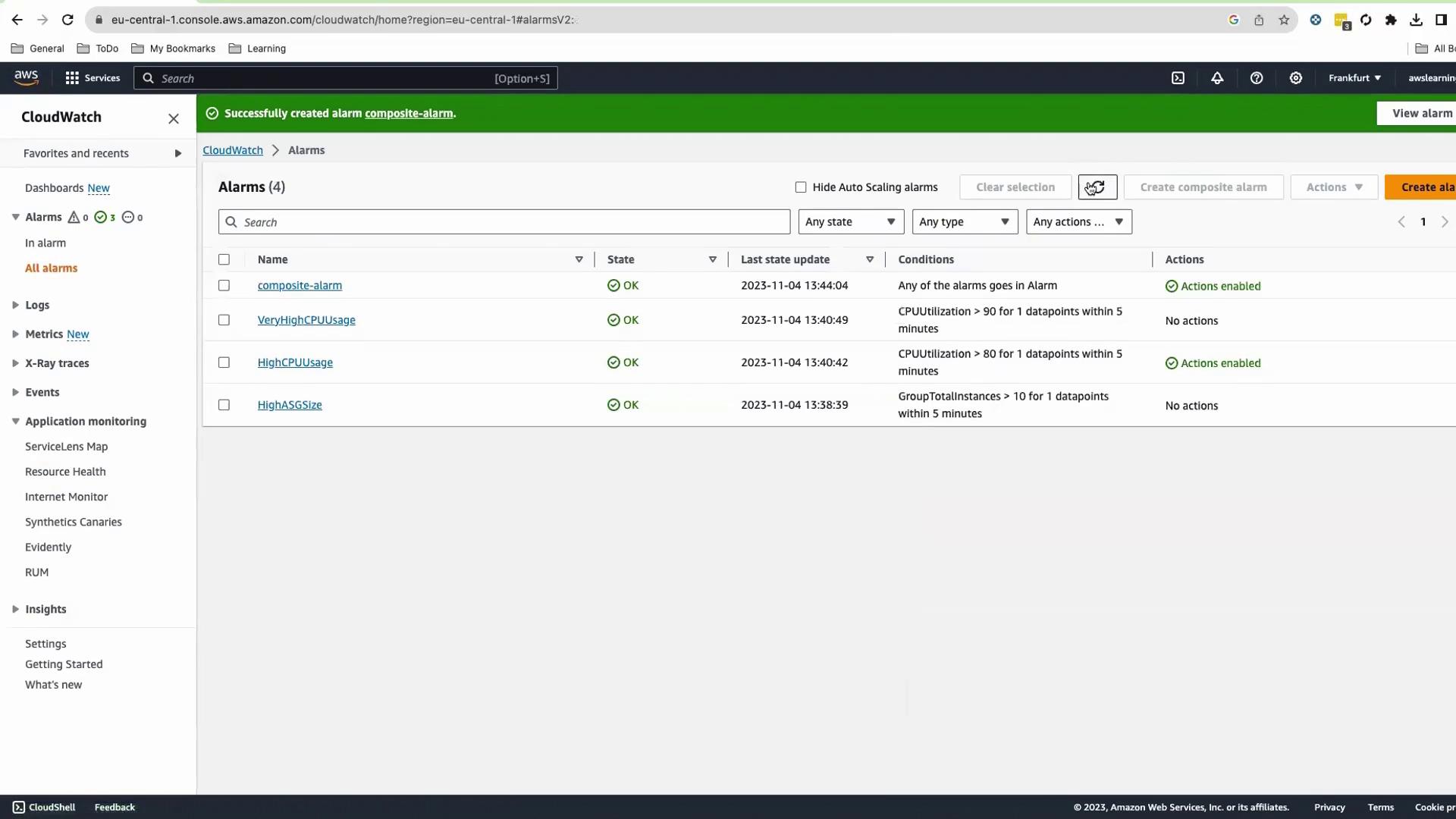
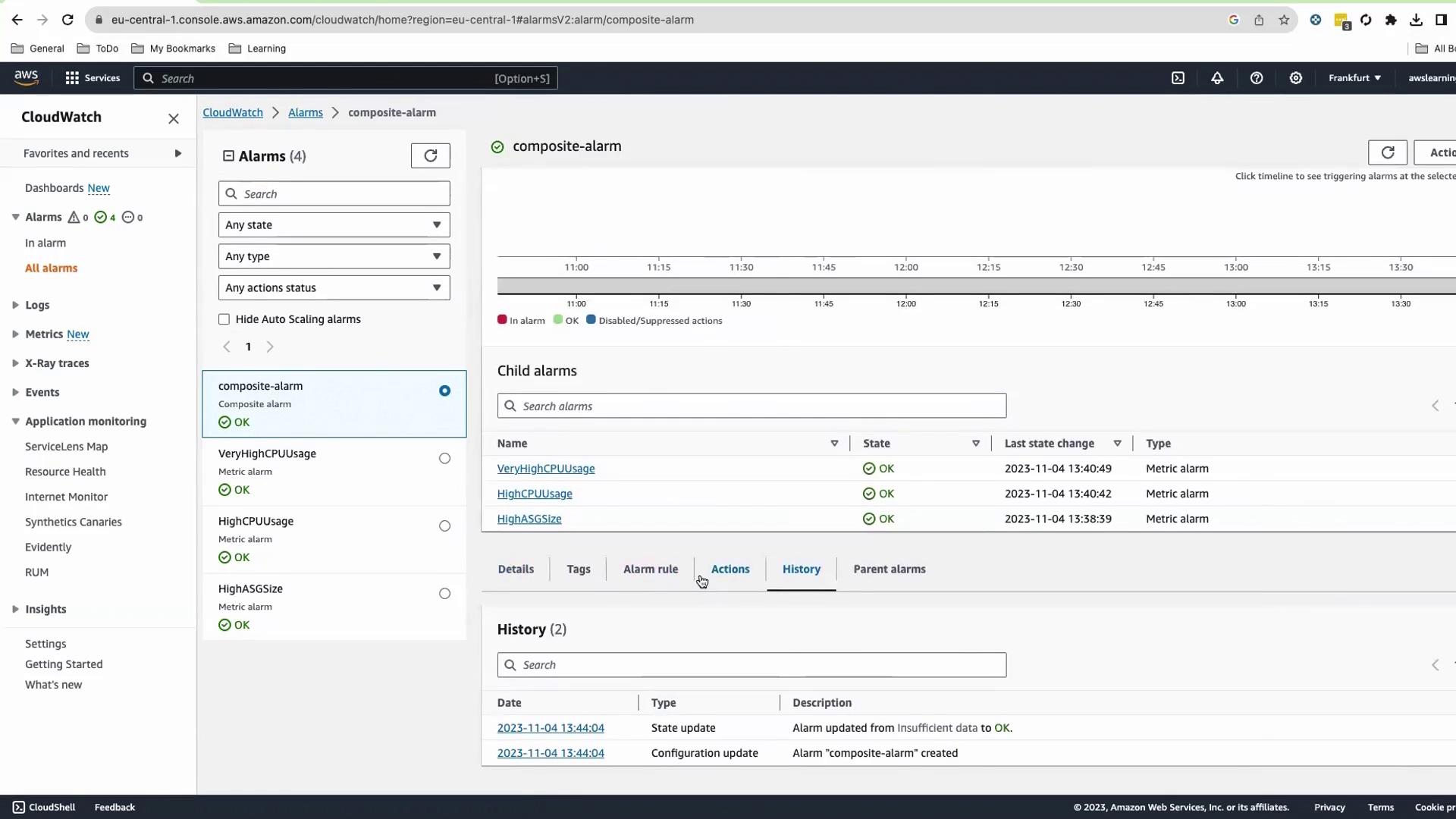
After creation, you’ll see four alarms, all in OK state.
Test the Composite Alarm
To trigger the alarm:
In the EC2 Console, open your ASG > Details > Edit .
Set Min and Desired capacity to 12, then save.
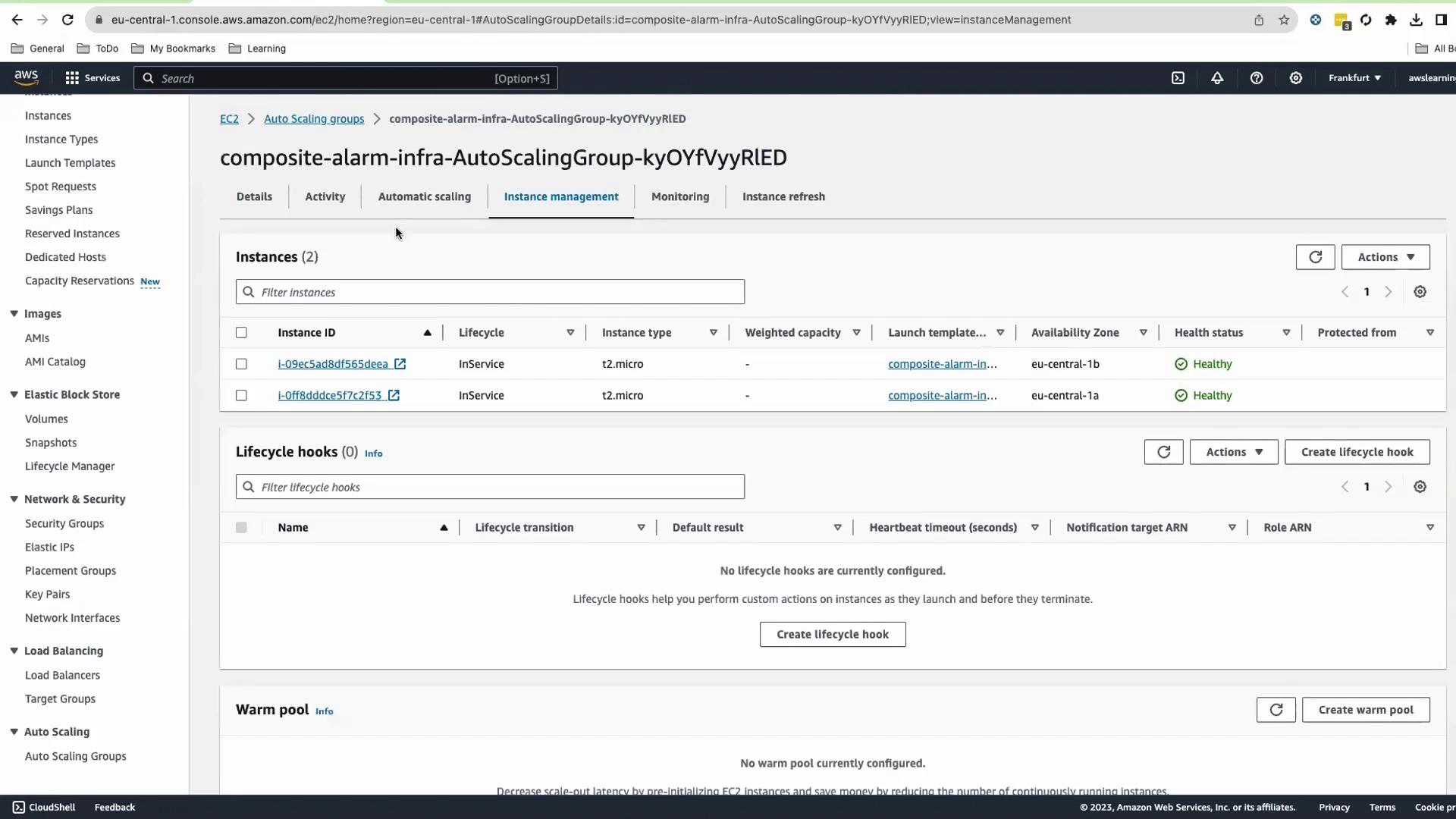
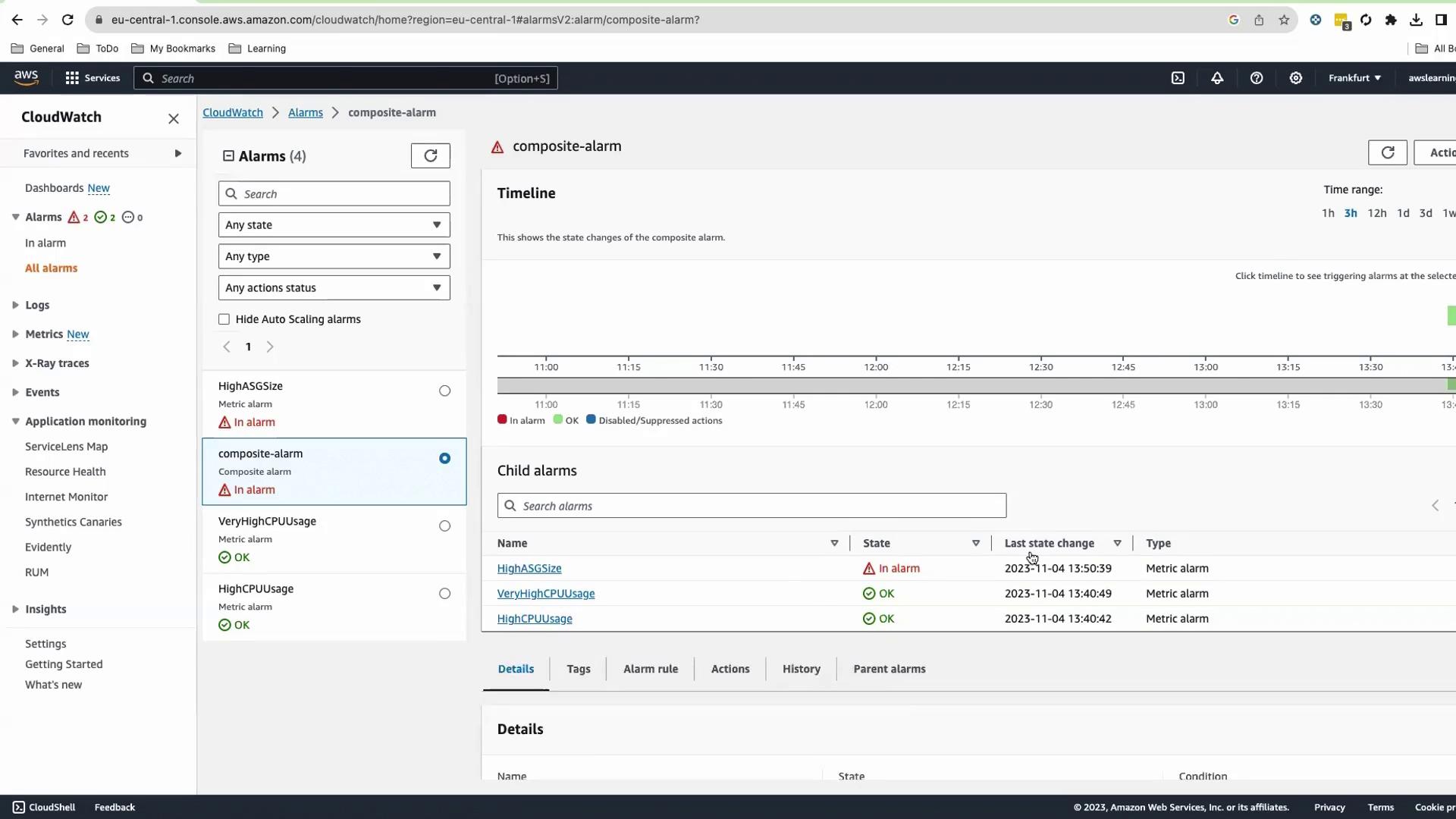
After one metric period, HighASGSize will fire and the composite alarm will trigger.
Check your email for the SNS notification.
Cleanup
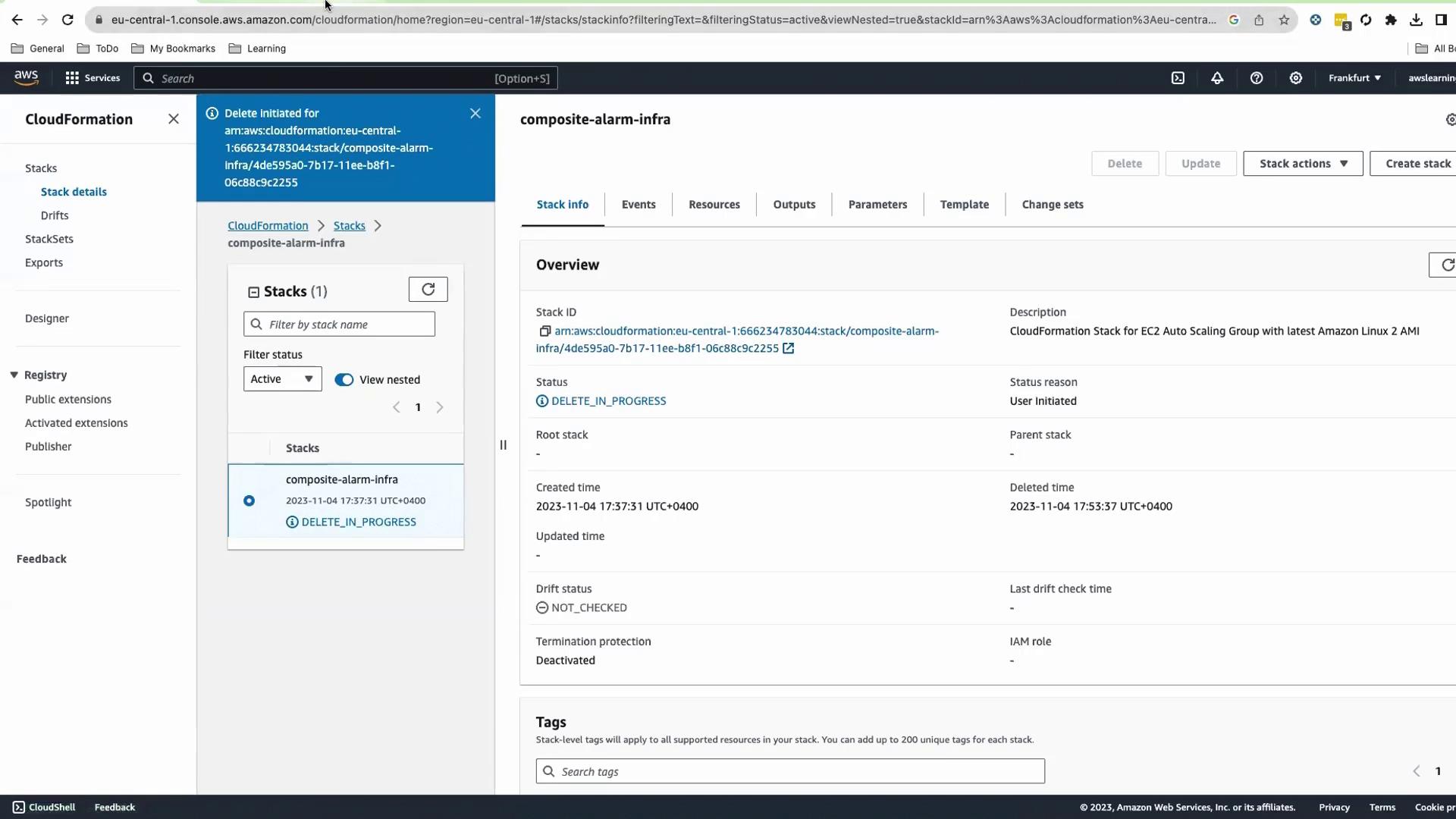
Delete the CloudFormation stack.
In CloudWatch, select the composite alarm and choose Actions > Delete .
Deleting the composite alarm must be done manually—it is not removed by the CloudFormation stack.
This completes the guide to building and testing an AWS composite alarm using CloudFormation, Auto Scaling, and CloudWatch.