

If you’re on the AWS Free Tier, many CloudWatch metrics are free up to specified limits. Standard charges apply once you exceed those quotas.
Be sure to choose a region close to you—here we’re using eu-central-1 (Frankfurt) for optimal latency.
Be sure to choose a region close to you—here we’re using eu-central-1 (Frankfurt) for optimal latency.
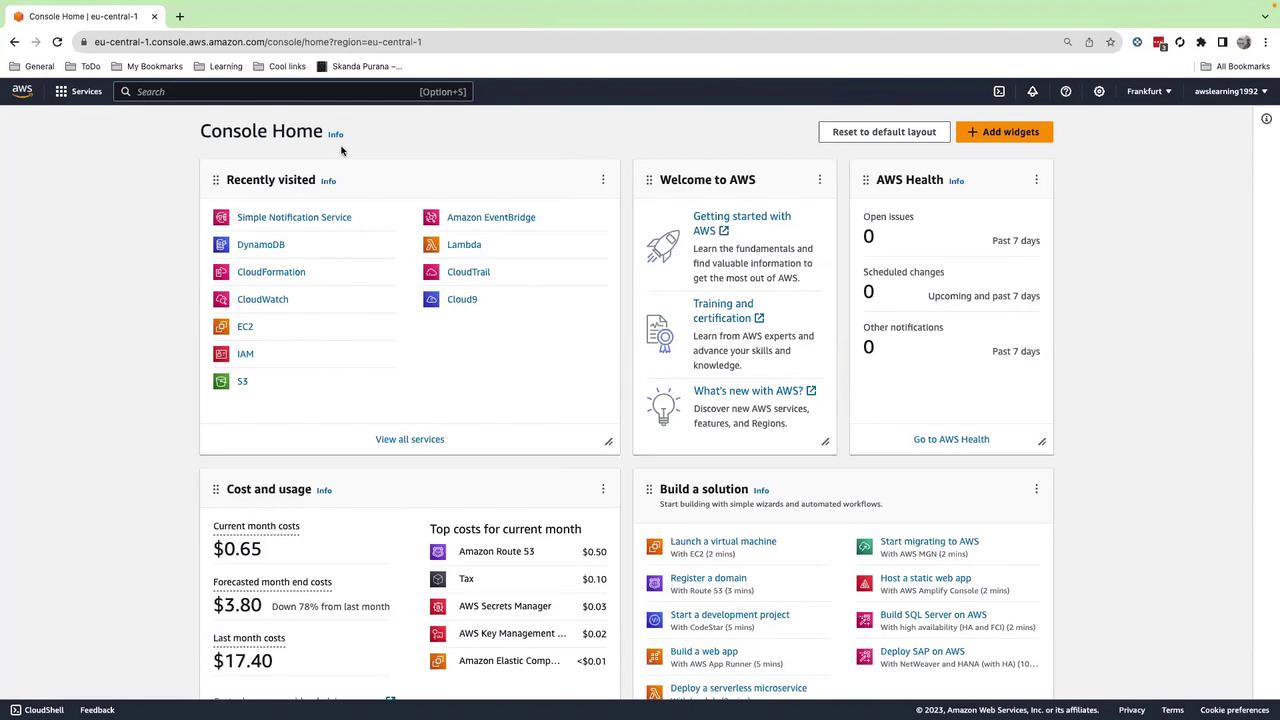
1. Navigating to CloudWatch
- In the console’s search bar, type CloudWatch.
- Select CloudWatch from the drop-down to open the CloudWatch Overview.
Use the Favorites tab to bookmark dashboards or alarms you check frequently.
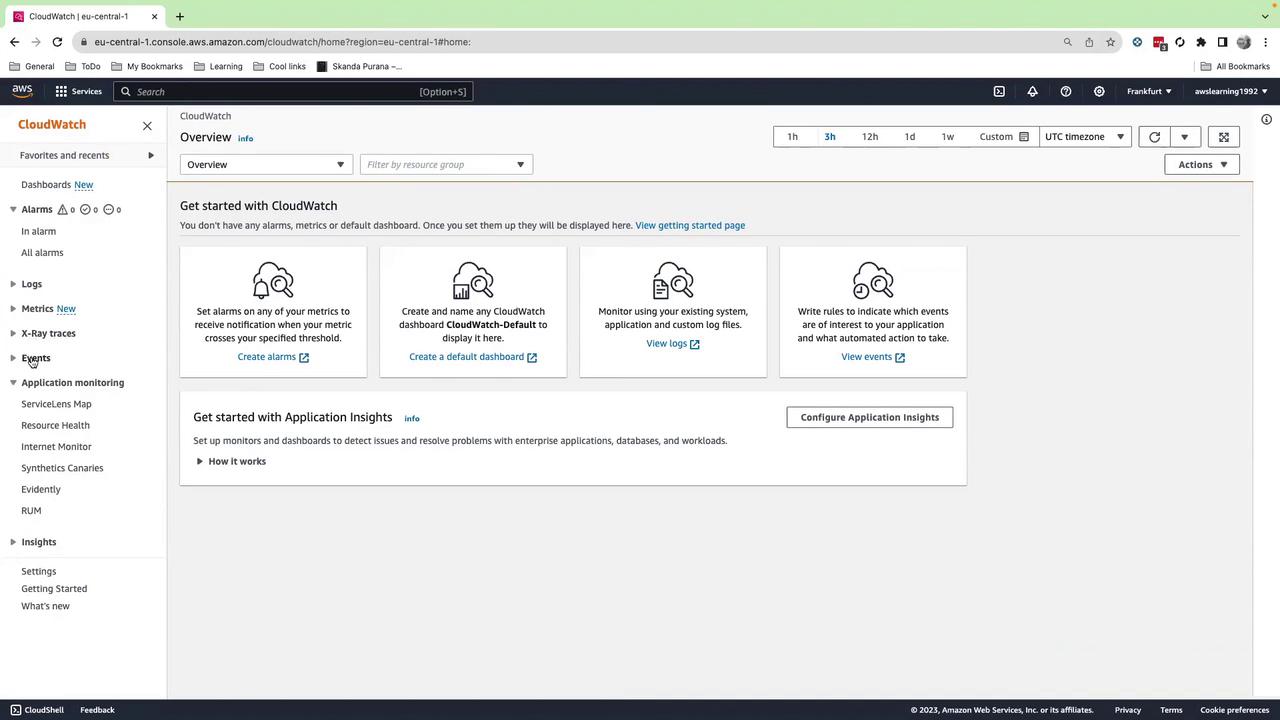
2. Creating an SNS Topic
Amazon SNS (Simple Notification Service) lets you push notifications via email, SMS, HTTP endpoints, and more. To configure email alerts:- In the console search bar, type SNS and select Simple Notification Service.
- In the left menu, click Topics, then Create topic.
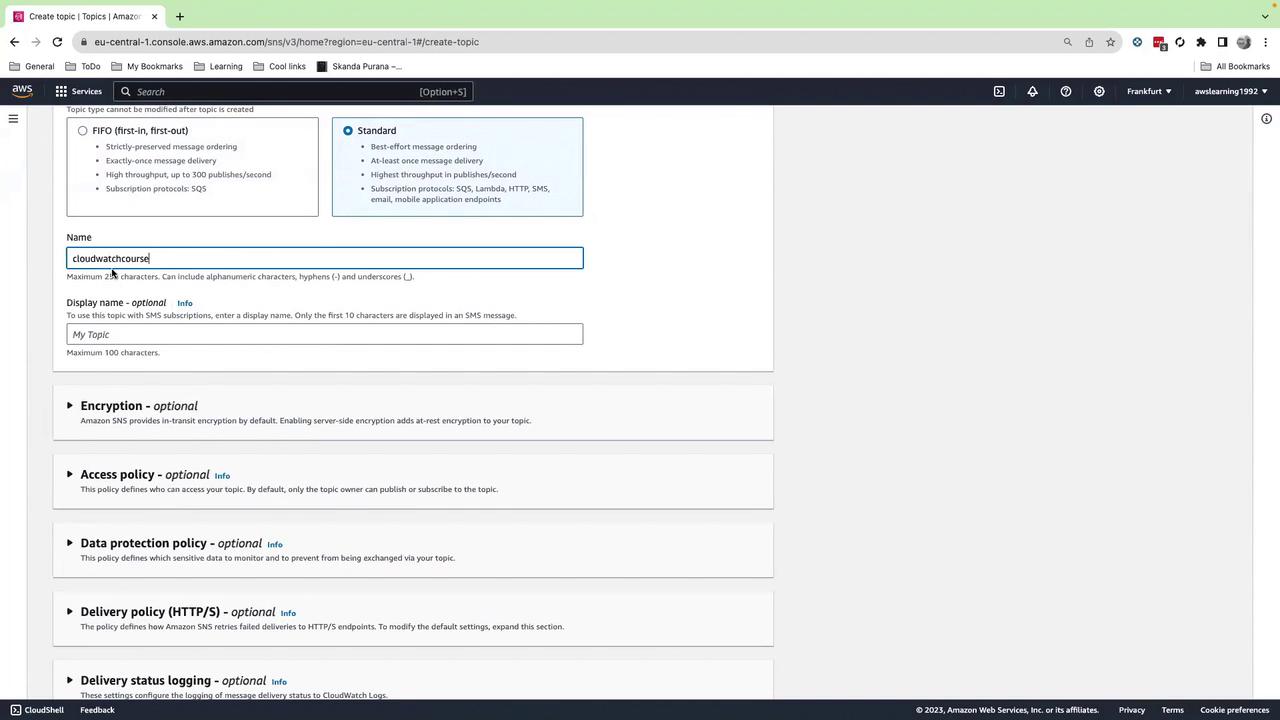
- Choose Standard as the topic type.
- For Name, enter
CloudWatchCourse.
(You can optionally set a Display name for SMS protocols.) - Leave other settings at their defaults and click Create topic.
3. Subscribing an Email Endpoint
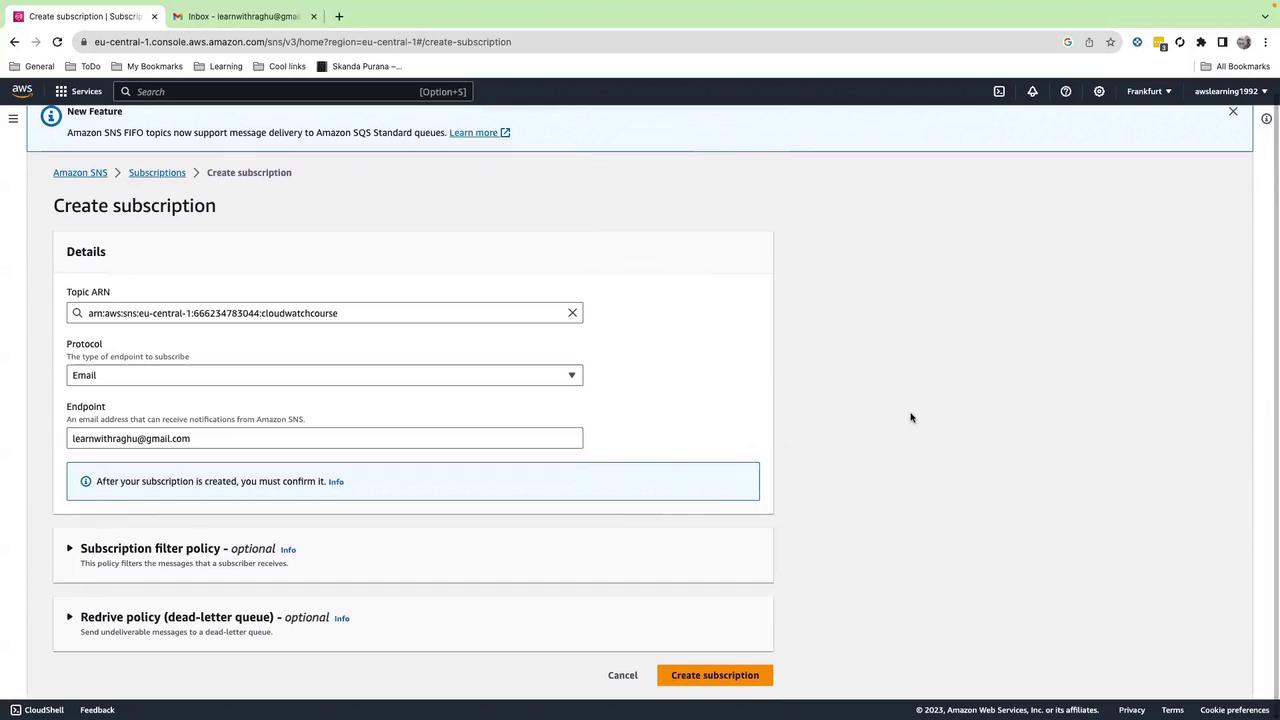
Next, attach your email address to the SNS topic so you can receive notifications:- Select your newly created
CloudWatchCoursetopic. - Click Create subscription.
- For Protocol, choose Email.
- In Endpoint, enter your email address.
- Click Create subscription.
4. Confirming the Subscription
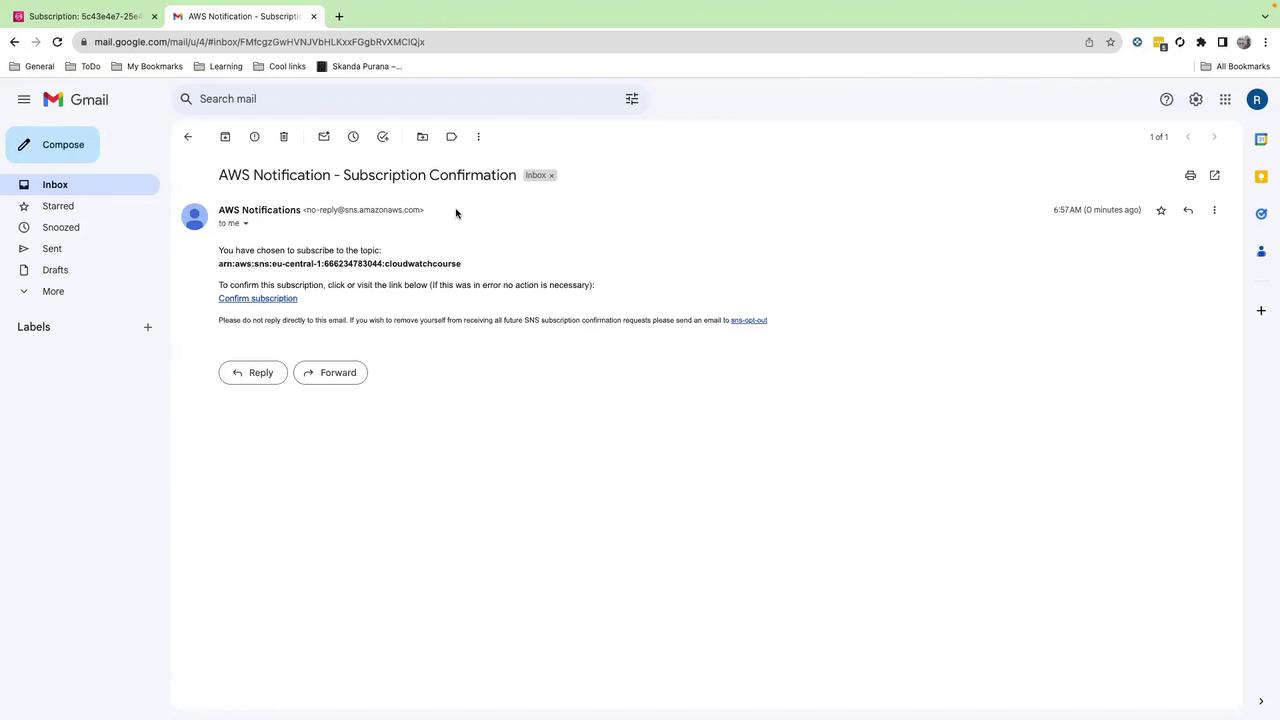
Check your inbox for an email from AWS Notifications. It contains a Confirm subscription link. Click this link to activate your subscription.If you do not confirm the subscription, SNS will not deliver any alerts to your email address.
5. Verifying the Subscription
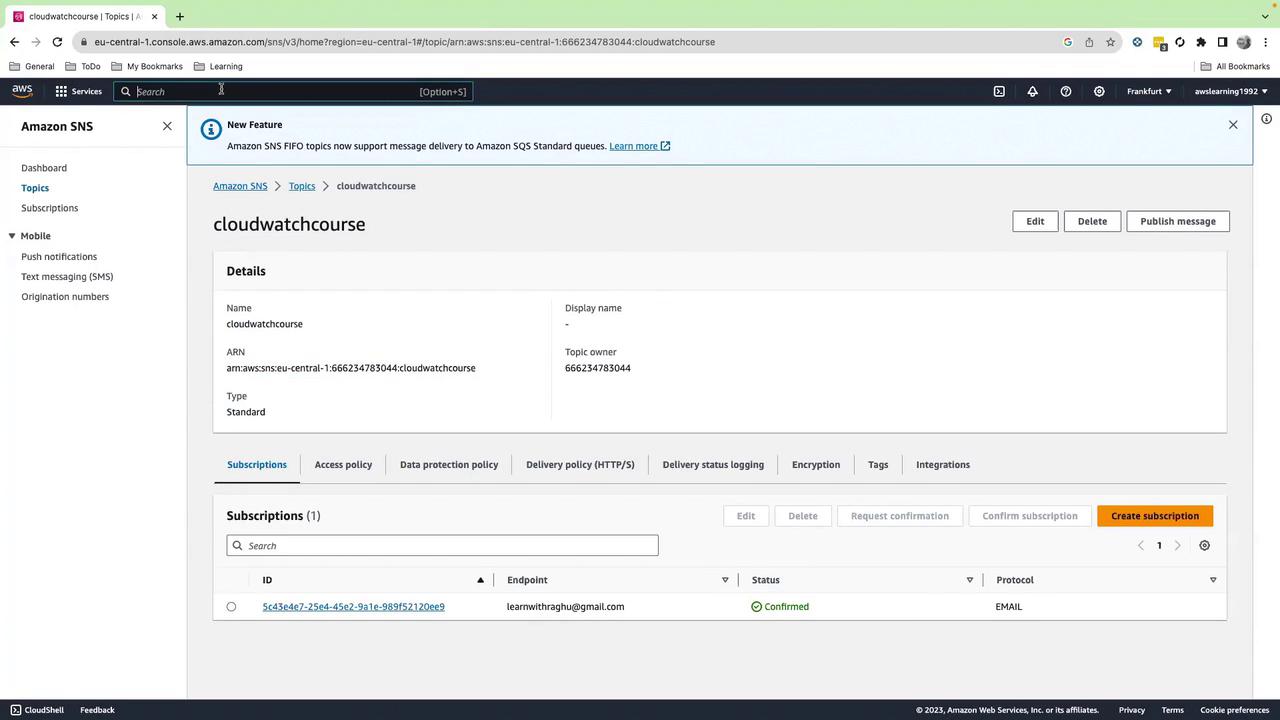
Back in the SNS console, open yourCloudWatchCourse topic. Under Subscriptions, you should see your email address listed with Confirmed status next to the Topic ARN. You’ll reference this ARN when creating CloudWatch alarms.
6. Switching Time Zones in CloudWatch
By default, CloudWatch displays all metrics and logs in UTC. To switch to your local time zone:- In the CloudWatch console, click the clock icon in the top-right corner.
- Select Local.
Next Steps
- Use this SNS topic ARN when you create CloudWatch alarms in our next lesson.
- Explore CloudWatch Alarms to set up threshold-based notifications.
- Dive into SNS Documentation for advanced delivery options.