

- Create IAM policies and roles
- Launch an EC2 instance with the IAM role
- Generate sample application logs
- Push logs to CloudWatch Logs
- Define a metric filter for HTTP 404 errors
- View metrics and create an alarm
- Clean up resources
1. Create an IAM Policy
- Open the IAM console and select Policies > Create policy.
- Under Service, choose EC2 and enable All EC2 permissions.
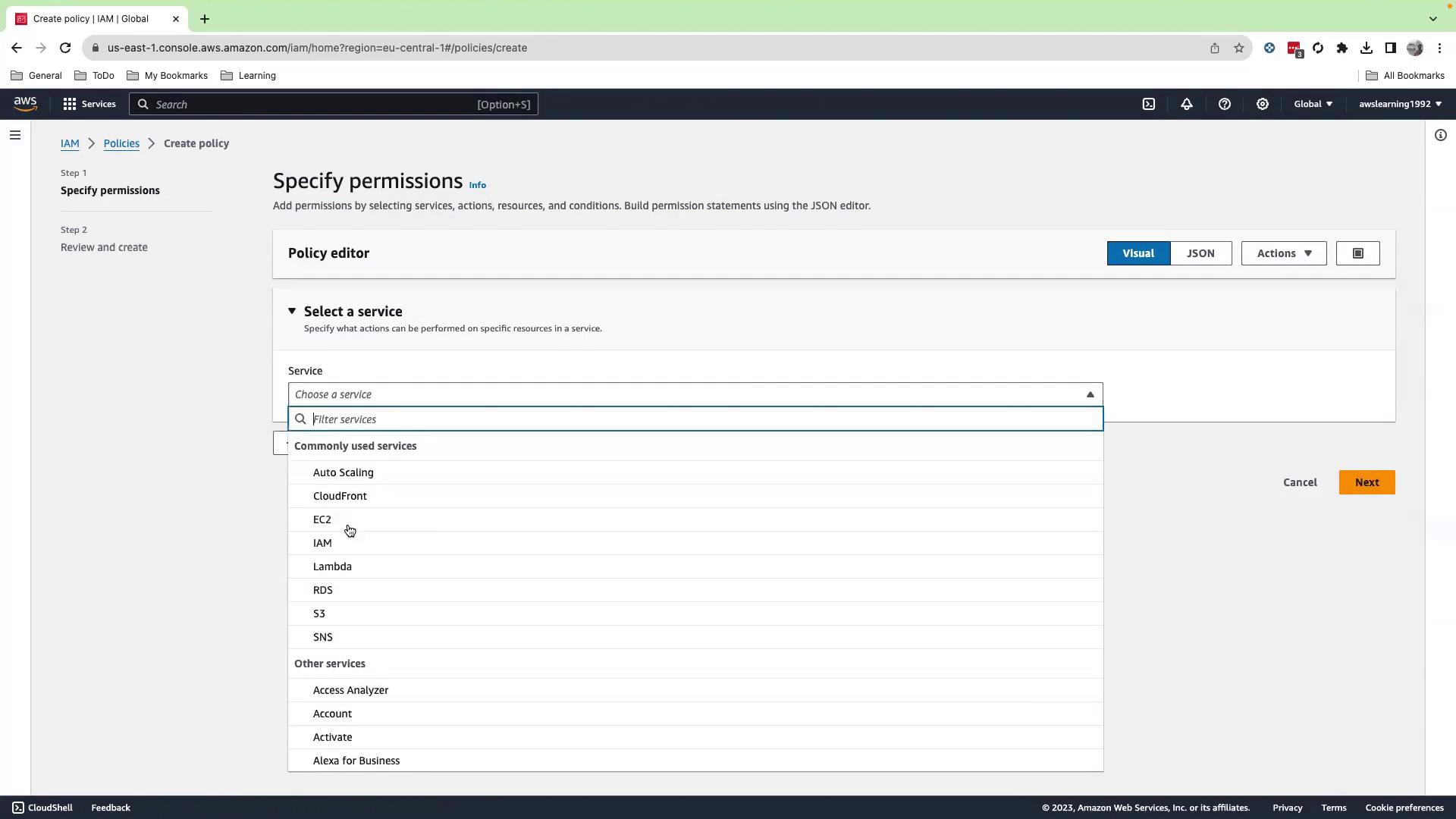
- Click Add permissions, search for CloudWatch, and select All CloudWatch permissions.
- Add CloudWatch Logs with All actions allowed.
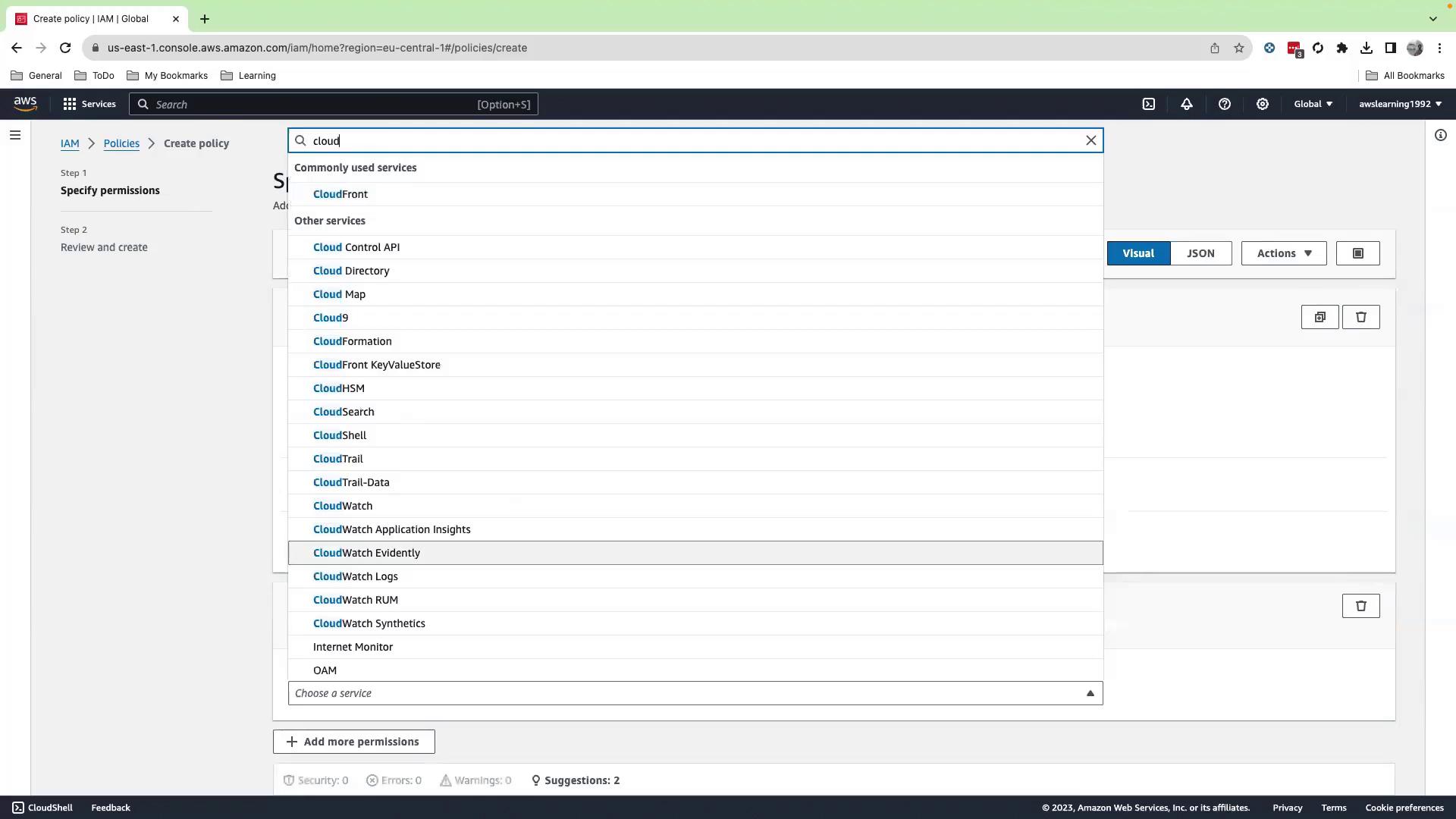
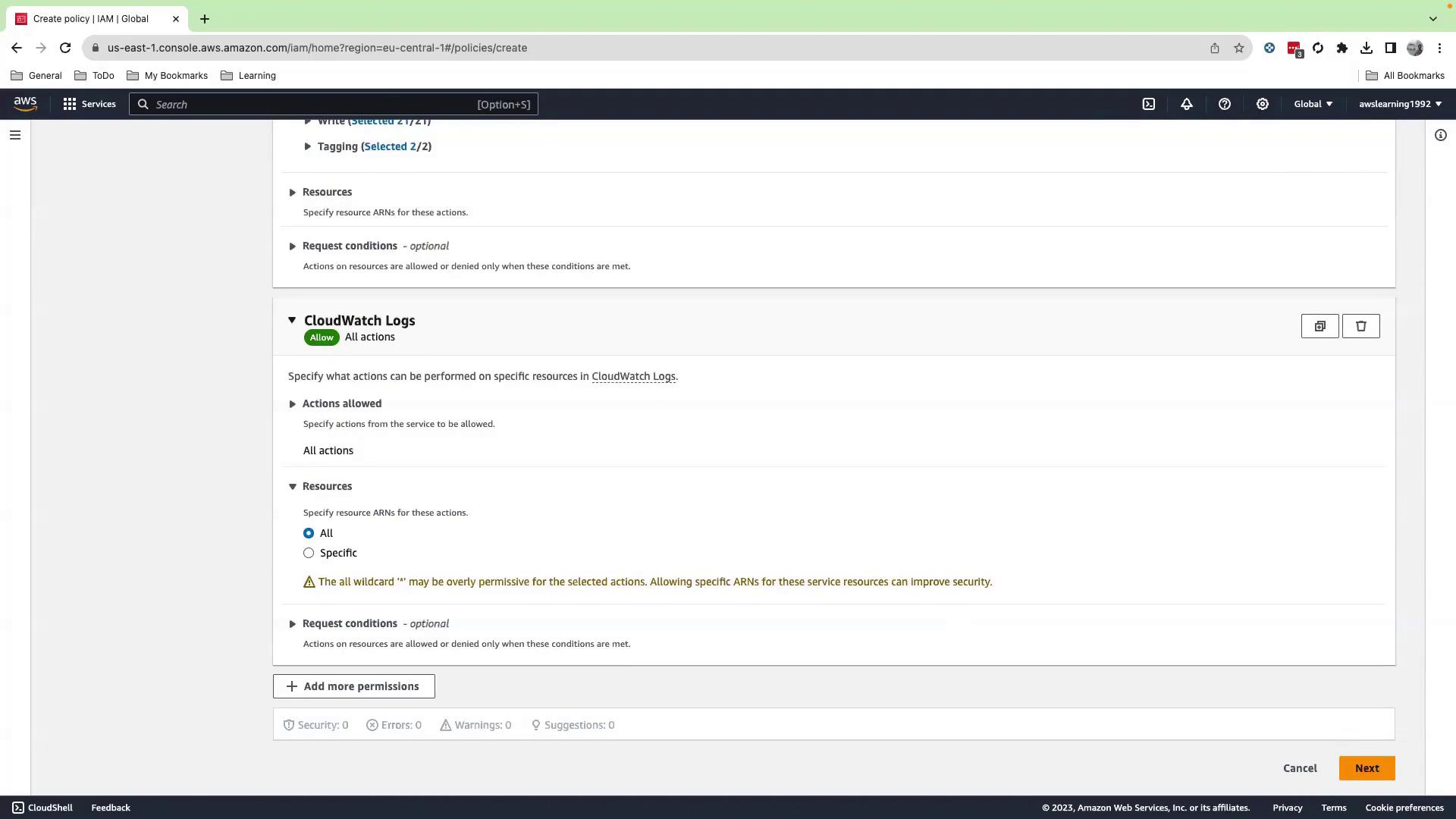
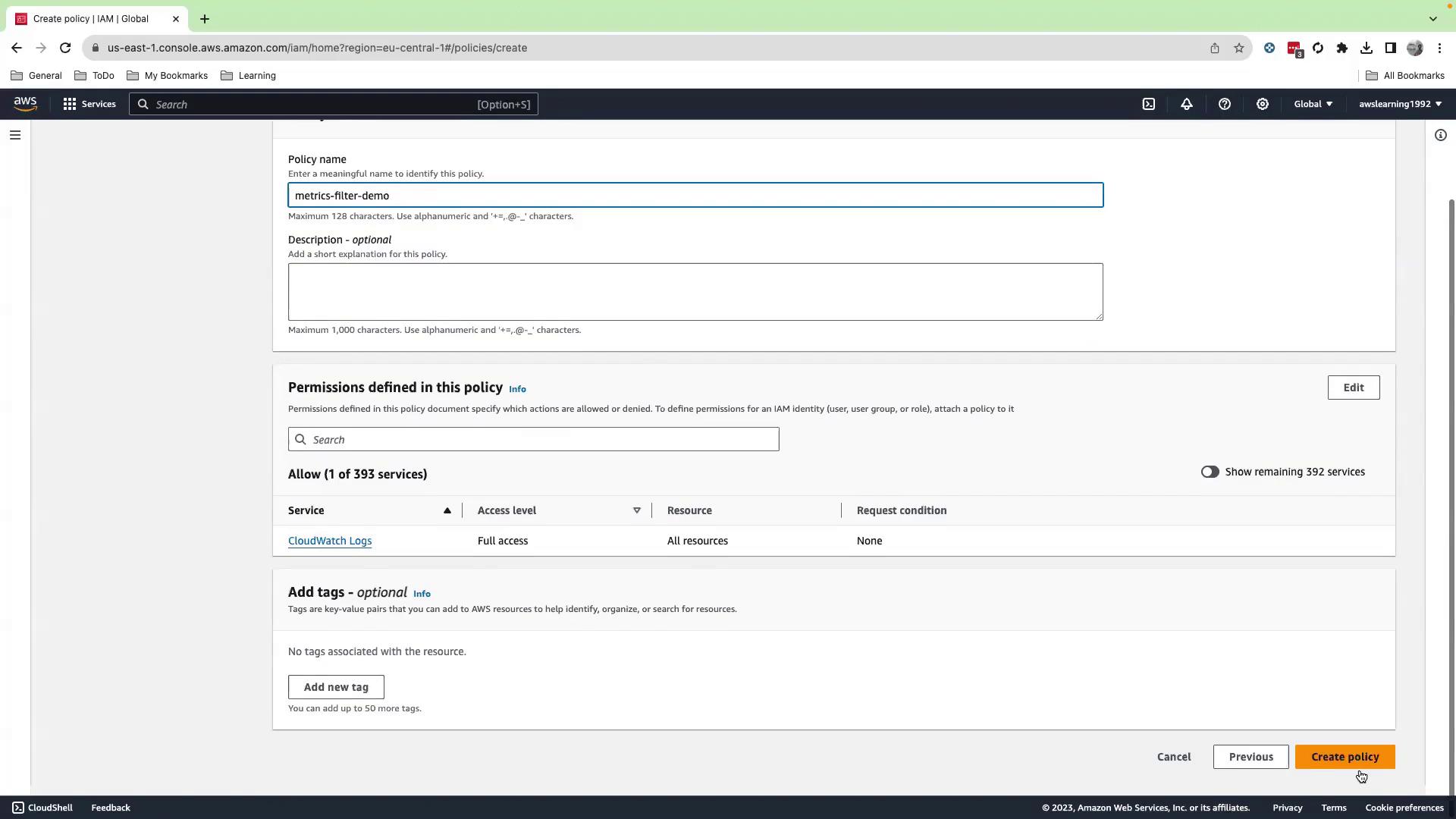
- Click Next, name the policy
metric-filter-demo, then Create policy.
2. Create an IAM Role
- In the IAM console, go to Roles > Create role.
- Choose EC2 as the trusted entity, then attach the
metric-filter-demopolicy. - Name the role
metric-filter-roleand Create role.
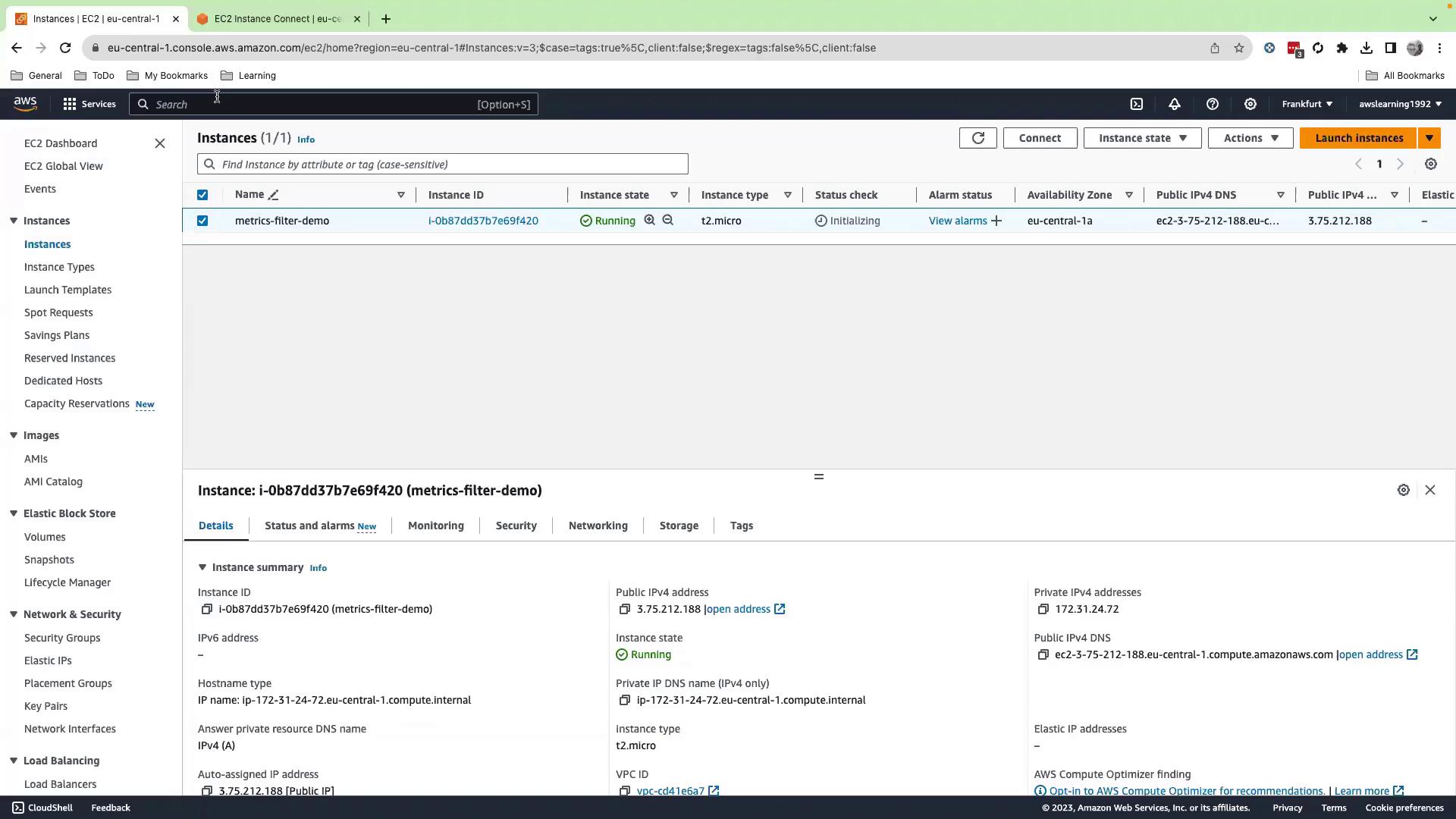
3. Launch an EC2 Instance
- Navigate to the EC2 console and click Launch instance.
- Provide a name tag, select an AMI, choose or create a key pair, and configure a security group.
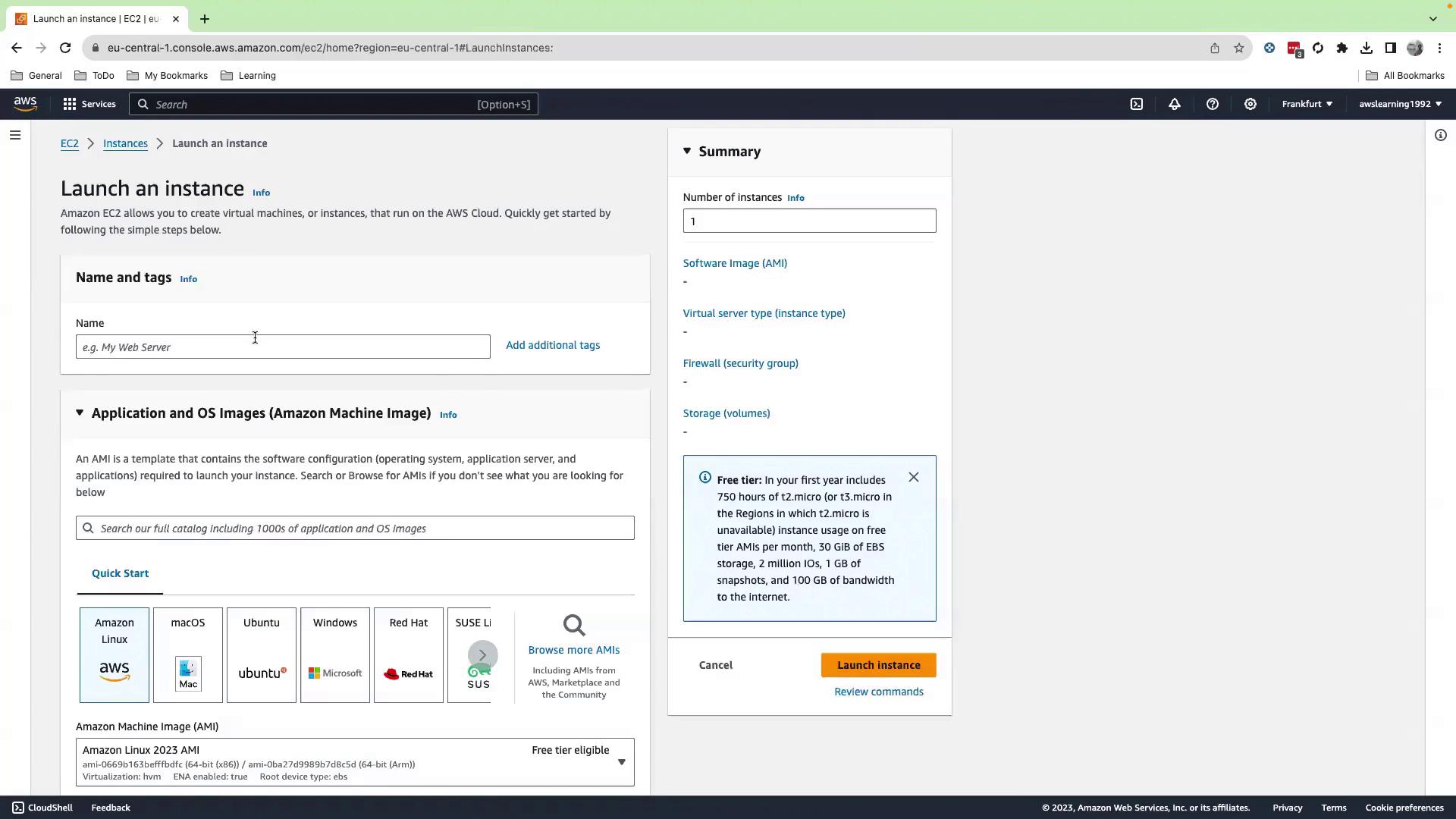
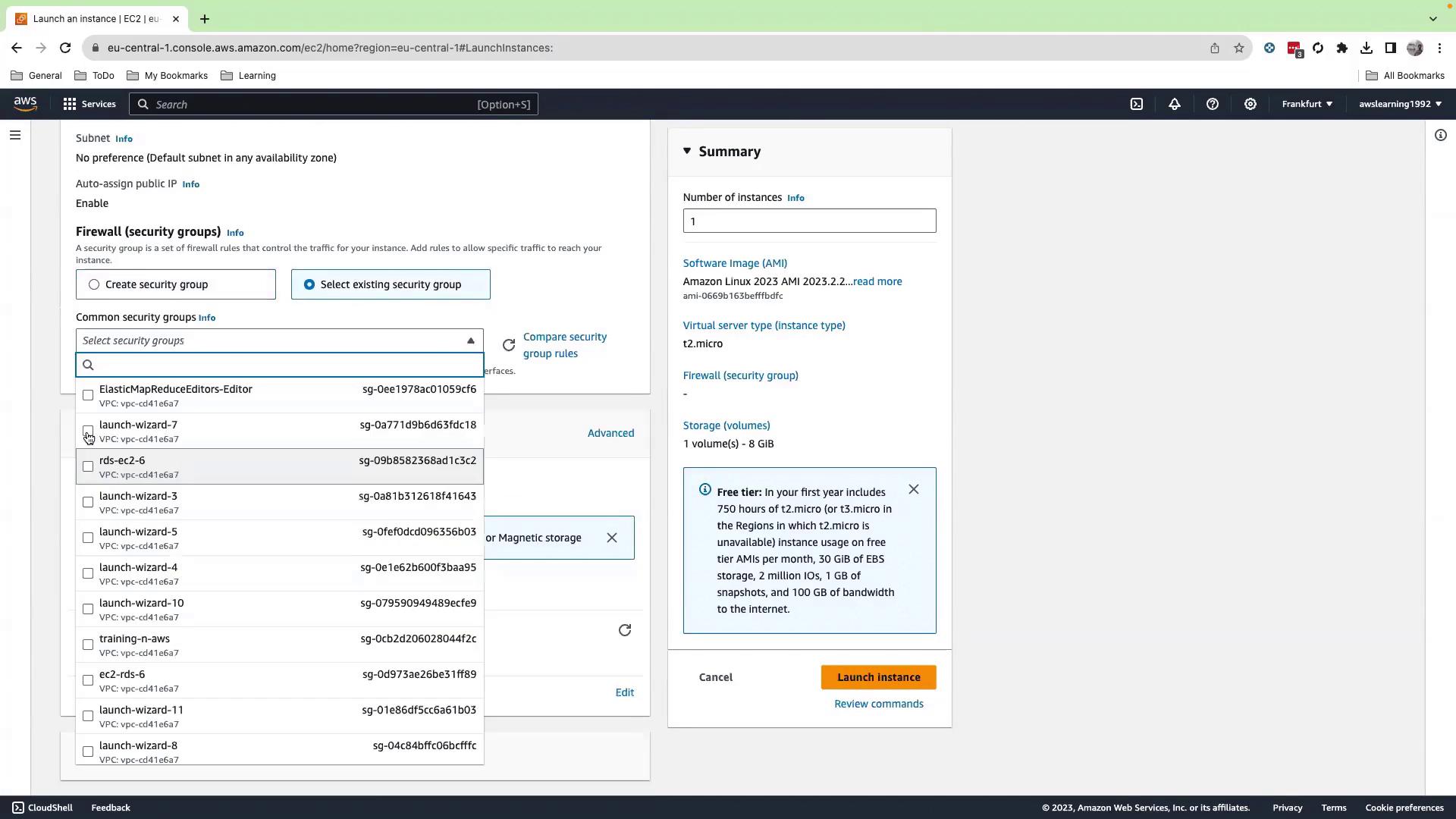
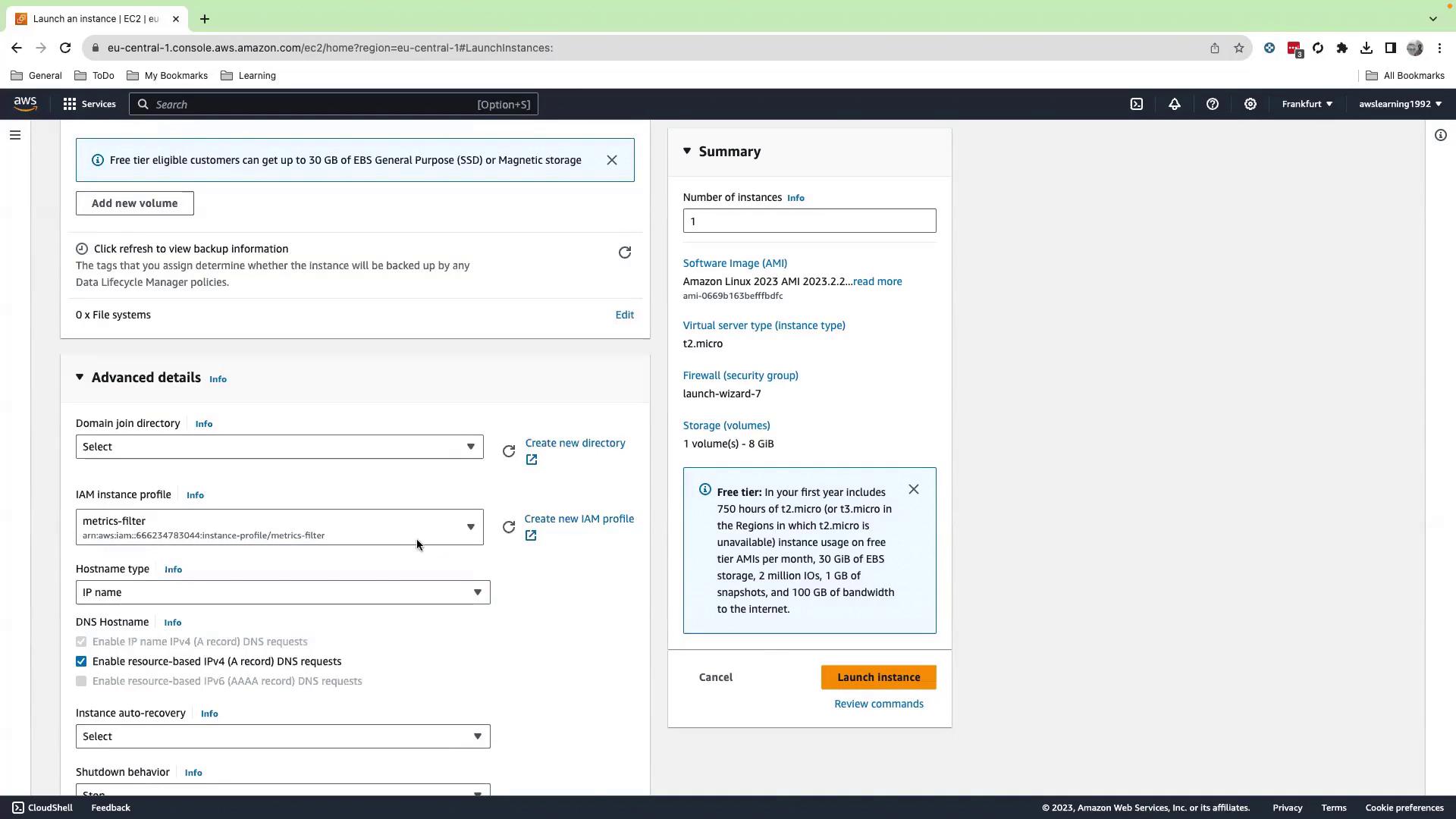
- Under Advanced details > IAM instance profile, select
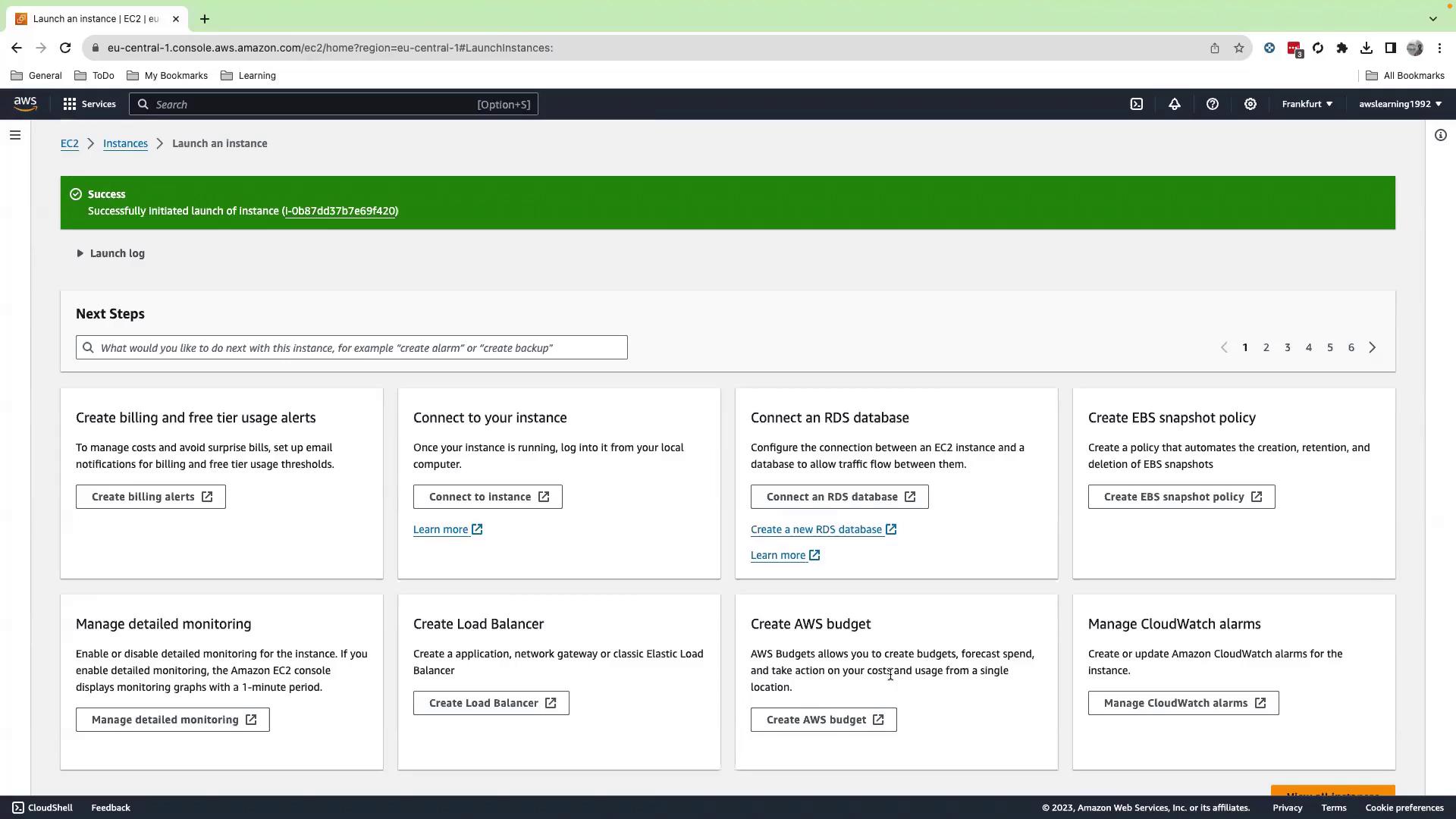
metric-filter-role. - Scroll down and click Launch instance.
- Verify the instance state is running.
4. Generate Application Logs
SSH into your EC2 instance and switch to root:5. Create a CloudWatch Logs Group & Stream
- In the CloudWatch console, go to Logs > Log groups > Create log group.
- Name:
application-404-error-tracker
- Name:
- Select the new group and click Create log stream.
- Name:
hostname
- Name:
nextSequenceToken. Confirm your logs appear under Log streams.
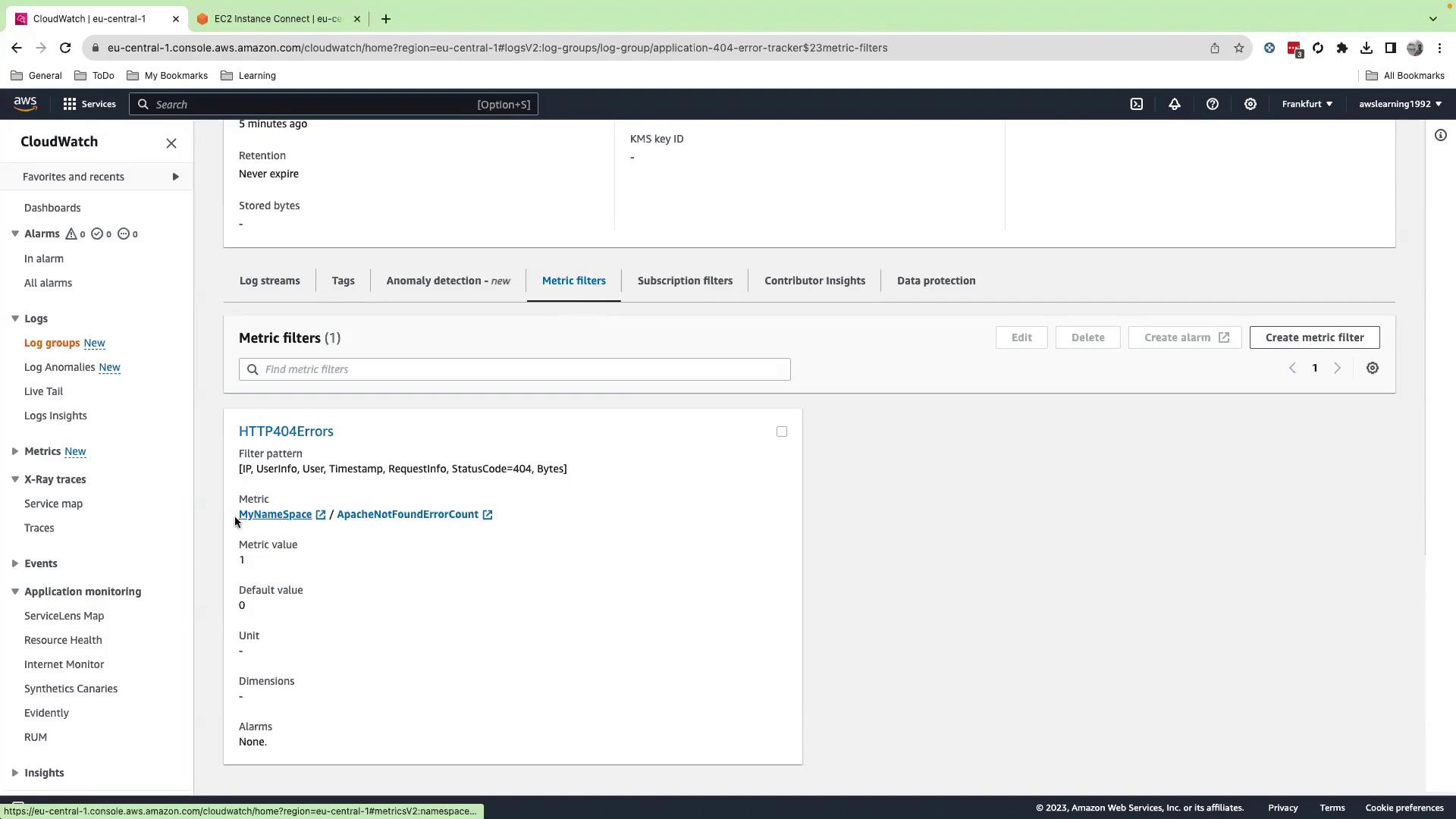
6. Define a Metric Filter
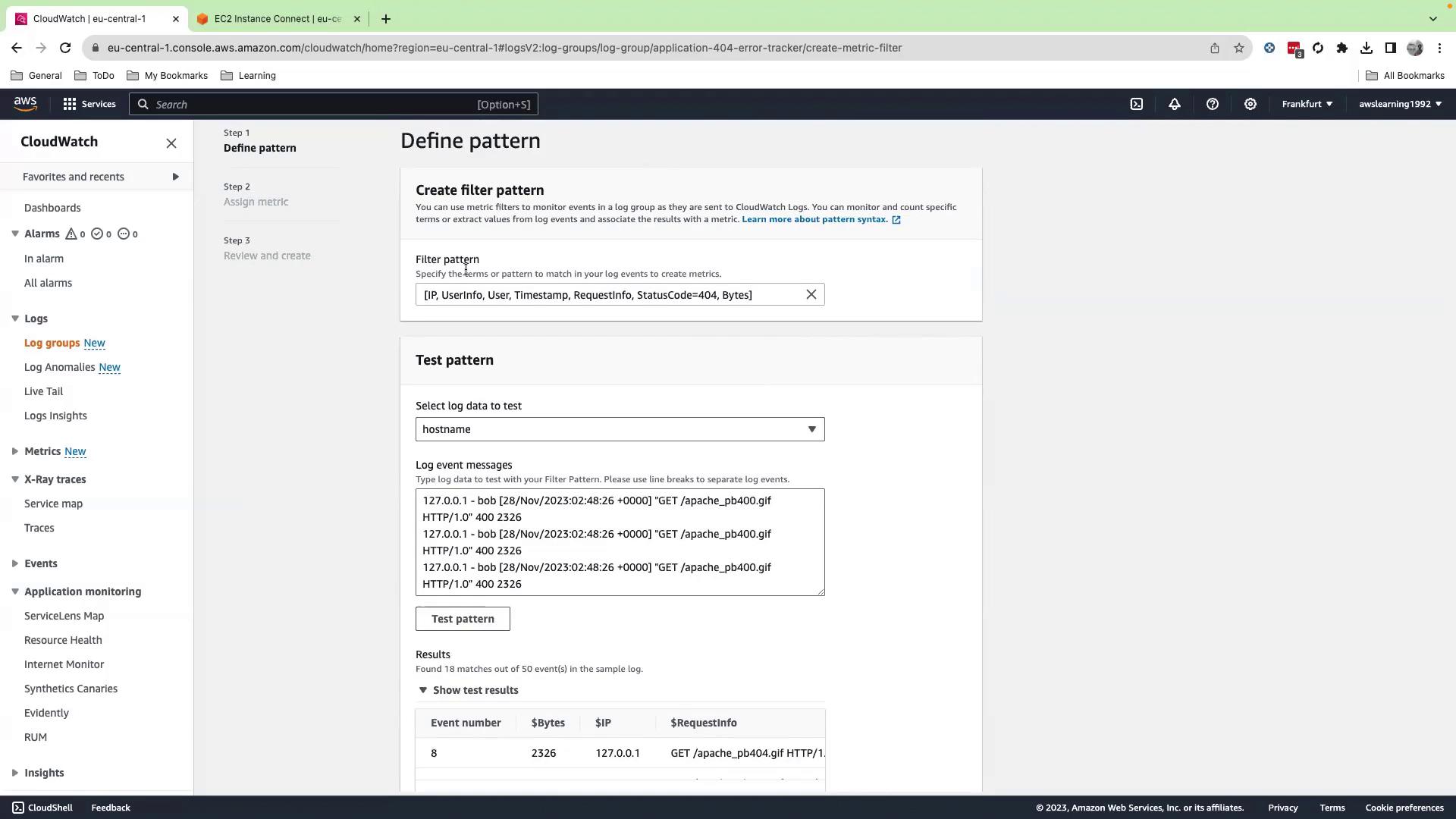
- In CloudWatch, open Logs > Log groups, select
application-404-error-tracker, and click Create metric filter. - Enter this pattern to extract the HTTP status code:
- Test against the
hostnamestream to validate matches.
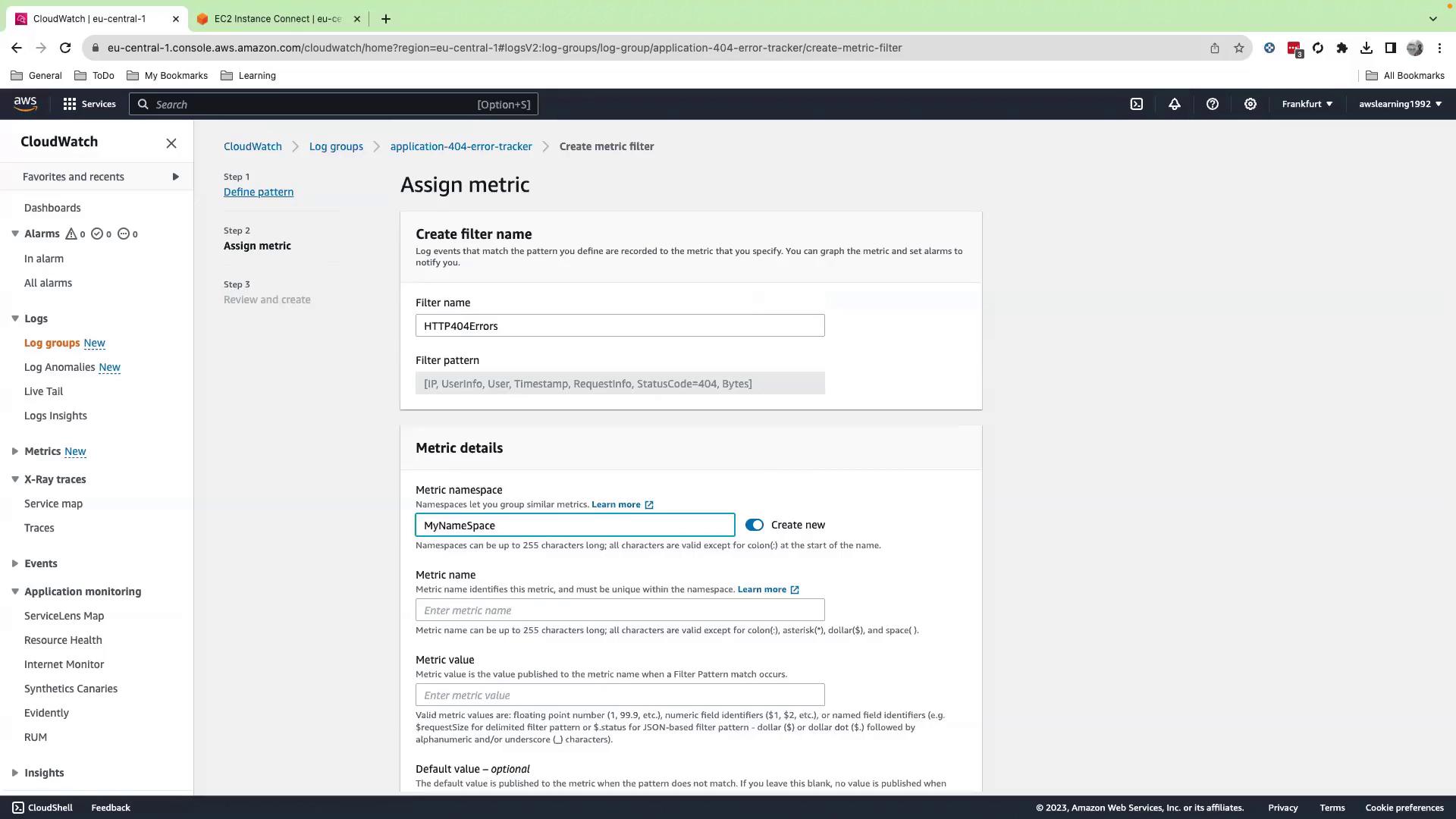
- Click Next and configure the metric:
- Filter name:
HTTP404Filter - Metric namespace:
MyNamespace - Metric name:
ApacheNotFoundErrorCount - Metric value:
1 - Default value:
0

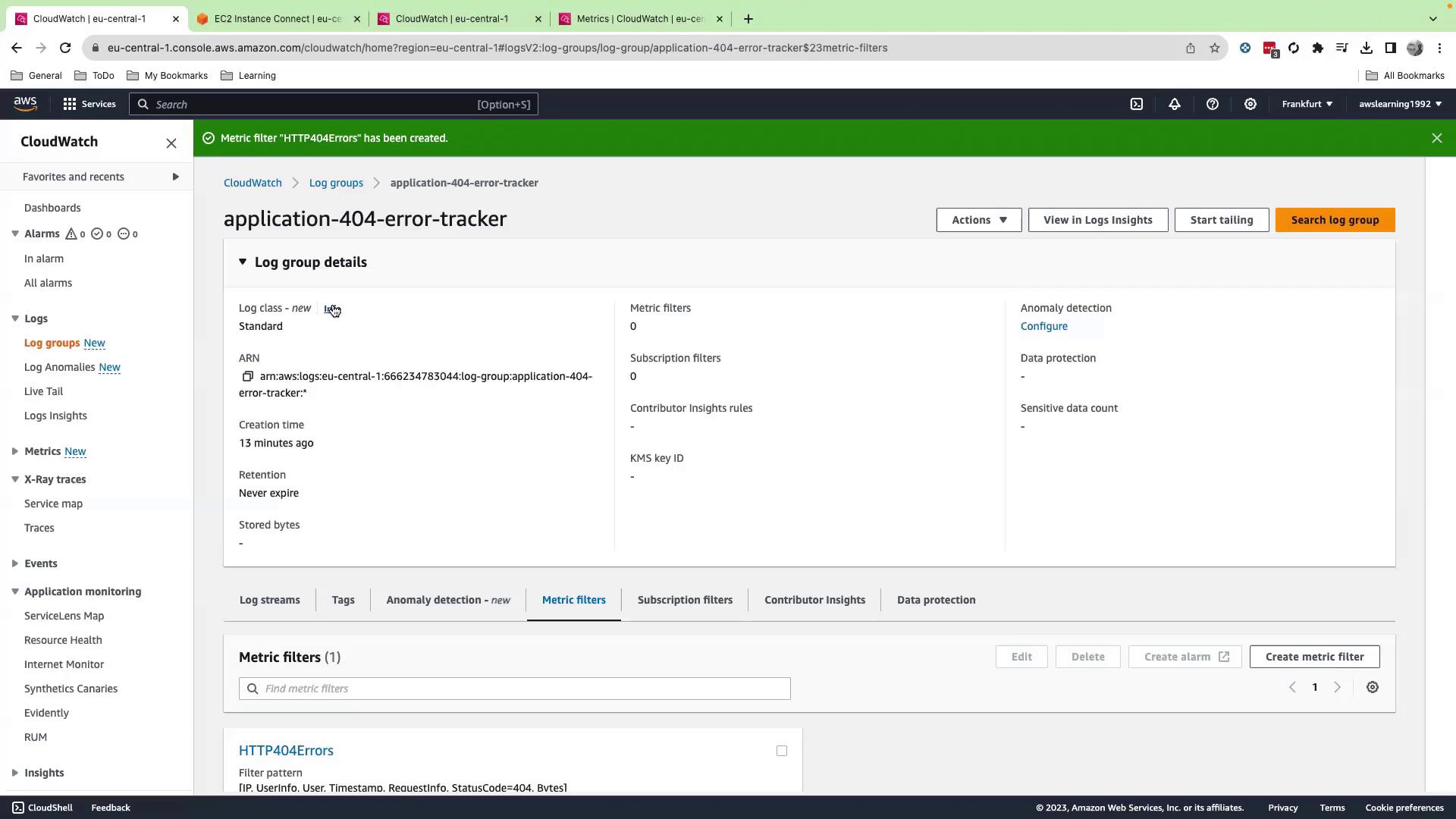
- Review settings and click Create metric filter.
7. Push Additional Logs
When sending subsequent log batches, include the
--sequence-token you received from the previous put-log-events response.8. View Metric & Create an Alarm
- In CloudWatch, go to Metrics > MyNamespace > ApacheNotFoundErrorCount.
- Select the metric and click Create alarm.
- Set a threshold (for example, when > 1 events in 5 minutes) and configure a notification (SNS, email, etc.).


9. Summary & Cleanup
You have successfully:- Created a custom IAM policy and role for EC2 & CloudWatch Logs
- Launched an EC2 instance with the IAM role attached
- Generated and pushed application logs to CloudWatch Logs
- Defined a metric filter for HTTP 404 errors
- Viewed the metric and configured an alarm