

kubectl CLI with Google Cloud labels and tags, you can simplify cluster navigation, auditing, and access control for optimal resource management.
Accessing a GKE cluster with kubectl
kubectl is the primary tool for interacting with Kubernetes resources—Deployments, Services, Pods, and more. To connect to your GKE cluster:
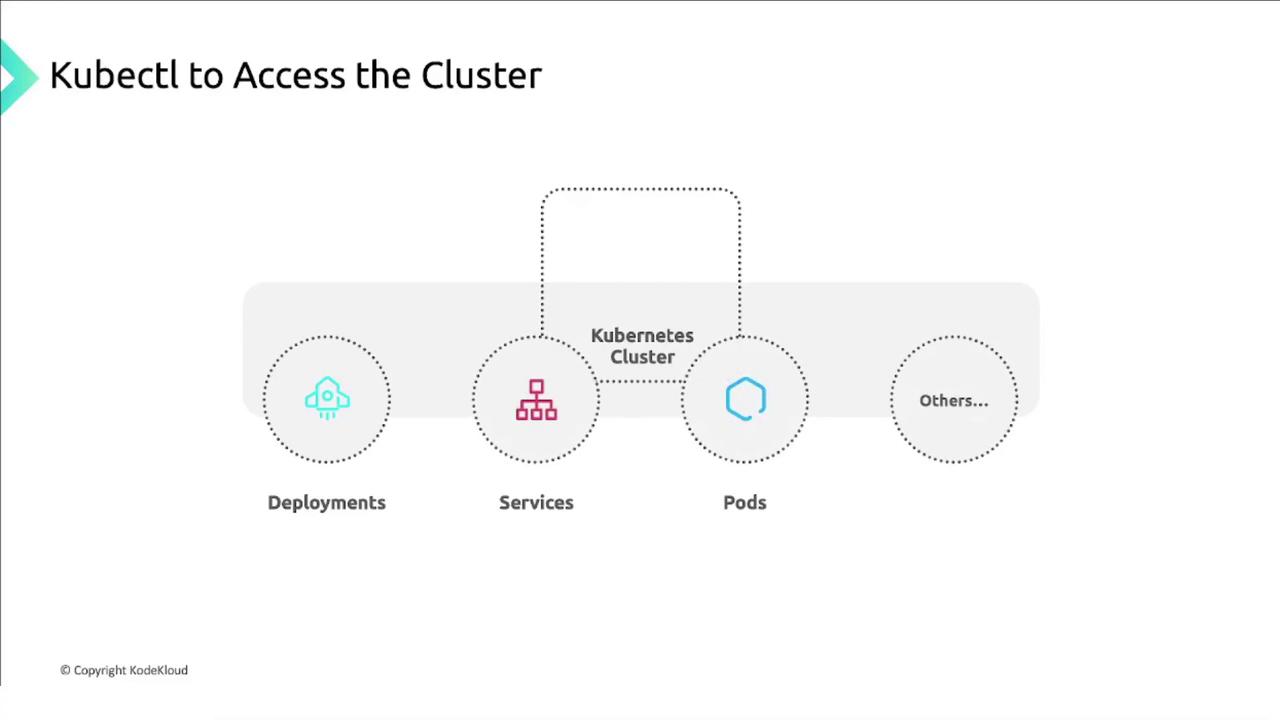
Installation and configuration steps
- Install
kubectlvia the Google Cloud CLI - Verify the
kubectlclient version - Install the GKE authentication plugin
- Confirm the plugin installation
- Retrieve your cluster credentials
If you’re using Google Cloud Shell, both
kubectl and the GKE auth plugin are pre-installed.Organizing clusters with GKE labels
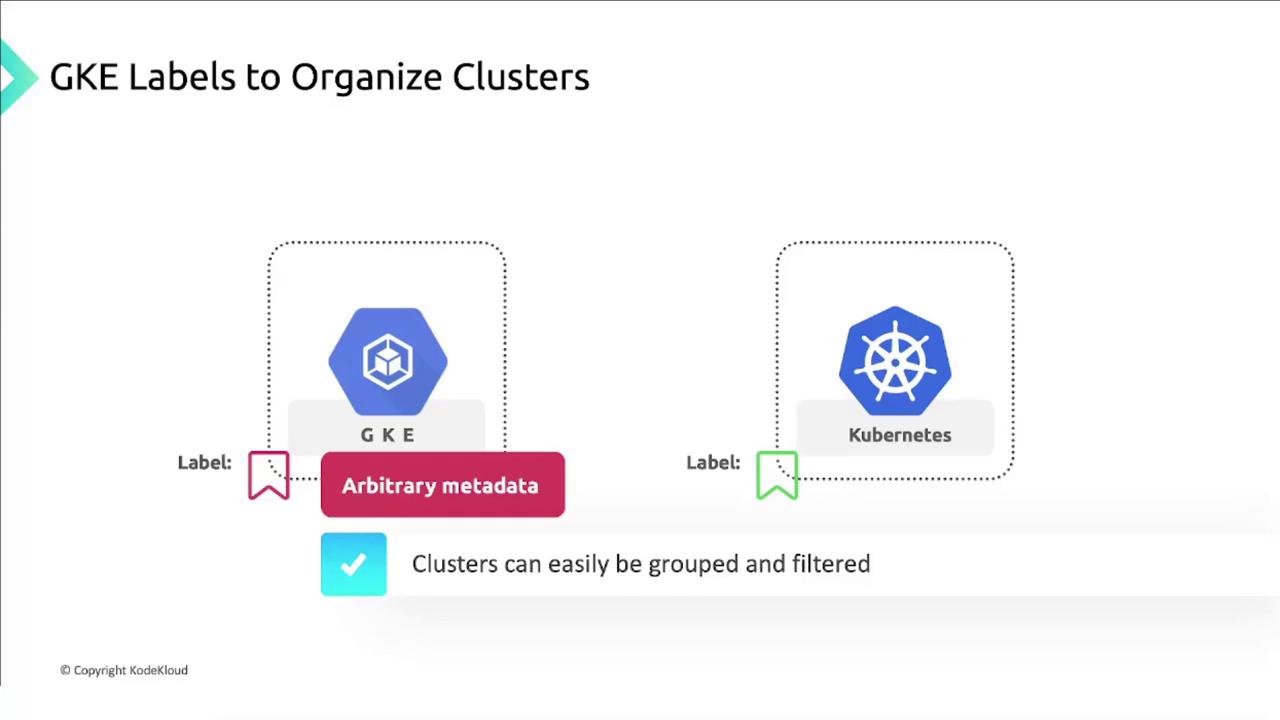
GKE labels are user-defined key–value pairs attached to clusters and node pools. Unlike Kubernetes resource labels, these labels serve metadata purposes such as billing, grouping, and cost tracking.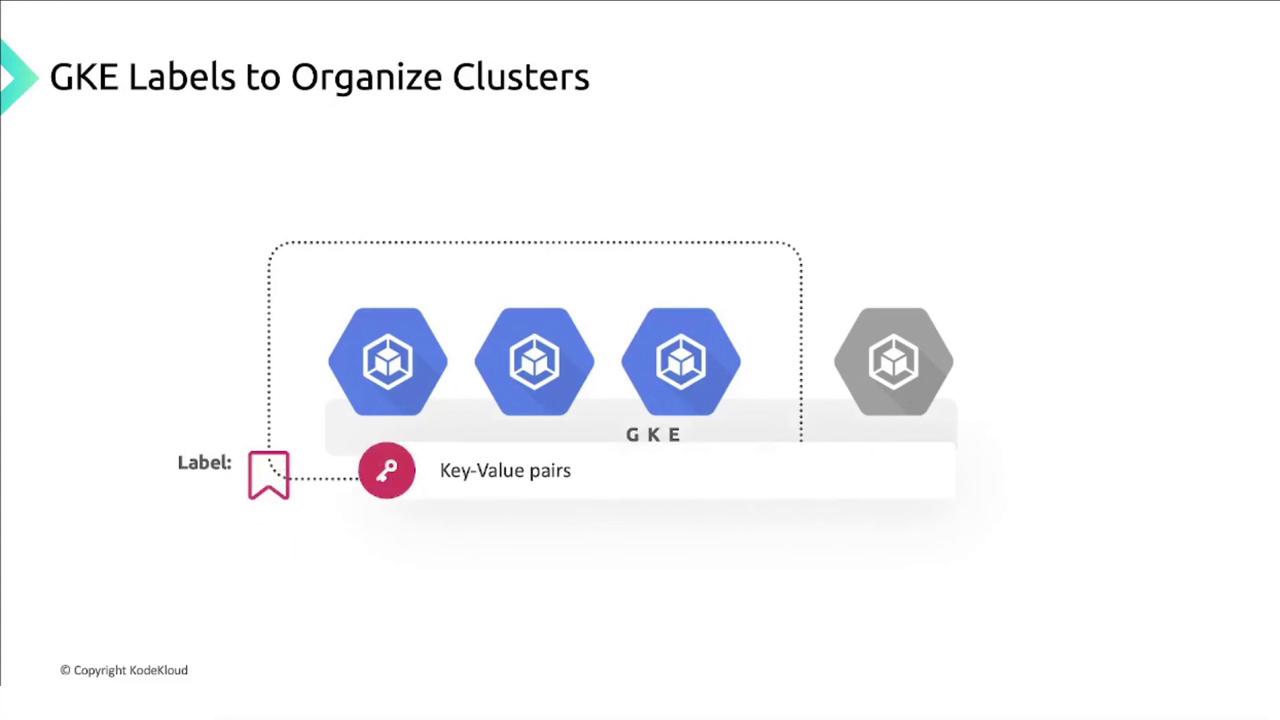
Common use cases for cluster labels
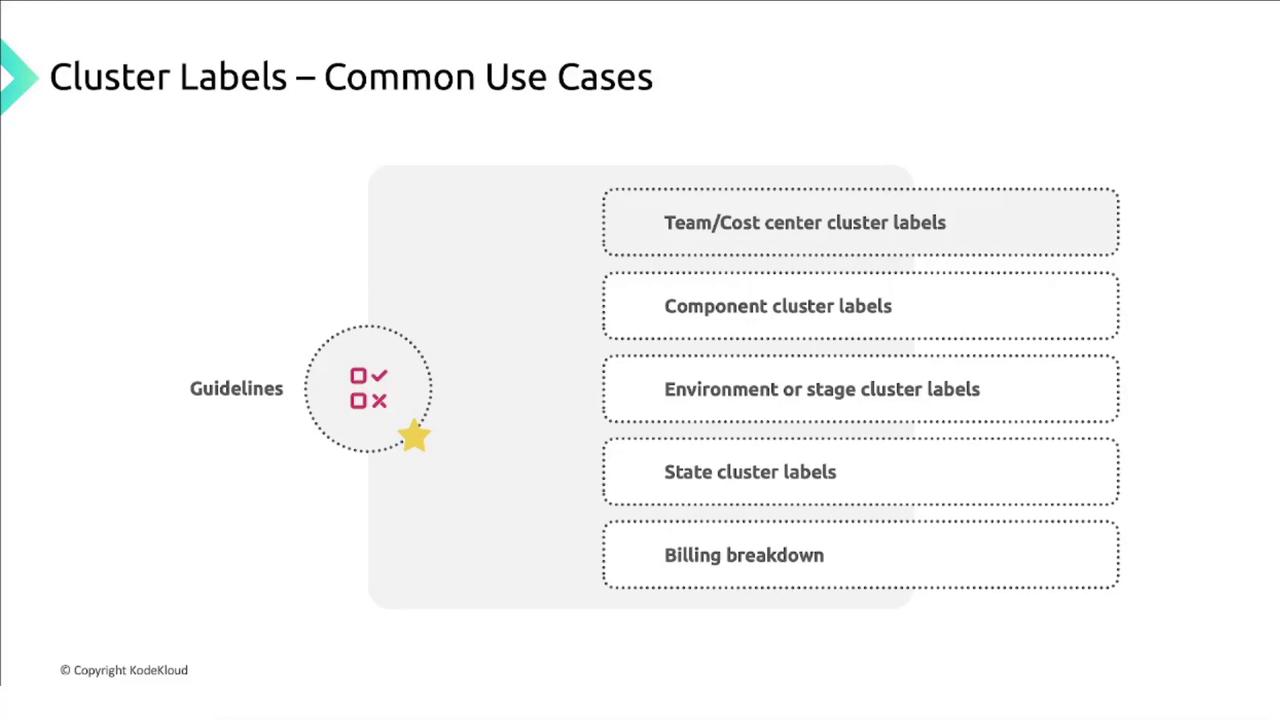
Avoid creating high-cardinality labels (e.g., timestamp-based) to prevent label sprawl and maintain efficient resource filtering.
Controlling access with GKE tags
Google Cloud tags are another form of key–value metadata that apply across all GCP resources, including GKE clusters. By combining tags with IAM policies, you can enforce conditional access and uniform security configurations.- Define tags on clusters (for example,
env=prod,env=dev). - Reference those tags in IAM policies to grant or restrict roles.
- Maintain consistent access controls and simplify policy management.
