1. Launch the GCP Sandbox
- In Qwiklabs, select the Playgrounds tab.
- Scroll down to Cloud Playgrounds and click Google Cloud Platform.
- Review the quick start guide on the homepage to understand the sandbox limits.
- Click Launch Now to provision a temporary environment. You’ll see a console link, username, and password.
Your sandbox credentials are valid for 60 minutes. Copy them immediately and store them securely.
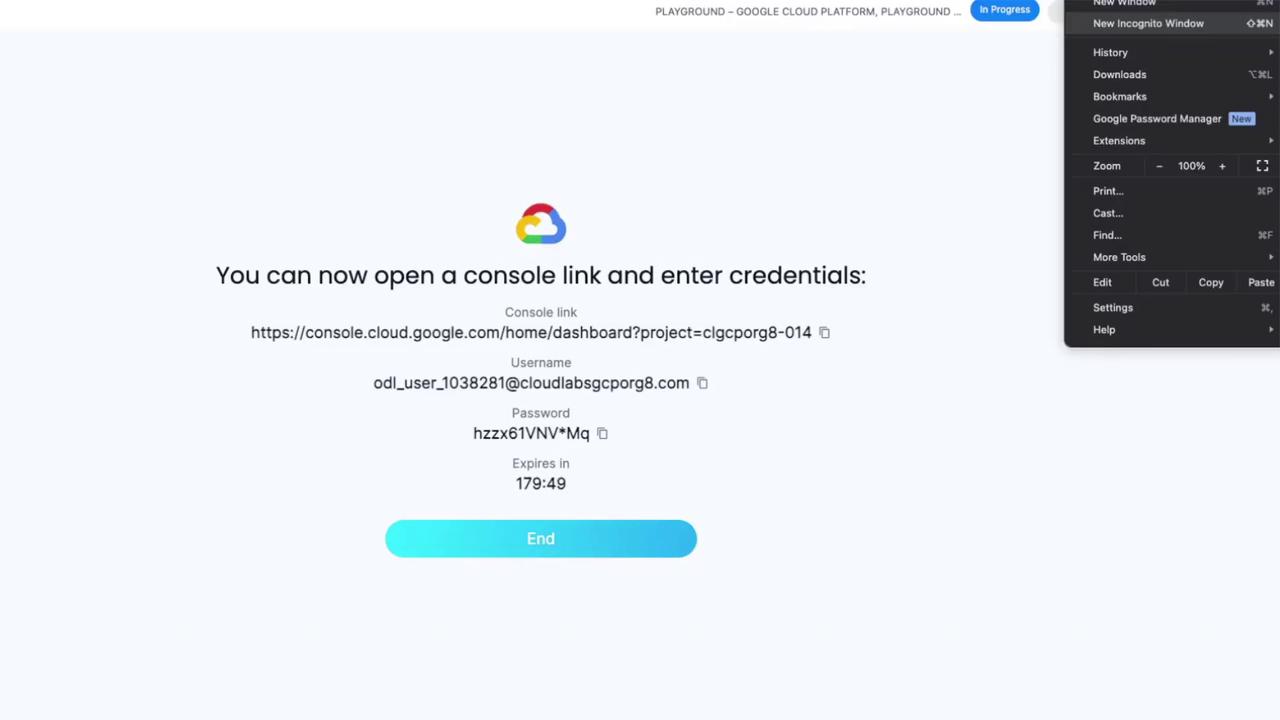
Open the console link in an incognito/private window to avoid conflicts with existing Google credentials.
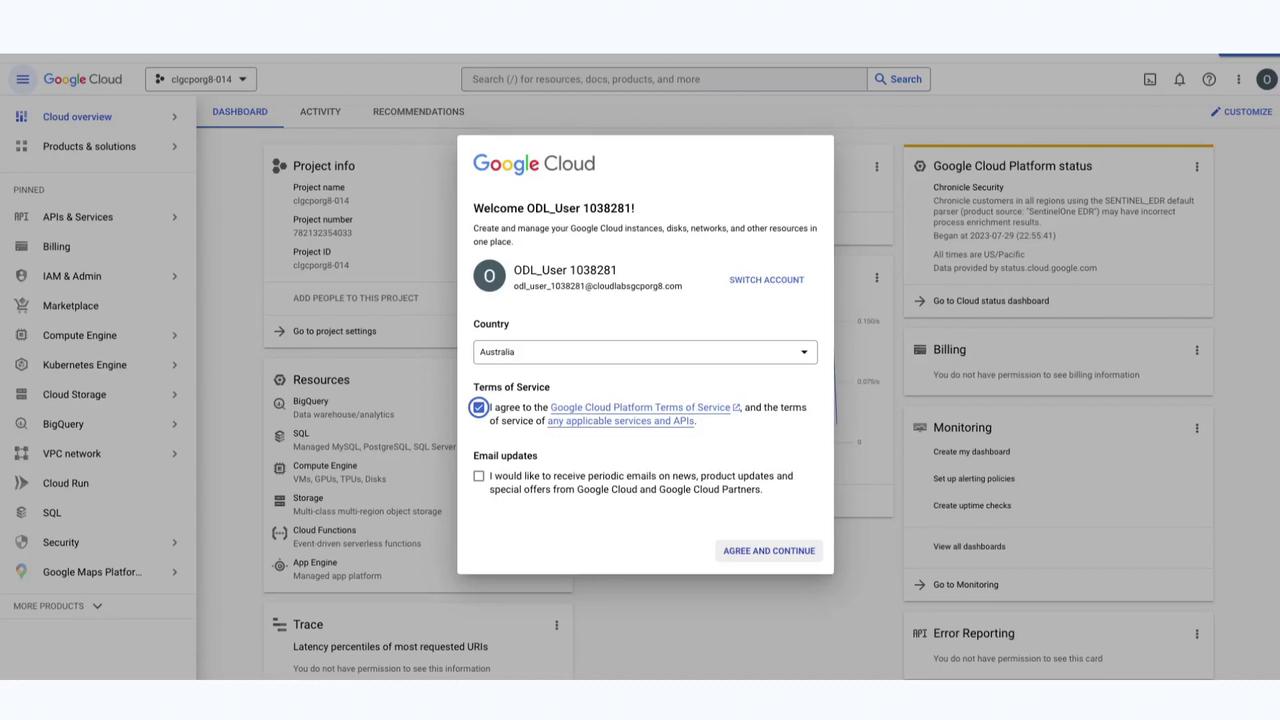
2. Accept Terms and Conditions
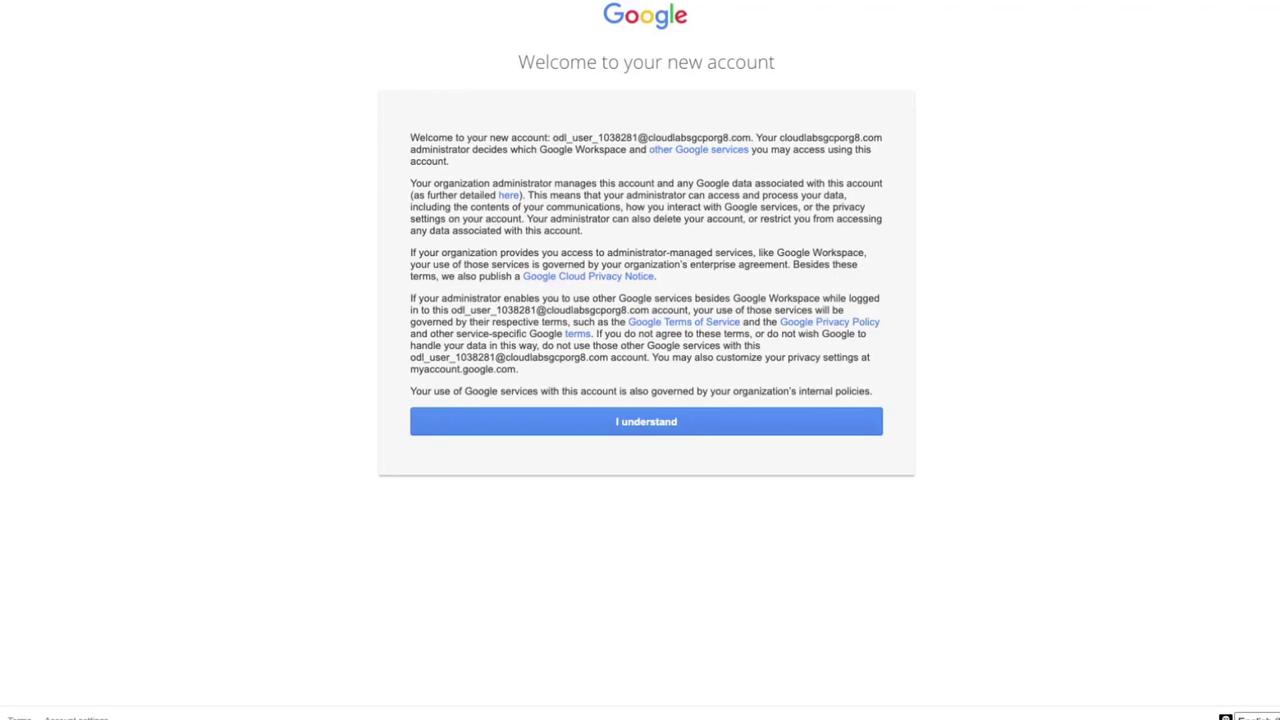
When the console opens:- A Google account welcome page appears—click I understand to acknowledge management and privacy policies.
- Read and accept the GCP Terms of Service, then click Agree and Continue.
- You may leave the email updates option unchecked.
3. Enable the Kubernetes Engine API
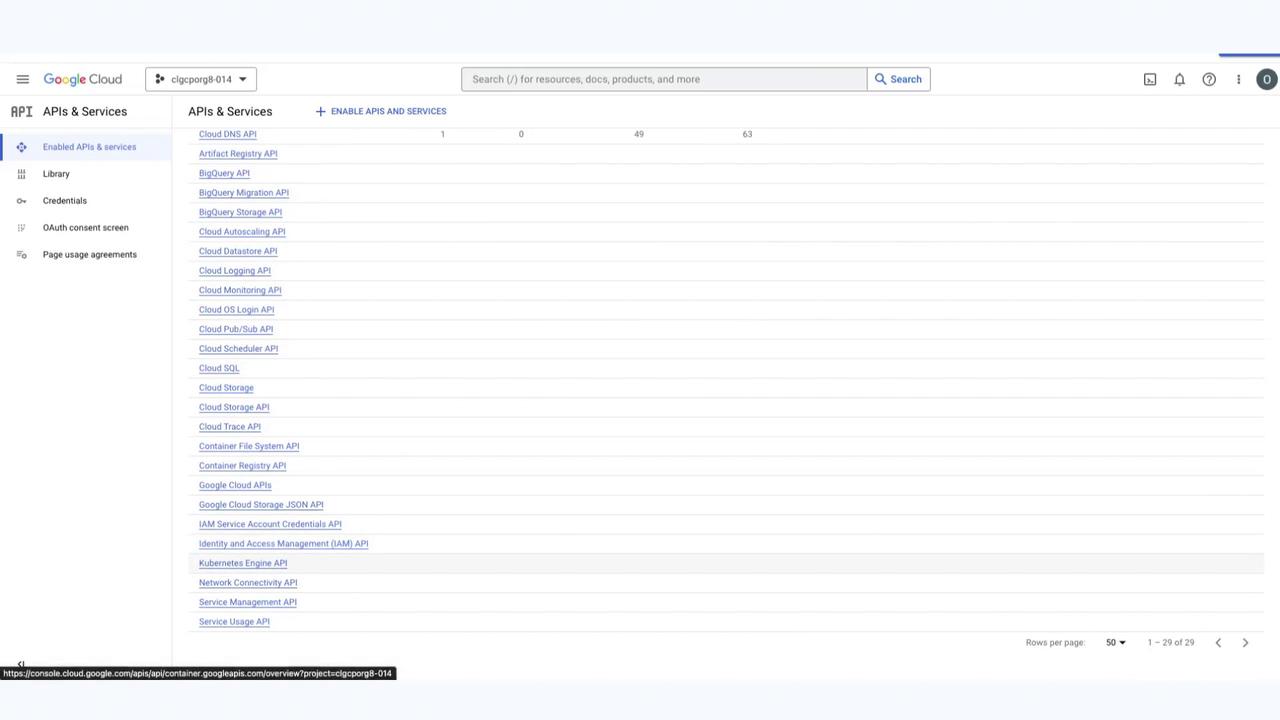
Before starting any GKE lab, ensure the Kubernetes Engine API is active:- In the GCP Console navigation menu, go to APIs & Services → Enabled APIs & Services.
- Click + ENABLE APIS AND SERVICES at the top.
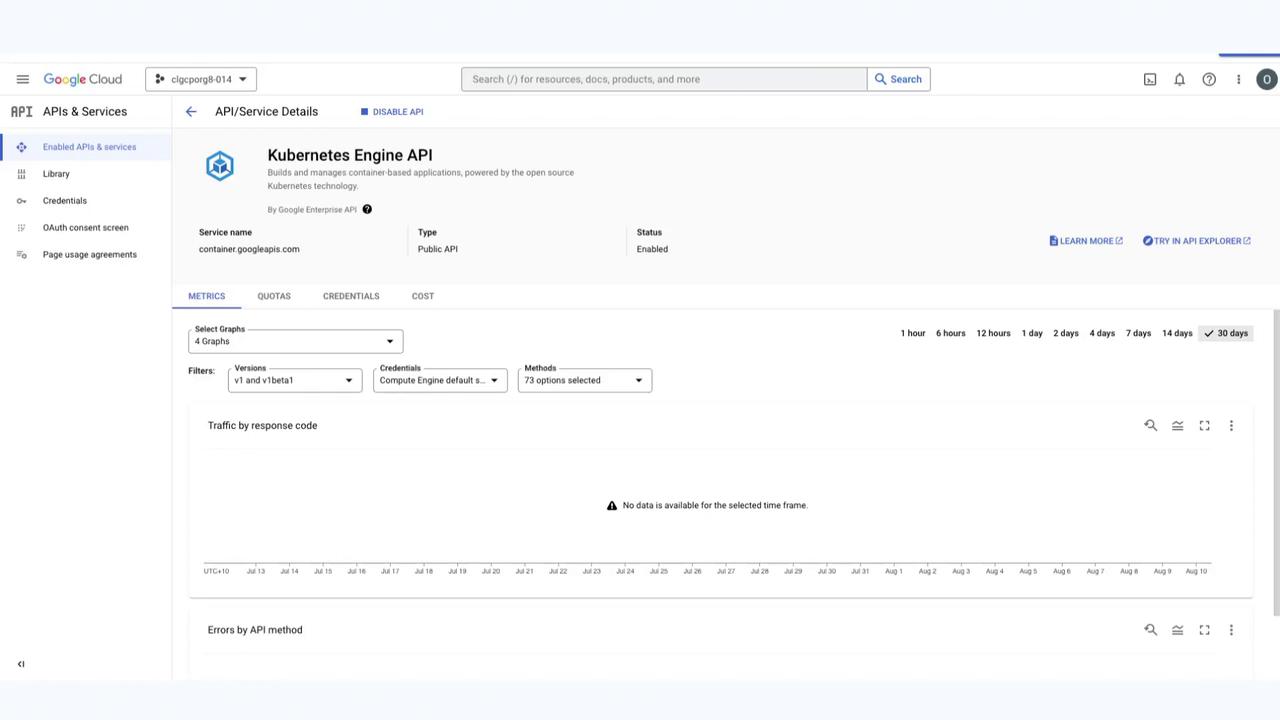
- Search for Kubernetes Engine API and select it.
- If you see a Disable API button, the API is already enabled.