

Prerequisites
- Python 3.x
- openai Python package
- Jupyter Notebook
- An OpenAI API key
1. Setup: Import Modules & Configure API Key
Begin by importing the required libraries and setting your API key as an environment variable.Never commit your API key to source control. Use environment variables or a secrets manager to keep credentials safe.
2. Define the get_word_completion Helper Function
Encapsulate the ChatCompletion call in a function to simplify reuse:
ChatCompletion.create Parameters
Adjust
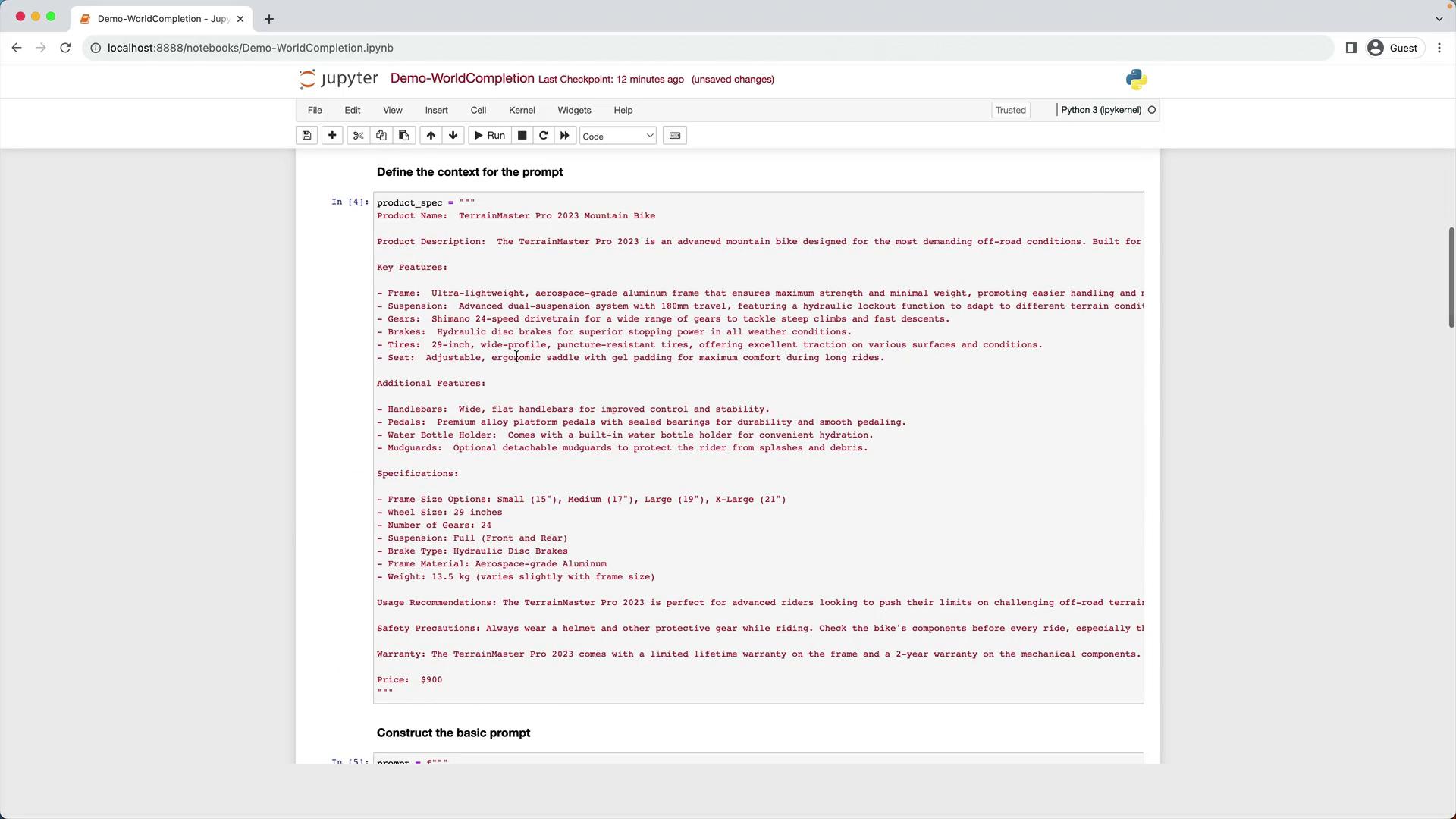
temperature to control creativity; lower values yield more focused outputs, higher values produce varied text.3. Prepare the Product Specification
We’ll use a multi-line string as our product spec for a fictional TerrainMaster Pro 2023 Mountain Bike:4. Example 1: Generating a Full Product Description
Use the full specification to generate a detailed website description.6. Example 3: Generating HTML with a Specifications Table
Ask GPT-3.5 Turbo to output a complete HTML snippet, including:- An
<h1>with the product name - A
<div>styled in 12pt FireBrick font for the description - A titled table (
Product Specifications) with two columns: name & value - Table CSS: DarkSlateGray text, 100% width, 12pt font
You’ve now implemented a flexible word completion demo! Next up, we’ll explore GPT-3.5 Turbo’s code-completion capabilities.