This article details the configuration of receivers and notifiers in an alert management system for efficient incident management.
Receivers aggregate alerts into actionable notifications. Each receiver integrates one or more notifiers, which dispatch these notifications to various platforms, such as Slack or email.In the example below, we define a receiver called “infra-pager” and associate it with a routing rule:
In this configuration, both Slack and email notifiers are set up with their respective parameters. For additional configuration options, please refer to the notifier’s documentation.
To reduce redundancy, you can define common parameters globally. For example, if several receivers require the same VictorOps API key, you can set it in a global block:
Similarly, if multiple teams share most email settings except for the recipient address, use the global configuration to avoid duplication. In the following example, the common SMTP settings are defined globally, while team-specific receivers only specify their unique email address:
global: smtp_smarthost: 'smtp.gmail.com:587' smtp_from: 'alertmanager@kodekloud.com' smtp_auth_username: xxxx smtp_auth_identity: xxxx smtp_auth_password: xxxxreceivers:- name: 'infra' email_configs: - to: 'infra@kodekloud.com'- name: 'frontend' email_configs: - to: 'frontend@kodekloud.com'- name: 'k8s' email_configs: - to: 'k8s@kodekloud.com'
Using global configuration helps maintain lean receiver definitions and makes the setup more manageable.
Customizing Notification Messages with Go Templates
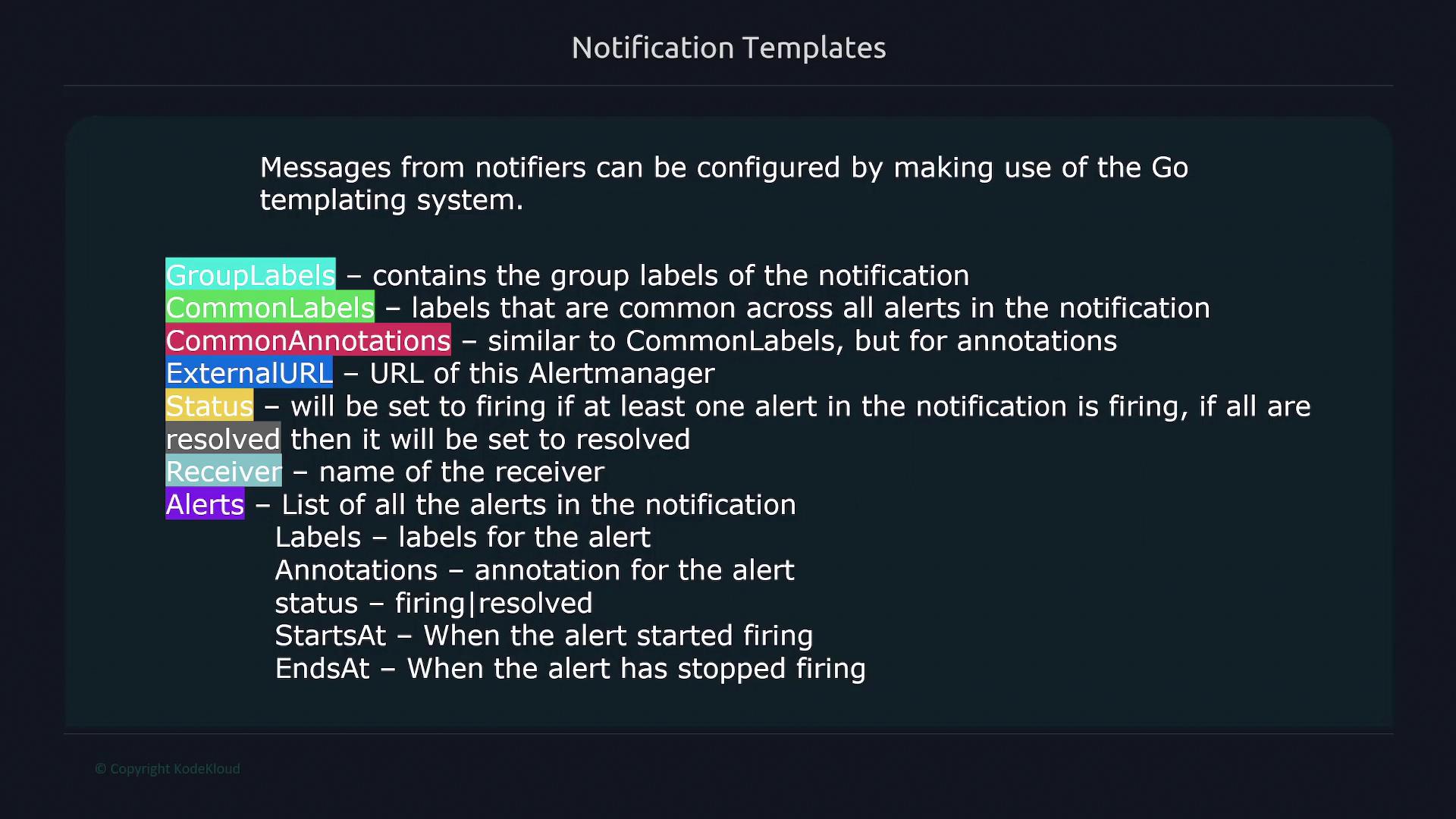
Notifiers enable customization of notification messages using the Go templating system. This approach provides flexibility as you can reference several key attributes of alerts:
Group Labels: All labels shared within a notification group.
Common Labels: Labels common to all alerts in the group.
Annotations: Additional descriptive data provided by alerts.
External URL: A link to the AlertManager instance for further investigation.
Status: Indicates whether alerts are “firing” (active) or “resolved” (cleared).
Receiver Name: Identifies which receiver is handling the alerts.
Details for Individual Alerts: Includes labels, annotations, and timestamps such as start and end times.
Below is an image that visually summarizes these components:
The following example demonstrates a Slack notification template where the title dynamically incorporates severity and region group labels:
route: receiver: 'slack'receivers:- name: slack slack_configs: - api_url: https://hooks.slack.com/xxx channel: '#alerts' title: '{{ .GroupLabels.severity }} alerts in region {{ .GroupLabels.region }}' text: '{{ .Alerts | len }} alerts:'
This template creates a dynamic title (for example, “critical alerts in region West”) by referencing {{ .GroupLabels.severity }} and {{ .GroupLabels.region }}. The text element displays the total number of alerts by using the len function on the .Alerts list.For more detailed notifications, you can expand the template to multiple lines. If the template string is too long for one line, use the ”>” operator to create a multi-line string and iterate over alerts to include specific annotations:
route: receiver: 'slack'receivers:- name: slack slack_configs: - api_url: https://hooks.slack.com/xxx channel: '#alerts' title: '{{ .GroupLabels.severity }} alerts in region {{ .GroupLabels.region }}' text: > {{ .Alerts | len }} alerts: {{ range .Alerts }} {{ .Annotations.description }}{{ "\n" }} {{ end }}
This expanded configuration first displays the number of alerts and then iterates through each alert to print its description from the annotations.
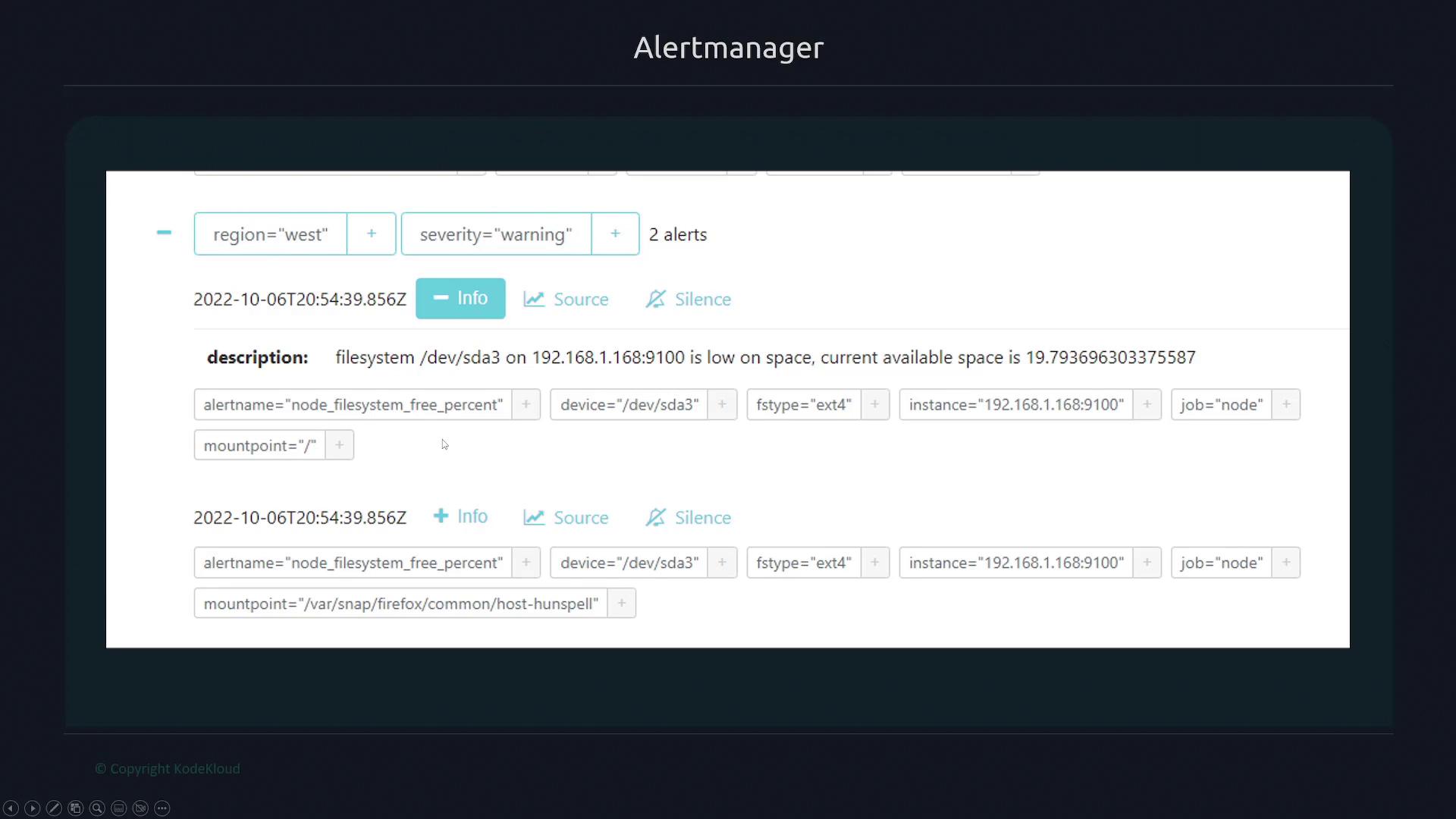
AlertManager groups alerts based on specified labels. In the example below, alerts are grouped by both region and severity:
route: group_by: ['severity', 'region']
This configuration might result in separate notifications for the West region with a warning severity and the East region with a critical severity.
Within AlertManager, you can click on individual alerts or use filtering options to get more detailed information and even link back to the Prometheus server. For example, clicking on an alert’s source may reveal an underlying Prometheus query:
up{job="node"} == 0
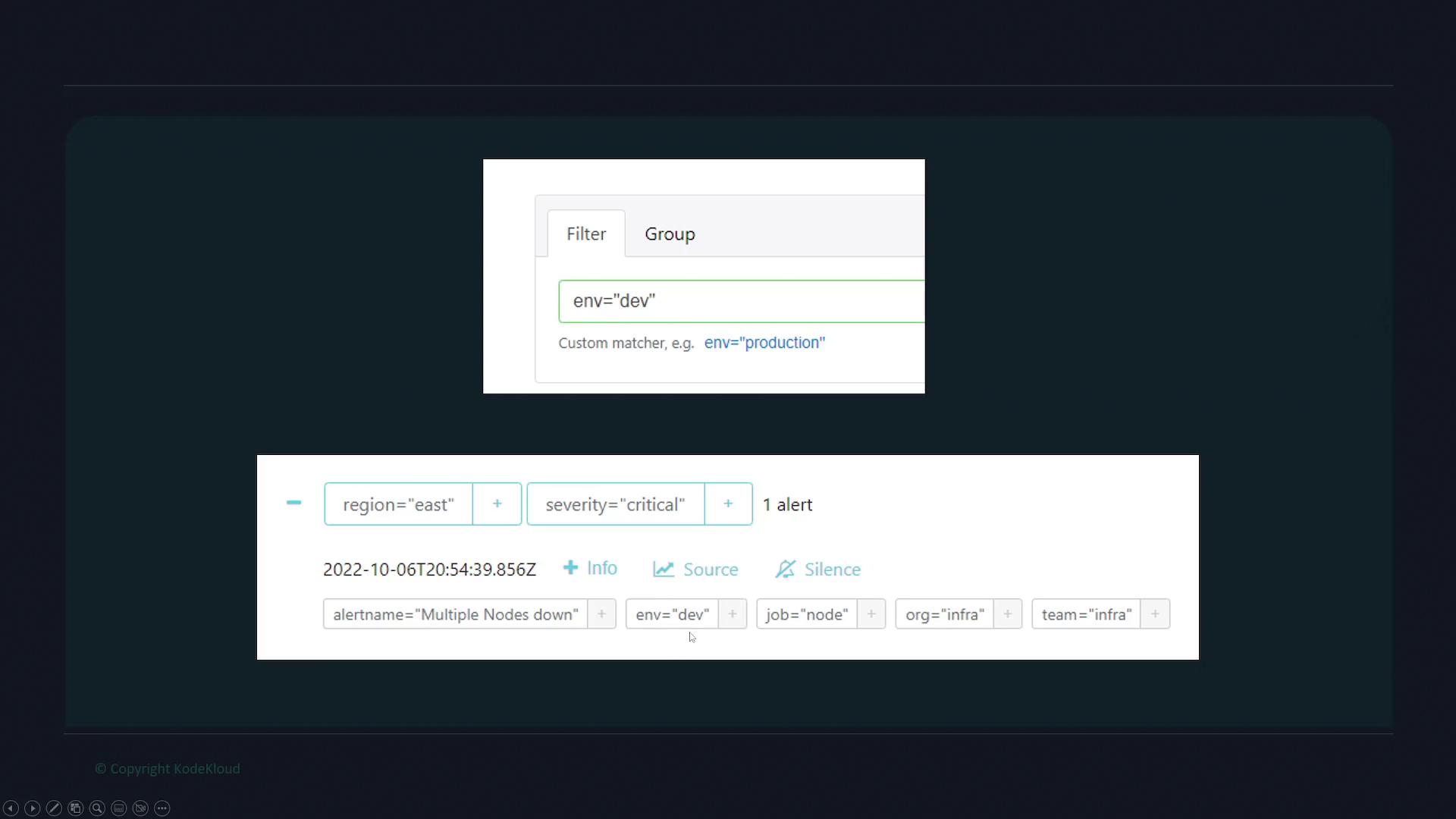
Furthermore, filtering alerts by key-value pairs (e.g., filtering for alerts with the label ENV set to dev) allows you to quickly focus on alerts pertinent to a specific environment. The image below illustrates a filtering interface used in a development environment:
Alert grouping in AlertManager not only helps declutter notifications but also provides a semantic understanding of how alerts are correlated based on key attributes.
This article detailed the configuration of receivers and notifiers in an alert management system. It covered:
How to set up individual receivers with platform-specific notifiers.
The use of global configuration to centralize common settings.
Customizing notification messages with Go templating.
Grouping alerts effectively in AlertManager.
These techniques ensure that critical alerts are delivered efficiently to the appropriate teams, improving overall incident management and system reliability.For further documentation and more examples, please refer to related resources such as Kubernetes Documentation or Docker Hub.