This article explains how to silence alerts to prevent notifications during specific periods, particularly useful during maintenance windows.
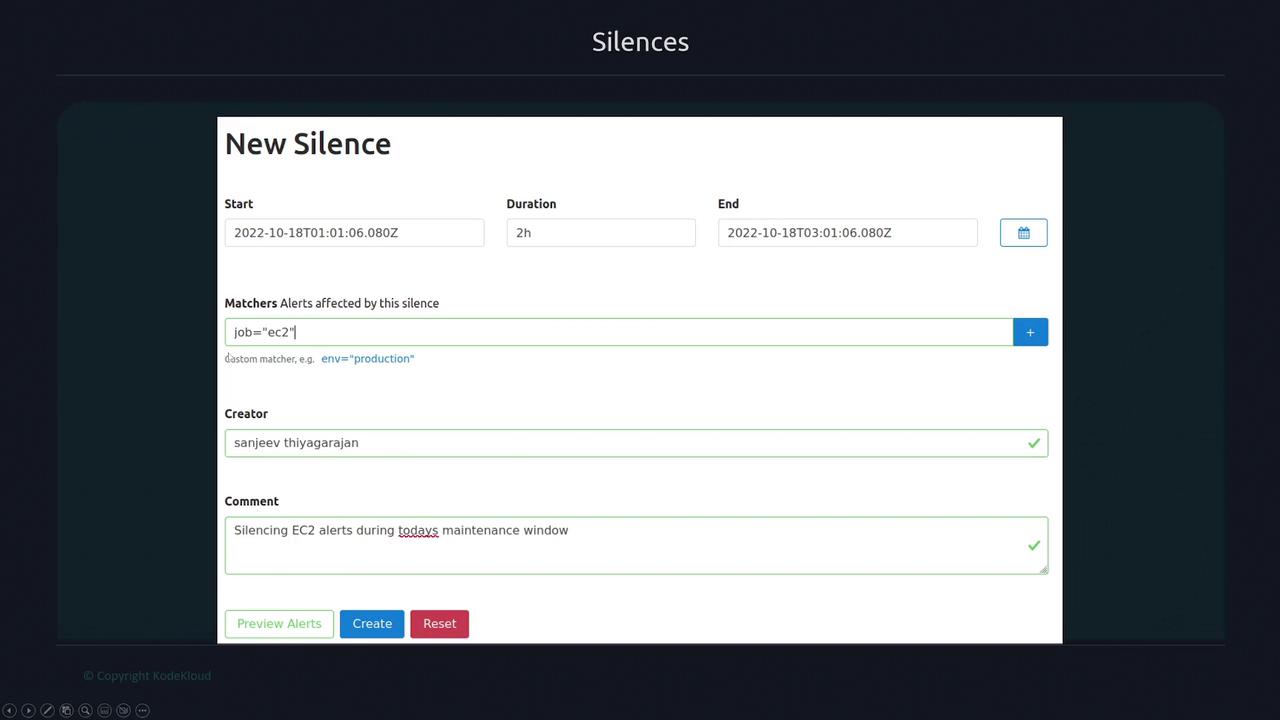
Alerts can now be silenced, preventing notification generation during specific periods. This feature is particularly useful during maintenance windows when planned changes might trigger expected issues.To silence alerts, navigate to the New Silence tab. In this area, you can configure a silence by setting the start time, duration, and a list of matchers. Matchers allow you to specify a set of labels—any alerts that align with these labels will be silenced.
After setting the start time, duration, and matching labels, enter the creator’s name alongside any necessary comments. Once your configuration is complete, click on Create to activate the silence. You can add additional labels by clicking on the blue plus sign.
Ensure that your matchers accurately reflect the alerts you intend to silence to avoid missing critical notifications.
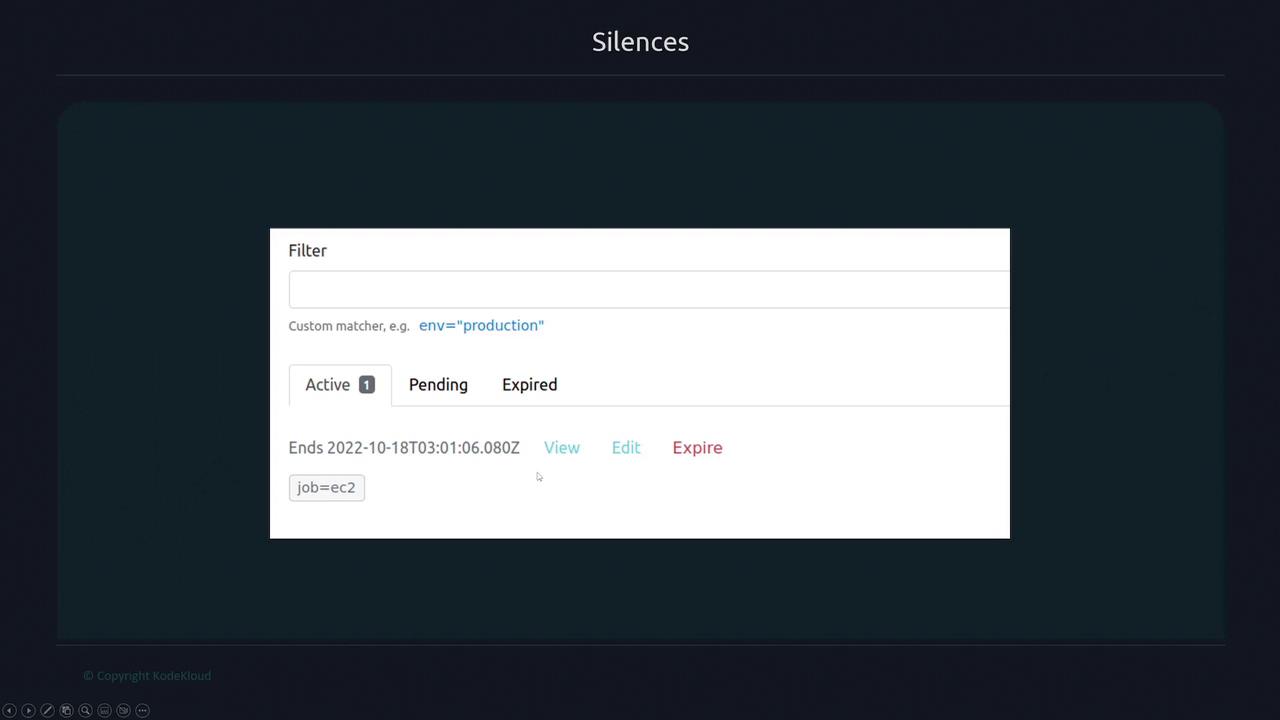
Switch to the Silences tab to view all active, pending, and expired silences. This interface displays the expiration time and offers options to view, edit, or expire a silence.
Be cautious when silencing alerts during production hours. Accidental silencing may cause critical issues to go unnoticed.