Accessing the EC2 Dashboard
Start by entering “EC2” in the AWS search bar. This will take you to the EC2 service page.Make sure you verify the AWS region before launching any resources. Deploying your instance in the correct region is crucial.
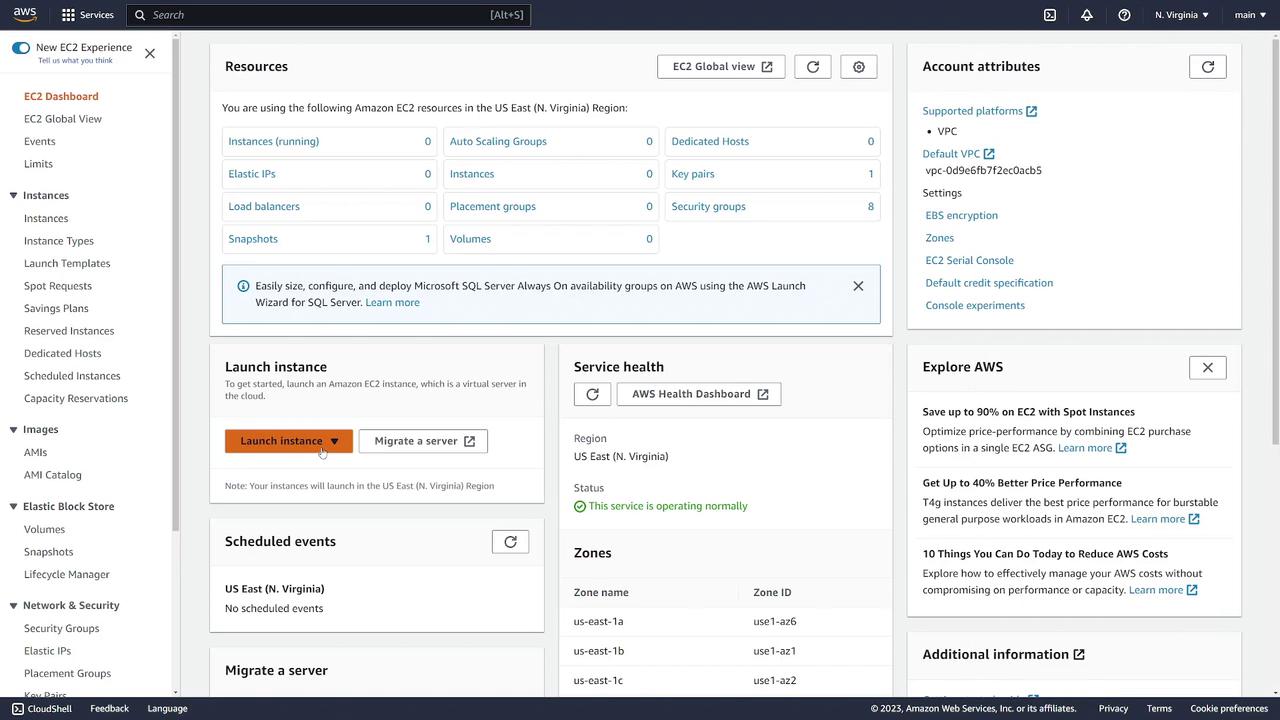
Step 1: Configure Instance Details
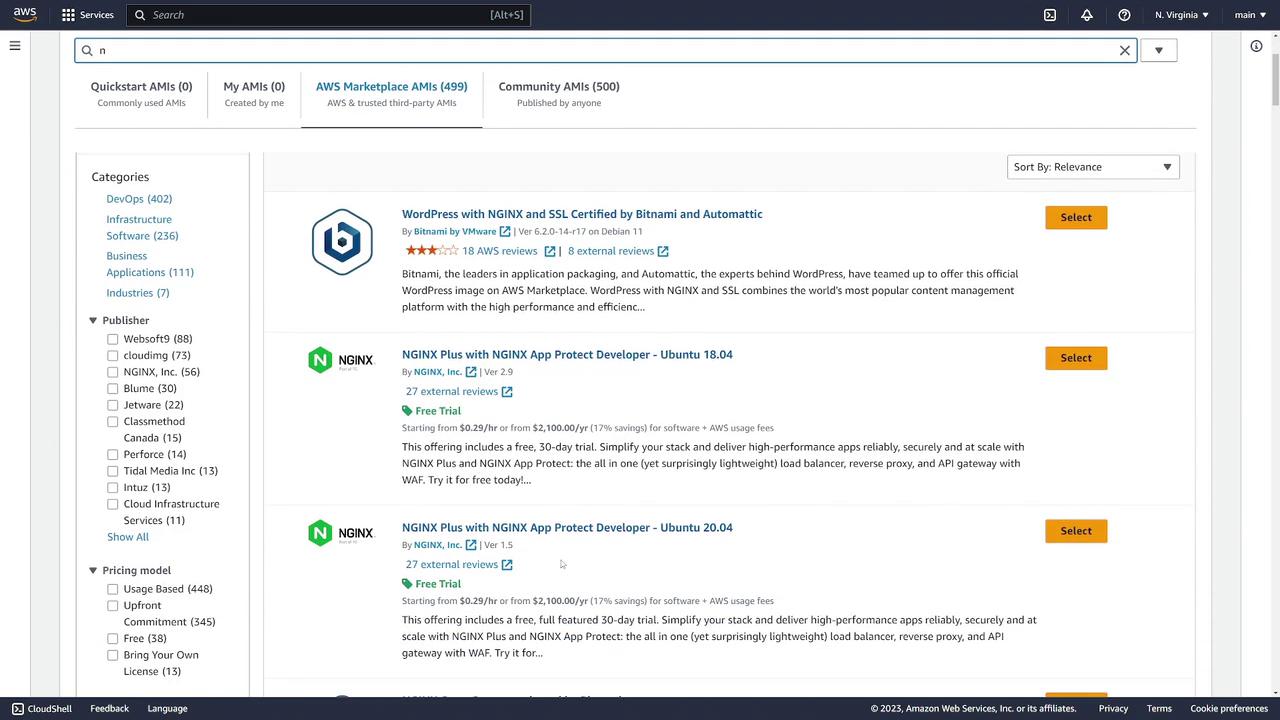
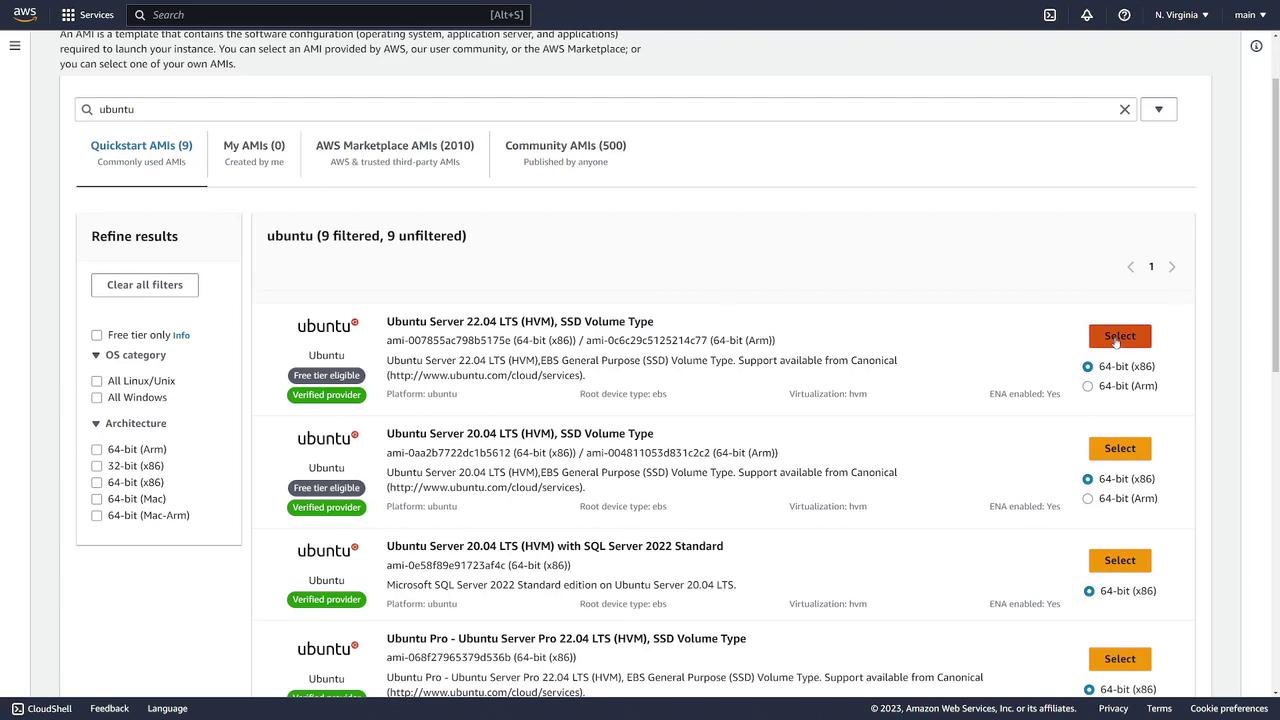
Start by assigning a name to your instance (for example, “Web Server”). Then, choose the Amazon Machine Image (AMI) for your preferred operating system. Options include various Linux distributions, Ubuntu, macOS, and more. If you need a custom environment—for instance, one with pre-installed Nginx—browse the AWS Marketplace.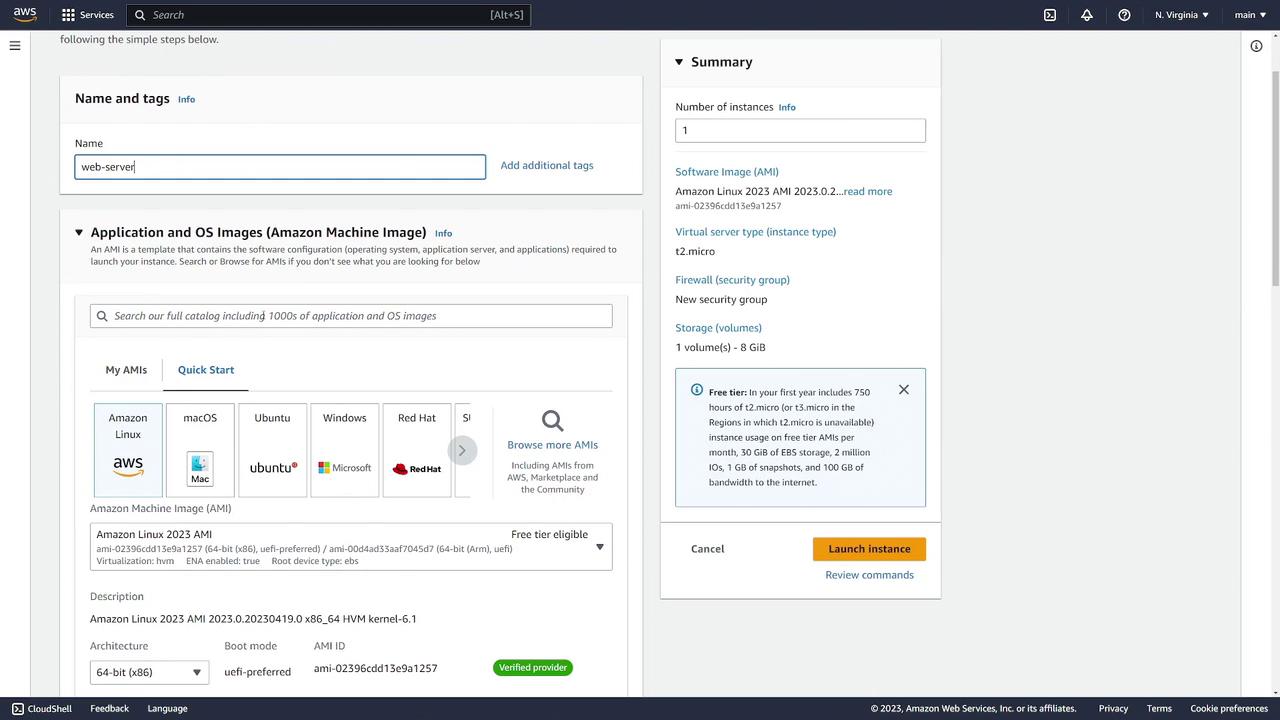
Step 2: Choose an Instance Type
After selecting your AMI, choose the instance type. The instance type defines the hardware configuration and performance attributes of your server. The default T2 micro, which provides one vCPU and 1 GB of memory, qualifies for the free tier. However, you can select from a variety of options using the drop-down menu.Step 3: Configure Key Pair for SSH Access
For secure SSH access, it is highly recommended to use a key pair rather than a username and password. If you already have a key pair, select it; otherwise, create a new one. To do this, click Create new key pair, enter a name (for example, “EC2 demo”), and choose the PEM file format. Your key pair file will be automatically downloaded after creation.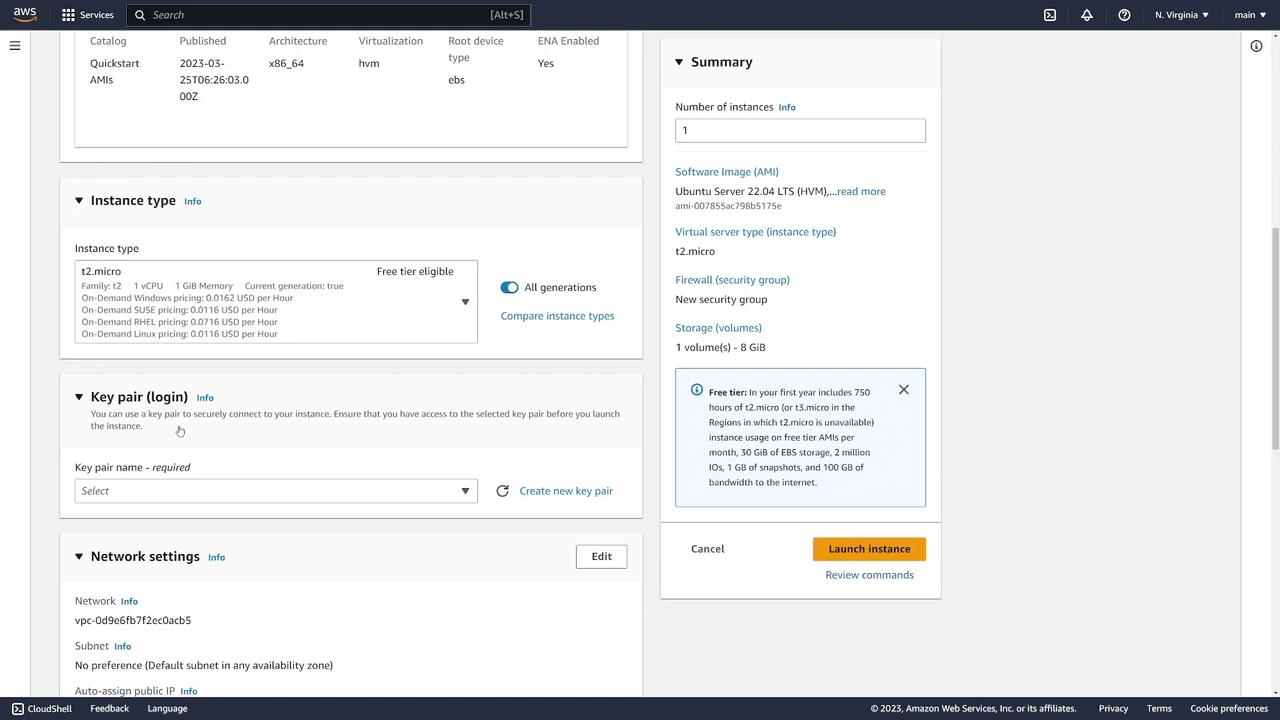
Step 4: Configure Network and Security Settings
Under network settings, select the appropriate Virtual Private Cloud (VPC) and subnet for deploying your instance. In many regions, the default VPC is the primary option.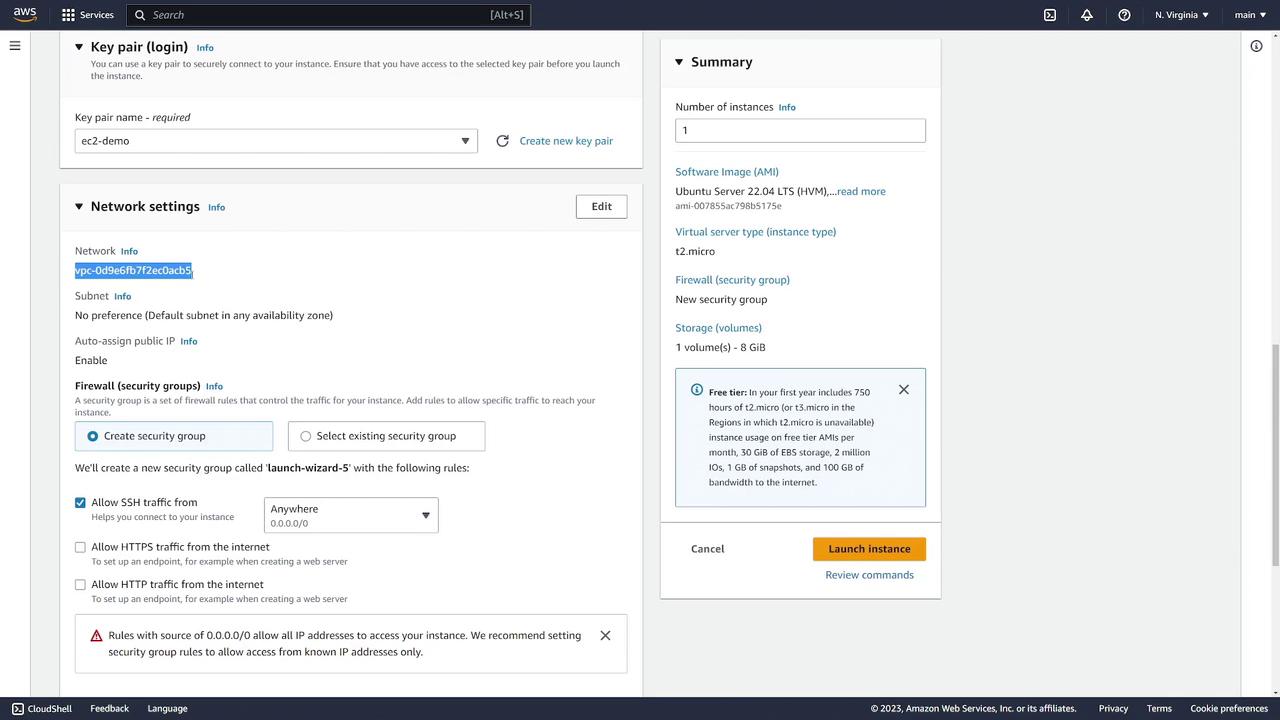
- Use an existing security group.
- Create a new security group.
Step 5: Configure Storage
Configure the storage options for your EC2 instance. A typical setup might include an 8 GB volume for the root device. Advanced storage settings are available, but the default configuration is adequate for basic deployments. Once you have finalized the settings, click on Launch Instance. Then, navigate back to the “Instances” page to see your web server instance. Initially, the instance will display a “pending” status while it boots up. Once it transitions to “running,” your instance is ready for connection.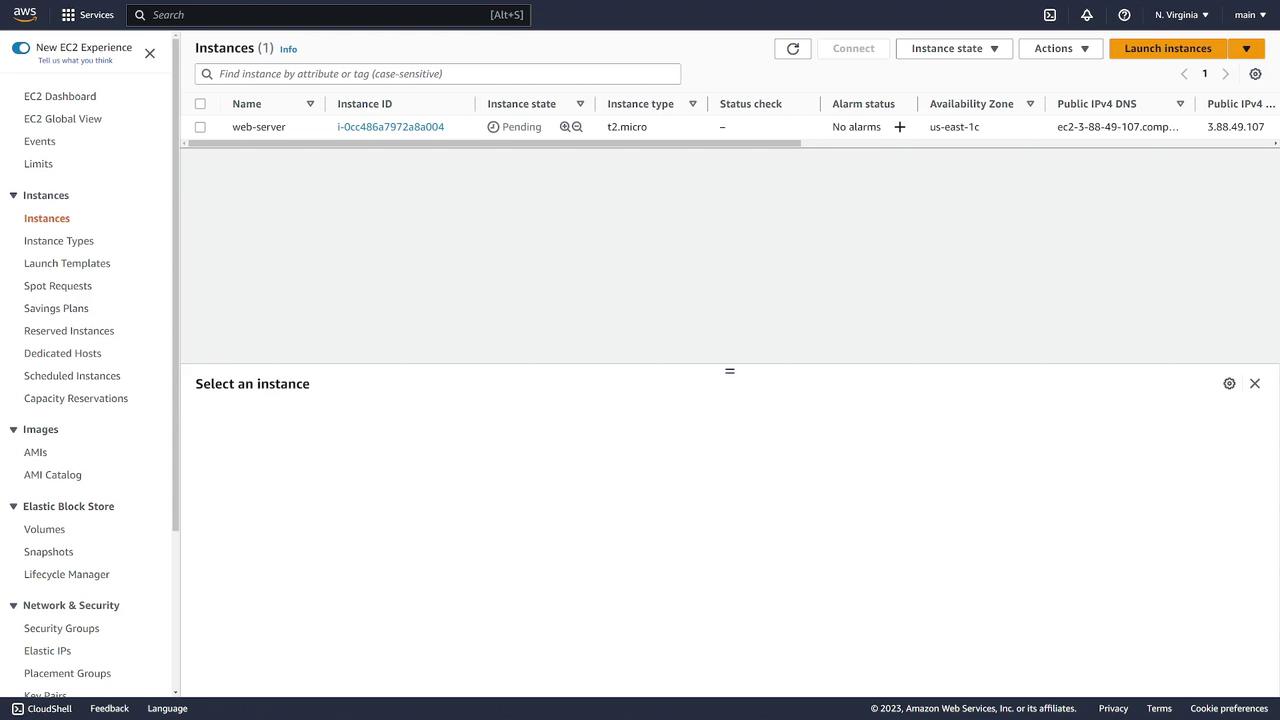
Step 6: Instance Details and Security
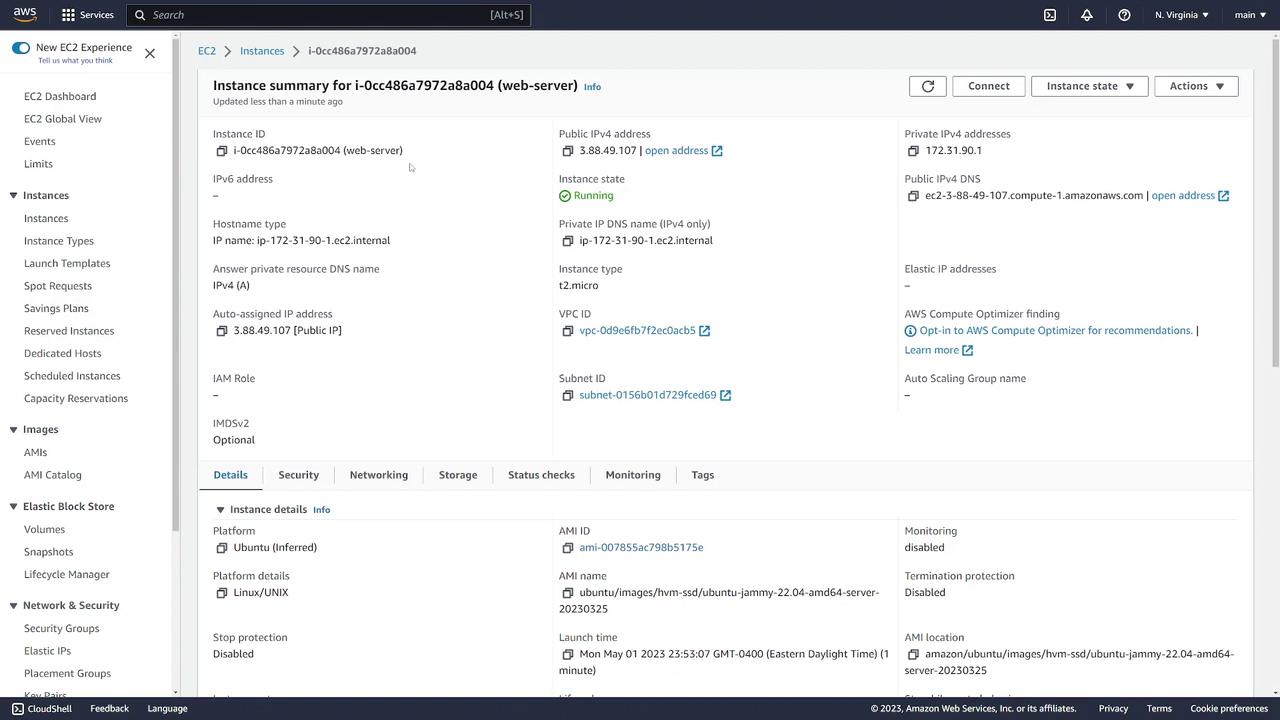
After the instance is running, click on the instance ID to view detailed information, including:- Public and private IP addresses (if deployed in a public subnet)
- Instance ID and public DNS name
- Associated VPC and subnet
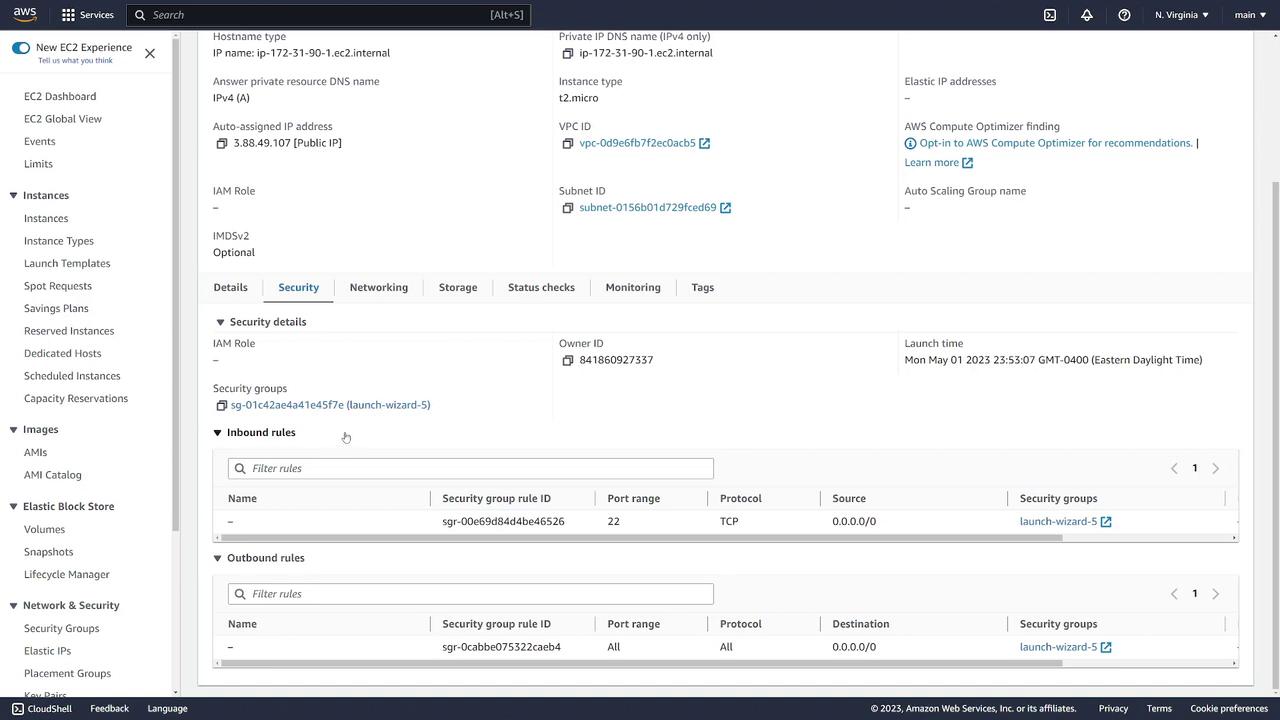
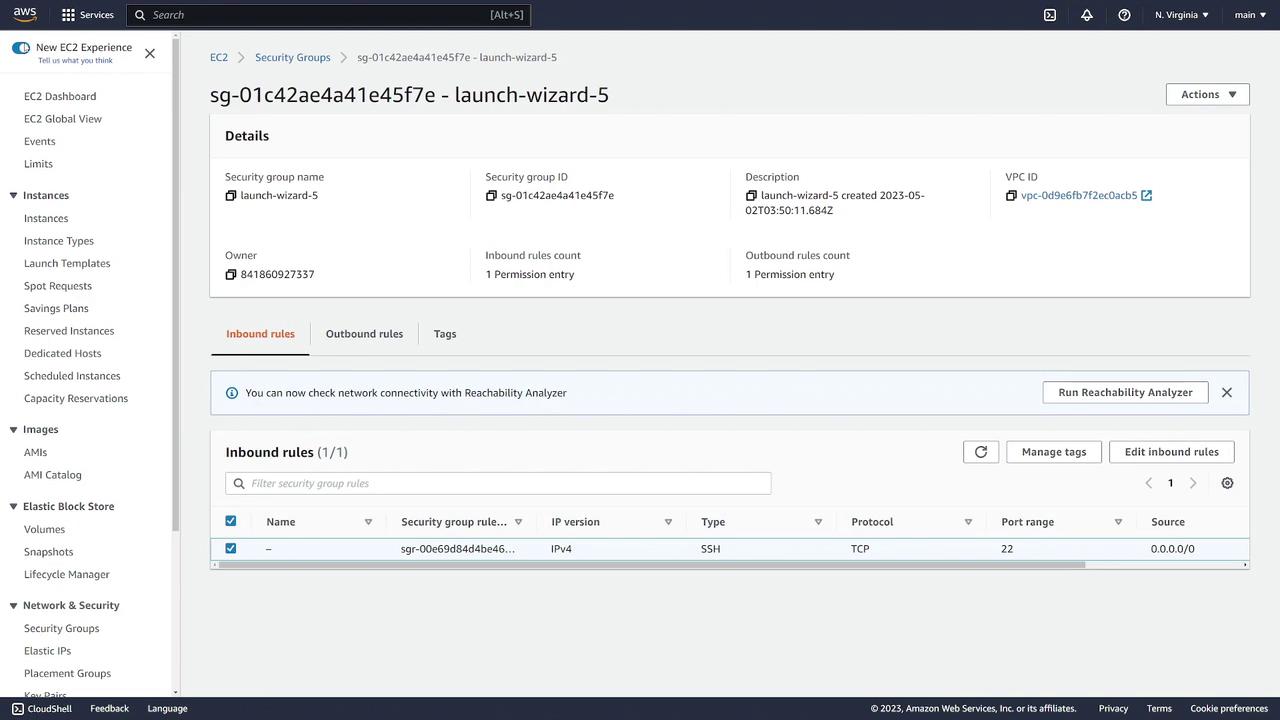
- AMI, key pair, and security group details
Step 7: Review Networking and Monitoring Information
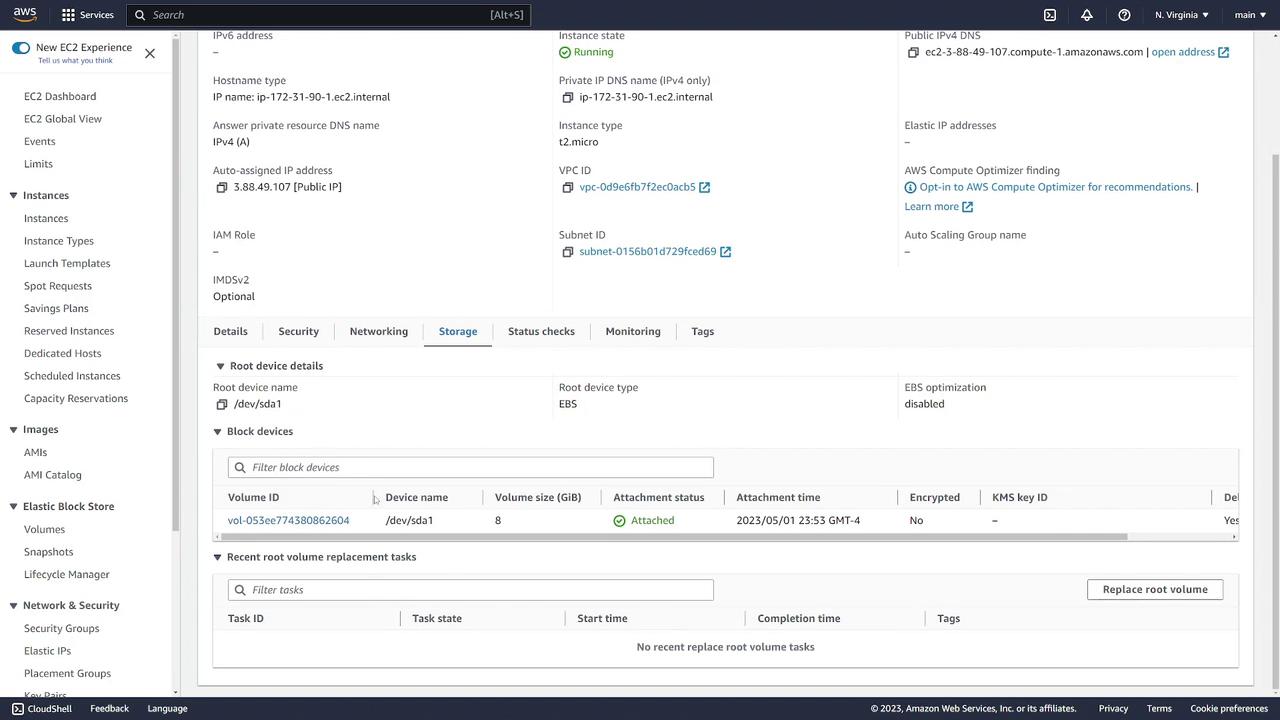
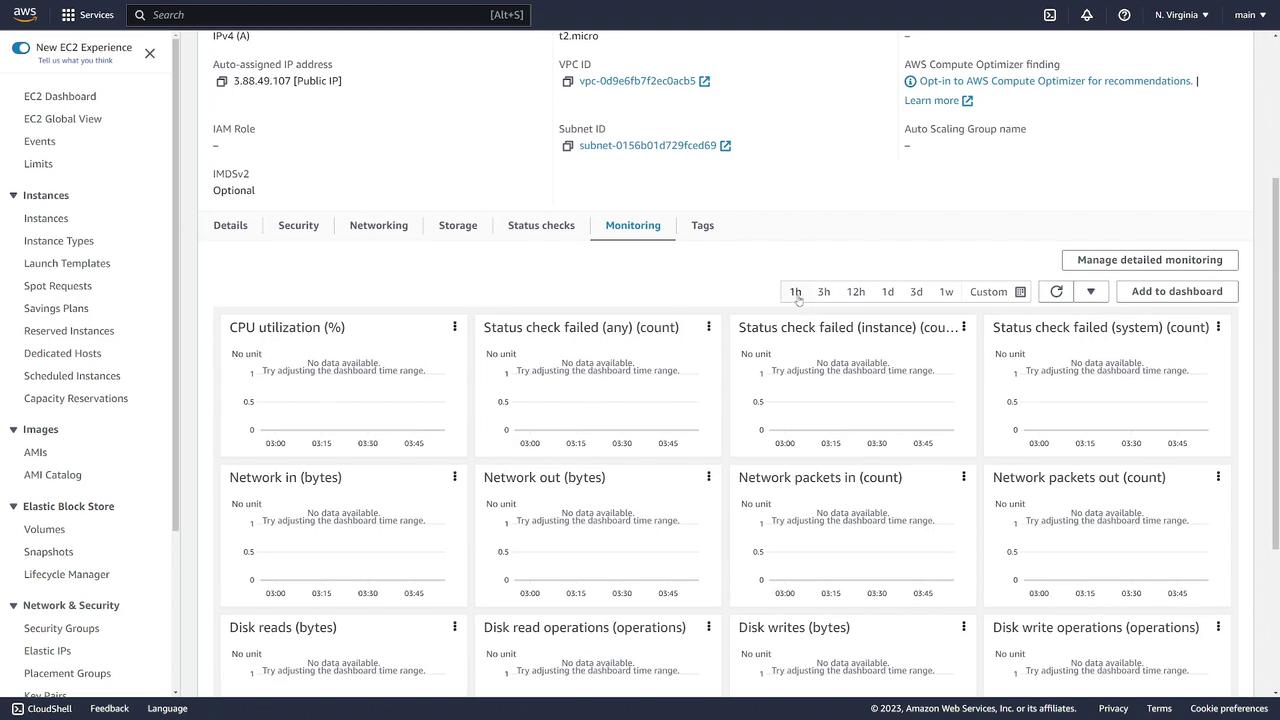
Explore the Networking tab to view detailed network interface information, such as additional IP addresses or attached Elastic IPs. The Storage tab provides details on attached volumes.