

Region and Directory Setup
We start our demo in the Northern Virginia region as Amazon WorkSpaces is not supported in all regions (for example, Ohio). When you click “Create a new WorkSpace,” you’ll be guided through several configuration steps. One of the initial steps is selecting a directory. In this demo, a simple Active Directory—functionally similar to LDAP—is used. This directory is registered with multiple subnets (for instance, us-east-1a and us-east-1b) and includes subnet details with IDs ending in c6, b7, c6, 2, and e2. All necessary features are active, such as WorkDocs, internet access, and local administrator rights. Additionally, web access and Linux client support are enabled. This directory was pre-configured for Active Directory management, which simplifies user administration.
Creating a Workspace
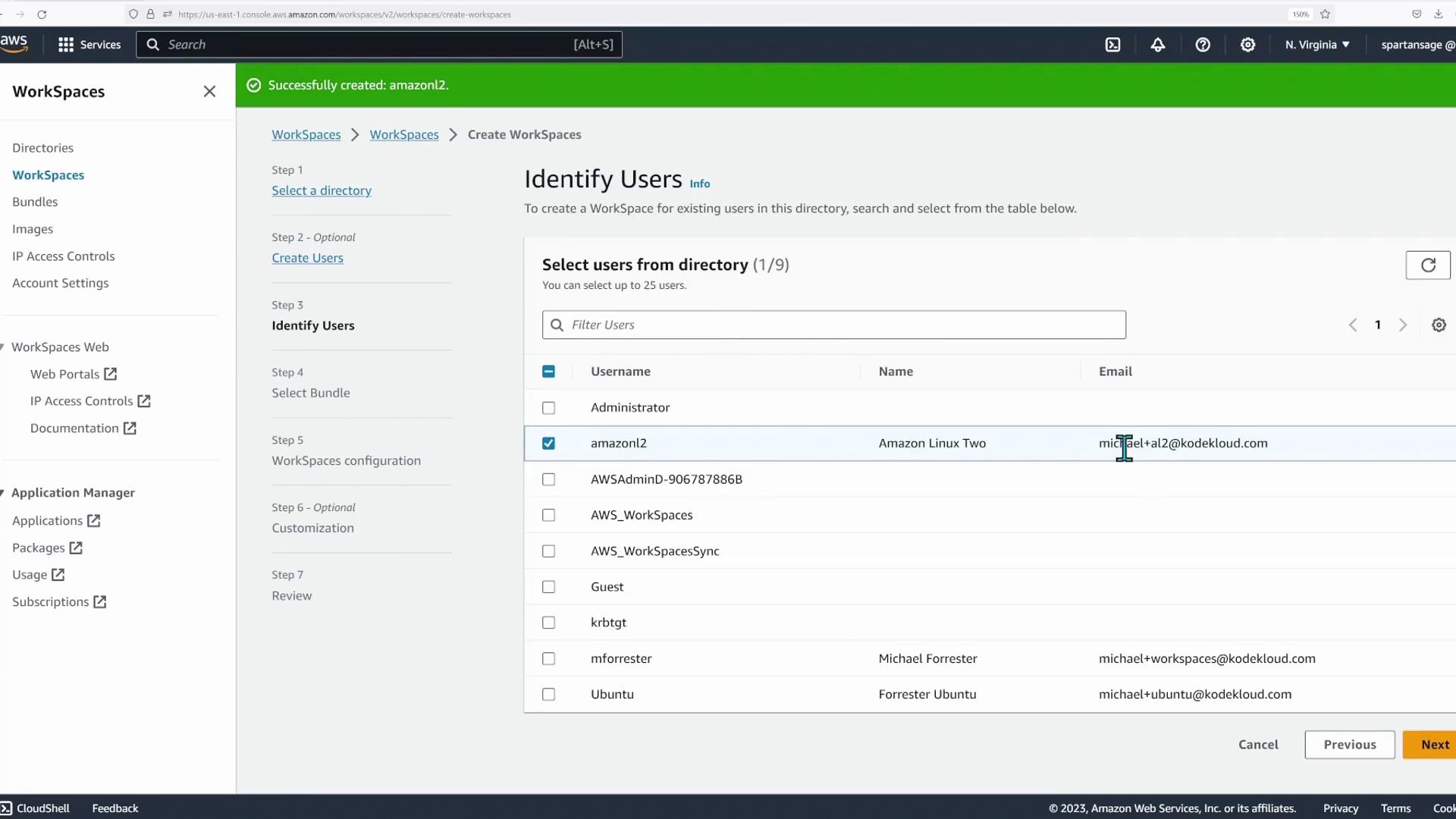
The next step is to select the appropriate directory containing your users and click Next. In this phase, an additional user is created specifically for the WorkSpace. For demonstration purposes, the user is named “Amazon Linux” (abbreviated as AL2) with the email “Michael+AL2@KodeKloud.com”. Note that many email providers ignore text after the plus sign, so the email still routes to Michael@KodeKloud.com.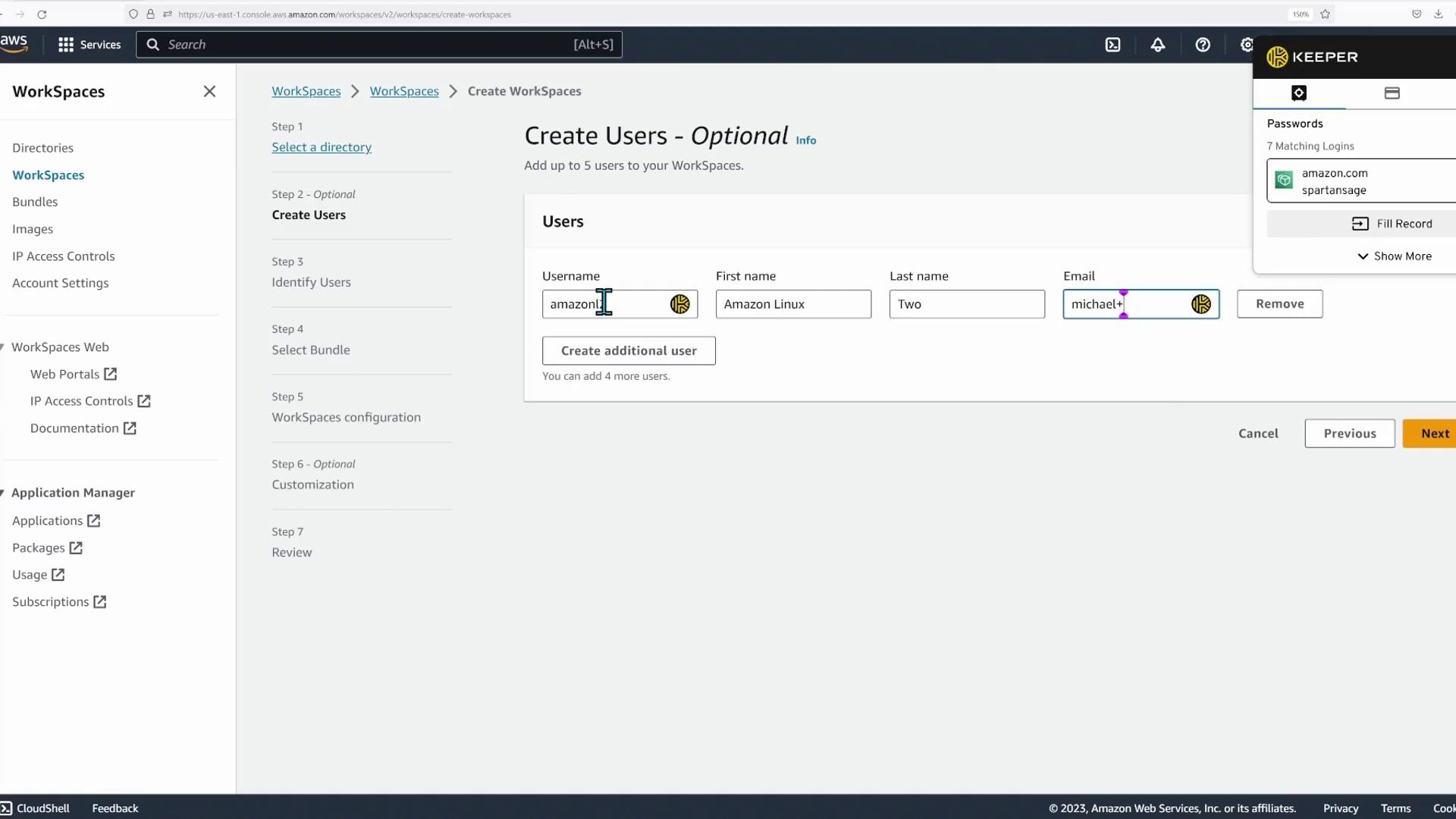
Selecting a Bundle and Operating System
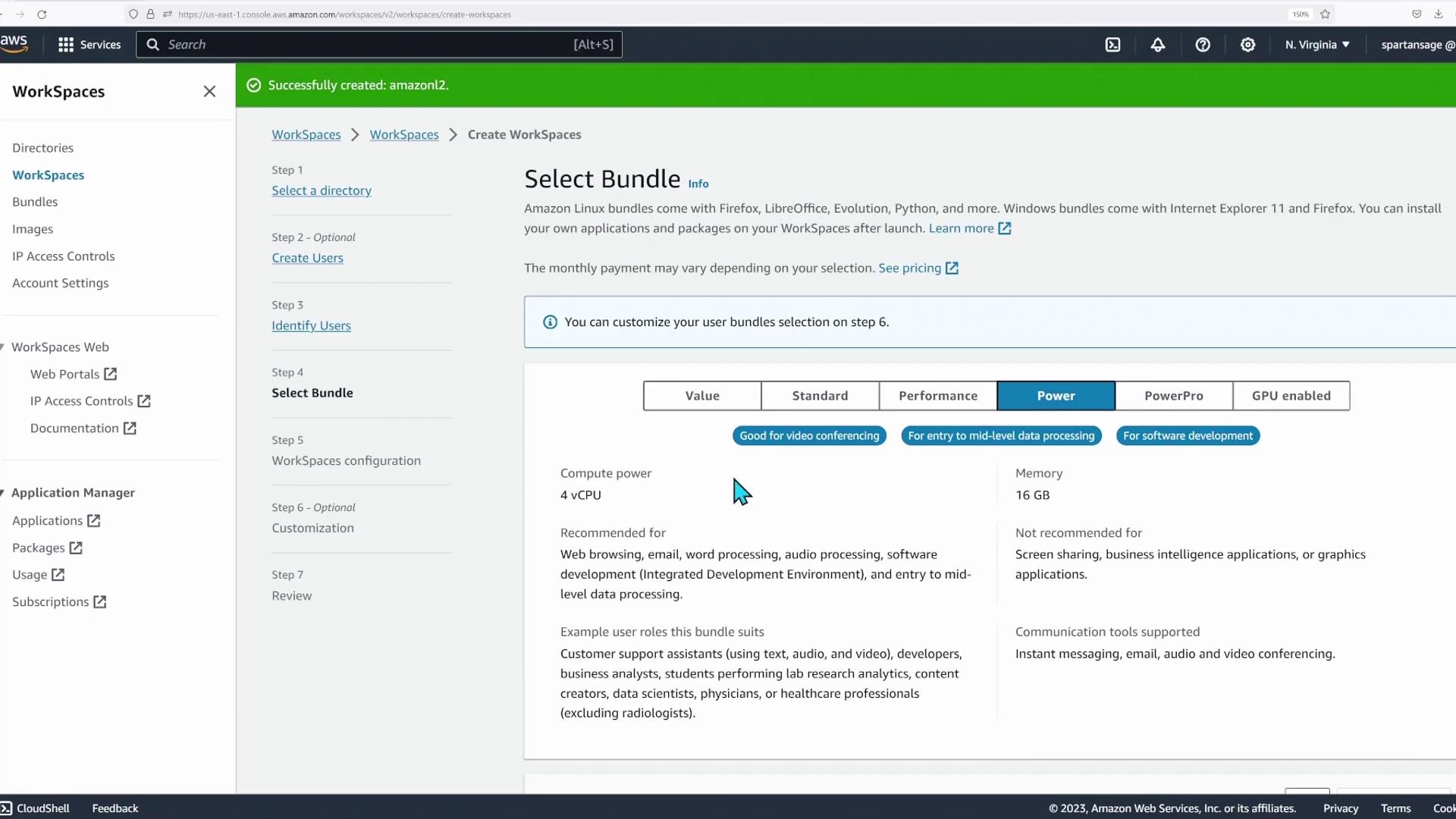
In the next phase of the configuration, you need to choose a system bundle. The available bundles include:- Value: 1 CPU, 2 GB memory
- Standard
- Performance
- Power: 4 vCPUs, 16 GB memory (selected for this demo)
- PowerPro: 8 vCPUs, 32 GB memory
- GPU-enabled options: Various configurations, including one with 122 GB memory and a dedicated virtual GPU
Workspace Status and Invitation
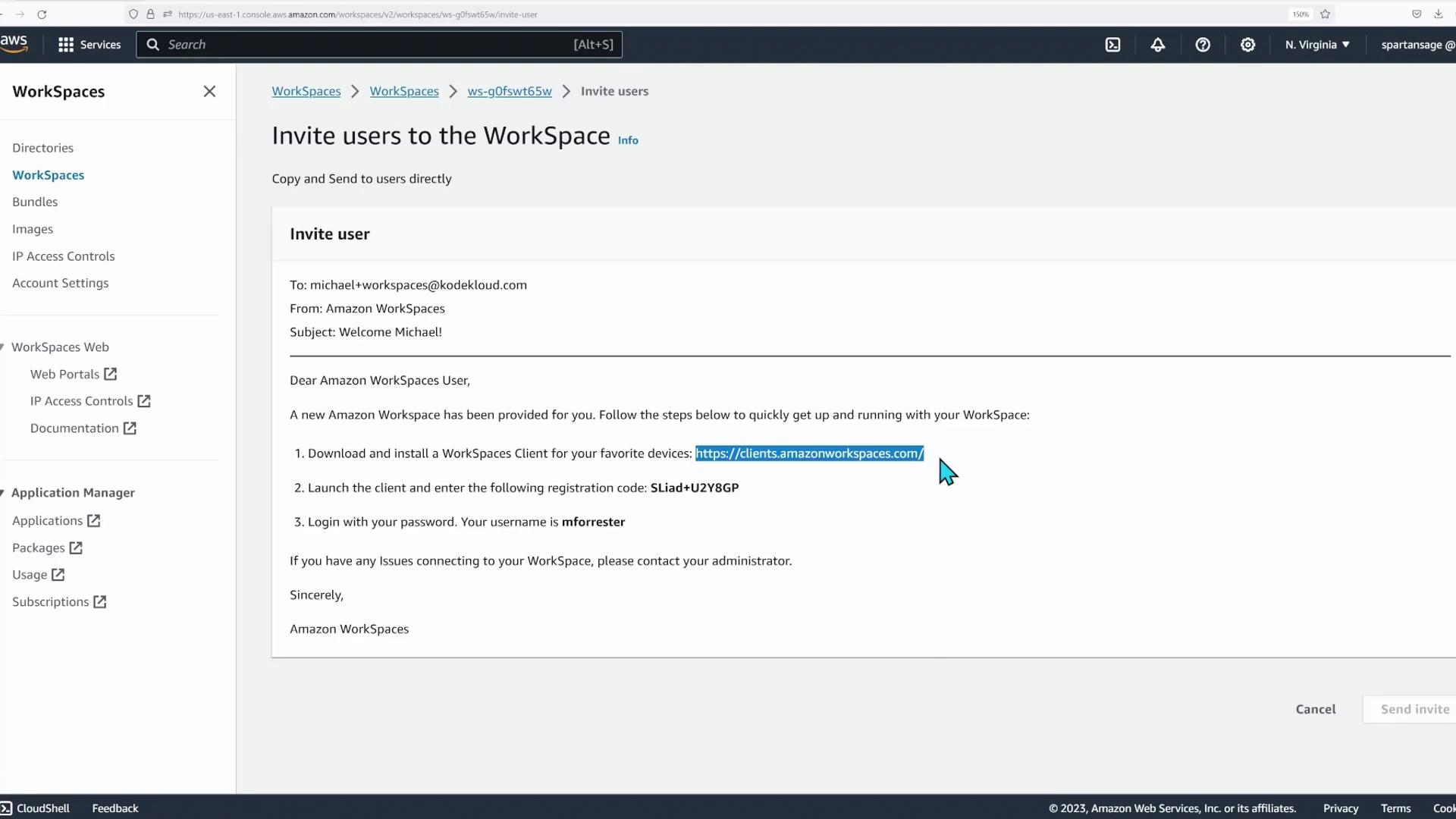
Once the WorkSpaces are created, you’ll notice that one might be in an available state while another still shows as pending. For instance, the WorkSpace configured with Amazon Linux might remain pending for a short time, whereas another (such as one running Windows Server) may be available. Select an available WorkSpace to proceed with connecting.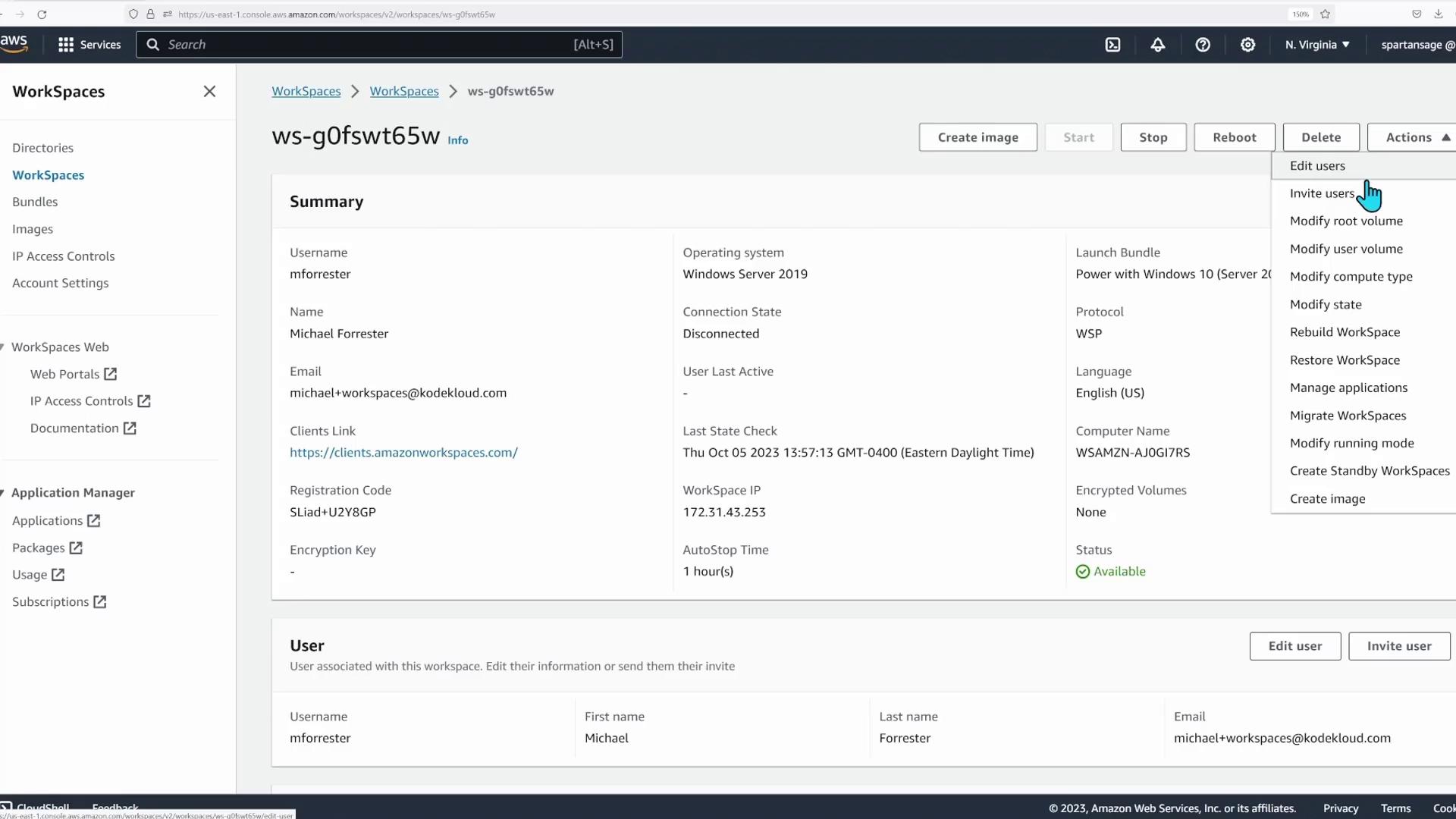
Testing the Virtual Desktop
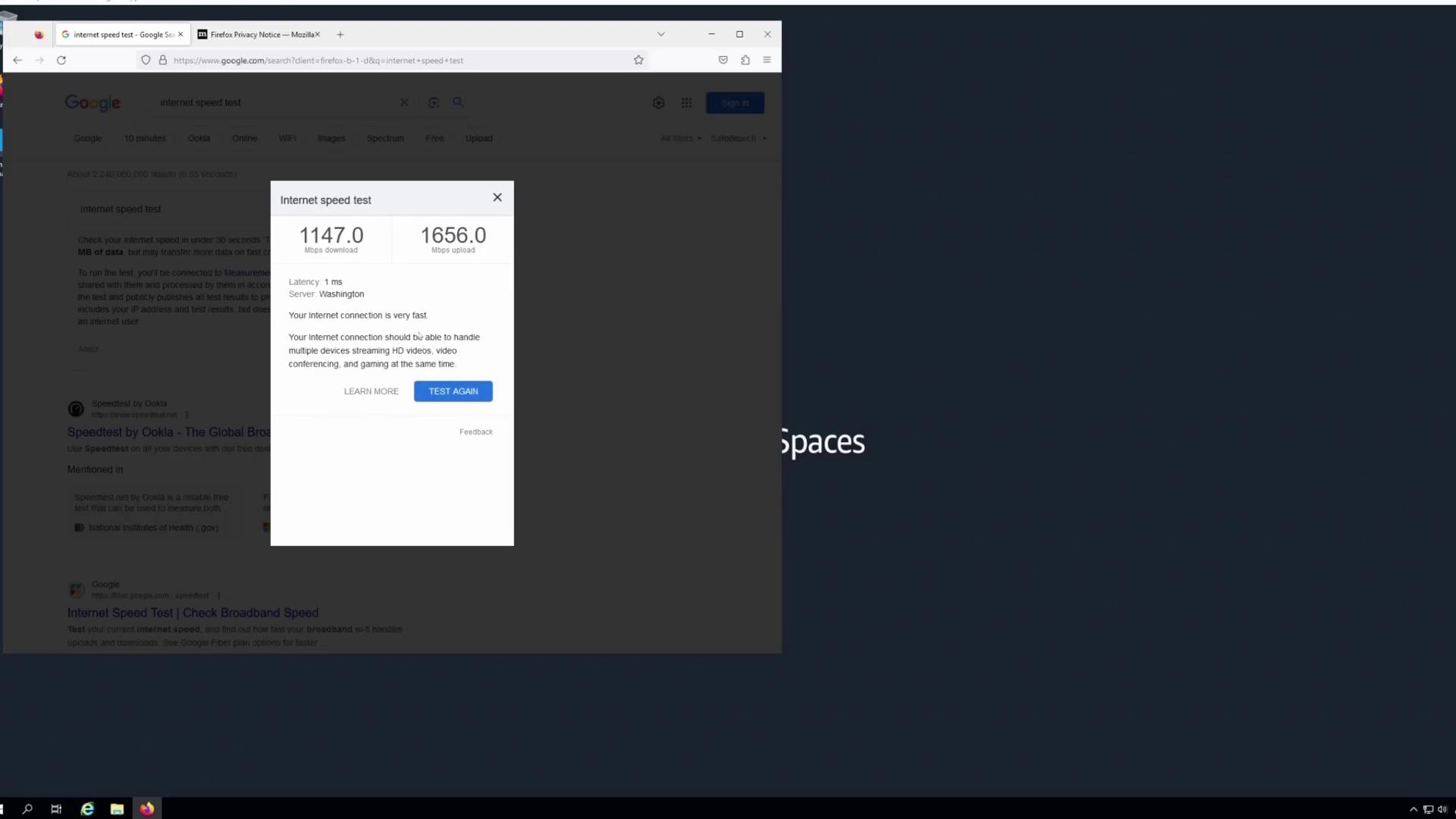
Inside the virtual desktop, launch Firefox to assess network performance. Running an internet speed test reveals that the connection speed significantly exceeds typical desktop network speeds. The results demonstrate speeds that are well above standard Ethernet limits, likely powered by high-speed network backplanes.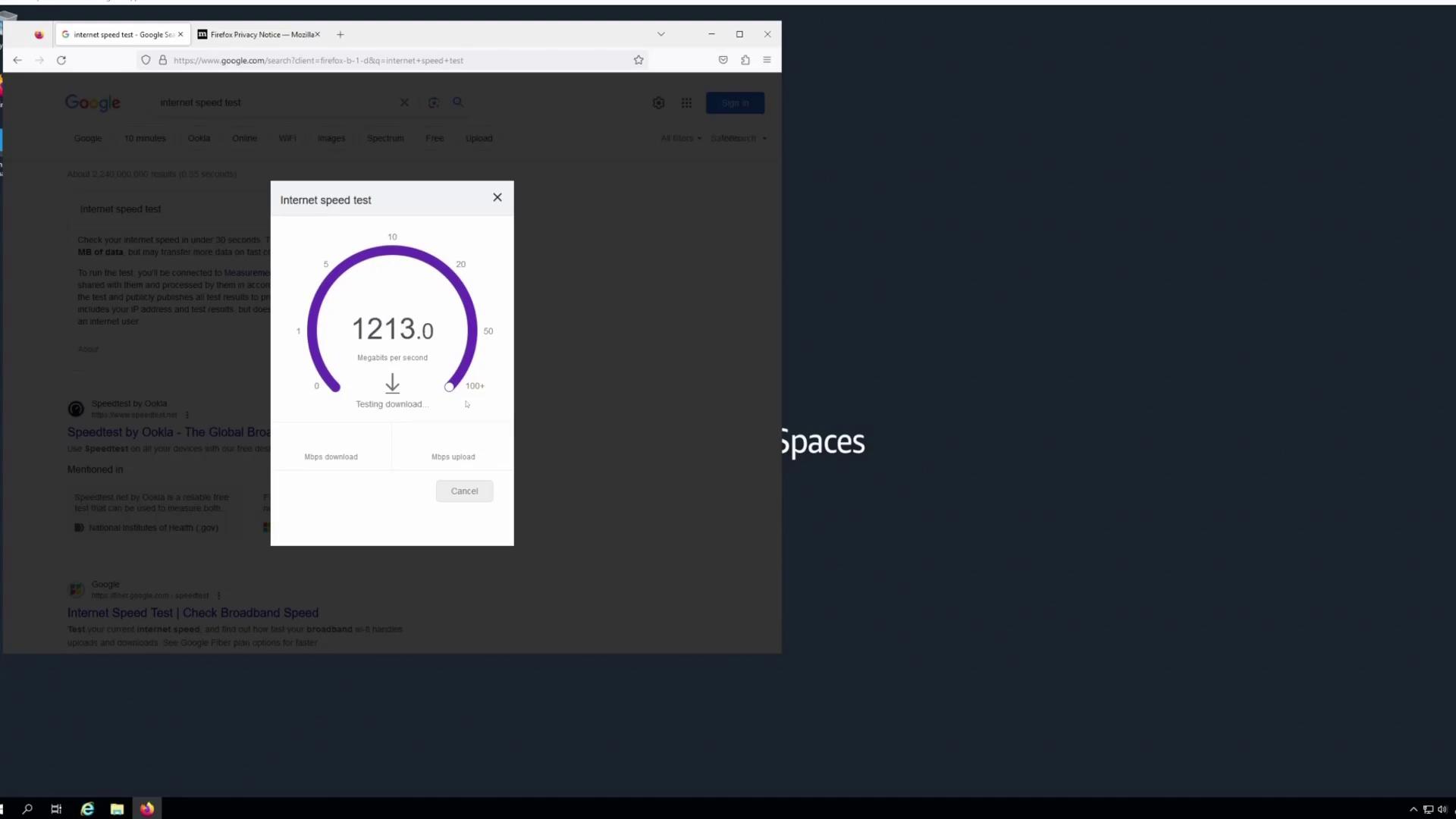
For a smooth user experience, remember to customize your virtual desktop settings and install only the necessary software, enhancing both security and performance.