

Creating Your Lambda Function
To get started, log in to the AWS Management Console, search for the Lambda service, and click on Create a Function.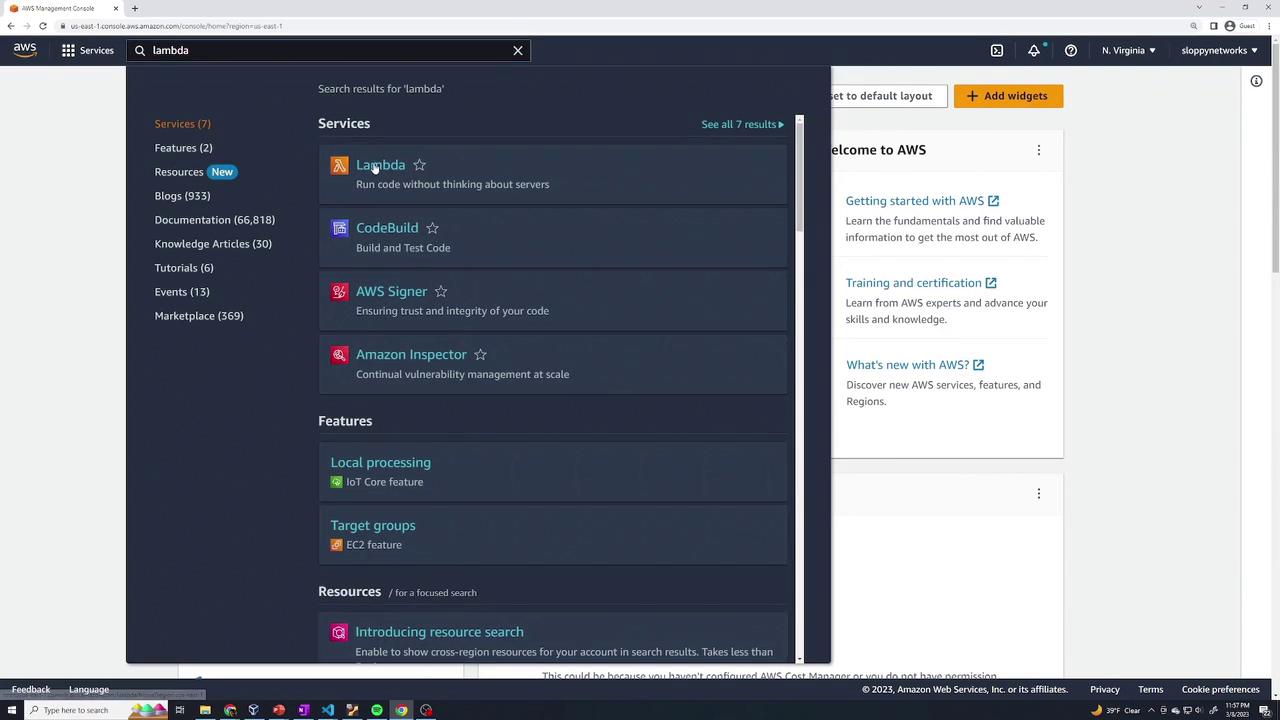
- Author from scratch – Create your Lambda function and code from the ground up.
- Blueprints – Use a pre-configured template for common tasks (e.g., triggering an action on an S3 object upload or setting up an API Gateway).
- Container image – Deploy your application as a containerized Lambda function.
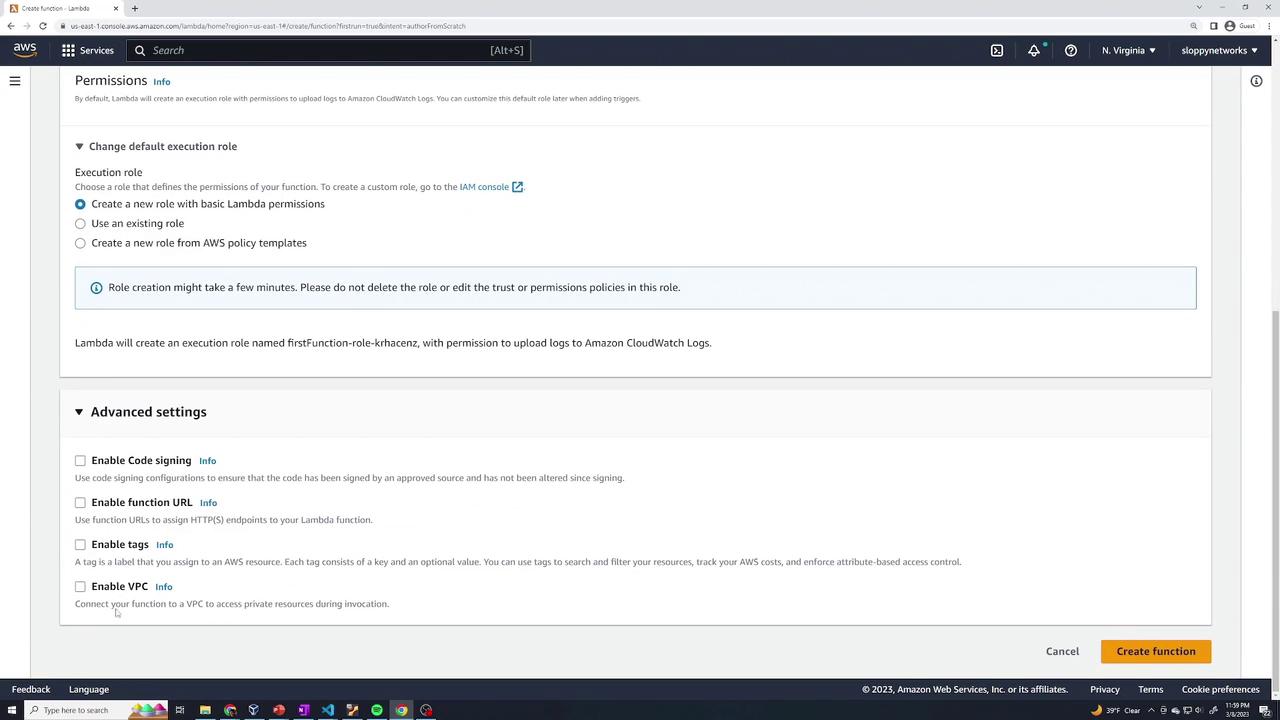
Advanced options like VPC connections are available, but you can ignore them for this simple demonstration.
Editing the Lambda Function Code
By default, AWS provides a simple handler function. Below is an example of a basic Node.js handler:event object containing the request data (for instance, parameters from an API Gateway request or metadata when a file is uploaded to S3).
Adding Dependencies with Layers (Optional)
Below the code editor, you’ll notice a section for Layers. Layers enable you to incorporate third-party dependencies or custom libraries separately from your main code. This is especially useful when multiple functions share common dependencies. Additionally, you can configure a Destination to send asynchronous invocation records to an SNS topic, SQS queue, or other supported destinations.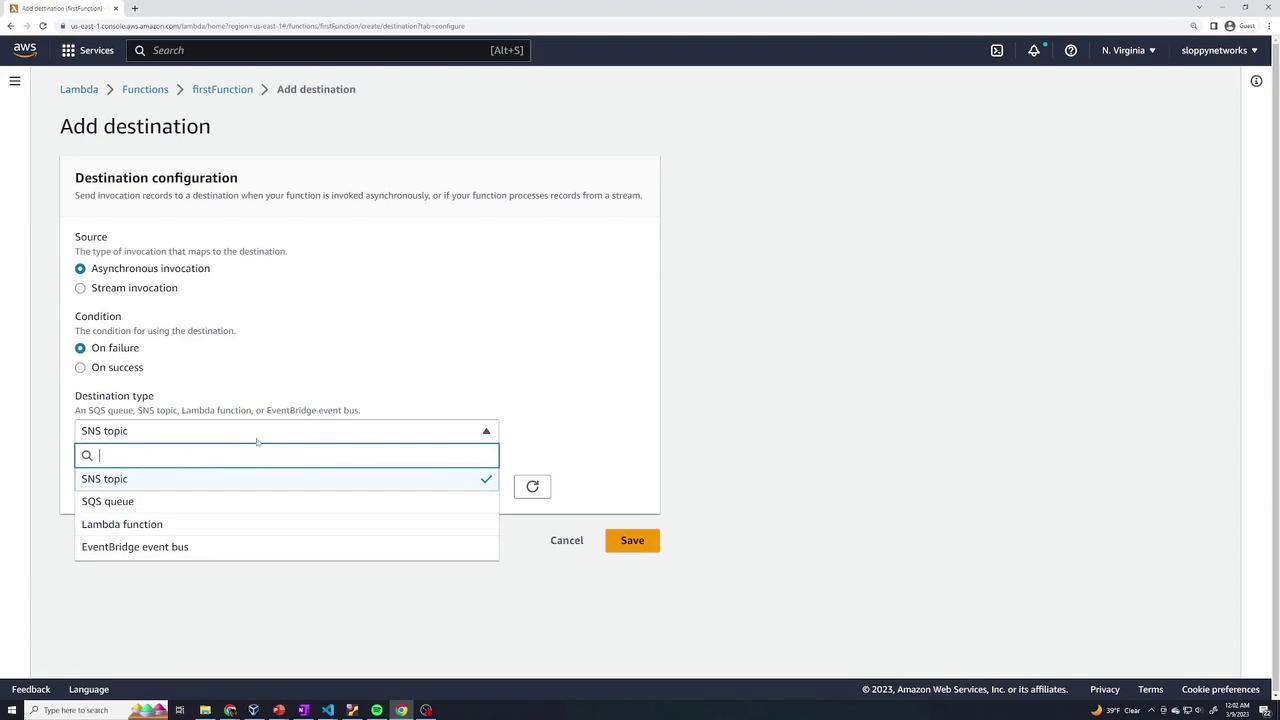
Testing Your Lambda Function
AWS Lambda includes a built-in testing mechanism. Click the Test button to open the test event configuration panel. You can create a new event or modify the default JSON event. For example:Using the Event Data in Your Code
Adjust your function to extract properties from the incoming event. For example, to process an event property namedproducts, update your code as follows:
Configuring an API Gateway Trigger
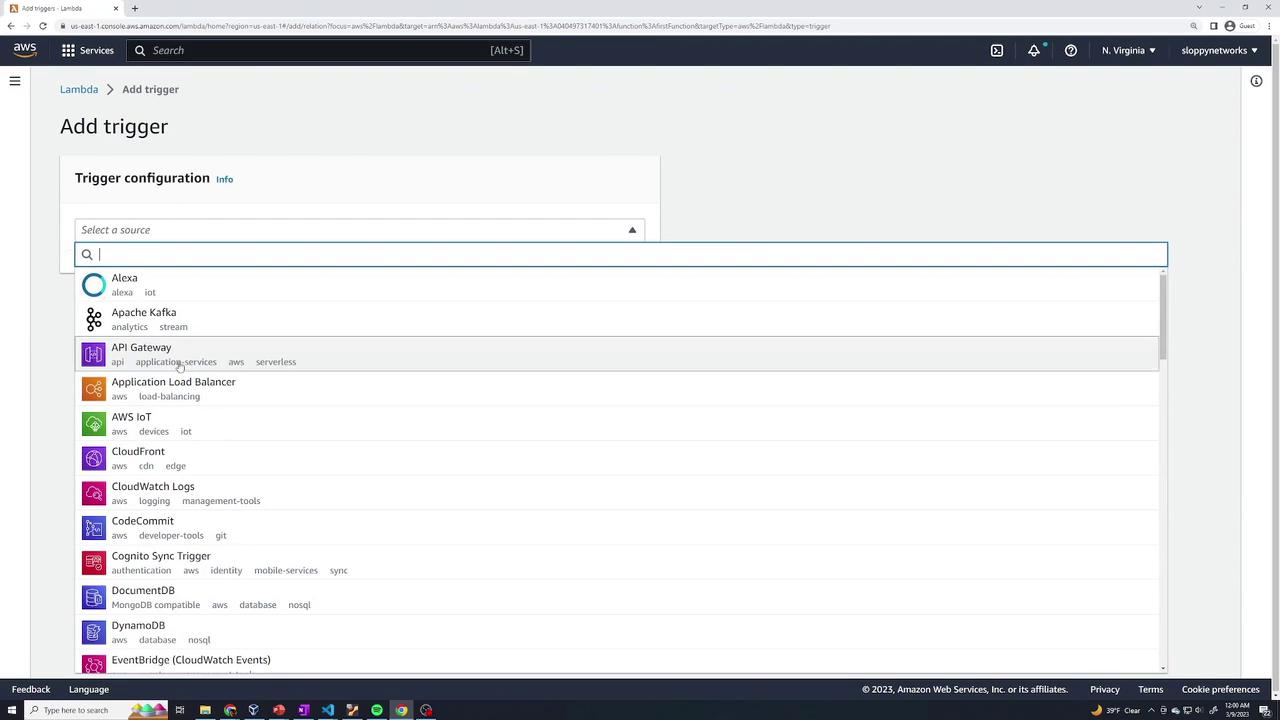
To simulate a real-world scenario, you can add an API Gateway trigger that invokes your Lambda function via an HTTP request. In the Lambda console, navigate to the Triggers section, click Add trigger, and select API Gateway. Choose Create a new API and set the security as required (for this demo, leaving it open is acceptable).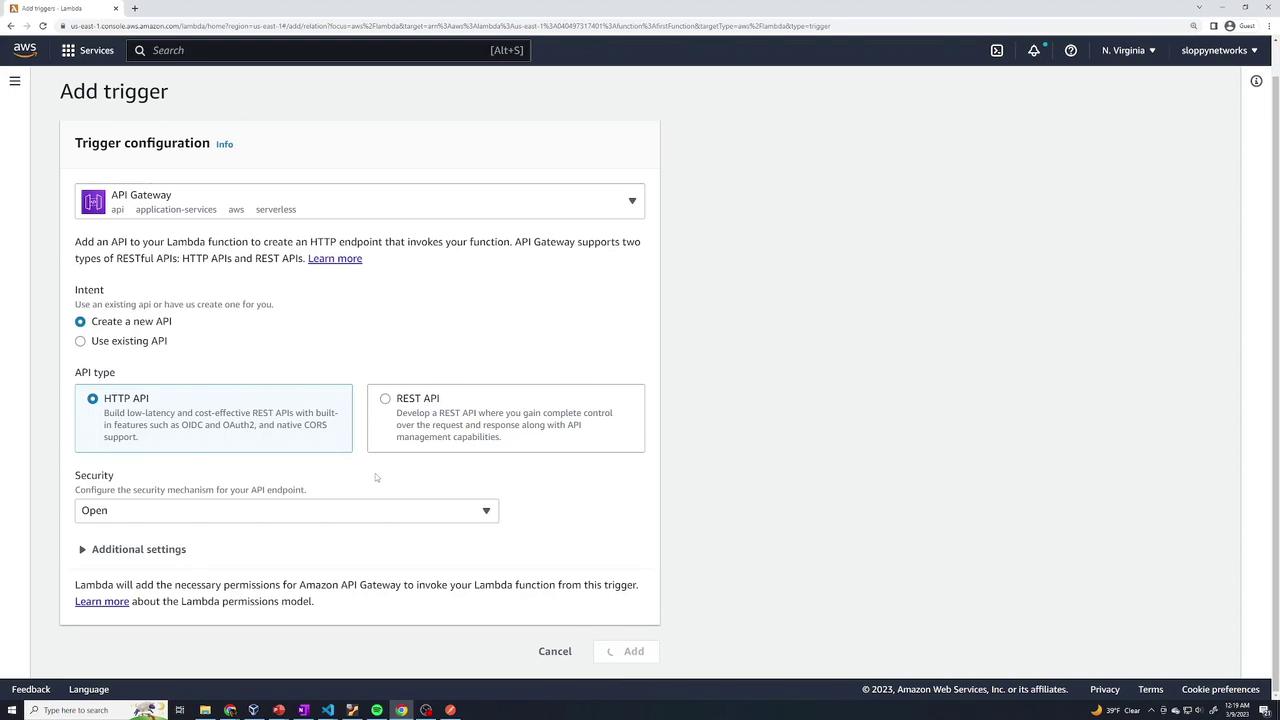
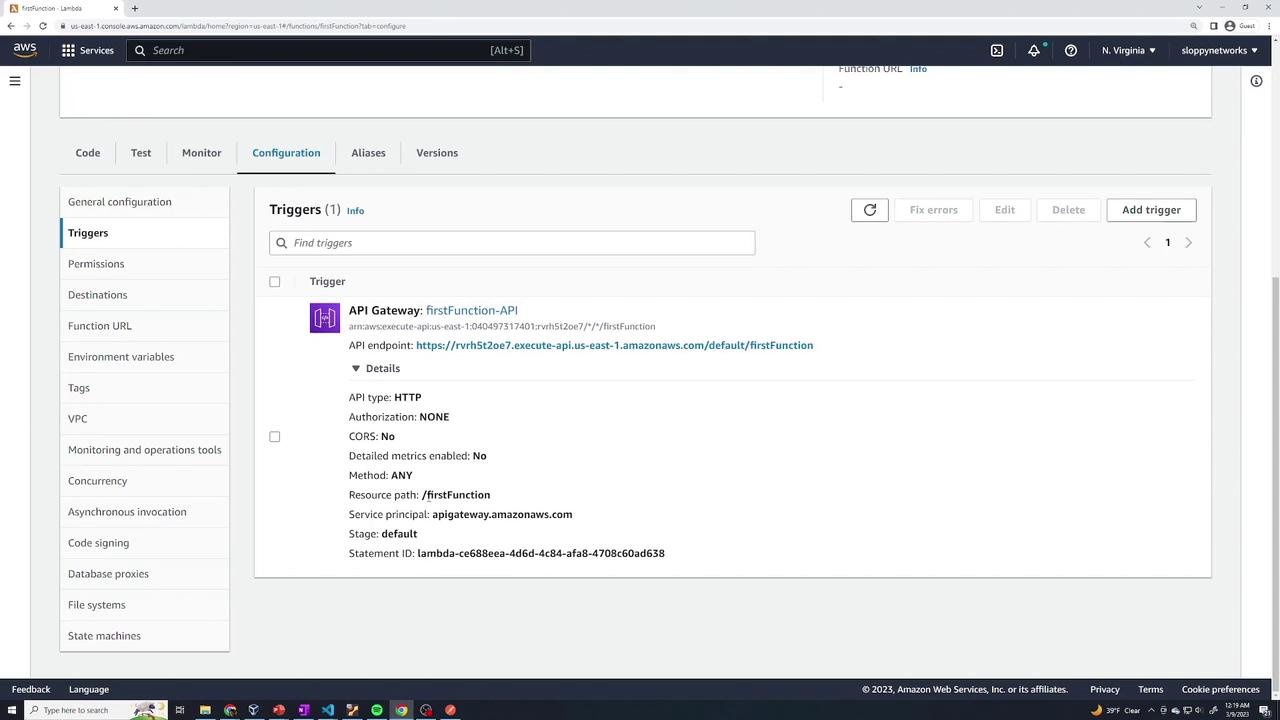
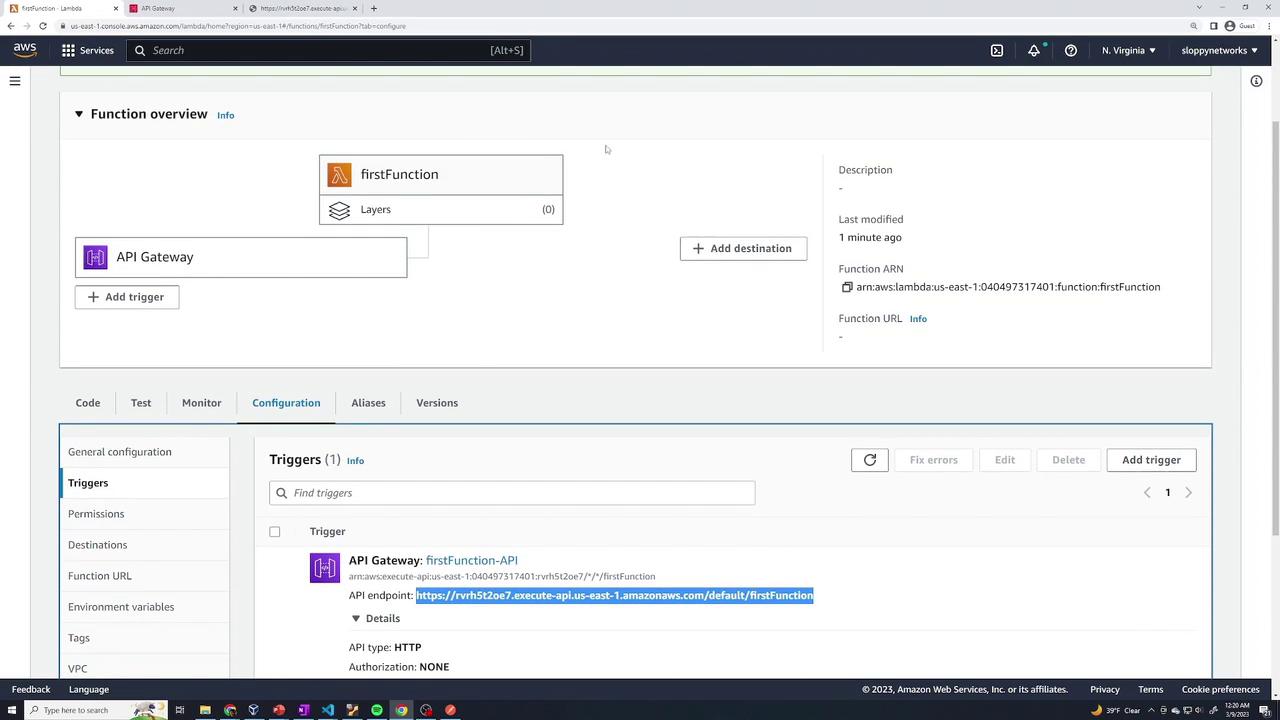
/first/function) along with details for supported HTTP methods (GET, POST, etc.). You can click through to the API Gateway page for further details.
Deploying a Function with Third-Party Dependencies – A Hashing Demo
In this section, you’ll build a more complex Lambda function that incorporates a third-party library. For this Node.js demo, we’ll use bcrypt.js to hash a password supplied in the event. First, install the dependency locally by running the following command in your project directory:node_modules that includes the required bcrypt.js files.
Below is the complete code for the Lambda function:
node_modules folder.
Bundling the Dependencies
To resolve this, bundle your Lambda function code along with thenode_modules folder. Zip the following:
- Your handler file (e.g.,
index.mjs) - The
node_modulesfolder
Using Lambda Layers for Dependencies
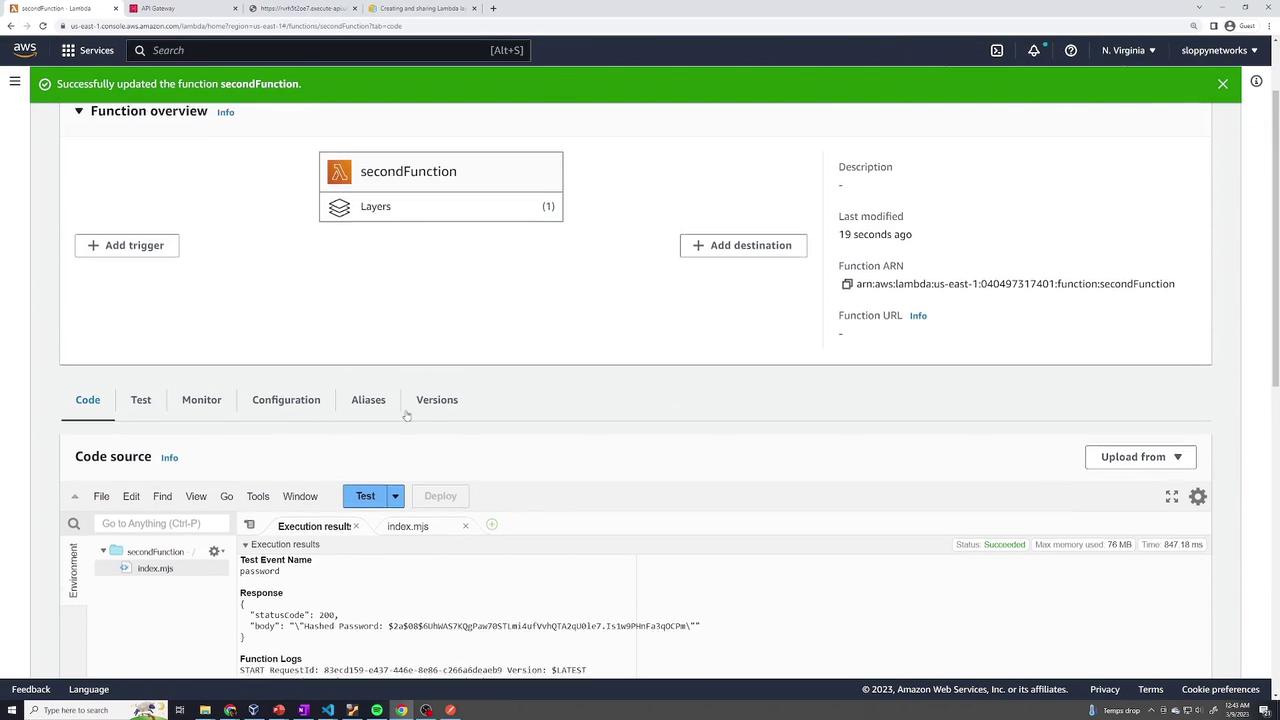
Instead of bundling thenode_modules folder with every function, you can create a Lambda Layer to share common dependencies among multiple functions.
To create a layer for bcrypt.js, follow these steps:
- Create a folder named
Node.js. - Move the
node_modulesfolder inside theNode.jsfolder. - Zip the
Node.jsfolder and name the archive (for example,my-hash-layer.zip).
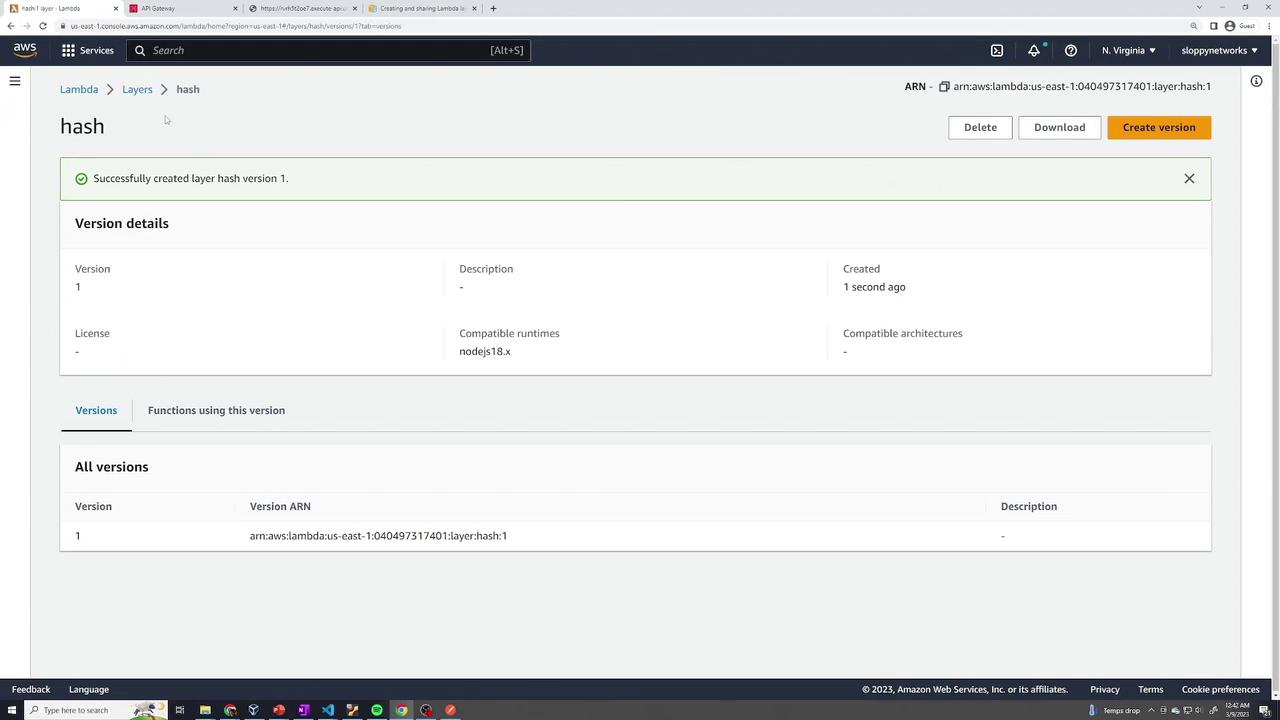
node_modules folder.
Monitoring Your Lambda Function
Monitoring is an essential part of ensuring your Lambda function performs as expected. In the Lambda console, the Monitoring tab offers insights into:- Number of invocations
- Execution duration (minimum, average, and maximum)
- Error counts and success rates
- Throttling metrics (if applicable)
Conclusion
This article demonstrated how to:- Create and configure an AWS Lambda function from scratch.
- Set up triggers, including API Gateway integration.
- Test your function using custom events.
- Incorporate third-party dependencies by either bundling them or using Lambda Layers.
- Monitor your function through CloudWatch logs and metrics.