

- Edge Manager
- Augmented AI (for human evaluation of data)
- Inference (for model predictions and testing)
- Training and Data Processing
- Notebooks (with integrated Jupyter notebooks and Git repository support)
- Ground Truth (for dataset labeling)
- Additional governance options and quick-start jumpstarts
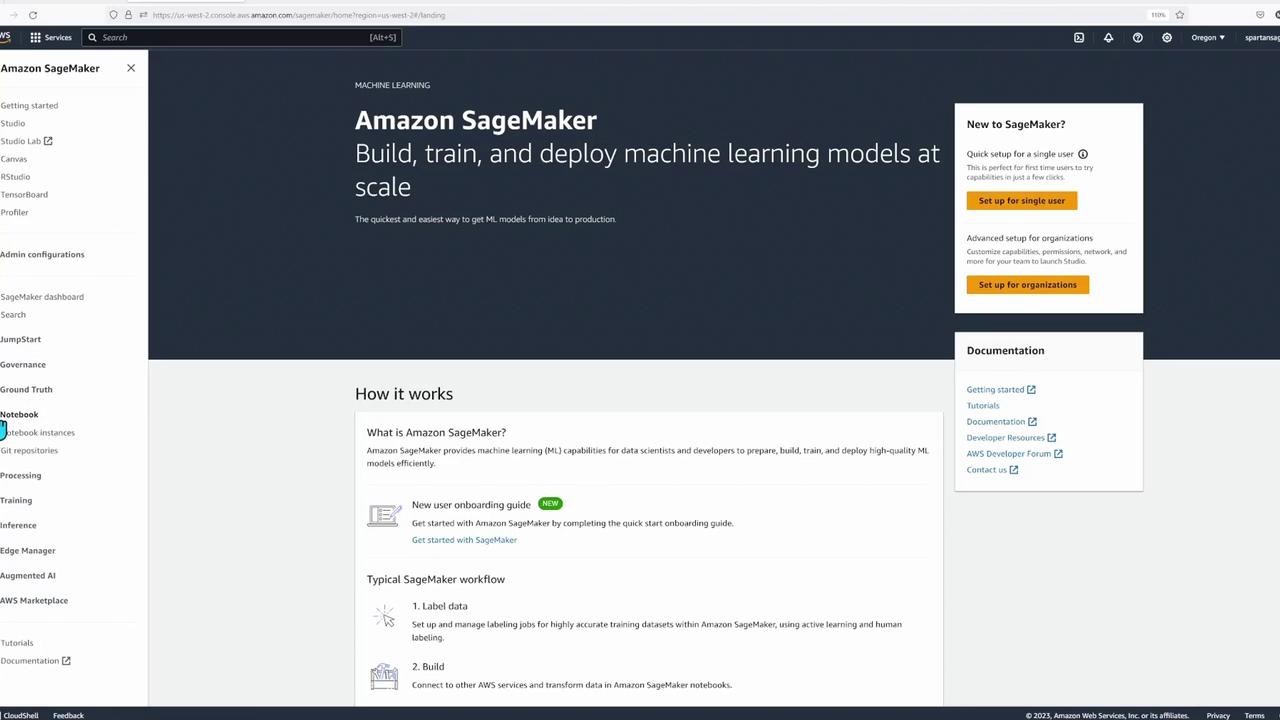
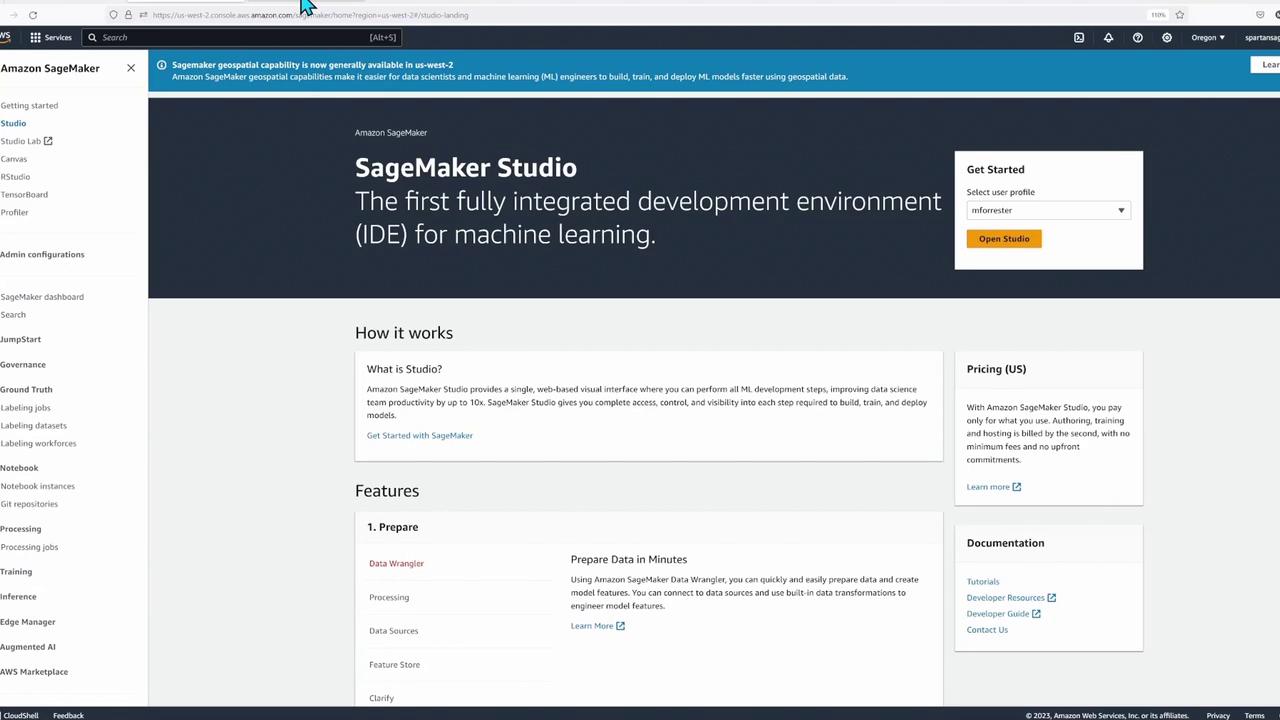
Navigating SageMaker Studio and Opening a Notebook
Start by navigating to the folder named “built-in algorithm HPO tabular” and double-click on the first notebook titled “autopilot and XGBoost.” This notebook contains step-by-step instructions and code cells for configuring your environment. You will be prompted to select the “medium” instance type when initializing the notebook kernel, which then launches an instance in the background. To execute a code cell in the notebook, simply click the play button or use the shortcut Shift+Enter. This interactive approach is ideal for data scientists and ML engineers as it facilitates immediate feedback and iterative development.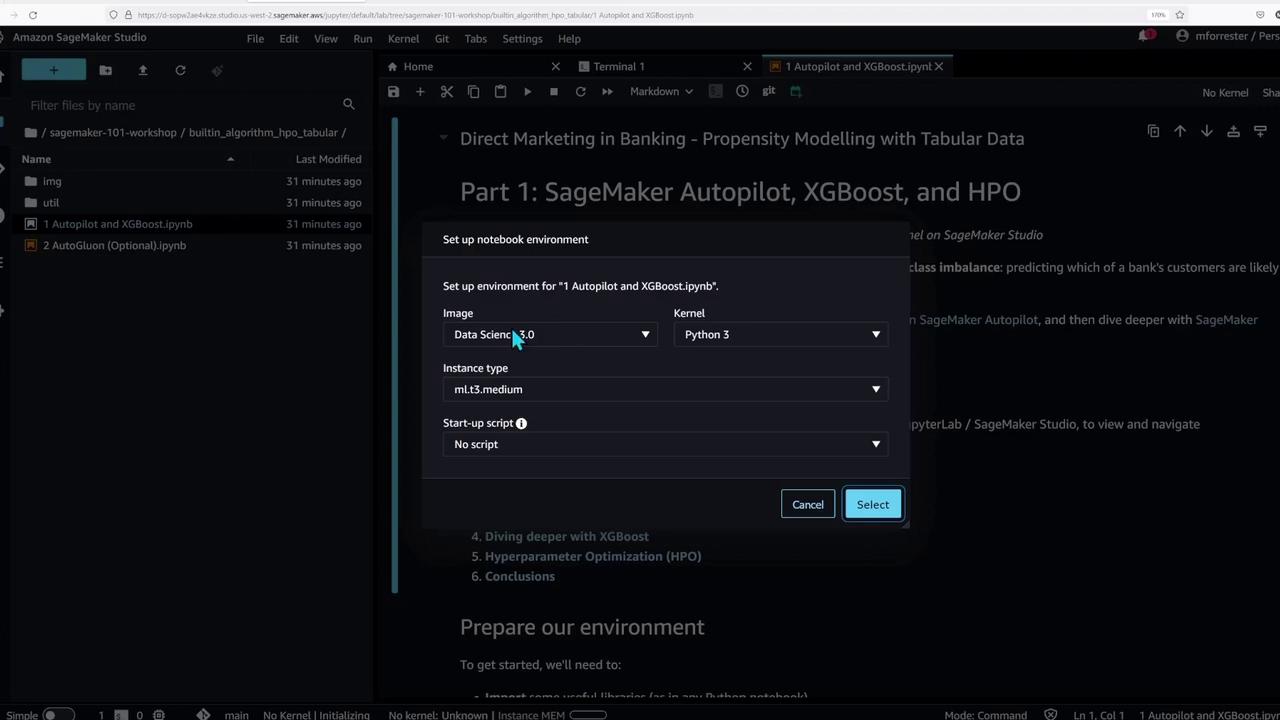
Setting Up the Environment
The notebook begins by importing essential libraries, configuring an S3 bucket, defining the IAM role, and establishing a connection to SageMaker services using the SageMaker SDK. Below is the initial setup code: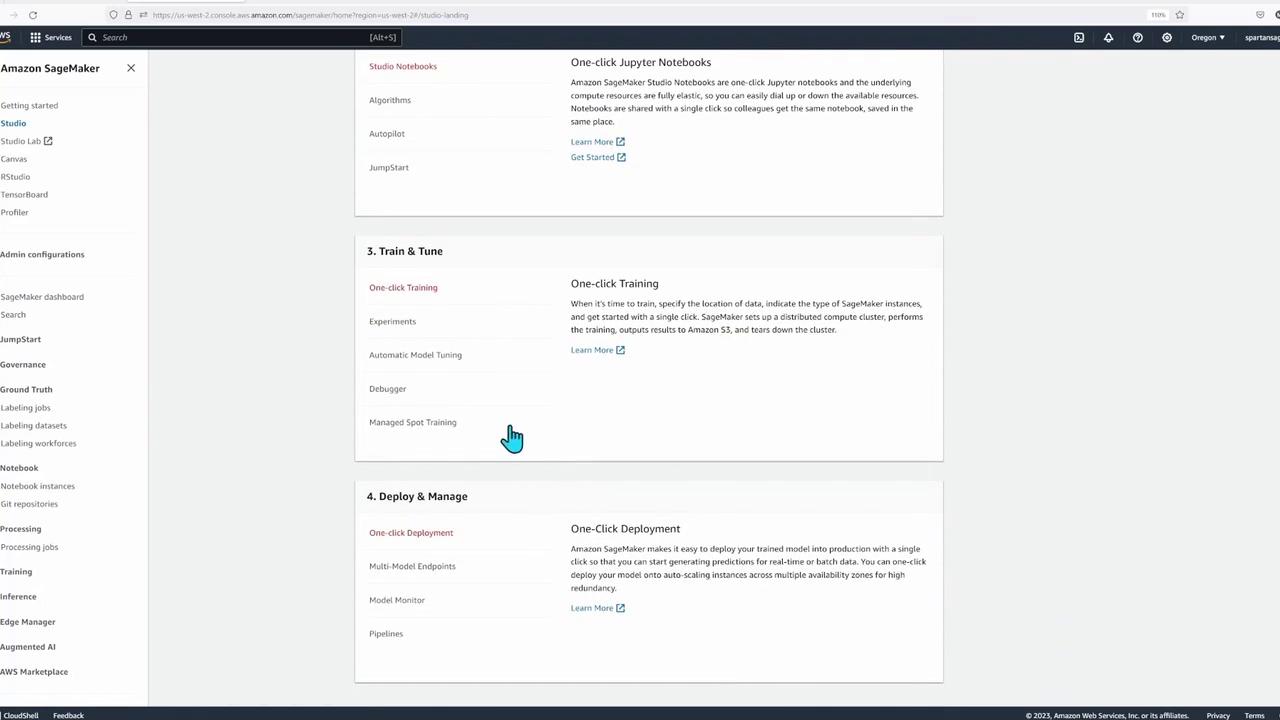
Once the kernel is up and running, click the play button on each cell to execute the code.
Importing Libraries and Configuring S3
After setting up the environment, the subsequent cell imports essential libraries and finalizes connections. The refined code is shown below:Uploading Sample Data and Loading It into the Feature Store
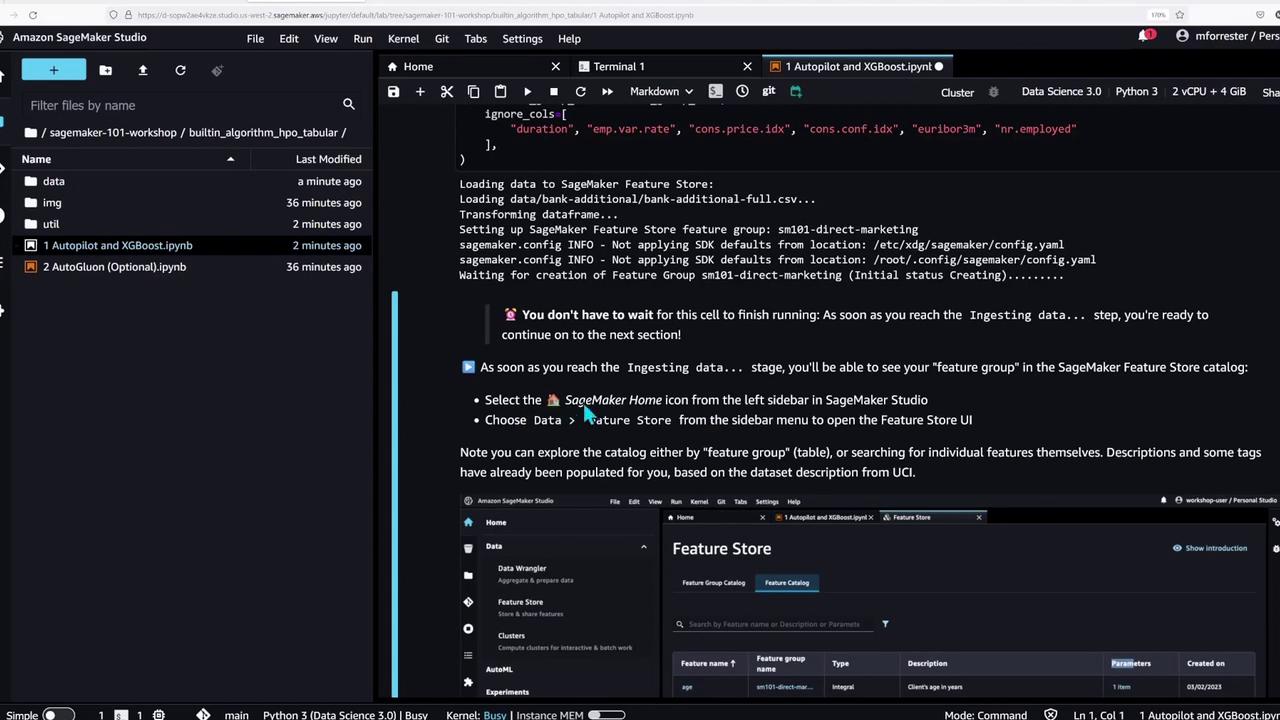
In the next step, the notebook demonstrates how to fetch sample data, upload it to S3, and load the CSV file into the SageMaker Feature Store. The code below outlines these steps:- Fetches the sample CSV file.
- Uploads the CSV to a specified S3 path.
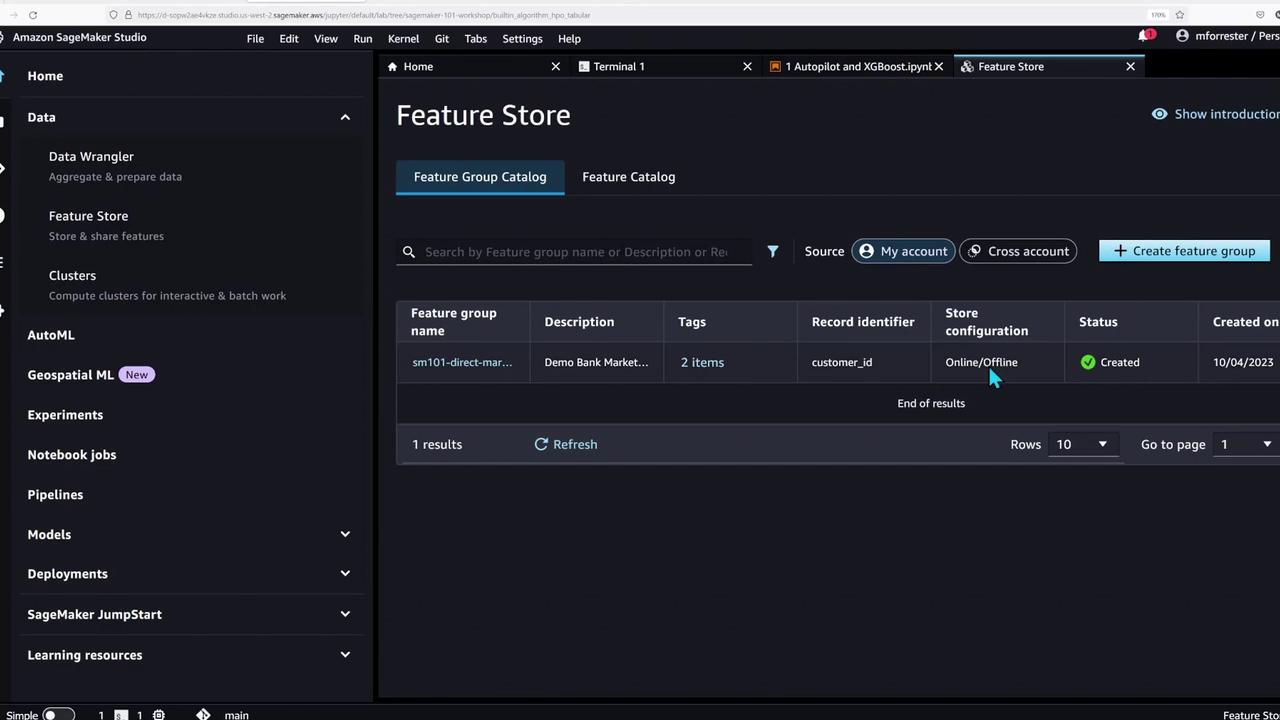
- Loads the data into the Feature Store while excluding certain columns.
Running Autopilot for Tabular Data Problems
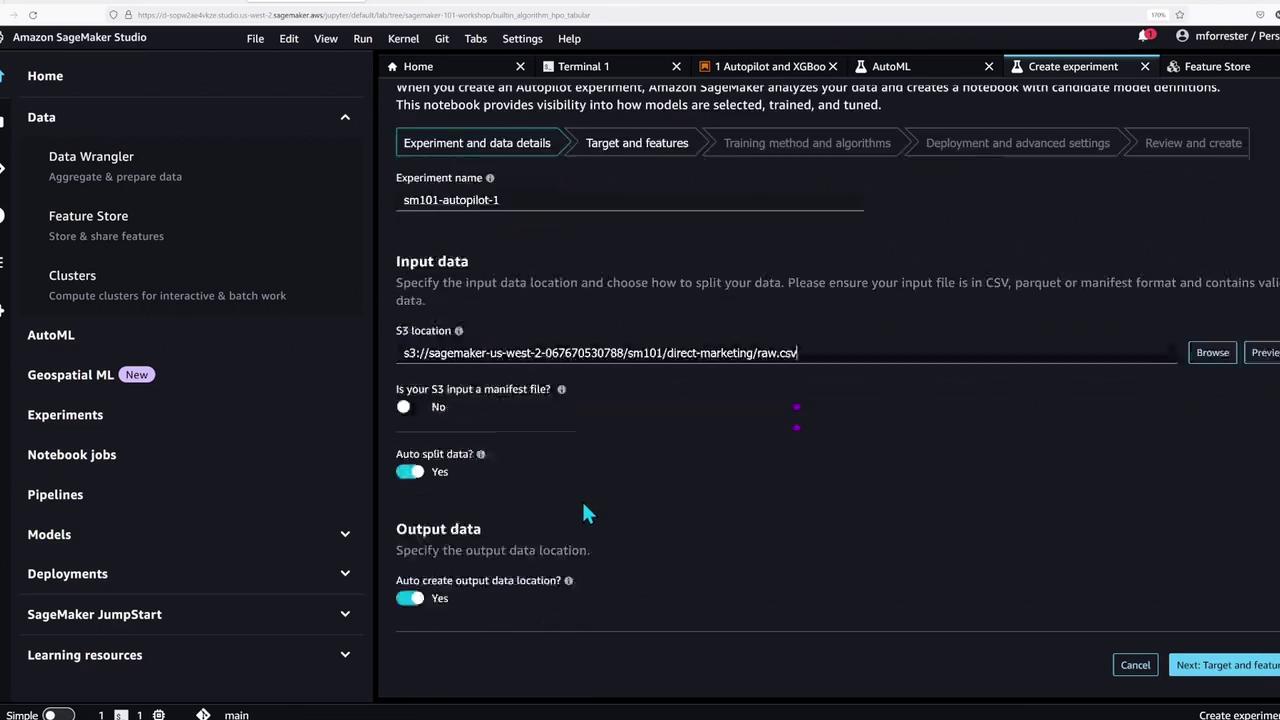
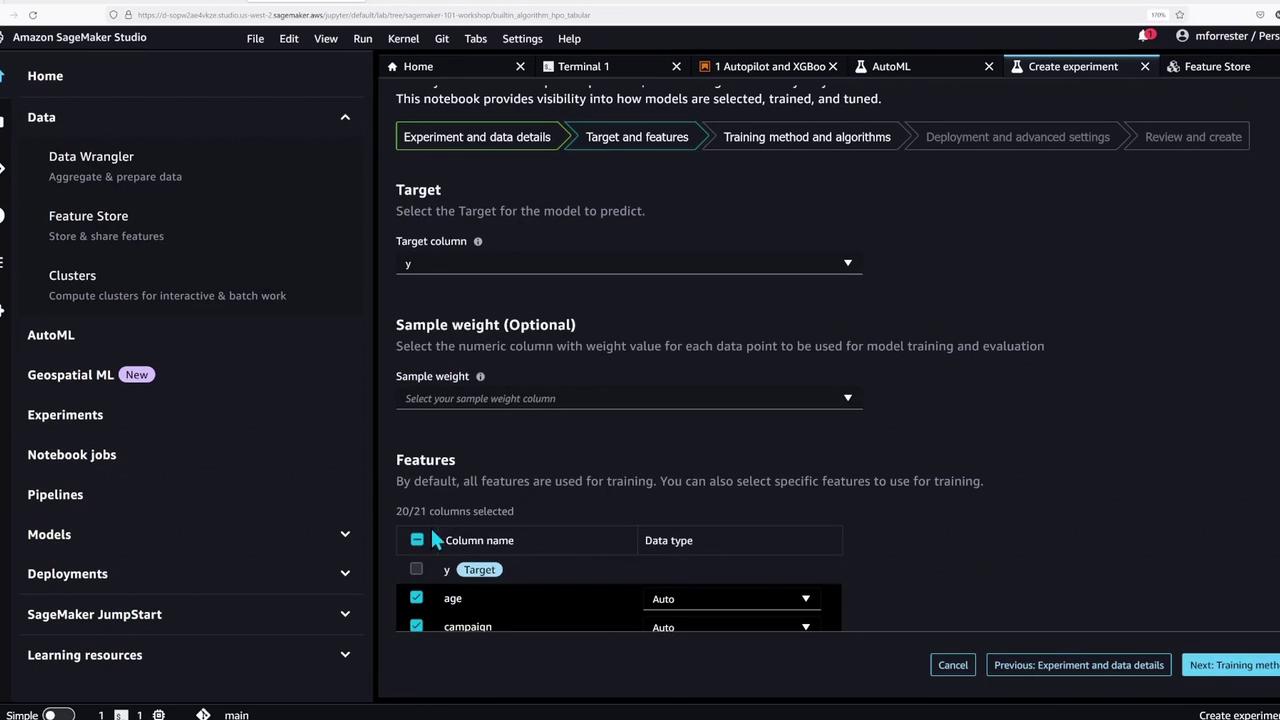
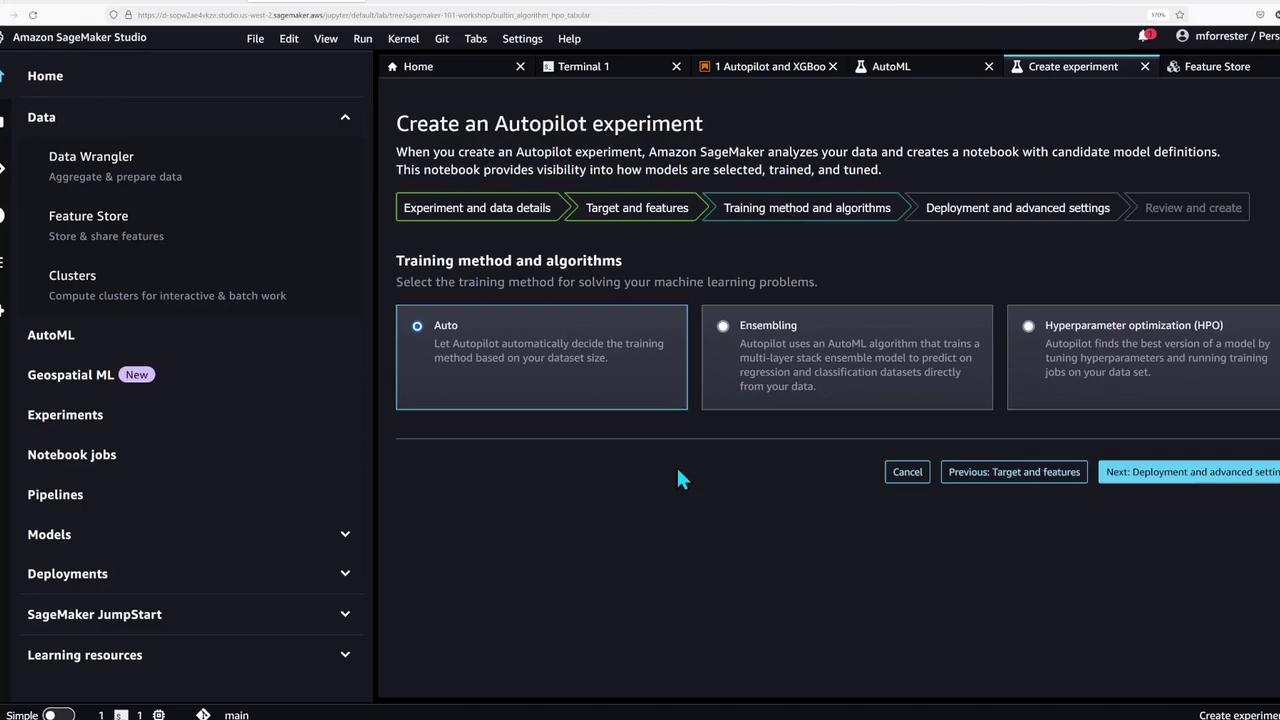
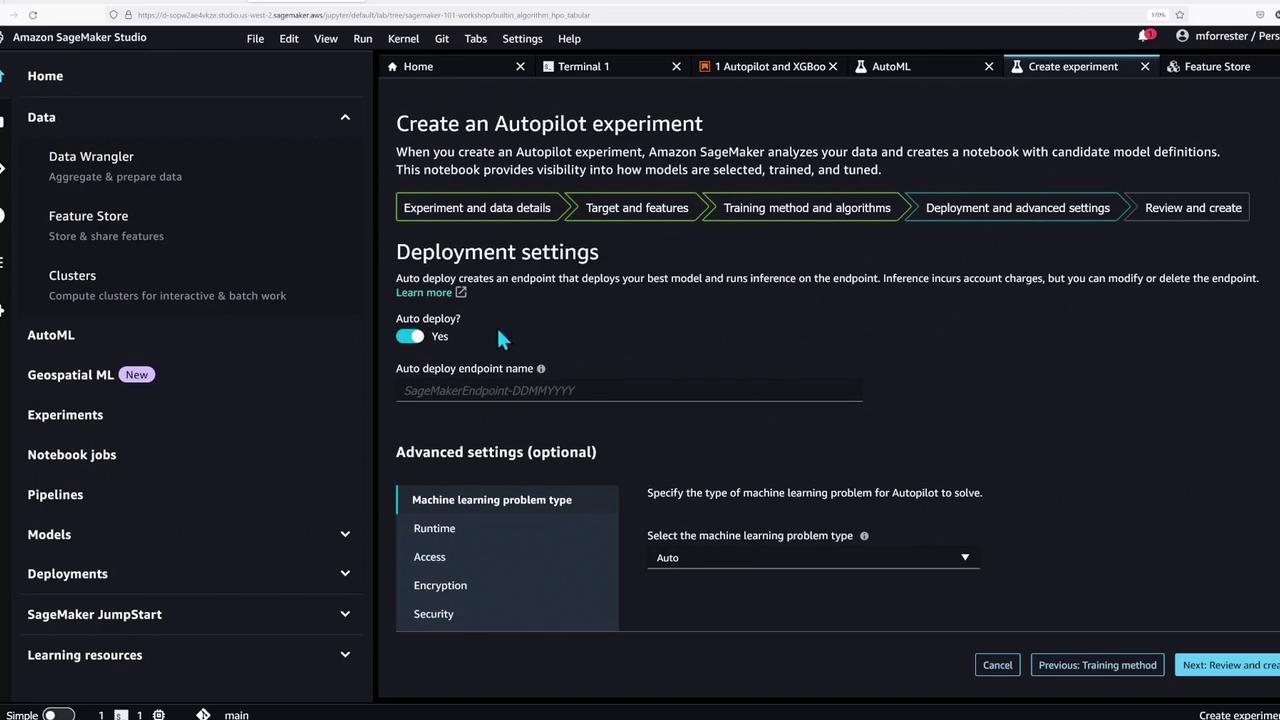
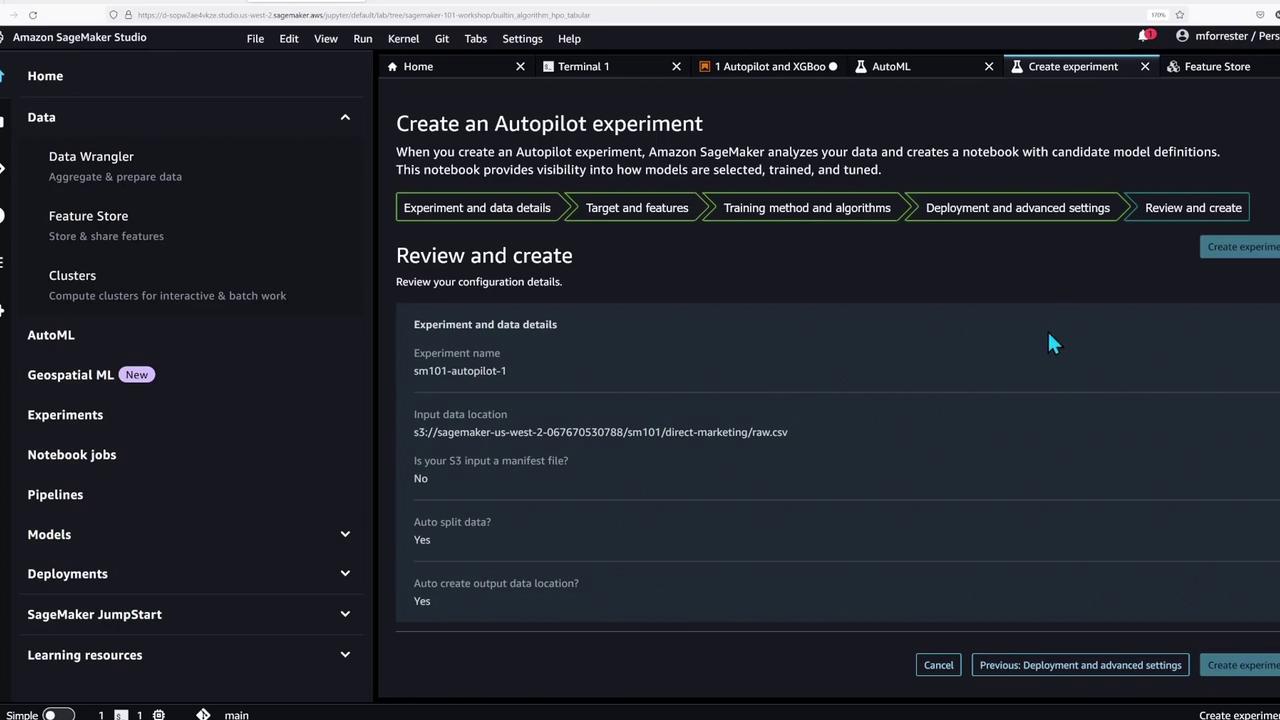
With the feature store populated, the notebook now showcases SageMaker Autopilot—an AutoML tool that automates data preparation and model training for tabular data problems. To create an Autopilot experiment, you can follow the Studio GUI or execute the following code to run the job manually: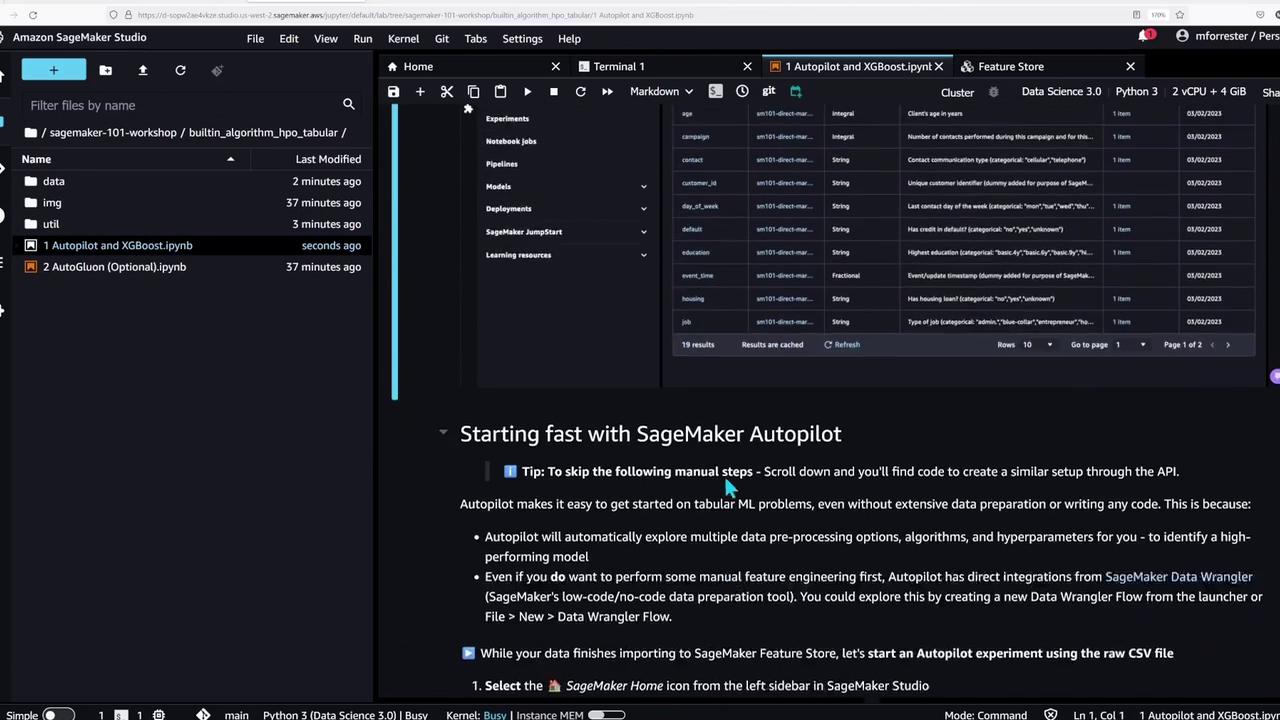
Querying the Feature Store
The final part of the notebook demonstrates how to extract a snapshot from the SageMaker Feature Store using an Athena query. The following code snippet shows how to perform this query:- Executes an Athena query on the feature store table to extract the latest records for each customer.
- Stores results at a specified S3 URI.
- Loads the data into a pandas DataFrame for further analysis.
Conclusion
In this lesson, we demonstrated how AWS SageMaker Studio streamlines machine learning model development. You learned how to:- Navigate the SageMaker Studio interface
- Import essential libraries and set up your environment
- Upload sample data to S3 and load it into the Feature Store
- Run AutoML experiments with SageMaker Autopilot and test with XGBoost
- Query the Feature Store using Athena to extract data snapshots
For more information on AWS SageMaker and advanced machine learning workflows, visit the AWS SageMaker Documentation.