Creating an AWS Account
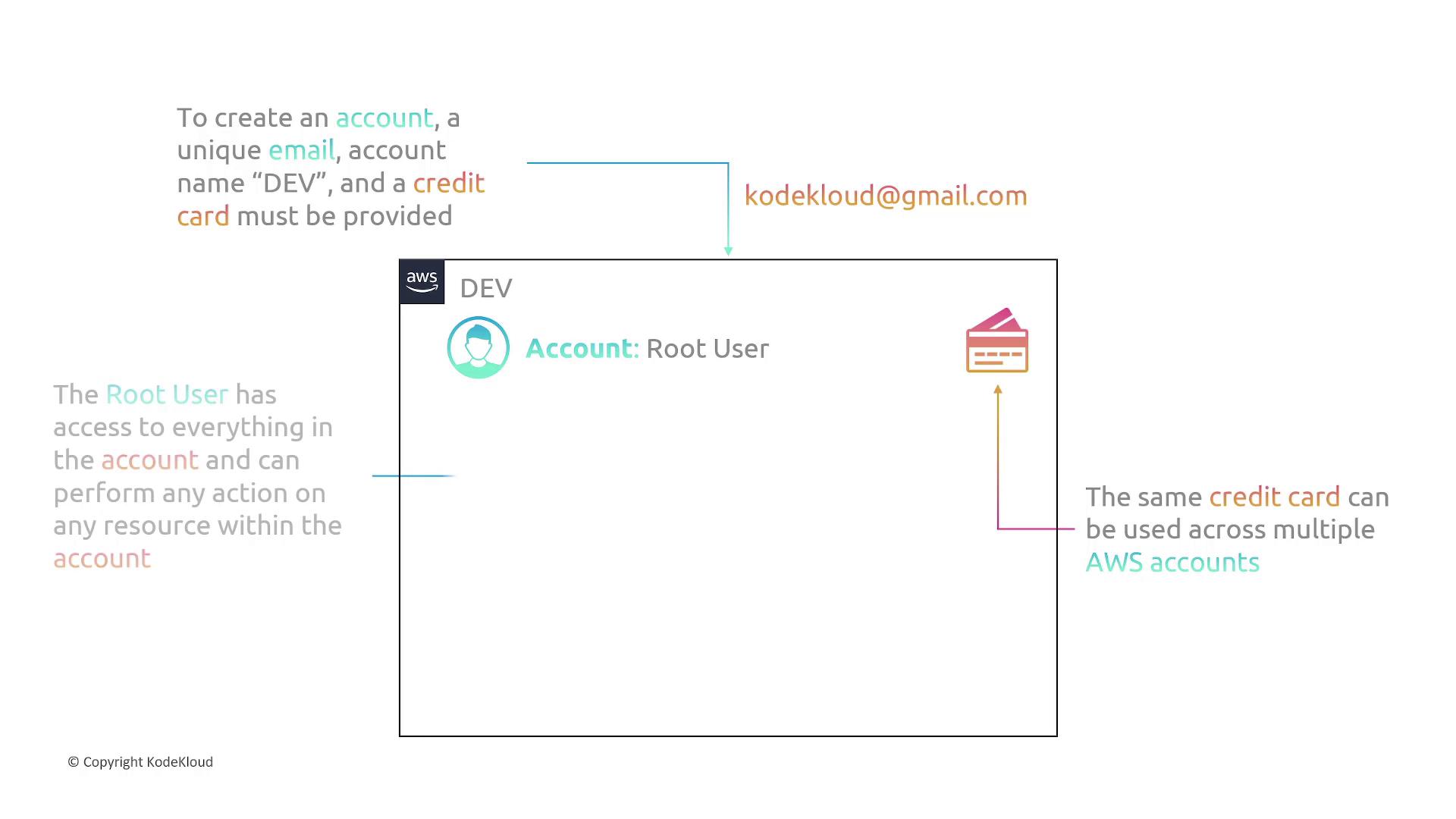
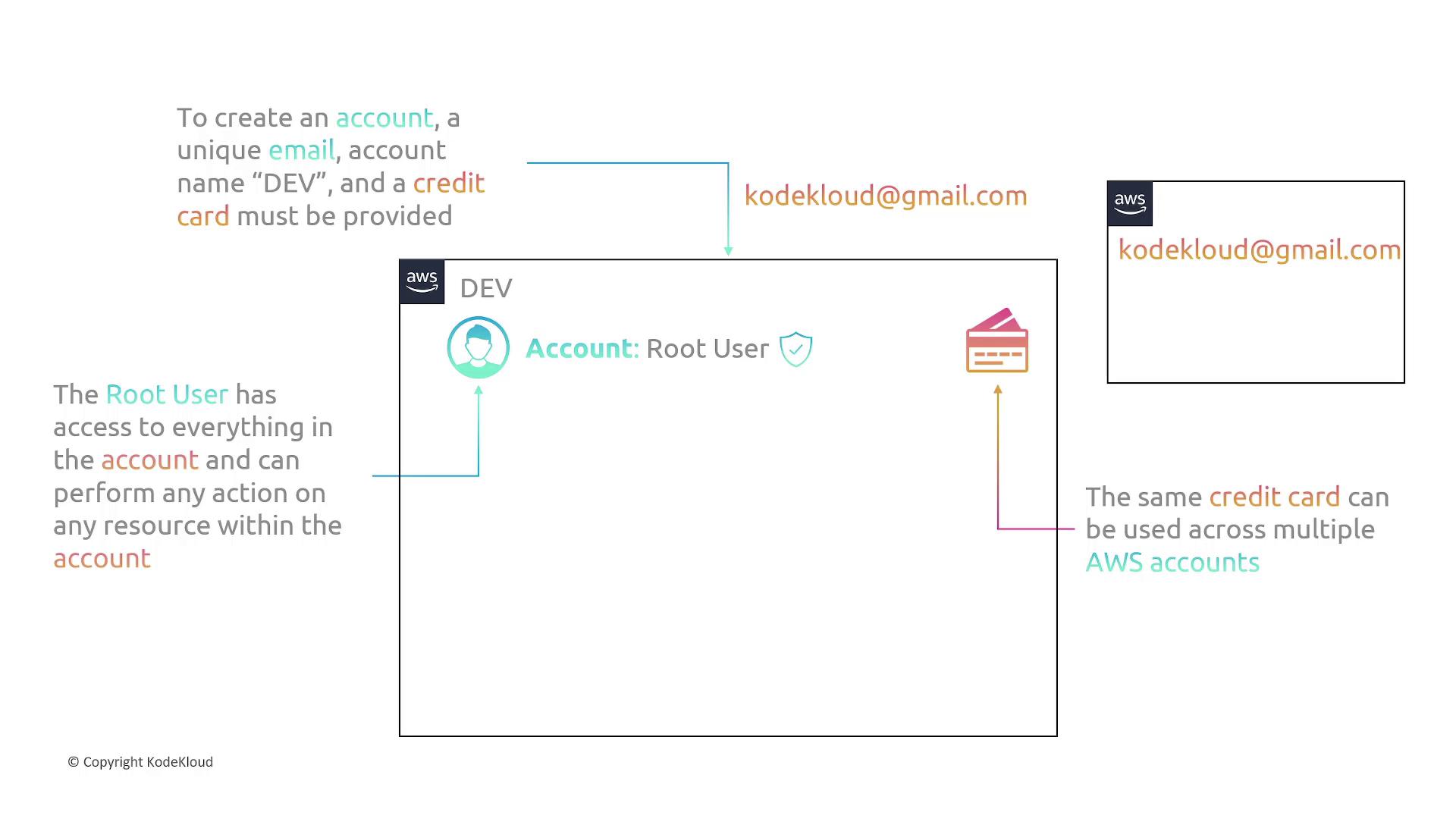
When you create your AWS account, you must provide the following three pieces of information:- Unique Email Address: For example, if you register an account with kodekloud@gmail.com, that email cannot be used to create another account.
- Account Name: A descriptive name such as “dev” for identification.
- Credit Card: Although the same credit card may be used for multiple accounts, each account must be tied to its own unique email address.
Avoid using the root account for everyday tasks. Instead, create IAM users with specific permissions to minimize security risks.
Introduction to IAM
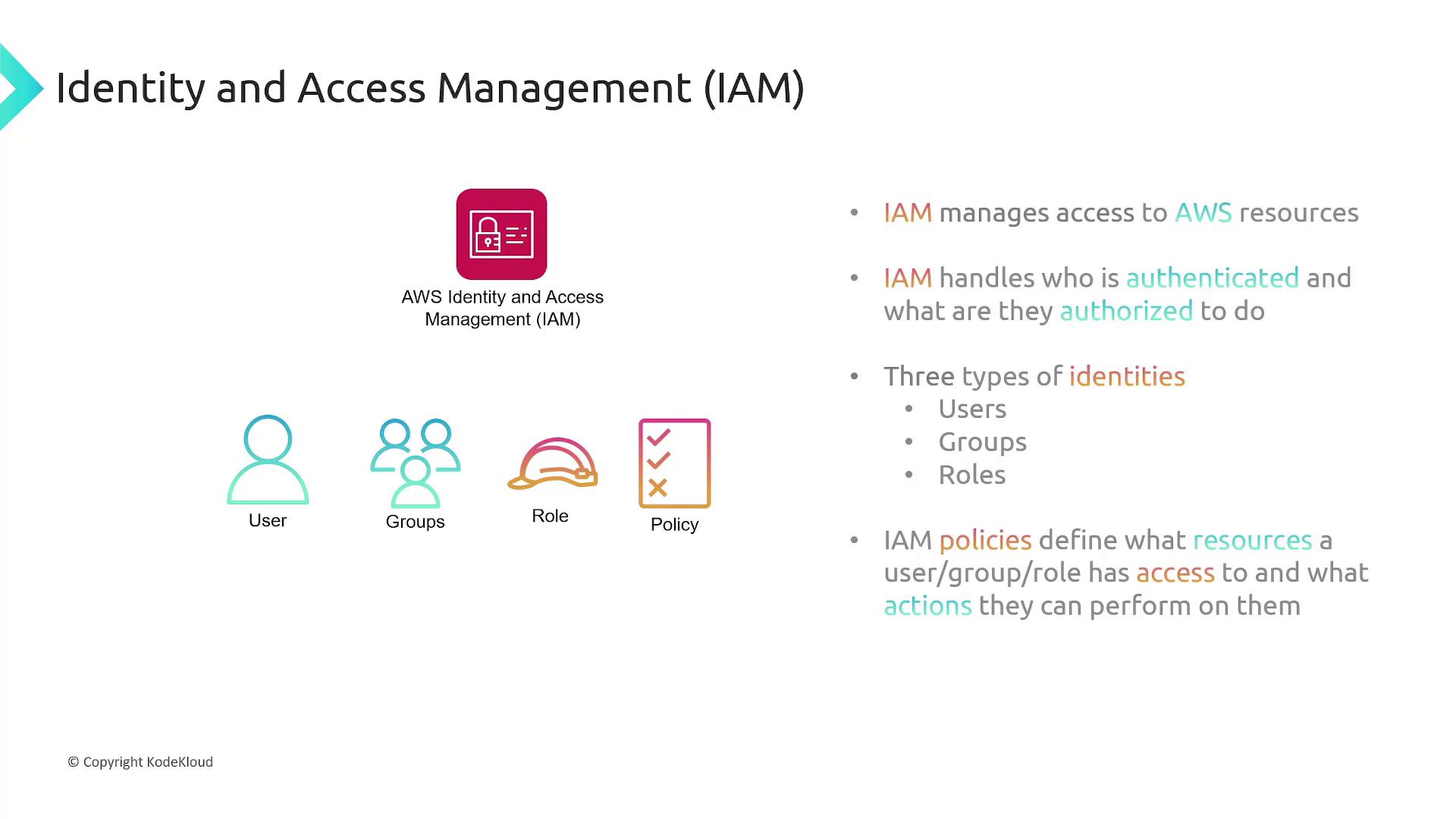
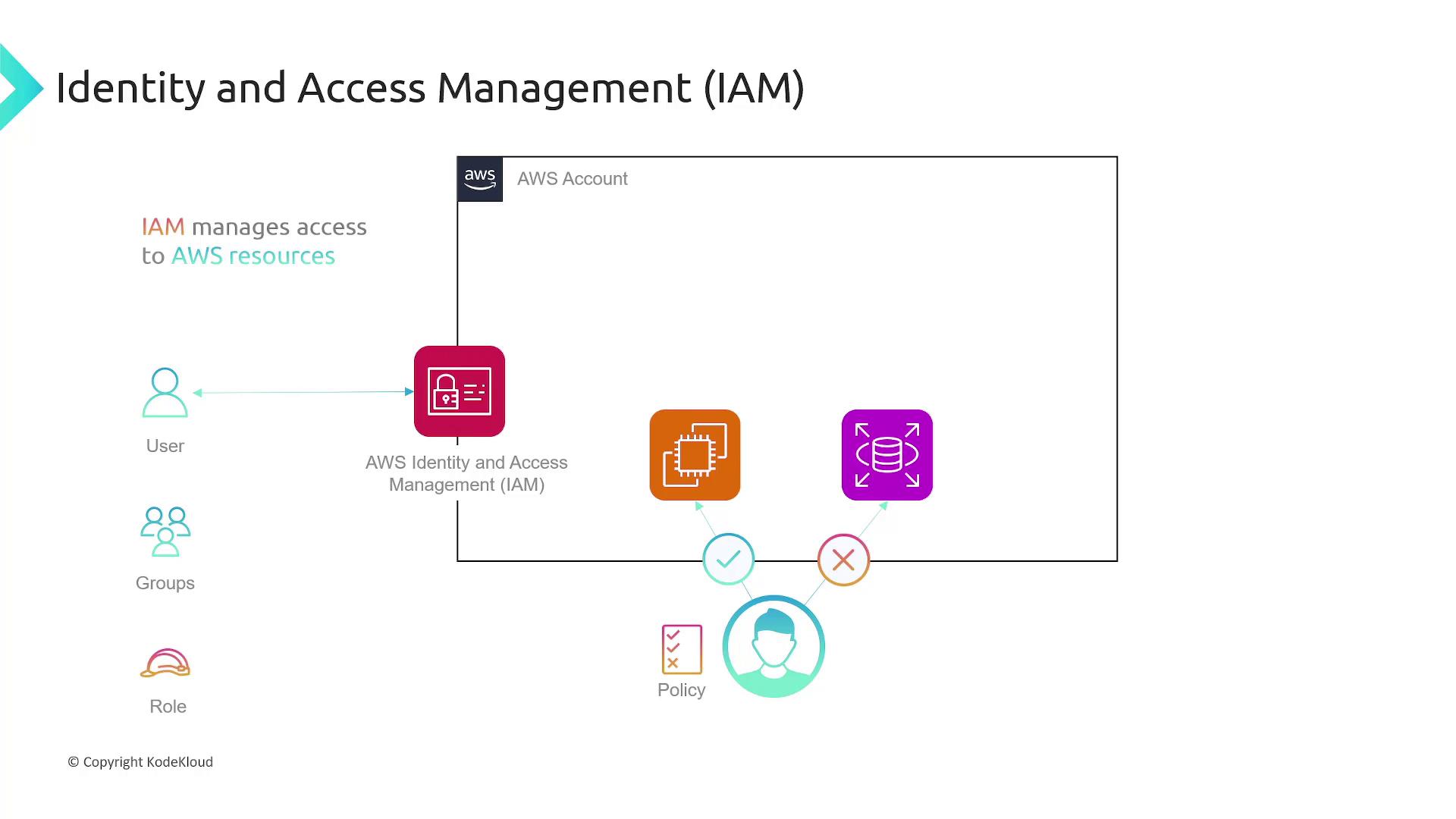
As your organization expands, sharing the root credentials among users becomes unsafe. IAM allows you to grant secure, granular access to AWS resources without risking the security of your root account. IAM includes several key components:- IAM Users: Individual identities for people or applications requiring AWS access.
- Groups: Collections of IAM users that share common permissions.
- Roles: Provide temporary permissions to users or services.
- Policies: JSON documents that explicitly permit or deny actions on specific AWS resources.
IAM Users
Whenever a new employee or application needs to access AWS, you must create an IAM user account. Each IAM user is initially without any permissions; you then grant permissions by attaching the right policies.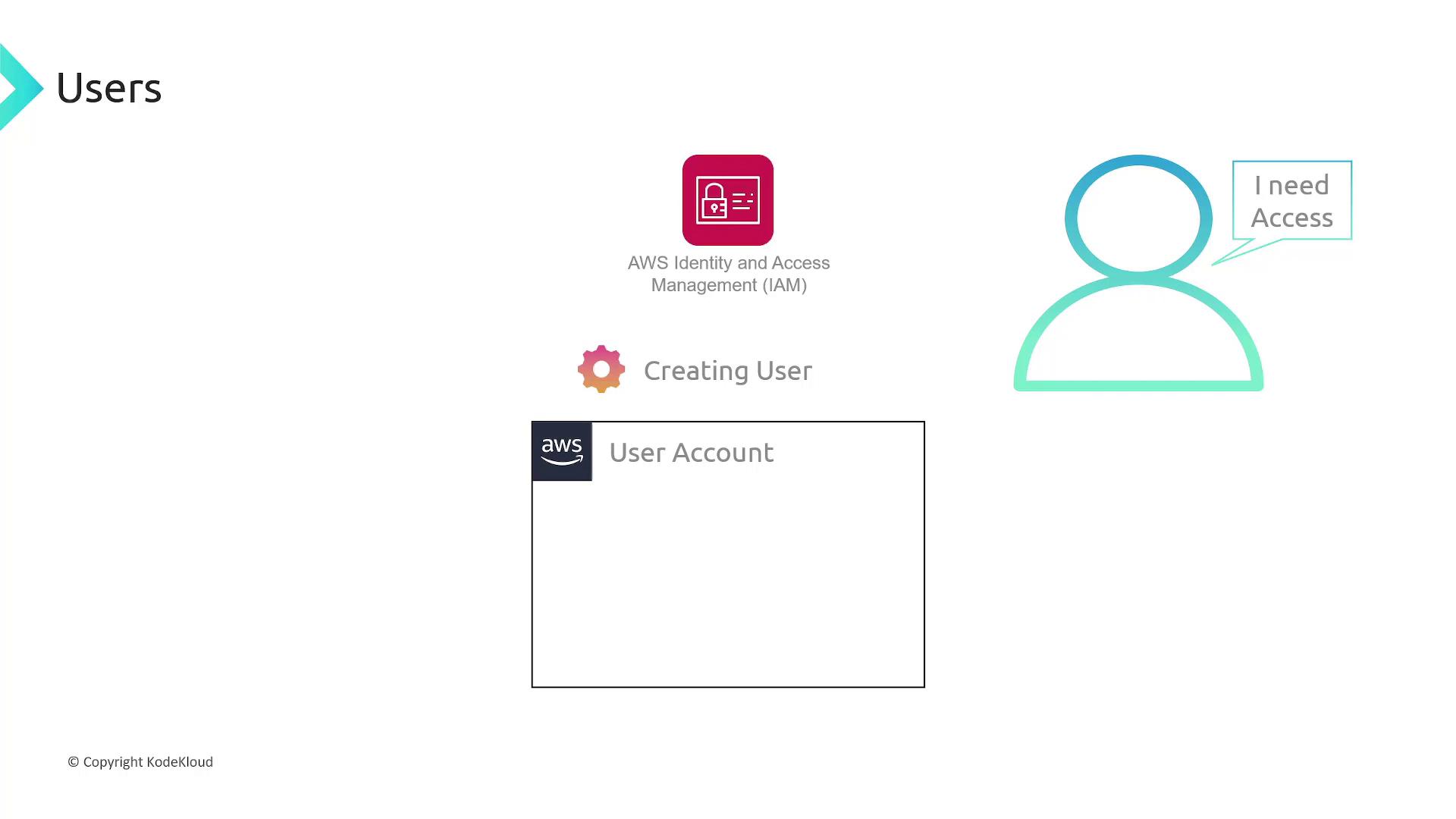
IAM Policies
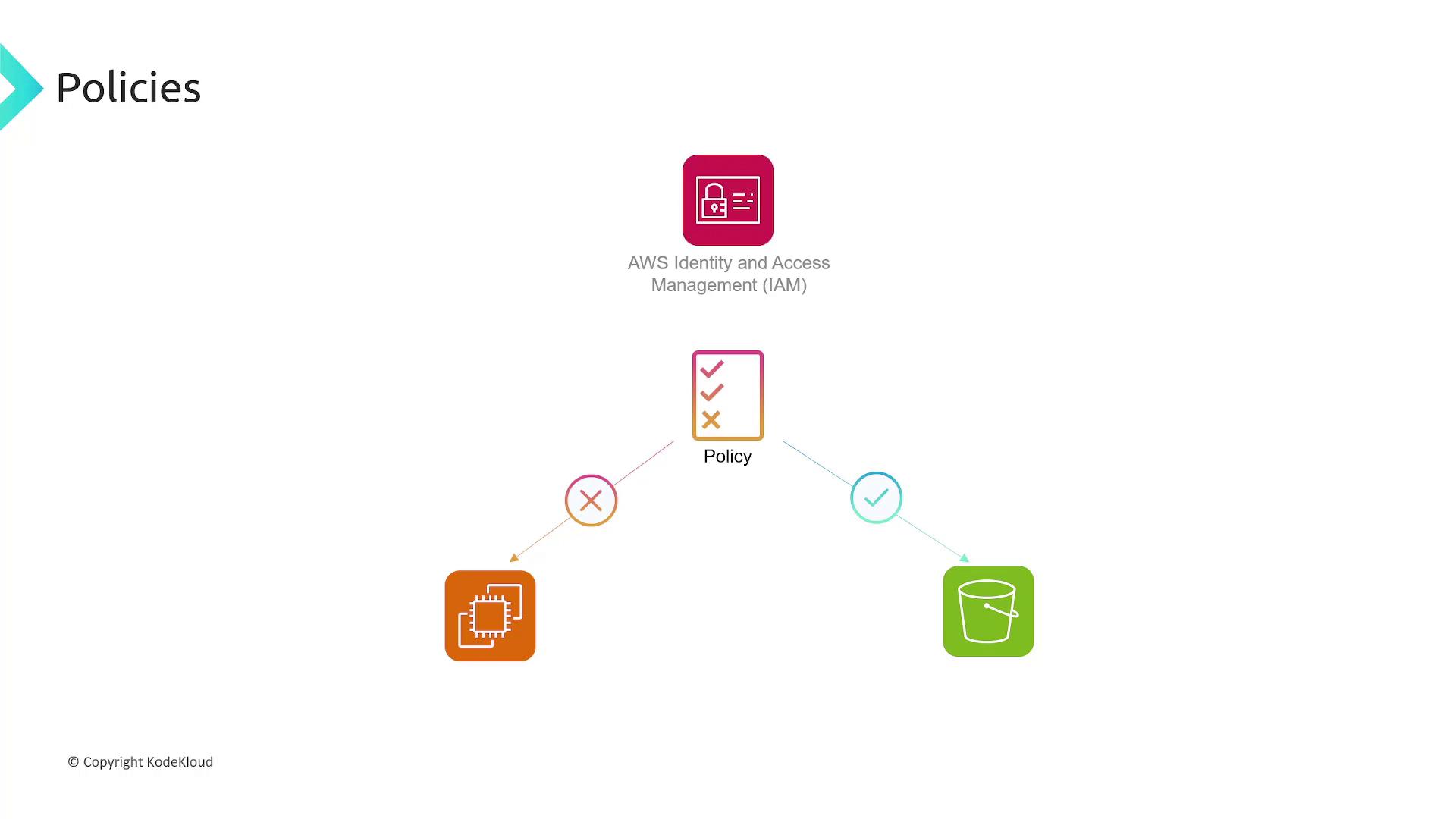
IAM policies are written in JSON and define permissions by specifying what actions are allowed or denied on AWS resources. Below is an example of a policy document:- EC2 Permissions: All EC2-related actions are allowed on any resource.
- S3 Permissions: Actions limited to listing and retrieving objects from a specific bucket (
bucket1).
Policies and Access Control
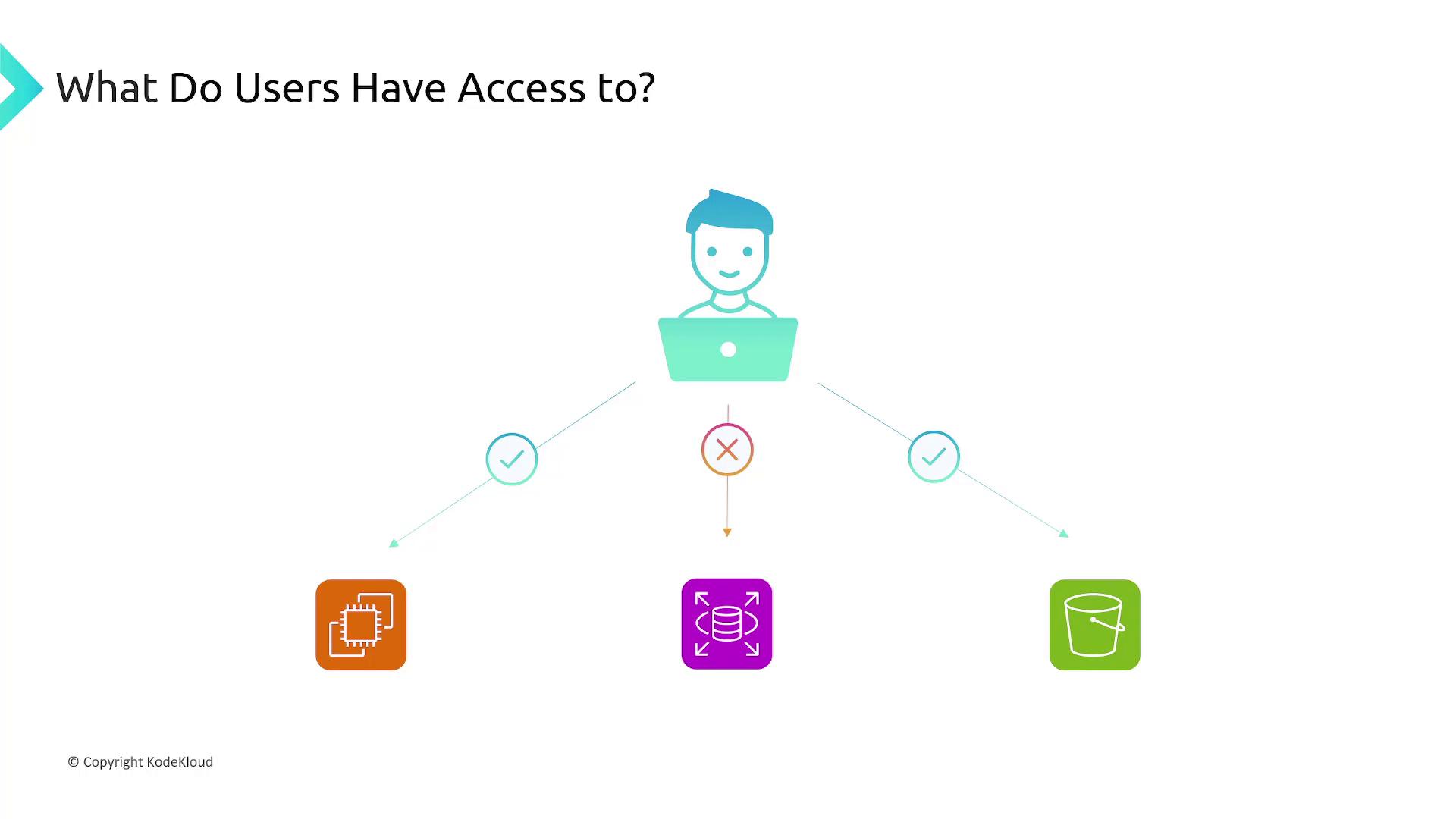
When assigning policies, it is crucial to ensure that users are granted only the permissions they require. For example, if a user needs to list and retrieve information from S3, do not allow actions such as deletion or modification. This minimizes security risks while adhering to the principle of least privilege. After creating a user, immediately attach the relevant IAM policy to make those permissions effective.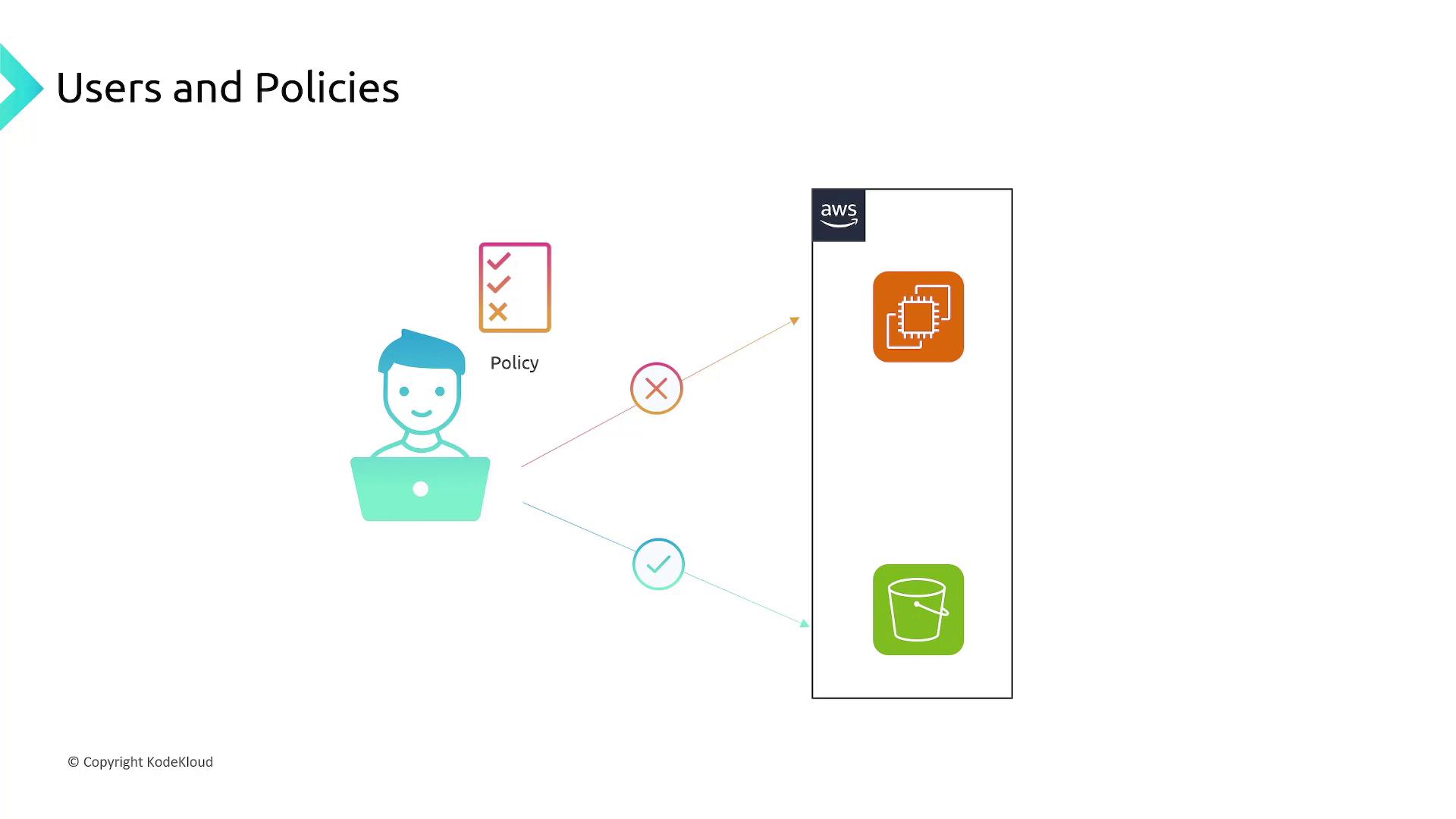
Managing Users with IAM Groups and Roles
For streamlined user management, consider the following best practices:- IAM Groups: Instead of manually assigning policies to each user, add users to groups with pre-defined IAM policies.
- IAM Roles: Allow users to assume a role for temporary access to additional permissions. This is useful when a user needs to perform tasks that require privileges beyond their usual permissions.
Multi-Factor Authentication (MFA)
Adding Multi-Factor Authentication (MFA) significantly enhances your account security by requiring a temporary, time-sensitive code in addition to your username and password. MFA devices include mobile apps like Google Authenticator or Authy. Even if an attacker compromises your credentials, without the MFA code, they cannot access your account.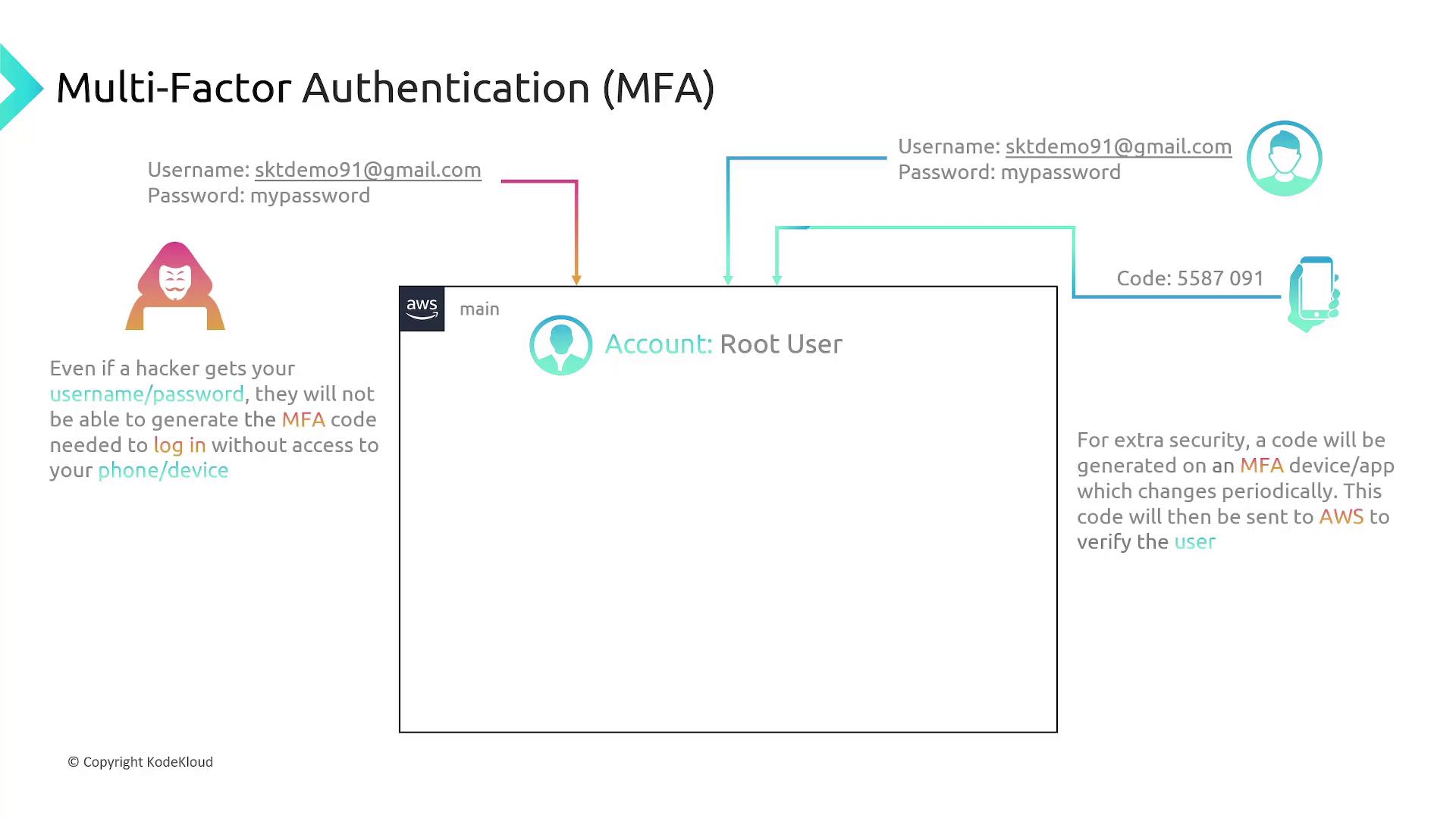


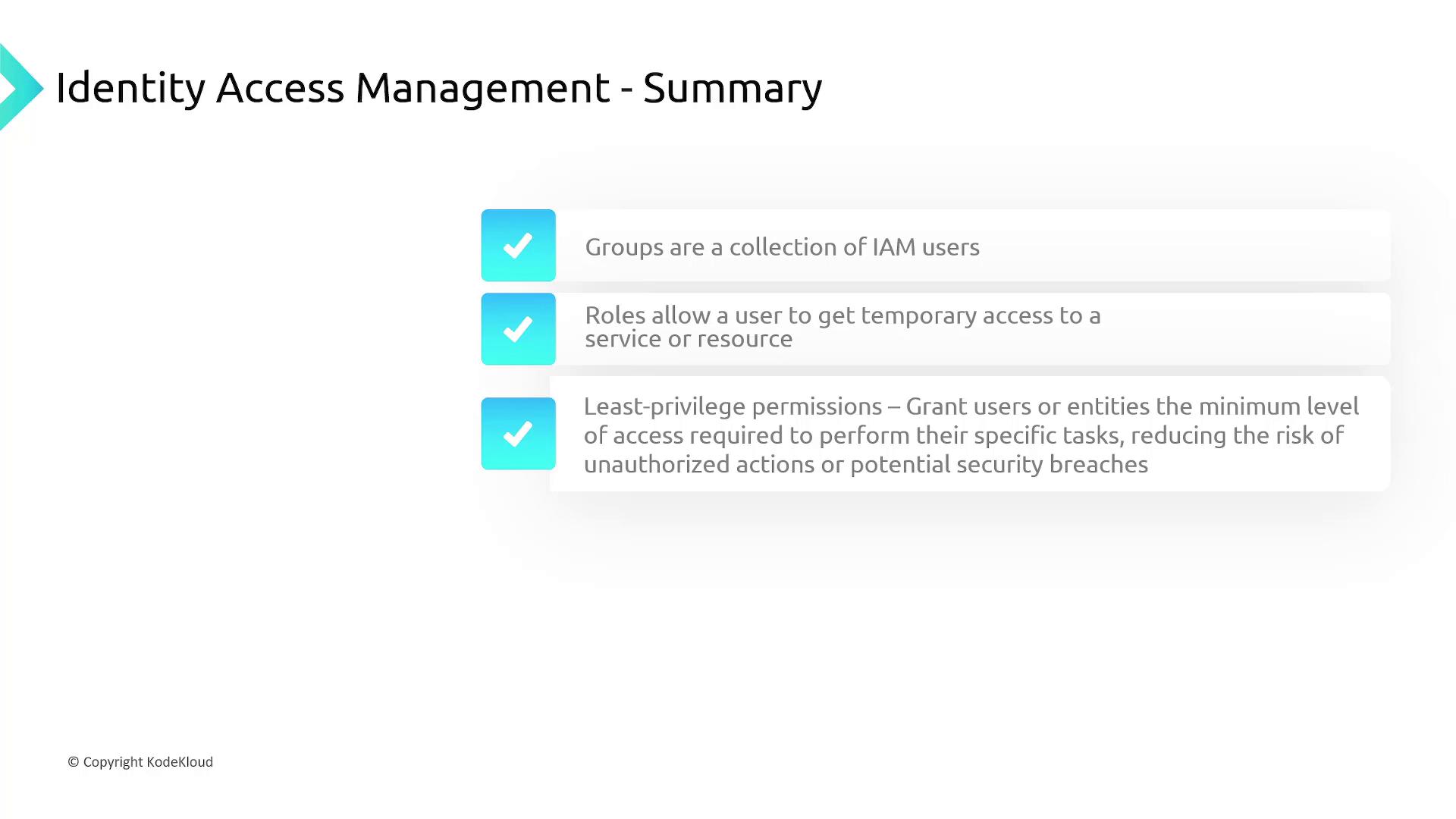
Lesson Summary
- Account Creation: A root user is automatically generated upon account creation. Use it sparingly and avoid it for everyday operations.
- IAM Overview: IAM is your tool for managing secure access to AWS through users, groups, roles, and policies.
- IAM Users: Each user starts without permissions until a specific IAM policy is attached.
- IAM Policies: Policies, defined in JSON, explicitly allow or deny access to resources. Always follow the principle of least privilege.
- Groups and Roles: Use groups to simplify permissions management for multiple users and roles for temporary access.
- Multi-Factor Authentication: Enable MFA on all accounts to enhance security and prevent unauthorized access.