

LM Studio — load and call a local model
LM Studio provides a GUI for running LLMs locally and exposes a simple HTTP API. In Cline you select Local LLMs as the provider and point the app at LM Studio’s base URL. Steps to use LM Studio with Cline:- Install and open LM Studio on your machine.
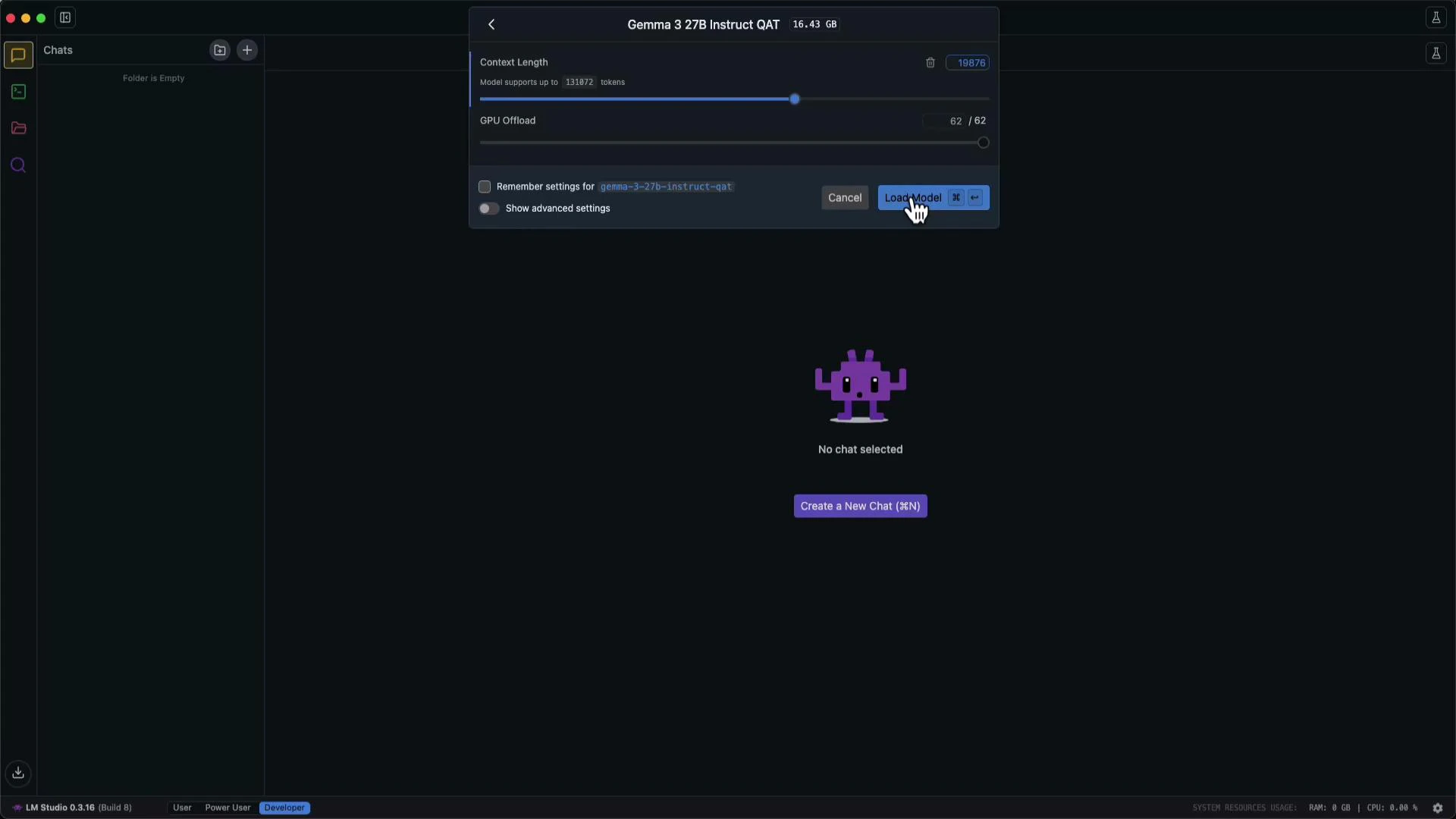
- Load the model you want to run (for example, Gemma 3 27B — the UI shows context length, GPU settings, and a Load Model button).
- Start LM Studio’s server and copy the server Base URL into Cline’s Local LLMs settings.
- Start Cline’s developer server (recommended) so you can view logs while testing requests.
- User prompt:
- Cline sends the request to the LM Studio API and returns a proposed file. Example result saved by Cline:
- Experiment with custom checkpoints from Hugging Face or other model repos.
- Reduce development costs by avoiding paid hosted APIs while prototyping.
- Keep source code and prompts on-premises for privacy and compliance.
Running LLMs locally is a good option when organizational policies restrict sending code or data to hosted providers (like OpenAI or Anthropic). It also gives you full control over model versions and runtime settings.
Ollama — another local runtime option
Ollama is a popular local LLM runtime that exposes a server you can point Cline to. When you choose Ollama as the provider in Cline’s API settings, the UI will list models available in your local Ollama installation. Model behavior varies, so try a few models to find the best fit for Cline’s edit-and-suggest workflows. Below is an example showing a model selected in Cline (e.g.,llama3.2:1b) and using it to apply an edit to an existing file.
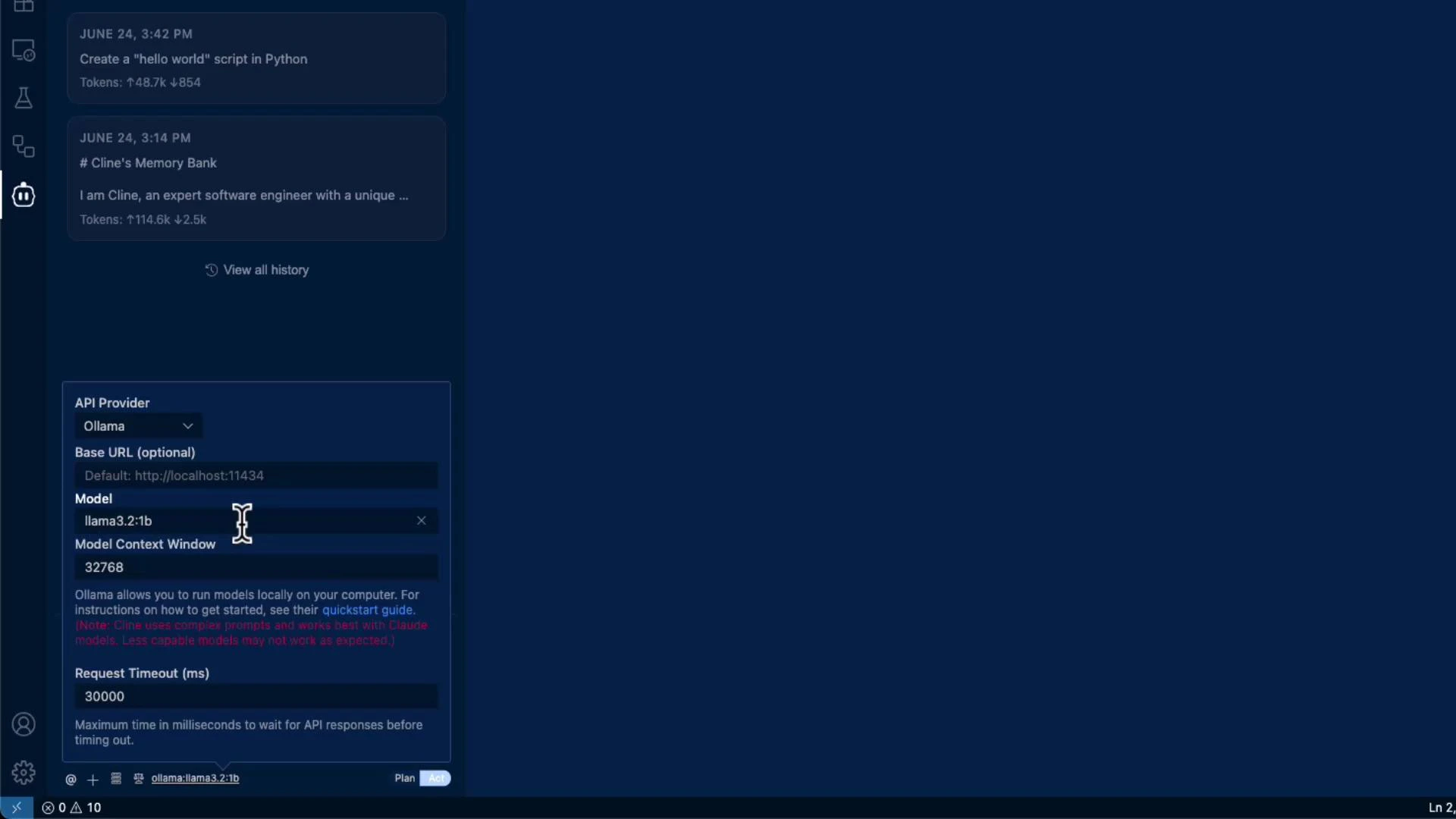
- Switch Cline’s API provider to Ollama and choose a model (for example,
llama3.2:1b). - Open
hello.pyin the editor or add it to the model context. - Issue an edit request, for example:
Notes and troubleshooting
- Model output format: Some local models return slightly different response formats; if Cline’s change suggestions look incorrect, try another model or refine the prompt.
- Resource limits: Larger models require adequate GPU/CPU and memory. Monitor LM Studio/Ollama logs and system resources.
- Logs: Run Cline in developer mode to inspect request and response logs for debugging.
- Model compatibility: If edits are inconsistent, test different models (or smaller/larger variants) to find one that produces coherent edit suggestions.
Running large models locally can consume significant GPU/CPU and memory. Ensure your machine meets the recommended requirements for the model you plan to run, and monitor logs and system resources to avoid crashes.
Summary
Connecting Cline to local LLMs (LM Studio, Ollama, etc.) gives you the flexibility to:- Experiment with custom or community models,
- Reduce or eliminate API costs during development,
- Keep sensitive code and data within your environment.
- LM Studio — https://lmstudio.ai/
- Ollama — https://ollama.com/
- Hugging Face model hub — https://huggingface.co/