This guide demonstrates how to discover, install, and configure an MCP server from the Cline Marketplace, using the Ollama MCP server as a concrete example. You’ll see how Cline integrates external tools as plugins (MCP servers), automates most installation steps, and updates client-side MCP settings so tools become available inside Cline. Plugins in Cline are MCP servers you can browse and one‑click install from the marketplace.
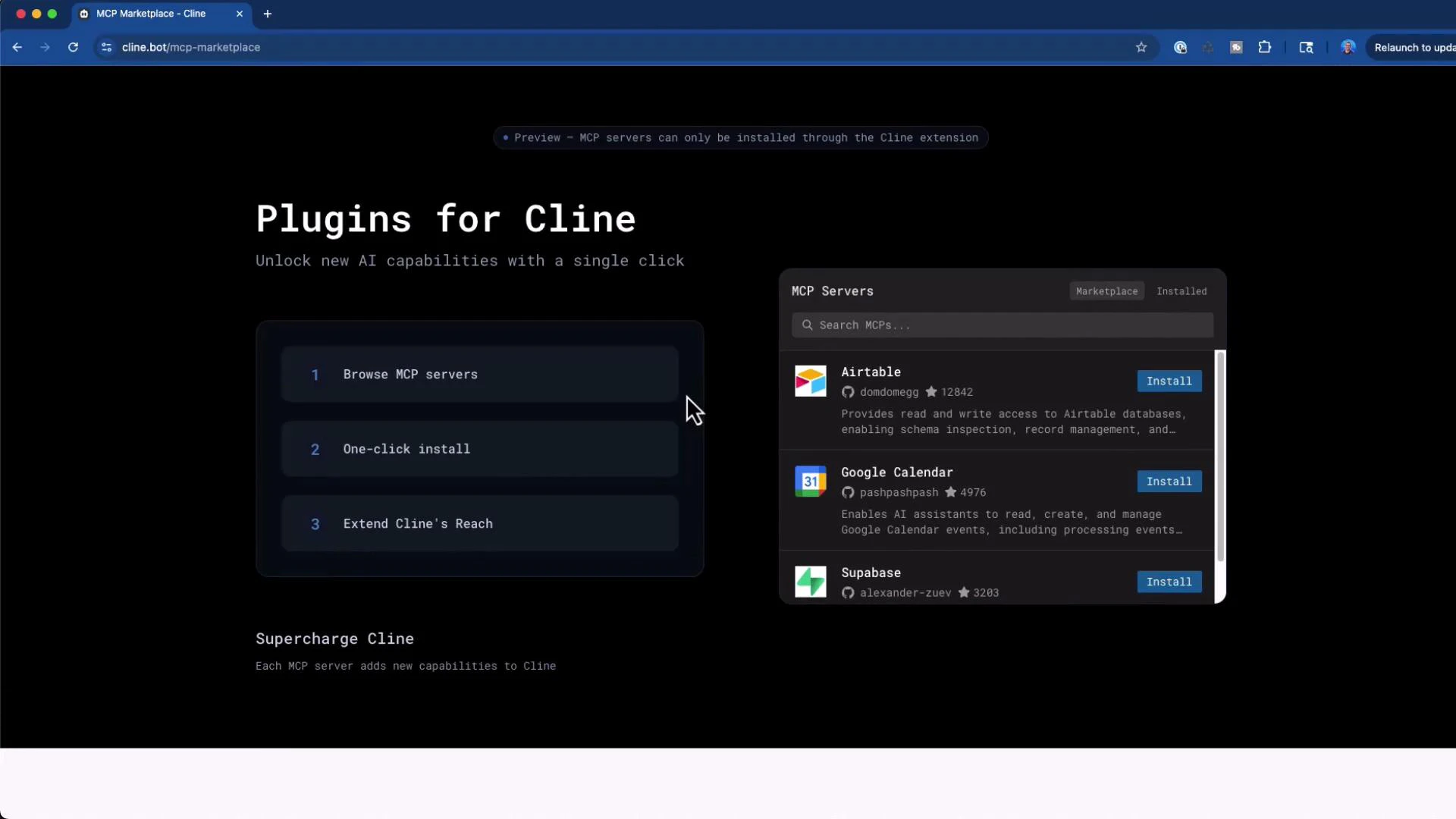
A dark-themed webpage screenshot titled "Plugins for Cline" showing steps to browse and one-click install MCP servers on the left and a plugin marketplace panel on the right listing integrations like Airtable, Google Calendar, and Supabase with "Install" buttons.
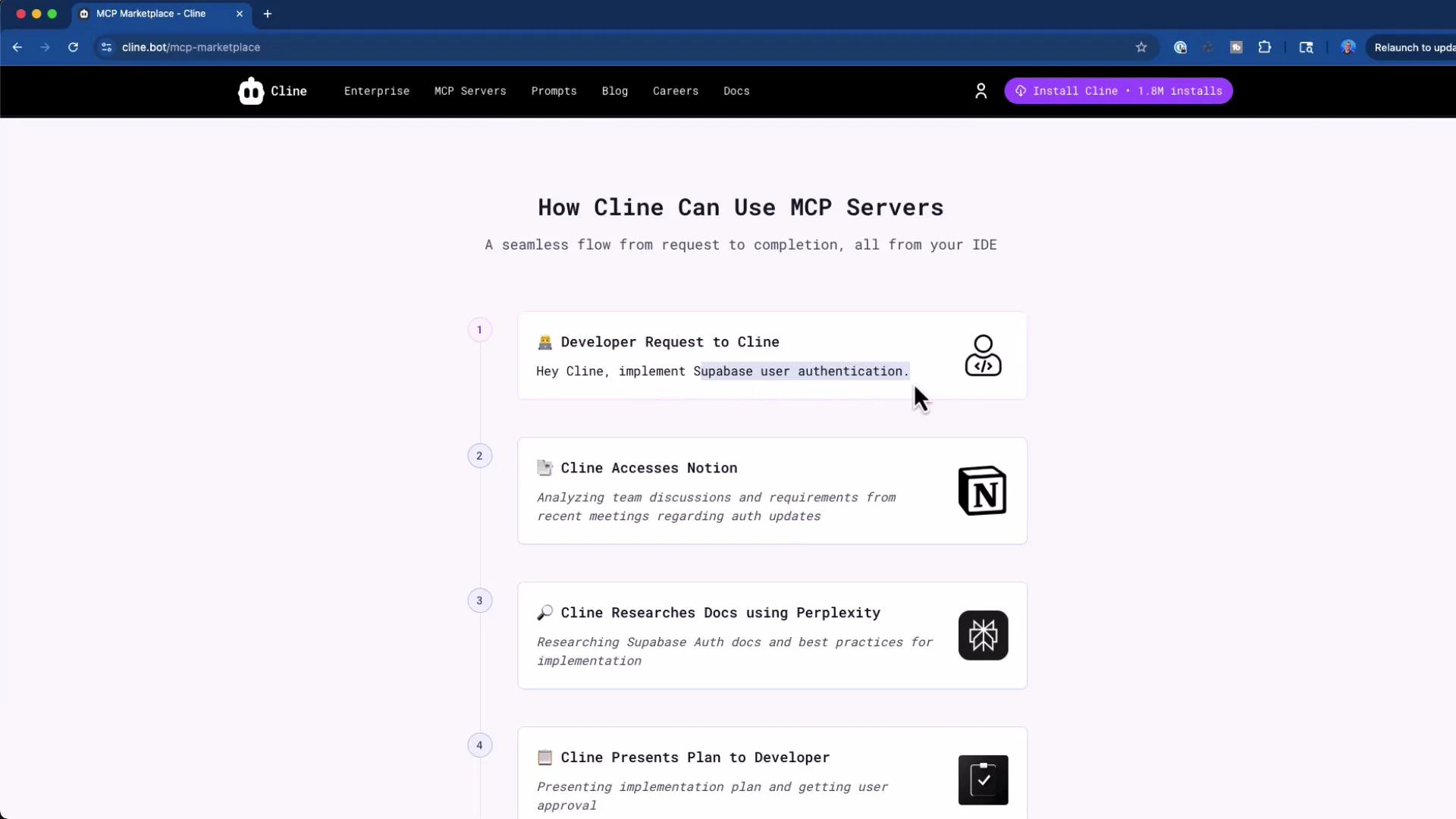
Why install MCP servers? A developer can request a new capability (for example, add user authentication), and Cline can orchestrate the end-to-end workflow: research docs, present a plan, implement the feature, manage branching, and update project tracking. The marketplace simplifies adding the MCP servers that expose those capabilities as tools.
A screenshot of a web page titled "How Cline Can Use MCP Servers" showing a vertical, numbered workflow (developer request, accessing Notion, researching docs, presenting plan) with icons and short descriptions. The page appears to be part of a product/site that explains a seamless request-to-completion flow.
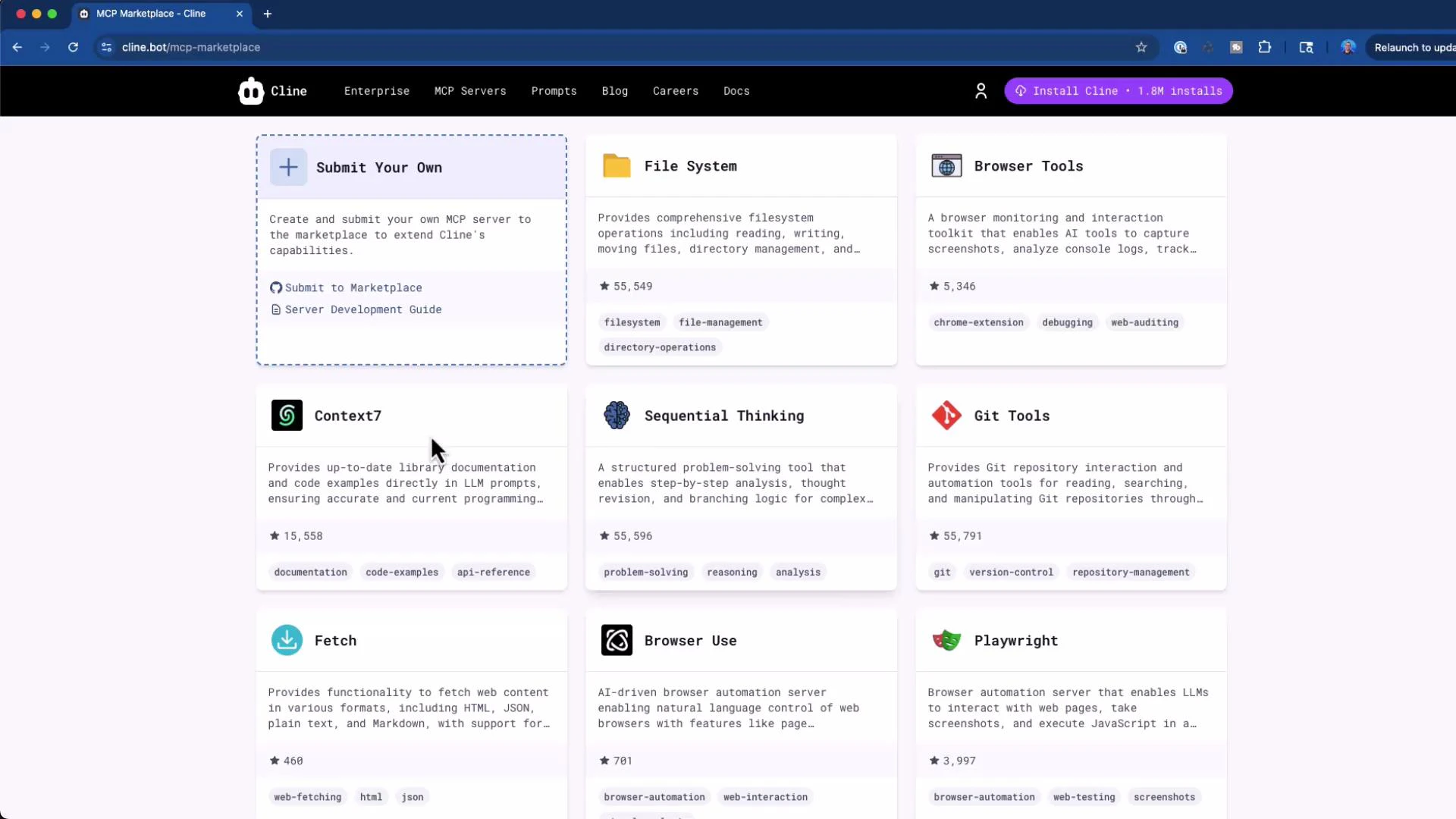
Cline’s marketplace includes many types of MCP servers: filesystem tools, browser automation, context helpers, sequential reasoning tools, Git tools, Puppeteer wrappers, fetch wrappers, and more. Browse the tool grid and install the cards you need.
Screenshot of a web marketplace page (Cline MCP Marketplace) showing a grid of tool cards like File System, Browser Tools, Context7, Sequential Thinking, and Git Tools. Each card displays a short description, tags, and star counts.

What happens during installation

Below is a concise, step-by-step summary of what Cline automates when installing an MCP server (Ollama shown as an example):
  1. Detect an existing Cline MCP settings file to avoid overwriting current servers.
  2. Create a local MCP directory if one doesn’t already exist.
  3. Clone the MCP server repository into that directory.
  4. Install dependencies using the repository’s preferred package manager (pnpm), falling back to npm if pnpm is unavailable.
  5. Build the server (run the repo’s build script).
  6. Add the server entry to Cline’s client MCP settings (JSON).
  7. Start or test the server from Cline and verify tools respond.
Cline checks for an existing MCP settings file and will prompt before making changes. Review prompts carefully to avoid accidental overwrites. Approve steps interactively when asked.

Common shell commands (local example paths)

Run these from a terminal when you need to perform or inspect the same steps manually:
# Create the MCP directory
mkdir -p "/Users/jeremy/Documents/Cline/MCP"

# Clone the Ollama MCP server repository
git clone https://github.com/NightTrek/Ollama-mcp.git "/Users/jeremy/Documents/Cline/MCP/Ollama-mcp"

# Change into the project
cd "/Users/jeremy/Documents/Cline/MCP/Ollama-mcp"
Install dependencies (preferred pnpm, fallback npm):
# Preferred
pnpm install

# If pnpm is not available, fallback
npm install

# Build step (use the repo's scripts)
npm run build
Console output example when pnpm is missing:
(venv) jeremy@MACSTUDIO Ollama-mcp % pnpm install
zsh: command not found: pnpm
(venv) jeremy@MACSTUDIO Ollama-mcp %
If Cline updates your client MCP settings file, back it up first. Make sure the args path points to the built entrypoint (build/index.js) and that any environment variables (like OLLAMA_HOST) use the correct host/port for your environment.

Example MCP settings entry

Cline will propose adding an MCP server entry to your client settings JSON. Below is a canonical example—adjust paths and env values for your machine. Place this in your Cline settings file (path depends on platform and Cline configuration):
{
  "mcpServers": {
    "github.com/NightTrek/Ollama-mcp": {
      "command": "node",
      "args": ["/Users/jeremy/Documents/Cline/MCP/Ollama-mcp/build/index.js"],
      "env": {
        "OLLAMA_HOST": "http://127.0.0.1:11434"
      },
      "disabled": false,
      "autoApprove": []
    }
  }
}

Verifying the MCP server from Cline

After installation and configuration, Cline can start the MCP server and call its tools. Example interactions:
  • List installed local models (tool returns structured JSON):
{
  "name": "llama3.2:1b"
}
  • Request model details (tool returns a human-readable summary):
Model
  architecture    llama
  parameters      1.2B
  context length  131072
  embedding length 2048
  quantization    Q8_0

Capabilities
  completion
  tools

License
  LLAMA 3.2 COMMUNITY LICENSE AGREEMENT
  Llama 3.2 Version Release Date: September 25, 2024
  ...
If Cline receives these responses, the Ollama MCP server is reachable and functioning. From there, any tools exposed by the MCP server are usable directly within Cline (for example, querying local Ollama models through Cline’s tool interface).

Quick reference

TaskCommand / SettingNotes
Create MCP foldermkdir -p "/Users/jeremy/Documents/Cline/MCP"Use your own local path
Clone repogit clone https://github.com/NightTrek/Ollama-mcp.git "/Users/jeremy/Documents/Cline/MCP/Ollama-mcp"Matches marketplace package source
Install depspnpm install or npm installCline tries pnpm first, then npm
Buildnpm run buildUse repo-provided build script
MCP settingsSee JSON snippet aboveEnsure args points to built index.js and env vars (e.g., OLLAMA_HOST) are correct
TestUse Cline’s tool interface to list models and show detailsSuccessful responses confirm configuration

Checklist (final)

  • Ensure package manager availability; Cline auto-falls back if needed.
  • Back up your client MCP settings before any changes.
  • Confirm MCP settings JSON points to the repository’s built entrypoint and includes required env values.
  • Test by listing models and requesting model details from Cline.
This workflow makes it straightforward to discover, install, and integrate MCP servers from the Cline Marketplace into your local Cline environment—enabling new tools and capabilities with minimal manual configuration.

Watch Video