

- Client rules — persistent, system-level guidance that the assistant will apply to every conversation and code generation task.
- The Cline memory bank — a structured, persistent documentation system that preserves project context across sessions.
Client rules
Client rules let you encode project-level guidance that the assistant consults automatically. Use them for coding standards, security constraints (for example, “do not access repository X”), forbidden actions, network restrictions, or any team-wide policy you want enforced. You can create client rules via the product UI or with shortcuts like/new rule. If you prefer editing locally, manage rules inside your editor (for example, Visual Studio Code). Rules can be:
- Global — apply to all projects for your account.
- Workspace — apply to the current workspace.
- Project-specific — apply only to the repository where they live.
.client/rules/. For example, adding a file named Python-rules.md will create .client/rules/Python-rules.md, which the assistant will consult for that project.
Client rules are persistent and applied automatically. Use them to encode team conventions, forbidden actions (for example, “do not access repository X”), or project-wide safety constraints.
Example: Python coding rules
Below is a sample rules document you could add at.client/rules/Python-rules.md. Store it once and the assistant will consult it when generating or reviewing Python code for the project.
.client/rules/Python-rules.md exists, the assistant will follow these guidelines for Python-related requests in that repository.
Memory bank
The memory bank is a structured documentation system that turns the assistant from a stateless helper into a persistent development partner. It preserves project context across sessions, making the assistant more effective on long-lived or large codebases.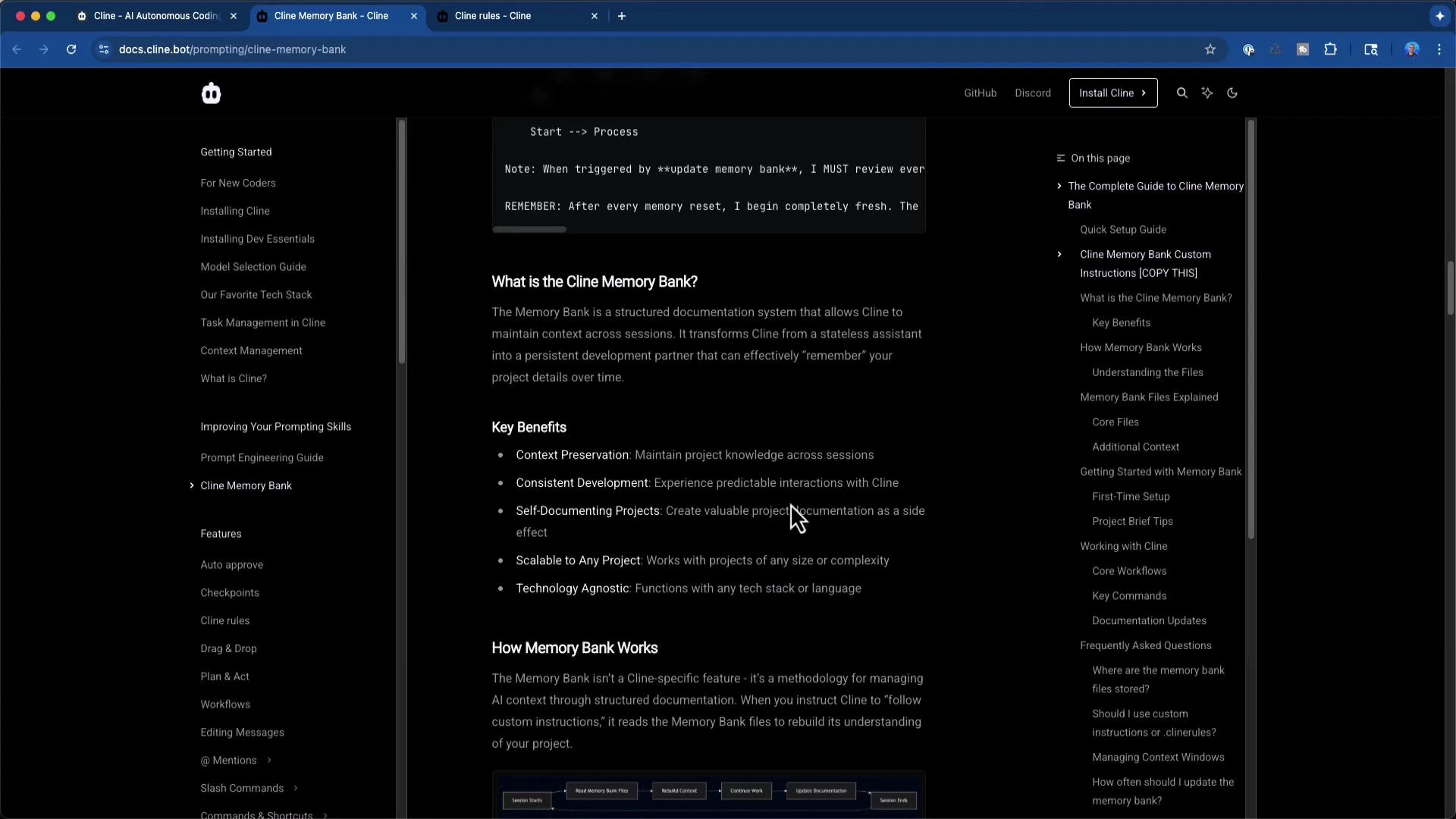
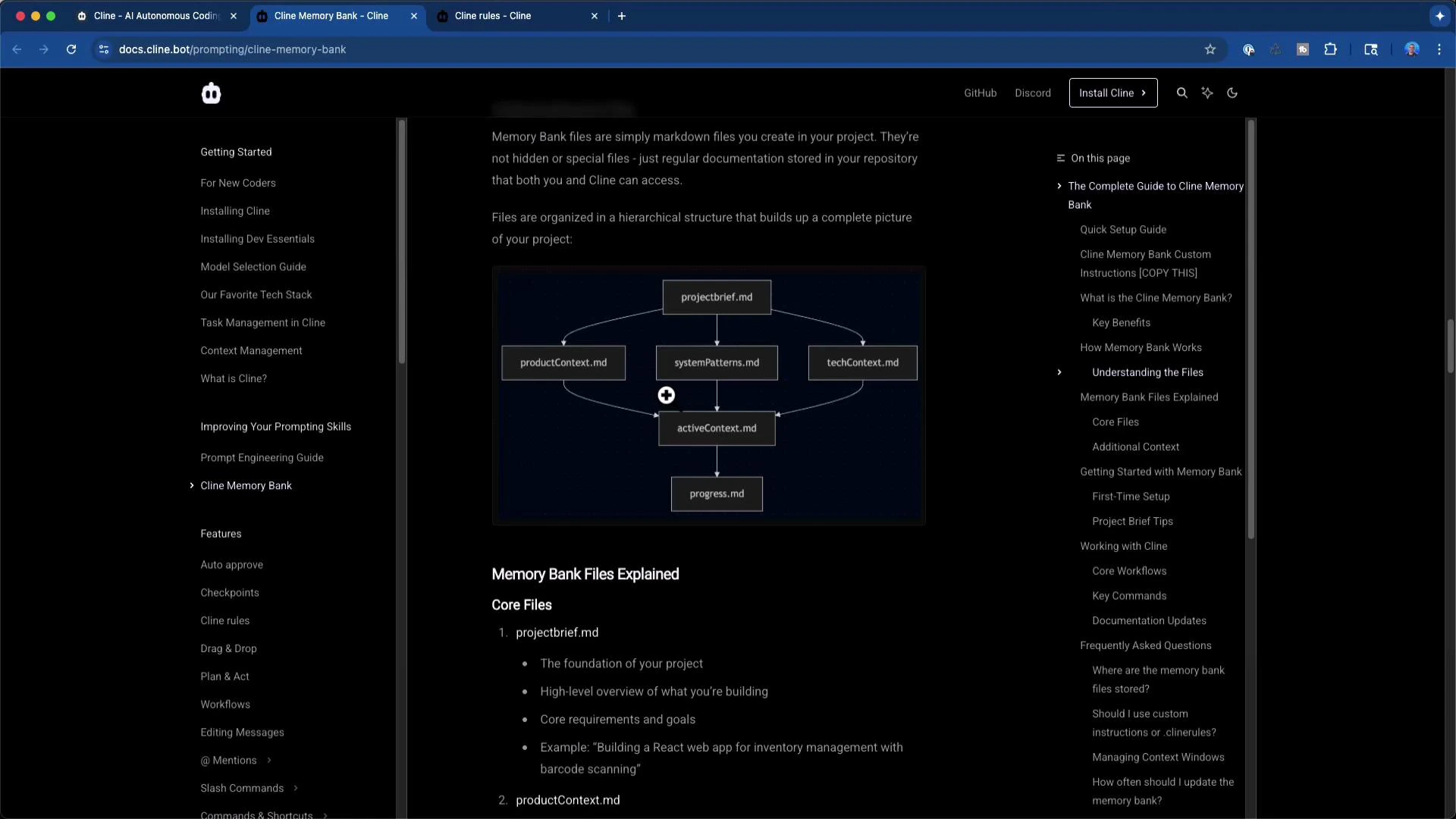
Typical memory-bank files and purposes
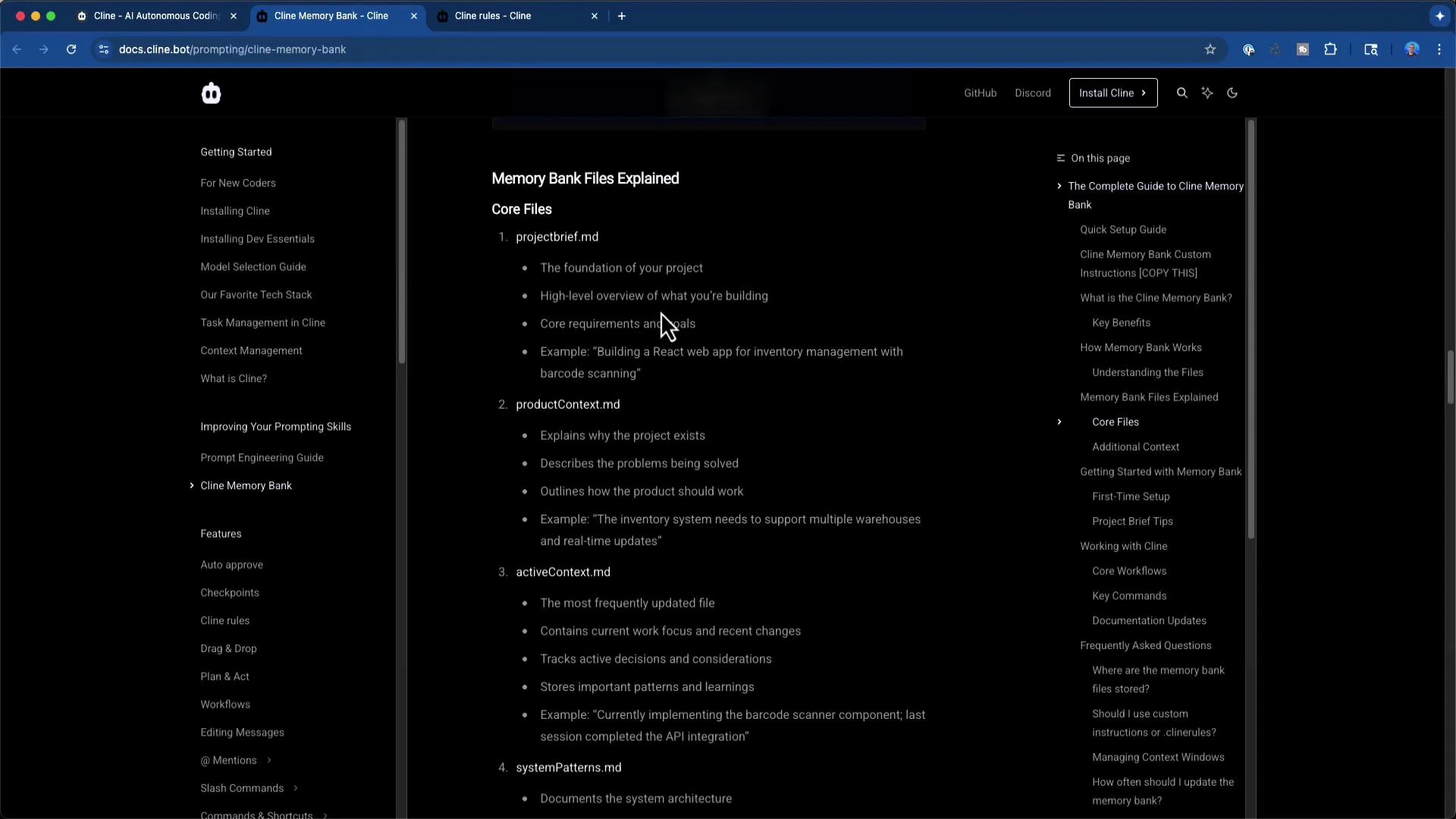
Creating and updating the memory bank
A simple workflow:- Create a
memory-bank/folder at the project root and add the core markdown files listed above. - Use the assistant’s “initialize memory bank” action to scaffold standard files automatically.
- As the project evolves, run the “update memory bank” action to push new or changed content into the memory bank so the assistant always reads the latest context.
- Allow the assistant to perform tasks while consulting the memory bank for more accurate, context-aware results.
Example scaffolding templates
Product Context (scaffold)Using Act mode to scaffold and update
When you enable the assistant to perform actions (for example, the “initialize memory bank” action), it can:- Generate scaffold files under
memory-bank/. - Create or update the core markdown files.
- Keep documentation synchronized with development changes as you push updates.
Do not store secrets (API keys, passwords, or private certificates) in the memory bank. Treat it as project documentation only. Use secure secret management for credentials.
Why this matters
A well-maintained memory bank plus explicit client rules give the assistant:- Clear policies and style preferences to apply automatically.
- Project context that informs design, implementation, and reviews.
- Reduced onboarding friction for new contributors.
- Better consistency for refactors and long-lived work.
Links and references
- Cline Memory Bank docs: https://docs.cline.bot/prompting/client-memory-bank
- Visual Studio Code: https://code.visualstudio.com/