

Home screen and agents (what you’ll see first)
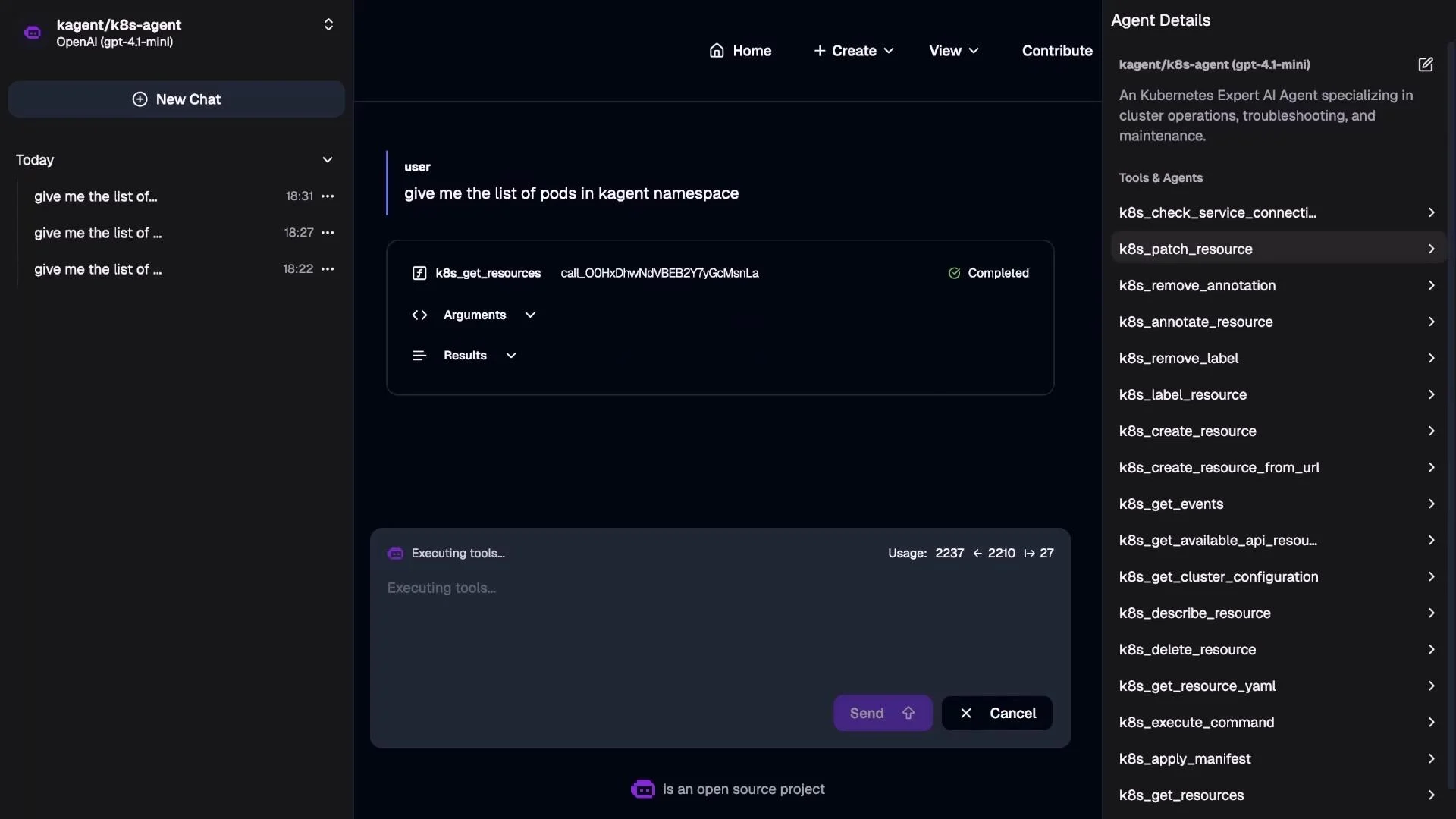
The home screen lists the agents available in your KAgent installation. In this demo, all built-in agents are enabled (Argo Rollouts, Istio, Helm, Kubernetes/k8s, observability, etc.). Note that the exact set of agents depends on the KAgent version and any custom components you installed. For this lesson we’ll use the Kubernetes (k8s) agent as the primary example to interact with a cluster. From the Agents list you can open an agent, type natural-language queries (for example, “list pods in thekagent namespace”), and let the agent evaluate the request. The agent determines the appropriate tool to call, runs it, and returns the result.
How agents choose tools and show results
The right-hand tools panel displays the Kubernetes actions available to that agent. When you ask a question, the agent matches the intent to one or more tools (for examplek8s_get_resources) and executes them. The result is presented in the chat or a console-style output.
Example output for listing pods:
LLM Providers and Models (configure from the UI)
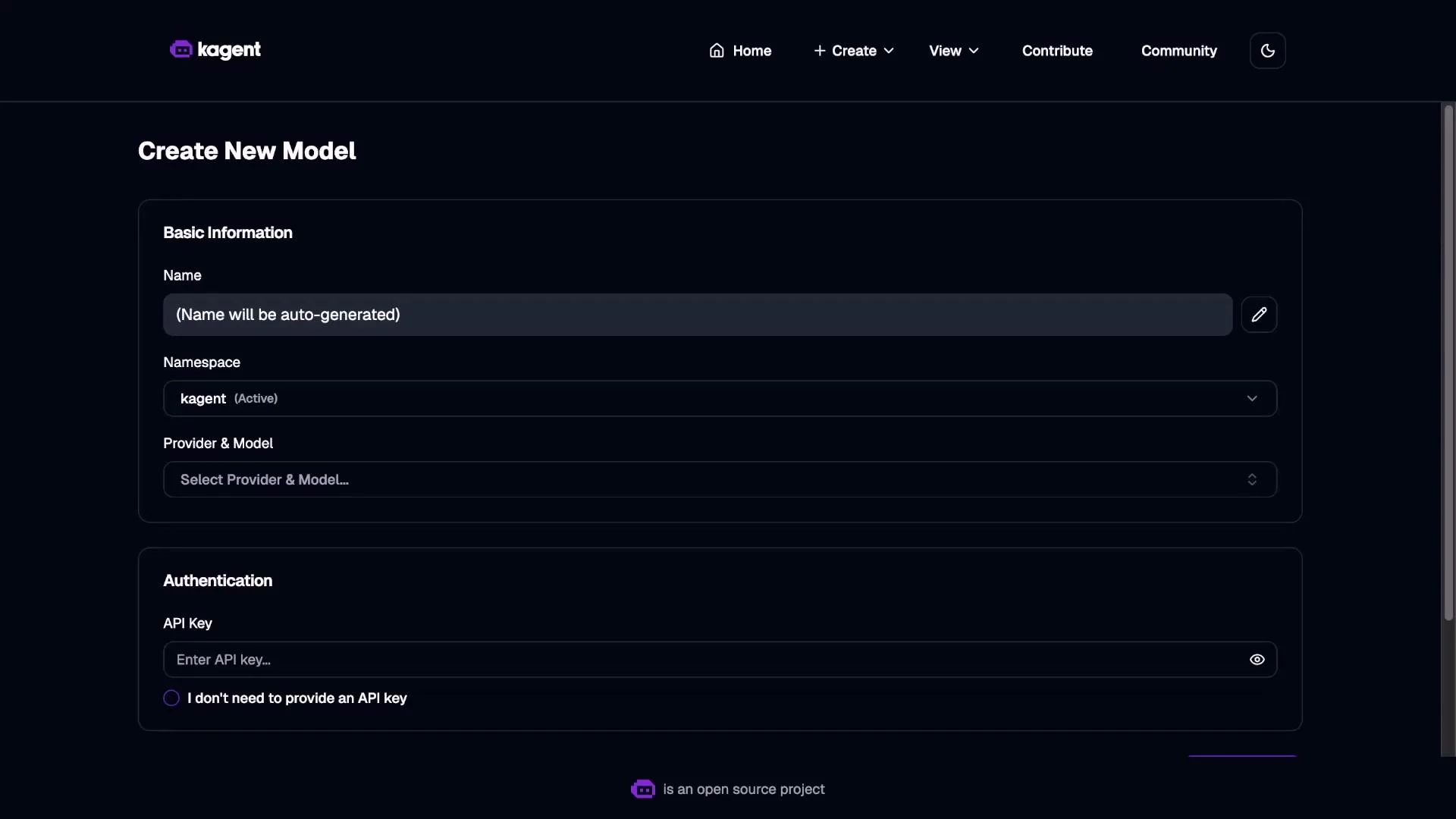
Each agent can be wired to one or more LLM providers and models. In this demo the configured provider is OpenAI, but you can add additional providers and models via the UI or by using configuration code if you prefer.- Use the Models page to add providers, set model names, and provide authentication (API keys, tokens).
- The Create workflow in the UI lets you create new agents and assign models/providers to them.
Tools Library (what agents call to act)
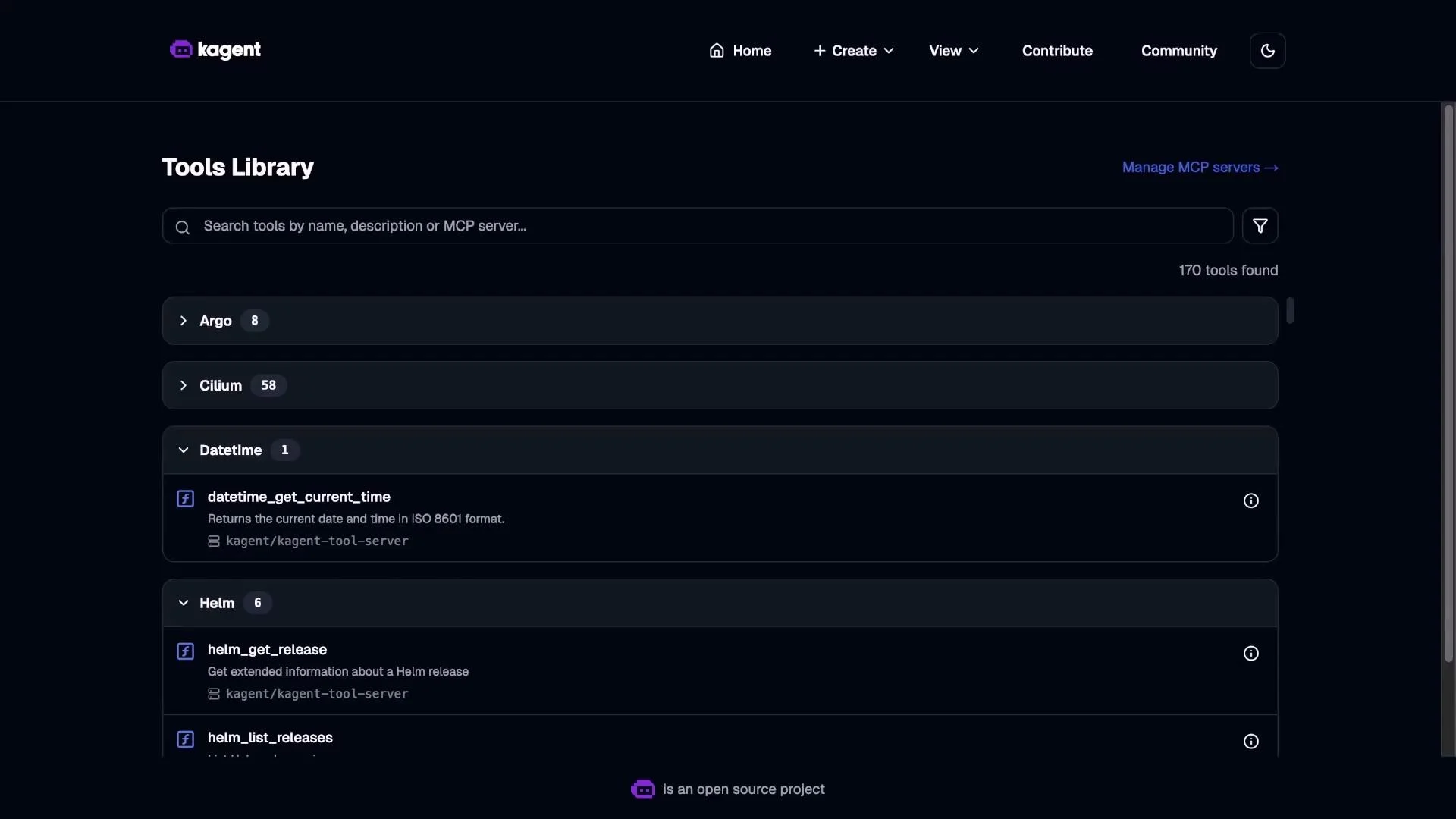
Tools are the execution primitives agents call to interact with external systems (Kubernetes API, Helm, Argo, observability backends, etc.). KAgent ships with a default set of tools organized into categories. The Tools Library shows available categories and individual tool actions; these entries are what agents select when handling a query.- Tools are extendable — you can add custom tools or MCP-based tool servers.
- Typical categories: Kubernetes (k8s), Helm, Argo, Datetime, Networking, Observability, and provider-specific integrations.
MCP Servers (integrations and server endpoints)
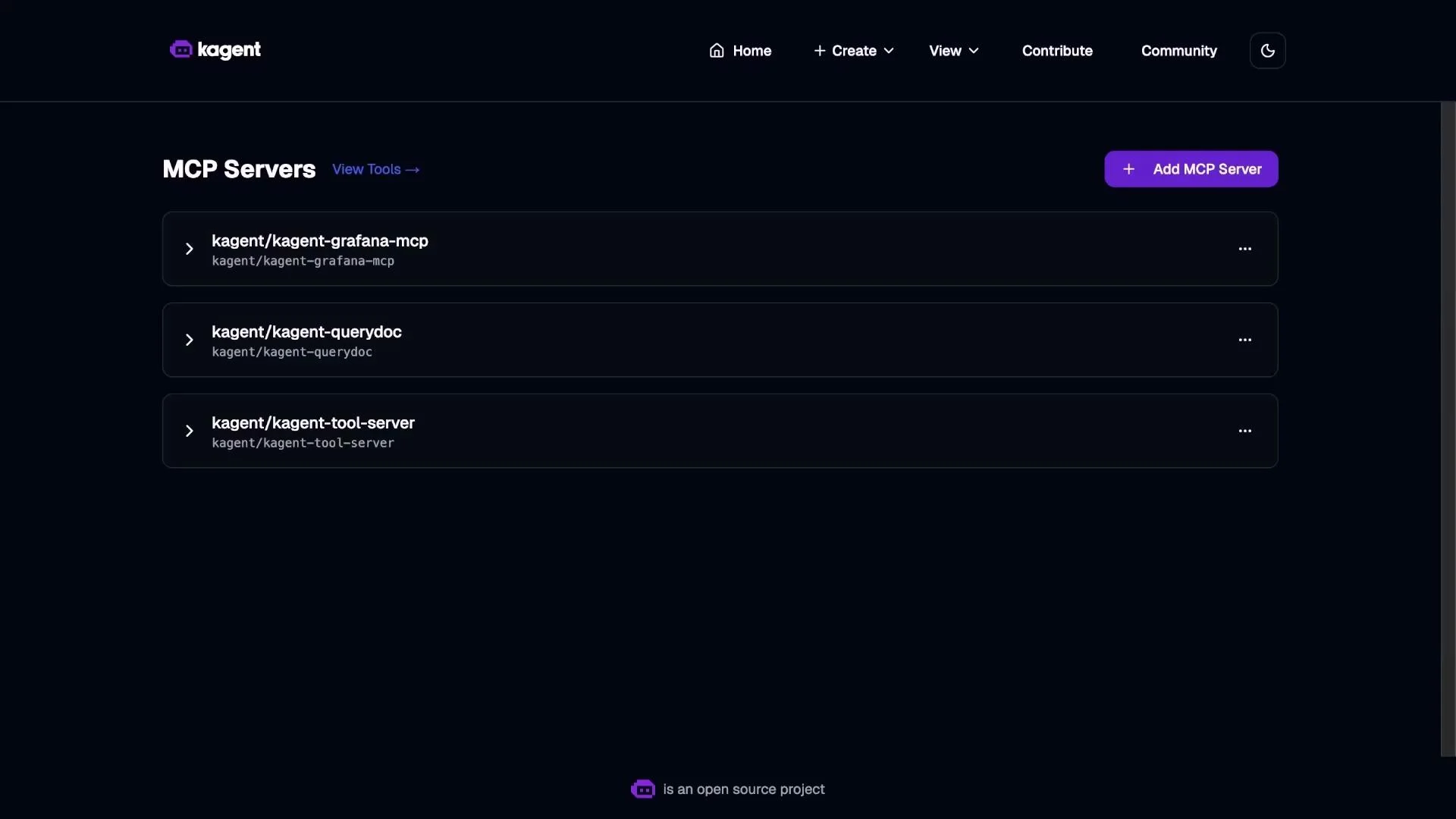
MCP Servers are service integrations that provide additional functionality and tool endpoints for agents. The default deployment includes several MCP servers; you can add more (for example, cloud service integrations or custom tool servers) from the MCP Servers page.- MCP Servers expose new tool capabilities and can host specialized tooling that agents call.
- You can register, configure, and remove MCP server entries in the UI.
Quick reference: UI pages and their purposes
Next steps
- Create a new agent and attach a model via the Create workflow.
- Add or configure LLM providers on the Models page.
- Explore the Tools Library and enable or add tools your agents need.
- Register additional MCP servers to extend capabilities (e.g., cloud services, observability).
Note: The exact agents, tools, and MCP servers available in your KAgent installation depend on the version and the components you installed. The UI lets you extend and customize these elements.