

- Install KAgent CRDs and the KAgent Helm chart.
- Store LLM provider secrets and create a ModelConfig CRD.
- Install KAgent with a minimal configuration, then enable the built-in tools and the
k8s-agent. - Interact with the Kubernetes agent via the KAgent UI and the
kagentCLI. - Inspect controller logs and observe agent-driven actions (e.g., creating manifests).
kubectl, helm, and the kagent CLI (if invoking agents from the terminal). Also set any referenced environment variables (for example, OPENAI_API_KEY) in your shell.
Prerequisites
1) Install the KAgent CRDs
The KAgent Helm charts are published to an OCI registry on GitHub:oci://ghcr.io/kagent. Install the CRDs into the kagent namespace (the namespace will be created if missing):
2) Create the OpenAI secret
Store your OpenAI API key in a Kubernetes generic secret in thekagent namespace. The examples and ModelConfig below reference the secret name kagent-openai and the key OPENAI_API_KEY.
3) ModelConfig: store LLM provider details
KAgent uses aModelConfig CRD to reference LLM provider credentials and model preferences. Create a ModelConfig YAML that points to the secret you created. Example:
apiKeySecretmust match the Kubernetes secret name.apiKeySecretKeymust match the key inside that secret (e.g.,OPENAI_API_KEY).openAI.baseUrlis optional. Omit it to use the public OpenAI endpoint or set it when using a proxy/private host.
If you are using OpenAI’s public API, you can omit
openAI.baseUrl. Use baseUrl only when routing through a proxy or private endpoint.4) Install KAgent with a minimal values file
Start with a minimal Helm values file that disables optional agents, tools, and MCP servers so you can enable them progressively. Save this as01-values.min.yaml:
kagent namespace:
ClusterIP by default).
5) Expose the KAgent UI (NodePort)
To access the KAgent UI from your workstation in this lab, change thekagent-ui Service type to NodePort and bind a node port (e.g., 3080).
Edit the service:
spec to include a nodePort and set type: NodePort. Example fragment:
http://localhost:3080 or http://<node-ip>:3080 depending on your cluster networking.
6) Inspect available provider ModelConfig examples
KAgent supports multiple providers (Anthropic, OpenAI, Groq, and more). Example snippets: Anthropic minimal example:temperature and topP as strings — keep them quoted if required.
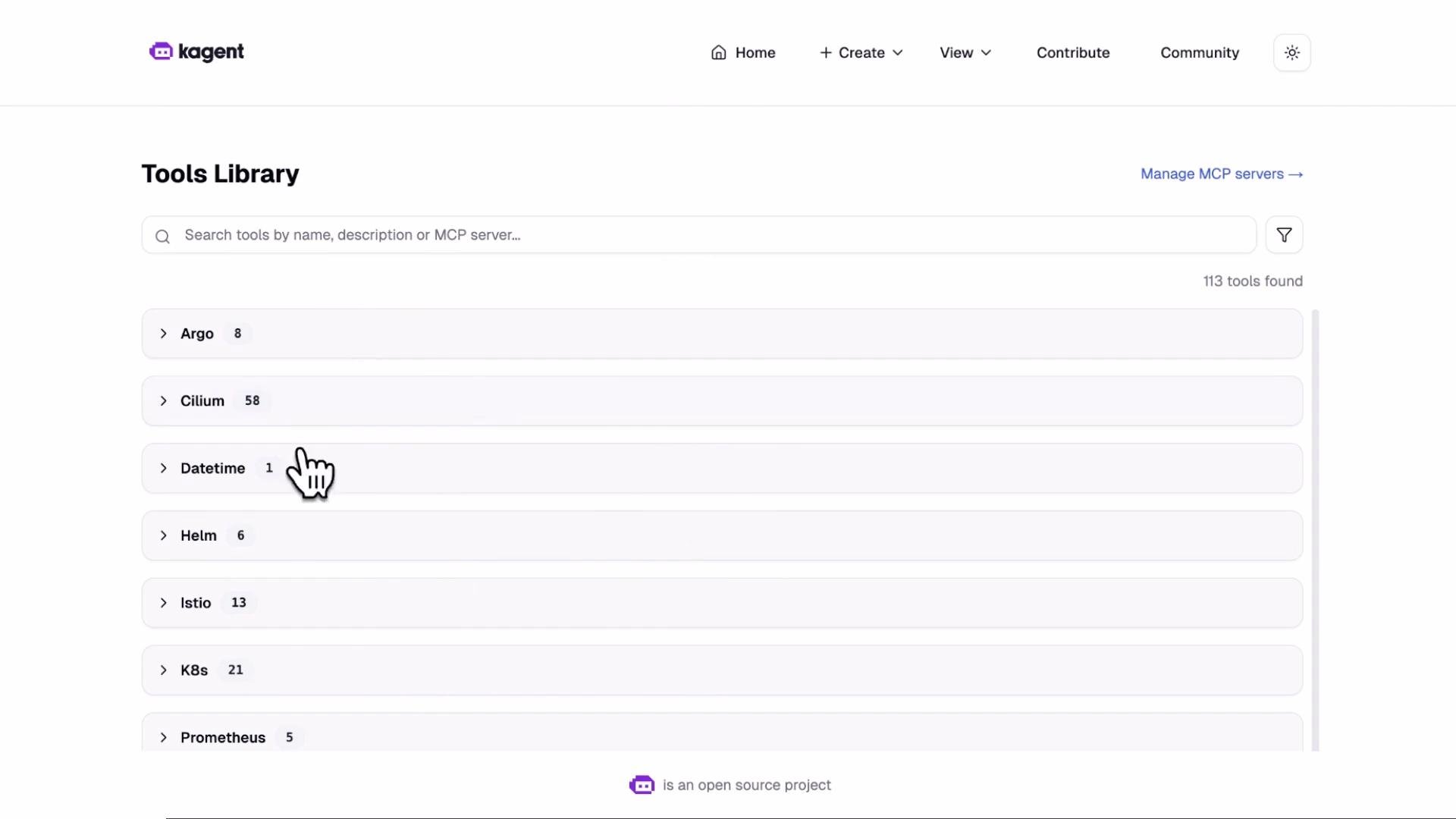
7) Enable KAgent built-in tools
Enable the Tools Library by settingkagent-tools.enabled: true in a values file (for example, 02-values-tools.yaml) and upgrading the release:
8) Enable the k8s-agent
Enable thek8s-agent to add Kubernetes troubleshooting capabilities. Example values file 04-values-enable-agents.yaml:
kagent namespace:
Running:
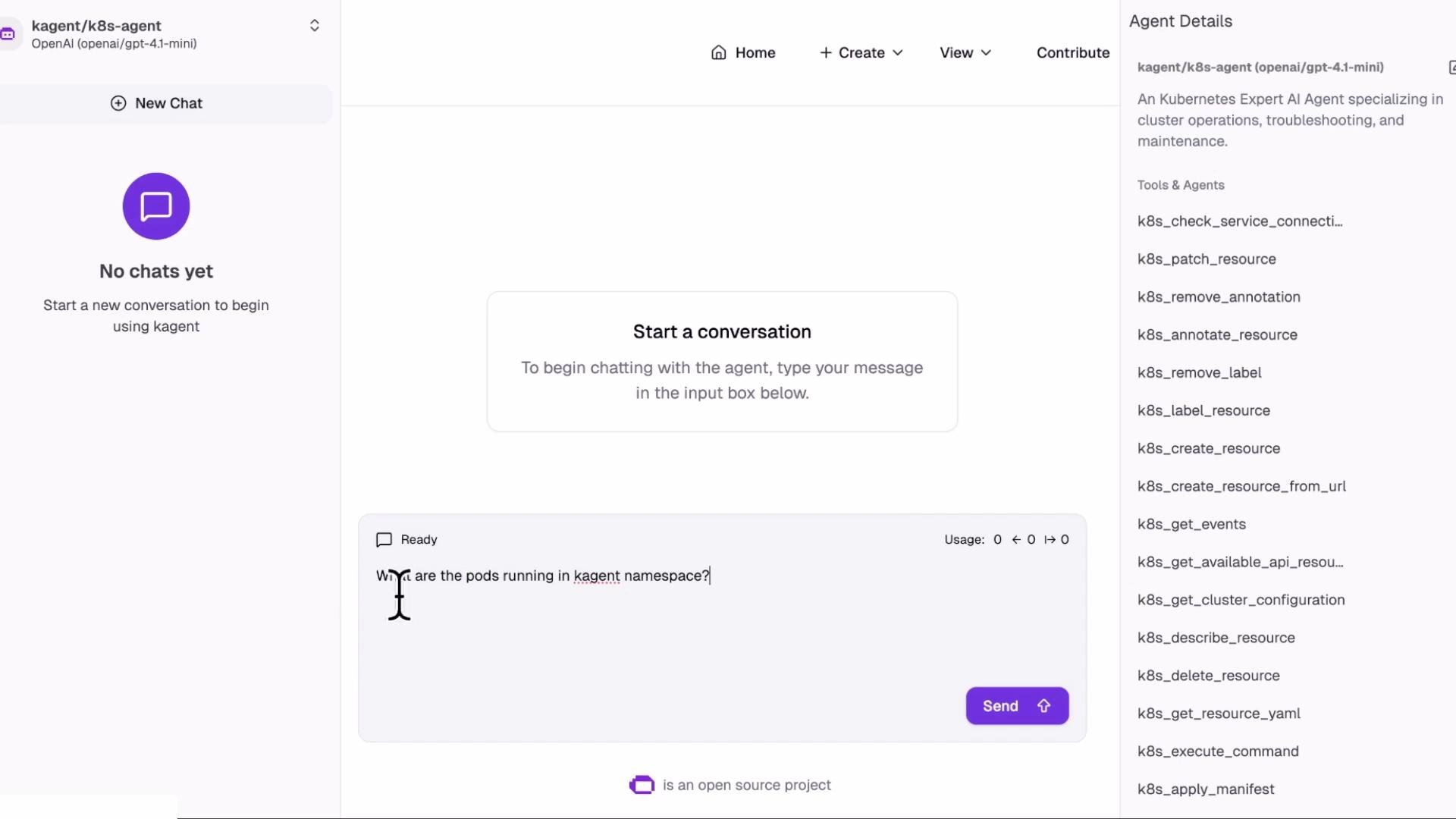
9) Interact with the K8s agent via UI
Use the KAgent UI to start a conversation with thek8s-agent. The right-side tool pane displays tools the agent may call (for example, GetResources which performs kubectl-like queries). From the UI ask:
“What are the pods running in kagent namespace?”
The agent will call the GetResources tool and return a pod list consistent with kubectl -n kagent get pods.
10) Invoke the agent via the kagent CLI
You can invoke the agent from the CLI for scripted or reproducible workflows. Example:-Srequests a streaming response (controller streams JSON status updates and final results).- Modify the text prompt to target different namespaces or resources:
11) Example: Ask agent to create a Service manifest (agent-driven action)
Agents can generate and apply manifests. For example, ask thek8s-agent to create a ClusterIP Service (without a selector) in the default namespace:
jq pipeline extracts tool names used in the response (for example, k8s_apply_manifest). After the agent finishes, verify the Service exists:
Useful commands & troubleshooting
Use these commands to inspect KAgent resources, logs, and cluster events while debugging or verifying behavior.If the UI or agent responses are not immediately available, allow a few seconds for pods to become ready and refresh the UI. Agents and tools often take a short time to initialize after a Helm upgrade.
This completes the lab for progressively installing KAgent, adding a ModelConfig, enabling built-in tools and the
k8s-agent, and interacting via the UI and CLI. Additional topics you can explore next include MCP servers and deploying custom MCP configurations using KAgent.